Federico Viticci

10761 posts on MacStories since April 2009

Federico is the founder and Editor-in-Chief of MacStories, where he writes about Apple with a focus on apps, developers, iPad, and iOS productivity. He founded MacStories in April 2009 and has been writing about Apple since. Federico is also the co-host of AppStories, a weekly podcast exploring the world of apps, Unwind, a fun exploration of media and more, and NPC: Next Portable Console, a show about portable gaming and the handheld revolution.

Dissecting The iOS 6 App Store
Dissecting The iOS 6 App Store

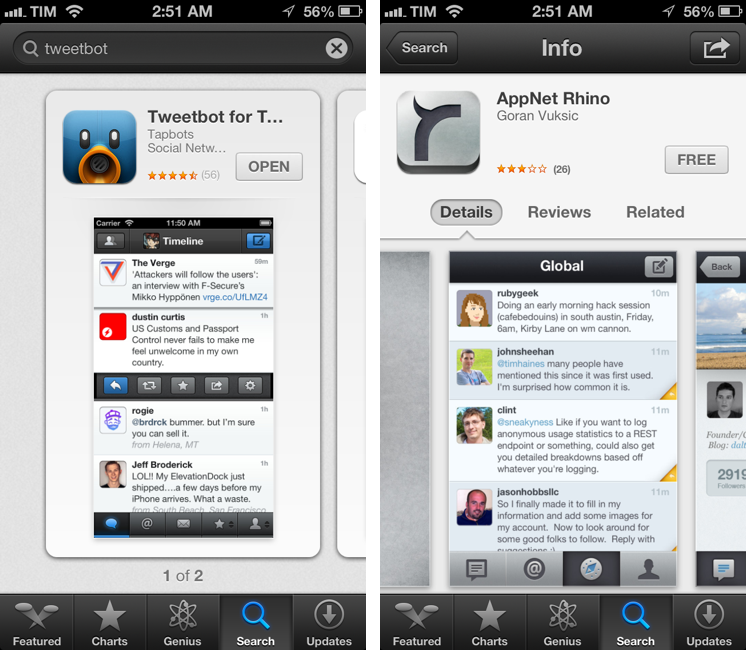
Justine Pratt has published (via TUAW) a very thorough overview of the new App Store in iOS 6.

The new AppStore, especially the cards, was really designed for the iPad and the faster processor of the iPhone5. Finally the stores on both devices are common, which should help increase the familiarity when browsing both stores. On older devices, the icons and graphics are slow to load and the cards are slow to scroll on the iPhone. This situation is only temporary, as new devices are released and adopted.

In my iOS 6 review, I took an extensive look at the App Store, its new features, and its most apparent shortcomings; Justine does a much better job at carefully analyzing every single section and change in App Store layout and category organization. I also learned a few tidbits from her overview, such as the new positioning of the “App Support” button next to reviews.

Interestingly, we both came to the conclusion that the new App Store seems to really be optimized for the iPad in terms of layout. In the past few weeks, following the release of iOS 6, I’ve heard quite a few people saying that the opposite was true – that the cards layout was meant for the iPhone first, and eventually brought to the iPad with a larger UI design.

Overall, the App Store still has several visible and deeply annoying bugs that hinder the performance of search, Genius, and Purchased History. Apple still hasn’t fixed many of these, and the improved speed of the iPhone 5 only partially contributes to making the browsing experience slightly better.

As I wrote in my review, there are still some noteworthy additions and changes for developers in the new App Store, so make sure to check out Justine’s article for a detailed analysis.

Permalink

Enforcing Rule 2.25

Apps that display Apps other than your own for purchase or promotion in a manner similar to or confusing with the App Store will be rejected

Earlier today, a number of people noticed a change in the App Store Review Guidelines that took place back on September 12. Specifically, Keith Andrew at PocketGamer noted how the new rule 2.25 could pose serious risks for any app that promotes other apps with direct linking.

The wording is typically vague, but clause 2.25 appears to give Apple carte blanche to put any app that promotes titles from a different developer out of action. At the moment, we understand Apple’s likely prime targets are pure app promotion services, such as (but not necessarily including) FreeAppADay, AppoDay, AppGratis, Daily App Dream and AppShopper, amongst others.

Matthew Panzarino at The Next Web and Darrell Etherington at TechCrunch followed up on the news of the late “discovery” with more details on possible implications and comments from developers of apps that might fall under rule 2.25.

There seems to be a lot of confusion on Twitter in regards to the exact scope of this new rule. In particular, due to some poor sensationalistic headlines that are unfortunately published on a regular basis, some are speculating Apple will start banning all apps that promote other apps or any kind of “aggregator” that collects links to multiple App Store apps. That’s just silly and simply not true. Read more


Visualize OmniFocus As iThoughts Map, OPML, Or Plain Text

iThoughts for OmniFocus

iThoughts for OmniFocus

A few weeks ago, Michael Schechter found a way to export an OmniFocus for Mac database to OPML to visualize it in mind-mapping apps like iThoughts and MindNode. In the post, he wrote that, however, he was reaching to the Mac community to see if anyone would be able to build a more powerful and reliable solution with filters, color options, and more control on the exported data. RobTrew picked up the task and, on the OmniGroup Forums, released an initial script to export from OmniFocus to OPML.

Then, yesterday, Rob released a new version of the script which adds native iThoughts support and plain text exporting options, as well as settings for colors, templates, and filters.

I tested Rob’s script with my OmniFocus database, and after several improvements he made to the script, I feel comfortable enough with linking to it here. Unlike other solutions, Rob’s script looks directly into the SQL OmniFocus database cache to get its data – quite a feat on its own. But there’s so much more the script can do if you start customizing it. Read more


60 Mountain Lion Tips

Published today, 60 Mountain Lion Tips is the latest entry in the MacSparky Field Guides series. Co-authored by Brett Terpstra and David Sparks, the book stands out for its clever use of iBooks 2.0 features (though a PDF version is also available) and embedded screencasts. There are 53 screencasts with 1.5 hours of video for a total of 60 tips organized in sections like Mountain Lion, Keyboard, Mail, and more.

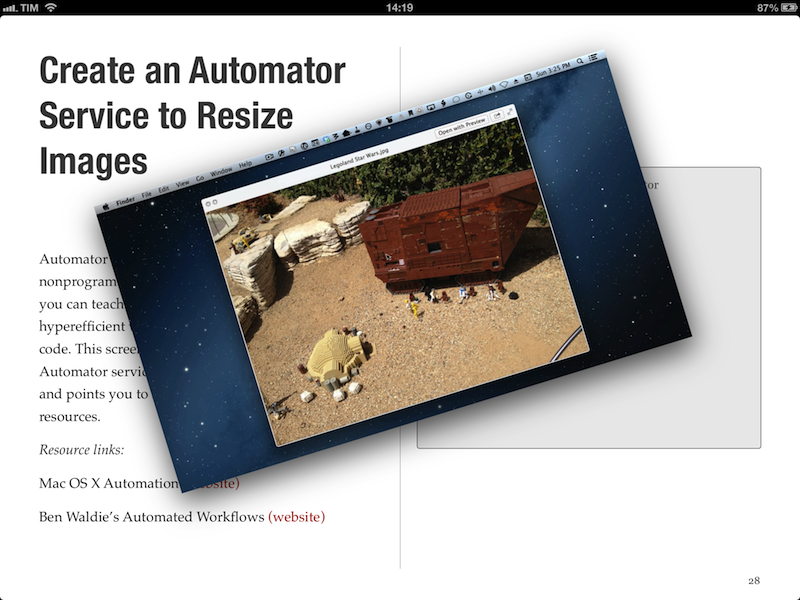
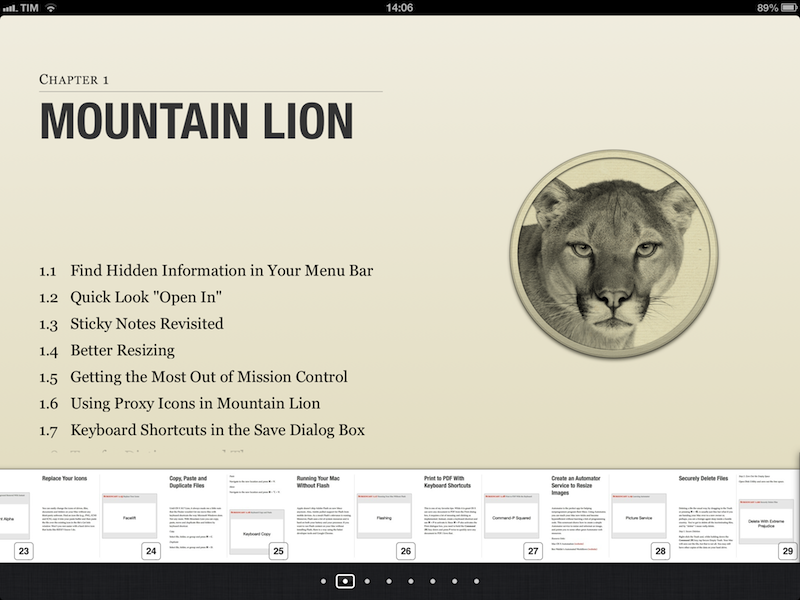
I was able to read the iBooks version on my iPad, and, as usual, everything’s just great. I’m a big fan of David’s screencasts (see here and here for examples), and the format of this new book makes for a quick consumption that, however, doesn’t lack in depth. The tips are laid out clearly on the left side as text (assuming you’re reading in landscape mode, which lets you see more of a page), and screencasts are available as video thumbnails on the right. Both text and video are clear, concise, and to-the-point. David and Brett do the voiceover, and the quality of the videos doesn’t disappoint – they are compressed, but not too much, so they’re still pleasant to watch on the Retina display. The videos contain both voiceover and system audio, as well as on-screen tips for keyboard shortcuts and menus.

The layout of the book is clean, and, like David’s previous Field Guide, compliant with the design standards of iBooks Author. For instance, you can navigate from a page to a chapter by pinching out, you can access a dedicated page for notes and highlights, and you can watch videos inline. Similar to Push Pop Press’ old physics engine, you can also “move” videos on the screen as they play. It’s not that useful, but it’s very cool.

More importantly, 60 Mountain Lion Tips is easy to read and, in just a few hours, I actually got a lot out of it. We had our own Mountain Lion tips in our first eBook, and yet this book taught me a few OS X tricks I didn’t know about. I especially appreciated the section on third-party app tips, which many roundups usually don’t cover (we didn’t).

60 Mountain Lion Tips is only $6.99. Check out the website here for more information and a link to the separate PDF purchase.


iPhone 5 Display Vs. Spectroradiometer

iPhone 5 Display Vs. Spectroradiometer

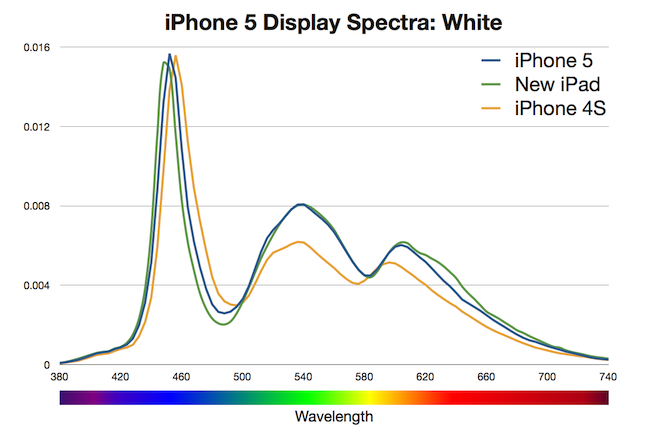
According to Apple, the iPhone 5 offers 44% more color saturation than the iPhone 4S. Jeff Yurek of dot color decided to put the claim under direct scientific inspection, and found out (through a spectroradiometer) that, indeed, the display is remarkably improved.

The 44% more color claim for the iPhone 5 is the same claim Apple made for the new iPad. As with the iPad, increasing the color performance of the iPhone 4S by 44% of NTSC 1953 gamut, measured using the CIE 1931 color space, would result in color saturation matching the sRGB color standard. Using these standards as the goal posts, we measured the iPhone 5 at 70% of NTSC 1953 in CIE 1931, a 39% increase from the iPhone 4S, which measured at 50%. That’s 5% less of an improvement than Apple’s 44% claim and just 99% of sRGB (measured against the sRGB primaries). While 5% less might seem like a big deal, getting to 99% of sRGB is a major feat and will result in tremendously noticeable color improvement in the phone. Additionally, color filters are notoriously difficult to manufacture.

I am no display expert, but from personal experience I can say I see a definite improvement of blues and greens on the iPhone 5. Just by looking at the App Store, Phone, and Messages icons on an iPhone 5 and iPhone 4S, you can see that the colors are more vivid and “real” on the new device. Yurek’s scientific measurements put this into better context with factual evidence.

Also worth linking is the photo set of retinal neuroscientist and photographer Bryan Jones. He took macro shots of the iPhone 5 and iPhone 4 to compare color quality, then put them both under a microscope to take a look at the pixels. Check out his results here.

Permalink

OmniOutliner, Plain Text, and Nebulous Notes

OmniOutliner, Plain Text, and Nebulous Notes

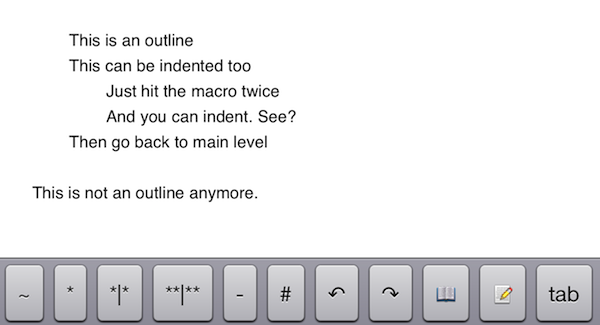
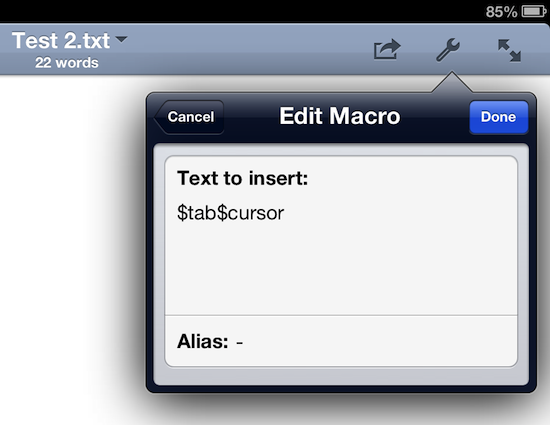
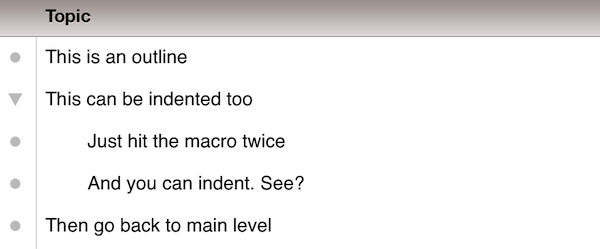
A few months ago, I asked if there was a way to produce plain text-based outlines and import them into OmniOutliner for iPad while preserving indentation. Today, Jeff Hunsberger has posted a nice overview of his setup, which doesn’t include OmniOutliner but relies upon the same “trick” I use – speeding up plain text outlining using Nebulous Notes’ macro functionality.

Just by setting up those few macros, I have create a fully-realized meeting outline tool in markdown using Nebulous Notes. The outline in the same format I’ve been using for years and is searchable, extensible and ubiquitous thanks to Dropbox. The beauty of this is, after the meeting is over, the notes I’ve just taken are ready back at my desk – they can be inserted into an email to the team with a simple copy/paste.

My workflow is only slightly different. Firstly, I usually outline in CarbonFin Outliner on the iPad (Tree on the Mac), but sometimes good ideas strike when I’m already in my text editor, thus requiring me to write them down as quickly as possible. What I end up with is a rough structure of my thoughts that I want to further refine in OmniOutliner. From there, I’ll then export as OPML to CarbonFin Outliner. It sounds convoluted – maybe it is – but this setup works for me. This is how I built the outlines for my Mountain Lion and iOS 6 reviews, and I’m always looking for improvements.

As I discovered, OmniOutliner for iPad wants to receive tab-delimited plain text. So, unlike Jeff’s, my macro doesn’t have hyphens, just a tab that I can hit as many times as I need to indent text into lines and children. Unfortunately, it doesn’t seem like tab-delimited plain text can handle notes, but that’s something I do in OmniOutliner or CarbonFin Outliner anyway.

I would love to see proper documentation for plain text import in OmniOutliner; for instance, while OmniOutliner can export to plain text, if you try to re-import what you exported (I know, I like to reverse-engineer plain text), OmniOutliner will lose indentation. Similarly, I’d like to see import/export options in CarbonFin Outliner, which is still lacking from this standpoint. As for Nebulous Notes, the latest 6.0 version lets you chain macros, which makes the app even better.

Check out Jeff’s plain text workflow for outlines here.

Permalink

Better Dropbox Camera Uploads with CameraSync

Two weeks ago I wrote about my new Dropbox-based workflow for photos. Towards the end of the article, I mentioned how I was handling uploads from my iPhone:

The official Dropbox app recently gained the capability of automatically uploading photos to the Camera Uploads folder: this means every time I go out and take some photos, I can come back home, open the Dropbox app, let it do its magic, then delete the photos from my iPhone. The photos will be uploaded to the Camera Uploads folder, and sorted using the same Hazel workflow described above.

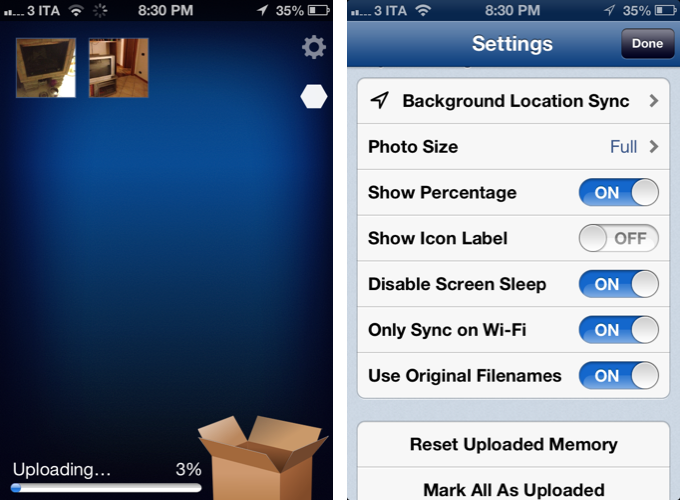
Thanks to a third-party app, I’ve managed to (partially) automate the process of uploading photos from my iPhone (and iPad) as soon as I get home. I’m now using CameraSync to upload photos to Dropbox automatically. Read more


iOS 6 and Developers

iOS 6 and Developers

Over at TidBITS, Matt Neuburg has posted a clear and concise overview of what iOS 6 means for third-party developers. Among the mentioned technical changes, he talks about UICollectionView:

The major new widget that will have the biggest impact on app interfaces is the collection view. A collection view is like a table view on steroids. A table view is the scrolling column of cells commonly seen in any master–detail app where a list must be displayed; Settings, Mail, and Music are familiar examples. A collection view breaks the bonds of the single vertically scrolling column, so you can expect, in short order, to see horizontally scrollable rows of data, multicolumn tables, and grids of information.

While web-based, some of the conventions of the new App Store in iOS 6 (horizontal-scrolling lists, grids) could be replicated with UICollectionView. I’d argue that many of the changes brought to the App Store are actually making some parts of search and discovery worse, but that’s not the point.

What matters is that, with each new version of iOS, developers are given more powerful tools to build new apps and refine existing ones. As I wrote in my piece about iOS 6, Apple understands “the importance of a healthy developer ecosystem that sets iOS apart from the competition”.

To get a good overview of the changes for developers in iOS 6, I recommend reading Matt’s article.

Permalink

Latest Dropbox Beta Brings Redesigned Menu

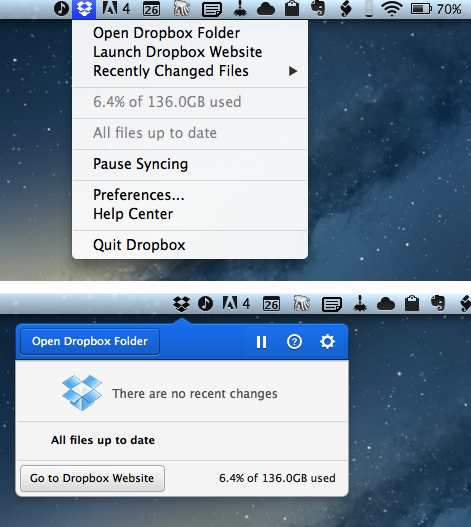
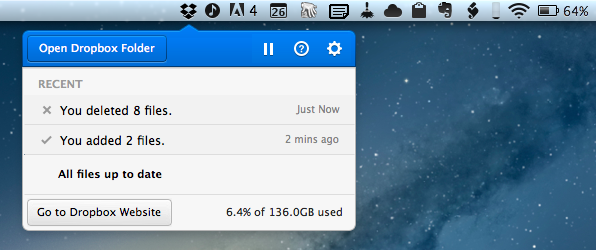
Announced last night on the public forums, the latest beta of Dropbox 1.5 for Mac brings a completely redesigned popup menu, support for Mountain Lion’s Notification Center, a new installer, and better performance.

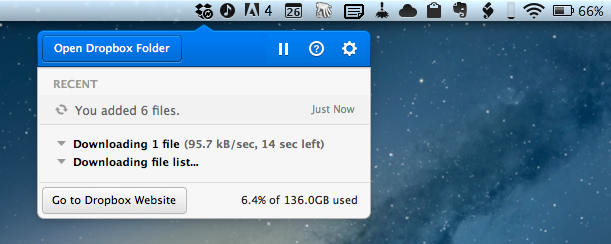
Sporting a new modern look, the redesigned popup menu is reminiscent of “popovers” that have become extremely popular among iOS developers. The new menu takes a more visual approach at displaying changes in your Dropbox, with icons for added or deleted files (that you can click to quickly go to Dropbox), a play/pause button for sync, and a large “Open Dropbox folder” to launch a Finder window at the “root” of your Dropbox.

This new popup combines all the functionality from the older tray menu with a new view of your Dropbox’s event stream, letting you see your (or other people’s) latest changes. In addition, you can use the events to easily view, share, or restore files.

Alongside the new appearance of Dropbox in the menubar, the team also says version 1.5 will bring full Notification Center support and a new, simpler installer for Mac users. The new installer works as advertised: you can simply double-click the icon for Dropbox to “update” itself to a new version. Unfortunately, while enabled in Notification Center, I haven’t been able to test the new notifications on the desktop, as I assume the functionality isn’t quite ready yet in this beta.

Personally, I think what Dropbox is showing in this experimental build is very promising. The popup menu was in need of a serious upgrade, and I’m looking forward to seeing how it will evolve throughout the next betas.

To download the latest Dropbox experimental build (and send feedback to the developers), you can head over the Dropbox forums.