
Federico Viticci

10758 posts on MacStories since April 2009

Federico is the founder and Editor-in-Chief of MacStories, where he writes about Apple with a focus on apps, developers, iPad, and iOS productivity. He founded MacStories in April 2009 and has been writing about Apple since. Federico is also the co-host of AppStories, a weekly podcast exploring the world of apps, Unwind, a fun exploration of media and more, and NPC: Next Portable Console, a show about portable gaming and the handheld revolution.

Siri Cheat Sheet

Brett Terpstra:

I also added a cheat sheet for Siri. I know it’s not the most useful thing in the world; how often are you sitting at your laptop or desktop when you want to use Siri? Still, I’d spent some time exploring and needed a way to practice the various command syntaxes so that I’d be able to use them without thinking so much after I hit the button.

While I always check out every project by Brett, I somehow missed this one. The Siri cheat sheet is part of a bigger collection called Cheaters:

Cheaters is a collection of HTML-based cheat sheets meant for display in an Automator-based popup browser which can float on your screen while you work in other apps.

I have already found some commands I didn’t know Siri supported. I am now wondering if any Italian ever made an Italian Siri cheat sheet as thorough as this one. (note: this is sad, but unsurprising)

I look forward to playing more with Cheaters. The way Brett calls the HTML file with Automator is particularly clever and extensible. Make sure to check out the other cheat sheets, which include MultiMarkdown and Sublime Text 2.
Permalink

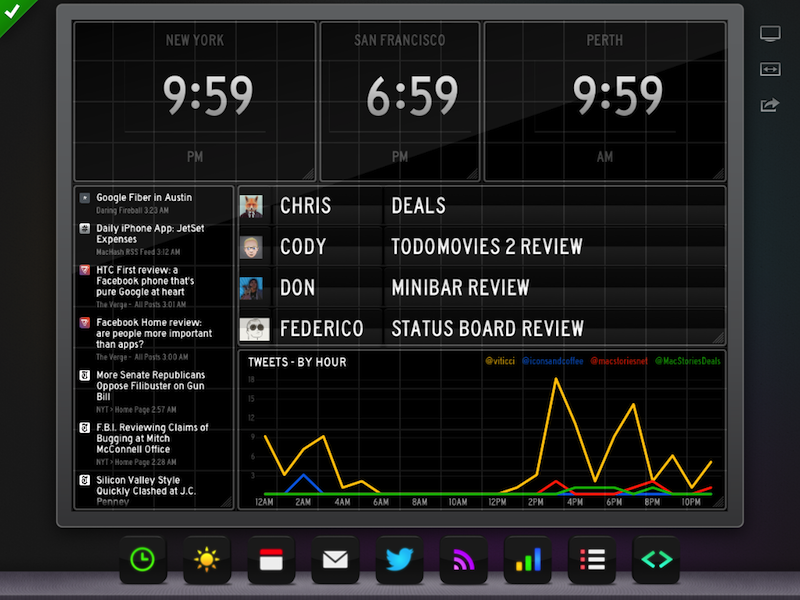
Status Board’s Samba de Setup

Cabel Sasser:

One of the things we wanted to make truly excellent in our brand-new Status Board iPad app was the setup process. Setup assistants are never fun, always annoying, and kill that “new app” buzz faster than anything. The only thing worse is that giant overlay some apps do that draw arrows all over your screen pointing to all the buttons and things like some demented football coach.

In my review, I likened the illustrations and tone of the QuickGuide Manual to Portal’s GLaDOS, but I forgot to mention the music. Now you can listen to it on Cabel’s blog. I want to make this my new iPhone ringtone.

Permalink

Chrome For iOS and “Save To PDF”

Chrome for iOS was updated yesterday with a couple of new features, and considering it’s become my daily browser on all my devices, I thought I should try them out.

The most notable addition is full-screen viewing for the iPhone version. As you scroll down a page, the Omnibox gets hidden; to view it again, simply swipe down anywhere on a webpage. I like the implementation, and I think Google is doing full-screen browsing better than Apple on iOS. More importantly, the status bar remains visible even with full-screen activated (I wish Rdio would do the same). I hope this initial iPhone-only full-screen mode will evolve into Google finally enabling a bookmarks bar on the iPad.

The other addition of version 26.0.1410.50 (I know, don’t ask) is printing. From the Print menu, you can now print webpages using AirPrint or Google Cloud Print. The changelog also mentions the possibility to save PDFs to Google Drive, and I find it curious that this functionality is hidden inside Google Cloud Print’s menu. MacStories readers know about my preference for PDFs and workflows to archive PDFs of webpages. Unfortunately, Chrome’s Drive integration leaves much to be desired: it kept timing out on my devices, and when it worked, a PDF was considerably reduced in quality (screenshot). I’ll keep using my own scripts to archive PDFs.

For a detailed overview of the update, I recommend reading Dan Moren’s piece for Macworld linked above.

Permalink

A Preview of the Apple Pop-Up Museum

Stephen Hackett has a nice overview of the Apple Pop-Up Museum, “an exclusive collection of Apple products to be shown in Atlanta”:

At the end of the first hall, there’s a room that stands out. While the hallway is bright and colorful, this room is dark, with the entrance painted black. In sparse white letters above the door, it reads “The Wilderness.”

The Apple Pop-Up Museum will be exhibiting on April 20 and April 21. Admission is only $10 per day and $15 for both days. My only experience with exhibitions of old Apple computers was an Apple I that was put on display in my town last summer. If I lived near Atlanta, I wouldn’t think twice about buying a ticket.

Permalink

Introducing Better Linked Posts

You may have noticed that I haven’t written much lately. In mid-March, I decided I needed to take some time off the site to rest and focus on some ideas and changes for MacStories that I’ve been thinking about for quite a while. I came to the conclusion that I need to be able to share more links to interesting news, apps, and articles here on MacStories. I want MacStories to be the place where readers can find our own articles as well as cool stuff produced by others. Read more


Panic Status Board Review

Status Board

Status Board

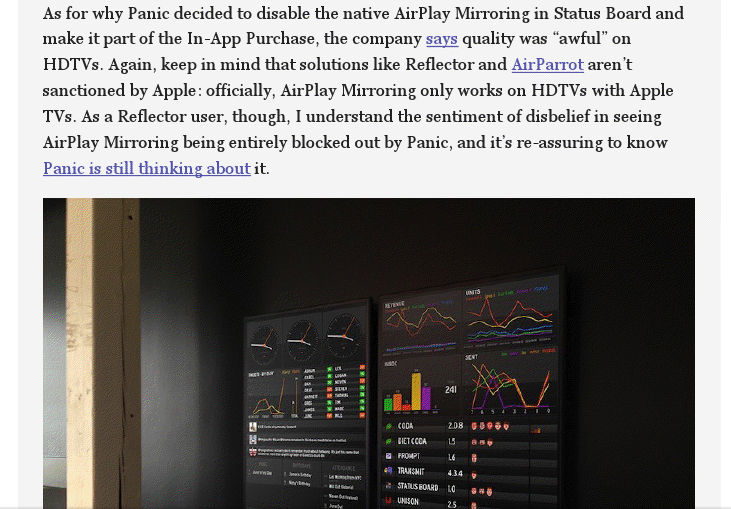
Since the introduction of the iPad three years ago, several developers tried to create second-screen experiences to leverage the device’s large display as a window for additional content coming from a user’s primary device – traditionally a desktop computer. It wasn’t clear at the time how an iPad could be used as a “creation device” – either because of a lack of apps or imagination – so developers started playing around with the idea of iPad as an external display, iPad as an alarm clock, or iPad as a digital weather station to place on a desk next to a Mac. As years passed and people started using the iPad as, effectively, a computer capable of real work, Apple still added functionalities related to screen-sharing to iOS: users could hook up the iPad to an external monitor for an even bigger second-screen experience, or connect apps and games to an Apple TV via AirPlay to display more information and data on the iPad’s screen.[1]

Panic’s latest app, Status Board, takes the concept of using the iPad as a desk accessory one step further by turning it into a dashboard for a variety of data that you’d normally check in dedicated apps or websites. Read more


Sponsor: MacPaw

Our thanks to MacPaw for sponsoring MacStories this week with CleanMyMac 2.

CleanMyMac 2 is the successor to MacPaw’s award winning system utility, rebuilt and redesigned from the ground up to make it easier than ever to remove the cruft that’s taking up unnecessary storage space on your Mac. CleanMyMac 2 scans your hard drive, looking for unneeded temporary files, unused caches, forgotten files, and even cleans up application-specific trash in applications like iPhoto. It can also optimize your iPhoto library, removing original versions of images that you’ve since modified while editing. CleanMyMac 2 even helps you take care of plug-ins and widgets, while ensuring applications are completely uninstalled.

CleanMyMac 2 is free to try, and a single license is available for only $39.95. A license for up to five Macs is only $89.95.

For families with PCs in addition to Macs there’s also CleanMyPC, which brings the same easy-to-use interface to the Windows desktop.


Sponsor: CrashPlan

My thanks to CrashPlan for sponsoring MacStories this week.

CrashPlan lets you backup your data to your own computers and hard drives or friends & family with no storage limits. CrashPlan gives you the peace-of-mind that only comes with continuous, minute-to-minute backup. CrashPlan has been a favorite of the Mac community for years because of its “set it and forget it” ease of use and ability to provide continuous, minute-by-minute backup without interfering with normal Mac operations. Using sophisticated byte pattern analysis and data de-duplication to detect file changes, CrashPlan preserves multiple versions of files; if you don’t want to always use your Mac, the files you were just working on minutes ago can be accessed from our phone or tablet using CrashPlan’s free mobile apps.

Find out more about CrashPlan here.


Sponsor: Doxie

My thanks to Apparent for sponsoring MacStories this week with Doxie.

Doxie is an award-winning scanner that works anywhere – no computer required – and then syncs to your Mac, iPad, and various cloud services. Doxie’s small and portable hardware comes in two models: Doxie One and Doxie Go. The Doxie’s scanning process is simple: just push a button and insert your sheet of paper to save it thanks to the Doxie’s built-in battery and memory chip.

I have been using a Doxie Go since January 2012. My paperless workflow consists of scanning quick receipts with the iPhone’s Camera and larger documents with the Doxie Go. The Doxie provides high-quality scans that I import with the Doxie Mac app, which provides an option to save PDFs with or without OCR; on the Mac, I then save everything to Evernote directly from the Doxie app. The Doxie Go is the only scanner I’ve ever owned and I’m very happy with it.

Learn more about Doxie here.