Federico Viticci

10635 posts on MacStories since April 2009

Federico is the founder and Editor-in-Chief of MacStories, where he writes about Apple with a focus on apps, developers, iPad, and iOS productivity. He founded MacStories in April 2009 and has been writing about Apple since. Federico is also the co-host of AppStories, a weekly podcast exploring the world of apps, Unwind, a fun exploration of media and more, and NPC: Next Portable Console, a show about portable gaming and the handheld revolution.

Introducing S-GPT, A Shortcut to Connect OpenAI’s ChatGPT with Native Features of your iPhone, iPad, and Mac

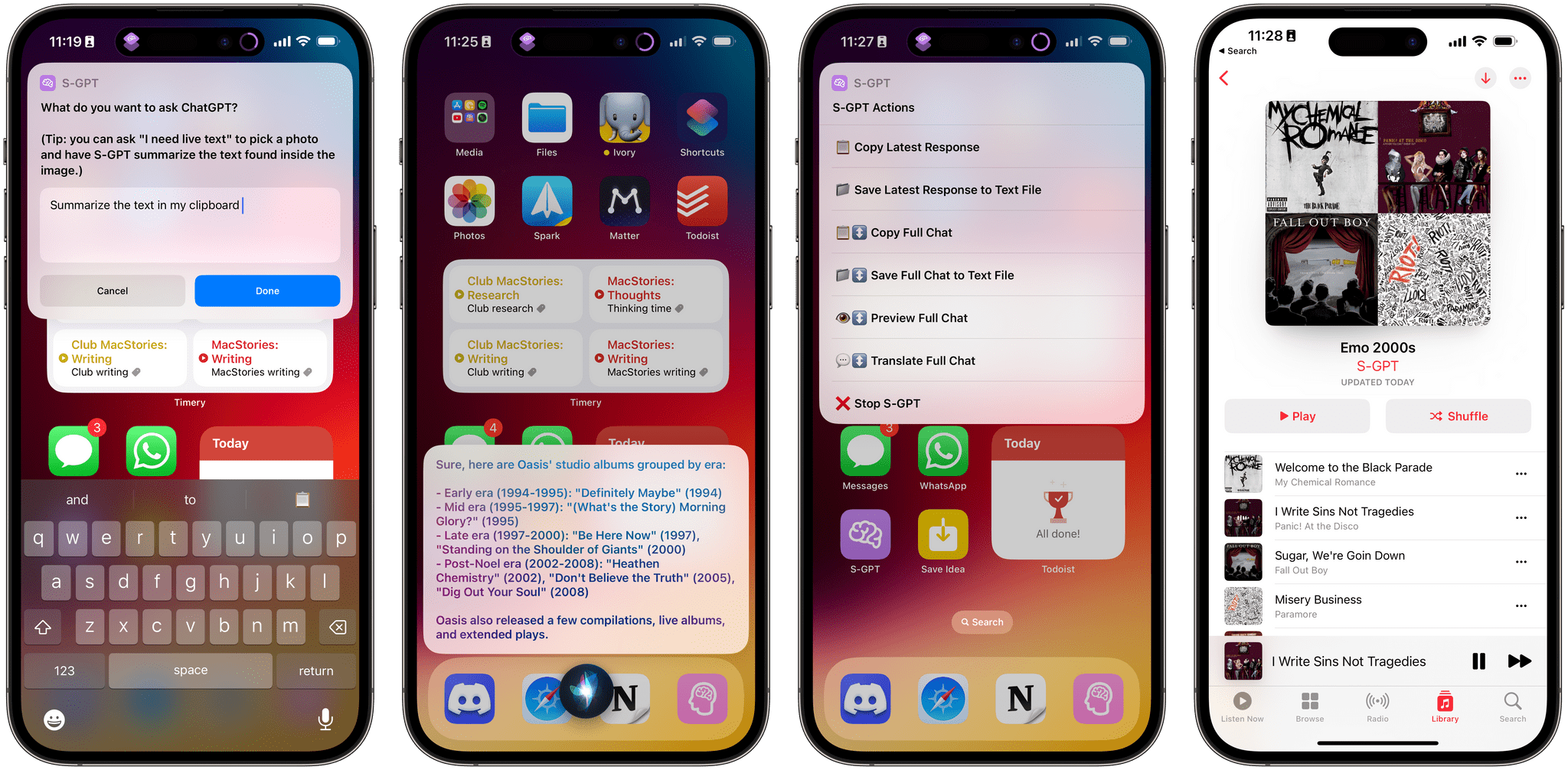
S-GPT for Shortcuts.

S-GPT for Shortcuts.

It’s the inaugural week of the second annual edition of Automation April, and to celebrate the occasion, I’ve been working on something special: today, I’m introducing S-GPT, an advanced conversational shortcut for ChatGPT that bridges OpenAI’s assistant to native system features of iOS, iPadOS, macOS, and watchOS.

S-GPT (which stands for Shortcuts-GPT) is free to use for everyone, but it requires an OpenAI account with an associated pay-as-you-go billing plan since it takes advantage of OpenAI’s developer API, which has a cost. S-GPT was built with the latest ChatGPT API, and it can be used both with the existing ChatGPT 3.5 model or – if you have access to it – the ChatGPT 4 API.

While the shortcut is free for MacStories readers, I will be publishing a detailed, in-depth Automation Academy class soon for Club MacStories Plus or Premier members to explain the techniques and strategies I used to build this shortcut. I genuinely think that S-GPT is, from a technical perspective, my best and most advanced work to date; I hope my Academy class will help others learn some useful tips for Shortcuts and, in return, make even better automations for our contest.

With that said, let’s look at what S-GPT is and what you can do with it.

Read more


Automation April: Shortcuts Check-In

AppStories+ Deeper into the world of apps

AppStories Episode 323 - Automation April: Shortcuts Check-In

0:00
36:32

AppStories+ Deeper into the world of apps

This week, Federico and John check in on the shortcuts they use the most and the types of tasks they get the most bang for the buck from by automating.

Read more


Sending Custom Push Notifications with Alerty and Shortcuts

Earlier this week on MacStories, I mentioned Alerty, a relatively new web service that allows you to send push notifications to an API and have them delivered to all your devices signed into the Alerty website. What’s unique about Alerty, and the reason why I wanted to do something with it this Friday, is that...


The Potential of Obsidian Bookmarks

As I recently mentioned on both AppStories and Connected, I’ve been using Notion as my note-taking app for the past few months. There are various reasons behind this experiment: The huge letdown of Stage Manager last year set me down a path of experimentation with all kinds of hardware and software in my life to...


Using ‘Phone Link’ Between iOS and Windows for iPhone Notifications and iMessage

I enjoyed this explanation by The Verge’s Tom Warren on how Microsoft’s Phone Link app – which has long allowed Android users to connect their smartphones to a Windows PC – has been updated to support iOS notifications and sending texts via iMessage. From the story:

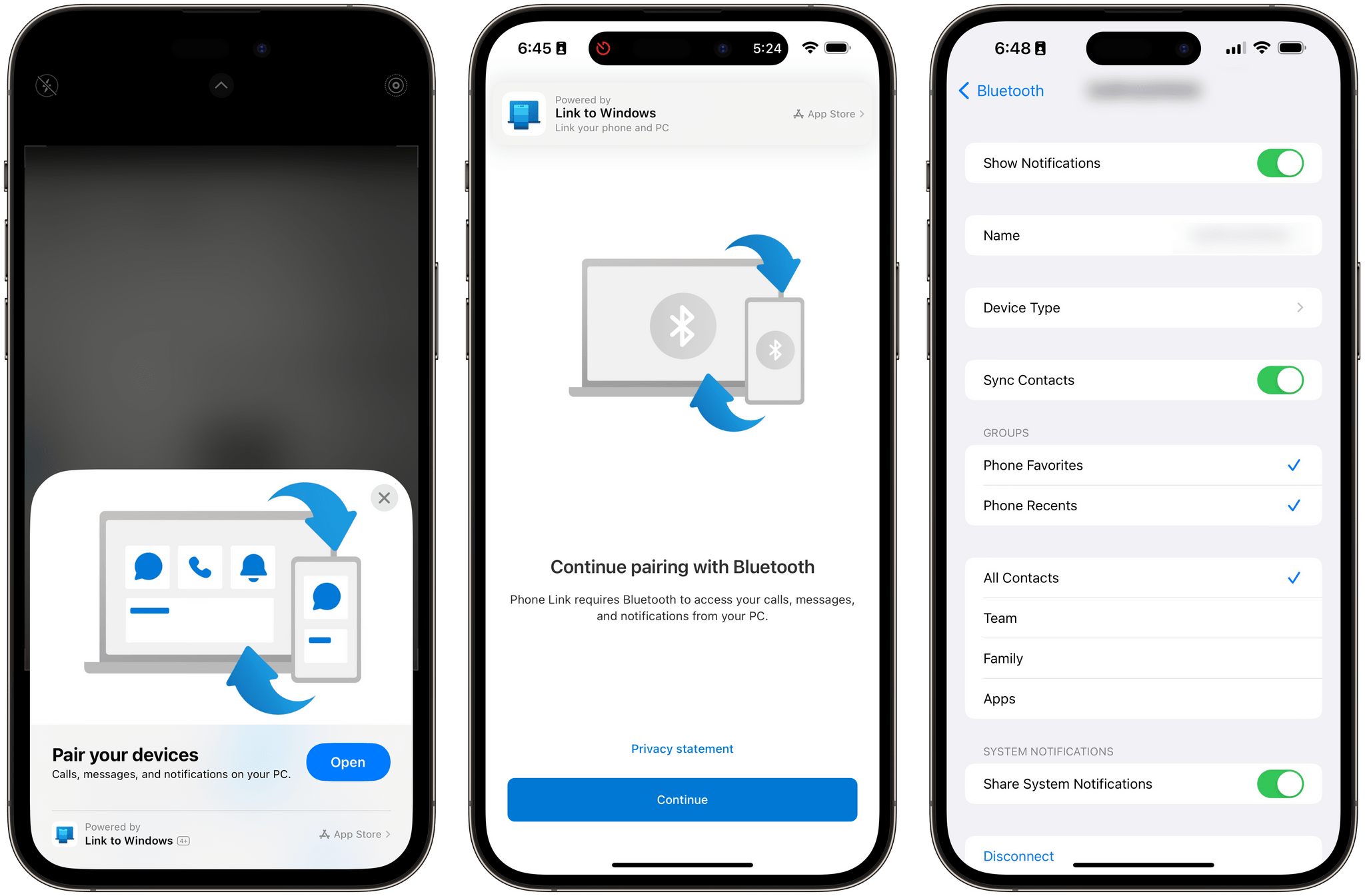
The setup process between iPhone and PC is simple. Phone Link prompts you to scan a QR code from your iPhone to link it to Windows, which automatically opens a lightweight App Clip version of Phone Link on iOS to complete the Bluetooth pairing. Once paired, you have to take some important steps to enable contact sharing over Bluetooth, enable “show notifications,” and allow system notifications to be shared to your PC over Bluetooth. These settings are all available in the Bluetooth options for the device you paired to your iPhone.

And:

Microsoft’s Phone Link works by sending messages over Bluetooth to contacts. Apple’s iOS then intercepts these messages and forces them to be sent over iMessage, much like how it will always automatically detect when you’re sending a message to an iPhone and immediately switch it to blue bubbles and not the green ones sent via regular SMS. Phone Link intercepts the messages you receive through Bluetooth notifications and then shows these in the client on Windows.

I got access to the updated version of Phone Link on my PC today, and this integration is pretty wild and it actually works, albeit with several limitations.

First, the setup process is entirely based on an App Clip by Microsoft, which is the first time I’ve seen and used an App Clip in real life. Essentially, my understanding is that this works similarly to how an iPhone can pair with an old-school Bluetooth car system: the iPhone and PC pair via Bluetooth, and you can then provide the PC with access to your notifications and contacts from iOS’ Bluetooth settings. This is the same UI I have for my KIA Sportage’s system, which uses regular Bluetooth to pair with my iPhone and can also display contacts and missed calls.

The setup process based on an App Clip.

The setup process based on an App Clip.

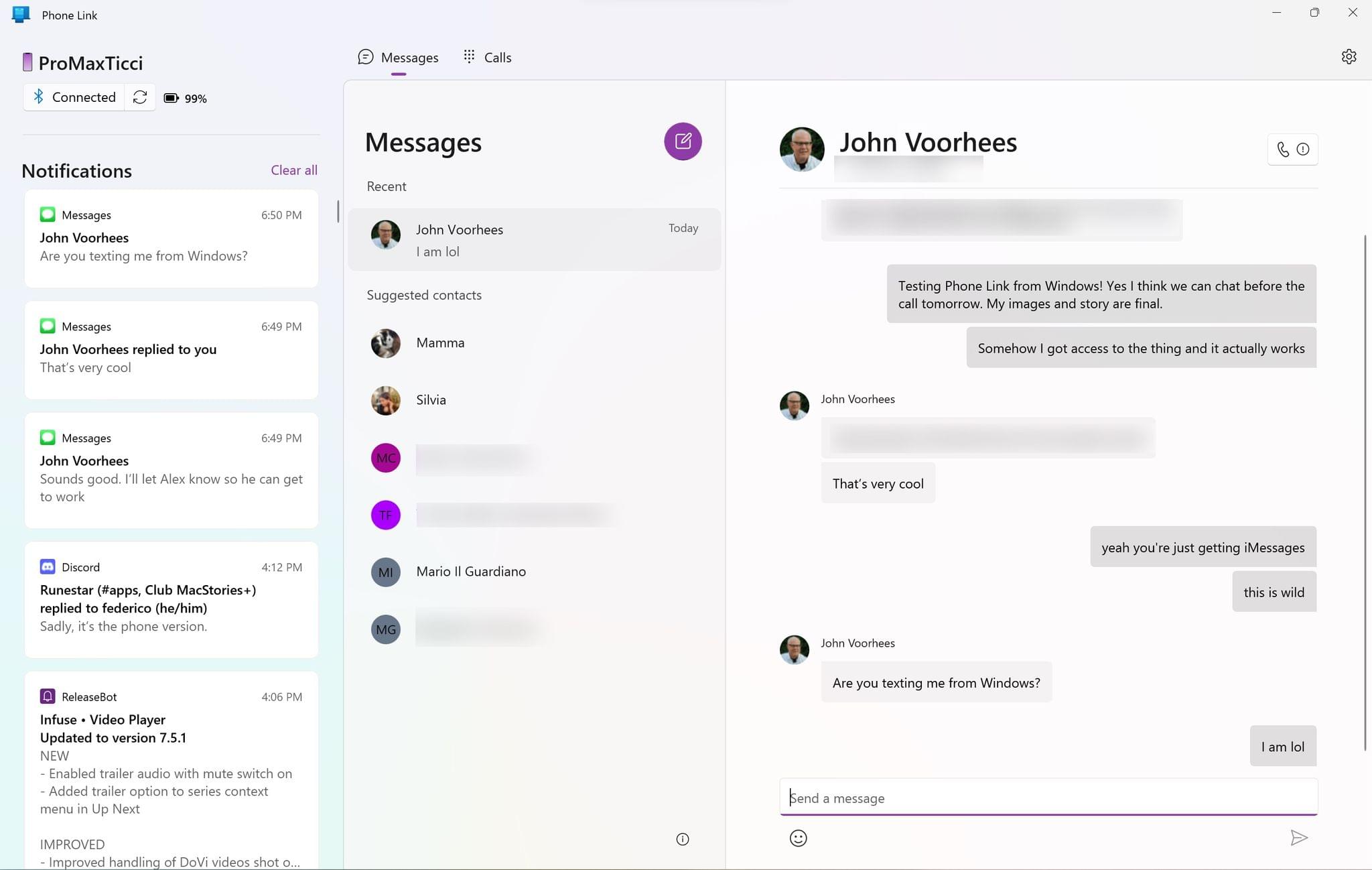
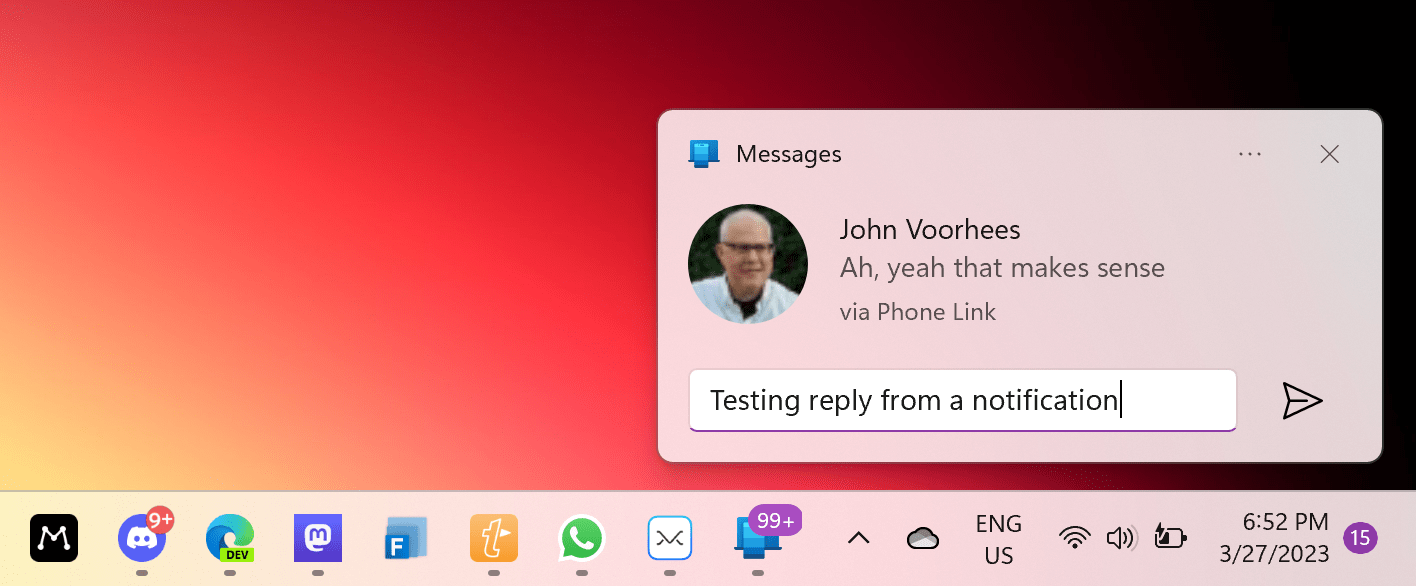
The difference between my car and Phone Link, of course, is that with Phone Link you can type text messages from a PC and they will be sent as iMessages on iOS. This bit of dark magic comes with a lot of trade-offs (check out Warren’s full story for the details on this), but it works for individual contacts. I’ve been able to start a conversation with John, reply to his messages from Windows notifications, and even send him URLs1, and they were all correctly “intercepted” by iOS and sent over as iMessages. I’ve also been impressed by the ability to clear notifications from a PC and have them go away on iOS’ Lock Screen immediately.

The Phone Link app paired with my iPhone.

The Phone Link app paired with my iPhone.

This was then sent as an iMessage.

This was then sent as an iMessage.

The limitations of Phone Link for iPhone users mean you’ll always have to fall back to the actual iOS device for something – whether it’s posting in an iMessage group or sending a photo or acting on notifications – but for quick messages, glancing at notifications, and clearing them, I think this integration is more than good enough.


  1. Fun fact: raw URLs sent from Windows are delivered as rich links from iMessage, but the card’s preview doesn’t load by default on the recipient’s device. 
Permalink

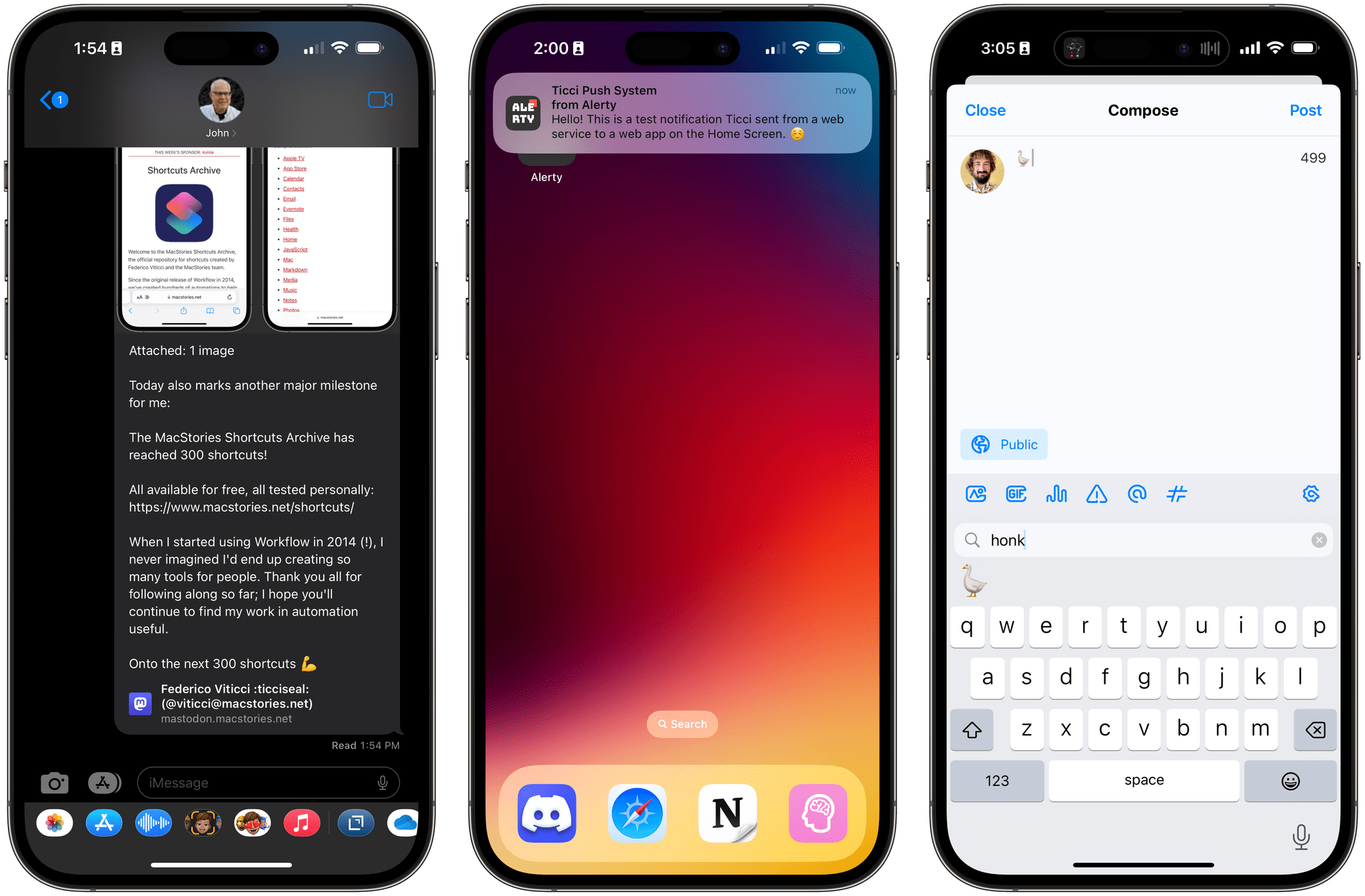
Apple Releases iOS and iPadOS 16.4 with New Emoji, Notifications for Web Apps on the Home Screen, Voice Isolation for Cellular Calls, New Shortcuts Actions, and More

iOS 16.4 brings new emoji, push notifications for web apps on the Home Screen , Mastodon link previews, and more.

iOS 16.4 brings new emoji, push notifications for web apps on the Home Screen , Mastodon link previews, and more.

Today, Apple is releasing iOS and iPadOS 16.4, the fourth major updates to the OSes that introduced support for the customizable Lock Screen and Stage Manager last year, respectively.

Ahead of the debut of Apple Music Classical tomorrow and just a few months before a WWDC that’s rumored to be focused on the company’s upcoming headset and a relatively small iOS 17 update, 16.4 is comprised of two big additions to iOS and iPadOS (new emoji and push notifications for web apps on the Home Screen) alongside a variety of smaller, but notable improvements such as some new Shortcuts actions, Mastodon link previews in iMessage, some tweaks to Podcasts and Music, and more.

Let’s take a look.

Read more


A Classic Pick 2

AppStories+ Deeper into the world of apps

AppStories Episode 322 - A Classic Pick 2

0:00
44:21

AppStories+ Deeper into the world of apps

This week, Federico and John each pick two apps they’ve been enjoying recently and explain why.

Read more


Revisiting RSS

AppStories+ Deeper into the world of apps

AppStories Episode 321 - Revisiting RSS

0:00
51:09

AppStories+ Deeper into the world of apps

This week, Federico and John revisit RSS to talk about how syncing services and apps have changed and share how their use of RSS has evolved.

Read more