
Federico Viticci

10759 posts on MacStories since April 2009

Federico is the founder and Editor-in-Chief of MacStories, where he writes about Apple with a focus on apps, developers, iPad, and iOS productivity. He founded MacStories in April 2009 and has been writing about Apple since. Federico is also the co-host of AppStories, a weekly podcast exploring the world of apps, Unwind, a fun exploration of media and more, and NPC: Next Portable Console, a show about portable gaming and the handheld revolution.

Evernote for Mac Gets Direct Skitch Integration

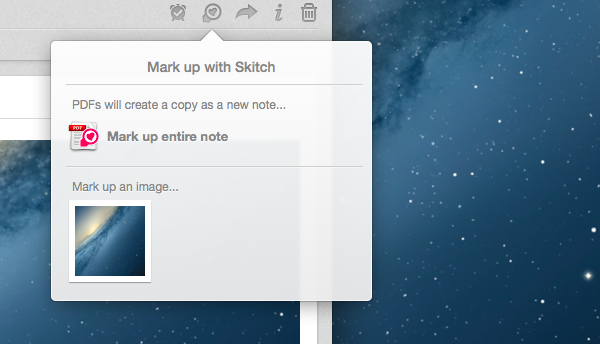
Evernote and Skitch

Evernote and Skitch

With a new version released today, Evernote has updated its Mac app to include a brand new communication layer with Skitch, the company’s image/document annotation and sharing tool.

When Evernote acquired Skitch in the summer of 2011, I wondered how they would manage to deeply integrate the two apps in a way that would make storing a note and annotating it a seamless experience. In the past two years, Evernote focused on revamping its desktop and iOS clients and on launching a new version of Skitch with Evernote integration – meaning that Skitch could sync notes to Evernote, and those notes would show up inside an Evernote notebook with inline previews and changes, but Evernote couldn’t direct plug into Skitch for further editing. Here’s what I wrote in 2011:

According to Evernote, the engineers at the two companies will be working closely in the coming months to deeply integrate Skitch and Evernote with each other, as right now the only way to let the apps communicate on a Mac is by annotating an image in Skitch, and manually drag it into Evernote. It wouldn’t be a surprise if the app gained a feature to push annotations to Evernote’s cloud to avoid drag & drop — considering the app is coming to mobile devices, this has been certainly considered by the Evernote team.

Users could drag and drop images between Evernote and Skitch, but that would result in duplicate files and wasted storage space – an issue that was exacerbated by iOS’ inferior sharing capabilities and limited “Open In” menu. In short, it always struck me as unusual that Evernote couldn’t figure out a way to let its apps “talk” to each other, avoiding manual interaction in favor of simple, intuitive inter-app communication that treated Evernote as a storage space and browser, and Skitch as an editor.

Today’s Evernote 5.2 for Mac does exactly this, and quite admirably as well. I have been testing the new version, which has gained a new Skitch button in the note editor that allows you to send any note – either as text, image, or combination of both – directly to Skitch for editing. When you’re done annotating in Skitch, you can send a file back to Evernote – and not just back to Evernote’s cloud, but back to the Evernote app itself, which will automatically come in the foreground again, showing the new version of an image/document already inside a note. Read more

Watermarker 1.2 with Editable Custom Image Watermarks

I first looked at Watermarker, developed by my friend and colleague Don Southard, back in January when version 1.1 added batch processing:

Watermarker provides a simple and automated way to add watermarks to images. You can choose between various options including text, your own logo, or even a customizable strikethrough. The app has a clean interface with the “canvas” (the area where you can drop an image) displayed on the left, and watermarking settings on the right. I like how you can save presets (so I can have one for my “large” MacStories watermark, another one for the smaller version), and the fact that an image’s size is reported right below its preview.

Version 1.2 of the app, released today, comes with several enhancements for custom image watermarks, which are now editable. You can resize an image watermark that you want to place on top of other images through a pinch-to-zoom gesture or manual controls. Aside from the default positions, you can also click to drag a watermark around or use the arrow keys for additional precision. I’m happy with the feature because I often end up with watermarks that are either too big for a screenshot/photo, or that I would like to position elsewhere on an image.

You can check out Watermarker here. The app is available at $7.99 on the Mac App Store.

Permalink

CoolIris for iOS Adds Evernote Integration

Gabe Weatherhead on CoolIris’ latest update:

There is now support for connecting with Evernote. Importantly, it can be configured to show photos for a specific tag as well, searches or all photos. This is a nice option for using Evernote as a photo locker. I’m loving it for the scans of my daughter’s school art I collect in Evernote.

This is an interesting idea – I imagine I could plug CoolIris into Evernote’s “skitch” tag to view a stream of my Skitch notes, or perhaps the “Paperless” notebook to view the most recent receipts and bills I have scanned. I don’t use Evernote as a photo locker (my photos are all backed up to Dropbox, shared through Instagram and backed up with IFTTT, or uploaded to Droplr), so I guess I would only rely on CoolIris for screenshots or documents archived as images.

Permalink


Getting Safari’s Selection on iPad As HTML With A JavaScript Bookmarklet

I modified this bookmarklet posted by “Tim Down” on StackOverflow to send selected text from Safari to Drafts as HTML. The result is the following code:

javascript:(function(){var%20h="",s,g,c,i;if(window.getSelection){s=window.getSelection();if(s.rangeCount){c=document.createElement("div");for(i=0;i<s.rangeCount;++i){c.appendChild(s.getRangeAt(i).cloneContents());}h=c.innerHTML}}else%20if((s=document.selection)&&s.type=="Text"){h=s.createRange().htmlText;}window.location='drafts://x-callback-url/create?text='+(h);})()

So let’s say you want to grab the first paragraph in this post. Normally, in Safari for iPad you’d end up with the plain text fetched by window.getSelection:

This is a fantastic report with lots of data points for any developer trying to get their apps featured by Apple. Dave Addey’s highly interactive regional graphs and notes are very well done. Be sure to check out Dave Addey’s other works on his main blog.

As you can see, formatting and hyperlinks have been removed. With the bookmarklet above, you’ll receive the HTML version of the selection – which looks like this. But what’s the point?

My idea was that I wanted to be able to automate the process of capturing rich text from iOS’ Safari; I wanted to achieve the same kind of functionality I have on the Mac, where rich text can be dragged from Safari or Chrome and dropped into Evernote, preserving styles, hyperlinks, and images. I thought that combining HTML output with an Evernote Append action (with the “Send as Markdown HTML” option turned on) would let me receive valid HTML content in Evernote starting from an iOS workflow. And, for the most part, I was right, because the workflow does mostly work.

As it turns out, Evernote is extremely cautious with the HTML tags they accept, and the ones that are supported follow the XHTML guidelines as ENML is a superset of XHTML. This means that my bookmarklet will work for something as simple as selecting a single paragraph, but may easily fail with multiple selections, inline images, complex styles, and so forth. When that will happen, Drafts will return an error when trying to append HTML to Evernote; obviously, this will work just fine with Dropbox, which doesn’t care about the kind of text you’re using in your actions. Even better, this should work very well with Textastic’s just-released update that supports x-callback-url.

I guess the solution would be to build a Pythonista-based converter for Evernote-approved XHTML tags and place it between Safari and Drafts, converting HTML tags Evernote won’t like to compatible ones. If you’re interested, my birthday is August 10.

Permalink

Twitter for iOS Adds DM Sync, Twitter for Mac Updated with Connect Timeline

In an update released today, Twitter brought direct message sync to its official iOS app. As explained by the company in the release notes, reading a DM in Twitter for iOS will now automatically mark it as read in Twitter for Mac, the Twitter website (both desktop and mobile versions), TweetDeck, and Twitter for Android.

It’s not clear whether DM sync will ever be made available for third-party developers through the API; right now, it’s a nice plus for users who receive several direct messages on a daily basis and use the official Twitter apps. It’ll also be interesting to see if Twitter will eventually consider syncing timeline position across apps – something that third-party apps like Tweetbot and Twitterrific are capable of using solutions like iCloud or Tweet Marker.

Twitter for Mac has also been updated to version 2.3 today, adding a Connect timeline for viewing tweets that have been retweeted or favorited, as well as new followers. Interactions can be viewed with notifications in real time, and the app also supports DM sync.

Last, in a blog post, Twitter details the search improvements they’ve made to simplify user discovery and retrieve new tweets:

For Android, iPhone, iPad and mobile.twitter.com, we’re making more improvements to search results. Now when you search for people on Twitter, you may see an expanded user result that shows a full bio. This account preview makes it easier and faster to find and learn more about the accounts you’re looking for. And if you swipe the preview to the left, you’ll find similar accounts –– for example, if you search for the MLB, you’ll see suggestions for ESPN, Ken Rosenthal, and other MLB-related accounts. Additionally, a new in-app indicator in search results will show you when there are new Tweets for your query, making it easier for you to stay up to date on the latest Twitter conversation.

Twitter 5.8 is available on the App Store; Twitter for Mac 2.3 is available on the Mac App Store.

Permalink

Apple Celebrates 5 Years of App Store With Free App Promotion, Timeline

Ahead of the App Store’s fifth anniversary on Wednesday, July 10, Apple has launched a new promotion that includes five “groundbreaking” iOS apps and five “landmark” iOS games; these apps will be available for free for a limited time to celebrate the first five years of App Store. Apple has posted an official page with links to download the apps and games on iTunes.

From the 500 apps available at launch in 2008 to the more than 900,000 at your fingertips today, it’s been a remarkably prolific five years for the App Store. To celebrate, we’re giving everyone five landmark games and five groundbreaking apps for a limited time. Plus, look back at the key moments that have made the App Store the world’s most innovative destination for apps.

The apps and games picked by Apple include Day One (a journaling application with an OS X counterpart that was named “Mac App of the Year” in 2012), award-winning game Badland, Infinity Blade II, Superbrothers: Sword and Sworcery EP, Over, and Traktor DJ. Read more


Enhancing Reminders with AppleScript and Macros

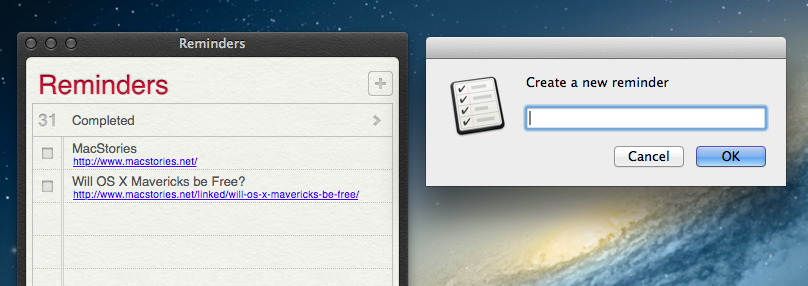
As The Omni Group keeps working on OmniFocus 2 for Mac and Apple continues seeding new betas of iOS 7 and OS X Mavericks to developers, I have been reconsidering Reminders’ simplicity and enjoying the built-in iCloud sync, which, unlike other types of iCloud, is working fine for me. However, two things I miss from OmniFocus are the possibility to integrate the app with a web browser through bookmarklets and the system-wide Quick Entry panel; I use both tools on a daily basis to easily save a browser’s tab into OmniFocus’ Inbox, or to bring up a text field where I can jot down an idea and know that, no matter the app I’m using, it’ll be saved into OmniFocus. Luckily for me, Apple’s Reminders app comes with a good AppleScript Dictionary, which is likely something that Reminders’ core mainstream audience won’t ever care about, but that we can leverage to extend the app’s capabilities and input areas beyond Mountain Lion’s leather-and-paper window.

Read more


Automating Mail Signatures and Senders with AppleScript and Keyboard Maestro

Mail Keyboard Maestro

Mail Keyboard Maestro

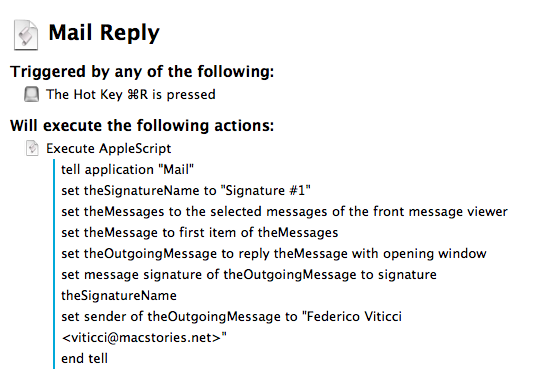
I’m aware of the fact that it’s a common trend to call email a “nightmare” these days, but the truth is – email works for me. I have multiple addresses set up, I have my filters and smart folders to automate the process of filing and finding emails, and I’m enjoying the renewed interest of iOS developers in building email apps that solve old problems in new ways. But there is one thing I don’t like: Apple’s Mail app and how many clicks it takes to switch between configured accounts and signatures. As you can guess, I came up with a way to automate the process using AppleScript and (optionally) Keyboard Maestro.

I receive several messages every day to different email addresses, but I always want to reply with the same address and the same signature. Apple’s Mail app makes it easy to see all messages sent to all accounts with the unified Inbox, but it makes it surprisingly hard to set default accounts and signatures that should always be treated as, well, default ones. I don’t want to click on menus for accounts and signatures: I want to hit ⌘R and receive a new Reply window with the account and signature I want already set. Read more