


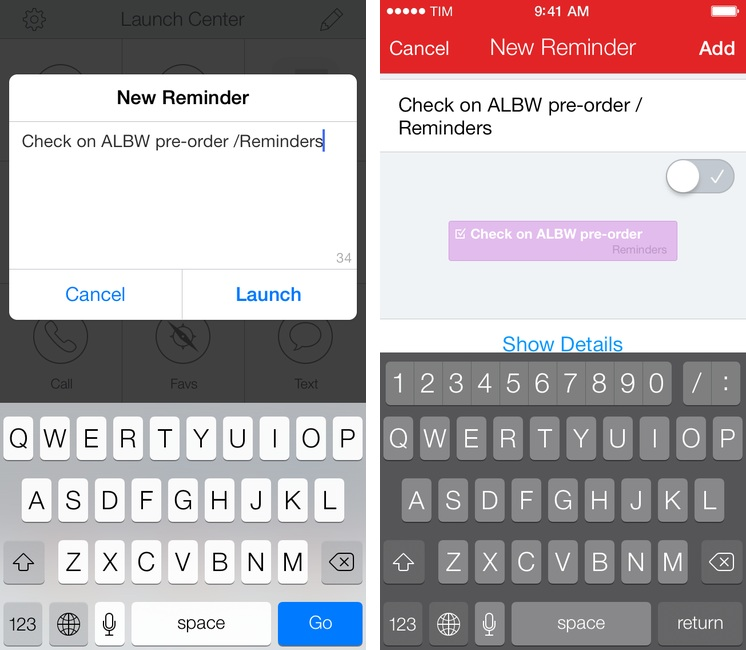
Fantastical 2 is the best calendar app for iPhone, and in my review I focused on the aspects that made it a more powerful and elegant solution than Apple’s Calendar and Reminders combined. Today’s 2.0.1 update brings, among bug fixes and improvements, two nice changes that I’d like to point out as they’ve made Fantastical even better for me.
Anand Lal Shimpi On The iPad Air vs. iPad mini→
The biggest in my eyes is the iPad Air’s wider gamut display with full sRGB coverage. The mini’s Retina Display is good, the Air’s is just better. There’s also more thermal headroom on the iPad Air, which can come in handy if you’re doing compute intensive work on it. If neither of those things matters to you, then the decision becomes one of usage model and portability. I believe the iPad Air does a better job of approximating a primary computing device, particularly in its ability to give you a reasonable sized virtual keyboard to work on. The iPad mini on the other hand is substantially more portable. Although the iPad Air is light enough to come along with me more than any prior iPad, the mini’s form factor makes it even more likely that’ll I’ll bring it with me (the best tablet is the one you have with you?).
In spite of my snark, I do agree with readers who pointed out that, for professionals who rely on the iPad and demand color accuracy, having the best display is important. I don’t think that average users will notice any issues with the mini’s (amazing) Retina display, but if you’re looking for hard facts and numbers, AnandTech’s review is the one to read.
Jason Snell On The iPad Air As A Work Device→
From Jason Snell’s review of the iPad Air:
But make no mistake, we’re still in the early days, and if you rely on a certain kind of workflow that the iPad just can’t perform, then it can’t be your main system. As a writer, I’m set on the iPad (though I would lean on a Bluetooth keyboard for day-to-day use). As someone who edits a podcast every week, I’m on the fence. There are a few multitrack audio editors out there for the iPad, but how long would it take me to use my fingers to edit a podcast compared to the speed I’ve got using Logic Pro X on my MacBook Air? When my fingers and an iPad can do the job as well as a keyboard, trackpad, and Mac, then I can make the switch.
But if the iPad Air isn’t suitable as a work device, it won’t be because of its lack of computing power. It’ll be because the software just isn’t there yet, or because fundamentally a tablet and touch interface aren’t appropriate for that kind of job. Steve Jobs famously once likened iOS devices to cars and PCs to trucks. Note that he said trucks, not horse-drawn carriages: Some jobs still require trucks. But the iPad Air makes it clear that it’s a car, and a powerful one at that.
My hope is that, following the new foundation of iOS 7, next year’s iOS 8 will include serious improvements for people who use the iPad as a work device (both in terms of user features and developer APIs).
Pixelmator 3.0 FX [Sponsor]→
Our thanks to Pixelmator for sponsoring MacStories this week.
Pixelmator is a full-featured image editing app for OS X that takes advantage of Apple’s latest technologies to make image editing twice as fast and fully compatible with Mavericks. Version 3.0 brings numerous improvements to Pixelmator, such as Layer Styles (to quickly apply non-destructive changes to individual layers) and Liquify Tools (to shape images in multiple ways).
Built exclusively for the Mac, Pixelmator 3.0 integrates with Mavericks features like App Nap and Compressed Memory to make the app consume less resource and be faster overall. Other existing OS X integrations, such as Retina display and full-screen support, are even more impressive on Mavericks and Apple’s latest line-up of MacBook Pros.
Pixelmator 3.0 FX is a free update for owners of Pixelmator 2.0, and it’s available at $29.99 on the Mac App Store. A free 30-day trial is available here.
Anatomy of a Product Video→
This is part ten, the final in a series detailing the process of making a product marketing video for my app, Fin. I hope to inspire others to try and make these kinds of videos for their own products, as I think they are pretty essential for selling apps to customers. We may not all have the budget to hire a pro team to make super-awesome videos for us, but we can make something worthwhile if we put in some time and effort, and a little bit of cash.
Joe Cieplinski has published a series on creating a professional-looking promo videos for apps. Today, he concluded the series with Part 10, which includes all links to previous entries.
Joe’s articles contain a lot of useful tips to create a videos using Apple tools like Motion and Final Cut Pro X. You can watch the video he made for his new app, Fin, here.
David Sparks’ Email Field Guide→
David Sparks has published his fourth Field Guide:
There are over 300 pages and nearly 1.5 hours of video screencasts and 200 screenshots as I walk you through. I’ve also included several audio interviews with friends including Serenity Caldwell, Rob Corddry, Merlin Mann, Fraser Speirs, Jeff Taekman, Aisha Tyler, David Wain, and Gabe Weatherhead, that provide even more perspective on the best ways to tackle email.
The book features a new craftsman-style design and is illustrated by Mike Rohde. In a lot of ways, this book feels like the culmination of everything I’ve learned along the way. I’m really proud of this book and I hope you enjoy reading it as much as I enjoyed creating it. It is available in the iBooks Store and PDF for $9.99.
I own every Field Guide, and David’s work has been a huge inspiraton for my Editorial book. I’m downloading the (1.1 GB) Email Field Guide as soon as I get my Internet back.
The Prompt: The Barter System→
Joined by Matthew Alexander, Stephen and Myke wade through a mountain of follow-up, discuss the iPad mini with Retina display, Netflix, fitness trackers and the means of payment used in Tennessee, Hawaii and parts of Europe.
I couldn’t join Myke and Stephen this week due to ongoing issues with my ISP. Get the episode here.
Brought to you by two great sponsors:
- Squarespace (use code TALLYHO11 for 10% off)
- OmniFocus 2 for iPhone
Getting App Prices with Editorial
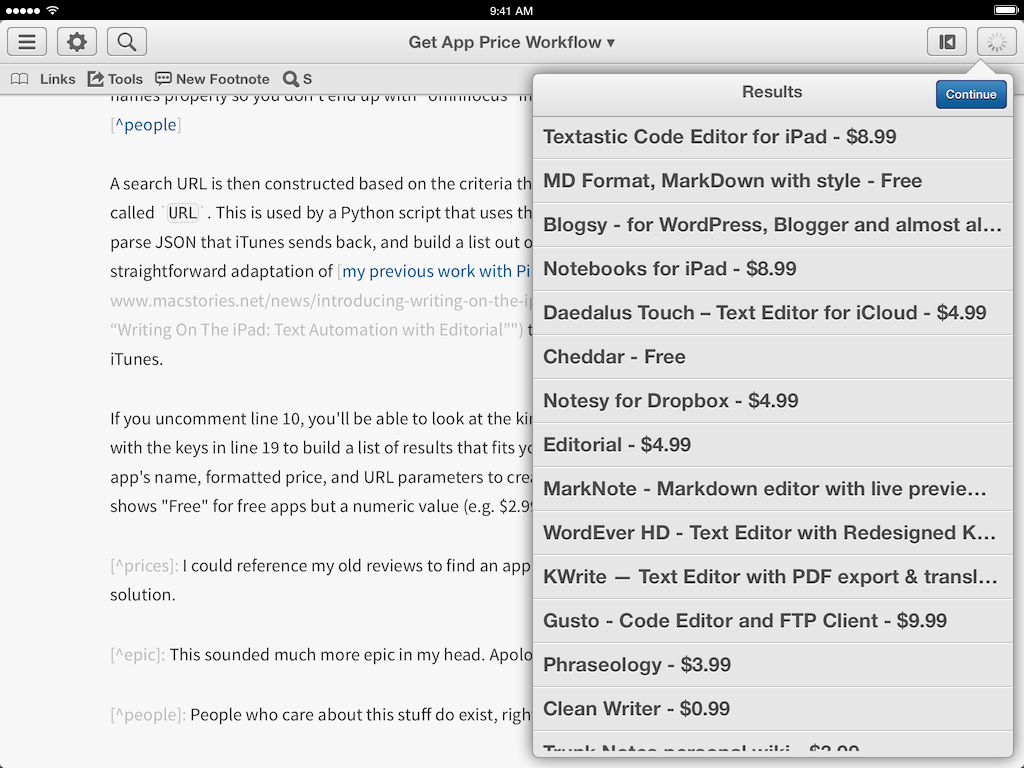
When I write on my iPad mini, I often need to look up and reference price of apps that I already own. That’s a surprisingly hard thing to do on an iOS device, so I decided to remove the annoyance caused by this problem with an Editorial workflow. I call it “Get App Price”.
If you own an app, searching for it in the iOS 7 App Store won’t show you the price information alongside the app’s icon and description – you’ll only get an Open or Install button. Unlike the Mac App Store, there is no separate pricing field in the app information at the bottom of the screen, which usually forces me to go to a developer’s website to find out what the price of an app is.1 There wouldn’t be any problem if Apple allowed Safari to open iTunes web previews without redirecting them straight to the App Store, which is what they do on OS X. I have tried to force Safari to open web previews, and I even downloaded browsers that can set a modified user agent string to trick iOS into thinking they’re desktop web browsers worthy of a web preview – eventually, the App Store app always opened, displaying no price.
I set out to create a simple workflow to fetch an app’s title and price directly from iTunes with no clipboard import or other middleman. I later found out that you can tap on the “Related” tab in the App Store or gift an app to view its price, but I had already created a workflow that’s faster than opening the App Store and tapping a bunch of buttons just to get a price. I’m a free man, and I deserve my own App Store lookup solution.2
Day One Updated for iOS 7 With New Design, Music Integration, Motion Activity
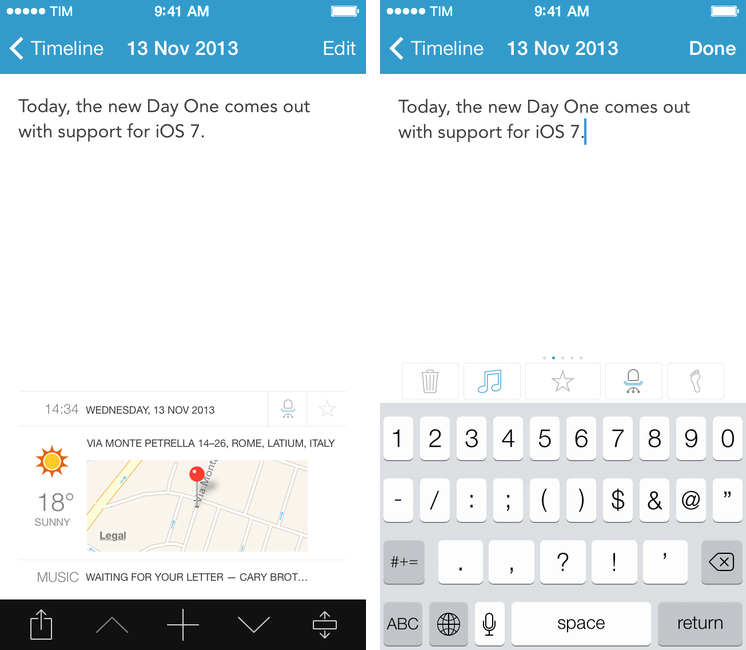
Day One, my favorite journaling app for iOS and OS X, has received an update today that brings a visual refresh for iOS 7, support for background fetch via Dropbox, and new data tracking sources.
Since its inception, Day One has been about adding context to your diary by using features of iOS and OS X that augment the classic journal in ways that paper never could. It was only last year, however, that Bloom Built’s vision could come to fruition with support for photos, weather data, and location information available right into your daily journal. Since then, Paul Mayne and his team have been hard at work to ensure that Day One could have feature consistency across platforms as well as take advantage of online data and Apple’s latest OSes and technologies.
Today’s new version for iOS is, again, all about data, sensors, and additional context for your journal entries, which are no longer limited to text and pictures but now span a bevy of tracking points such as date and time, tags, weather, location, activity tracking, and steps taken. Read more