Just yesterday I was looking for ways to VNC into my gaming PC because I wanted to stream Like a Dragon: Infinite Wealth (an amazing game that you should play) on my Vision Pro using my new NDI encoder (I understand this is a very Ticci phrase; more on this topic soon).
Anyway, I went looking for Screens, my favorite VNC client, on the visionOS App Store, and it wasn’t available. I was surprised by its absence, but I just assumed the folks at Edovia were working on some fixes for the app running on the Vision Pro. I downloaded Jump Desktop, which worked pretty well, but I’ve never been a fan of the Jump Desktop UI, and I’d rather use Screens everywhere.
Right on schedule, Screens for iPad has now been made available on visionOS in compatibility mode. This is excellent news since I can now use Screens on all my Apple devices to quickly connect to my PC and Mac mini server; you can also check out how Screens’ trackpad mode works with visionOS’ gesture system in this blog post.
And once again, you should check out Like a Dragon: Infinite Wealth if you haven’t yet (I covered it on Unwind and this episode of Into the Aether about it is a great listen too).
This week, Federico and John tell the story of how Federico got his Apple Vision Pro before sharing their first impressions of the Vision Pro hardware.
Read more
In playing around with my Vision Pro these past few days, I’ve run into a series of issues and limitations with the Shortcuts app that I thought I’d share here in MacStories Weekly with Club members. At the moment, there is no native Shortcuts app for visionOS, which means that, if you have a Vision...
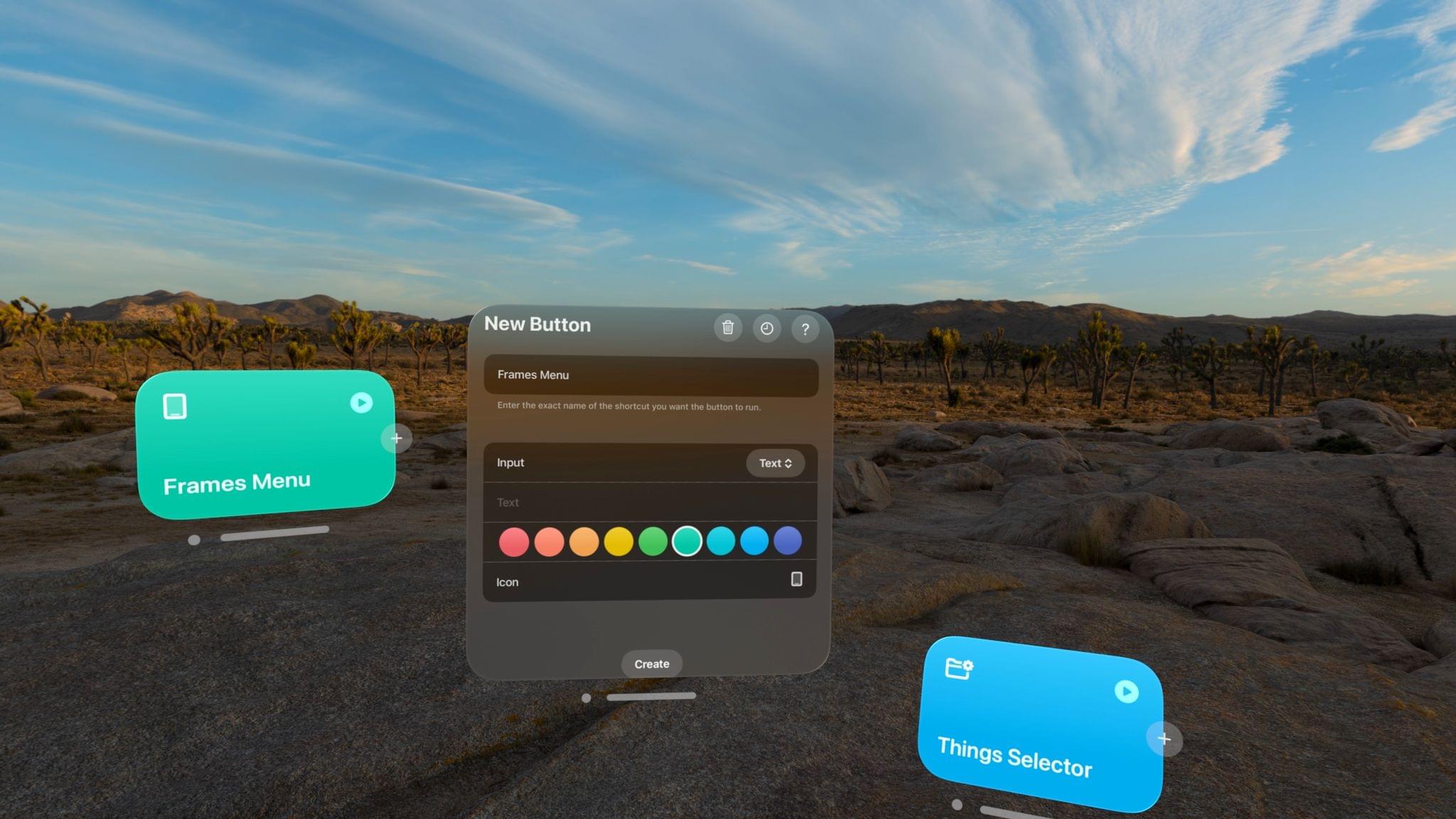
I received my Apple Vision Pro yesterday (for the full story of how it eventually found its way to Italy, you don’t want to miss the next episode of AppStories), and, as you can imagine, I’ve been busy downloading all the apps, learning my way around visionOS and – just today – using the extended Mac display mode. The first 24 hours with a Vision Pro are a whirlwind of curiosity and genuine nerd excitement, but despite my attention being pulled to a hundred different places, I’ve found the time to test one app in particular: Shortcut Buttons by Finn Voorhees.
Read more
I thoroughly enjoyed this story by Anil Dash on how the openness of podcasting (a topic I’ve covered before) has proven so resilient over the years and is, in fact, more relevant than ever in the era of federated social networks:
But here’s the thing: being able to say, “wherever you get your podcasts” is a radical statement. Because what it represents is the triumph of exactly the kind of technology that’s supposed to be impossible: open, empowering tech that’s not owned by any one company, that can’t be controlled by any one company, and that allows people to have ownership over their work and their relationship with their audience.
Side note: this is the first post I’m writing and publishing on MacStories directly from the Vision Pro, which I received this morning. A lot more to follow soon – including wherever you get our podcasts.
As I’m typing this, the box containing my Apple Vision Pro and related accessories finally left a shipping facility in Cincinnati, Ohio, and is – hopefully – on the last leg of its journey, on its way to Italy. (AppStories and Connected listeners will know that I was able to acquire one thanks to John,...
This week, Federico and John consider how Apple’s response to the Digital Markets Act will change the world of apps for developers and users in the EU.
Read more
Due to a series of unforeseen circumstances that involved upgrading to the iOS 17.4 beta and wanting to downgrade back to iOS 17.3, I recently found myself losing access to my iPhone’s iCloud backup and having to set up my iPhone 15 Pro Max from scratch again. I eventually “fixed” the issue by giving up...
There’s no tech commentator better equipped to talk about the history of spatial interfaces in Apple operating systems than John Siracusa, and I enjoyed his latest, thought-provoking column on where visionOS and the Vision Pro’s gesture system fit in the spatial computing world:
Where Vision Pro may stumble is in its interface to the deep, spatial world it provides. We all know how to reach out and “directly manipulate” objects in the real world, but that’s not what Vision Pro asks us to do. Instead, Vision Pro requires us to first look at the thing we want to manipulate, and then perform an “indirect” gesture with our hands to operate on it.
Is this look-then-gesture interaction any different than using a mouse to “indirectly” manipulate a pointer? Does it leverage our innate spatial abilities to the same extent? Time will tell. But I feel comfortable saying that, in some ways, this kind of Vision Pro interaction is less “direct” than the iPhone’s touch interface, where we see a thing on a screen and then literally place our fingers on it. Will there be any interaction on the Vision Pro that’s as intuitive, efficient, and satisfying as flick-scrolling on an iPhone screen? It’s a high bar to clear, that’s for sure.
In yesterday’s review on The Verge, Nilay Patel shared a similar idea: it’s a strange feeling to use a computer that requires you to look at what you want to control at all times. I don’t know what to think about this yet since I don’t have a Vision Pro, but I’m curious to learn how this interaction method will scale over time as we start using this new platform on a daily basis. It’s quite fitting, however, that visionOS is based on the one Apple platform that supports both kinds of manipulation with a pointer and touch.



 John
John