

A few months ago, I realized that Reminders wouldn’t be able to scale to my new professional life in 2025. You see, this year we’re planning to expand and diversify MacStories even further, launching projects that have been years in the making as well as trying some new things that we recently thought of. New...
Read more
 Thoughts on Covering AI Our Way
 John
John
AppStories Episode 422 - Thoughts on Covering AI Our Way
0:00
35:55
35:55
This week, Federico and John say goodbye to the AppStories+ pre-show and hello to the new post-show. Then, for the main event, they update listeners on how MacStories plans to cover AI news and tools.
 Listening to Safari Articles as a Reading Time-Saver Tool
As part of moving the MacStories Weekly newsletter back to its original delivery date of Friday (which I’m very happy we did), last week I realized that I didn’t plan my schedule carefully enough to account for the fact that I’d have one less day to edit the team’s stories. Specifically, I wanted to send...
Gemini 2.0 and LLMs Integrated with Apps
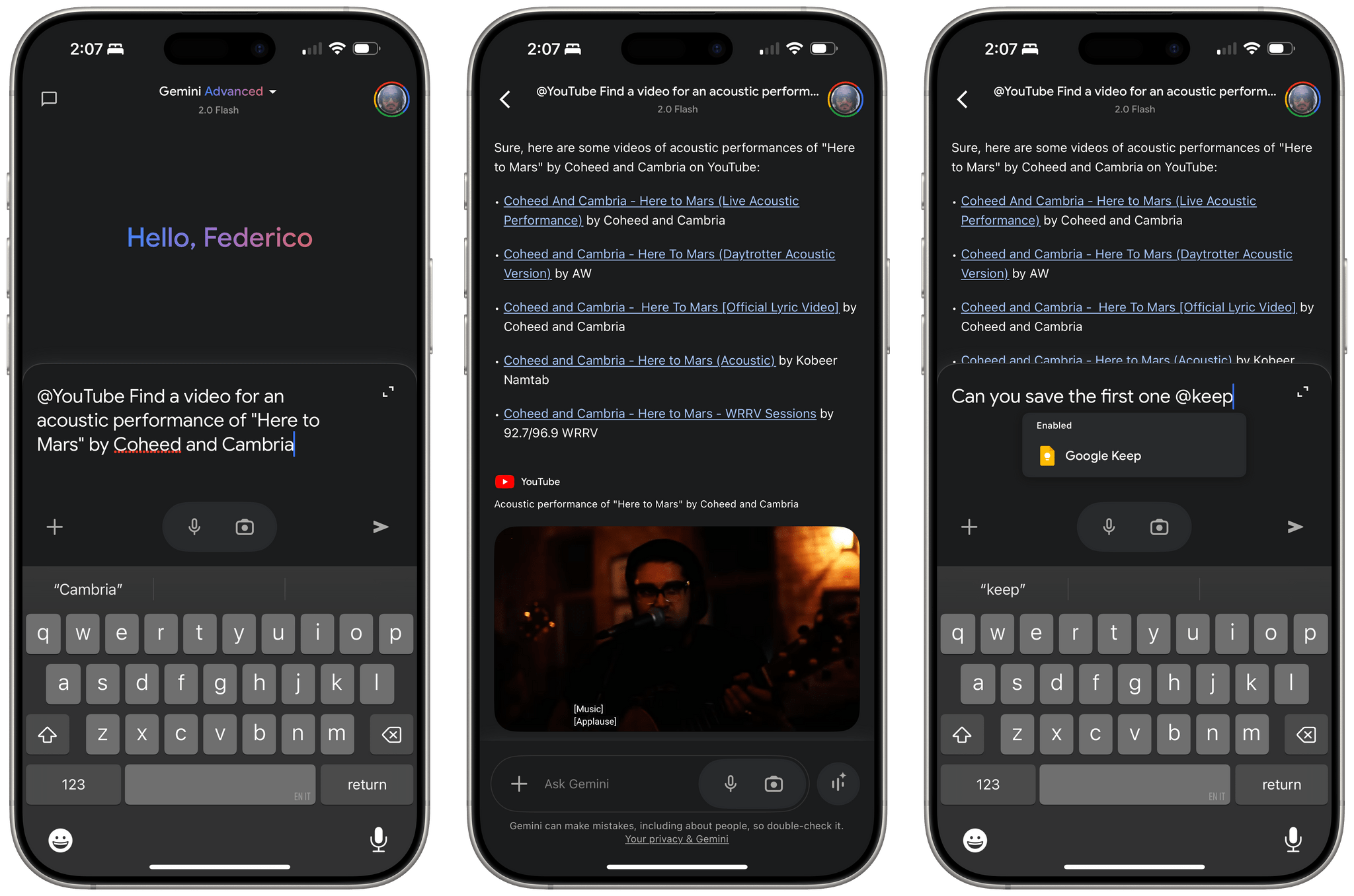
Busy day at Google today: the company rolled out version 2.0 of its Gemini AI assistant (previously announced in December) with a variety of new and updated models to more users. From the Google blog:
Today, we’re making the updated Gemini 2.0 Flash generally available via the Gemini API in Google AI Studio and Vertex AI. Developers can now build production applications with 2.0 Flash.
We’re also releasing an experimental version of Gemini 2.0 Pro, our best model yet for coding performance and complex prompts. It is available in Google AI Studio and Vertex AI, and in the Gemini app for Gemini Advanced users.
We’re releasing a new model, Gemini 2.0 Flash-Lite, our most cost-efficient model yet, in public preview in Google AI Studio and Vertex AI.
Finally, 2.0 Flash Thinking Experimental will be available to Gemini app users in the model dropdown on desktop and mobile.
Access Extra Content and Perks
Founded in 2015, Club MacStories has delivered exclusive content every week for nearly a decade.
What started with weekly and monthly email newsletters has blossomed into a family of memberships designed for every MacStories fan.
Club MacStories: Weekly and monthly newsletters via email and the web that are brimming with apps, tips, automation workflows, longform writing, early access to the MacStories Unwind podcast, periodic giveaways, and more;
Club MacStories+: Everything that Club MacStories offers, plus an active Discord community, advanced search and custom RSS features for exploring the Club’s entire back catalog, bonus columns, and dozens of app discounts;
Club Premier: All of the above and AppStories+, an extended version of our flagship podcast that’s delivered early, ad-free, and in high-bitrate audio.
The Many Purposes of Timeline Apps for the Open Web
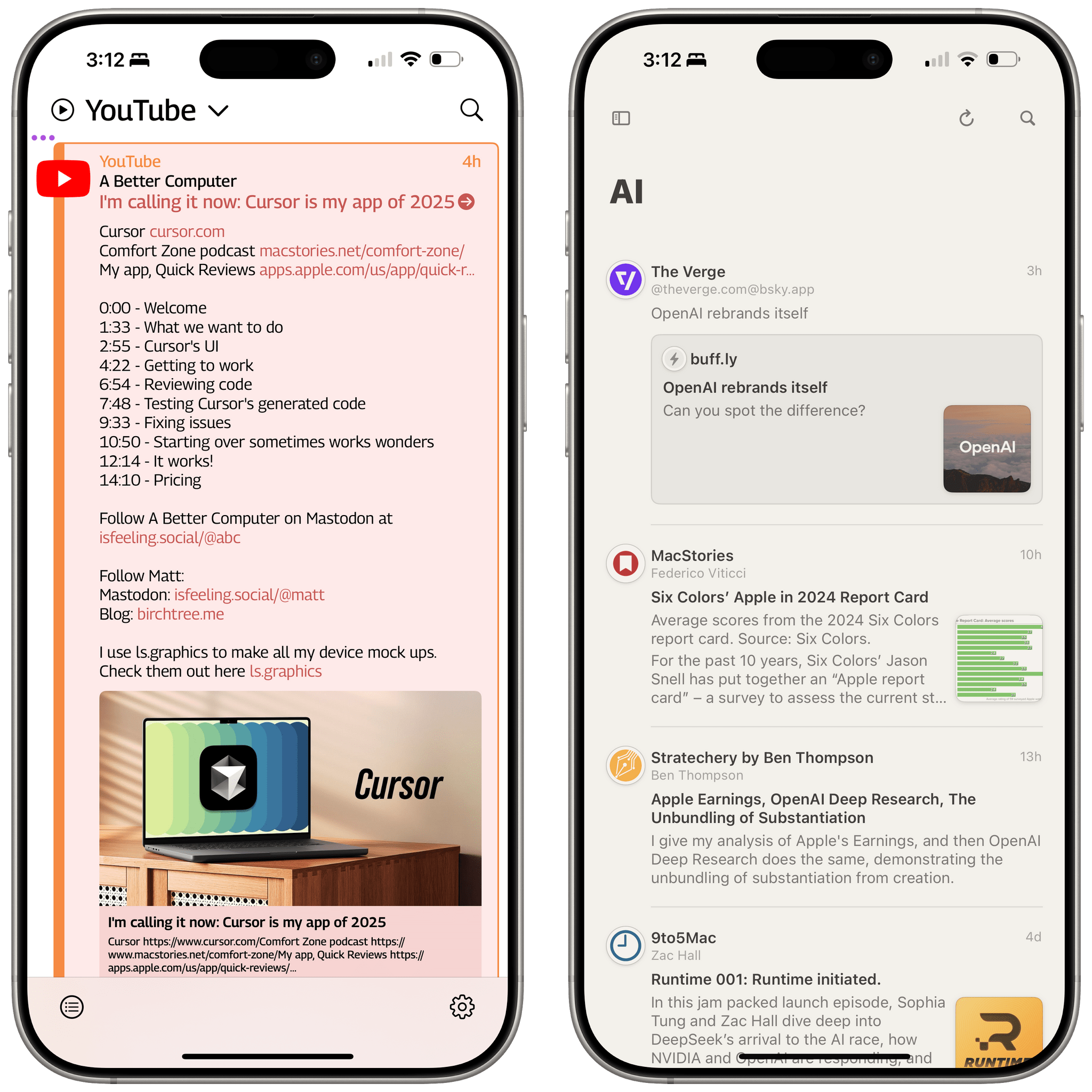
Writing at The Verge following the release of The Iconfactory’s new app Tapestry, David Pierce perfectly encapsulates how I feel about the idea of “timeline apps” (a name that I’m totally going to steal, thanks David):
What I like even more, though, is the idea behind Tapestry. There’s actually a whole genre of apps like this one, which I’ve taken to calling “timeline apps.” So far, in addition to Tapestry, there’s Reeder, Unread, Feeeed, Surf, and a few others. They all have slightly different interface and feature ideas, but they all have the same basic premise: that pretty much everything on the internet is just feeds. And that you might want a better place to read them.
[…]
These apps can also take some getting used to. If you’re coming from an RSS reader, where everything has the same format — headline, image, intro, link — a timeline app will look hopelessly chaotic. If you’re coming from social, where everything moves impossibly fast and there’s more to see every time you pull to refresh, the timeline you curate is guaranteed to feel boring by comparison.
I have a somewhat peculiar stance on this new breed of timeline apps, and since I’ve never written about them on MacStories before, allow me to clarify and share some recent developments in my workflow while I’m at it.
Access Extra Content and Perks
Founded in 2015, Club MacStories has delivered exclusive content every week for nearly a decade.
What started with weekly and monthly email newsletters has blossomed into a family of memberships designed for every MacStories fan.
Club MacStories: Weekly and monthly newsletters via email and the web that are brimming with apps, tips, automation workflows, longform writing, early access to the MacStories Unwind podcast, periodic giveaways, and more;
Club MacStories+: Everything that Club MacStories offers, plus an active Discord community, advanced search and custom RSS features for exploring the Club’s entire back catalog, bonus columns, and dozens of app discounts;
Club Premier: All of the above and AppStories+, an extended version of our flagship podcast that’s delivered early, ad-free, and in high-bitrate audio.
Six Colors’ Apple in 2024 Report Card
.](https://cdn.macstories.net/img_0925-1738676881715.webp)
Average scores from the 2024 Six Colors report card. Source: Six Colors.
For the past 10 years, Six Colors’ Jason Snell has put together an “Apple report card” – a survey to assess the current state of Apple “as seen through the eyes of writers, editors, developers, podcasters, and other people who spend an awful lot of time thinking about Apple”.
The 2024 edition of the Six Colors Apple Report Card has been published, and you can find an excellent summary of all the submitted comments along with charts featuring average scores for the different categories here.
I’m grateful that Jason invited me to take part again and share my thoughts on Apple’s 2024. As you’ll see from my comments below, last year represented the end of an interesting transition period for me: after years of experiments, I settled on the iPad Pro as my main computer. Despite my personal enthusiasm, however, the overall iPad story remained frustrating with its peculiar mix of phenomenal M4 hardware and stagnant software. The iPhone lineup impressed me with its hardware (across all models), though I’m still wishing for that elusive foldable form factor. I was very surprised by the AirPods 4, and while Vision Pro initially showed incredible promise, I found myself not using it that much by the end of the year.
I’ve prepared the full text of my responses for the Six Colors report card, which you can find below.
Access Extra Content and Perks
Founded in 2015, Club MacStories has delivered exclusive content every week for nearly a decade.
What started with weekly and monthly email newsletters has blossomed into a family of memberships designed for every MacStories fan.
Club MacStories: Weekly and monthly newsletters via email and the web that are brimming with apps, tips, automation workflows, longform writing, early access to the MacStories Unwind podcast, periodic giveaways, and more;
Club MacStories+: Everything that Club MacStories offers, plus an active Discord community, advanced search and custom RSS features for exploring the Club’s entire back catalog, bonus columns, and dozens of app discounts;
Club Premier: All of the above and AppStories+, an extended version of our flagship podcast that’s delivered early, ad-free, and in high-bitrate audio.
Life Tracking, Journaling, and the Vision Pro with Devon Dundee
AppStories Episode 421 - Life Tracking, Journaling, and the Vision Pro with Devon Dundee
0:00
34:04
34:04
This week, Federico and John are joined by Devon Dundee of the Magic Rays of Light podcast to talk about his approaches to life tracking and journaling and how the Apple Vision Pro has become his primary computer.
My Obsidian Setup, Part 11: My New Dashboard Note and Its Dataview Queries
In last week’s return of my Obsidian Setup series, I shared the details of my new daily note workflow. As I wrote, embracing the practice of daily notes is something very new to the way I work, but since I started doing it two months ago, I haven’t stopped –and I’m seeing the benefits of...
Doing Research with NotebookLM→
Fascinating blog post by Vidit Bhargava (creator of the excellent LookUp dictionary app) about how he worked on his master thesis with the aid of Google’s NotebookLM.
I used NotebookLM throughout my thesis, not because I was interested in it generating content for me (I think AI generated text and images are sloppy and classless); but because it’s a genuinely great research organization tool that provides utility of drawing connections between discreet topics and helping me understand my own journey better.
Make sure to check out the examples of his interviews and research material as indexed by the service.
As I explained in an episode of AppStories a while back, and as John also expanded upon in the latest issue of the Monthly Log for Club members, we believe that assistive AI tools that leverage modern LLM advancements to help people work better (and less) are infinitely superior to whatever useless slop generative tools produce.
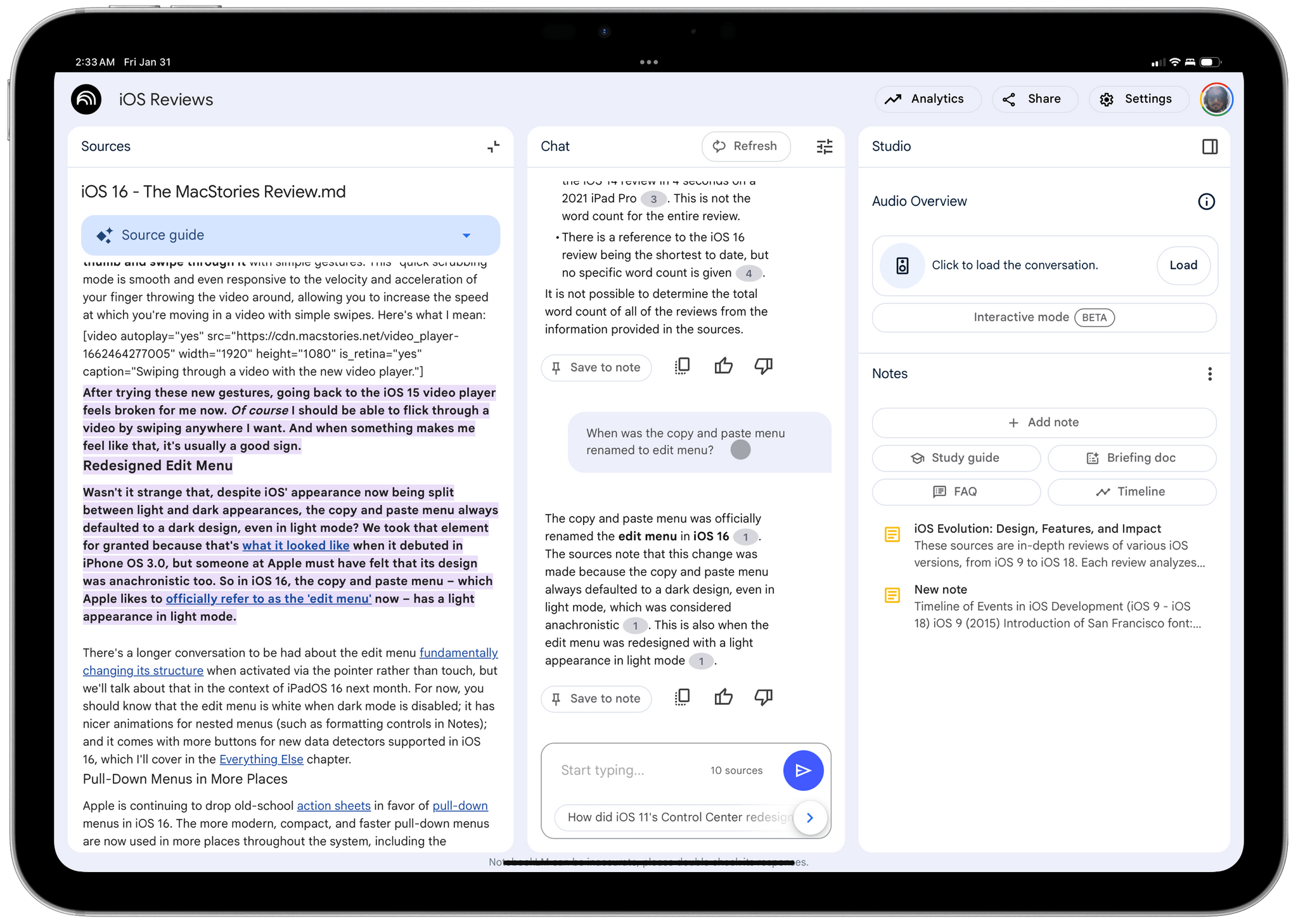
Google’s NotebookLM is, in my opinion, one of the most intriguing new tools in this field. For the past two months, I’ve been using it as a personal search assistant for the entire archive of 10 years of annual iOS reviews – that’s more than half a million words in total. Not only can NotebookLM search that entire library in seconds, but it does so with even the most random natural language queries about the most obscure details I’ve ever covered in my stories, such as “When was the copy and paste menu renamed to edit menu?” (It was iOS 16.). It’s becoming increasingly challenging for me, after all these years, to keep track of the growing list of iOS-related minutiae; from a personal productivity standpoint, NotebookLM has to be one of the most exciting new products I’ve tried in a while. (Alongside Shortwave for email.)
Just today, I discovered that my read-later tool of choice – Readwise Reader – offers a native integration to let you search highlights with NotebookLM. That’s another source that I’m definitely adding to NotebookLM, and I’m thinking of how I could replicate the same Readwise Reader setup (highlights are appended to a single Google Doc) with Zapier and RSS feeds. Wouldn’t it be fun, for instance, if I could search the entire archive of AppStories show notes in NotebookLM, or if I could turn starred items from Feedbin into a standalone notebook as well?
I’m probably going to have to sign up for NotebookLM Plus when it launches for non-business accounts, which, according to Google, should happen in early 2025.