
Telegram Messenger Telegram continues to add sophisticated messaging features to its app. Group chats are easier to navigate than ever. An ‘@‘ badge in your chat list indicates that you have unread mentions and replies. Within a group, an ‘@‘ button navigates among your unread mentions and replies. You can get back to favorite...
 Q&A
Q&A
Question: I’m wondering how you guys manage to write in Ulysses while still backing everything up and version controlling it in GitHub. I’m trying to make the switch to Ulysses but like to manage my files with GitHub. As far as I can tell, Ulysses doesn’t store your files in an easily accessible format that...
Album
Crazy Eyes Animated Emoji This collection features an odd little bald character that looks vaguely like Casper the Friendly Ghost. The animations help bring a little attitude and charm to the set. Halloween Face Simple Emoji Some sticker packs, like these, are best used in combination with other sets or photographs. It’s still a...
Elk Adds Lock Screen Currency Conversion
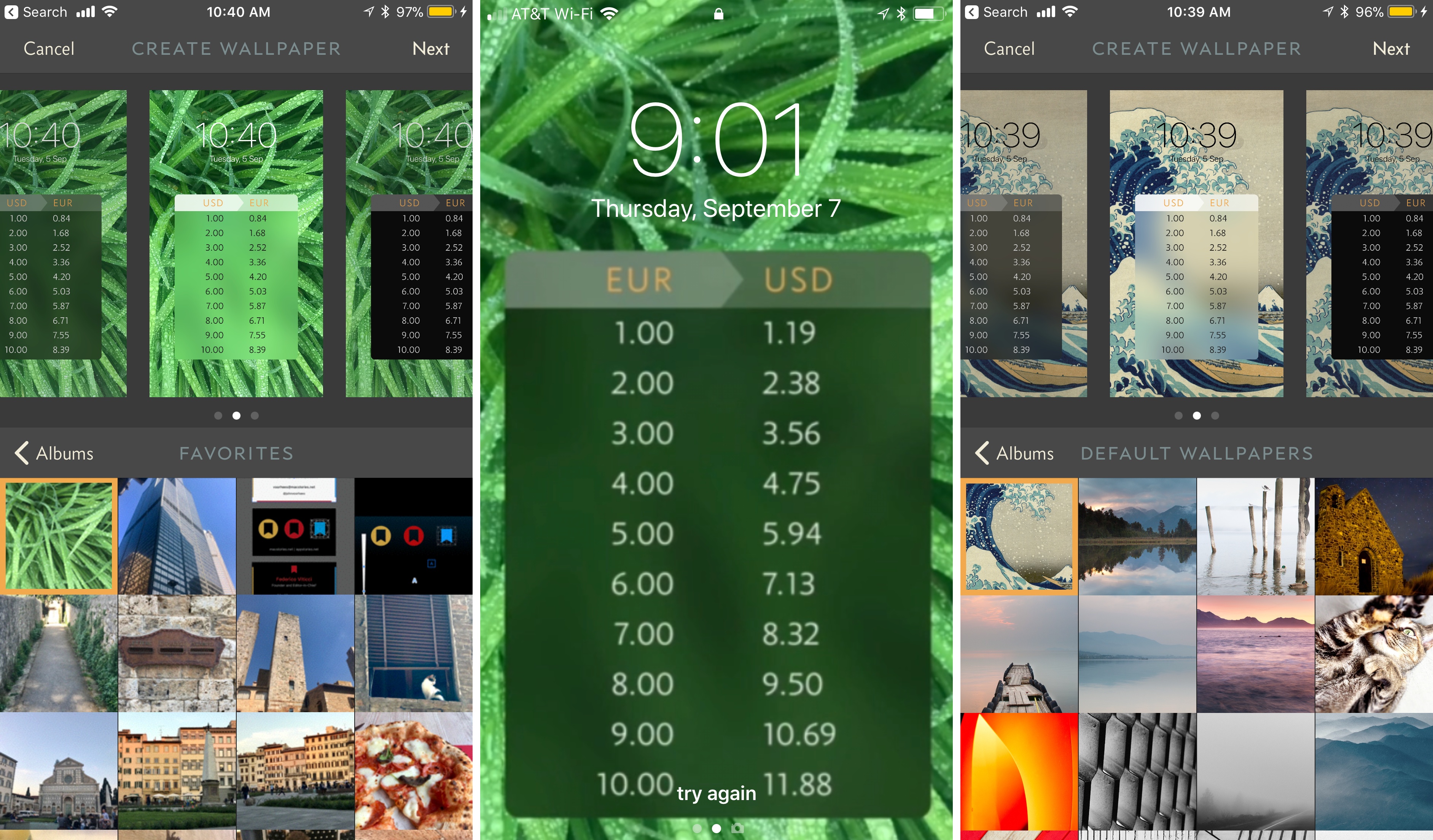
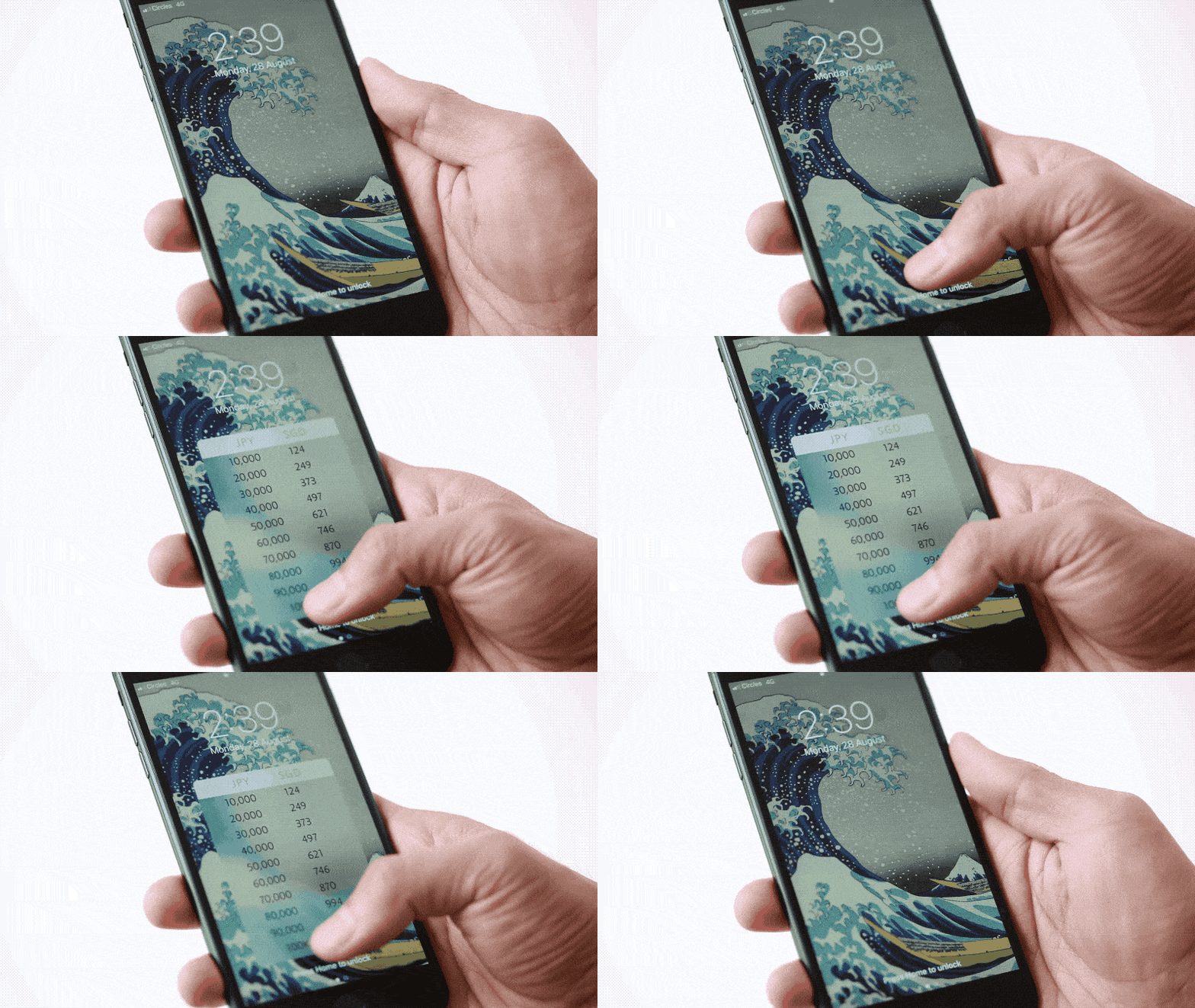
Elk, the currency converter app that we reviewed earlier this year has been updated with a smart feature that allows you to access a currency conversion table from the Lock screen of your iPhone. The feature is a hack in the best sense of the word. By leveraging your iPhone’s Lock screen wallpaper, Elk allows you to quickly get a ballpark sense of what something costs in another currency without unlocking your phone and navigating to the app.
The simple feature grew out of the developers’ practice of manually creating a currency conversion table and setting it as their Lock screen wallpapers. Like many tedious tasks though, there was a better solution through software that eliminated typing a conversion table before every trip.
To create a currency conversion wallpaper, open the currency table you want to show on your Lock screen in Elk and tap the share icon. By default, the app will show you the system wallpapers available on your iPhone along with previews of three different currency tables overlaid on the selected wallpaper. You can also navigate to the photos on your iPhone and pick one of those for your wallpaper. After you select an image, you can save it to your photo library with the currency conversion overlay as a still or Live Photo wallpaper. Finally, open up the Settings app and set your newly created image as the lock screen wallpaper.
That’s all there is to the feature, but it’s extraordinarily handy when you want to get a rough idea of a conversion on the go. I particularly like the Live Photo version of the wallpaper because I can enjoy the image on my Lock screen, but still get to the currency table with a short press on the screen.
Of course, the data overlaid on the wallpaper cannot be updated, but it’s close enough for short trips, and you can always regenerate the wallpaper periodically with the latest rates.
How Scotty Allen Managed to Add a Headphone Jack to an iPhone 7→
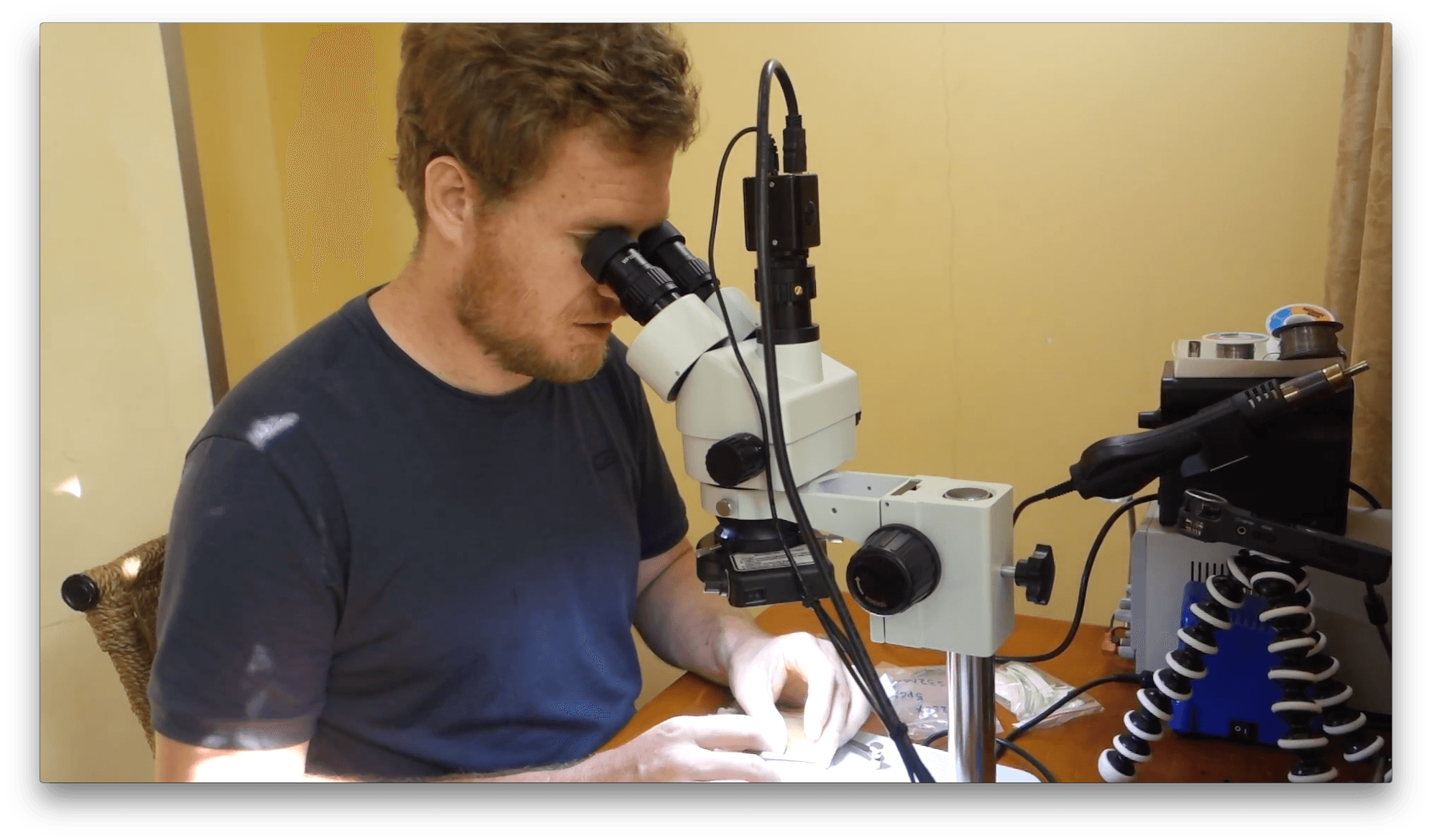
Scotty Allen wanted an iPhone 7 with a headphone jack, so he set out to build his own. Jason Koebler at Motherboard chronicles Allen’s epic quest:
This sorcery took four months of engineering, Allen told me. Many iPhones were sacrificed, and lots of grey-market parts purveyors were enlisted in the quest.
The process wasn’t cheap either:
“I shifted everything up a little bit and took out protective brackets and shields and shaved things down,” Allen said. “I lost three full phones trying this, a good handful of screens, a stack of components. I broke easily close to $1,000 worth of parts in the last week, which just about broke my will. But it got to a point where I told myself—I am going to keep doing this until I prove to myself it can’t be done.”
Allen also had to design and connect a custom flexible circuit board that allowed switching between the lightning connector and his custom 3.5 mm headphone jack.
Allen’s elaborate iPhone hack isn’t something most people could accomplish and even if they could, it isn’t economical at this scale. Still, the story is an incredible tale of ingenious DIY engineering and a fascinating window into the electronics marketplaces in Shenzhen, China. I highly recommend watching Allen’s detailed account of his efforts on YouTube.
AppStories, Episode 21 – Breaking up iTunes is Hard to Do→
On this week’s episode of AppStories, we consider ways to break up iTunes into multiple apps that are designed to accommodate how media consumption has changed, but also account for legacy devices and uses.
Sponsored by:
- Screens - Connect to your desktop from anywhere in the world.
- Use coupon code APPSTORIES at checkout for 25% off Screens for macOS.
- Mutable - Specializing in iOS development from idea to App Store.
AppStories Episode 21 - Breaking Up iTunes Is Hard to Do
0:00
37:16
37:16






Soulver Updated with Split View Support and File Management Features
The iOS version of the calculator-replacement app, Soulver, received a big update today. The app, which combines elements of a text editor with a calculator, lets you work out problems the way you would describe them in writing. The latest version of Soulver, released earlier today, adds some key features for iPad users, greater cloud storage flexibility, and a host of other improvements.
For iPad users, Soulver has added support for Split View and Slide Over. Soulver is the perfect app to put in Split View as you reference other apps to collect numbers. I expect to get a lot of use out of this feature alone.
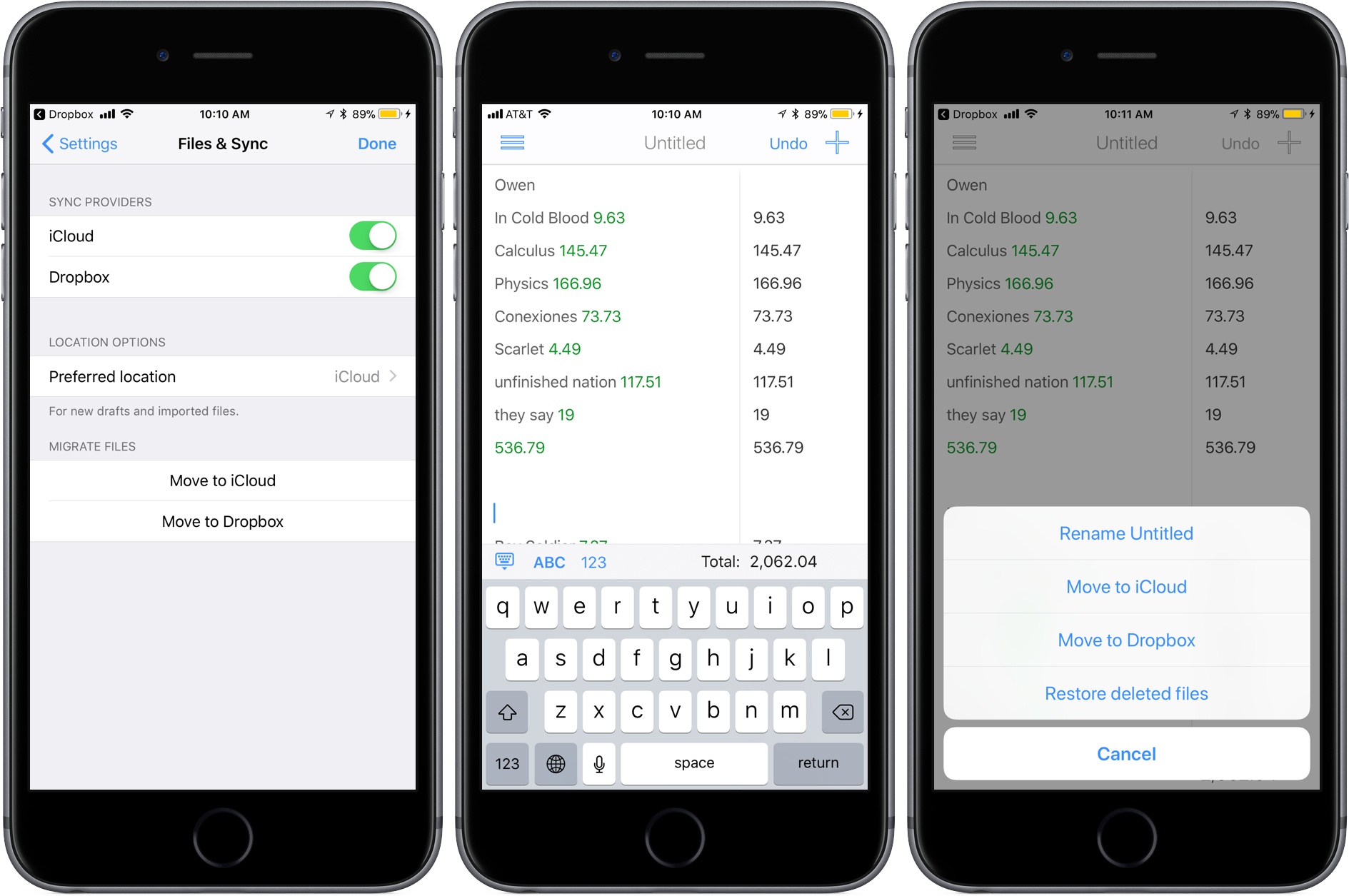
You no longer need to pick between storing your Soulver documents in iCloud or Dropbox. The app can now access documents in both cloud services and move items between them. If you enable support for both services, you can set one as the default in the app’s settings. You can also migrate documents from one service to the other from settings.
Soulver now supports importing from any file provider on your iOS device by long-pressing the plus button in the navigation bar and can recover deleted files from the trash by tapping the folder icon. Shake to undo, which is a nice trick, but not very discoverable, has also been abandoned in favor of a dedicated button in the navigation bar.
Flexibility is necessary for utilities like Soulver to remain relevant. With Split View support and more file management options, Soulver has laid a foundation for iOS 11 and beyond.
Soulver is available on the App Store.
The Apple Music Festival Comes to an End→

Apple confirmed to Music Business Worldwide that the Apple Music Festival is coming to an end. The event, which was originally called the iTunes Music Festival, debuted in 2007. Over the course of 10 years the festival showcased some of the biggest names in music, as well as up-and-coming acts:
Artists who played the event over its decade-long run included Adele, Oasis, Mumford & Sons, Paul Simon, Ed Sheeran, Coldplay, Lady Gaga, Arctic Monkeys, Kendrick Lamar, Pharrell Williams (pictured), The Weeknd, One Direction and Beck.
The 2016 line-up included Elton John, The 1975, Chance The Rapper and Alicia Keys.
Music Business Worldwide says it expects Apple will concentrate on one-off concerts in the future and that ending the Apple Music Festival does not signal the end of the company’s involvement in live music events. I don’t think we’ve seen the last of Apple-sponsored live shows either, but I will miss the Apple Music Festival, especially streaming it to my Apple TV.
Pixelmator Pro Announced
Just before WWDC, the Pixelmator team teased a Mac app they’ve been working on for five years. The big reveal came today with an announcement that Pixelmator Pro will be joining the Pixelmator family of image editing apps this fall. Reimagined and rebuilt from the ground up, Pixelmator Pro promises a whole new level of power and ease-of-use.
According to the announcement:
“Pixelmator Pro provides every tool you could ever need to create, edit, and enhance your images on a Mac in an incredibly intuitive and accessible interface”, said Saulius Dailide, one of the founders of the Pixelmator Team. “And with its GPU-powered, machine learning-enhanced tools, it’s truly one of the most advanced and innovative image editing apps on the planet.”
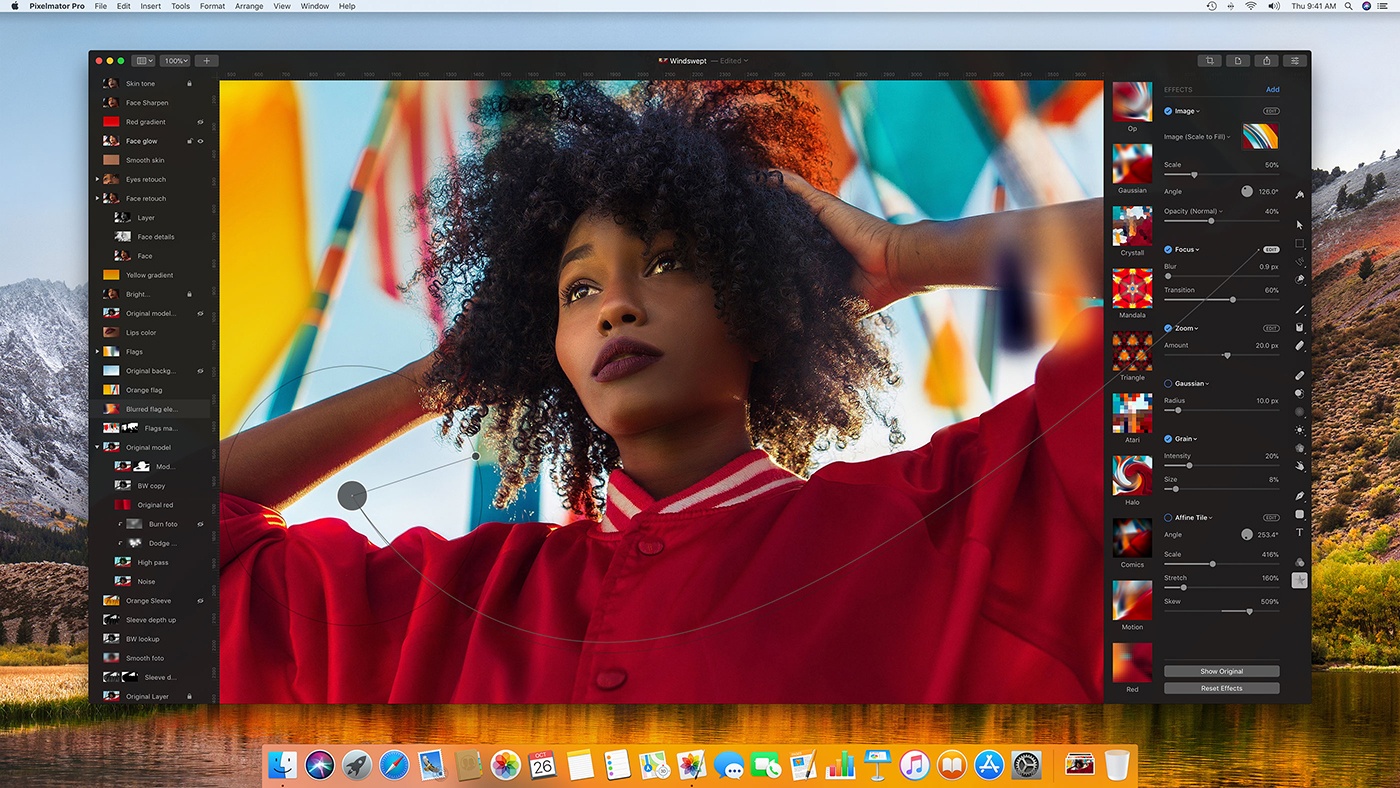
I haven’t tried Pixelmator Pro yet, but judging from the announcement, I expect we’re in for a treat. The most noticeable thing about the new app is its striking UI. Gone are the floating toolbars, replaced by left and right-hand side panels that fade into the background, so the image you’re working on dominates your workspace. I like the one window approach a lot, if for no other reason than I know exactly where my tools are at all times. The combination of a minimalistic toolbar, sparse chrome around the panels, use of transparency, dark interface, and ability to hide UI elements give Pixelmator Pro an expansive feel that emphasizes the image in your workspace instead of the tools.
https://vimeo.com/231354647
The changes announced go much deeper than just a redesign, though. The Pixelmator team has taken the opportunity to incorporate the latest Apple technologies and harness Machine Learning. Pixelmator Pro’s editor takes advantage of a Mac’s GPU using Metal 2, the graphics framework announced at WWDC that will debut with macOS X High Sierra. CoreML, also announced at WWDC, will drive much of Pixelmator Pro’s editing engine according to the announcement. There’s also support for the new HEIF image file format.
Also, editing in Pixelmator Pro will be non-destructive:
Pixelmator Pro’s color adjustments, effects, styles, and layouting tools are completely nondestructive, giving users the freedom and flexibility to go back and modify or delete individual changes at any point in the editing workflow. Thanks to the new presets feature, you can create endless combinations of multiple adjustments, effects, or styles, save them to your favorites and reuse them in any of your images. Drag-and-drop sharing also makes it a breeze to share presets with others.
I expect the ability to share combinations of effects, styles, and adjustments will be especially popular.
Pixelmator Pro will be available exclusively from the Mac App Store this fall alongside the current Pixelmator app.