MacStories Weekly: Issue 406
Automation Academy: My Collection of Advanced Shortcuts for Things
A few months ago, I decided to switch to Things as my default task manager. As I shared multiple times on AppStories and MacStories Weekly, I’m really happy with my decision: not only does the design of the Things app create a more relaxed environment for me to manage my responsibilities, but Cultured Code’s embrace...
Read moreMacStories Unwind: Ripping CDs for a Living→

This week on MacStories Unwind, I share my tech discoveries during a visit to a classical music radio station, Federico finally goes for a spider-style gaming Wi-Fi router, and I recommend Criminal Record on Apple TV+.






This episode is sponsored by:
- Paste – Endless Clipboard for Mac and iOS Devices
Links and Show Notes
Unplugged
- Radio station tech
Picks
- Federico’s Pick:
- NVIDIA Shield
- Sunshine remote PC game server
- Moonlight
- My Pick:
MacStories Unwind+

We deliver MacStories Unwind+ to Club MacStories subscribers ad-free and early with high bitrate audio every week.
To learn more about the benefits of a Club MacStories subscription, visit our Plans page.
Automation Academy: My Collection of Advanced Shortcuts for Things→
Earlier today, Federico released a series of seven advanced shortcuts for the task manager Things as part of his Automation Academy column, an exclusive perk of Club MacStories+ and Club Premier.
Federico explains in the introduction of the story why he returned to Things a few months ago and has been happy with the decision:
not only does the design of the Things app create a more relaxed environment for me to manage my responsibilities, but Cultured Code’s embrace of Shortcuts automation has allowed me to create dozens of custom enhancements for Things.
It’s the flexibility that Things’ Shortcuts actions offer that allows for such deep customization. The shortcuts shared today include automations to:
- Automatically move tasks scheduled for a certain time to Things’ Evening section
- Postponing evening tasks
- Rescheduling tasks to the next evening
- Tag selected tasks as active
- Pin tasks
- Select from a menu of Things shortcuts
- Create tasks, an updated version of a previously-shared shortcut
All of the shortcuts are ready to be used immediately and are accompanied by a detailed walk-through of the techniques used to build them and an explanation of how Federico is using them.
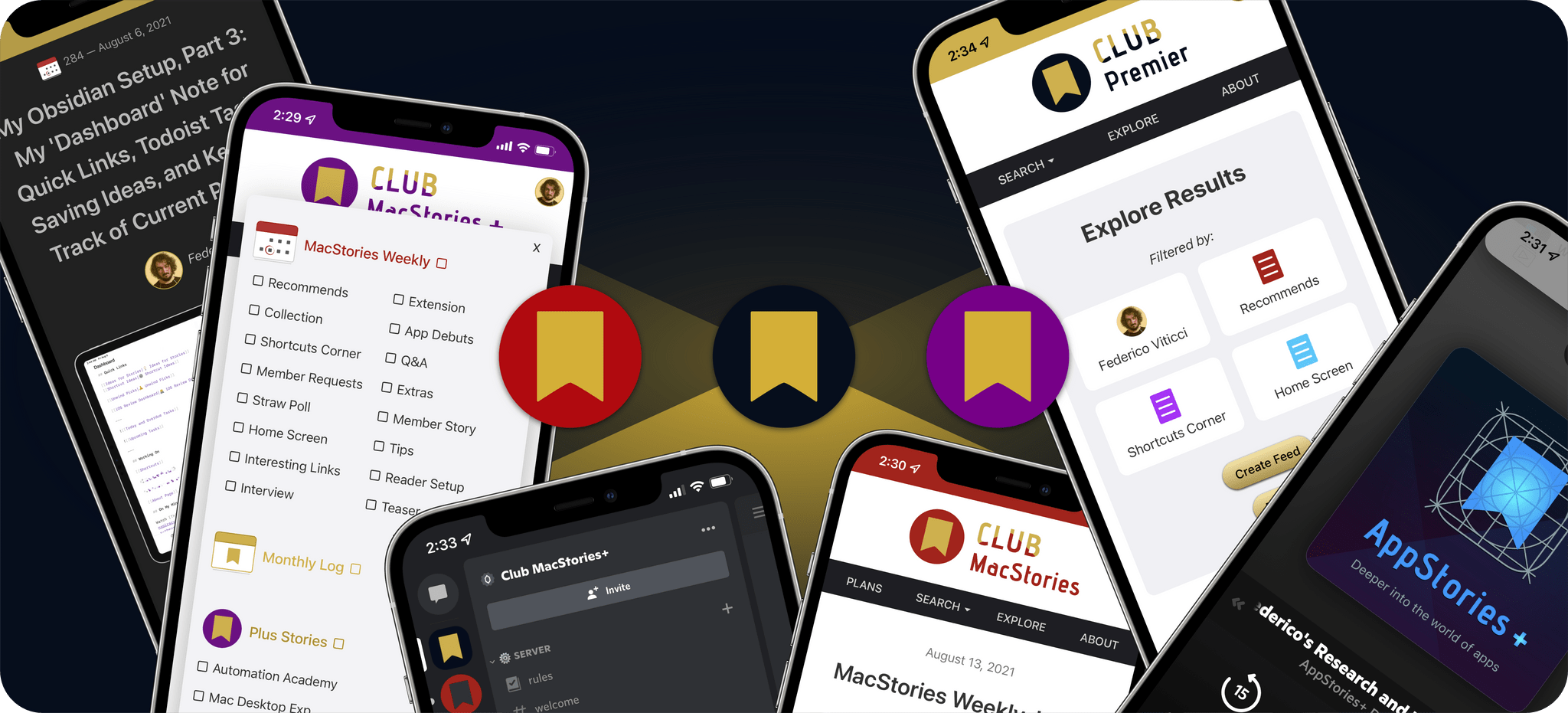
Automation Academy is just one of many perks that Club MacStories+ and Club Premier members enjoy including:
- Weekly and monthly newsletters
- A sophisticated web app with search and filtering tools to navigate eight years of content
- Customizable RSS feeds
- Bonus columns
- An early and ad-free version of our Internet culture and media podcast, MacStories Unwind
- A vibrant Discord community of smart app and automation fans who trade a wealth of tips and discoveries every day
- Live Discord audio events after Apple events and at other times of the year
On top of that, Club Premier members get AppStories+, an extended, ad-free version of our flagship podcast that we deliver early every week in high-bitrate audio.
Use the buttons below to learn more and sign up for Club MacStories+ or Club Premier.
Join Club MacStories+:
Join Club Premier:
The Fastest Way to Save RSS Articles to A Read-Later App
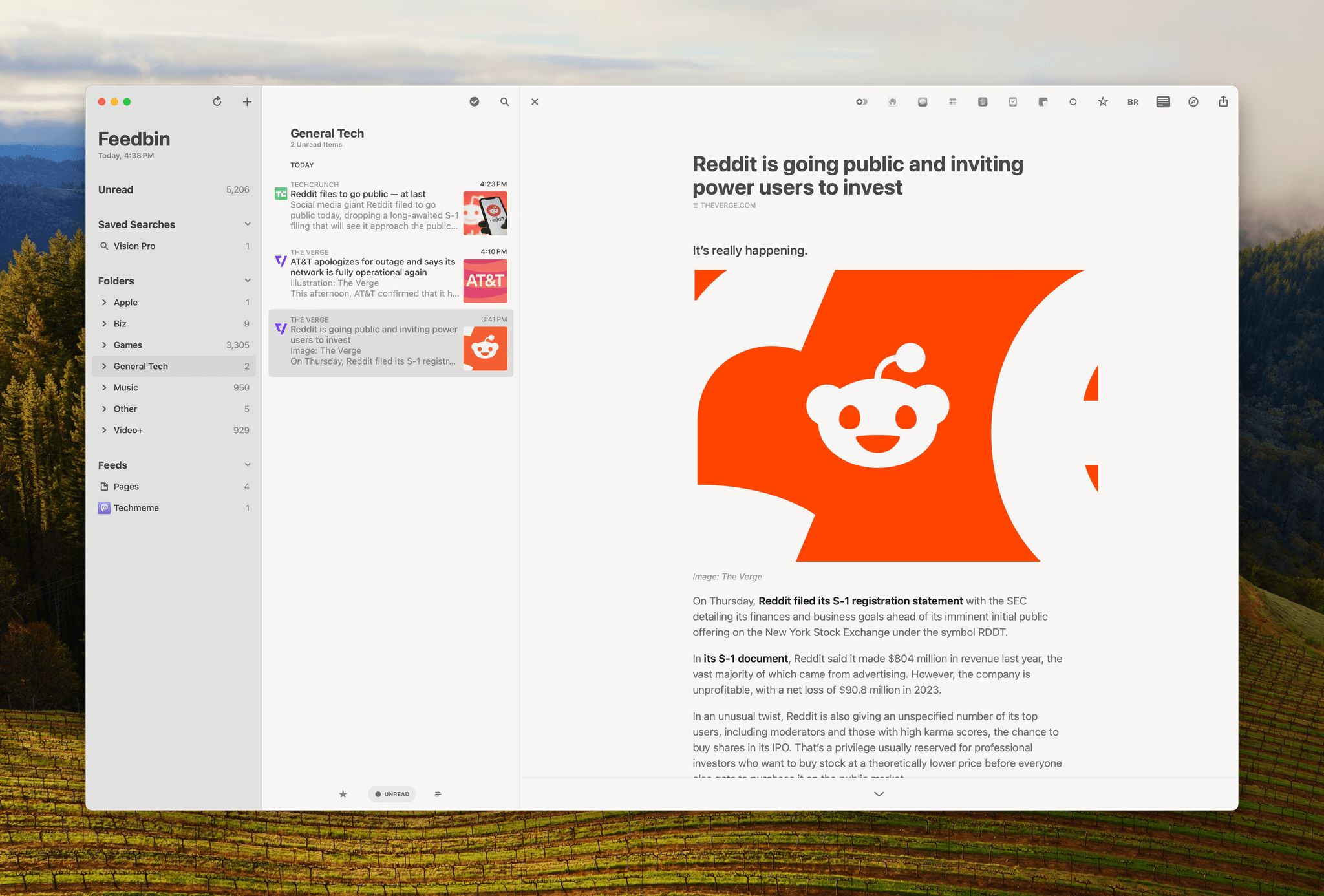
I follow about 180 RSS feeds, and I skim through all of my tech feeds every day, looking for interesting news, angles, opinions, and inspiration. A lot of what I see is repetitive, but I’ve gotten very good over the years at speed-reading snippets of stories and homing in on the interesting ones. Some stories get read right away because they’re time-sensitive in some way. However, I have other things to do besides read the web, so I rely heavily on read-later apps to save many of my finds.
That context is important because although some of what I save is what I’d classify as ‘leisure reading,’ most of it isn’t. It’s information processing, and given my other obligations, speed is important. As a result, what I value most are:
- The design of my RSS reader
- The speed with which I can save stories for later
- Access to my saved articles for anywhere
- The tools available in my read-later app for organizing everything
Vision Pro App Spotlight: Longplay Adds Immersive Album Listening
The music experience on the Apple Vision Pro is excellent. It starts with the device’s built-in headphones and spatial audio, which work hand-in-hand with the visual components of spatial computing. Apple has already shown off the potential for immersive experiences like Alicia Keys: Rehearsal Room, but the music experience goes deeper than that, thanks to third-party developers.
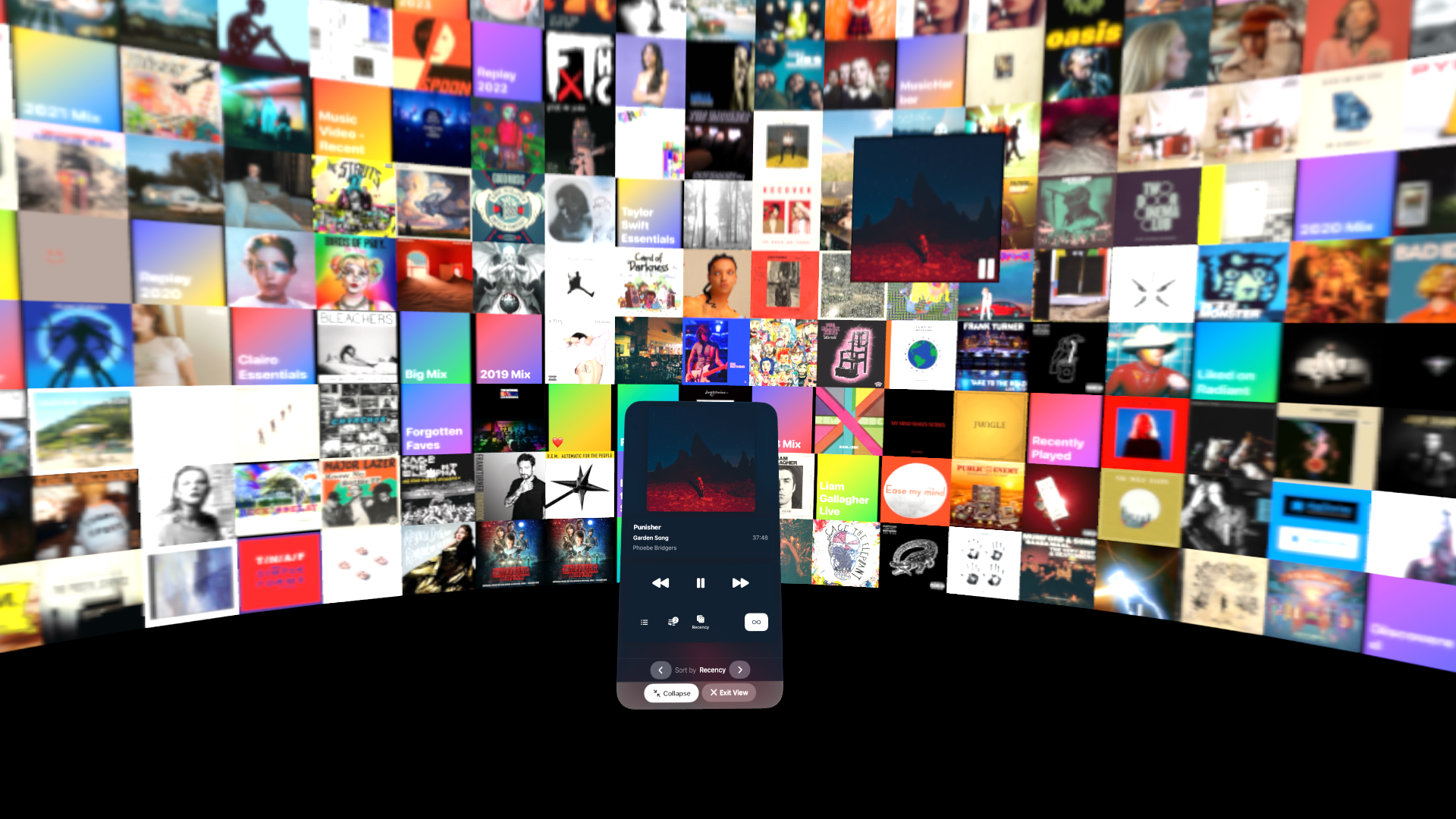
I’ve already covered Juno, Christian Selig’s YouTube player app, which is great for watching music videos and other content, and NowPlaying, which supplements Apple Music with editorial content, lyrics, and more. Today, though, I want to focus on Longplay, Adrian Schönig’s album-oriented playback app for Apple Music.
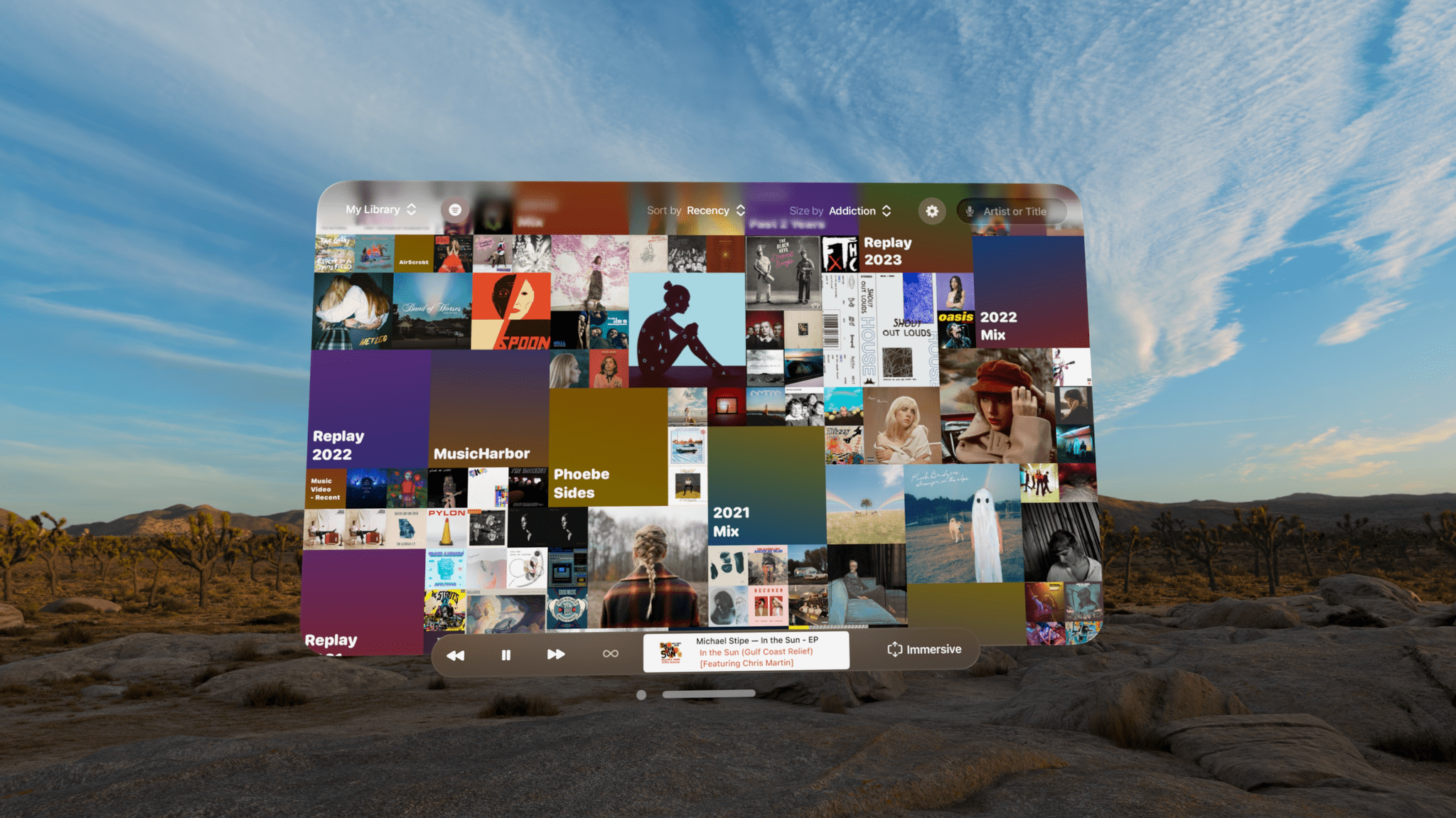
Longplay 2.0 was released last August. It was a big update that I reviewed at the time and have been enjoying ever since. The app is available on the Vision Pro now too, complete with an immersive mode that I love.
Looks Like Rain: Visualizing the Weather on a Color-Coded Timeline
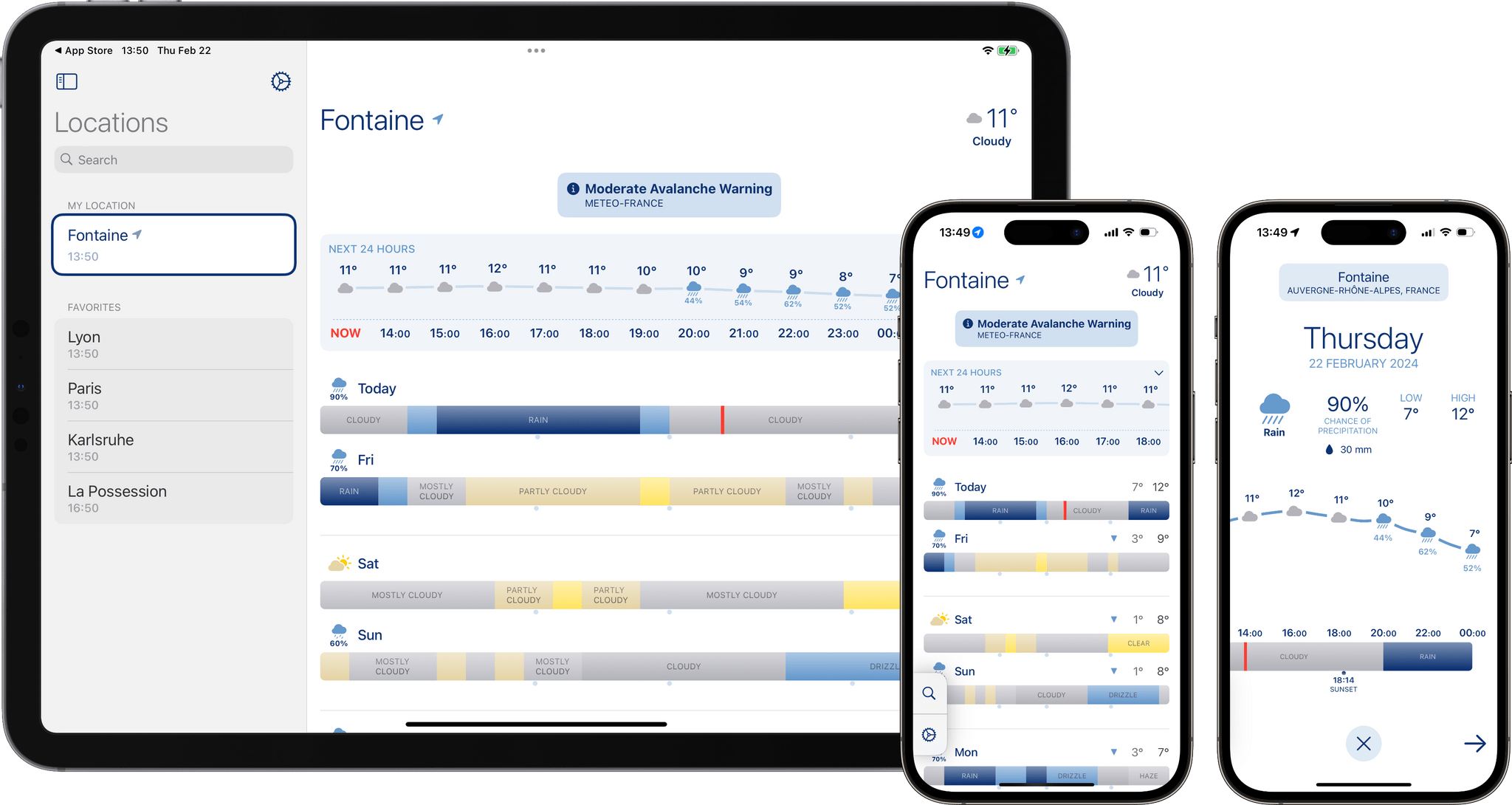
I’m always excited when a new weather app is released, especially when it’s a weather app that looks different from most of its counterparts. Looks Like Rain by Thinkbits is beautifully designed, and it certainly looks different, to say the least. The layout of the app is clean, the elements are well-spaced, and the color palette has clearly been composed with care. Most importantly, though, I’m absolutely loving its unique approach to visualizing the weather forecast on a color-coded timeline.
I’ve been using this brand-new weather app for the past few weeks on the iPhone, the iPad, and the Mac, and it has already earned a permanent place in the rotation of my favorite weather apps.
Let’s check it out.
Apple Vision Pro Accessory Roundup: Our Favorites So Far
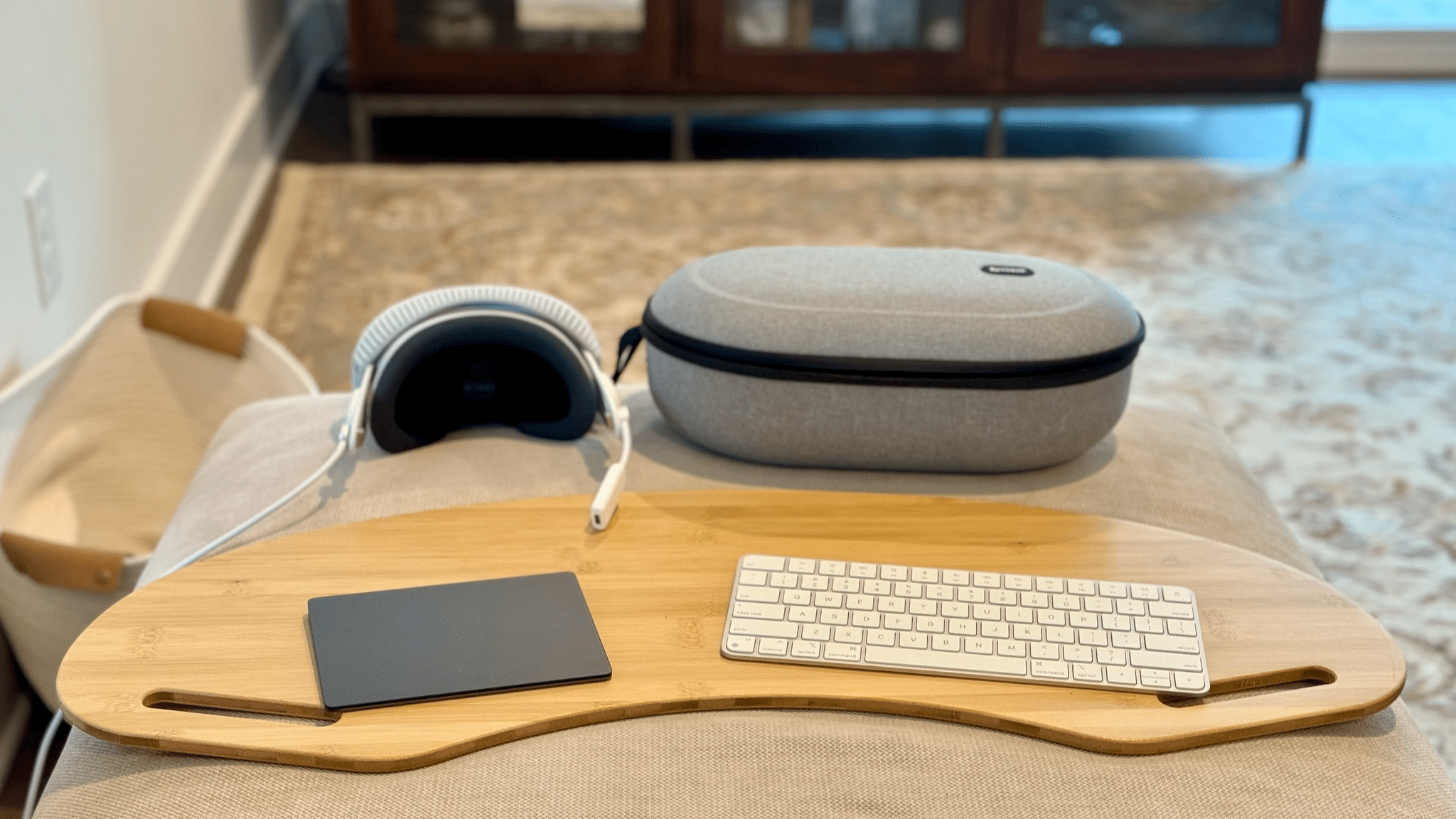
Slowly but surely, a growing number of accessories are popping up around the Apple Vision Pro. Today, we thought we’d share our favorites so far.
Battery Accessories
Battery Packs
 power bank.](https://cdn.macstories.net/anker-1708606792589.png)
The Anker Prime 27,650mAh power bank.
John: Apple sells the battery pack that powers the Apple Vision Pro as a separate accessory for $199. However, because the Vision Pro’s battery includes a USB-C port for charging it, there are plenty of cheaper solutions.
One option is simply plugging Apple’s battery into its power adapter as you use it. However, if you want something more portable, I’d suggest a battery pack to charge your Apple battery pack. Any battery pack will do, but we have several listed on our Setups page that Federico and I use and recommend and will do the trick too.
Belkin Battery Holder

Federico: I never thought I’d become the sort of person who casually holsters a tech accessory in his daily routine, and yet here we are thanks to the Vision Pro. I decided to get the Belkin battery holder upon ordering the Vision Pro, and I’m glad I did. Not only does the clip on the case make it easier to walk around the house while wearing the Vision Pro (putting the battery in my pocket causes too much tension on the cable and I don’t like it), but it also provides a nice degree of protection for the battery itself. I genuinely recommend getting this if you plan on moving around a lot while using the Vision Pro.
Keyboard and Trackpad Accessories
John: The Apple Vision Pro’s built-in keyboard and dictation are fine for entering short bits of text when you’re using the device, but for anything more than a few words, you’ll want a keyboard. The Apple Magic Keyboard works best with the Vision Pro because it integrates tightly with visionOS, displaying a preview of what you’re typing that floats just above the keyboard. Plus, Magic Trackpad is the only trackpad that I am aware of that works with the Vision Pro.
The MagicBridge or a Lap Desk
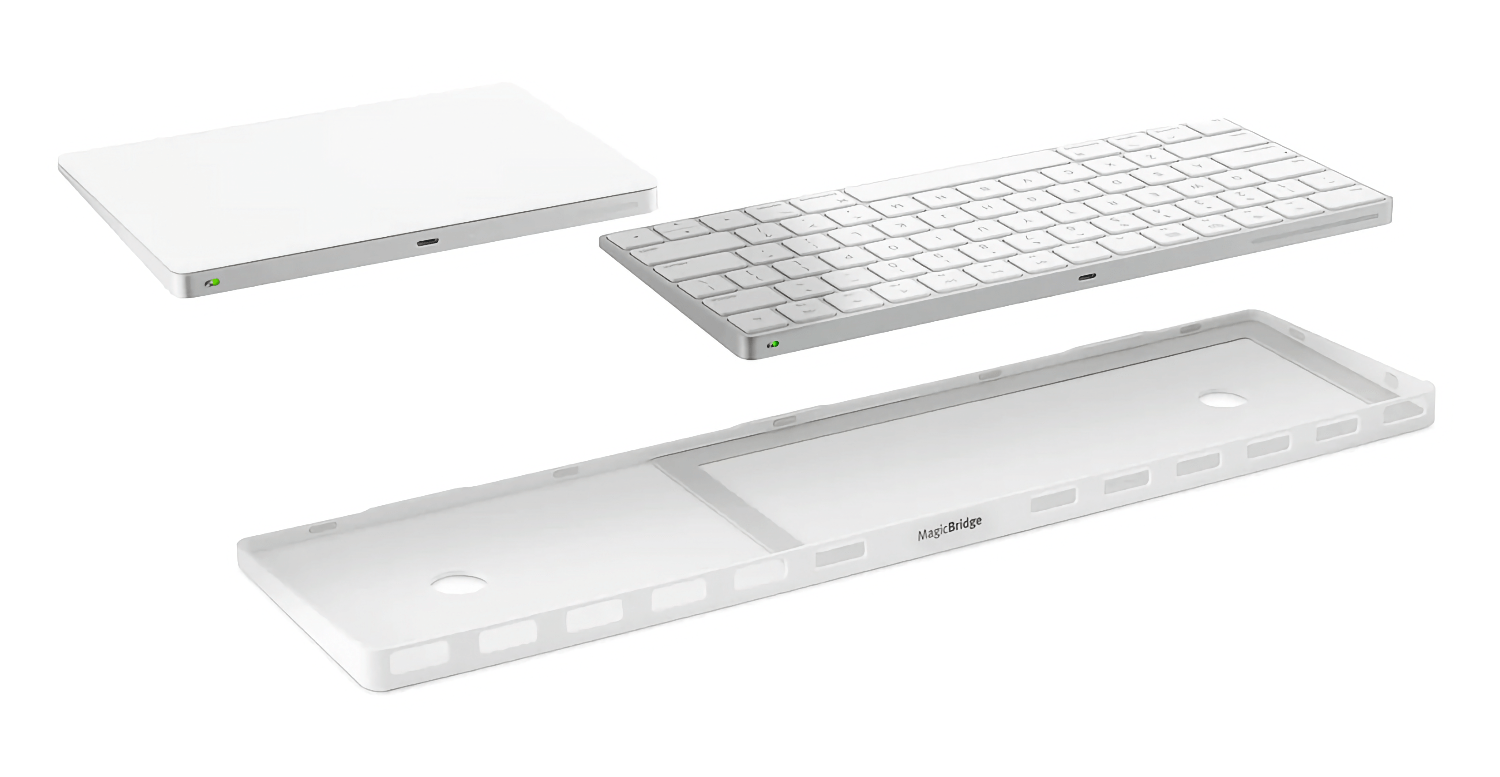
The trouble is finding a way to use the Magic Keyboard and Trackpad when you’re away from your desk or a tabletop because both are small and can be hard to balance in your lap. There are a few options here, depending on your preferences. Twelve South’s MagicBridge joins the Magic Keyboard and Magic Trackpad using a plastic frame that holds the two together side-by-side. It works much better in the lap that way, but it’s also wide and can feel unbalanced when the keyboard is directly in front of you, and the trackpad is hanging off to the side.
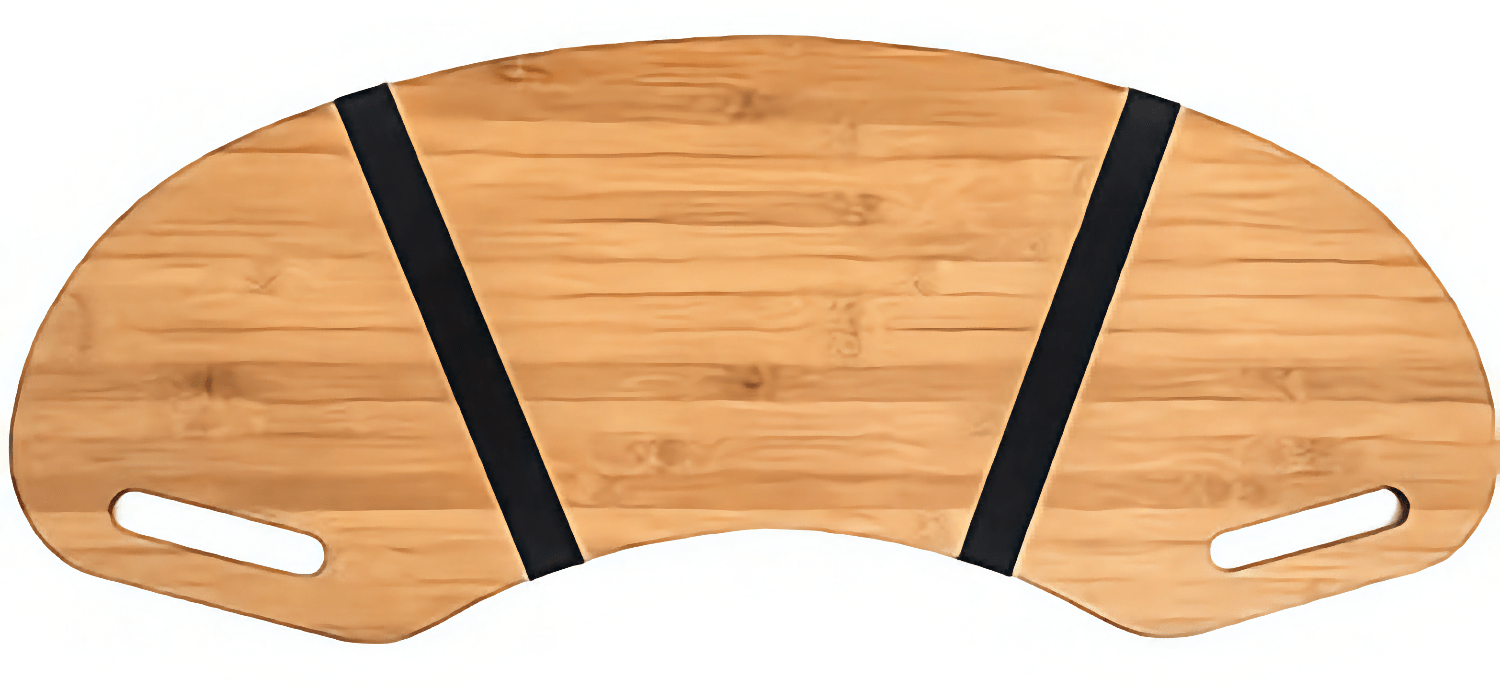
Since my initial experiments with the MagicBridge, I’ve gravitated to a lap desk for those times that I’m sitting on the couch. There are a million of these on Amazon and elsewhere. However, I like the simplicity of the 30.5” Wood Curved Lap Desk Table Tray, which is a simple curved piece of wood without any notches for iPhones or ridges to hold a laptop in place to get in my way.
Hazevaiy Acrylic Magic Keyboard and Trackpad Support Stand
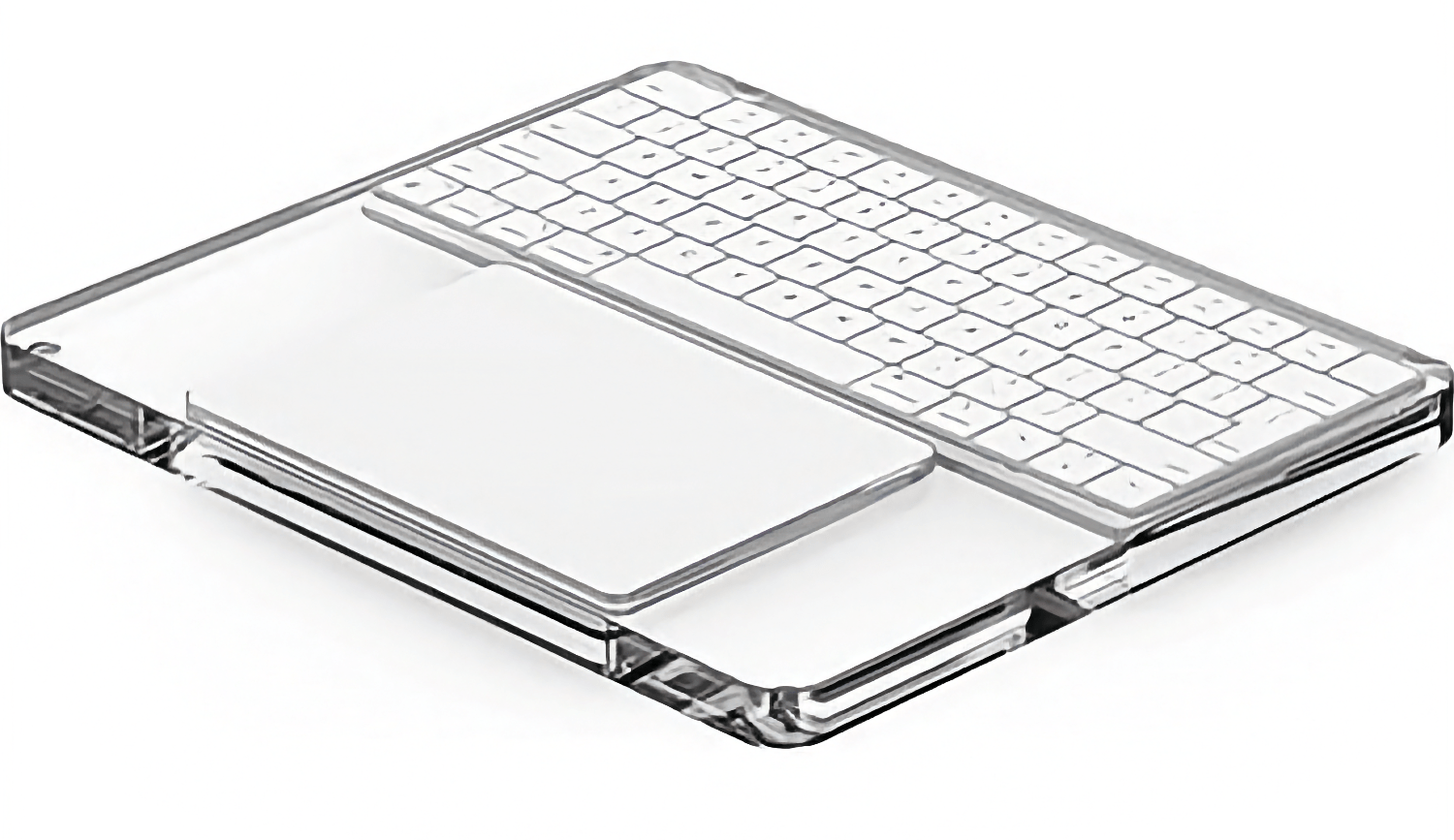
Federico: After some research and asking on Mastodon, I discovered that accessory manufacturers have been making for quite some time what is, effectively, the opposite of a MagicBridge: a tray where the Magic Trackpad and Keyboard are held in a laptop-like configuration, with the keyboard above the trackpad. I got a couple from Amazon, and I like the transparent one better than others I’ve seen thanks to its slimmer profile. (Plus, let’s face it – anything looks better when it’s made of transparent plastic.) These accessories all lack the sort of palm rejection features that are typically found on Mac laptops, so if you can get used to avoiding the trackpad with your palm or wrist when typing, I think you should consider this as a lap-friendly alternative to the MagicBridge.
A Smaller Case – Syntech Hard Carrying Case
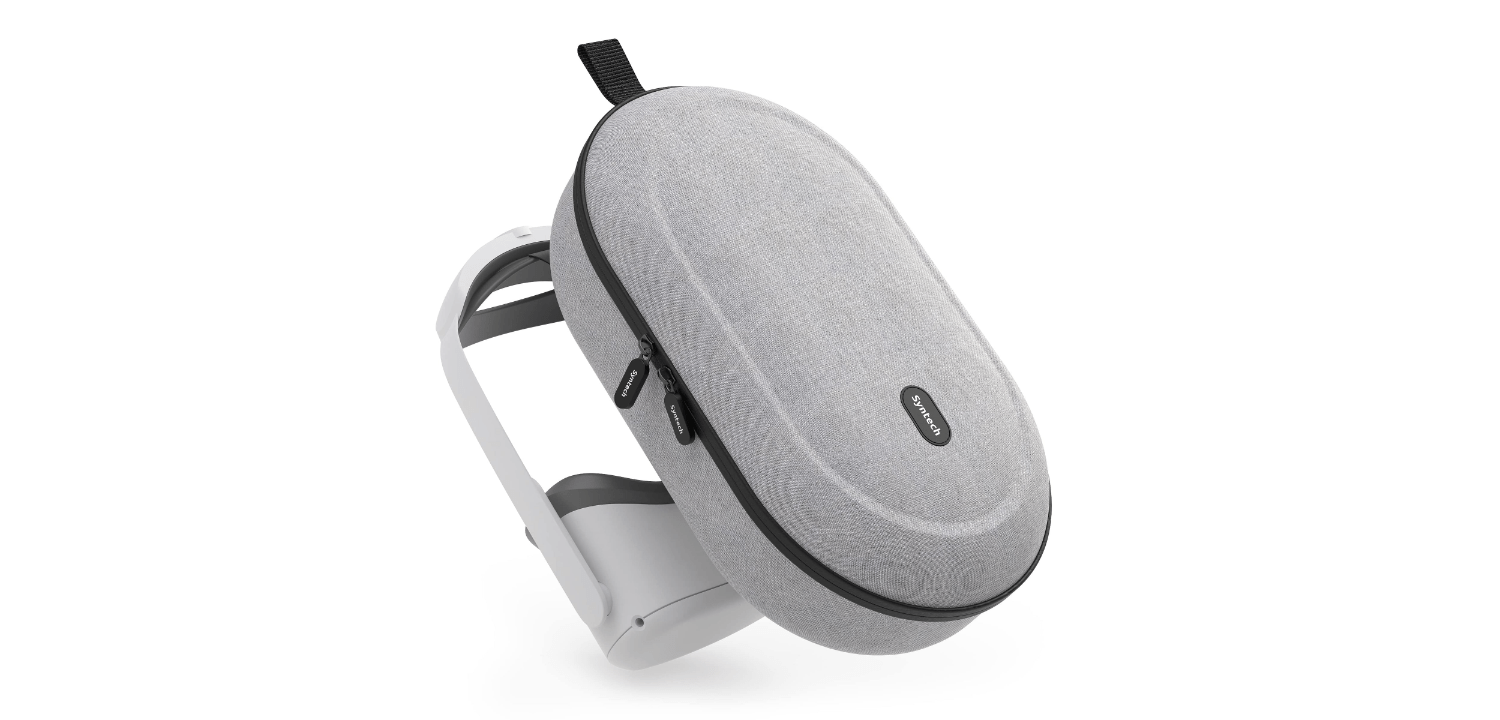
John: By all accounts Apple’s Vision Pro case is very nice, but I wasn’t interested because it’s so bulky and expensive. Instead, I went with one Federico discovered on Reddit by Syntech that was originally made for the Meta Quest. It’s not small, but it fits in a backpack better than Apple’s case ever will. Inside, there’s a velcro strap for securing your Vision Pro in place and enough spare room to stow your battery and polishing cloth. Best of all, the Syntech case is less than $30.
Protecting the Vision Pro’s Lenses - KIWI design Lens Protector Cover
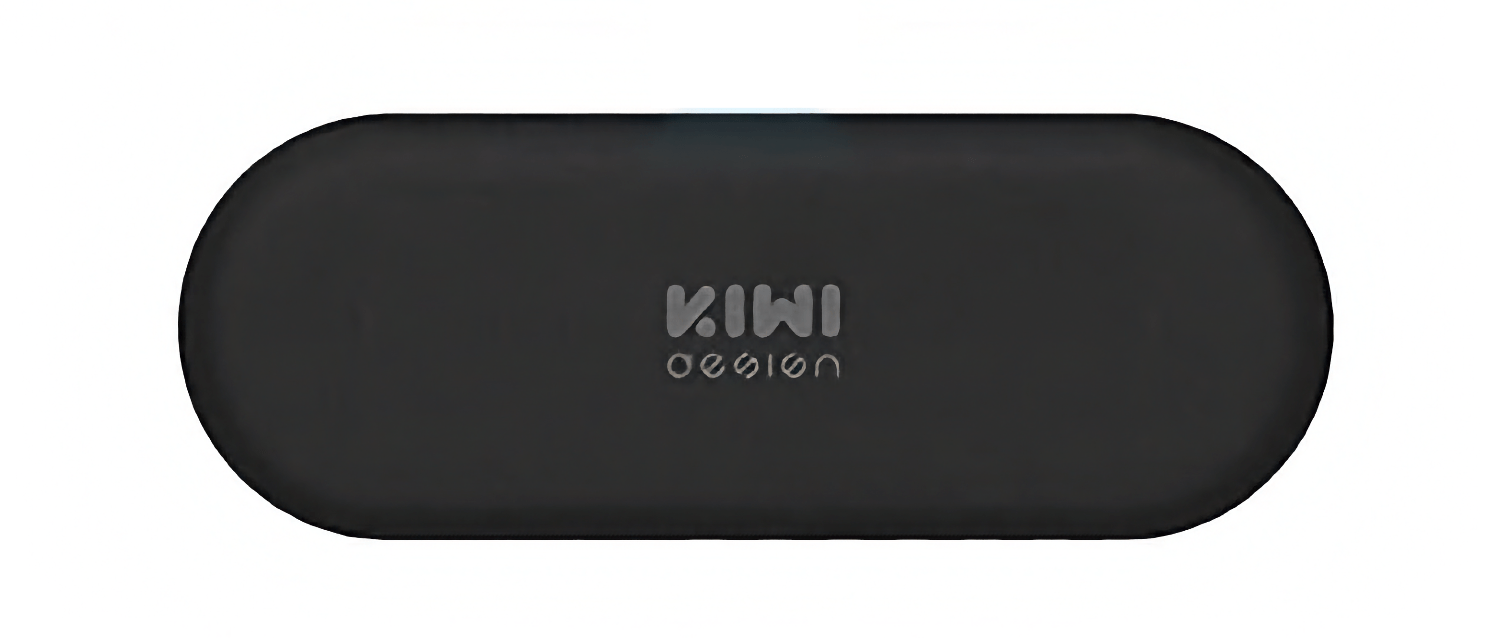
John: My most recent accessory find for the Vision Pro is the KIWI Lens Protector Cover. It’s another accessory originally designed for the Meta Quest, but it works perfectly with the Vision Pro too. There’s not much to say about the KIWI other than it’s a soft microfiber pillow that you stuff into the inside of your Vision Pro headset against the lenses to protect them. With a USB-C cable and other items in the same case as the Vision Pro, I feel better knowing that there’s a soft barrier between its lenses and everything else in my bag.
That’s it for now, but keep an eye on our MacStories Setups page for updates on the accessories we use with our Apple Vision Pros and other gear.