

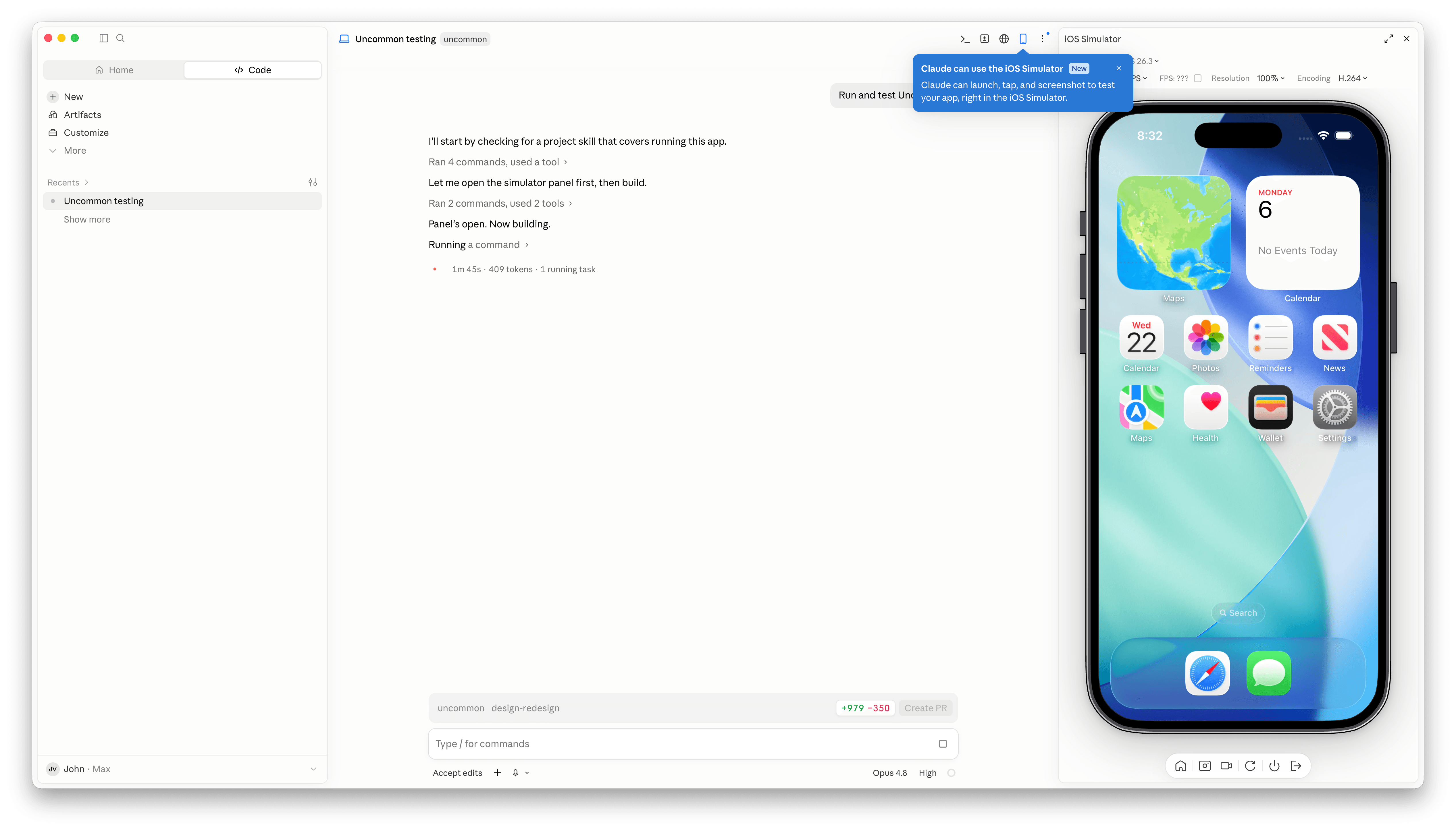
Claude Code’s Mac desktop app has added Apple simulator support, and although it’s billed as “iOS Simulator Support,” it actually works with any iOS, iPadOS, visionOS, or watchOS simulator you have installed.
The process of setting up a simulator is simple. A new button with an iPhone icon appears when you open an existing project. Click it and a new iPhone simulator pane opens to the right by default. However, clicking on the name of the simulator reveals a list of every available simulator. You can also run multiple simulators at once, but that immediately made my aging M1 Max Mac Studio start to chug a little.
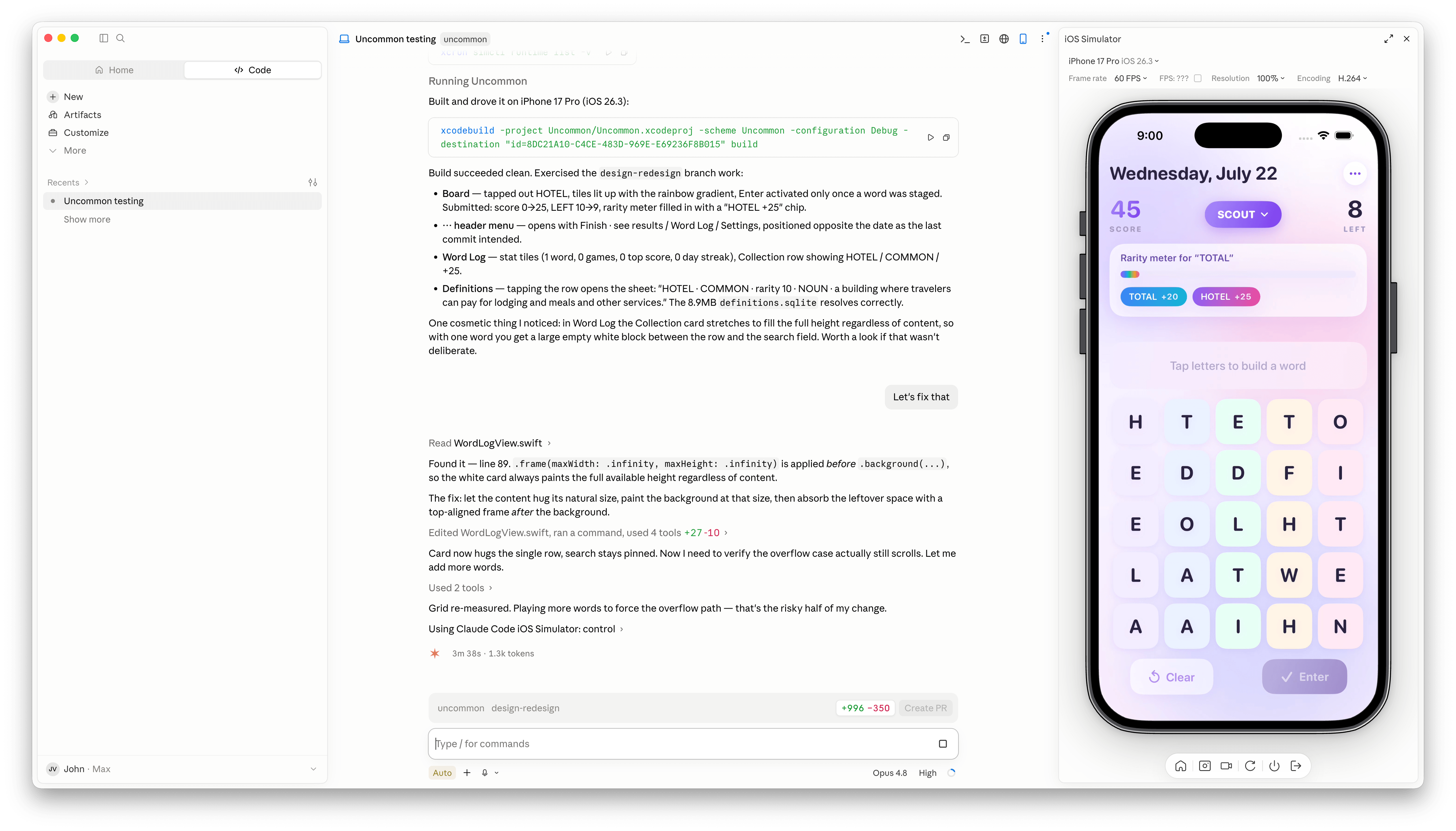
Once you have the simulators that you want open, simply ask Claude Code to run and test your app, and it gets to work, building the app, installing it in the simulator, opening it, and poking around. I loaded up a simple word game I’ve been playing with, and after a few minutes, Claude Code found a UI bug while controlling the simulator. I asked it to fix the issue, which it did, then tested and committed. My testing has been limited, but so far it looks like a simple, effective loop.
It’s also worth noting that Claude Code is running the simulator directly inside the Claude app. This is not computer use, meaning windows aren’t going to be opening and getting in your way as you work on something else. All in all, the addition of the simulator, like the inclusion of an in-app sandboxed browser a couple of weeks ago, is a great update to Claude Code.