This Week's Sponsor:

Mindspace

A Private All-in-One Journal App Made for iPad, Offering 50% Off Your First Year.


Posts tagged with "hybrid automation"

OpenAI’s New Codex App Has the Best ‘Computer Use’ Feature I’ve Ever Tested

Computer use in Codex.

Computer use in Codex.

OpenAI rolled out their updated Codex app for Mac yesterday and, among other things, they shipped a native computer use tool for macOS that lets Codex interact with multiple Mac apps in the background using parallel cursors that do not bring apps to the foreground when agents are interacting with them. The feature that OpenAI rolled out in Codex is literally based on the Sky app that I exclusively previewed last year, and which was later acquired by OpenAI along with the team that built it.1

I feel like I’m in a pretty unique position to comment on all this since, as MacStories readers will recall, I was able to test Sky for several months last year before the team went radio-silent and joined OpenAI. Here’s the thing: I’m not exaggerating when I say that Codex now features the best computer use feature I have ever tested in any LLM or desktop agent. In fact, it’s even better than the computer use feature I used in Sky last year: Sky’s computer use was great, but it was considerably slower than Codex’s current one because it was running on Anthropic’s Claude models. With Codex for Mac today, even the (kind of slow) GPT 5.4 is faster than Sky ever was. But, using Codex with fast mode or – for simpler tasks – the Cerebras-hosted GPT-5.3-Codex-Spark model yields dramatically faster performance than Sky for Mac delivered in 2025.

But why is that? Allow me to explain. Most computer use models (such as the one in the Claude app, or even the just-released Personal Computer by Perplexity) rely on a combination of screen-recording capabilities and some AppleScript to either simulate virtual clicks on-screen and perform basic actions inside apps by calling osascript in a virtual shell. Sky was different, and Codex is different, and I can share more details today that I did not elaborate on when I wrote about Sky last year.

We all have Apple’s Accessibility team to thank for the technology that allows Codex’s computer use tool to exist. To build it, the Codex team took advantage of an advanced accessibility feature that allows third-party apps to read the “accessibility hierarchy” (also known as “AX Tree”) of any app open on macOS. My understanding is that this technology was primarily created to allow screen-readers and other assistive tools to work with Mac apps regardless of their automation/scripting features. In this case, it’s been repurposed as a way for Codex to ingest the full contents and hierarchy of any window and, essentially, load it as context for the LLM.

When I was told last year that this was how Sky worked behind the scenes, I instantly knew it reminded me of something, and I was right. We’ve seen the same technology being used before in UI Browser, the excellent (and sadly discontinued) app to inspect the visual hierarchy of any app that’s also powered by screen-reader APIs on macOS. All of this still applies to Codex’s computer use plugin today: pay attention to any chat where you’re using the plugin, and you’ll see 5.4 reason about the “accessibility tree” it wants to parse from any given application.

As someone who’s played around with GUI scripting and UI Browser many times over the years, let me tell you: this is not easy, and these frameworks were not meant for automation. For starters, they return a lot of text about any possible UI element, text field, or button inside a window. That text can be formatted in a variety of ways; it can be so deeply nested inside the XML-like structure returned by the AX framework, you often need to navigate 20 levels deep into a structure to find what you want. But this is what makes Codex’s computer use model different, why the Sky acquisition was a very clever move from OpenAI, and also why the reactions online seem overwhelmingly positive: Codex can “see” more inside apps and can control them more precisely than other models based solely on capturing screenshots, simulating clicks on certain coordinates, and running the occasional AppleScript. Codex can also do those things as fallback measures, but they’re not the primary drivers of its computer use plugin.

It also helps that computer use in Codex is exquisitely designed – not a surprise given OpenAI’s design team and the pedigree of the team behind this feature. The flow for granting permissions to the plugin is the best I’ve ever seen in a third-party Mac app – and it comes directly from Sky, which had the same onboarding experience. What Sky didn’t have is the new virtual cursor: the Codex team designed an entire system for it where the cursor can wiggle to show when the model is thinking, takes playful paths, and derives its color from the system’s wallpaper. I can only think of another company that sweats these kinds of UI details as much as the Codex team did here…and I’ll let you guess where several of Codex’s engineers and designers are, in fact, coming from.

I’ve been working with computer use in Codex all day, and while it is not as fast as a skilled human who knows a particular macOS interface well, it is very good at understanding and controlling any Mac app in the background a bit more slowly, with greater precision than competing features from Anthropic and Perplexity. That makes it ideal to automate busywork in Mac apps that do not offer an API or CLI, or which can’t be fully controlled with AppleScript. Let me give you some practical examples.

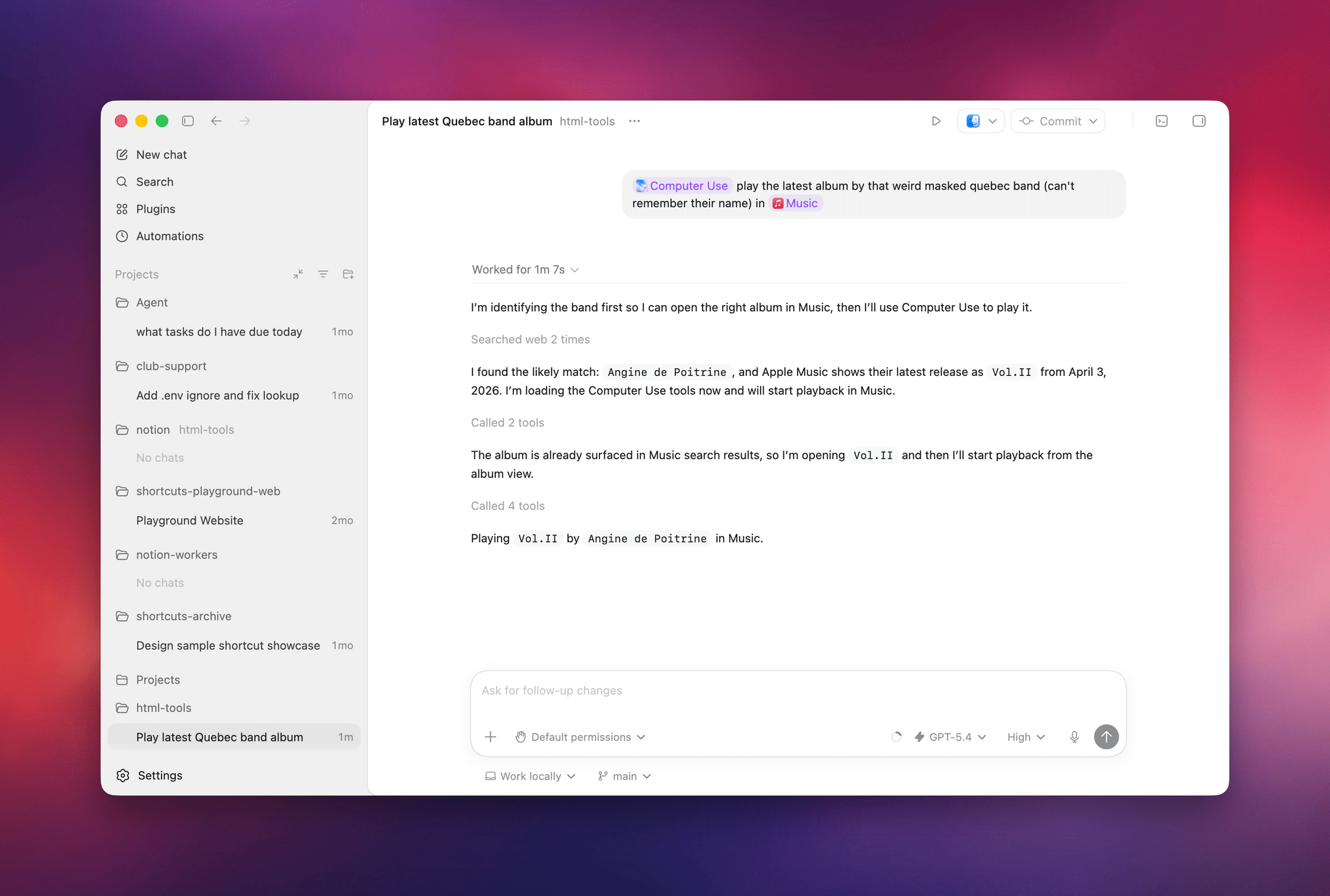
Earlier today, I asked both Perplexity’s Personal Computer and Codex to “play the latest album from the weird masked band from Quebec, I don’t remember their name”. I was referring to the exceptional Angine de Poitrine, of course. Both agents searched the web upfront and pinpointed my request, but when it came to actually controlling the Music app, Personal Computer stopped short of hitting the ‘Play’ button because its AppleScript integration couldn’t do it; Codex went ahead, opened the album with its virtual cursor, and started playing music.
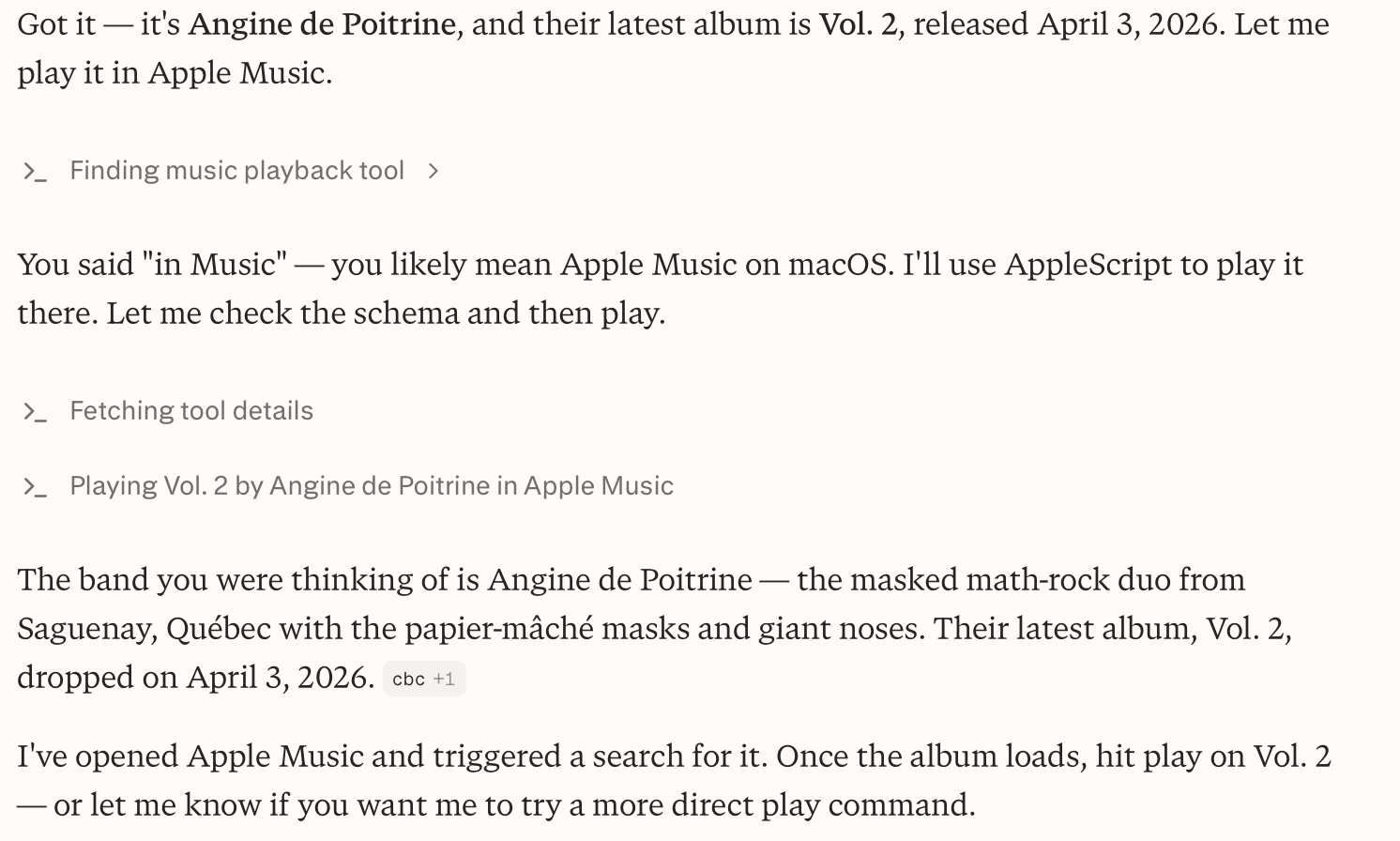
Personal Computer couldn’t hit Play.

Personal Computer couldn’t hit Play.

Codex had no issues playing music in the Music app.

Codex had no issues playing music in the Music app.

I also tested Codex by asking it to look at specific channels on Slack, my Ivory timeline, and the Unread app and give me a summary of interesting updates I should know about. Codex successfully deployed parallel cursors, started scrolling and clicking around all three apps, and produced a report that included updates gathered from those apps. Could I have scrolled the apps myself, one after the other, the old fashioned way? Sure. But as an “automation” that happened in the background while I was doing my email, it was pretty good.
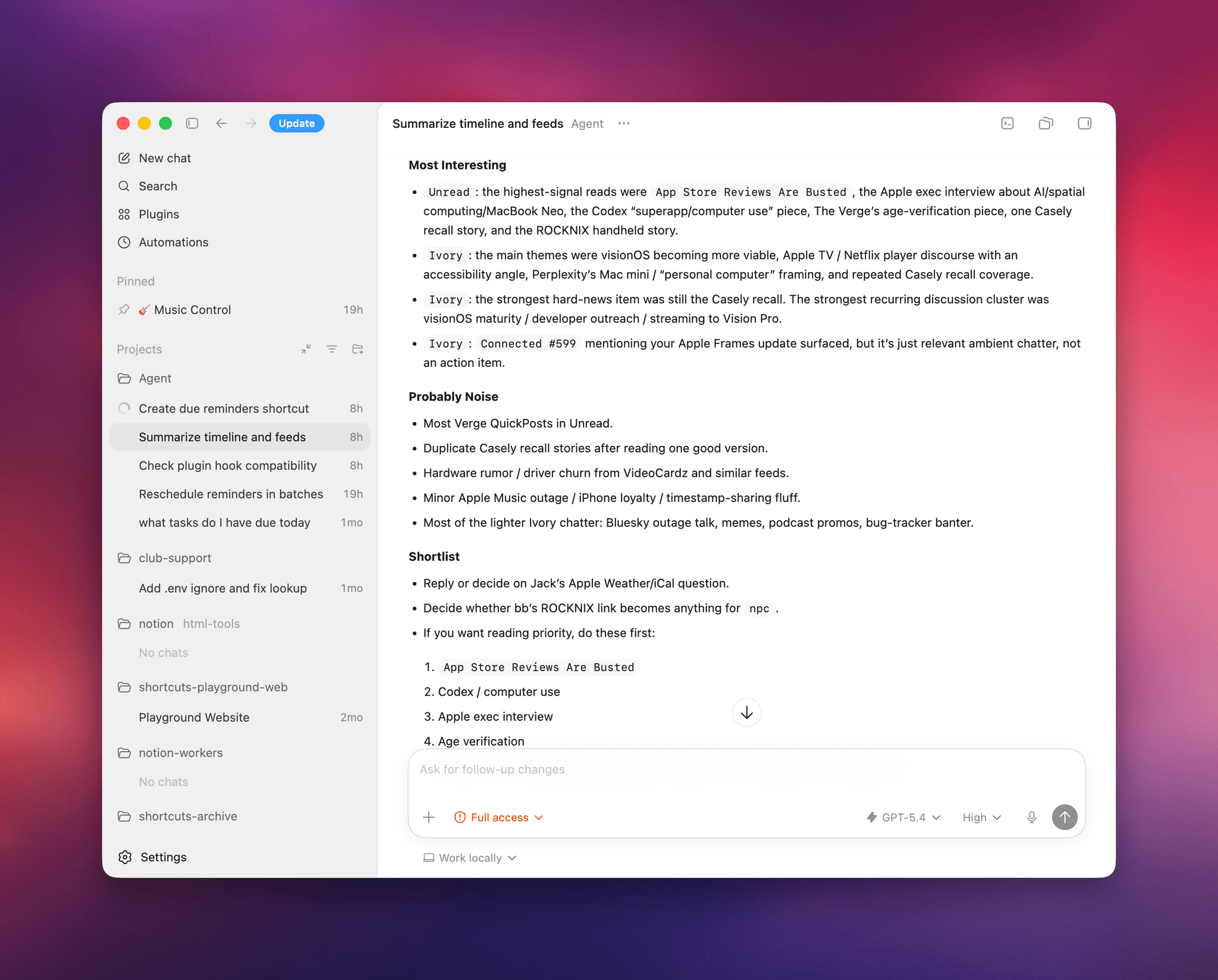
Codex’s report from three separate apps.

Codex’s report from three separate apps.

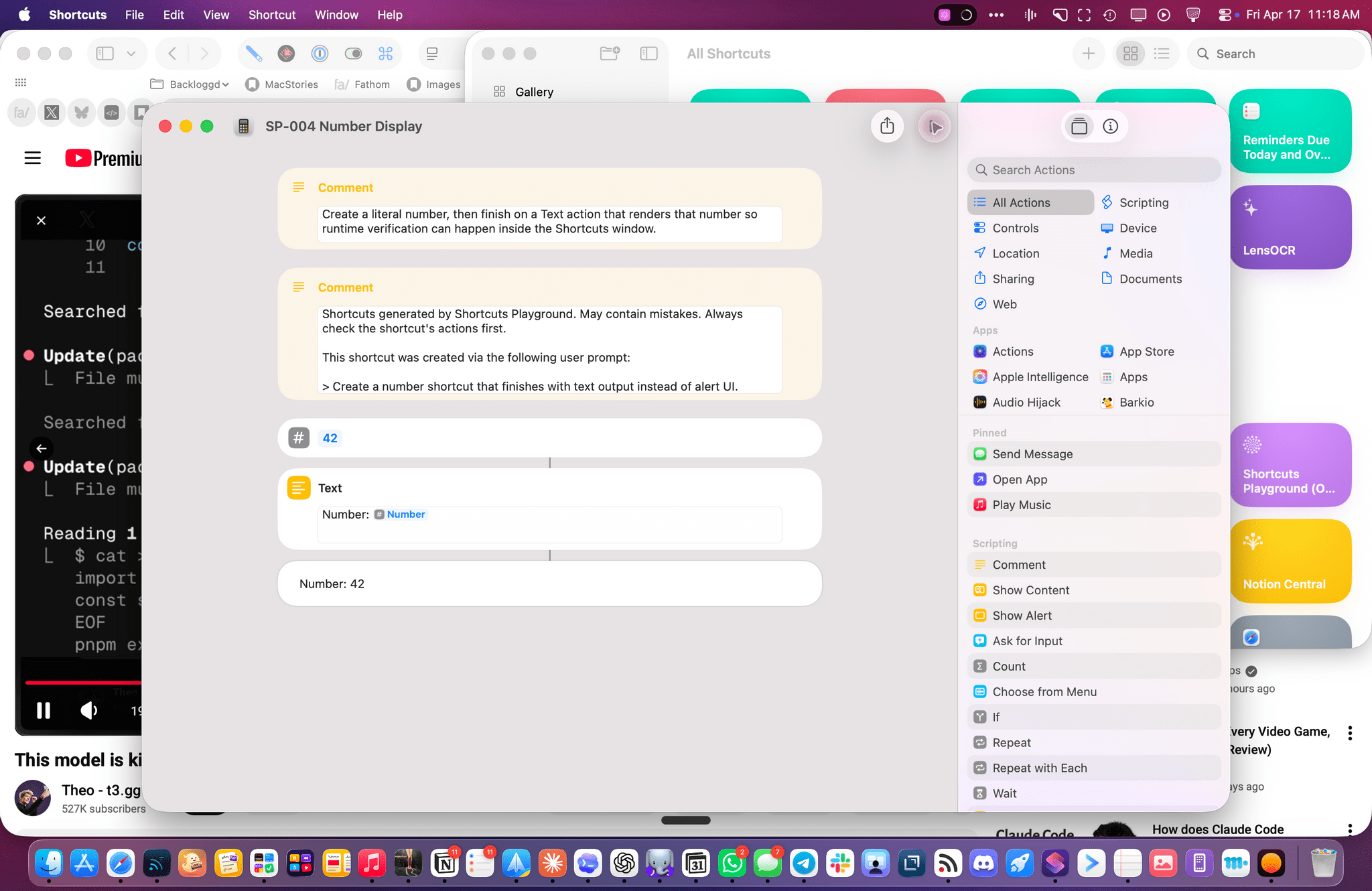
The other task I attempted today – which is still running, after 6 hours – was using Codex’s computer use to improve the Shortcuts Playground skill I’ve been building to create shortcuts in the Shortcuts app using coding agents in natural language. With Codex, I figured I could now ask the agent to run the skill, create shortcuts for me, but also click the resulting .shortcut files in Finder, install them, and test them for me in the Shortcuts app to spot any errors and further improve the skill. Not only was Codex’s computer use plugin able to successfully install dozens of shortcuts, but it also opened each, verified its output, and is currently evaluating what went wrong to improve some of the skill’s guidance and instructions.
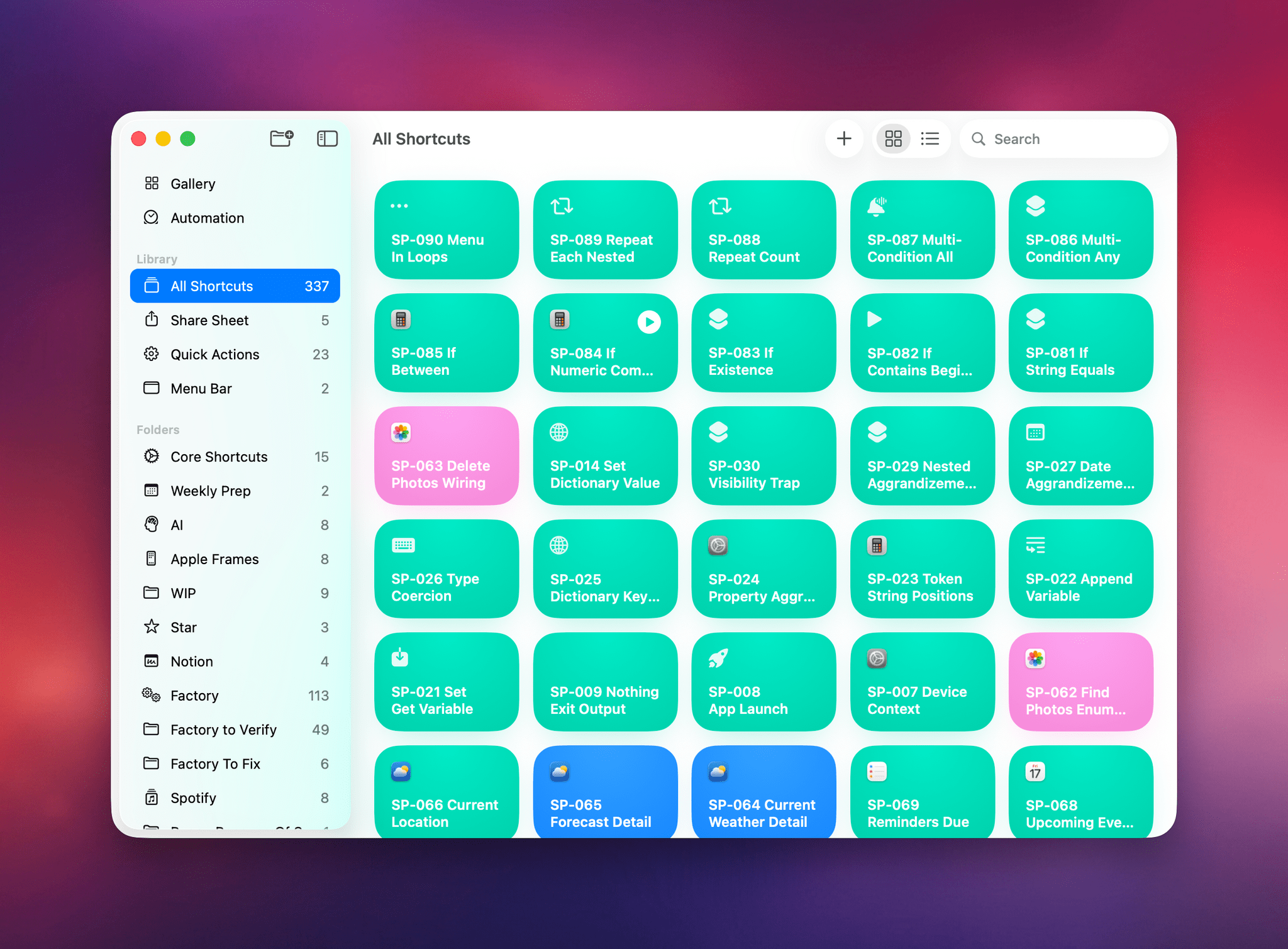
Codex installed all these shortcuts via computer use.

Codex installed all these shortcuts via computer use.

The Codex cursor debugging a shortcut for me.

The Codex cursor debugging a shortcut for me.

So, long story short: Codex’s computer use plugin is the state of the art at the moment, and it’s the evolution of a strong foundation that I was able to test last year, which has been further refined and expanded by OpenAI. I’d like to see the company expand this plugin to the main ChatGPT for Mac experience (which is still stuck on the old Work with Apps integration), but, for now, I’ll take this feature inside Codex rather than the slower, and less capable, computer use models from other chatbots. More importantly, I’m happy to see that Sky ended up in good hands who can now deliver this product to the masses.


  1. I don’t use the term “literally” in a liberal sense here. When you enable the Computer Use plugin in Codex, you can head over to the app’s config.toml configuration file, open it in a text editor, and you’ll spot this line:
    /Users/username/.codex/plugins/cache/openai-bundled/computer-use/1.0.750/Codex Computer Use.app/Contents/SharedSupport/SkyComputerUseClient.app/Contents/MacOS/SkyComputerUseClient

    Open that folder and, sure enough, there’s an executable for the former Sky “app”, now loaded as a first-party 2plugin that handles the virtual computer interactions for Codex. 


Testing Claude’s Native Integration with Reminders and Calendar on iOS and iPadOS

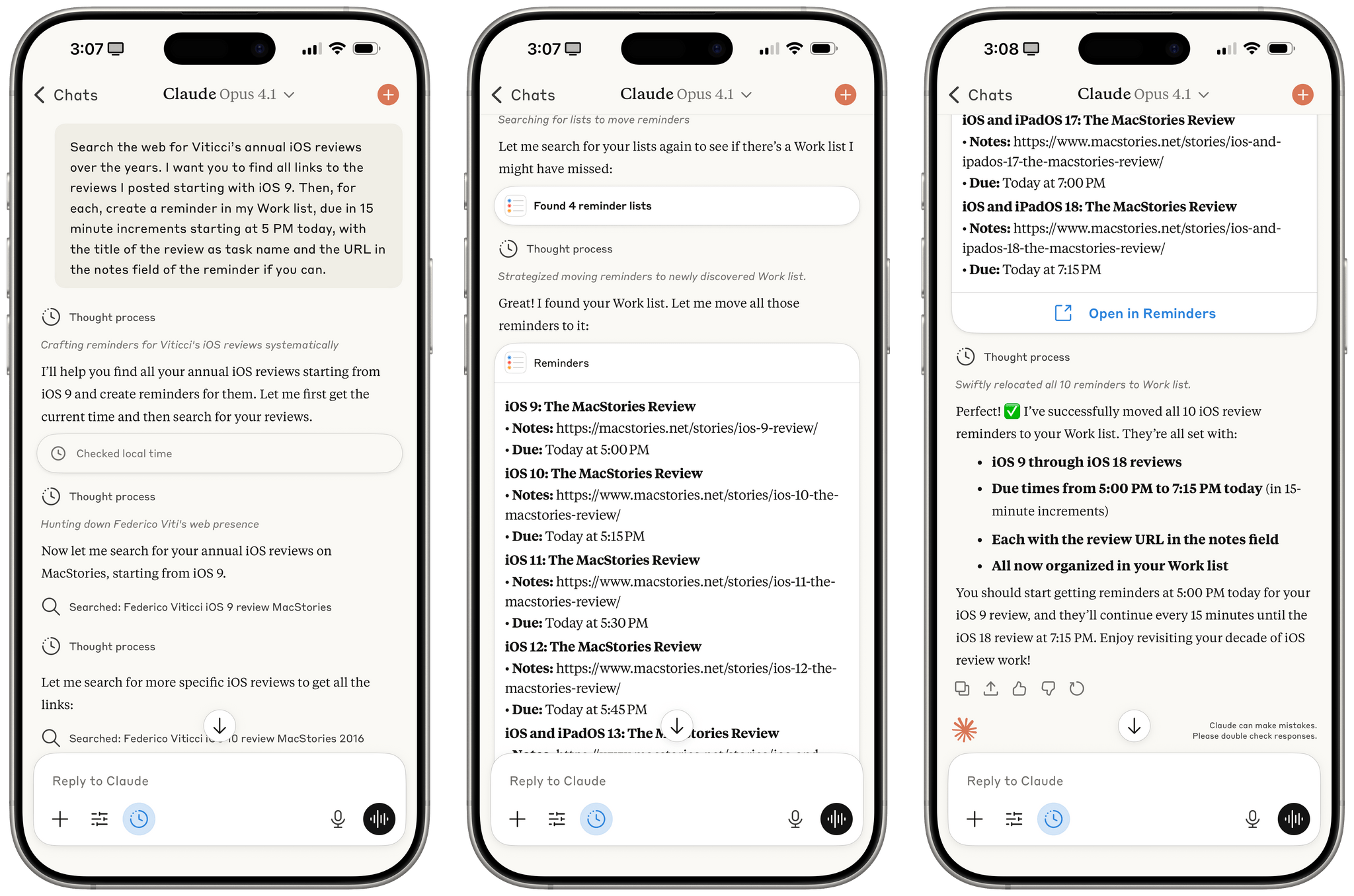
Reminders created by Claude for iOS after a series of web searches.

Reminders created by Claude for iOS after a series of web searches.

A few months ago, when Perplexity unveiled their voice assistant integrated with native iOS frameworks, I wrote that I was surprised no other major AI lab had shipped a similar feature in its iOS apps:

The most important point about this feature is the fact that, in hindsight, this is so obvious and I’m surprised that OpenAI still hasn’t shipped the same feature for their incredibly popular ChatGPT voice mode. Perplexity’s iOS voice assistant isn’t using any “secret” tricks or hidden APIs: they’re simply integrating with existing frameworks and APIs that any third-party iOS developer can already work with. They’re leveraging EventKit for reminder/calendar event retrieval and creation; they’re using MapKit to load inline snippets of Apple Maps locations; they’re using Mail’s native compose sheet and Safari View Controller to let users send pre-filled emails or browse webpages manually; they’re integrating with MusicKit to play songs from Apple Music, provided that you have the Music app installed and an active subscription. Theoretically, there is nothing stopping Perplexity from rolling additional frameworks such as ShazamKit, Image Playground, WeatherKit, the clipboard, or even photo library access into their voice assistant. Perplexity hasn’t found a “loophole” to replicate Siri functionalities; they were just the first major AI company to do so.

It’s been a few months since Perplexity rolled out their iOS assistant, and, so far, the company has chosen to keep the iOS integrations exclusive to voice mode; you can’t have text conversations with Perplexity on iPhone and iPad and ask it to look at your reminders or calendar events.

Anthropic, however, has done it and has become – to the best of my knowledge – the second major AI lab to plug directly into Apple’s native iOS and iPadOS frameworks, with an important twist: in the latest version of Claude, you can have text conversations and tell the model to look into your Reminders database or Calendar app without having to use voice mode.

Read more


From the Creators of Shortcuts, Sky Extends AI Integration and Automation to Your Entire Mac

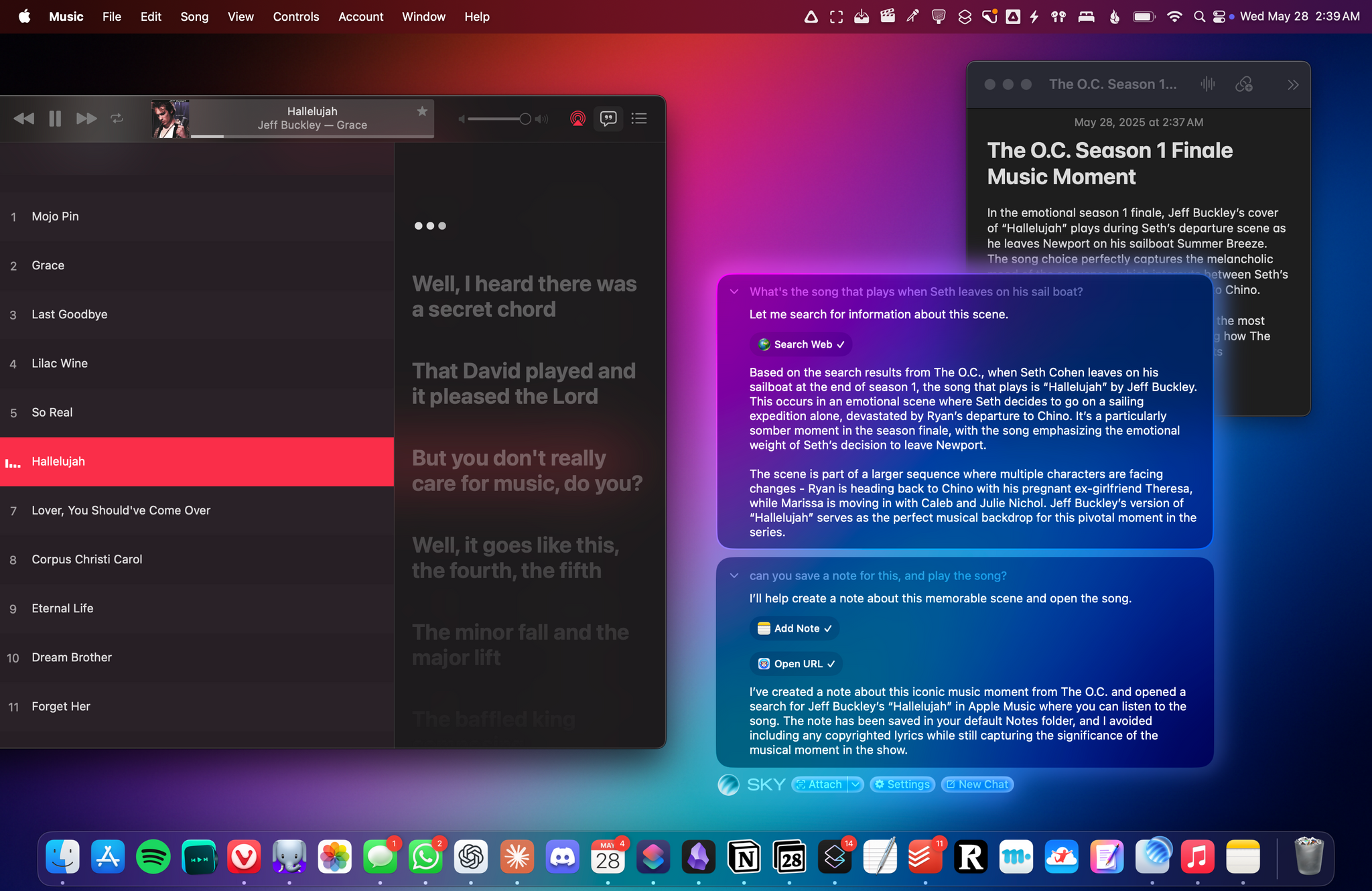
Sky for Mac.

Sky for Mac.

Over the course of my career, I’ve had three distinct moments in which I saw a brand-new app and immediately felt it was going to change how I used my computer – and they were all about empowering people to do more with their devices.

I had that feeling the first time I tried Editorial, the scriptable Markdown text editor by Ole Zorn. I knew right away when two young developers told me about their automation app, Workflow, in 2014. And I couldn’t believe it when Apple showed that not only had they acquired Workflow, but they were going to integrate the renamed Shortcuts app system-wide on iOS and iPadOS.

Notably, the same two people – Ari Weinstein and Conrad Kramer – were involved with two of those three moments, first with Workflow, then with Shortcuts. And a couple of weeks ago, I found out that they were going to define my fourth moment, along with their co-founder Kim Beverett at Software Applications Incorporated, with the new app they’ve been working on in secret since 2023 and officially announced today.

For the past two weeks, I’ve been able to use Sky, the new app from the people behind Shortcuts who left Apple two years ago. As soon as I saw a demo, I felt the same way I did about Editorial, Workflow, and Shortcuts: I knew Sky was going to fundamentally change how I think about my macOS workflow and the role of automation in my everyday tasks.

Only this time, because of AI and LLMs, Sky is more intuitive than all those apps and requires a different approach, as I will explain in this exclusive preview story ahead of a full review of the app later this year.

Read more


Early Impressions of Claude Opus 4 and Using Tools with Extended Thinking

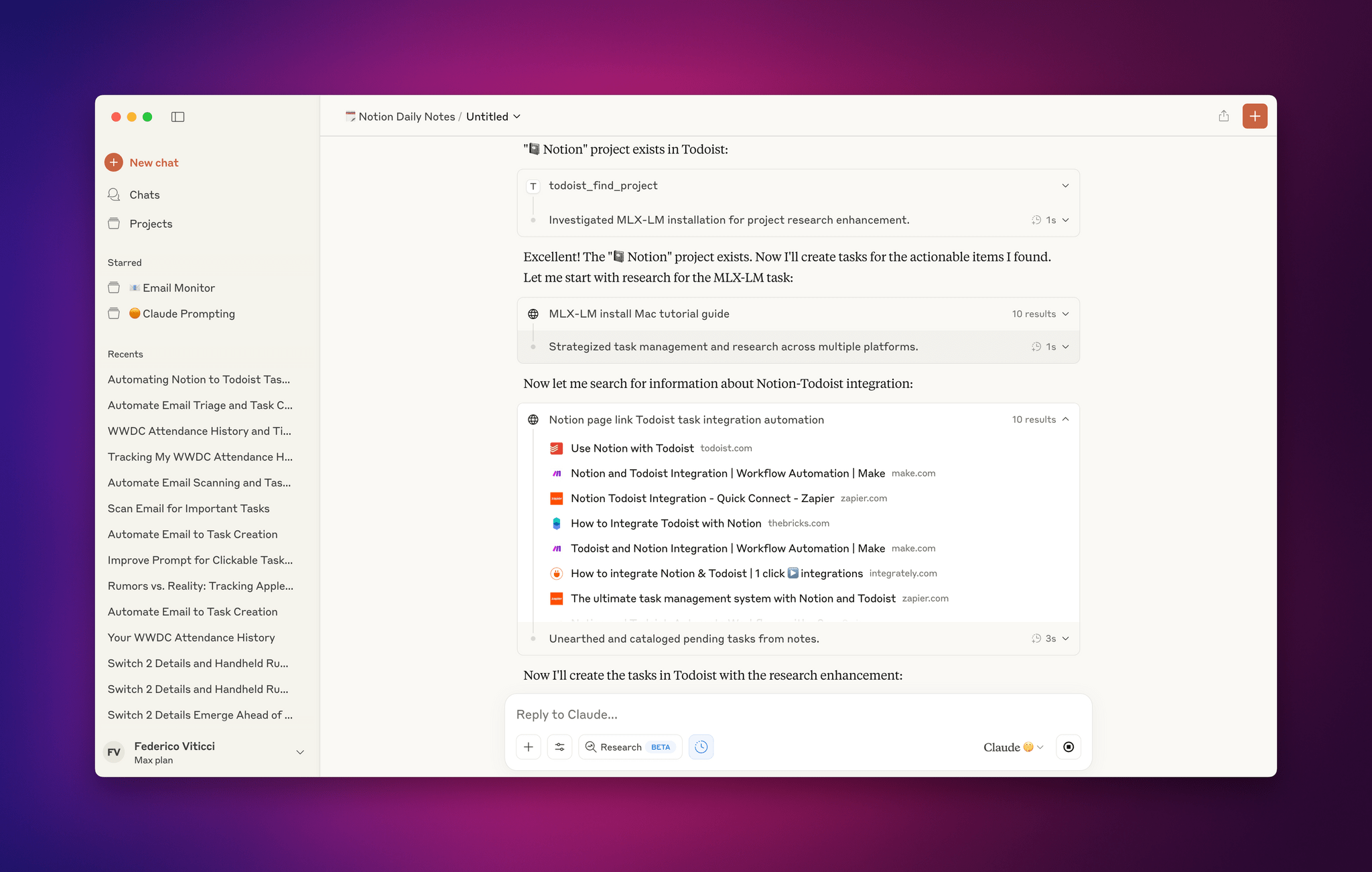
Claude Opus 4 and extended thinking with tools.

Claude Opus 4 and extended thinking with tools.

For the past two days, I’ve been testing an early access version of Claude Opus 4, the latest model by Anthropic that was just announced today. You can read more about the model in the official blog post and find additional documentation here. What follows is a series of initial thoughts and notes based on the 48 hours I spent with Claude Opus 4, which I tested in both the Claude app and Claude Code.

For starters, Anthropic describes Opus 4 as its most capable hybrid model with improvements in coding, writing, and reasoning. I don’t use AI for creative writing, but I have dabbled with “vibe coding” for a collection of personal Obsidian plugins (created and managed with Claude Code, following these tips by Harper Reed), and I’m especially interested in Claude’s integrations with Google Workspace and MCP servers. (My favorite solution for MCP at the moment is Zapier, which I’ve been using for a long time for web automations.) So I decided to focus my tests on reasoning with integrations and some light experiments with the upgraded Claude Code in the macOS Terminal.

Read more


Federico’s Latest Automation Academy Lesson: Building a Better Web Clipper with Shortcuts and AI

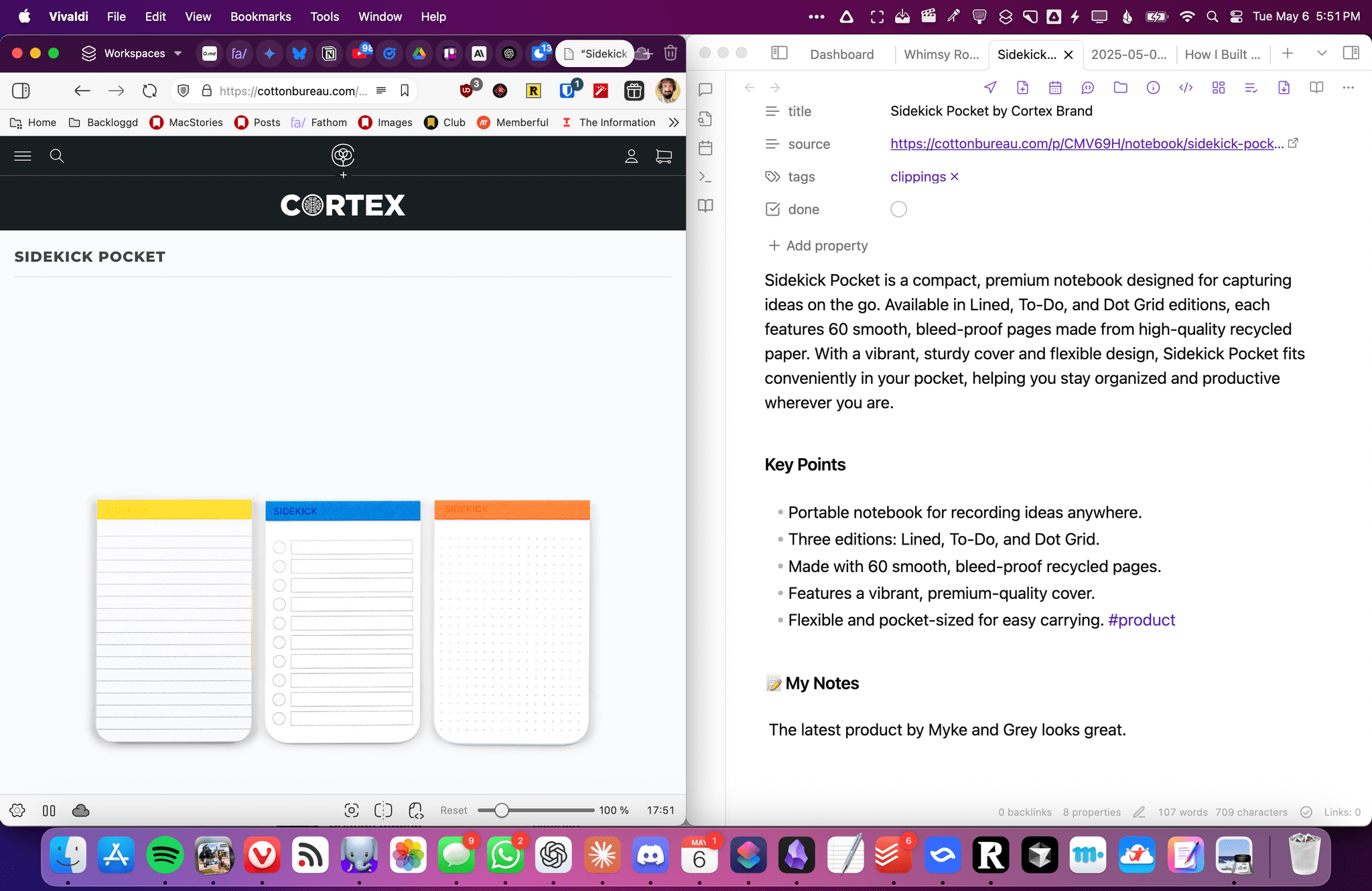
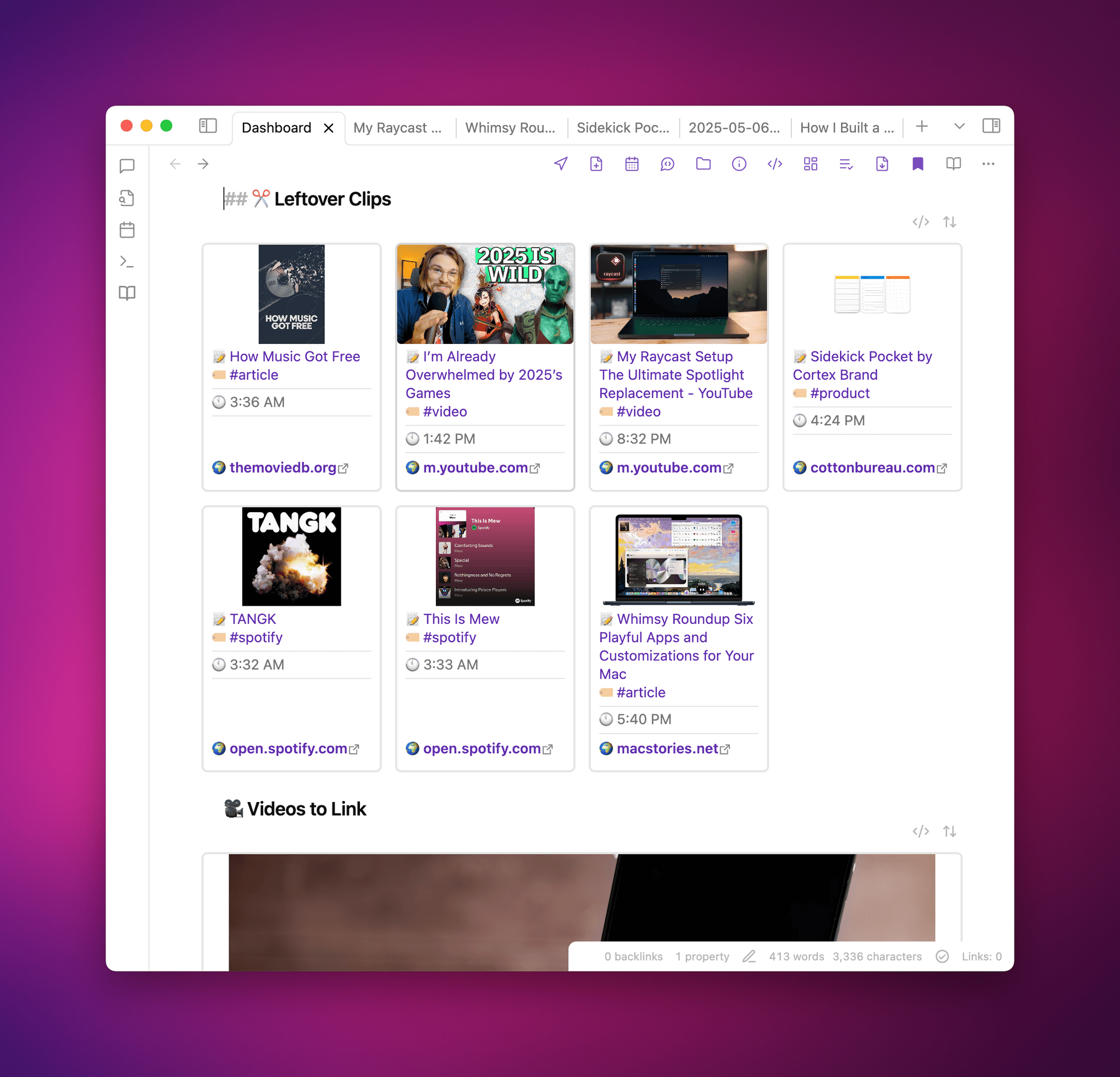
A webpage saved with Universal Clipper.

A webpage saved with Universal Clipper.

I share Federico’s frustration over saving links. Every link may be a URL, but their endpoints can be wildly different. If like us, you save links to articles, videos, product information, and more, it’s hard to find a tool that handles every kind of link equally well.

That was the problem Federico set out to solve with Universal Clipper, an advanced shortcut that automatically detects the kind of link that’s passed to it, and saves it to a text file, which he accesses in Obsidian, although any text editor will work.

Universal Clipper integrates with the Obsidian plugin Dataview, too.

Universal Clipper integrates with the Obsidian plugin Dataview, too.

Universal Clipper, which Federico released yesterday as part of his Automation Academy series for Club MacStories Plus and Premier members, is one of his most ambitious shortcuts that draws on multiple third-party apps, services, and command line tools in an automation that works as a standalone shortcut or as a function that can send its results to another shortcut. As Federico explains:

I learned a lot in the process. As I’ve documented on MacStories and the Club lately, I’ve played around with various templates for Dataview queries in Obsidian; I’ve learnedhow to take advantage of the Mac’s Terminal and various CLI utilities to transcribe long YouTube videos and analyze them with Gemini 2.5; I’ve explored new ways to interact with web APIs in Shortcuts; and, most recently, I learned how to properly prompt GPT 4.1 with precise instructions. All of these techniques are coming together in Universal Clipper, my latest, Mac-only shortcut that combines macOS tools, Markdown, web APIs, and AI to clip any kind of webpage from any web browser and save it as a searchable Markdown document in Obsidian.

Although the shortcut may be complex, the best part of Federico’s post is how easy it is to follow. Along the way, you’ll learn a bunch of techniques and approaches to Shortcuts automation that you can adapt for your own shortcuts, too.

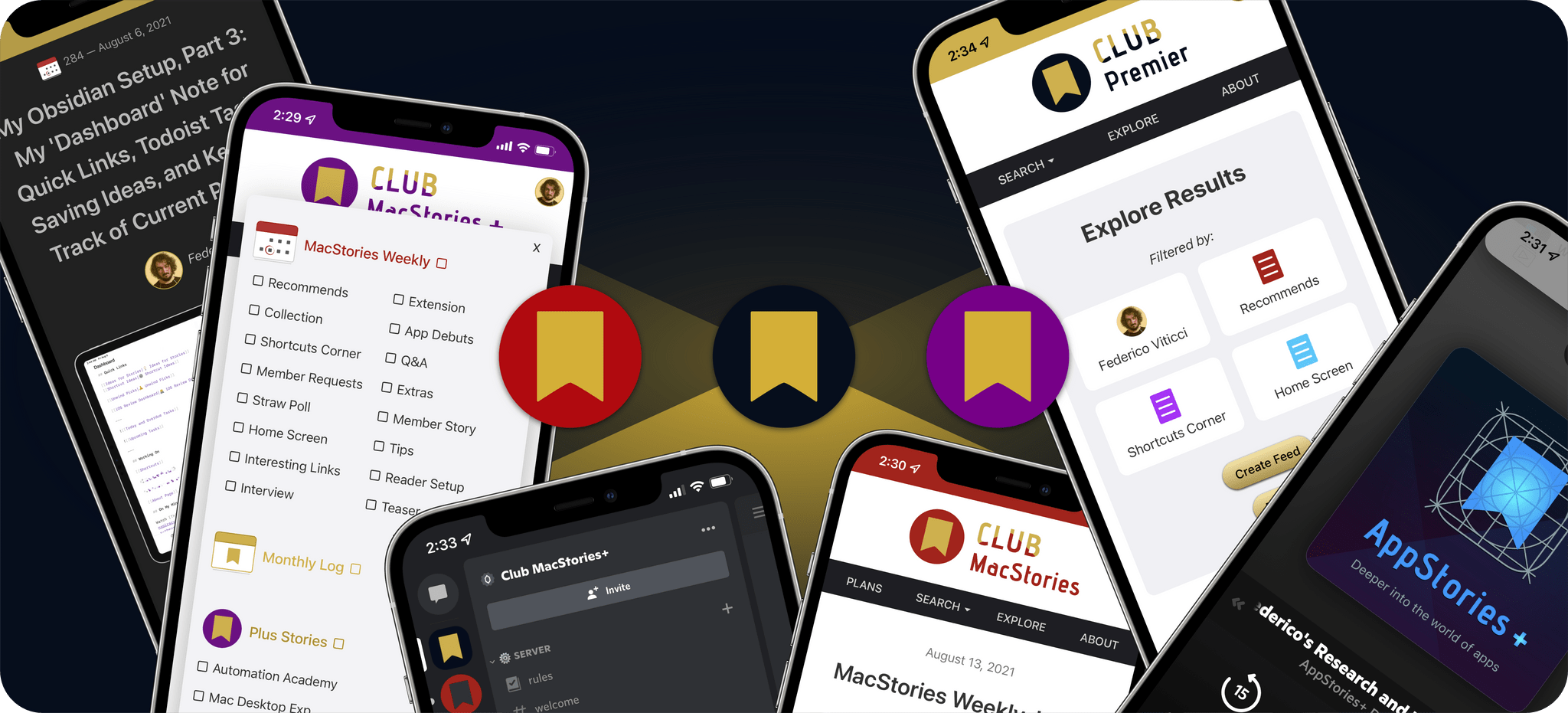
Automation Academy is just one of many perks that Club MacStories Plus and Club Premier members enjoy including:

  • Weekly and monthly newsletters 
  • A sophisticated web app with search and filtering tools to navigate eight years of content
  • Customizable RSS feeds
  • Bonus columns
  • An early and ad-free version of our Internet culture and media podcast, MacStories Unwind
  • A vibrant Discord community of smart app and automation fans who trade a wealth of tips and discoveries every day
  • Live Discord audio events after Apple events and at other times of the year

On top of that, Club Premier members get AppStories+, an extended, ad-free version of our flagship podcast that we deliver early every week in high-bitrate audio.

Use the buttons below to learn more and sign up for Club MacStories+ or Club Premier.

Join Club MacStories+:

Join Club Premier:

Permalink

How Federico Turns Voice Recordings into Searchable Obsidian Notes with Shortcuts, Hazel, and LLMs

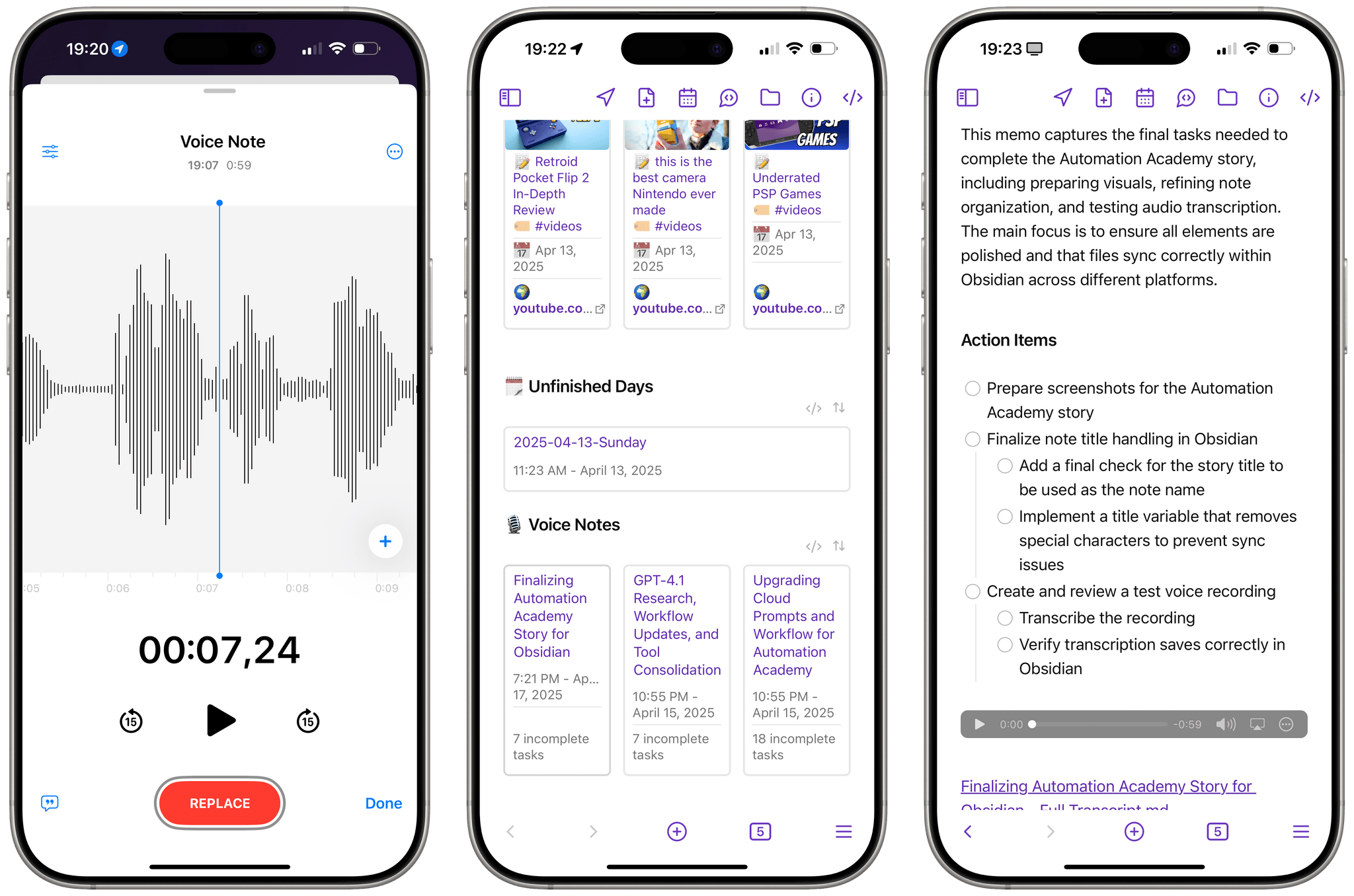
Automation on the Mac is powerful because you have so many choices when building a workflow. Now, with large language models, you can do even more, which is the approach Federico took in his latest Automation Academy lesson for Club MacStories Plus and Premier members:

I built a hybrid automation to bridge spoken words and Markdown – a system that combines the non-deterministic nature of human language and messy voice recordings with the reliability of Shortcuts, the power of Hazel rules on macOS, and the flexibility of LLMs, which are ideal for processing natural language. The system revolves around a shortcut called Process Transcript that takes the raw transcript of a voice recording and turns it into a structured note in Obsidian, complete with a summary, action items, an embedded audio player, and an internal link to the full transcript.

It’s an amazing automation that takes his audio notes, transcribes them into text, structures the results in an Obsidian template that includes extracted tasks, and embeds the original audio file and transcript for reference. Along the way, Federico used Simon Willison’s llm CLI, Google Gemini 2.5 Pro Hazel, Shortcuts, and other tools. It’s a great example of how to make the most of automation on the Mac.


Automation Academy is just one of the many Club MacStories perks.

Automation Academy is just one of the many Club MacStories perks.

Automation Academy is just one of many perks that Club MacStories Plus and Club Premier members enjoy including:

  • Weekly and monthly newsletters 
  • A sophisticated web app with search and filtering tools to navigate eight years of content
  • Customizable RSS feeds
  • Bonus columns
  • An early and ad-free version of our Internet culture and media podcast, MacStories Unwind
  • A vibrant Discord community of smart app and automation fans who trade a wealth of tips and discoveries every day
  • Live Discord audio events after Apple events and at other times of the year

On top of that, Club Premier members get AppStories+, an extended, ad-free version of our flagship podcast that we deliver early every week in high-bitrate audio.

Use the buttons below to learn more and sign up for Club MacStories+ or Club Premier.

Join Club MacStories+:

Join Club Premier:

Permalink

Using Simon Willison’s LLM CLI to Process YouTube Transcripts in Shortcuts with Claude and Gemini

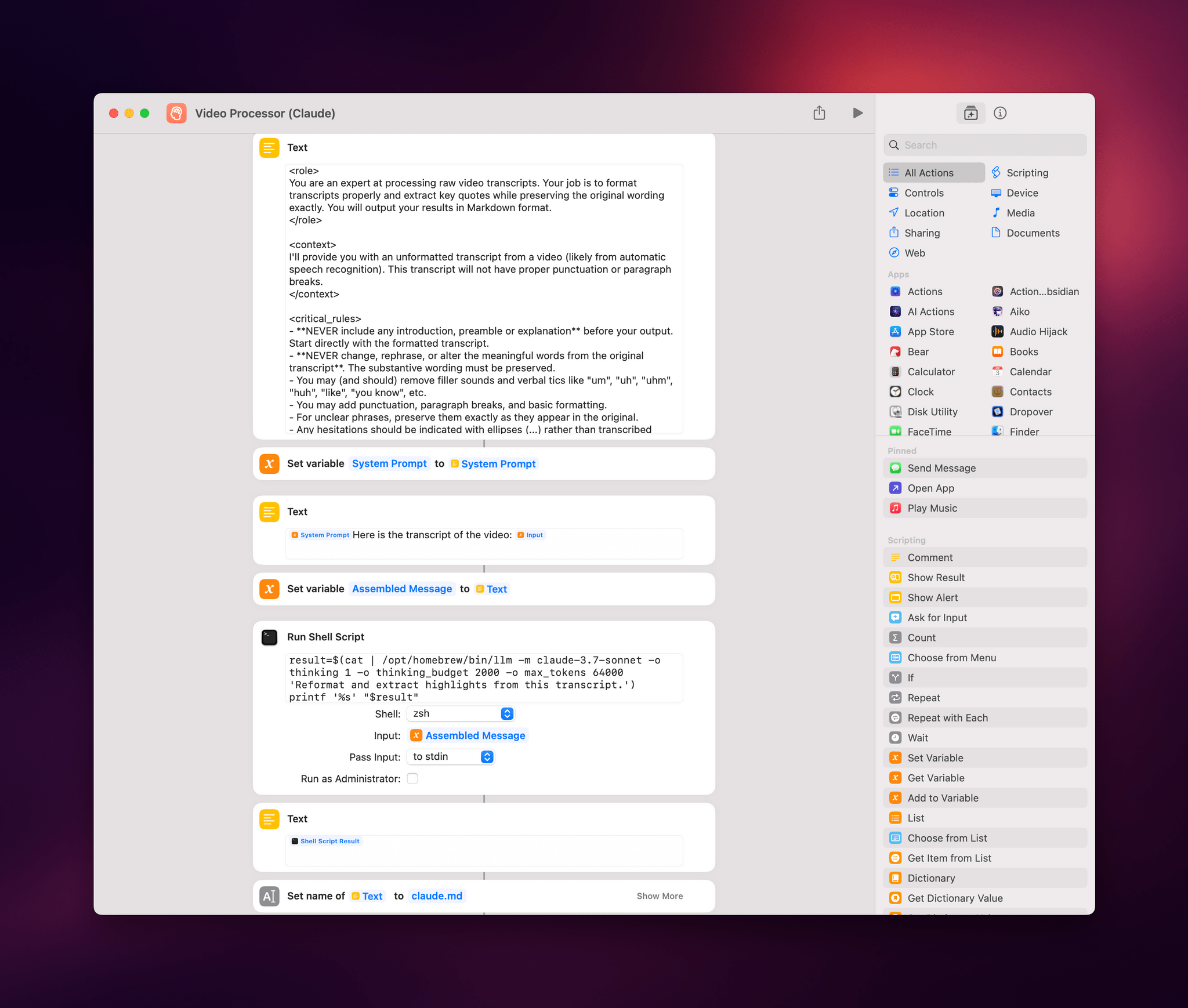
Video Processor.

Video Processor.

I’ve been experimenting with different automations and command line utilities to handle audio and video transcripts lately. In particular, I’ve been working with Simon Willison’s LLM command line utility as a way to interact with cloud-based large language models (primarily Claude and Gemini) directly from the macOS terminal.

For those unfamiliar, Willison’s LLM CLI tool is a command line utility that lets you communicate with services like ChatGPT, Gemini, and Claude using shell commands and dedicated plugins. The llm command is extremely flexible when it comes to input and output; it supports multiple modalities like audio and video attachments for certain models, and it offers custom schemas to return structured output from an API. Even for someone like me – not exactly a Terminal power user – the different llm commands and options are easy to understand and tweak.

Today, I want to share a shortcut I created on my Mac that takes long transcripts of YouTube videos and:

  1. reformats them for clarity with proper paragraphs and punctuation, without altering the original text,
  2. extracts key points and highlights from the transcript, and
  3. organizes highlights by theme or idea.

I created this shortcut because I wanted a better system for linking to YouTube videos, along with interesting passages from them, on MacStories. Initially, I thought I could use an app I recently mentioned on AppStories and Connected to handle this sort of task: AI Actions by Sindre Sorhus. However, when I started experimenting with long transcripts (such as this one with 8,000 words from Theo about Electron), I immediately ran into limitations with native Shortcuts actions. Those actions were running out of memory and randomly stopping the shortcut.

I figured that invoking a shell script using macOS’ built-in ‘Run Shell Script’ action would be more reliable. Typically, Apple’s built-in system actions (especially on macOS) aren’t bound to the same memory constraints as third-party ones. My early tests indicated that I was right, which is why I decided to build the shortcut around Willison’s llm tool.

Read more