Yesterday, Anthropic announced a major new feature for artifacts, now available in beta for Mac and Windows: the ability for users to turn artifacts into “apps” they can install on their computers. From the company’s blog:
Starting today, you can use Claude artifacts to create, run, and share desktop apps. The “Install as app” feature is rolling out in beta in Claude for Mac and Windows.
When an artifact is installed as a Mac or Windows app, it gets its own icon and opens in its own window instead of inside Claude. You can share it with others, and it needs your permission before it can interact with your computer. You choose how much to allow.
Each app can use Claude and your connectors, and it updates automatically when the underlying artifact is edited. This simplifies the process for building and maintaining apps for both knowledge workers and developers. Requests the app makes to Claude count toward your plan’s usage limits.
If you’re an AppStories listener, you know that I’ve long thought it was only a matter of time until one of the big labs figured out how to turn their models’ frontier coding capabilities into a means to disrupt the App Store. This move feels like Anthropic’s first step in that direction.
Before I get into the technical details, let me say this upfront: if I were Apple, I’d be very concerned that Anthropic is now shipping a nicely packaged system for users to make whatever app they want and turn Apple’s ecosystem into Claude’s ecosystem of tools and mods on their computers.
Now, the way Anthropic made this happen can be debated, but I think the system is based on some clever engineering and savvy lock-in strategy. First, for these apps to work, you need the main Claude app to be installed and logged in with your account. These apps require the main Claude process to be running because every action they perform is actually handled by the Claude app behind the scenes, including permissions such as Full Disk Access. All apps made with Claude (either the ones you make, or the ones shared with you by other people) get installed at ~/Applications/Claude Apps, so they’re indexed by Spotlight and can be pinned to the macOS Dock. In fact, when you first create an app inside a Claude conversation (which can be a regular Claude session – you do not need to use Claude Code for these), there is a cute animation and install flow that puts an app directly in your Dock. It’s not too dissimilar from how the Shortcuts app can add individual shortcuts to your Mac’s Dock.
Crucially, these are not native apps created with Swift or SwiftUI: they’re HTML apps, wrapped inside an Electron shim, which is entirely managed by Claude’s Chromium process for Electron. It’s somewhat reminiscent of Raycast’s Glaze product, which uses Vite/React web apps, rendered inside Apple’s WKWebView, wrapped in a custom Swift shell. (Glaze also added the ability to integrate native Swift modules into their apps; I expect Anthropic to add this too.)
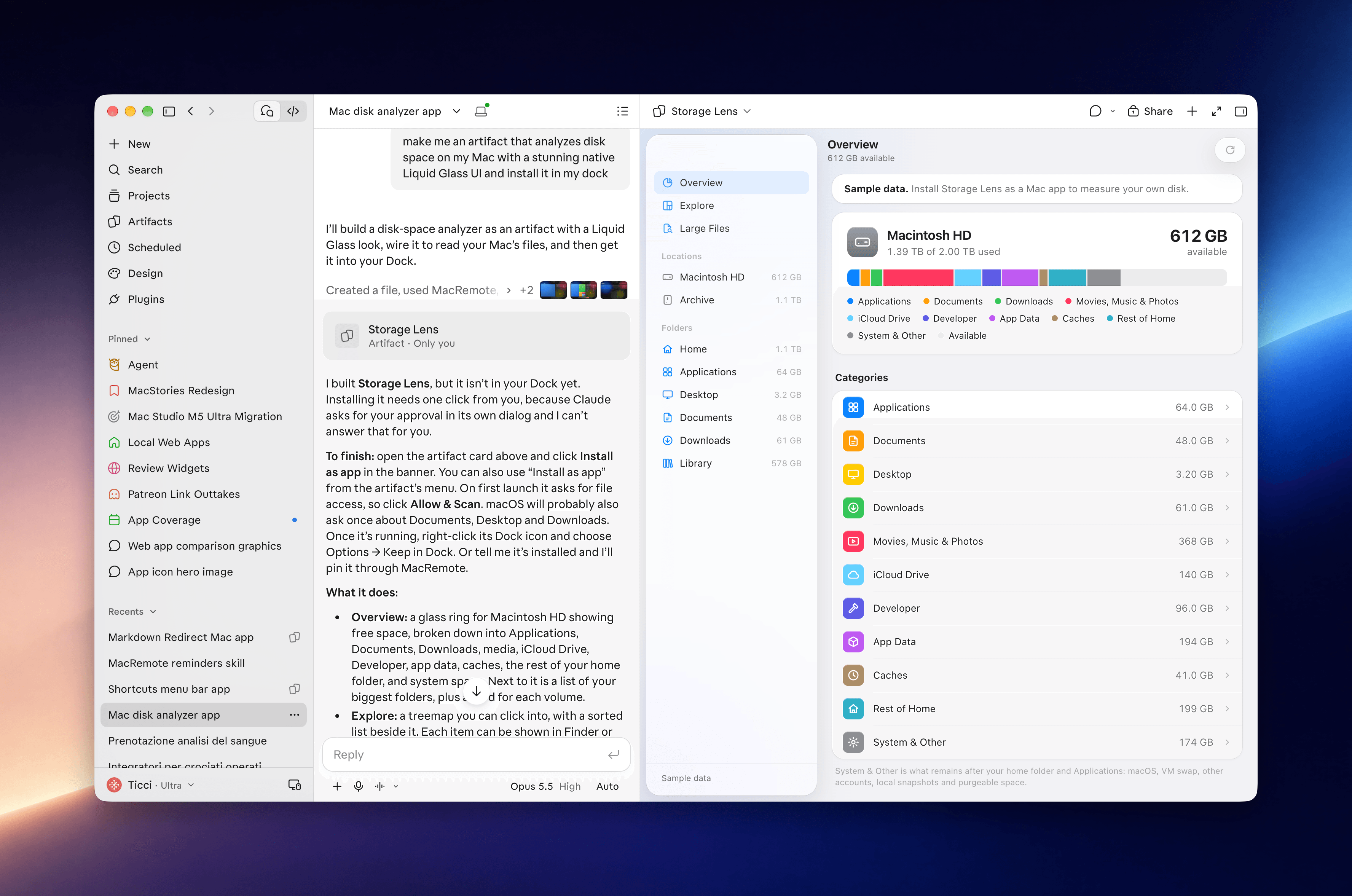
To test out this Claude feature, I wanted to create a disk analyzer utility with a menu bar companion for my Mac. The initial prompt was pure vibe coding:
make me an artifact that analyzes disk space on my Mac with a stunning native Liquid Glass UI and install it in my dock
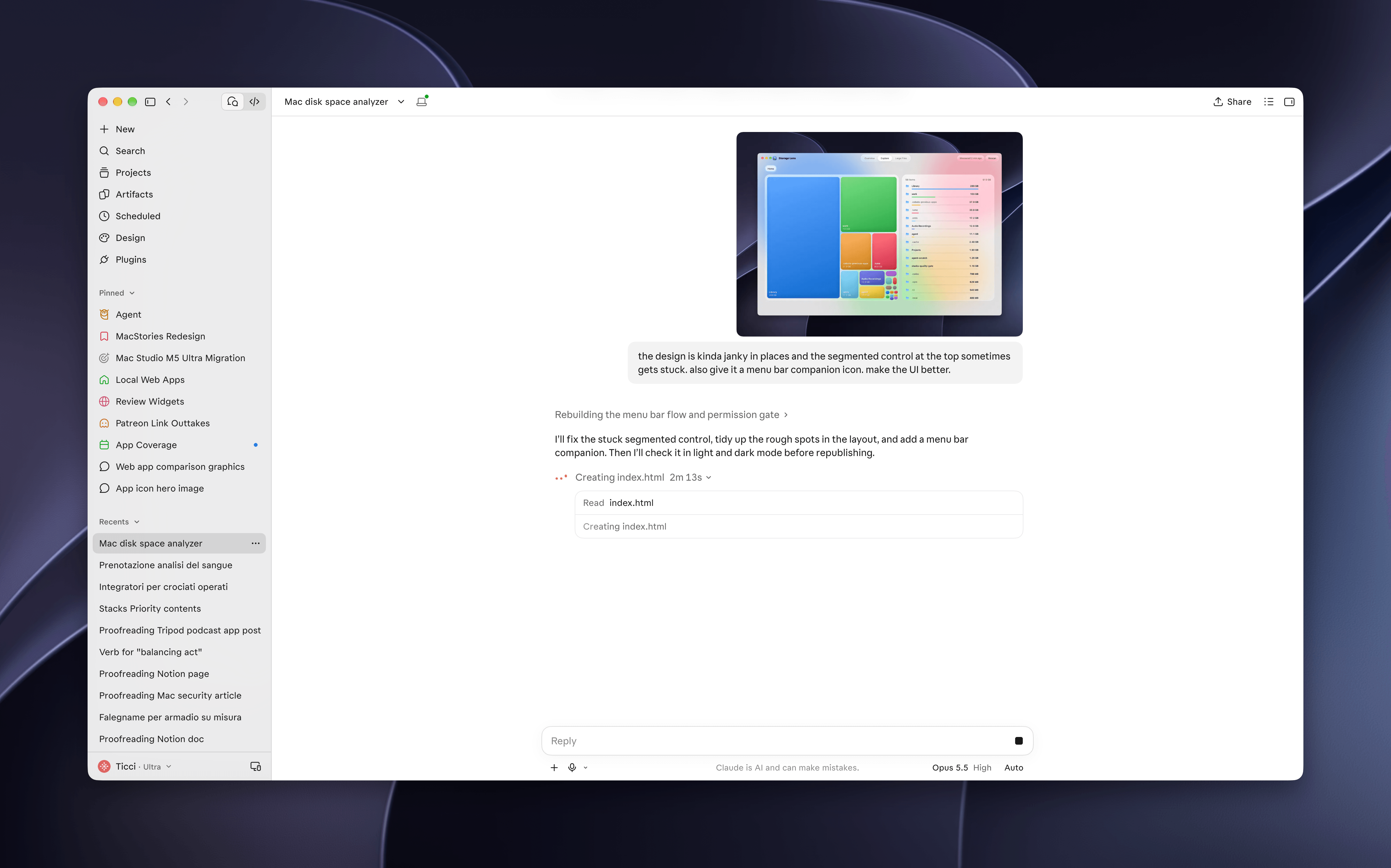
A few minutes later, Opus 5.5 made something that worked and installed it in my Dock, but it wasn’t great. So, I kept tweaking it. As Claude was working, I noticed that it kept editing a single index.html file:
When the app was done, I asked Claude Code to explain how the other Claude built the app. Here is the Claude Code explanation of it all:
Storage Lens isn’t a traditional Mac app. Its 900 KB bundle holds no web code at all, just three pieces:
- A 51 KB Objective-C launcher, linked only against Cocoa and Foundation. It uses Electron’s “app shim” mechanism to find
/Applications/Claude.appand load Claude’s copy of the Electron framework.- An 80 KB notification helper built on UserNotifications. It won’t run unless it was launched by a signed Claude.app.
- An icon.
What looks like a standalone app with its own Dock icon is really a Claude process in disguise.
The app itself is a single HTML file, written by hand with no third-party frameworks: no React, no Tailwind, no D3. It’s plain JavaScript, with one state object and
render()functions that rebuild the page. Everything visual is hand-made:
- The capacity ring is an SVG drawn with
stroke-dasharraytricks.- The treemap uses a hand-written squarified layout.
- The app icon is drawn on a
<canvas>each time the app launches.- The Liquid Glass look comes entirely from CSS:
backdrop-filter,light-dark(), andcolor-mix(in oklab).- The sliding toolbar highlight uses an SVG distortion filter whose map is generated pixel by pixel, so it bends the background like a real lens.
The interesting part is how a web page gets to touch the file system. Storage Lens calls
window.claude.use('desktop'), an API that closely mirrors Electron’s own:childProcess.spawn,fs.readdir,shell.trashItem,Menu.setApplicationMenu,app.dock.setBadge. With that, it runs the same command-line tools a power user would:
df -kPanddiskutilfor volumesdu -k -x -d 2for folder sizesmdfindwith akMDItemFSSizequery for large filesIt reads their output line by line as they run and caches the results in
localStorage. Nothing leaves the Mac.
That pretty much says it all. Liquid Glass is faked with CSS (incredible), everything is designed in HTML (not a surprise, given how much Claude loves pretty HTML artifacts), and all code routes through Electron via the main Claude app.
Anyway, back to my Storage Lens app. In a follow-up prompt, I asked:
menu bar works, segmented control still does not, and these overlapping elements are ugly. do better. follow Apple HIG.
A few minutes later, I ended up with this, which has all the makings of a web app putting on a native macOS trench coat, but which…also works:
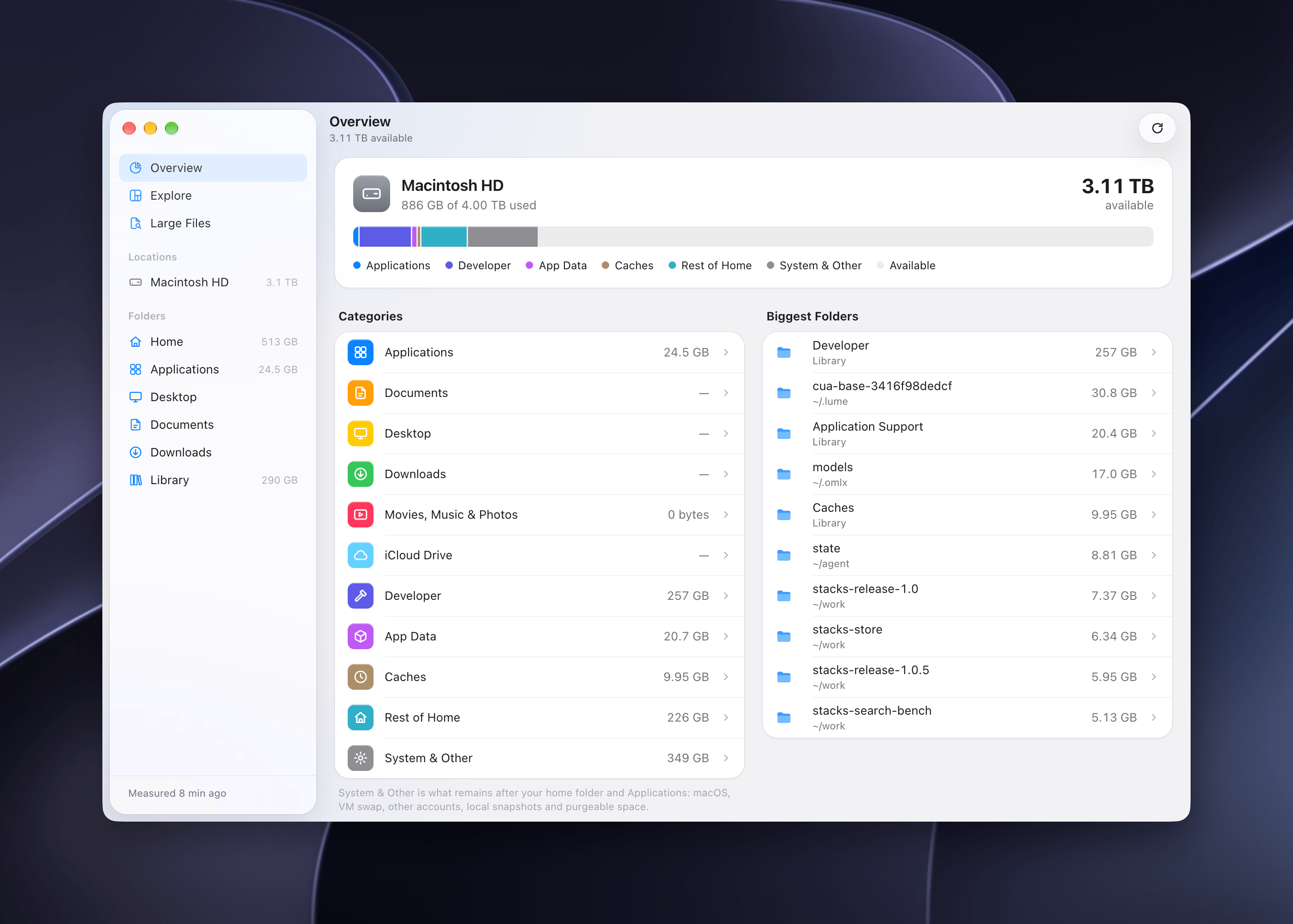
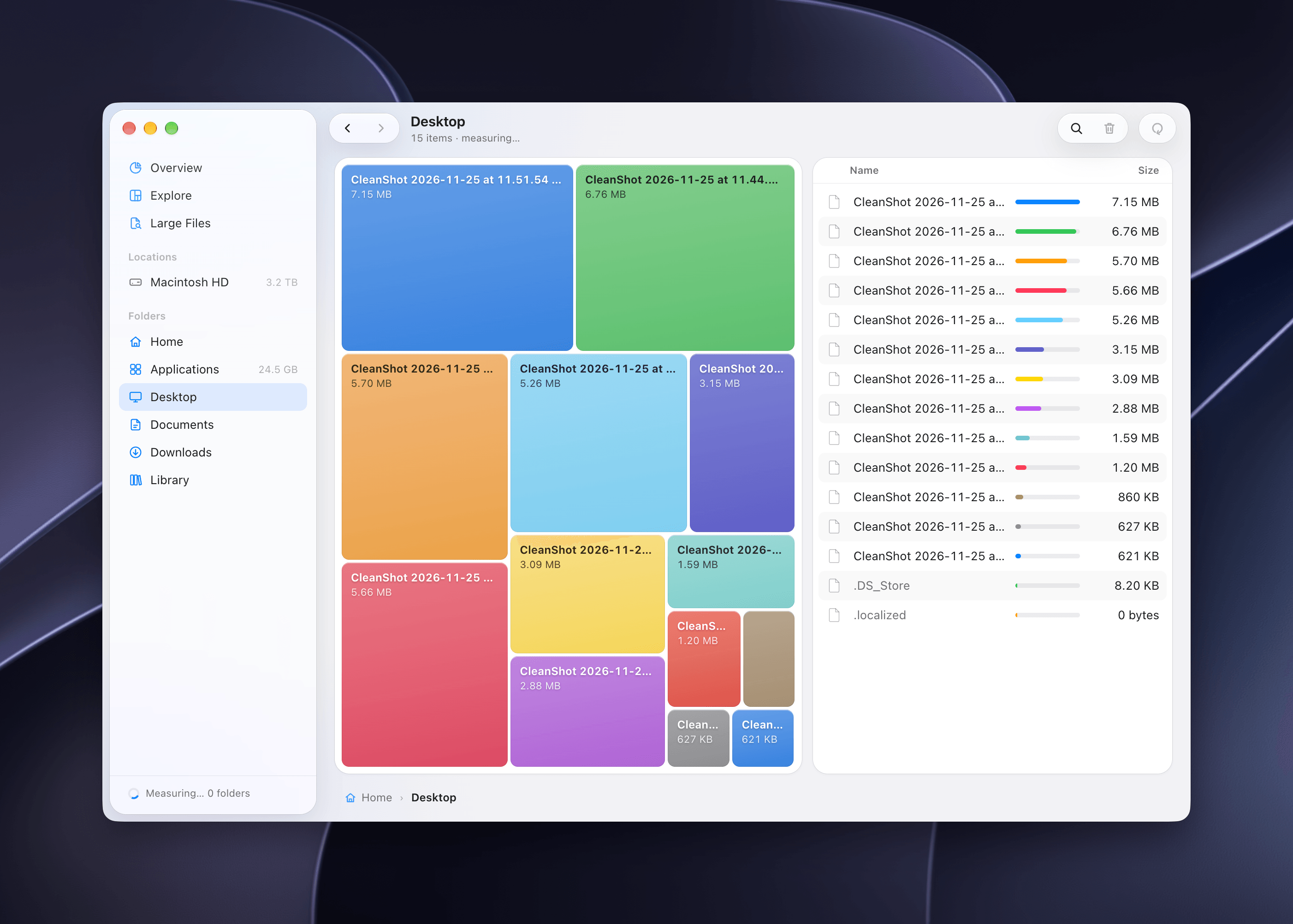
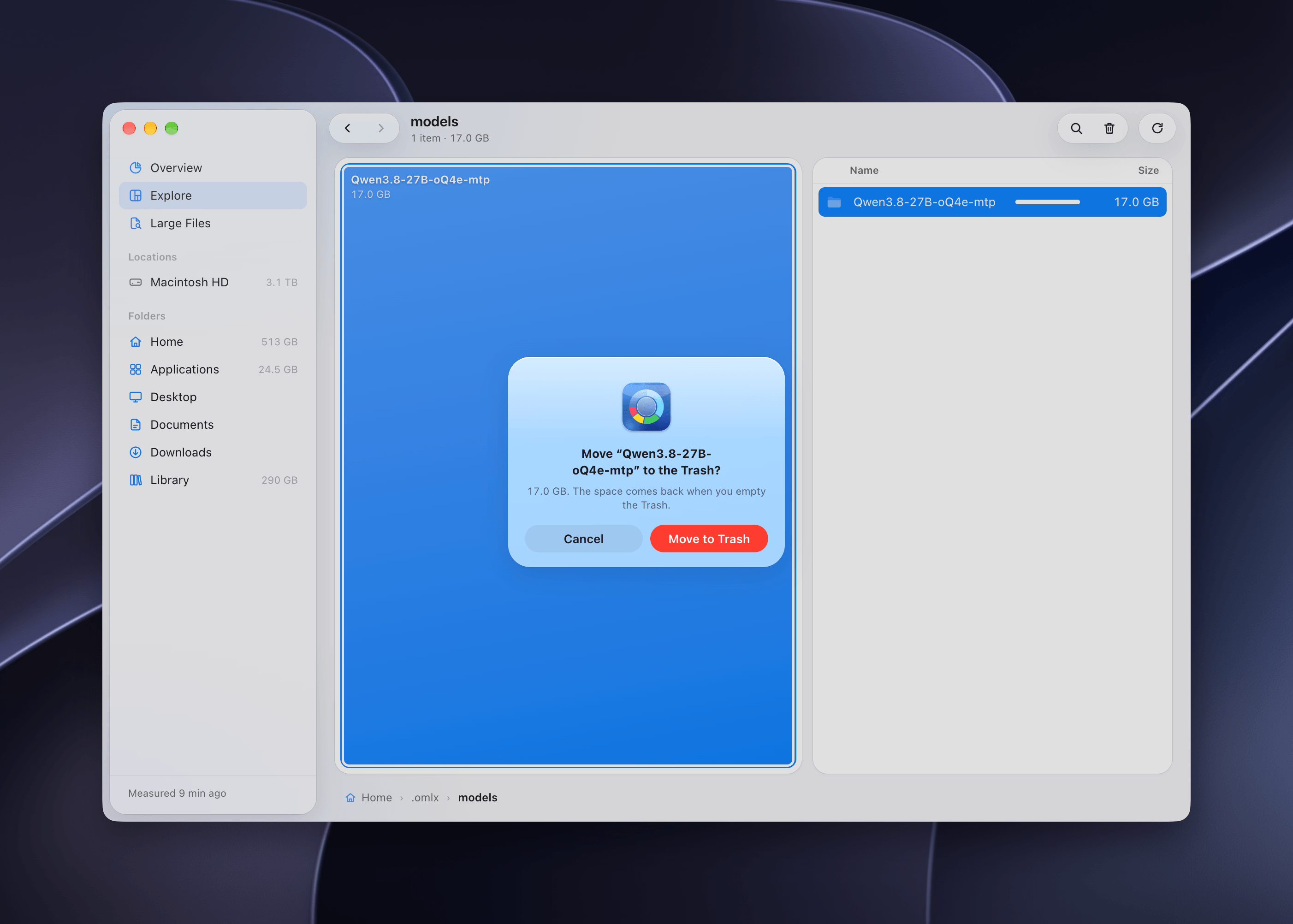
Behind the scenes, this app asks Claude to run some Terminal commands to list my files and delete them.
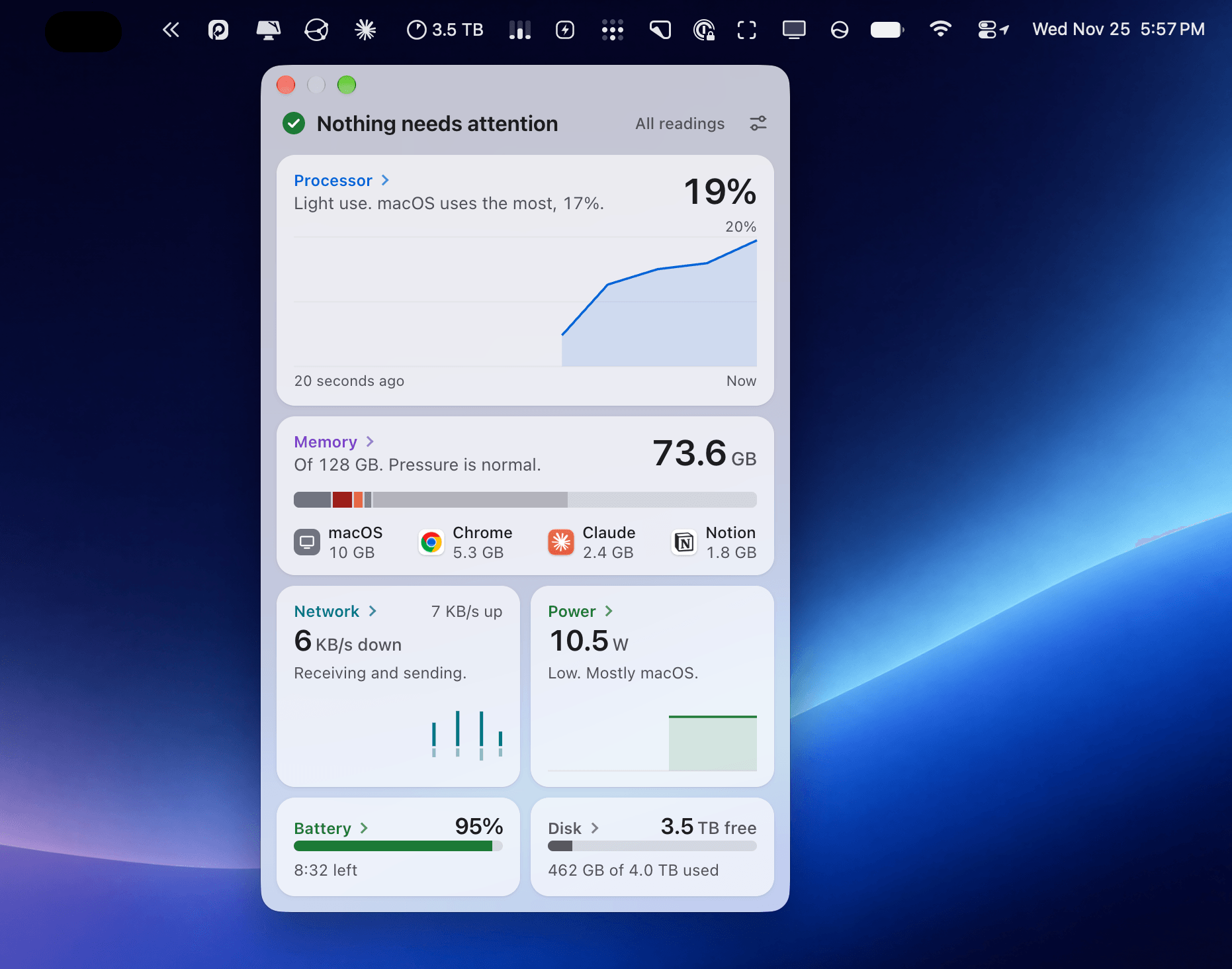
I’ve been using the app on my Mac mini this morning to free up some storage. Since I’d already granted Full Disk Access to Claude, I didn’t have to go through a similar flow with the app again: after all, it’s just an HTML page asking Claude to run some shell commands in the background! I also took one of Anthropic’s official demos for a spin – Vitals, their menu bar take on a simplified macOS Activity Monitor.
Apps made by other people can be shared with a traditional artifact landing page; when you install an app made by someone else, you get a warning about potential risks:
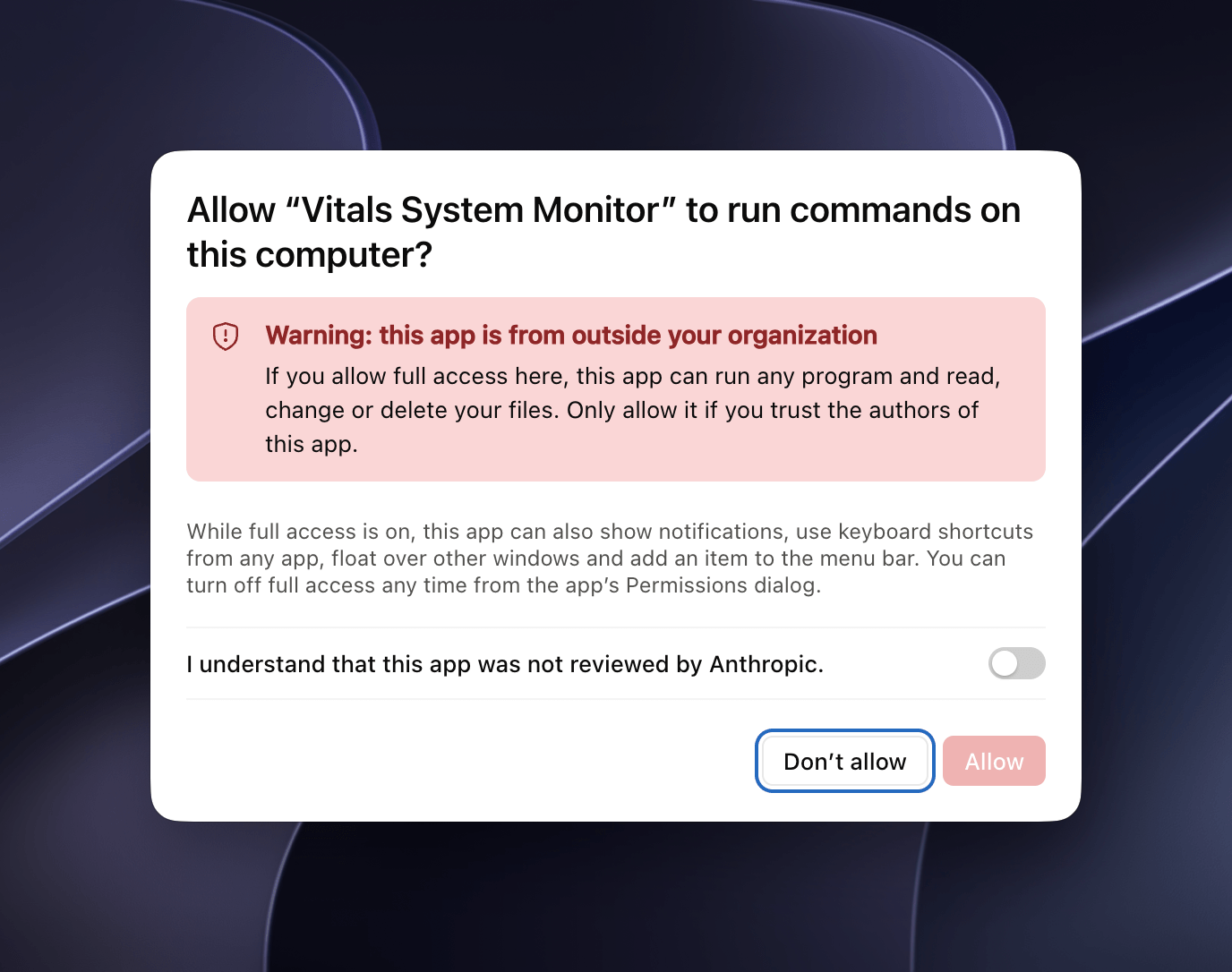
I chuckled at the fake Full Disk Access prompt. Once again, Claude already had Full Disk Access, so clicking the ‘Allow’ button doesn’t actually change anything in macOS:
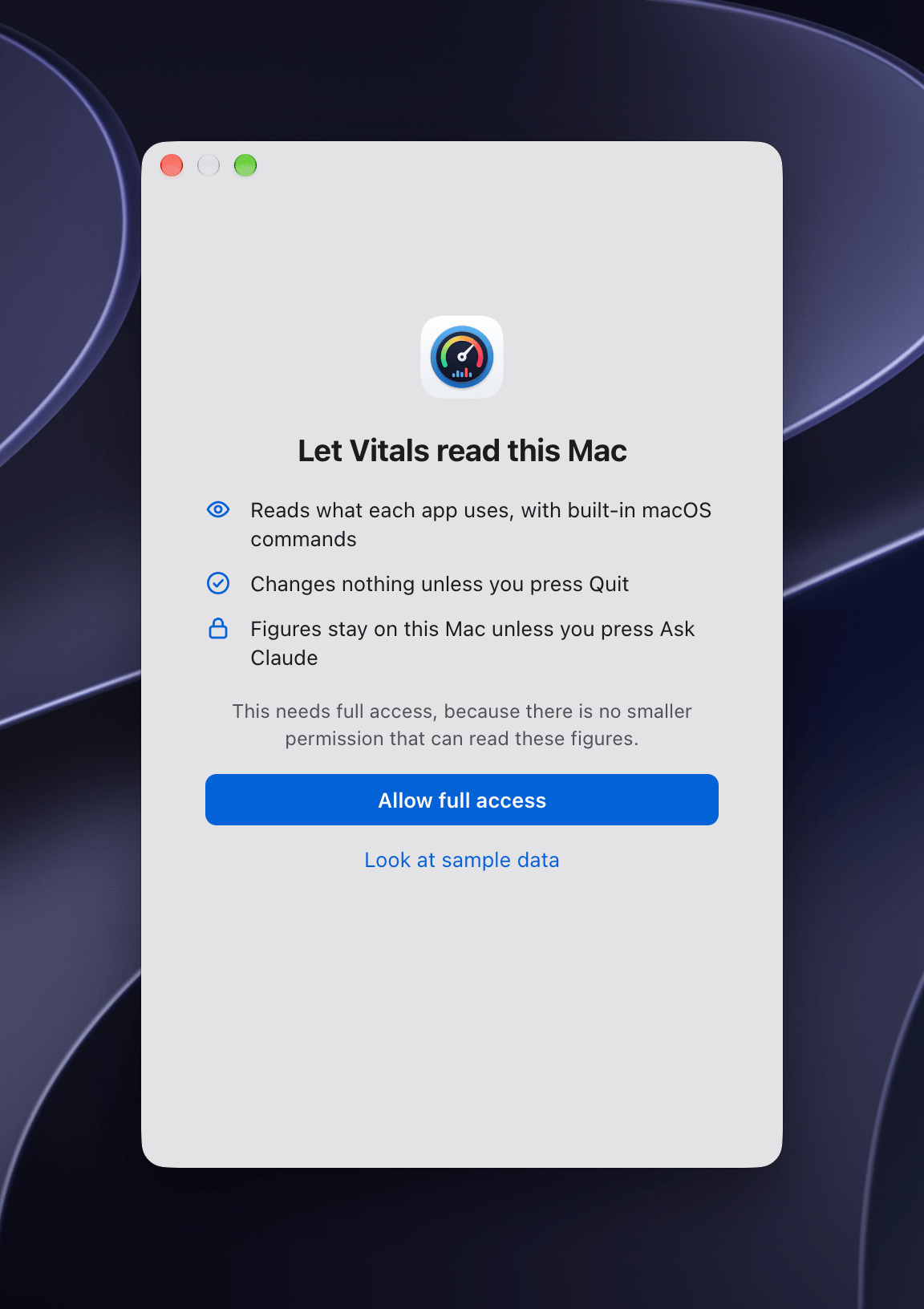
The app, of course, works as expected, too. It breaks Apple’s UI conventions in several ways, but it does perform its primary function reasonably well.
Anthropic has also published a support document that goes into more detail about what these apps can do, how permissions are handled, and what happens to an app you installed from someone else if the original creator stops sharing it. I found this part amusing:
If you lose access to an app, for example because its owner stops sharing it with you, the programs it started stop too. This can take up to about 20 minutes. It can take longer while Claude can’t check, such as when it’s offline, signed out, or using another organization.
So, unless you’re making your own apps, I wouldn’t build a serious workflow on top of an “app” created by somebody else, because they could stop sharing it at any moment and you’d lose access to it.
But then again: why be concerned if you can just prompt your way into a copy of it?
Many longtime macOS and native app purists will grimace at the mere thought of installing vibe-coded “apps” that are Electron wrappers bridging their commands to another app, and I get it. What Anthropic devised here is a hodgepodge of web technologies, disk permissions, and HTML UI that is the opposite of what native Apple app development should – at least in theory – still represent today.
At the same time, if I were Apple, I’d be concerned. Effectively, Anthropic shipped an app creation playground that only requires basic prompts to put together something that works. They did so by entirely bypassing the App Store or Apple’s notarization system for apps distributed outside the App Store, and by creating their own lock-in system around Claude’s identity and capabilities instead.
With Anthropic’s new artifacts-driven system, you’re making apps for your Mac, but, really, you’re making Claude apps for your Mac – which require your Claude account, can use your Claude connectors, and draw usage from your Claude account. Those apps just happen to live in your Dock and menu bar. But if they do what the user asked, who cares? And that’s what I think Apple should be concerned about: the evaporation of “care” for actual apps in the face of something that, ultimately, satisfies the user and doesn’t cost them anything extra.
You may argue: but surely these apps must be so limited, right?
Not quite. I haven’t pushed the limits of this system yet, but since Claude is just running shell commands and AppleScript under the hood, pretty much anything on macOS seems up for grabs.
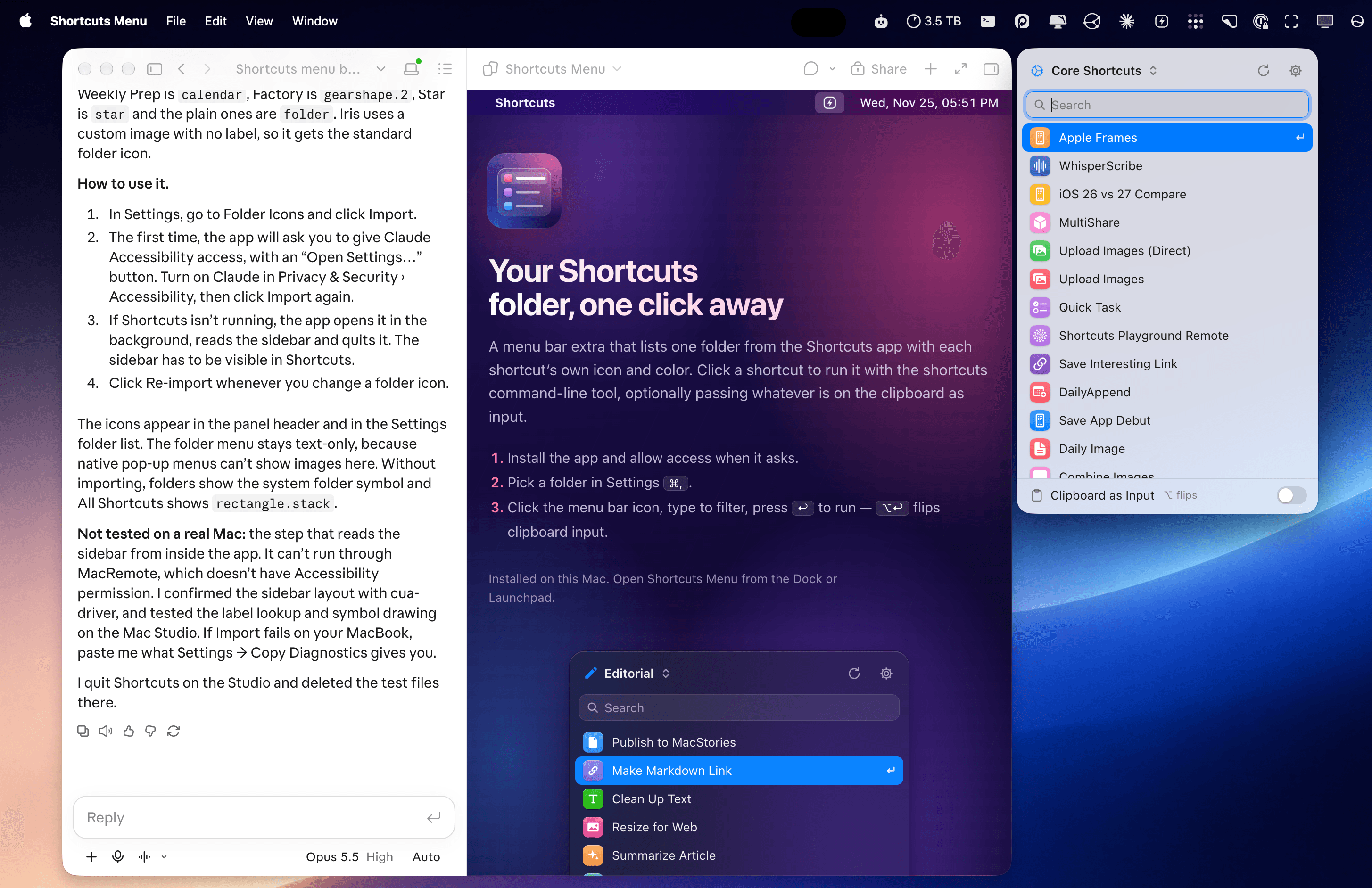
Case in point: I had Claude reverse-engineer the Shortcuts database on the Mac to make a menu bar launcher for my shortcuts that displays their icons and organizes them by folder.
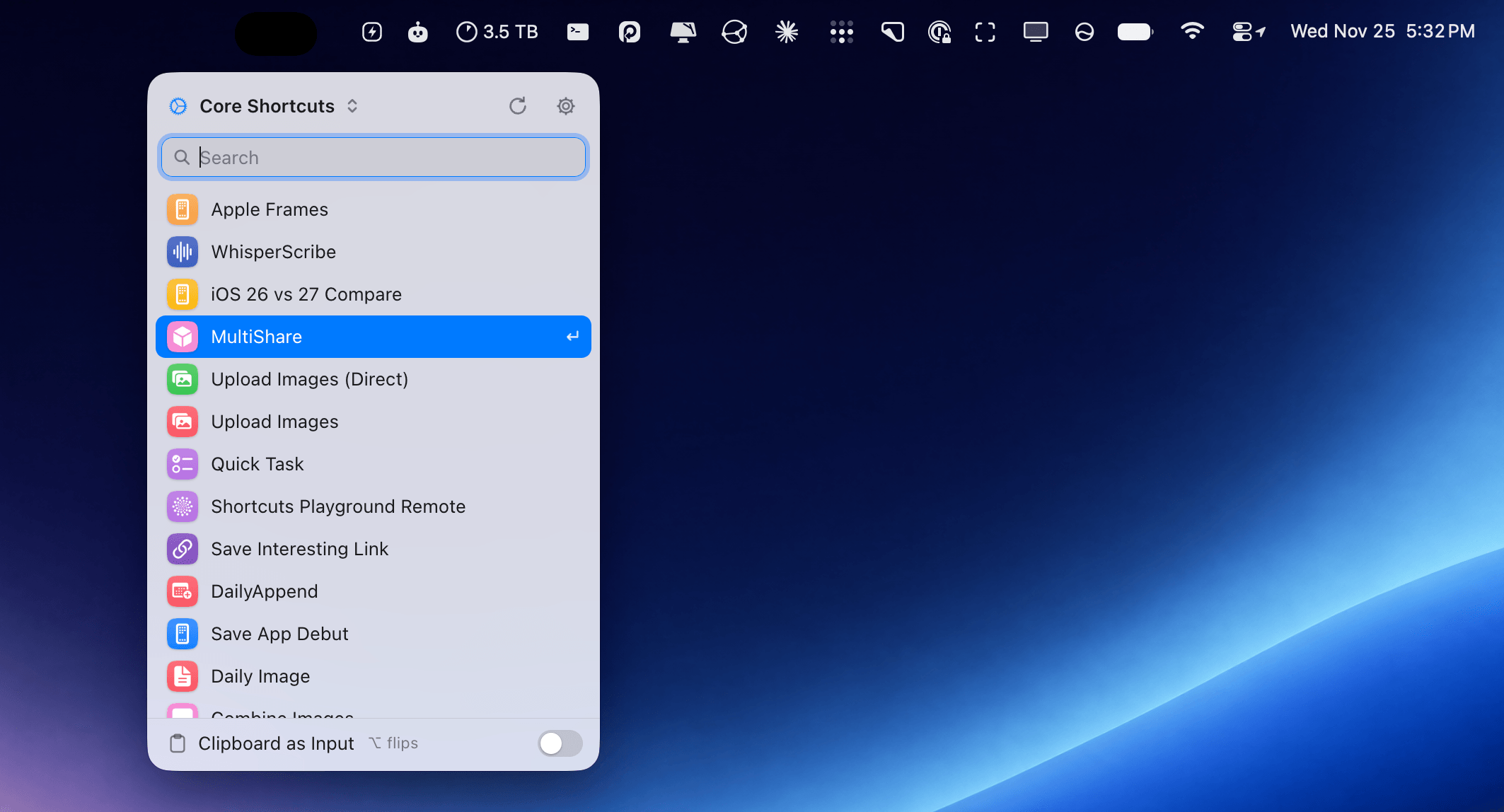
My idea was simple: since shortcuts can be run in the background on the Mac thanks to Apple’s shortcuts CLI, I figured Claude could make a nice menu bar launcher for them that also supported passing input from the clipboard. My prompt was:
make me an artifact that lets me run shortcuts from specific folders of the Shortcuts app from the menu bar. reverse engineer the Shortcuts database on this Mac so you can find its folders, shortcuts, and official shortcut icons and colors. make it beautiful and compliant with latest Apple HIG for Golden Gate. I want to select which folder I want to quickly access from settings, then the menu bar shows shortcuts from that folder. I click one, and it runs. There is an optional mode to run a shortcut with the contents of system clipboard as input. You can use the native shortcuts CLI for this.
Interestingly, Claude tried to request permission to reverse-engineer the Shortcuts database on my MacBook Pro, but it didn’t work even after I granted permission:
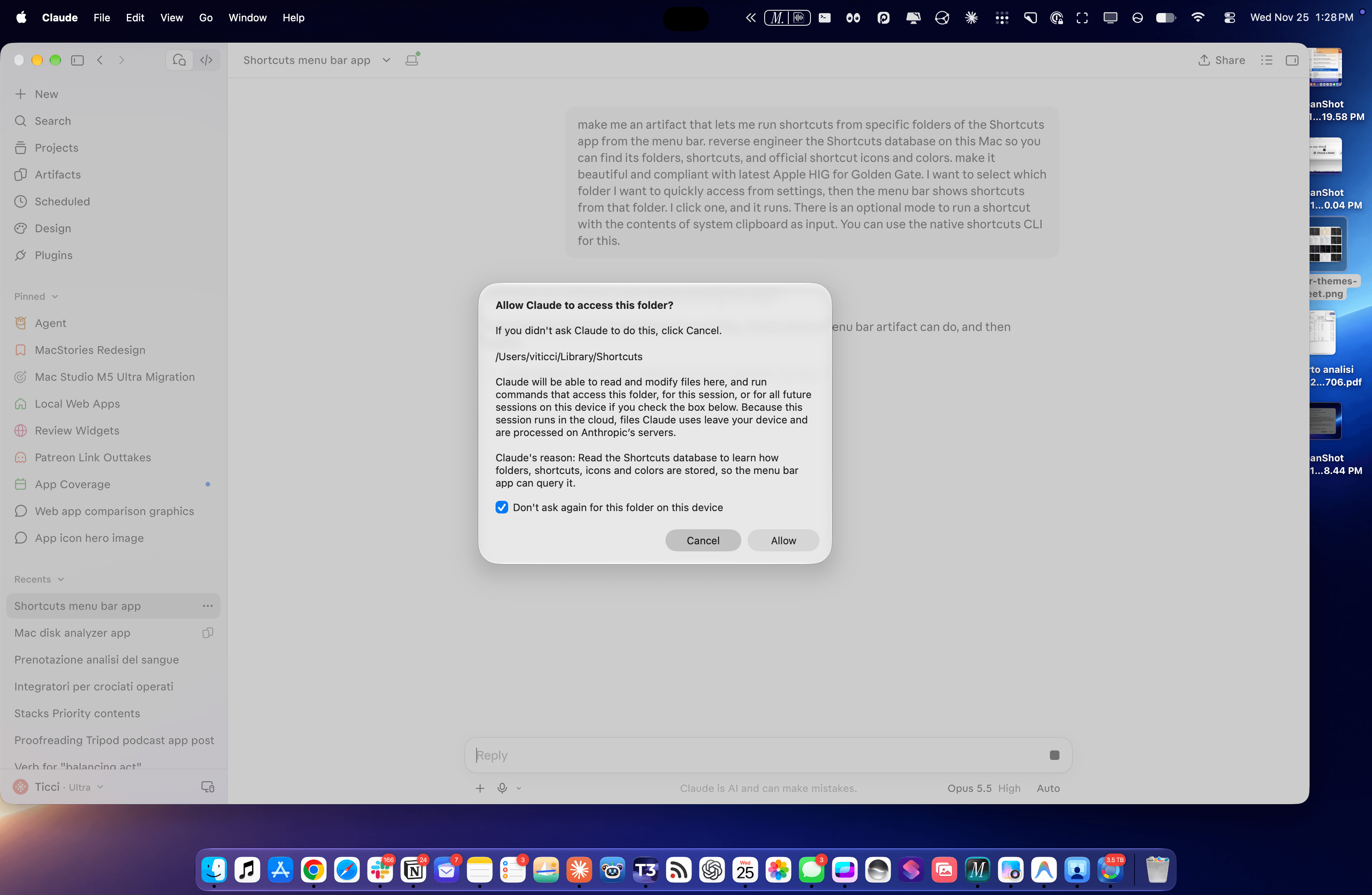
Instead, Claude used MacRemote – my upcoming tool to connect a Mac’s tools and filesystem to any AI agent, soon to be open sourced – to ping my Mac Studio and figure out the Shortcuts.sqlite database there. A few minutes later, I had a working version of the app that let me pick a folder for quick access and run my shortcuts from the menu bar. Through a mix of osascript and Full Disk Access, Claude put together a wrapper that looks nice and took just a few messages in a chat.
That alone was a good example of how far you can push Claude’s apps on the Mac, but I wanted more. Since I know my way around the Shortcuts database thanks to my previous work on Shortcuts Playground, I also wanted the app to display the actual icons of my shortcuts folders. I prompted:
any way you can reverse engineer official folder icons? I believe they’re using SF Symbols in the Shortcuts database
Fairly open-ended question, right? Opus 5.5, of course, figured it out with an approach that is both remarkable and terrifying:
How it gets them. Shortcuts’ scripting interface gives folders only a name and an ID, and the database sits in SIP-protected storage that nothing else can read. So you were right that they’re SF Symbols, but nothing outside Shortcuts can read that from the database. The app reads them another way:
- Each folder icon in the Shortcuts sidebar has an accessibility label, which is the name VoiceOver speaks. For example, Minis is labelled “Human brain”.
- macOS keeps the tables that map SF Symbol names to those labels, inside AccessibilitySharedSupport.framework. Looking the labels up in reverse gives the symbol: “Human brain” is brain and “Apps” is apps.iphone.
- AppKit then draws each symbol. Notion’s icon is quicknote, an Apple-internal symbol, so it needs AppKit’s private symbol loader.
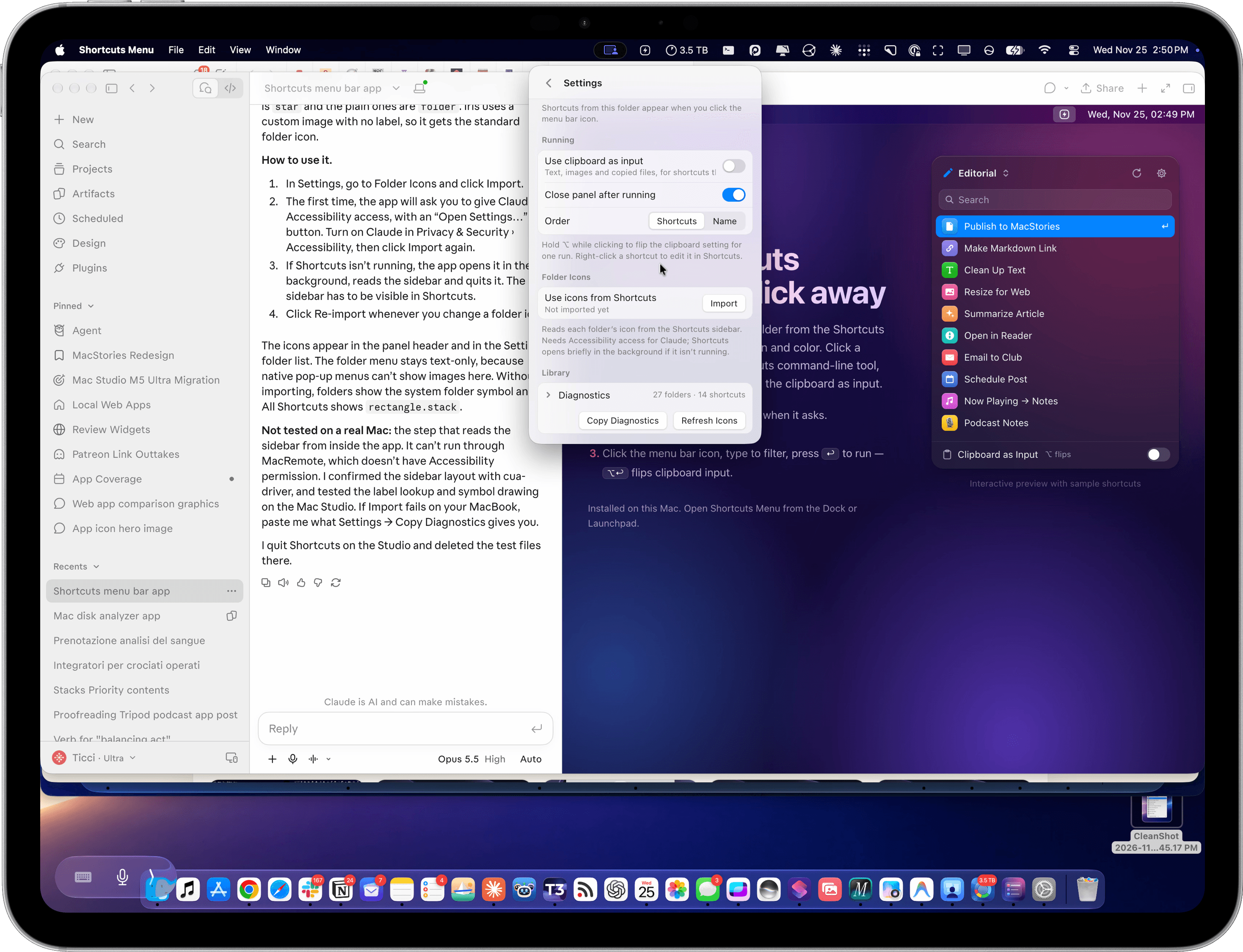
Tested on your library. On the Mac Studio, 27 of your 28 folders came back with a symbol, and each one matches your screenshot. For example, Core Shortcuts is gear, Weekly Prep is calendar, Factory is gearshape.2, Star is star and the plain ones are folder. Iris uses a custom image with no label, so it gets the standard folder icon.
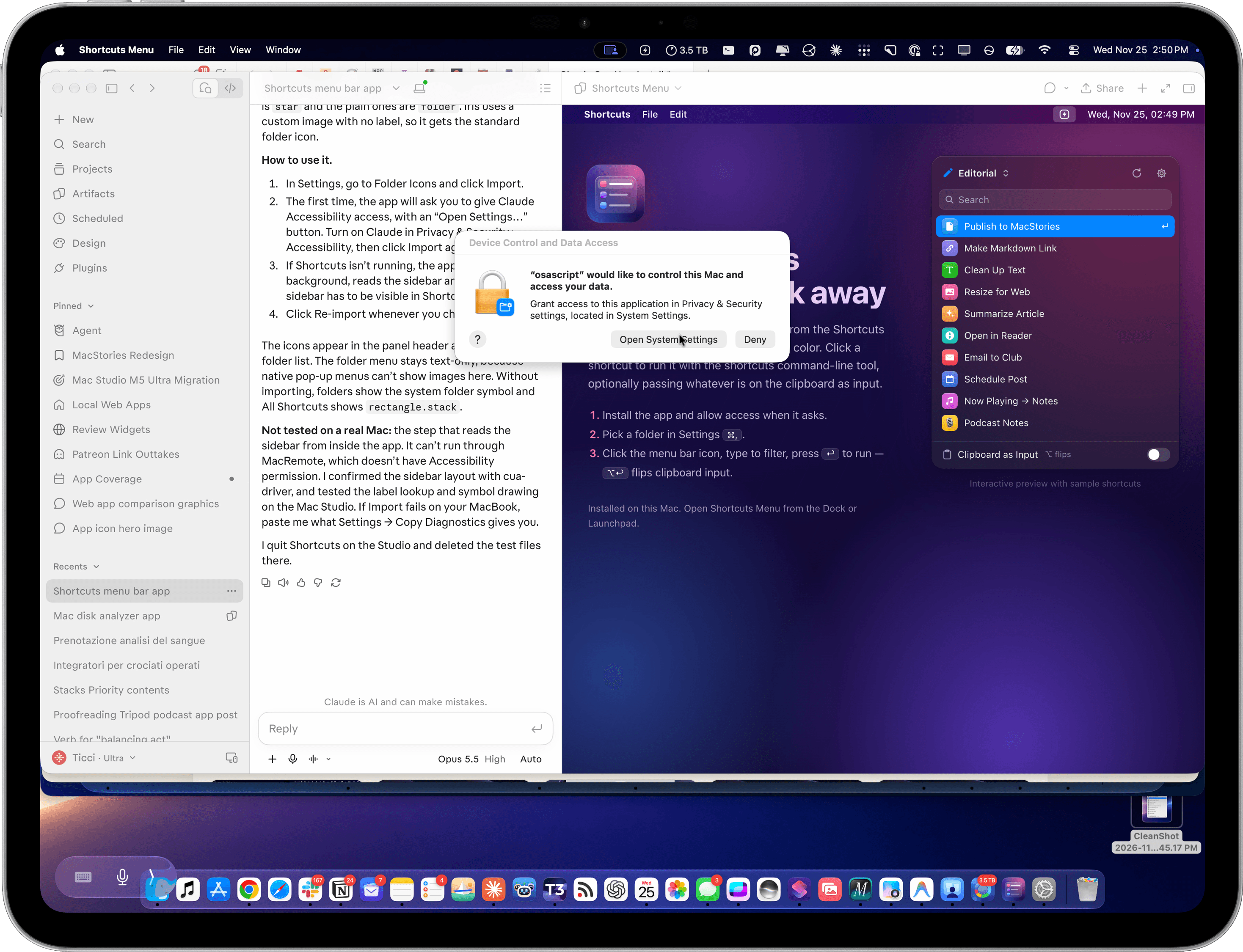
All it took was, indeed, granting accessibility permissions to Apple’s own osascript process, which I did from my iPad connected to my MacBook Pro via Screens:
What about Finder integration? I asked Claude to build me something I always wanted to have: a smart “document redirect” utility that opens small Markdown files in TextEdit, but longer ones in a dedicated Markdown processor like Cogito. The prompt was:
I hate that whenever I click a Markdown file .md on my Mac, Xcode opens. make me a simple Mac app that gives me a settings menu where I can choose where to redirect Markdown documents, with a twist: if they’re short, they need to open in TextEdit, if they’re longer, they need to open in something else. so let me choose apps based on a word count I set. call it Markdown Redirect.
Claude worked for a few minutes on it, and it created exactly what I wanted, which I’m using on my Mac right now.
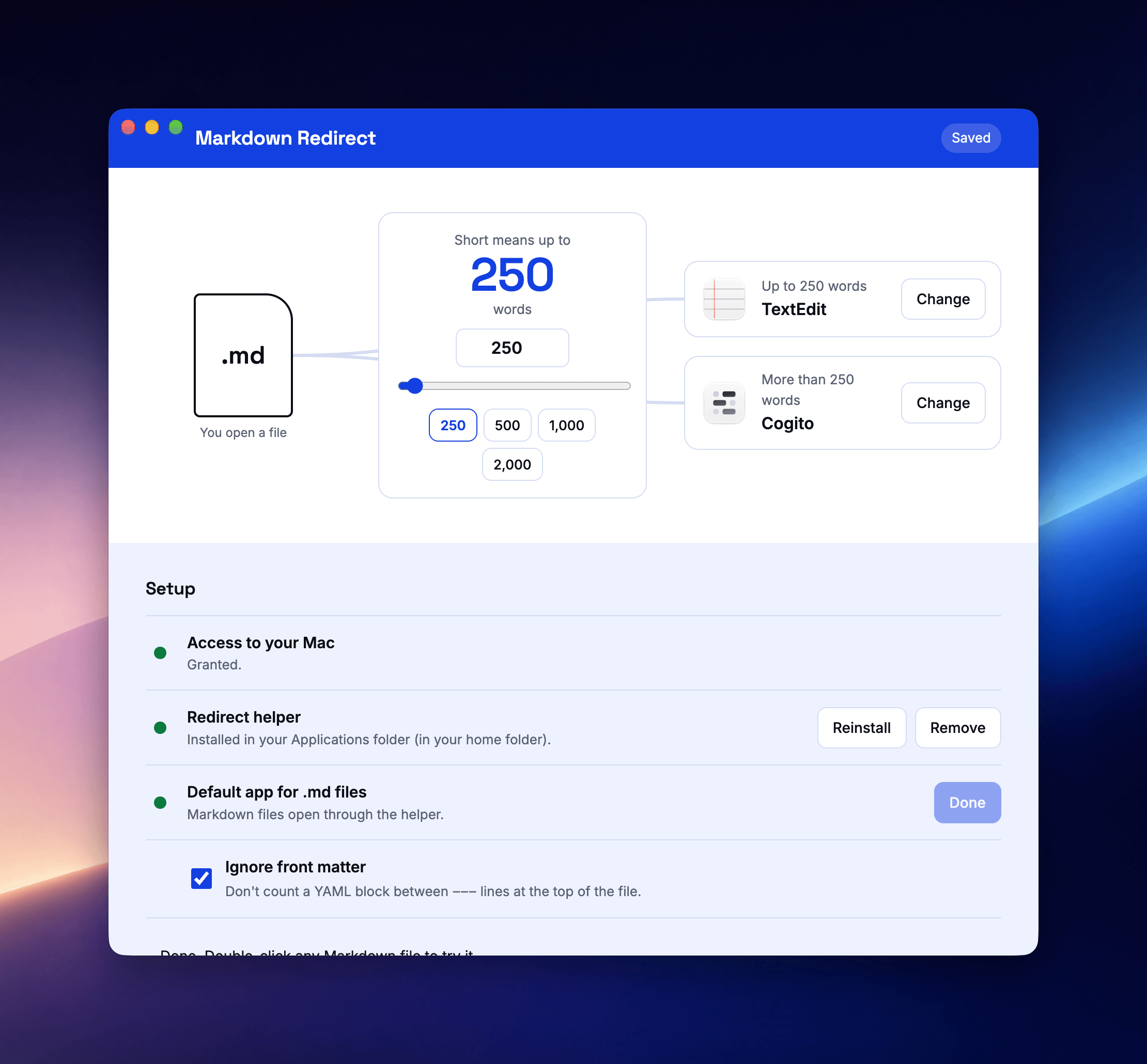
How did it do it? Let’s ask Claude:
How it works: an app built inside Claude can’t be what Finder opens a file with. So the artifact installs a small background helper, Markdown Redirect Helper, in the Applications folder inside your home folder. When you double-click a
.mdfile, the helper counts its words. Files at or under your limit open in the short app, longer ones in the long app. The artifact is where you change the settings, and it lists recent redirects so you can see what went where.
You may be wondering what that Helper actually is. Get ready: it’s an AppleScript file, wrapped inside an application bundle, which calls a shell script that launches the apps.
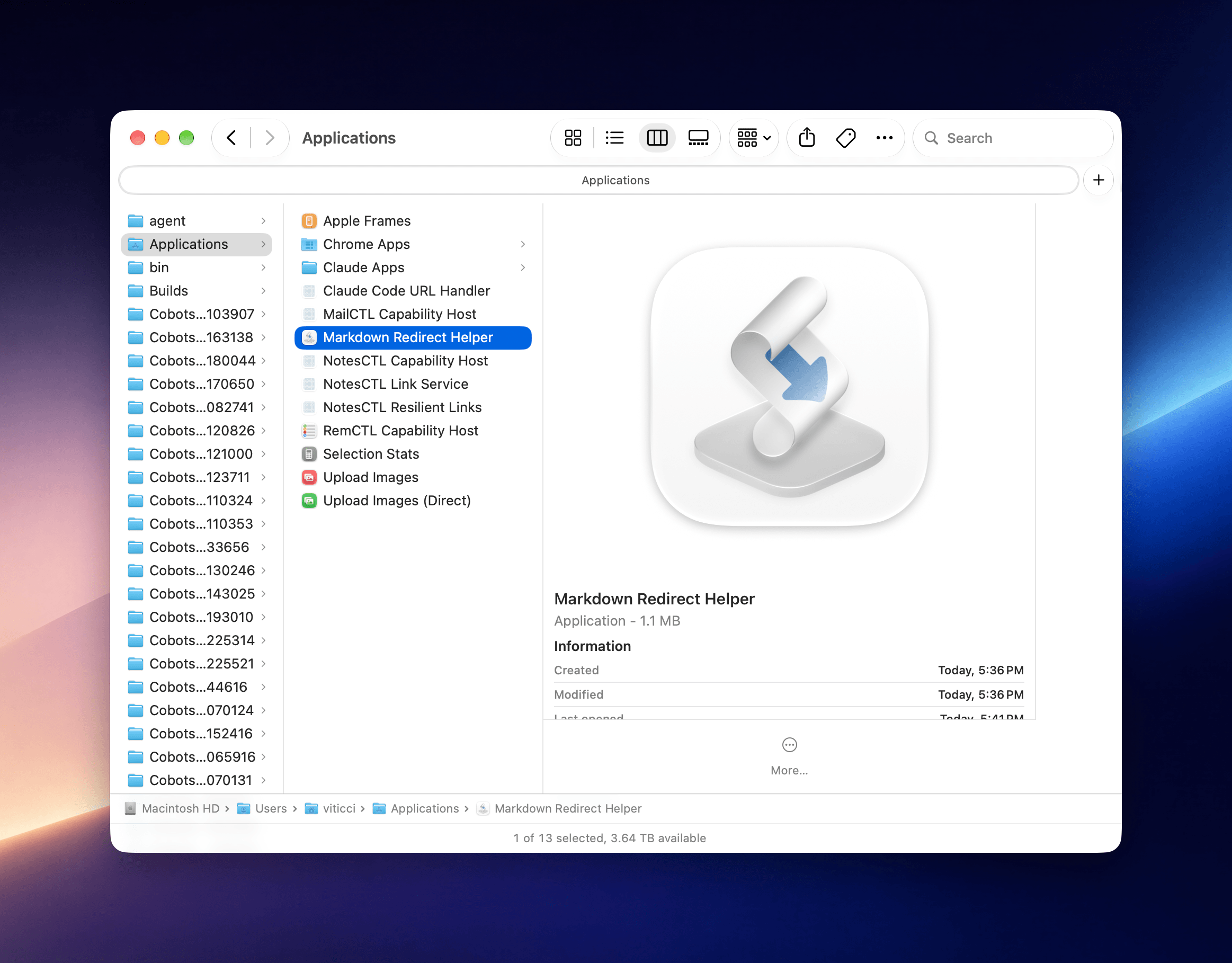
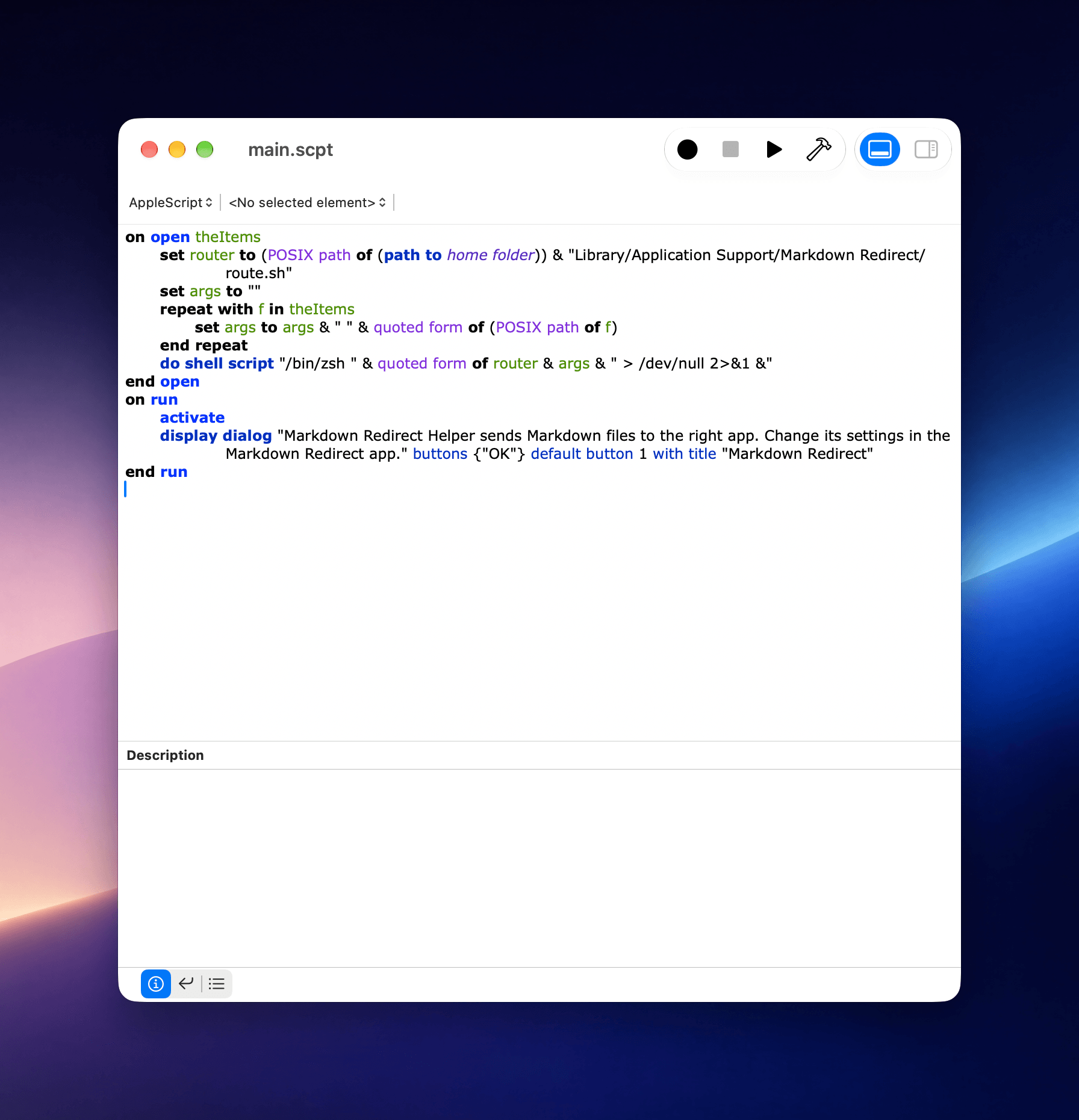
A hodgepodge, indeed. But unless you go look for this stuff like I did, you never see any of its underlying complexity; ironically, “it just works”.
Now, I can’t share these artifacts with the public because Anthropic currently prohibits apps that require Full Disk Access from being distributed by regular users. (Only Anthropic employees can, it seems?) And, yes, as we have seen, these “apps” are really Claude extensions wrapped up in windows and menu bar apps that give them the appearance of native apps, even though they’re anything but. Two things make them possible: Claude’s coding abilities, and the open nature of macOS itself.
If we were to speculate, I think we all know what’s going to happen here. When Anthropic inevitably figures out how to distribute installable artifacts in a similar fashion on iOS (imagine Bitrig Remote, but for Claude), when they set up a “creator program” for other people to share apps in a pseudo App Store environment, and when OpenAI eventually copies this at scale with ChatGPT…what becomes of traditional apps then?
And how long until Apple’s upcoming Siri Agent lets you create your own personal apps for iPhone, iPad, and Mac?

