GoodReader Gets a Big Update for iOS 7

GoodReader is the missing file manager for the iPhone[1]. It virtually eliminates the compromises you have to make on a mobile device by allowing you to download files from the web; view and arrange documents, photos, music, and video into folders; and connect to local servers over Wi-Fi or your Dropbox, SkyDrive, Google Drive, WebDAV, or FTP server on the web. Conveniently, you can connect to GoodReader over your local network to grab files by plugging in an IP address on your Mac or Windows box.

GoodReader’s most immediate change is their update interface, which puts all of the most used tools in a tab bar at the bottom of the display. The two tabs you’ll likely use the most are WiFi and Connect, which starts a WiFi transfer or lets you grab files from the web. Otherwise, a tools button in the top right of the file browser brings up the usual action sheet for selecting files, creating new text documents, creating folders, renaming files, opening files in other apps, etc. In short, everything’s a lot easier to find[2].

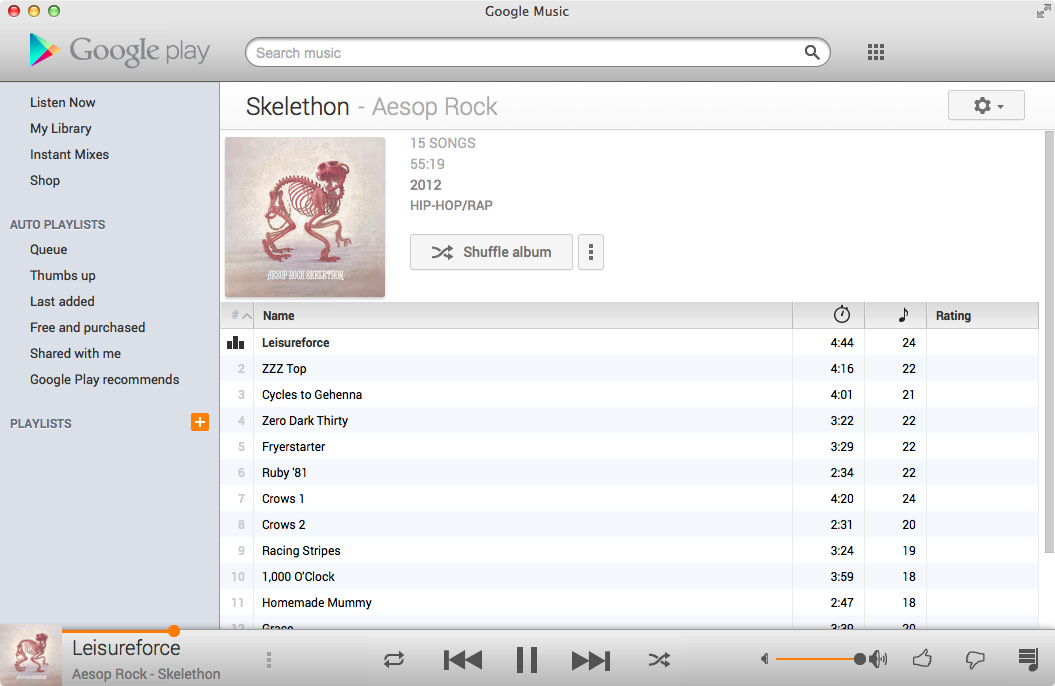
Tossing an album onto your iPhone? GoodReader finally lets you listen to audio in the background while you read or do other things on your iPhone.

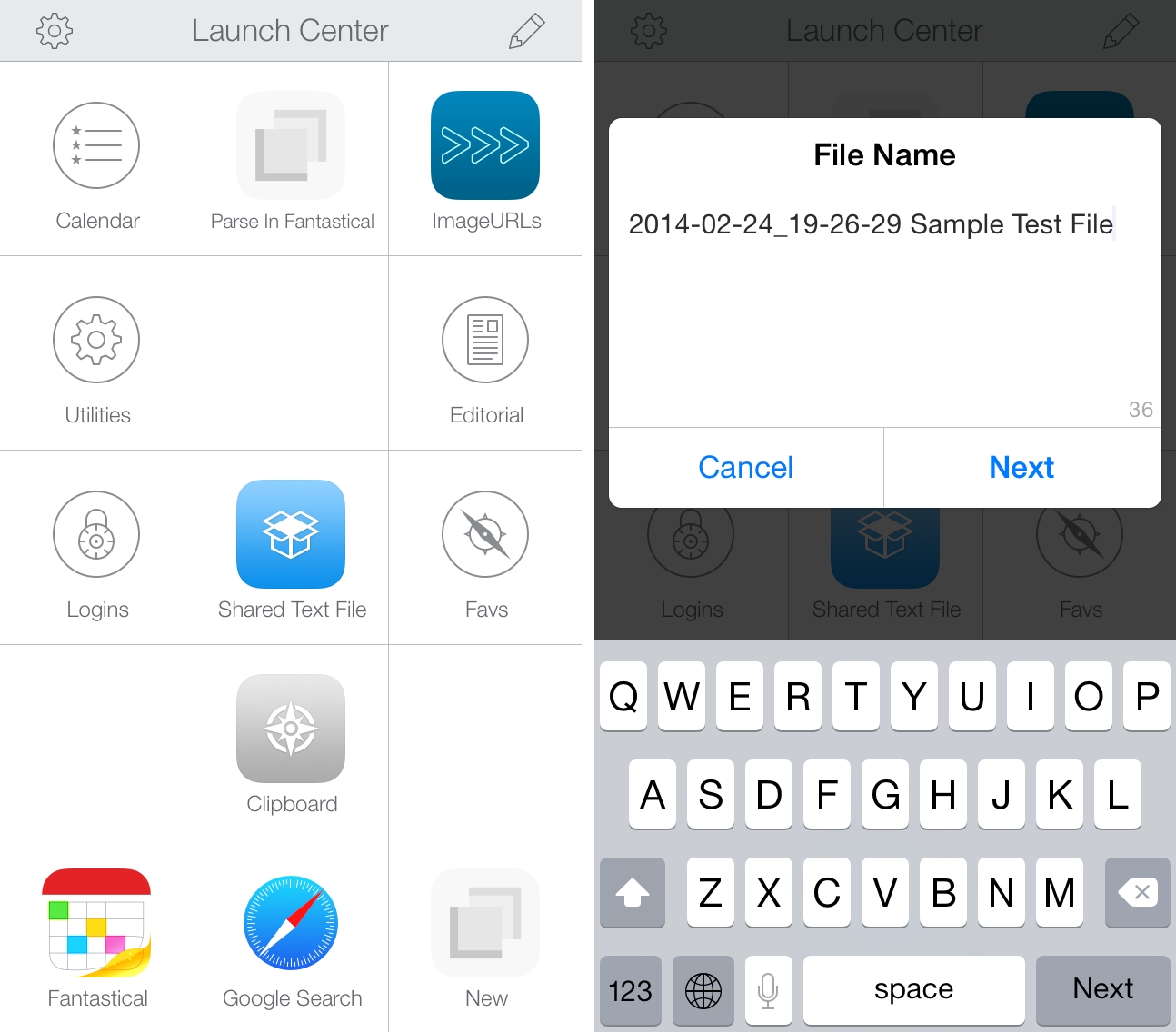
Images copied in the clipboard can be pasted as a file in GoodReader[3]. Look in the second page of tools for the paste command when an image is copied to the clipboard. The opposite is true as well: you can copy images to the clipboard to paste into other apps like Mail. Images can now also be imported / exported directly into and out of GoodReader, so multiple photos can be saved to your camera roll at once for example. This can be incredibly useful for shuffling files from your iPhone between multiple online services, like Dropbox and a hosted web server.

Various improvements to PDFs have been added across the board, such as faster rendering for certain files and the ability to flatten (embed) annotations as they’re emailed prior to sending. And while GoodReader itself doesn’t require iOS 7, GoodReader will open iWork 2013 files for those that are running Apple’s the latest iOS.

The iPad and iPhone versions can be purchased separately on the App Store, each version costing $4.99. Links below:


  1. What I mainly use GoodReader for: if I purchase an eBook on the go, I can paste the download link into GoodReader, which will usually suck down a ZIP file since all the DRM free formats are there. I can unzip the archive, send the EPUB to iBooks, and send my other files to my computer or to a service. You don’t have to manage much on OS X if you use something like Hazel so MOBI files are automatically dropped into your Kindle the next time you plug it into your Mac. As a nice bonus: iTunes doesn’t mediate anything. And you can apply this system to a lot of things, such as music downloads if you make purchases on anything outside of iTunes or Amazon (i.e. Bandcamp) or even documents a friend might share with you from Dropbox or SendSpace.  ↩
  2. Remember when you had to visit that red web downloads folder to get files from the web?  ↩
  3. Part of the problem is that images are often linked to other web pages, and the Copy action in Safari copies the URL the image links to, not the actual image itself. Unless you can get to the root of the image on your iPhone or iPad, getting to images on mobile is not as easy as right clicking and selecting “view image” on a desktop browser.  ↩

The Prompt: Viticci Seal Of Quality

This week Myke and Federico explore the possibility of an iPad pro and the different routes Apple could take to build this mythical product. There’s also an ‘after show’ discussing Polygon’s Game of the Year awards and what games they have been playing recently.

We used my article about the rumors of an iPad Pro as a starting point to discuss multitasking in the age of touch and thinking of apps as features instead of windows. Get the episode here.

Permalink

MacStories Sponsorship Openings For 2014

I have updated the Sponsorships page to show openings for the new year. MacStories sponsorships are exclusive and they will help support the work we do for app reviews, editorials, tutorials, and more throughout the year. We have big plans for 2014, including a (long overdue) new design.

If you have an app, service, or product that you’d like to advertise to MacStories’ smart and loyal readership, check out the Sponsorships page for more information or get in touch directly.

Permalink

Storehouse: Visual Storytelling On iPad

I’ve been testing Storehouse, a new visual storytelling app for iPad released today, and I think it’s gorgeous. TechCrunch has more details on what Storehouse is and where it’s going, but, in short, it’s a service/app that lets you create stories with text, photos, and videos. Stories you publish can be read on the iPad or through a URL on the web, and you can follow other Storehouse users to read the stories they’ll share.

The Storehouse app is beautiful and technically impressive in my opinion. It reminds me of Push Pop Press in the way it uses physics and gestures to make content feel “alive” as you interact with the app – for instance, as you scroll a story vertically and you reach the bottom or top of a “page”, the view will slightly tilt in 3D to indicate that you’re going back to content behind the story. When you create a story, you can choose a photo or video as background content for the cover, and videos will auto-play in the story’s preview behind text overlays for titles and subtitles. It’s a really cool effect. Storehouse’s use of blurs, transitions, depth, and edge-to-edge photography make for a unique iOS 7 app that’s far from obvious or derivative.

Storehouse wants to enable everyone to create “beautiful” stories but, personally, I don’t think that my photos are good enough to create narratives worth sharing on services like Storehouse or Exposure. Still, it’s an impressive app, and the people behind it know what they’re doing, so I’m curious to see how it’ll grow. Storehouse is free on the App Store.

Permalink

Inside Apple’s MFi Game Controller Program

Great piece by Jordan Kahn on iOS 7 game controllers:

The launch for the first few controllers to hit the market was rushed, developers are disappointed and still trying to catch up, and manufacturers are limited in pricing, features, and quality due to Apple’s MFi program requirements. What does Apple have to do to overcome a rocky start to its game controller program which is supposed to control quality? And how are manufacturers limited by Apple in building better controllers at a fair price? We’ve dug into Apple’s MFi program and talked to developers and companies building the controllers to find out.

According to Kahn’s story, Apple rushed game controllers to market with dev kits that were made available to developers a month before public availability. There are several other issues of device fragmentation (why couldn’t Apple pick one controller spec instead of two?) and supplier requirements that suggest game controllers have been an afterthought for Apple thus far.

I had moderate hope for game controllers, but the launch has been disappointing. As I wrote in June:

Will Apple ever develop a culture and appreciation for gaming as a medium, not just an App Store category? While others (namely Microsoft) are trying to add more media and entertainment layers on top of existing game infrastructures, Apple is in the opposite situation — running the largest media store and selling devices that are increasingly used as gaming machines, but that still lack the catalog and support of dedicated home consoles.

Does Apple understand gaming? As a platform provider, do they need to?

Read the details in Kahn’s piece, and compare it to the development of a controller from a company that knows gaming – Valve. Apple sees iOS 7 game controllers as accessories and not an integral part of the experience, which, in a way, may be for the best after all.

Permalink

Sunlit

Manton Reece’s new iPhone app, Sunlit, is out today and available for free on the App Store (with an In-App Purchase to unlock the full version). I think it’s a nice idea: Sunlit is Manton’s take on iPhoto web journals, but built for App.net file storage and sharing.

You choose some photos that “tell a story” – could be a trip, a family gathering, anything you want to remember – and the app pulls in their metadata for date and location. You can add text comments to jot down memories, import photos from Dropbox if you don’t keep them in the Camera Roll, and even add check-ins manually, from Foursquare, or from Steve Streza’s Ohai app. When you’re done, you end up with a story that has full-res photos, text, GPS and time metadata, check-ins, and possibility to invite other App.net users to collaborate (here’s my sample story).

I don’t think that I’ll use Sunlit regularly because I’m not sure I could get my parents (essentially, the only people I share personal photos with) to sign up and use App.net. But I think that Sunlit is a good idea that shows how the App.net API can be used for more than social updates (Broadcasts being another good example). Manton knows the importance of preserving digital memories and I’m looking forward to future updates to Sunlit (there’s no iPad version or video support for now). Sunlit is available on the App Store.

Permalink

Horizon Captures Landscape Videos, No Matter the Orientation

Here’s an app that fixes a common problem in recording videos: recording horizontal, widescreen videos no matter how you’re holding your iPhone. As you rotate the phone from landscape to portrait, or vice versa, Horizon uses the iPhone’s sensors to keep the aspect ratio the same. The phone rotates around a virtual frame, rather than being the actual frame. The transitions aren’t perfect yet, but it works pretty well and I imagine camera shake can be ironed out in future updates. Horizon lets you capture video in other aspect ratios as well, has few different filters to choose from, and lets you share your videos to social networks like Twitter and Facebook. Download it from the App Store for a dollar during their launch sale.

Permalink

An Overview of OmniOutliner 4

Finally.

It was just over a year ago that CEO Ken Case of The Omni Group outlined the company’s plans for 2013, following a successful “iPad or Bust!” campaign that allowed the company to bring all five (well okay… “four”) of their desktop productivity apps to the iPad. So it was back to the Mac as it were, with OmniFocus 2 being at the forefront of the company’s plans with OmniOutliner 4 due afterwards in the first quarter. As an app that was first released in January, 2005, OmniOutliner 3 was in need of an update. As Ken Case said himself, “… other than a few tweaks to the inspectors and toolbars, its design has mostly stayed the same: it’s starting to feel a bit long in the tooth.” 2013 came and went, and as they say, all good things take time.

OmniOutliner 4 is a big update. For posterity, we’ll call it Outliner for the rest of our overview. And honestly, I really don’t know where to start.

Read more


When Apple Reached Parity With Windows

Horace Dediu:

The decision making process for buying computers, which began with large companies IT departments making decisions with multi-year horizons, has changed to billions of individuals making decisions with no horizons. Companies have become the laggards and individuals the early adopters of technology.

The fundamental shift is therefore in the quantity of decision makers and the quality of those decisions. Those who buy are also those who use and their decisions will be perhaps whimsical, maybe impulsive and not calculated, but fundamentally, in the aggregate, wise.

Permalink