
 MacStories Weekly: Issue 504
“This Is Not The Computer For You”→
I loved this essay by Sam Henri Gold on the MacBook Neo but, really, about where the “wrong” computer in your life can take you:
There is a certain kind of computer review that is really a permission slip. It tells you what you’re allowed to want. It locates you in a taxonomy — student, creative, professional, power user — and assigns you a product. It is helpful. It is responsible. It has very little interest in what you might become.
The MacBook Neo has attracted a lot of these reviews.
The consensus is reasonable: $599, A18 Pro, 8GB RAM, stripped-down I/O. A Chromebook killer, a first laptop, a sensible machine for sensible tasks. “If you are thinking about Xcode or Final Cut, this is not the computer for you.” The people saying this are not wrong. It is also not the point.
Nobody starts in the right place. You don’t begin with the correct tool and work sensibly within its constraints until you organically graduate to a more capable one. That is not how obsession works. Obsession works by taking whatever is available and pressing on it until it either breaks or reveals something. The machine’s limits become a map of the territory. You learn what computing actually costs by paying too much of it on hardware that can barely afford it.
(The MacBook Neo is a lovely computer that feels futuristic despite its specs. I was about to return mine, then decided to keep it because there’s something special about it. You can listen to the latest episode of Connected to hear my take on it.)
Sam’s story resonated with me because I’ve been there, not as a kid, but as a 24-year-old who needed to get work done from a hospital bed and chose to do so with an iPad. I stuck with it after that, despite a lot of people telling me it was the wrong computer for me.
Sometimes the “wrong” computer is the right obsession for you. You never know where that can take you. Go read Sam’s full story if you need a reminder of why specs don’t ultimately dictate someone’s creativity.
MacBook Neo Review Roundup

The MacBook Neo reviews are in and by all accounts, Apple’s new budget Mac is impressive, packing a lot of bang for the buck. The laptop, which comes in a 256GB configuration with no Touch ID and a 512GB version with Touch ID, is Apple’s most affordable laptop ever as well as one of its most fun, thanks to several color options.
I think the review that caught my eye first was Tyler Stalman’s. Tyler is the sort of person the MacBook Pro was built for because he works with video and high-resolution RAW photos for a living. It’s a fun video because it demonstrates just how capable the laptop is, even after Tyler had opened every app, scrolled around in his photo library, and launched a 4K project in Final Cut Pro, while every other app was still running. Amazingly, the Neo handled it all well.
Apple Announces 50th Anniversary Celebration
Apple announced today that it will spend the coming weeks celebrating its 50th anniversary. The company also published a letter from CEO Tim Cook in which he shares what the anniversary means to him.
Apple’s not known for looking back, as the announcement post acknowledges, but 50 years is a big deal and a good time to reflect on the impact the company has had on so many people around the world. As Cook put it:
At Apple, we’re more focused on building tomorrow than remembering yesterday. But we couldn’t let this milestone pass without thanking the millions of people who make Apple what it is today — our incredible teams around the world, our developer community, and every customer who has joined us on this journey. Your ideas inspire our work. Your trust drives us to do better. Your stories remind us of all we can accomplish when we think different.
Apple hasn’t said what the anniversary celebrations will include, but I’m looking forward to what they have in store. I’m also pleased to see that the celebration is framed as 50 Years of Thinking Different. The Think Different ad campaign and Steve Jobs’ monologues about the intersection of Technology and the Liberal Arts have always resonated with me the most. And, at a time of turmoil in the world and uncertainty about Apple’s path into the future, Think Different is a good North Star to celebrate and refocus on.
M5 MacBook Pro and MacBook Air Review Roundup

The reviews are in, and it looks like my initial impressions from last week’s press releases hold up pretty well.
The M5 MacBook Pro
What was clear to me from what Apple said is that the M5 MacBook Pro is an especially nice upgrade, even from the M4 models. As Jason Snell put it on Six Colors:
The pace of Apple silicon progress is breathtaking, not just at the base level that powers the MacBook Air and iPad Pro, but up here at the level of bespoke chips designed for Apple’s most powerful systems.
Jason reviewed a MacBook Pro with an M5 Pro (18-core CPU, 20-core GPU) chip, which he reported is overall 23% faster than his personal M4 Max laptop. Even with its 32 GPU cores, Jason’s M4 Max was only 14% faster than his M5 Pro MacBook Pro review unit, which has just 20 GPU cores. I’ve noticed similar GPU improvements between my M1 Max Mac Studio and the M4 Pro Mac mini. I’m working on a story about my recent tests, which show that even the last-generation M4 Pro can run circles around the M1 Max’s GPUs. It’s astonishing.

What I find remarkable about this is that it has allowed Apple to embrace both ends of the computing spectrum at once. The longevity and capabilities of prior generations of Apple silicon chipsets allow for laptops like the MacBook Neo, which by all accounts is a champ at tackling day-to-day workloads. At the same time, the M5 Max exists, which is the sort of chipset that AI workflows and other pro use cases demand. The spread of capabilities has never been wider, which is great for users who can dial in exactly what they need better than ever.
Cameron Faulkner at The Verge was a little less enthusiastic:
People who bought the last-gen MacBook Pros aren’t missing out on a ton, save for the incredibly fast read/write SSD speeds. But if you bought the M2 Max three years ago and you’re already pushing it to its limits, the M5 Max looks like a significant upgrade.
I can’t disagree that if you have an M4-series MacBook Pro, you already have a powerful laptop that most people don’t need to upgrade, but buying decisions aside, I don’t think you can downplay 2× faster SSDs and significantly faster CPUs and GPUs. Given the right workload, those factors matter.
The M5 MacBook Air
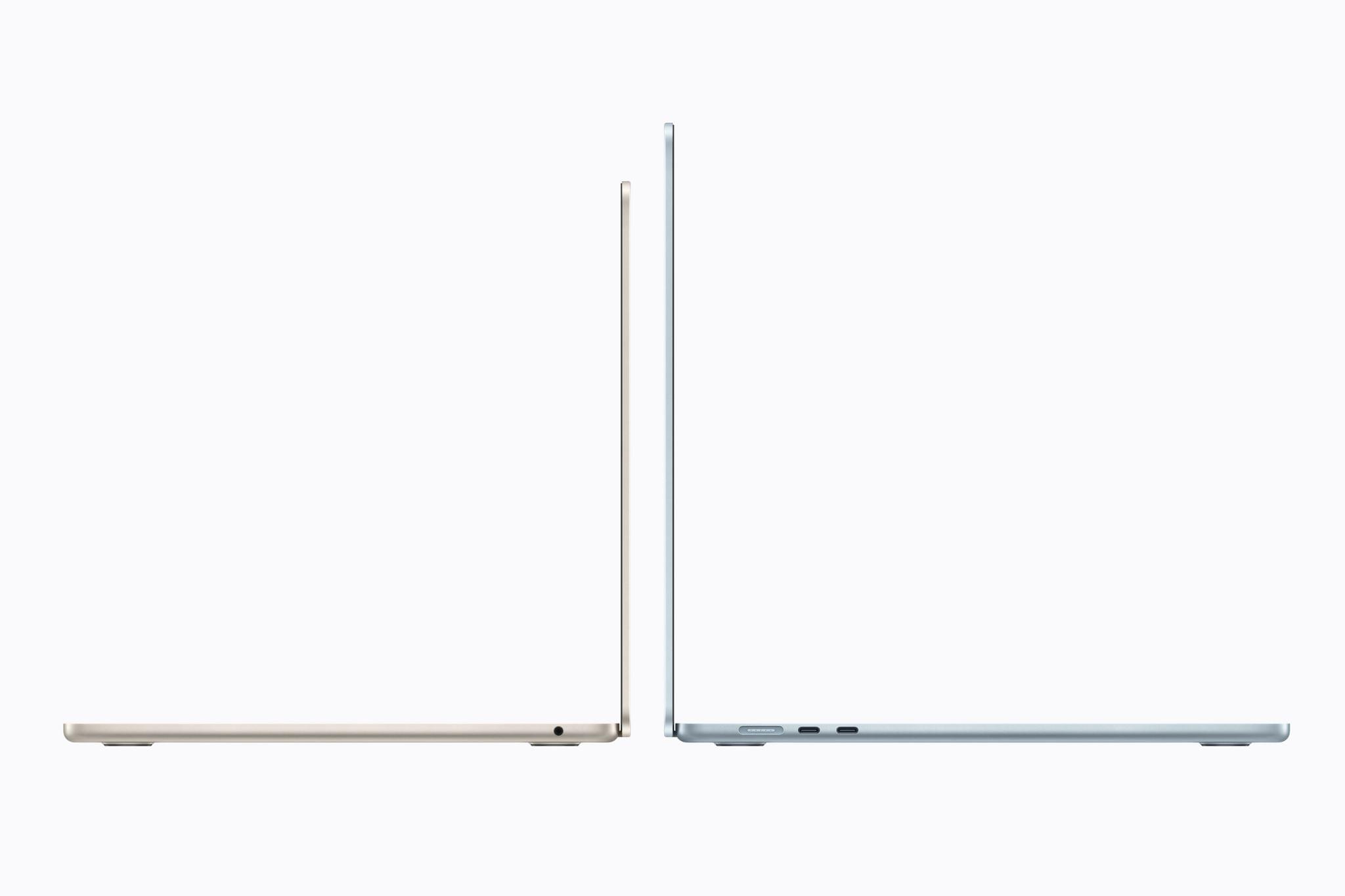
In many ways, I find the M5 MacBook Air just as exciting. It’s not as powerful as the M5 MacBook Pros, but I’m intrigued by the 15” model. I’ve been using a 14” MacBook Pro for quite a while, and it has convinced me that I’m not interested in going back to a 13” laptop.
What interests me most about the 15” MacBook Air is using it as a companion to my desktop Mac Studio. The reality is that when I’m away from my desk, I rarely need the power of a MacBook Pro or Mac Studio. Instead, most of what I do on a laptop can be accomplished with the Air, connecting via Screen Sharing to my desktop Mac as needed for heavier workloads.
As Dan Moren put it at Six Colors:
The Neo may vie for the title of Apple’s bestselling Mac, but it’s got its work cut out for it: the crown remains the MacBook Air’s to lose and if you come at the king, you better not miss.
For Dan, the SSD performance was a highlight coming in at a 125% improvement over the M4 Air for read speeds and 219% of the M4 Air for write speeds, using Blackmagic’s disk testing tool. That’s better than what Apple claimed in its press releases and the sort of difference that will have practical impacts when working with large files.

I also found Lance Ulanoff’s perspective on the Air interesting:
The M5 brings the level of performance we’ve previously seen in the MacBook Pro — I had trouble finding anything the laptop couldn’t do.
Consistent with what Jason Snell said of the M5 MacBook Pro, it’s the pace of progress that’s so astonishing. What the MacBook Pro could do yesterday, the M5 Air can do today.
Based on these reviews, I expect the Air will continue to be the best overall laptop in Apple’s lineup for most people. I’m intrigued by the Neo and love what the Pro can accomplish, but the Air sits in a sweet spot that makes it a great value even though it’s no longer the lowest-priced laptop Apple makes.
With these new laptops arriving on customers’ doorsteps and in stores today, I’m sure we’ll hear more firsthand accounts of their capabilities soon. From where things stand today, though, Apple’s laptop lineup has never looked better.
First, Last, Everything Season Two Launches Today
In September of last year, MacStories launched a brand new podcast, ‘First, Last, Everything,’ in which I interviewed guests about their relationship with technology through their first loves, latest obsessions, and the piece of tech that meant everything to them.
In its eight-episode first season, I had some great conversations with people like celebrated icon designer Michael Flarup, Pok Pok founder Esther Huybreghts, YouTube creator Tom Hitchins, and Futurama co-creator David X. Cohen, to name a few.
We covered a huge range of topics from Waymo cars to the Amiga 2000, electric guitars to the Macintosh Plus, and beyond. I also enjoyed taking listeners on a weekly journey with the ‘Something’ segment, during which I talked about a piece of tech that flopped, was ahead of its time, or has simply been forgotten.
I’m looking forward to doing it all again with a whole new bunch of guests. Kicking off the new season is Emmy and Webby award-winning YouTube creator Becca Farsace. You may recognize Becca from her time at The Verge, but since 2024, she’s been striking out on her own. Becca is such fun to talk to and a true inspiration. You can listen to that episode right now.
New episodes will continue to be released every Wednesday through April 29, featuring guests such as AltStore creator Riley Testut, Mac Power Users host David Sparks, our own Niléane, and more. And, for the first time, you’ll can listen to First, Last, Everything, access the show notes, and subscribe right from the show’s brand-new dedicated page on MacStories.
Let’s go.
Podcast Rewind: GameHub for the Mac, a Pokémon FireRed Challenge, and Emily in Rome
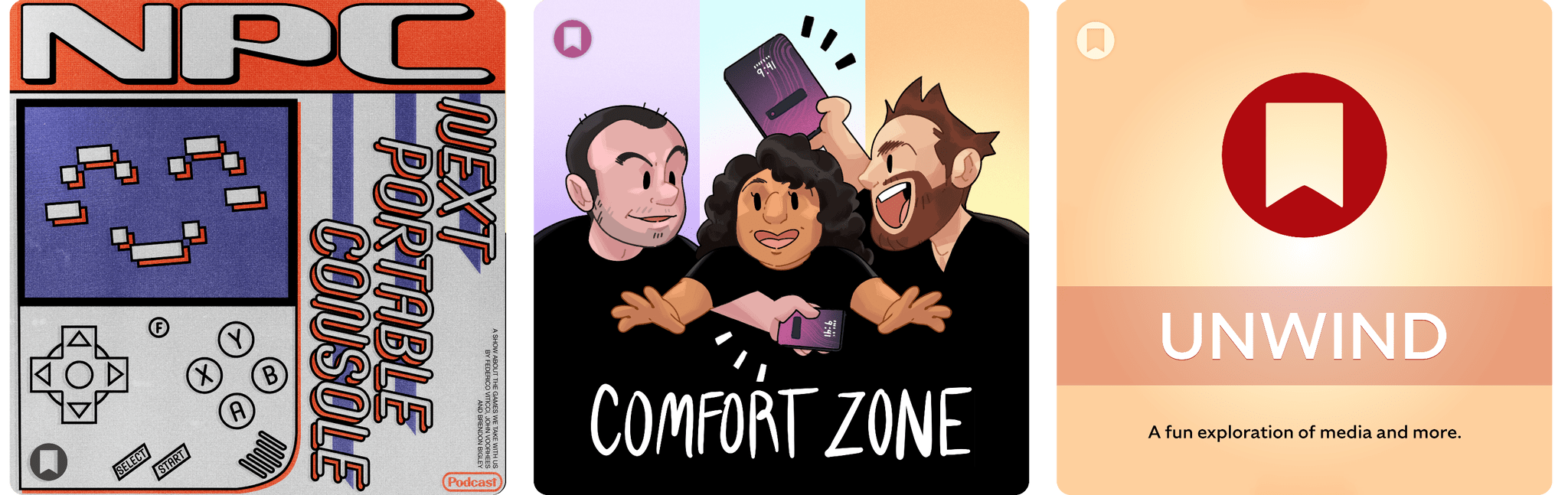
Enjoy the latest episodes from MacStories’ family of podcasts:
NPC: Next Portable Console
This week, John, Federico, and Brendon cover the news that GameSir is bringing GameHub to the Mac and chat about the ASUS’s special edition ROG Flow Z13.
Then on NPC XL, John tests the Virtual Boy accessory for the Switch 2, Federico follows up on his Android emulation experiments, and Brendon has been optimizing the Ayn Thor.
Comfort Zone
Matt demands we roast his Home Screen, Niléane drops some knowledge on SSDs, and (almost) everyone has fun with Pokémon.
On Cozy Zone, we played Geoguesser, and it has a better ending than we could have even scripted.
MacStories Unwind
This week, John explains the web app he built for covering Apple announcements, plus Emily winds up in Rome while John tends to his Pokémon.
MacStories Weekly: Issue 503
Apple Is Working on an AI Music Tagging System→

Music Business Worldwide (via MacRumors) is reporting that Apple is rolling out a voluntary metadata system for identifying AI-generated content on Apple Music called Transparency Tags. Introduced by Apple in a newsletter sent to music industry partners, Transparency Tags is:
a system of disclosure labels that record labels and music distributors can begin applying to content delivered to Apple Music immediately, and will be required to use when delivering new content in [the] future.
According to Music Business Worldwide, the tagging system covers artwork, tracks, composition elements such as lyrics, and music videos. The publication quotes Apple’s newsletter as explaining that it views Transparency Tags as part of an initial effort toward giving the music industry what it needs to develop AI policies.
Although there are currently no consequences for failing to properly tag AI-generated music, Transparency Tags are a step in the right direction. The music industry and other creative industries are all grappling with how to deal with a flood of AI-generated content in a rapidly evolving environment. I don’t expect to see one approach sweep across industries any time soon, but it’s encouraging to see Apple taking a lead in pushing the conversation forward.