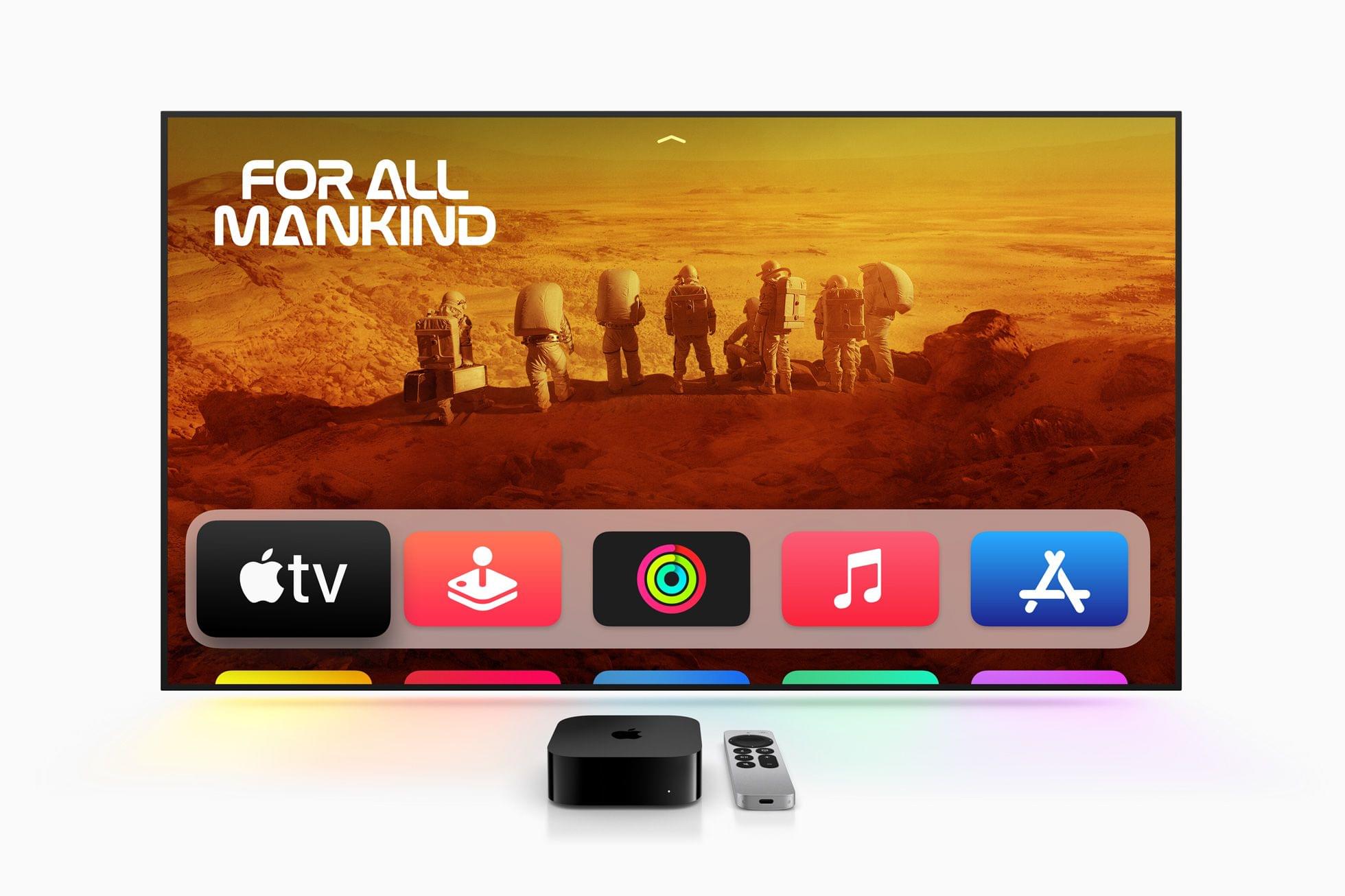
This week on MacStories Unwind, John is joined by Alex Guyot to talk about the third-generation Apple TV 4K, how they use their Apple TVs and what the new hardware might mean for streaming content in the future.

This week on MacStories Unwind, John is joined by Alex Guyot to talk about the third-generation Apple TV 4K, how they use their Apple TVs and what the new hardware might mean for streaming content in the future.
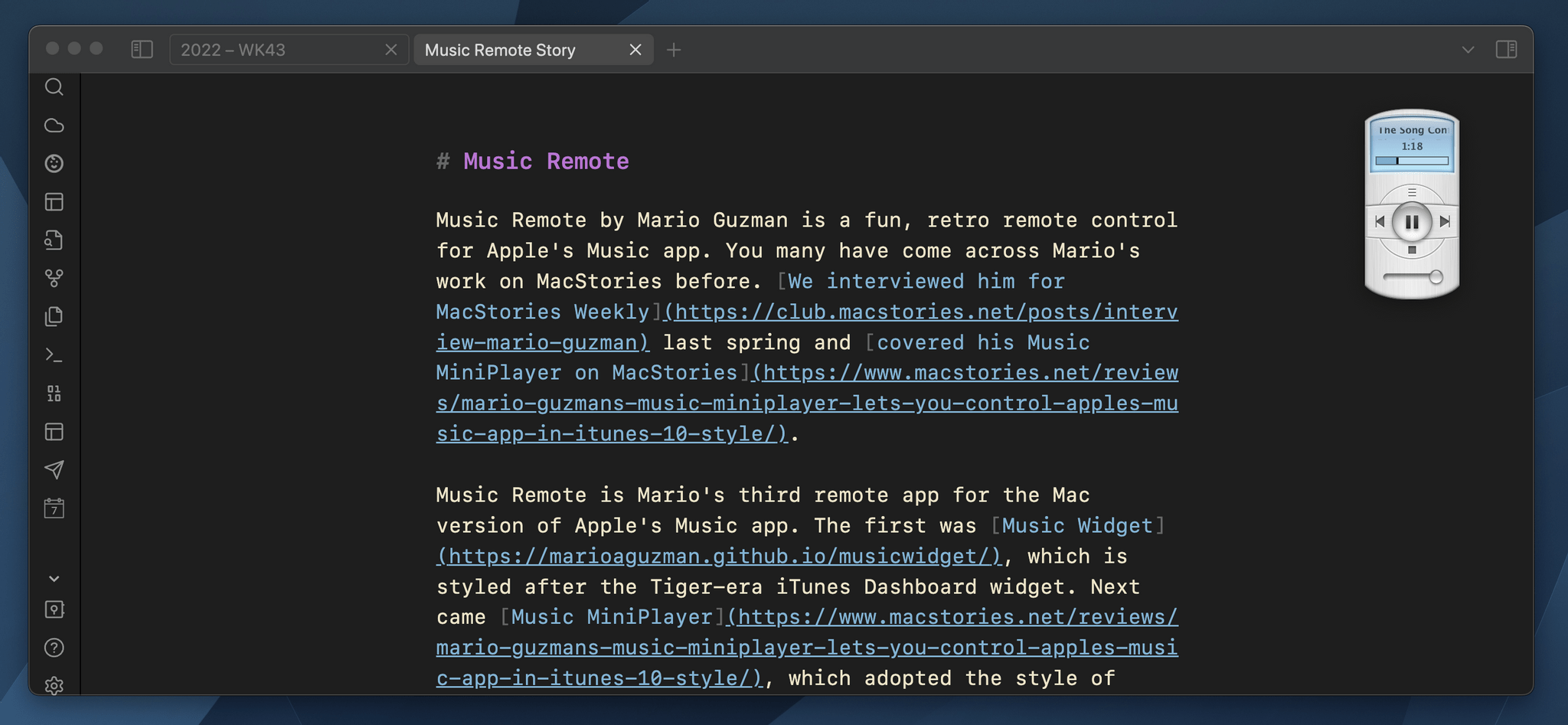
Music Remote by Mario Guzman is a fun, retro remote control for Apple’s Music app. You may have come across Mario’s work on MacStories before. We interviewed him for MacStories Weekly last spring and covered his Music MiniPlayer on MacStories.
Music Remote is Mario’s third remote app for the Mac version of Apple’s Music app. The first was Music Widget, which is styled after the Tiger-era iTunes Dashboard widget. Next came Music MiniPlayer, which adopted the style of iTunes 10’s mini player. Music Remote reaches further back in time to the Mac OS X Public Beta, recreating the look of Music Player, an app that didn’t last long.
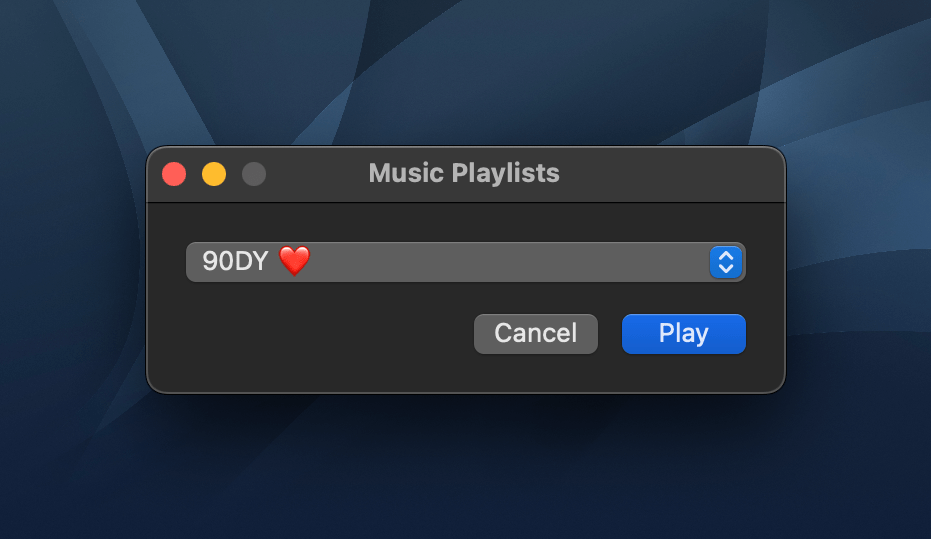
The compact remote requires Apple’s Music app to be running, but once it is, you can minimize Music and use Music Remote instead. The app includes buttons to play/pause and skip forward and back, as well as a couple of unique buttons above and below the play/pause button. Above play/pause is a button that opens a separate window that lets you pick from your playlists. Below is a stop button. It works the same as pause, except that when you resume playback, it will start with the next song in an album or playlist instead of picking up mid-song.
The display above the controls cycles among the song title, artist, and album name. If a text string is too long to fit into Music Remote’s tiny screen, it scrolls horizontally. You can also cycle through the information displayed in Music Remote more quickly by clicking on its screen. The screen shows elapsed song time by default but can be switched to the remaining time in the app’s preferences. At the bottom of the screen is a progress bar. There’s a volume slider at the bottom of the app’s UI, and the app can playback Apple Music radio stations using a slightly different UI, too.
What makes Music Remote such a fun utility, though, is its design. The bubble-like play/pause button and blue LED-inspired screen are from a very different era of Mac design but still look great today. I also appreciate that the app is small. It looks fantastic on my desktop, which is why I immediately turned on the option to float it above my other windows. Because the app is small, though, there’s always a spot for it out of the way. It works perfectly in app sidebars that have a little blank space or the margin of a text editor, for example.
I have all three of Mario’s remote apps installed on my Mac Studio. that may seem like overkill, but I listen to music a lot as I work, so I appreciate having options depending on my mood. However, for the last week, as I put the finishing touches on my macOS Ventura review, Music Remote has been the remote that’s been sitting in the margin of the review as I write, which has been great.
I highly recommend checking out Music Remote, which can be downloaded for free from Mario Guzman’s GitHub page along with his other apps.
This week on AppStories, we mark episode 300 of the show by revisiting the app trends they covered in episode 100 and discussing the new trends that will shape the apps we use in the next several years.
Sponsored by:
On AppStories+, we reveal the app trends we want to see end.
We deliver AppStories+ to subscribers with bonus content, ad-free, and at a high bitrate early every week.
To learn more about the benefits included with an AppStories+ subscription, visit our Plans page, or read the AppStories+ FAQ.
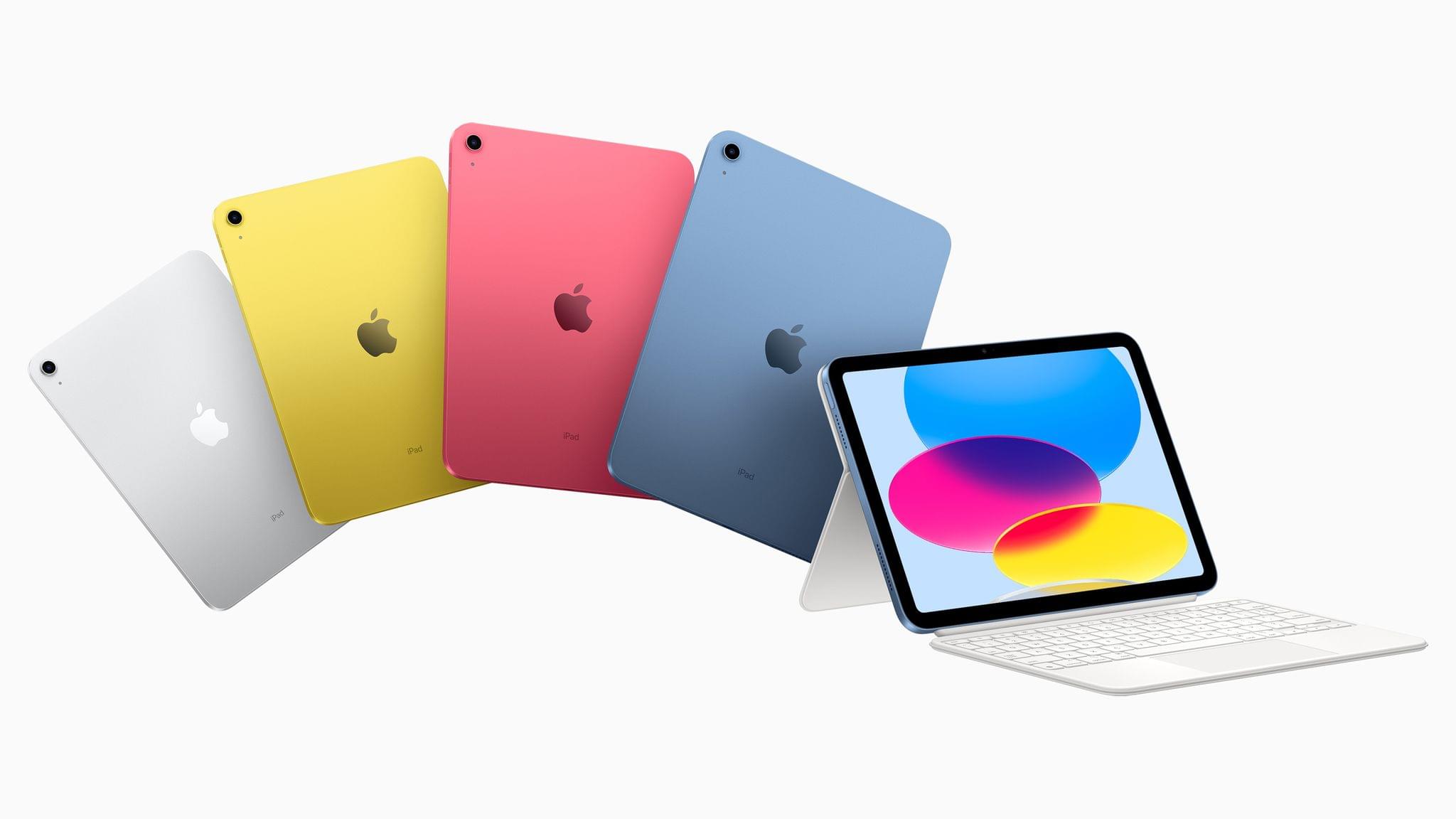
This morning Apple announced their all-new iPad and iPad Pro lineups via press release and a short announcement video. The new iPad (non-Pro) features new colors and an updated square-edge design that brings it in line with the rest of Apple’s modern iPads and iPhones. The iPad Pro has been upgraded to Apple’s M2 chip, and supports a new “hover” mode on the Apple Pencil. Apple also unveiled a new Magic Keyboard Folio accessory, which includes a detachable keyboard with a trackpad and function keys.
There’s a lot to like about each of these new products, but the details reveal some very strange decisions on Apple’s part.
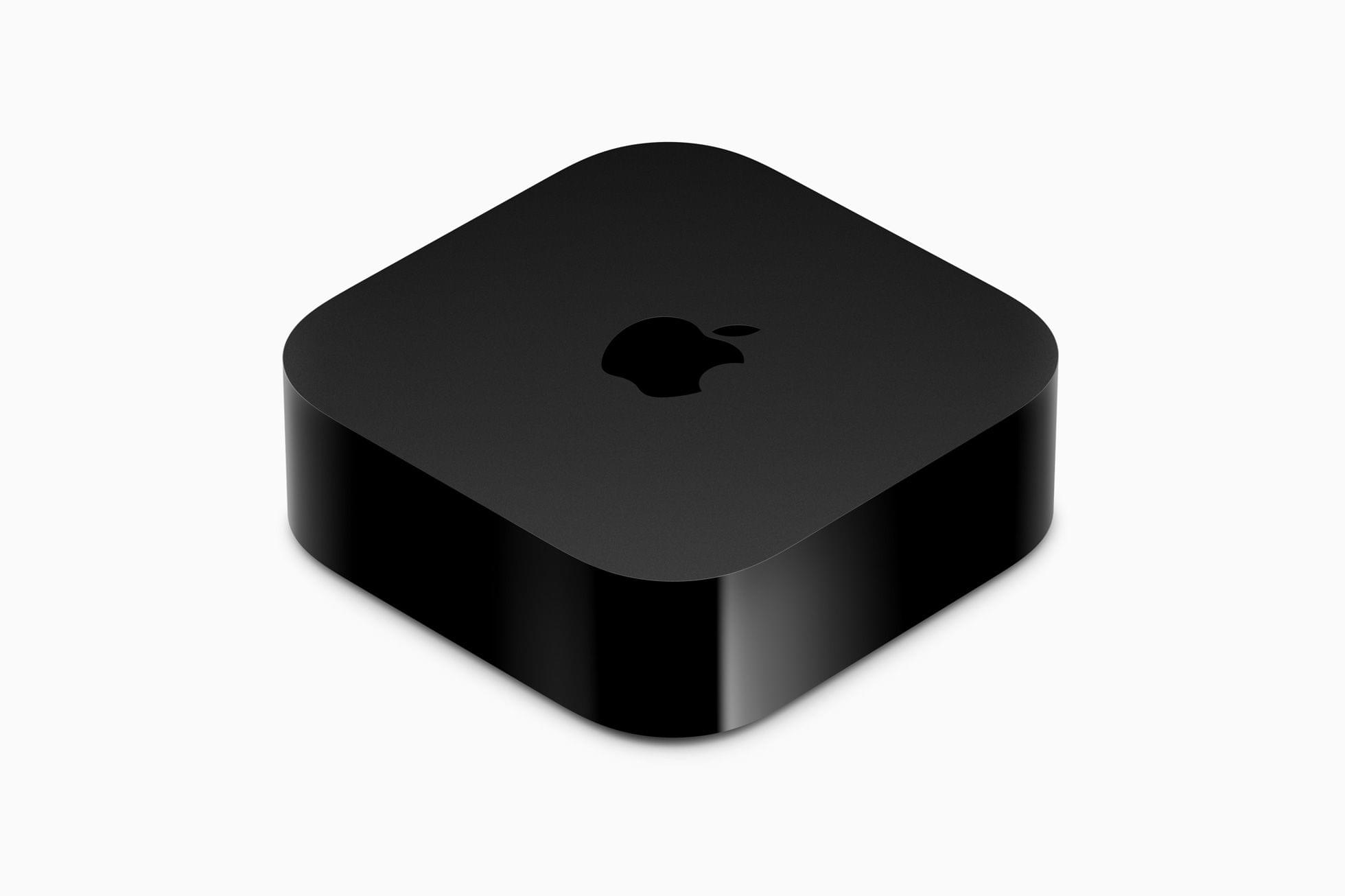
Today, Apple published a press release announcing an update to the Apple TV 4K, which now comes in two configurations that offer different storage capacities and network connectivity. The Apple TV HD is no longer available on Apple’s online store.
The Apple TV 4K has been updated with an A15 Bionic chip and support for HDR10+, which is part of tvOS 16. The base configuration, which is $129, has 64GB of storage and is WiFi-only. The other model adds Gigabit Ethernet and has 128GB of storage for $149. The top-tier Apple TV 4K supports Thread networking too.
CPU performance is now up to 50 percent faster than the previous generation, delivering greater responsiveness, faster navigation, and snappier UI animations. GPU performance is now up to 30 percent faster than the previous generation for even smoother gameplay.
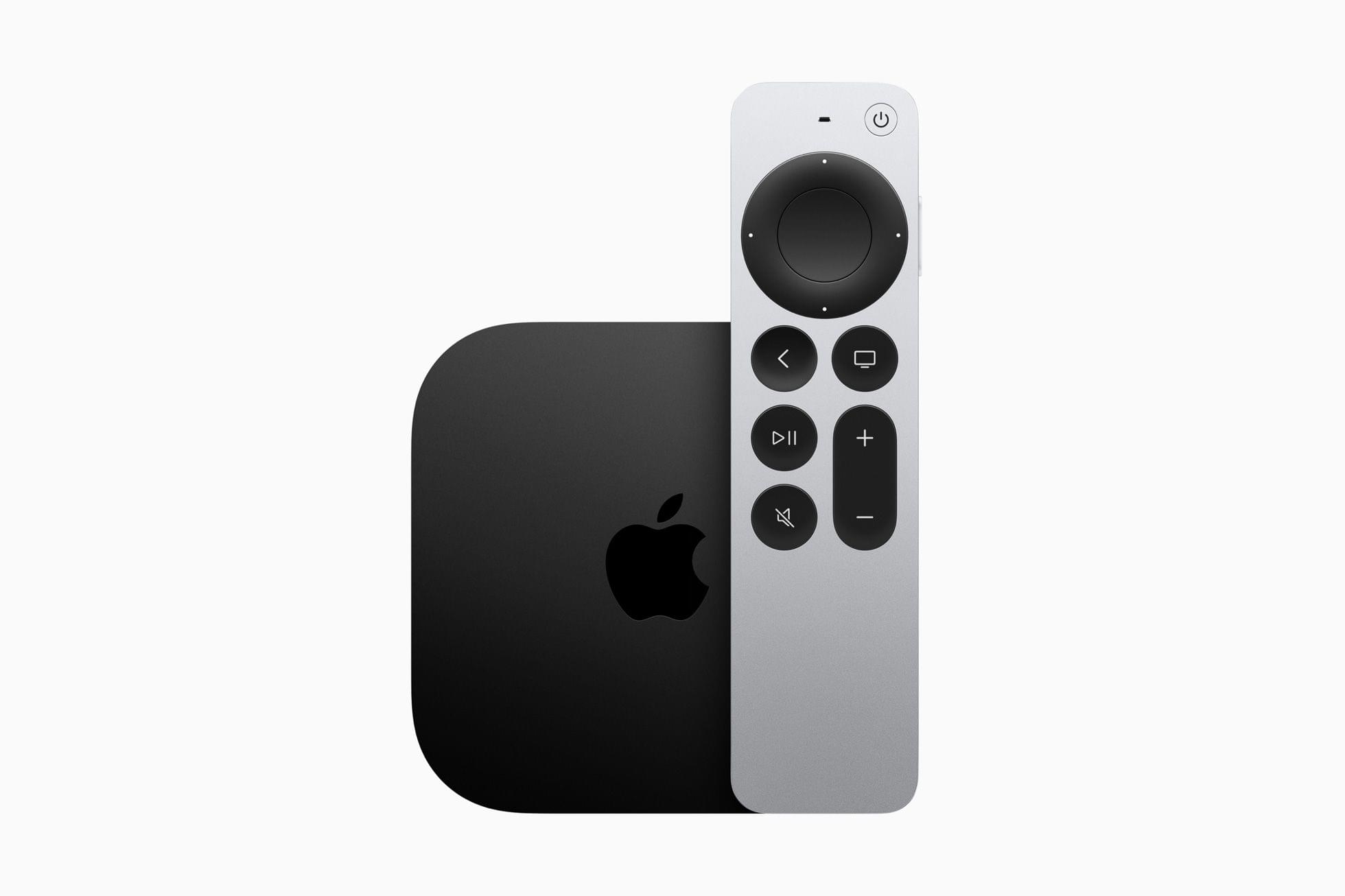
The Siri Remote has remained mostly the same, except it has added USB-C charging in place of the previous model’s Lightning port. The Siri Remote is included with the Apple TV but can be purchased separately for $59.
Overall, the changes to the Apple TV 4K are fairly minor, notwithstanding the snappier UI the A15 Bionic enables. I don’t see a good reason for most people to upgrade from a previous generation Apple TV 4K unless you play a lot of games on the Apple TV and have run into storage limits. If you have an Apple TV HD before and are planning on buying a 4K TV, the new model will save you some money and offer a few new perks. Although it’s a shame that Ethernet is only available in the more expensive configuration, that’s probably part of how the cost of the base model has been brought down, and I’m sure most people connect their Apple TVs via WiFi anyway.
The new Apple TV 4K is available for pre-order now, with deliveries beginning on Friday, November 4th in 30 countries, including the US.
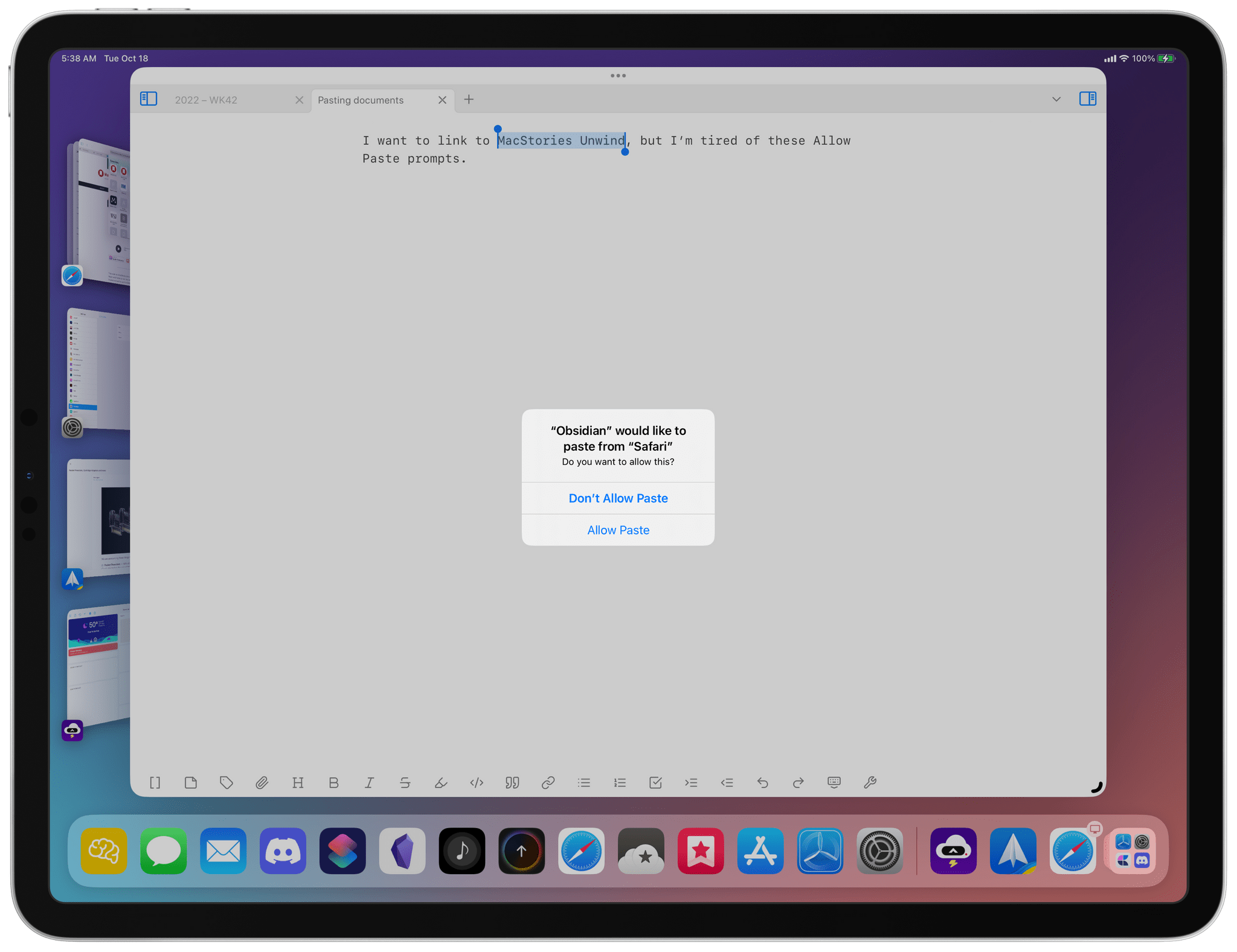
In iOS 16 and the upcoming iPadOS 16.1, Apple added an alert when an app tries to read your device’s clipboard, giving users a chance to grant or deny access. It’s a privacy measure, but for apps that have legitimate reasons to use the clipboard’s contents, it quickly becomes an annoyance to confirm every time you want to paste something. Apple has said that excessive prompts to use the clipboard are a bug that it was working to fix, but whatever the origin, the latest beta of iOS and iPadOS 16.1 include new settings that dramatically improve the experience.
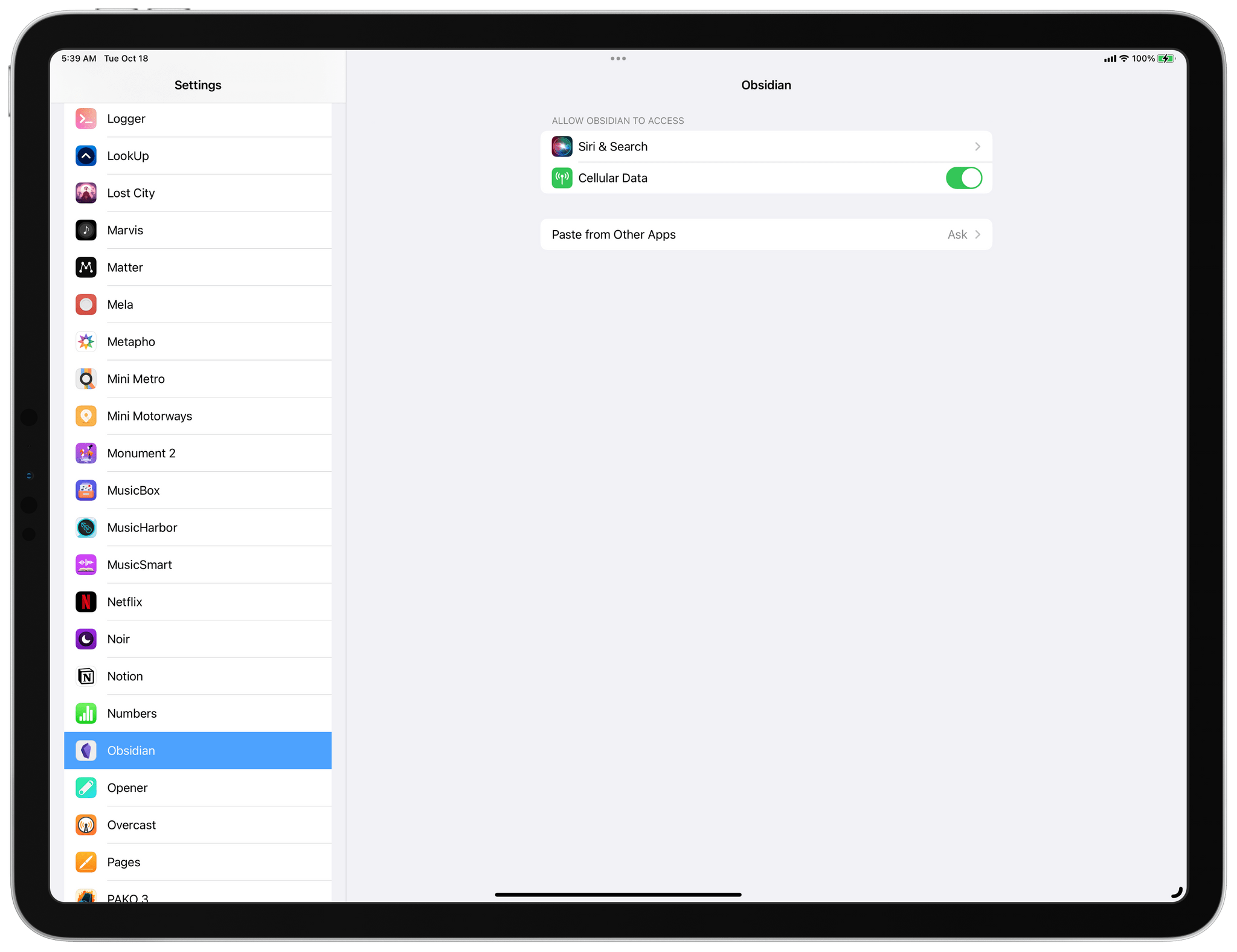
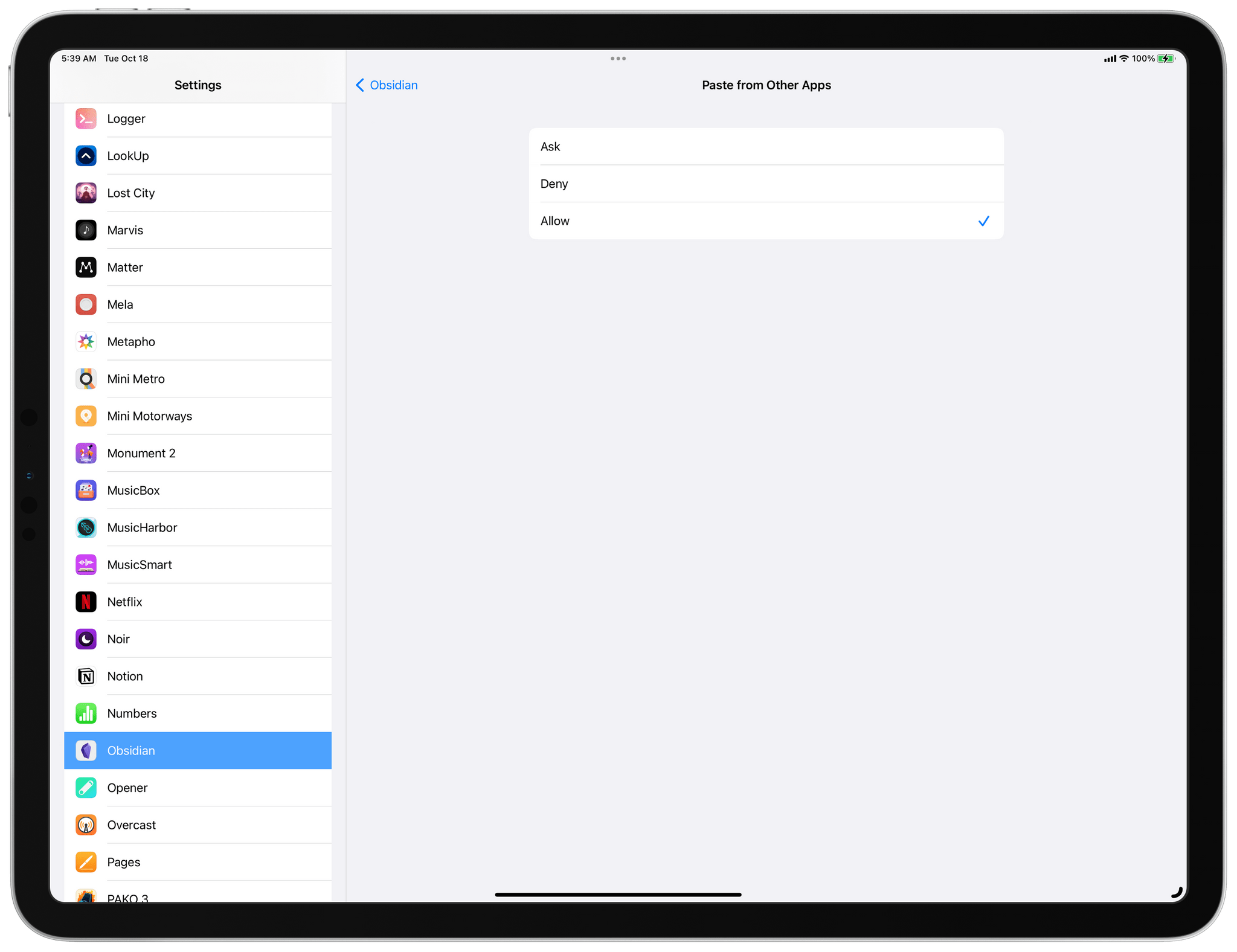
After asking for permission to paste from another app at least once, a new setting appears in an app’s Settings entry.
According to Joe Rossignol at MacRumors:
In the Settings app on the fourth beta of iOS 16.1 and later, a new “Paste from Other Apps” menu appears for apps that have previously asked for permission to paste content from another app. The menu can be found in the Settings app → [App Name] → Paste from Other Apps.
The menu presents users with three options:
- Ask: The app must continue to request permission to paste content from other apps.
- Deny: The app cannot paste content from other apps.
- Allow: The app can paste content from other apps without asking for permission again.
This change is a huge win for any app you use and trust that needs clipboard access. For me, that’s Obsidian. We use a custom plugin for creating Markdown links to webpages and images that we shared last fall with Club MacStories members. The plugin works the way I think all text editors should handle Markdown linking when you have a URL on your clipboard: highlight some text, paste, and instead of replacing the highlighted text, the URL is linked to highlighted text. However, since running iOS and iPadOS 16 betas, I’ve had to select ‘Allow Paste’ anytime I wanted to create a Markdown link using the plugin. Now, with ‘Allow’ chosen in the Obsidian entry of the Settings app, that’s no longer a constant source of friction as I write, which is great.
It’s worth noting that the setting doesn’t sync across devices. For example, if you Allow pasting on an iPhone, you’ll have to do the same on an iPad. Also, the setting only appears in the Settings app after an app has requested permission to access the clipboard at least once.
For small businesses, acquiring new business often means juggling multiple priorities at the same time, as each deal has its own time frame and different client requirements. That’s why you need a tool that will help better manage your sales pipeline, so you’re making the most of every sales opportunity that comes your way.
The Daylite Opportunities Board lets you visually track your deals’ progress at every stage and helps you prioritize sales opportunities. This powerful feature gives you a holistic view of your sales pipelines, allowing you to track where each Opportunity is in the process, so you and your team can focus on the most valuable ones. The drag-and-drop functionality allows you to move opportunities from one stage to the next, and you can easily classify deals as “won” or “lost” by dragging them to the respective status categories. Learn more about how this powerful Daylite feature has become a game-changer for Apple-savvy small businesses.
Daylite is an award-winning CRM and productivity business app that empowers small businesses to get more done throughout the full customer lifecycle. Daylite is a native app built exclusively for Mac, iPhone, and iPad. From meeting prospects and taking control of your sales to managing the moving pieces on projects, all the way through to winning more repeat business, it’s all done in Daylite.
And now, with the Daylite Opportunities Board, you can finally better manage your sales process and unlock your sales potential.
Are you ready to close more deals with Daylite? Start your free trial here.
Our thanks to Daylite for sponsoring MacStories this week.
 MacStories Weekly: Issue 340
This week on MacStories Unwind, I pick a spooky special from Disney+, Werewolf by Night, and Federico has two weekend videogame projects: openFPGA for the Analogue Pocket and setting up the Epilogue GB Operator with the Steam Deck.
John’s Pick:
Federico’s Pick:

](https://cdn.macstories.net/banneras-1629219199428.png)