

If the blazing speed of Apple’s built in SSD for the MacBook Air isn’t fast enough, head over to OWC and check out their Aura Pro Express. Featuring write speeds up to 275 MB/s over Apple’s factory 215MB/s, you’re looking at a 15% increase in face melting performance. At the top of the line, you can nab yourself a 360 GB Express SSD if you still can’t live out of the cloud, though that’ll set you back an easy $1,180. You can nab a 180 GB model at a cooler $500, and you’ll still get OWC’s chip based encryption, RAID-like data protection, and ultra-efficient wear leveling that any good SSD drive should have. I don’t know if I’ll pick one of these bad boys up any time soon, but we’re sure there will be plenty who are willing to grab their torx screwdrivers and empty their pockets for one of these.
OWC Aura Pro Express: MacBook Air SSD’s Get Faster
Rovio Releases Angry Birds Free with 12 Exclusive Levels

While we were all waiting for the OS X 10.6.6 and the Mac App Store to show up in Software Update, Rovio released a new version of Angry Birds in the App Store, for free. The app is called “Angry Birds Free” and must not be confused with “Angry Birds Lite”, which wasn’t updated since last April. This new version of the popular iOS (and now Mac, too) game contains 12 exclusive levels specifically built for users who want to try a free version before a paid upgrade.
But Angry Birds Free doesn’t stop at new levels not accessible in the paid counterparts. It’s also got Game Center integration with leaderboards and achievements, plus 4 new mini episodes that should keep you entertained before considering going paid. Two weeks ago, Rovio added 15 new levels, Game Center support and the Mighty Eagle to Angry Birds HD for iPad.
Angry Birds Free is available here, well, for free.
A Paintbrush Stylus for iPad Is What Every iArtist Needs
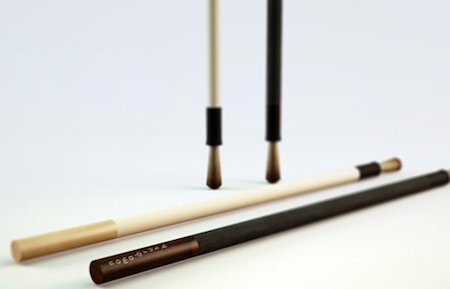
Realized by NomadBrush and made “with a long handle and soft bristles”, this paintbrush stylus looks like a first on the iPad. It’s coming in February, “patent is pending” according to the official teaser website and with this, you should be able to come up with original digital creations like the ones we’ve seen before.
Well, here’s your chance to become an iArtist. Check out the promo video below. [Gizmodo via NomadBrush] Read more
Mac App Store Review: Unretina, Simple Utility for iOS Designers
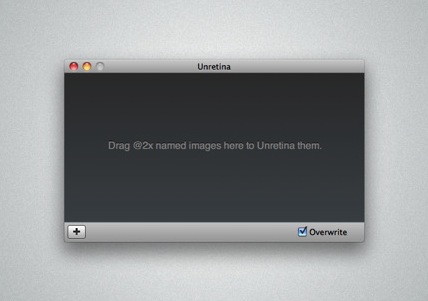
Released for free in the Mac App Store and developed by Bonobo Labs, Unretina is an OS X utility specifically geared towards iOS designers and developers. What this app does is very simple: it provides a way to easily resize “2x” images built for the Retina Display in order to make them compatible for artworks on older Apple devices.
Unretina takes graphic files designed for the iPhone 4 and iPod touch 4th gen and resizes them to a resolution compatible with, say, the iPhone 3GS and older iPod touches. It should work for all devices that don’t come with a Retina Display. Through a simple drag & drop interface, Unretina looks like a straightforward utility for designers that does one thing well.
Looking at the reviews in the Mac App Store description page, it appears that the app uses Bicubic resampling to resize graphic files. This may lead to a tiny sharpness loss, and a few pixels off. Something that, apparently, most designers won’t care about.
Unretina is available for free in the Mac App Store.
Weather HD by Vimov Victim of Name Squatting in Mac App Store

iOS and Mac development studio Vimov saw an unpleasant surprise yesterday in the Mac App Store: another developer, Presselite, is selling an application called “Weather HD” in the Mac App Store. The problem is, Weather HD is the popular application the Vimov guys released for the iPhone and iPad, featured multiple times by Apple in the App Store homepage and covered by all the major tech blogs.
The “Weather HD” that’s being sold in the Mac App Store is not affiliated with Vimov in any way – actually, Presselite “stole” the name from Vimov when registering the app’s name in iTunes Connect. This practice is known as name squatting. Read more
Verizon iPhone To Launch February 3rd?
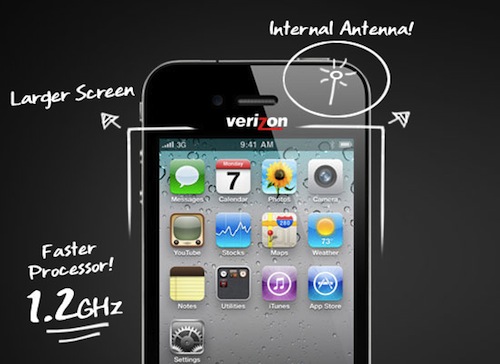
The Boy Genius Report suspects that an impending vacation freeze at Apple from February 3rd to the 6th indicates an important first four day weekend to focus on sales of a new handset. Coinciding with last year’s similar June 24th through June 27th, also a Thursday through Friday, and Verizon’s typical Thursday launch days, the rumored release of a Verizon iPhone during this period is plausible.
In addition, Verizon Wireless typically launches new devices on Thursdays. WhileBGR has not yet confirmed that the Verizon iPhone is the device we’ll see debut on the 3rd, the timing lines up very well with previous reports; no other Apple products have been rumored to be launching in this time frame.
I’m of two thoughts when it comes to a Verizon iPhone selling before the AT&T phone, but this is my main issue: Would Apple launch an iPhone 4 now only to release a new one on AT&T in a few months?
[via BGR]
Update: Verizon just sent out invitations for a special event they will hold on January 11. Maybe the Verizon iPhone is really happening this time.
Mac App Store: 1 Million Apps Downloaded on Day One
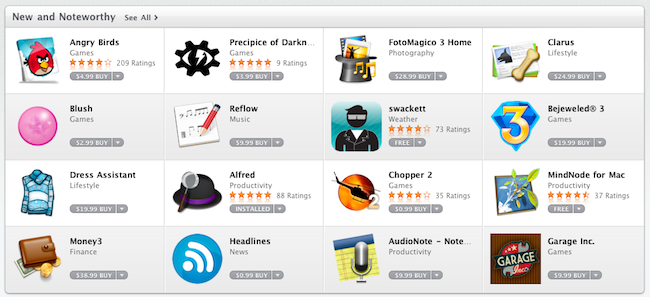
This morning Apple announced that more than 1 million apps were downloaded from the Mac App Store on Day One. The Mac App Store was launched yesterday with around 1,000 apps available for OS X computers. According to Steve Jobs, “Developers have done a great job bringing apps to the store and users are loving how easy and fun the Mac App Store is”. The Mac App Store indeed offers an easy and fun purchase experience, although it’s pretty clear that some apps don’t exactly follow Apple’s own interface guidelines or aren’t exactly “best of the breed” of Mac software.
The Mac App Store undoubtedly changes the landscape of independent development for the Mac and software installation on OS X. One million downloads in 24 hours isn’t too bad, and we’ll see how these stats will pan out in the next weeks.
Mac App Store Review: Contacts Cleaner
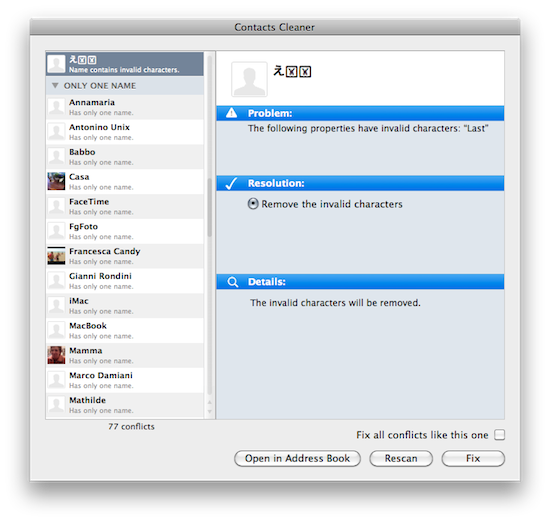
Developed by Spanning Sync and available in the Mac App Store at $4.99, Contacts Cleaner is a simple utility aimed at fixing the little problems that can slowly take over your state-of-the-art Address Book organization. I’m talking about unrecognized Unicode characters (because admit it, you tried to paste weird symbols next to your boss’ phone number), missing info and extra spaces between names that shouldn’t be there. Contacts Cleaner can fix these issues thanks to a minimal and simple interface that makes it easy to go through the most scary list of broken contacts. Read more
How Do You Like These iPad 2 Mockups?
In the shadow of today’s big announcements regarding the Mac App Store, some leaks, I mean mockups, showed up. Not to detour you from downloading lots of new Mac Apps, but don’t forget the iPad 2 is still hot news.
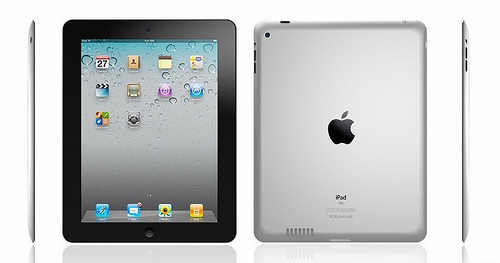
So MIC Gadget actually thought they had leaked pictures of the next gen iPad (updated with “mockups”). If a small blog can get screenshots of the Mac App Store (and post them), why can’t MIC Gadget get iPad 2 pictures? Well, they’re obviously fake. Anyway, here’s some interesting mockups of the upcoming iPad 2 for your enjoyment and we even included Joy of Tech’s list of iPad 2 “dreamy” expectations (and maybe ours). More after the break. Read more