

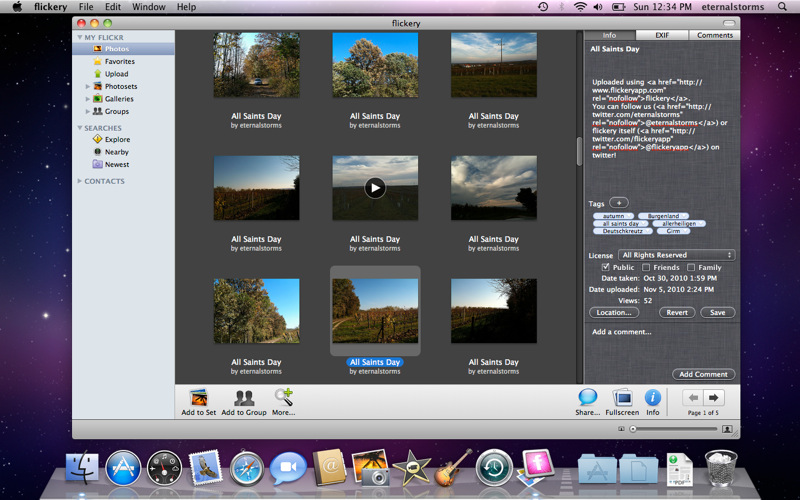
If you want to bring Flickr onto the desktop with minimal fuss, then you may want to look at Flickery. Drag & drop photos into a library that’s synced online, explore community videos and photos, and add all the metadata you want with tags and comments. A neat trick Flickery has up its sleeve is the ability to see local photos from your area based on location – if you’re visiting in Paris or Rome, you might be able to catch up on familiar landmarks with an assumably endless supply of tourist photos. This feature extends so you can click on alternative locations to plan your next photo-venture with just a few clicks (like Localscope where you can browse around manually). Fullscreen mode is available so you can see photographs in their entire beauty, and you can search by text to find exactly what you’re looking for. Federico reviewed Flickery a long while ago, and he found it to be pretty gosh-darned perfect for his volume of iPhone photos. But if you missed out on our earlier giveaway, we’re giving away three more copies this weekend just for you.
Flickery Giveaway: It’s The iPhoto Alternative For Flickr Fanatics
One Of Five Copies Of CalendarBar Can Be Yours
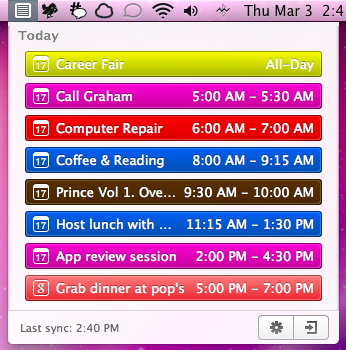
We reviewed CalendarBar yesterday as the tidy menu drop-down that shows your upcoming events in iOS fashion, and we think it’s nifty enough to give away. First let’s recap: CalendarBar connects with Facebook, iCal, and your Google Calendar accounts to pull in events and display upcoming things you have to do based on your guidelines. I personally only like to see what’s going on today, but you’re free to adjust your own schedules. It’s an event viewer made beautiful, removing the need to keep otherwise large email clients open all day. You can check it out at Clean Cut Code’s product page, or simply visit the Mac App Store for more information. Once you’re done, you can head past the break below for your chance to win a copy of your very own.
Put Screenshots In Your Sights With Crosshairs For Mac

Want to take screenshots with precision and adjustable controls? Crosshairs for Mac is what you’ll need if you want a friendly menubar utility that slaps screenshots right onto the desktop. Crosshairs is really simple to use:
- Click on the menubar icon to activate Crosshairs
- Drag the overlay anywhere and achieve a pixel-perfect with the graphic counter
- Press the spacebar to take the screenshot
- Press the escape key to deactivate Crosshairs
Simple, no? You might be wondering why you’d use Crosshairs over Snow Leopard’s built in screenshot utility, and the answer is simple. With Crosshairs, you can readjust and take multiple snaps consecutively in one row, making readjustments as needed.
There’s quite a few keyboard commands for Crosshairs, and its main purpose is to get dimensions of anything on screen. For pixel pushers measuring apps or windows for Photoshop, Crosshairs conveniently sits above your workspace so you can quickly rule what you need. If you’re working with a dark background, you could always change that overlay from black to white.
You’ll be set back a meager $4.99 in the Mac App Store for an aiming cursor with mad screenshot & measuring skills. Check it out at Giant Comet for more information.
Engadget Reviews The New MacBook Pro→
Engadget Reviews The New MacBook Pro
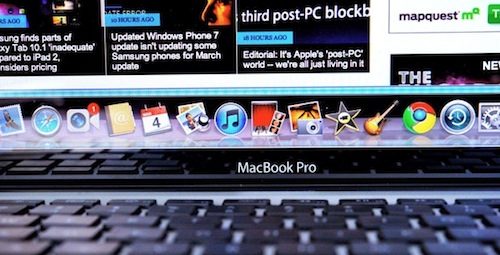
Nilay Patel at Engadget on the new MacBook Pro:
Of course, there’s no getting around the fact that the MacBook Pro is still incredibly expensive and omits what should be no-brainer features – $2,199 for two USB ports and no Blu-ray drive? – but those are tradeoffs and prices professional Mac users have long become used to, just like this particular MacBook Pro design itself. Something tells us the next revision of the MacBook Pro will offer a more radical external redesign to go along with Lion, but that’s a long ways off – until then, this MacBook Pro represents the best blend of power, portability, and battery life we’ve come across to date.
I’ve never touched a Blu-ray in my life so that’s not really a problem for me, but I can see some Mac users willing to do whatever they want with those discs. Interesting tidbits: FaceTime does HD video calling but Photo Booth stills shoots at VGA resolution; no way to test Thunderbolt right now; it’s just a really powerful MacBook Pro.
In the meantime, AppleInsider reports Apple has enabled TRIM support for bundled SSDs in the 2011 MacBook Pros running Snow Leopard. Great news.
BIT.TRIP BEAT For Mac Is Trip-Tastic

CommanderVideo has given you a paddle, and you’ll have to keep up with the beat in order to succeed in BIT.TRIP BEAT on the Mac App Store. It’s like pong and maybe like brick breaker, where you bounce back various “beats” that are streamed across your display in conjunction with the level’s vibe. These aren’t your traditional ping pong bits either – they’re high intensity, moving bullets that bounce and force players to return a variety of patterns without missing. The more beats you return consecutively, the more rewarding the game gets with higher intensity tunes and occasionally trippier visuals. But like Guitar Hero, if you miss a beat, you’ll face the bleak reality of failure. Color fades into monochrome, and the screen beat is reduced to mere 8-bit blips. If you’re not getting those additional bonus points by chaining those high-pitched returns, it’s game over for CommanderVideo.
Snap for Mac Assigns Keyboard Shortcuts to Apps In Your Dock

If you use the OS X Dock as much as I do, then it’s likely that you’ve always wondered why there’s no easy way to assign a keyboard shortcut for apps placed in the Dock. Snap, a $0.99 app available in the Mac App Store, solves this problem by providing an easy solution to cycle through Dock apps using the keyboard.
Once downloaded, Snap will let you assign numeric shortcuts to Dock apps starting from the Finder and the app right next to it. All you have to do is choose a modifier key that, together with the numbers, will enable you to switch between apps in seconds. The modifier key can be Command, Control, Shift or Option. Personally, I chose Option so I can switch between tabs in Chrome using CMD. If you don’t want to have shortcuts for Dock apps, however, you can also manually pick an app from the “Other” menu and virtually create shortcuts for any app on your Mac.
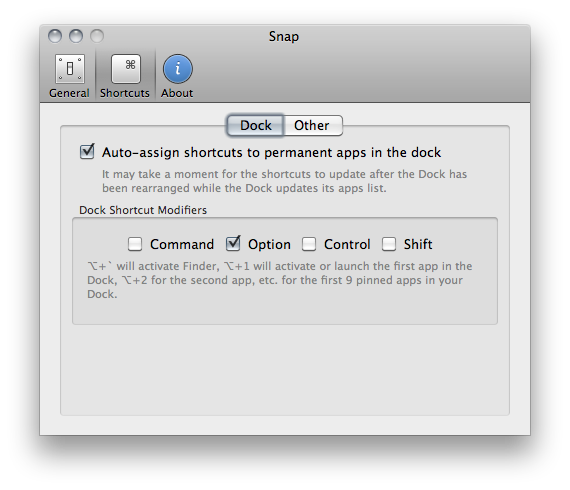
I like Snap because it’s simple and allows me to quickly open apps using easy to remember shortcuts – always faster than heading over an icon with your mouse cursor. Go download it here.
New µTorrent Beta for Mac Adds Remote Web Access, Scheduler
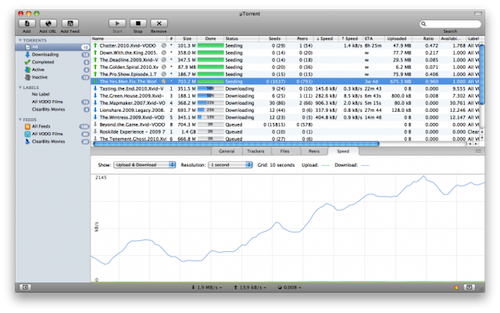
Popular BitTorrent client µTorrent was updated in its beta version for Mac last night adding support for a series of features that have made the app a must-have among Windows users. Namely, the latest beta for Mac adds the ability to control torrents remotely from any desktop or mobile browser, without having to mess with complicated network and firewall settings. It’s quite handy if you’re that kind of user who likes checking on his torrents on the go and wouldn’t mind adding new ones as well. Everything happens with a Web interface that’s completely accessible from anywhere. Together with the web UI, the application’s design has been improved as well.
Other important features in the 1.5 beta include feeds and the scheduler. While the second option is pretty obvious as it lets you schedule start and stop times for µTorrent (so your internet service provider will be happy), the RSS support is interesting. It allows you to subscribe to torrents’ feeds to automatically download them as new ones become available.
µTorrent is a free download for Mac, and the beta version is available here. [via Cult of Mac]
Personal Hotspot Limited To 3 Devices on AT&T?
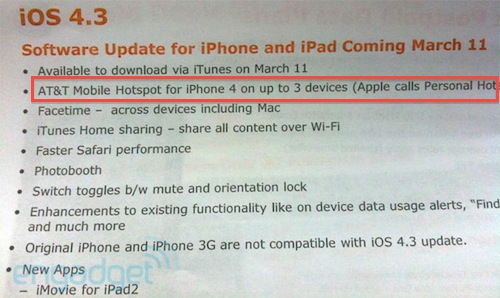
AT&T has confirmed it will offer the Personal Hotspot functionality starting March 11 with the release of iOS 4.3, but it looks like the functionality will be modified to work only with connections up to 3 devices. By default, Apple’s Personal Hotspot allows up to 5 devices to connect to a single iPhone sharing its 3G connection. A picture of an internal AT&T document posted by Engadget in fact suggests the carrier is going to restrict the usage of Personal Hotspot to only 3 incoming connections.
While it’s highly unlikely that you’ll end up letting 5 people connect to your iPhone on a daily basis, it’s still interesting to study the possibility of AT&T limiting a feature so heavily promoted by Apple. Guess carriers do have some kind of control on the iPhone, after all. (Personally, I’m just happy 3 Italia is going to keep Personal Hotspot free to use for every iPhone owner)
Update: the image shared by Engadget doesn’t specify whether or not AT&T is simply following Apple’s implementation of Personal Hotspot, which allows 3 devices to connect using WiFi. It’s not clear from the leaked photo if AT&T didn’t mention the additional Bluetooth and USB connections, or is really enforcing Personal Hotspot on 3 devices simultaneously.
From Apple’s website:
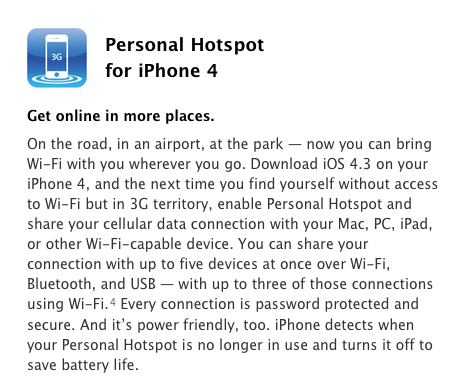
You can share your connection with up to five devices at once over Wi-Fi, Bluetooth, and USB — with up to three of those connections using Wi-Fi.4 Every connection is password protected and secure. And it’s power friendly, too. iPhone detects when your Personal Hotspot is no longer in use and turns it off to save battery life.
#MacStoriesDeals – Friday

What a great week for Apple news! Here are today’s deals on iOS, Mac, and Mac App Store apps that are on sale for a limited time, so get ‘em while they’re hot!