MacStories Weekly: Issue 404
MacStories Unwind: Like a Self-Reliant Final Fantasy Dragon→
This week on MacStories Unwind, Federico recommends the Final Fantasy VII Rebirth demo and Like a Dragon: Infinite Wealth, while I enjoy Self Reliance on Hulu.
Sponsored By:
- Memberful – Help Your Clients Monetize Their Passion
Links and Show Notes
Picks
- Federico’s Pick:
- Final Fantasy Rebirth
- Trailer
- Introduction at Sony’s recent State of Play event
- Like a Dragon: Infinite Wealth
- Final Fantasy Rebirth
- John’s Pick:
MacStories Unwind+
We deliver MacStories Unwind+ to Club MacStories subscribers ad-free and early with high bitrate audio every week.
To learn more about the benefits of a Club MacStories subscription, visit our Plans page.
Vision Pro App Spotlight: Shortcut Buttons Turns Your Shortcuts into Spatial Launchers
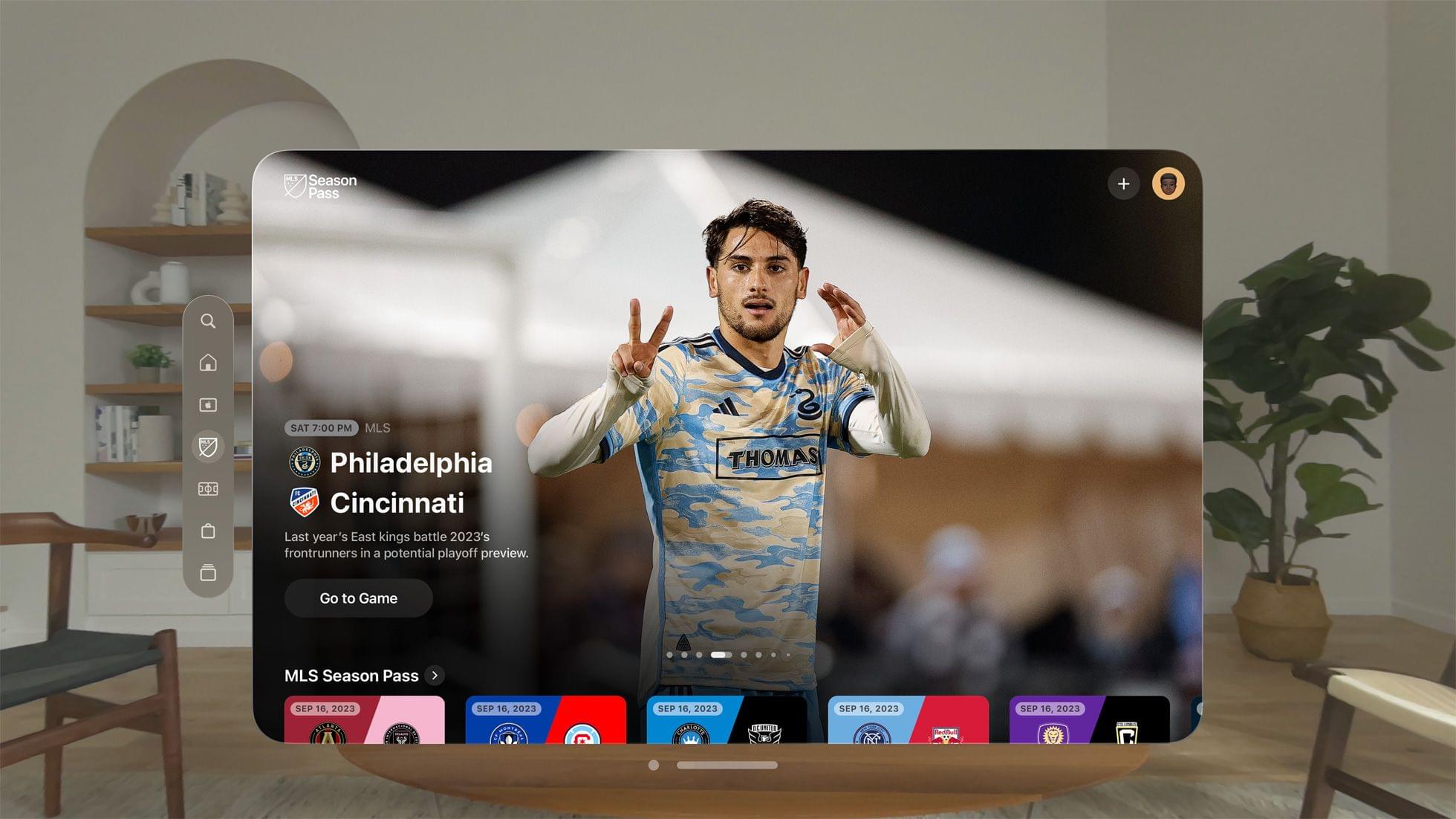
I received my Apple Vision Pro yesterday (for the full story of how it eventually found its way to Italy, you don’t want to miss the next episode of AppStories), and, as you can imagine, I’ve been busy downloading all the apps, learning my way around visionOS and – just today – using the extended Mac display mode. The first 24 hours with a Vision Pro are a whirlwind of curiosity and genuine nerd excitement, but despite my attention being pulled to a hundred different places, I’ve found the time to test one app in particular: Shortcut Buttons by Finn Voorhees.
The Best Way to Take Screenshots on Apple Vision Pro
Taking good-looking screenshots on the Apple Vision Pro isn’t easy, but it’s not impossible either. I’ve already spent many hours taking screenshots on the device, and I thought I’d share my experience and some practical tips for getting the best screenshots possible.
Although I’ve only had the Apple Vision Pro for a week, I’ve already spent a lot of time thinking about and refining my screenshot workflow out of necessity. That’s because after I spent around three hours writing my first visionOS app review of CARROT Weather and Mercury Weather, I spent at least as much time trying to get the screenshots I wanted. If that had been a review of the iOS versions of those apps, the same number of screenshots would have taken less than a half hour. That’s a problem because I simply don’t have that much time to devote to screenshots.
Taking screenshots with the Apple Vision Pro is difficult because of the way the device works. Like other headsets, the Apple Vision Pro uses something called foveated rendering, a technique that’s used to reduce the computing power needed to display the headset’s images. In practical terms, the technique means that the only part of the device’s view that is in focus is where you’re looking. The focal point changes as your eyes move, so you don’t notice that part of the view is blurry. In fact, this is how the human eye works, so as long as the eye tracking is good, which it is on the Apple Vision Pro, the experience is good too.
However, as well as foveated rendering works for using the Apple Vision Pro, it’s terrible for screenshots. You can take a quick screenshot by pressing the top button and Digital Crown, but you’ll immediately see that everything except where you were looking when you took the screen-grab is out of focus. That’s fine for sharing a quick image with a friend, but if you want something suitable for publishing, it’s not a good option.
Fortunately, Apple thought of this, and there’s a solution, but it involves using Xcode and another developer tool. Of course, using Xcode to take screenshots is a little like using Logic Pro to record voice memos, except there are plenty of simple apps for recording voice memos, whereas Xcode is currently your only choice for taking crisp screenshots on the Vision Pro. So until there’s another option, it pays to learn your way around these developer tools to get the highest quality screenshots as efficiently as possible.
“Wherever You Get Your Podcasts” Is a Radical Statement→
I thoroughly enjoyed this story by Anil Dash on how the openness of podcasting (a topic I’ve covered before) has proven so resilient over the years and is, in fact, more relevant than ever in the era of federated social networks:
But here’s the thing: being able to say, “wherever you get your podcasts” is a radical statement. Because what it represents is the triumph of exactly the kind of technology that’s supposed to be impossible: open, empowering tech that’s not owned by any one company, that can’t be controlled by any one company, and that allows people to have ownership over their work and their relationship with their audience.
Side note: this is the first post I’m writing and publishing on MacStories directly from the Vision Pro, which I received this morning. A lot more to follow soon – including wherever you get our podcasts.
Monthly Log: January 2024
Apple Updates Its Collection of Windows Apps
Today, Apple introduced a redesigned version of its iCloud for Windows app. The updated app, which allows users to access photos, files, passwords, and other content on a Windows PC, has clarified how it works and where synced content can be found. The app also adds physical password keys and other refinements. I don’t spend a lot of time using Windows, but I appreciate that it makes it easy to access passwords, files, and other content when I do, and today’s update makes that process a little easier, which is great.
The other updates today were to apps that have been available as previews on Windows for a while. That’s no longer the case for Apple Music, Apple TV, and Apple Devices. The functionality of those apps was previously found in iTunes for Windows. Music and TV closely resemble their Mac counterparts, whereas Devices lets users update, backup, restore, and manage their Apple devices on a Windows PC, similar to the way Mac users can do the same in Finder.
Although today marks the end of many of the core features of iTunes for Windows, the app continues to be available to Windows users to manage their podcasts and audiobooks. However, I wouldn’t be surprised if we see Windows versions of Apple Podcasts and Books in the future.
The Apple Vision Pro Developer Strap→
Jeff Benjamin writing for 9to5Mac has a comprehensive breakdown on what the Apple Vision Pro Developer Strap can and can’t do. One of the primary benefits for developers is capturing video. As Benjamin writes:
The Developer Strap also lets developers capture a direct video feed from Apple Vision Pro via a wired USB-C connection using Reality Composer Pro. Files transfers of the captured feed occur via the direct USB-C connection. Users without the strap can still capture these feeds but via Wi-Fi only.
Benjamin also explains how to use the strap to access Recovery Mode:
You can also restore visionOS using Recovery Mode via the wired connection made possible by the Developer Strap. This includes downgrading from visionOS beta releases.
My experience is in line with Benjamin’s. The Developer Strap may make capturing short videos and screenshots easier, but it can’t do much else.
I will add, however, that I was contacted by a MacStories reader who tipped me off to one other thing the Developer Strap can do, which is act as a video source for QuickTime. This works a lot like capturing screenshots and video from an Apple TV via QuickTime, and the advantage is that you can capture more than the 60-second cap imposed by Reality Composer Pro. That’s great, except that the capture is foveated, meaning that the video recorded will be blurry everywhere except where you’re looking.
Magic Rays of Light: Apple Vision Pro Impressions, TCA Winter Press Tour 2024, and the Road to the Apple Music Super Bowl LVIII Halftime Show
This week on Magic Rays of Light, Sigmund and Devon share first impressions of Apple Vision Pro, all of the Apple Original announcements from the Television Critics Association Winter Press Tour, and the lead up to the Apple Music Super Bowl LVIII Halftime Show headlined by Usher.
Show Notes
- News
- Trailers
- Releases
- Extras
- Up Next
Send us a voice message all week via iMessage or email to [email protected].
Sigmund Judge | Follow Sigmund on X, Mastodon, or Threads
Devon Dundee | Follow Devon on Mastodon or Threads
View our Apple TV release calendar on the web.