
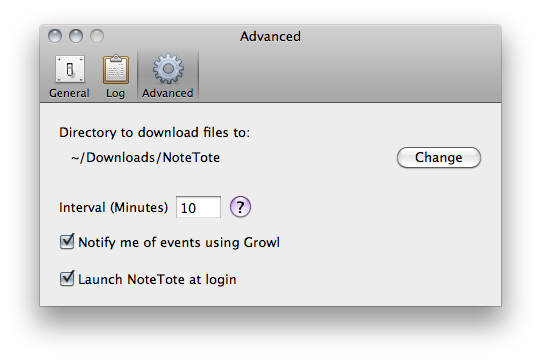
Previously known as MobileDL and now available at $8.99 in the Mac App Store, NoteTote is an interesting solution to trigger downloads remotely on your Mac using the iPhone, iPad or any other device that has access to Simplenote. For as simple as it sounds, all you have to do to start a download on your Mac is paste a URL into a specific note. NoteTote, in fact, upon logging into the service with your credentials will create a “special” NoteTote_Downloads note that will always stay there, monitored by the app running on your Mac’s menubar. While you’re away from your Mac and you want to start a download remotely, open the Simplenote app, paste the link and that’s it. On a regular interval (which can be adjusted in the Preferences) NoteTote will look for URLs inserted in the special note and try to download them. All of this while you don’t have access to your Mac. Read more
Posts in reviews
NoteTote: Download Files Remotely Using Simplenote
Extra Security For Your Mac with Hands Off
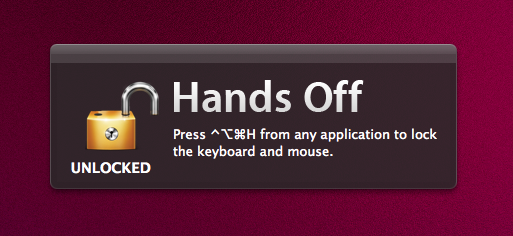
Available at $0.99 in the Mac App Store, Hands Off is a very simple, yet clever utility that will come in handy if you’ve always wanted an easy way to block access to your Mac when you’re not around – without having to turn the computer off or log out. How does that happen? Well, Hands Off can block the keyboard and the trackpad with a shortcut that can be activated at any time. Say you’re going away from your Mac for a few minutes and you don’t want your kids, or anyone, to press keyboard keys and create problems, Hands Off can help you by completely blocking keystrokes and trackpad recognition. When in “Locked” mode, the keyboard and trackpad won’t do anything.
For extra security or “keyboard cat” prevention, Hands Off is just great. You can use “readable hotkeys” (CMD instead of ⌘), change the global shortcut and even turn on Growl notifications. Combine this with Prowl, and you’ll get remote notifications if someone ever finds the right combination to unlock your Mac’s keyboard and mouse.
Hands Off works as advertised, although I noticed things can get pretty messy if a VNC client tries to remotely access your Mac when the computer is locked. I had to kill the app from the VNC client before actually being able to use my Mac, but it took a minute for the app to quit because it started beachballing in the dock. I guess an update is needed to fix this little inconvenience with VNC clients and local blocking. Anyway, Hands Off just works and it’s available at .99 cents.
Go get it.
MacStories Product Review: Sonos S5 Wireless Music System

I can’t live without my music. Every day, I need to get my “fix” either through iTunes, Youtube (it’s good for rare live performances) or Spotify. I also scrobble the songs I listen to towards last.fm, although I’m no huge fan of the service as a social platform. I just keep an archive of my musical tastes in there. Still, as far as music is concerned, most of the times it’s not the system or the platform that really matters. It’s the quality. And for quality, you need good gear.
Over the years, I’ve always tried to save money and purchase great-quality earbuds to ensure high-fidelity playback while on the go. I’m still happy with my Sennheiser CX 300 bought years ago, but home stereo systems have been a dilemma for me, in spite of my obsession for top-notch hardware. I’ve changed setups too many times, jumped from speakers to stereos and all-in-one solutions without really sticking to one for more than 6 months. When music becomes an obsession, good gear is a necessity. Recently, the audio technologies implemented by Apple in iOS forced me to reconsider everything once again.
See, wireless streaming spoiled all the fun I had accomplished. First came audio via Bluetooth, then Airport Express stations and AirPlay. I changed devices: I went from a classic iPod to an iPod touch to iPhone + iPad. I subscribed to Spotify Premium to use the mobile app (with streaming and offline access), I became addicted to Apple’s own iPod app and third party replacements like My Artists, or external controllers like Coversutra, Bowtie and SongSwiper. Put simply: music became deeply integrated with iOS, and iOS grew at the same time to accomodate features like AirPlay. Music became connected.
So when I was offered the chance to review the Sonos S5, I immediately said “yes” and eagerly started waiting for the two review units to show up at my doorstep. The Sonos S5, for those unaware of this mythical gadget, is a wireless speaker internally powered by a series of amps that a) provides great sound quality and b) is truly connected with iOS, OS X and the Internet. The S5 offers the best of both worlds: local playback backed up by high-quality manufacturing and remote functionalities that allow users to “log into” the speaker and customize the entire experience. After the break, you’ll find my impressions of two months with two Sonos S5 units and a Sonos ZoneBridge connector. Read more
FolderWatch Monitors and Syncs Folders On Your Mac
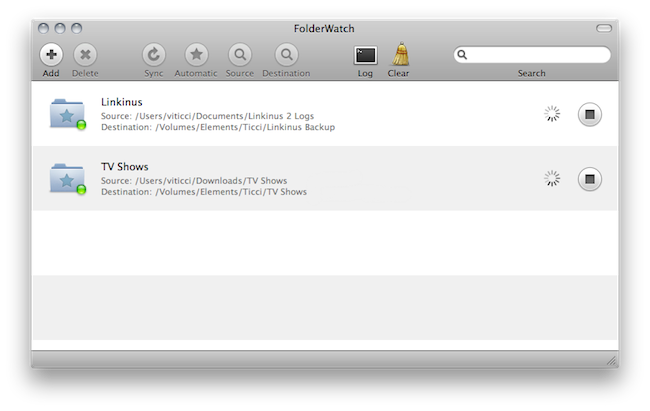
Available at $2.99 in the Mac App Store, FolderWatch is an easy-to-use yet powerful utility that can monitor any folder on your Mac and sync it back to a different location. In FolderWatch, you can specify an unlimited amount of “sources” (e.g. folders) that the app will monitor for changes, like new files or folders within them. Once a “destination” is set, FolderWatch will run in the background and make a carbon copy of the source to the other folder, server or external drive you have set.
FolderWatch, indeed, can copy files to any location that can be added to your Mac’s Finder. Any networked drive, local server, FTP location mounted in the Finder can be selected as a destination. Personally, I am sending backups of media and Linkinus chat logs on to an external USB drive connected to the AirPort Extreme that powers my home network. Everything happens automatically, in the background; you can choose to make these copy sessions persistent on each change in the destination (backup will start as soon as a new or updated file is recognized) or trigger them manually with the “Sync” button.
The app can also skip files through filters you can create / delete when adding a new rule, and delete files in the destination folder that do not exist in the source. This will let you easily achieve some sort of sync between folders on your OS X machine that’s quite handy. It’s not as complex and feature-rich like FileSorter and Hazel, but it all works smoothly and requires a very few clicks to be set up.
FolderWatch is available at $2.99 here. More screenshots below. Read more
DoublePane, The Keyboard-Only Version of Cinch

With Cinch you can grab windows from anywhere in the desktop and drag them to various edges to snap them left or right, or make the windows fullscreen. With DoublePane, keyboard shortcuts dictate all of your happy snapping, with the same abilities using your control, option, and arrow keys. The keyboard shortcuts are static, which may cause incompatibilities in apps like Linkinus that also use those keyboard shortcuts. I would like to see an option in the future to return the window (or undo) position with the down arrow, and for custom shortcuts. The app is a lightweight addition to your Mac which will certainly improve your workflow, and it can be had for only $2.99 on the App Store.
SyncPad: The Collaborative Online Whiteboard For iPad. Review & Giveaway!
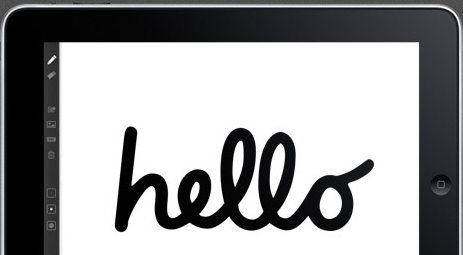
Inspiration hits us often at MacStories, and we’ll usually collaborate by sharing sketches thanks to Skitch and iChat. Imagine, however, if we didn’t rely on static images and browser refreshes to share content collaboratively over the Internet: SyncPad is an answer to our clunky workflow, thanks to immediately accessible online sketch rooms available via the Internet or SyncPad’s reader component for the iPad. In realtime, you can watch as the creators create instant wireframes, sketch over photos, markup PDFs (yes!), or draw the “OctoTicci” as I’ve done screwing around when I first tried the app with Federico. Below you’ll find many a 4th grader’s sketch (read: my terrible finger painting), an overview, and a little something for our readers who’d like to win one of ten copies. We can’t keep all of this collaborative-ness to ourselves after all.
FileSorter for OS X Applies Rules To Files, Folders
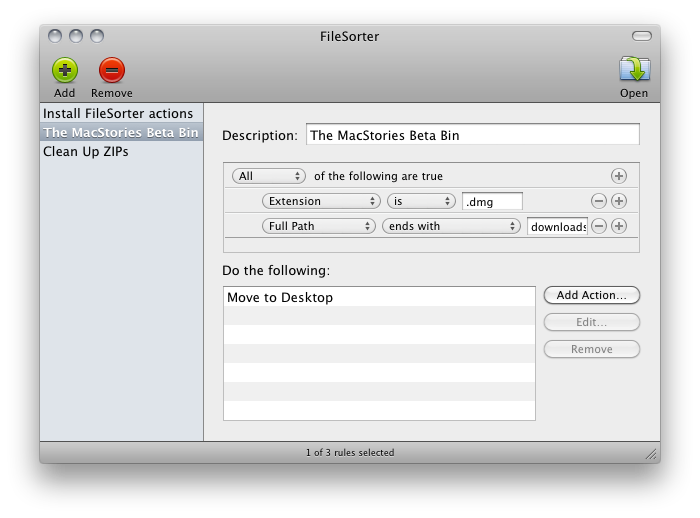
If you’re constantly struggling to manage or automate simple tasks like moving files out of your downloads folder, keeping files in your documents folder organized, or simply need an extra hand to batch automate certain tasks, FileSorter may be of some help. While it’s not as powerful as Hazel, it provides a decent middle ground for users who don’t need Hazel’s background automation. FileSorter applies rules to files much like how you’d apply rules to e-mail: simply specific what kinds of files (by name or extension for example) you’d like to manage, then apply rules to move, copy, or even delete files. After your rules are created, you can simply open the folder you’d like to manage to apply the rules you’ve created – I open my home folder and use rules to specify where FileSorter should look instead of opening everything individually. DMGs get moved to the desktop, folders SpeedDownload creates get removed, and instantly processes are tidied up thanks to the custom rules I’ve created. It’s $7.99 in the App Store, and its manual functionality will be the deciding factor of whether this app is right for you.
Lyrica 2: Redesigned, And Still The Best App To Tag Songs
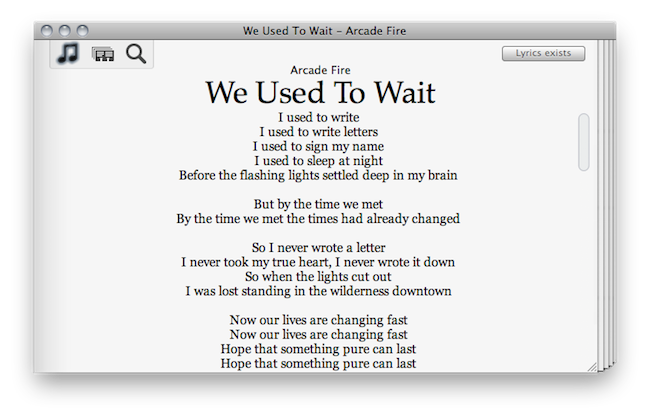
A few days ahead of the opening of the Mac App Store, we previewed a nifty little app for the Mac called “Lyrica” which helped you display lyrics from songs playing in iTunes through a translucent black, HUD interface. The Mac App Store launched, the app was priced at .99 cents, it was one of the few useful apps in the Music category – it snowballed. It quickly jumped the charts to get in the first spots of Top Paid, and two weeks after the grand opening it’s still firmly positioned in the top 30 apps.
It turns out, though, that many users didn’t like the HUD style of the app, which may or may not make it difficult to read lyrics on a translucent background. So developer Florian Zand redesigned the entire application and added some new features during the process. Lyrica now comes with a white, cleaner look with a stacked style that kind of reminds me of a newspaper. I also like the fact that I can choose between different fonts – personally, I sticked with Georgia.
Graphics changes aside, the app now searches through seven lyrics databases, including AZLyrics and MetroLyrics. Several preferences have been added (Lyrica can still automatically tag any song playing in iTunes, even if it already has lyrics on its own) and the developer also implemented a new functionality to replace and remove broken lyrics. Useful for those (like me) who tried to tag their music library in the past with some shady Mac app that didn’t work at all.
Lyrica is available at $0.99 in the Mac App Store. It’s getting better on every release, and even though it’s not perfect yet (and design-obsessed folks will still have something to say about it) it just works, better than many other apps sold at a higher price by well-known developers. Give it a try.
Security Cam for iPhone Keeps An Eye On Your Stuff, With Motion Detection
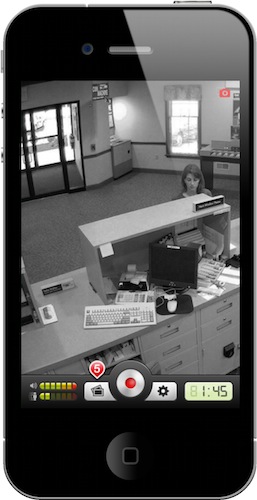
Now this is an interesting app I’ve recently discovered in the App Store. Months ago, I began thinking about setting up a homemade wireless security system in my house; I saw that the system could be easily put in place with a couple of hundred dollars, and I was getting serious about purchasing all I needed to get it up and running. As usual with my personal projects I dream about and save in my “someday” list, it didn’t happen. Work got in the way, priorities changed, I didn’t set up a home security system. As my to-do list suggests, I may actually do it “someday”.
Home security and monitoring, anyway, is a personal requirement (and hobby, I guess, or obsession) that can change according to one’s needs, workplace and items to protect from unwanted eyes and hands. This is why I think Security Cam, a $0.99 app for iPhone, may be just what the average user is looking for. Read more