Posts in reviews

Put Screenshots In Your Sights With Crosshairs For Mac

Want to take screenshots with precision and adjustable controls? Crosshairs for Mac is what you’ll need if you want a friendly menubar utility that slaps screenshots right onto the desktop. Crosshairs is really simple to use:

  1. Click on the menubar icon to activate Crosshairs
  2. Drag the overlay anywhere and achieve a pixel-perfect with the graphic counter
  3. Press the spacebar to take the screenshot
  4. Press the escape key to deactivate Crosshairs

Simple, no? You might be wondering why you’d use Crosshairs over Snow Leopard’s built in screenshot utility, and the answer is simple. With Crosshairs, you can readjust and take multiple snaps consecutively in one row, making readjustments as needed.

There’s quite a few keyboard commands for Crosshairs, and its main purpose is to get dimensions of anything on screen. For pixel pushers measuring apps or windows for Photoshop, Crosshairs conveniently sits above your workspace so you can quickly rule what you need. If you’re working with a dark background, you could always change that overlay from black to white.

You’ll be set back a meager $4.99 in the Mac App Store for an aiming cursor with mad screenshot & measuring skills. Check it out at Giant Comet for more information.


BIT.TRIP BEAT For Mac Is Trip-Tastic

CommanderVideo has given you a paddle, and you’ll have to keep up with the beat in order to succeed in BIT.TRIP BEAT on the Mac App Store. It’s like pong and maybe like brick breaker, where you bounce back various “beats” that are streamed across your display in conjunction with the level’s vibe. These aren’t your traditional ping pong bits either – they’re high intensity, moving bullets that bounce and force players to return a variety of patterns without missing. The more beats you return consecutively, the more rewarding the game gets with higher intensity tunes and occasionally trippier visuals. But like Guitar Hero, if you miss a beat, you’ll face the bleak reality of failure. Color fades into monochrome, and the screen beat is reduced to mere 8-bit blips. If you’re not getting those additional bonus points by chaining those high-pitched returns, it’s game over for CommanderVideo.

Read more


Snap for Mac Assigns Keyboard Shortcuts to Apps In Your Dock

If you use the OS X Dock as much as I do, then it’s likely that you’ve always wondered why there’s no easy way to assign a keyboard shortcut for apps placed in the Dock. Snap, a $0.99 app available in the Mac App Store, solves this problem by providing an easy solution to cycle through Dock apps using the keyboard.

Once downloaded, Snap will let you assign numeric shortcuts to Dock apps starting from the Finder and the app right next to it. All you have to do is choose a modifier key that, together with the numbers, will enable you to switch between apps in seconds. The modifier key can be Command, Control, Shift or Option. Personally, I chose Option so I can switch between tabs in Chrome using CMD. If you don’t want to have shortcuts for Dock apps, however, you can also manually pick an app from the “Other” menu and virtually create shortcuts for any app on your Mac.

I like Snap because it’s simple and allows me to quickly open apps using easy to remember shortcuts – always faster than heading over an icon with your mouse cursor. Go download it here.


To-Do App Dropkick Gets Even Better with Lists Support - All In The Cloud

Dropkick is a simple, elegant iPhone app we covered a while ago that lets you manage to-dos and sync them back through the cloud to a free Mac companion application. Dropkick, in fact, is free if you want to enter up to 10 tasks, and it goes paid to unlock unlimited access to task management. The app is really minimal and focused on entering new tasks, and completing them. Cloud sync happens through a free Dropkick account, and it’s really fast. For many, Dropkick has become the best way to quickly capture and manage to-dos, keeping them always available thanks to the comfort and reliability of online sync. Read more


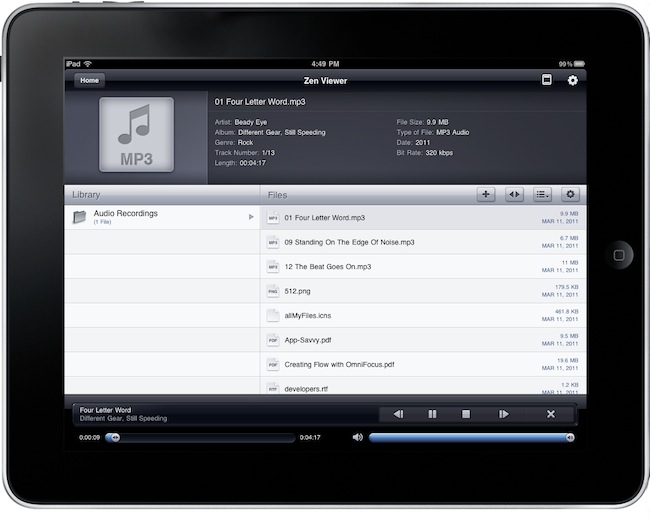
Top-Notch GTD App Voodo for iPad Gets Reviewed, Plus A Giveaway!

If you are looking for a GTD app that works on the iPhone and iPad you have many, many excellent options that include Things, Due, OmniFocus and a multitude of others. Well now you can add Voodo to that extensive list of compelling GTD apps. Voodo had previously been available as an iPhone app but earlier this week it made it to the iPad as well and I was able to give it a go whilst it was being approved last month.

Jump the break for a review of Voodo for iPad and win one of five copies of the iPhone companion app!

Read more


Localscope Is Perfect For iPod Or iPhone

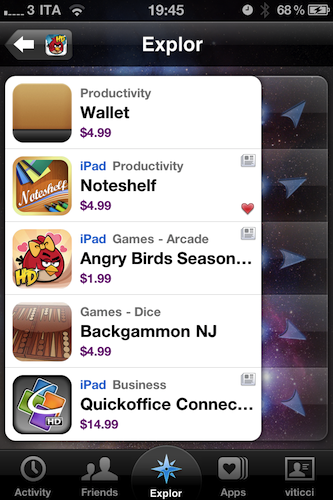
It doesn’t matter whether a GPS signal is available to know what restaurants are nearby, or where the next gas station is. In fact, I’d easily trade Localscope for Google’s Places on Android (and who wants Hotpot when you have Facebook?). You’re never tethered to a single source of information with Google, Bing, Foursquare, Twitter, and Wikimapia for a combination of maps, current events, and augmented reality. Talk about holy wowza! And the thing is, Localscope is incredibly pretty. It’s the iPhone companion you’ll want on your homescreen if not in a nearby folder, and we’re going to run through some of the features that make this client worth its weight in bacon.

Read more


CalendarBar Tucks Event Reminders In Your Menubar

Clean Cut Code is known for making beautiful apps like Cloud Calendar, and it was only a matter of time before they brought some of their talent to the OS X desktop. CalendarBar takes on the inefficiencies of a traditional calendar client by providing a quick list of events in a beautiful timeline that can grab events from iCal, Google Calendar, and Facebook. Clicking on an event takes you to the event listing in its parent application – CalendarBar removes the distraction of busy calendar utilities, but provides shortcuts so you can add entries and gather additional information. The app features a some iOS overtones in its design, most obviously via the settings and exit button that adorn the bottom of the pop-up panel. Launching yesterday, the app is only $1.99 in the Mac App Store.


Push Browser: An App That Sends Webpages from iOS to OS X

Two weeks ago I realized I needed a way to send a webpage not only from my Mac browser to an iOS device, but from the iPhone or iPad to my Mac browser as well. The reason is simple: I find an interesting link on my iPhone I don’t want to bookmark or Instapaper, yet I want to simply check out later on the desktop. There’s no easy way to do it. So with the help from a friend and support from my Twitter followers, I created a folder action script for OS X that receives links shared from iOS through Dropbox and opens them in a new tab in the system’s browser. The method still works for me and it’s a really easy (yet powerful) way to save just about any link for later desktop usage, but I saw many had trouble trying to make the script work or integrate it with Dropbox. So here comes an app for that. Read more


Simple iOS Photo Editing with Crop and Straighten

Crop and Straighten by Fingertips is the photo editing app for iOS Apple should have built into their operating system. It’s a simple, fast, minimal solution to change the aspect ratio of your photos and crop them, on the iPhone and iPad. That’s it.

You fire up the app, and you’re asked to import a photo from your camera roll. Choose one, and you’re ready to edit. You can pinch to zoom and focus on a specific detail, or rotate the photo with the usual two-finger gesture and adjust it taking a look at the grid that appears on screen. Very simple. If you want to change the aspect ratio, tap the button in the toolbar and you can choose between 1:2, 2:3, 3:4, 6:7 and 1:1.

If you need an app to quickly crop your photos (especially on the iPhone), Crop and Straighten is highly recommended. Go download it here.