In the search for an affordable yet comfortable pair of headphones that could replace Apple’s earbuds (at around the same price), I was led to a pair of over-the-ear cans fit for any teenage snow-border who already didn’t own a pair of Skullcandys. The Wicked Reverb, fit for hoodie toting hooligans ready to faux-rock to 128 kbit mp3s, arrived at my desk in an oversized box littered with the kind of graffiti that speaks marketing over value. However, I didn’t want first impressions to ruin what could possibly be a charming relationship, so I’ve spent a couple week’s worth of alone time with my hot-rod red headphones just to see if something Wicked can actually sound, “wicked.” Past the break, a few pics and our conclusive review on whether these are an ample replacement for your worn out buds.
Posts in reviews
MacStories Product Review: Wicked Reverb
Palimpsest for iPad Aggregates Hand-Picked Magazine Articles
I love Instapaper. Whether I’m finding cool links on Twitter or I simply mark items for later in Google Reader, Instapaper provides a unique and beautiful way to keep all my reading material together and synced across the web, iPhone and iPad. In fact, Instapaper has changed my reading habits, and especially on the iPad, it gives a whole new meaning to the tablet as a tool for text consumption. Yet sometimes, there are those days when you feel like you haven’t found anything new worth saving in the queue, and the more you keep looking because you’re hungry for new articles in your inbox, the more you keep hitting things you’ve already archived in Instapaper. With version 3.0, Instapaper developer Marco Arment added a new feature to find articles your friends are “liking”, thus making the app more social and better suited for discovery. In the past week, I’ve also been using a new iPad app called Palimpsest to find great material from sources like The New Yorker and The New York Times to send directly off to Instapaper.
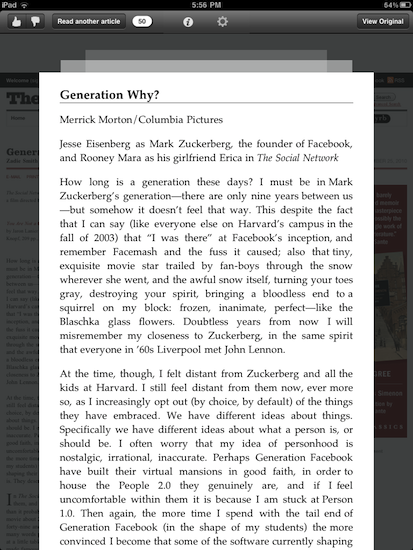
Palimpsest aggregates articles from popular online magazines and presents them in a beautifully formatted view. The original webpage is preloaded in the background so you’ll be able to send it to Instapaper, or read it as the author intended. Articles are sourced from popular curators like Arts & Letters Daily, Longreads, LongForm, and many others, in addition to the developer’s own picks. This curation aspect gives the app a personal touch that I think is pretty cool considering we often stumble upon automatic link-tweeting bots online. But because the developer’s and curators’ tastes might be different than yours, Palimpsest also includes like / dislike buttons to tell the app articles you’ve found interesting, and others you won’t like to see the next time. The app fetches around 50 articles on first launch, with 5-10 new articles every day, and roughly 10 saved for offline usage in the app’s cache. In my tests, I was given articles about politics, the death of Osama bin Laden (quite obviously), technology, food, and economy. The articles came from top-notch sources, so basically if you’re a Longreads user you’ll feel right home using Palimpsest, only this app also aggregates content from other websites and curators.
At $1.99, Palimpsest is a neat way to find a fresh feed of great articles every day (and send them to Instapaper), although it could really use an iPhone counterpart. Get the app here.
Cloud Connect for iOS Gets 3.0 Update, Brings Finder Integration
When it comes to remotely accessing your computer, AirPort Extreme station, FTP, Dropbox or WebDAV servers, Cloud Connect Pro is a staff favorite here at MacStories. Not only the app provides a full-featured solution to connect to all kinds of machines, servers and online services, it also offers a neat way to browse files and media in a Finder-like view for iPhones, iPod touches and iPads. We have covered the app a few times in the past, and I was impressed when Antacea managed to port the whole tablet experience to the iPhone.
The latest 3.0 update, however, makes things look much better with some UI refinements, a new audio player, a proper PDF viewer and some stability enhancements. The app retains all the functionalities of the previous versions, but introduces some welcome features and little touches throughout the whole package that add a new layer of accessibility, communication with iOS built-in tools, and more. For example, Cloud Connect 3.0 can directly play music stored in the iPod.app library, or visualize photos and videos from the camera roll. Songs can be sent to the new audio player’s playlist, which sits at the bottom of the app and displays album artwork, a list of songs waiting in the queue, as well as an AirPlay button to beam music to external speakers. Speaking of which, gone is the hideous Mac-like dock, leaving room for a more minimal bar of icons. Browsing files and folders in Cloud Connect has been improved, too: alongside the (great) column view, the developers have implemented icon-based navigation to tap your way around the filesystem. What’s cool is that you can switch between views with a tap in the toolbar, and a new button in the column view allows you to bookmark, copy, download & compress or delete any file or folder. On top of that, this new version allows you to browse songs and media from the camera roll using your Mac’s Finder by connecting to the “iPad” device under the Shared tab once Cloud Connect is running. This is by far the easiest way to import photos and music off an iOS device and onto an OS X machine I’ve tried, with Cloud Connect acting as a bridge between the two. It works great.
The app could still use some UI polish (I personally can’t stand those blue and grey tones), but I can see why Antacea decided to focus on adding and refining features for now. The lack of a serious PDF viewer, for example, was a major disappointment in Cloud Connect 1.0: the new PDF viewer introduced in version 3.0 is quite fast and responsive, lets you create bookmarks and search for text within a document.
Other features in Cloud Connect 3.0 include Google Picasa support, possibility to use a Mac or PC as a gateway to connect to other Easy Connect computers, and RDP for HP printers only. At $24.99 in the App Store, Cloud Connect doesn’t come cheap but it’s powerful, easy to use and works both on the iPhone and iPad. The app keeps getting better on each release, and I’m looking forward to some serious design improvements in the next version. For now though, Cloud Connect surely is one of the best ways to manage your remote and local connections. Read more
Shine Is A Beautiful Weather App for iPhone
If you’ve found yourself struggling to find the perfect weather app that looks great and it’s packed with functionalities at the same time, you might want to take a look at Shine, the latest entry in the weather software panorama that, at $0.99 in the App Store, provides a neat way to check on your current location’s weather, forecasts, temperature and wind speed. Shine wants to keep things simple, and for someone like me who’s no weather expert at all, the promise of offering readable weather data in a beautiful and intuitive design sounds like a major selling point, especially considering the price of one buck.
The app’s main screen lets you see your location’s weather conditions at a glance. Current weather is displayed above in a large calendar-like view with temperature, icon and wind speed, whilst a today / tonight / tomorrow forecast is embedded below with the same stats. You can assign multiple locations in the settings, and re-fetch your location by tapping on the crosshair icon in the top right. Switching between locations is as easy as sliding your finger on the location bar on top. Another feature of Shine is the extended forecast view you get by pulling up the screen with a verticals swipe; the only problem is, the app seems to be US-centric in the way it gets weather information – it relies on SimpleGeo and the National Weather service, and I wasn’t able to get forecasts or correct wind speeds in Italy. Perhaps the developers should implement Yahoo Weather data or something else to make sure Shine works across countries outside the United States.
As it stands now, Shine is a simple, beautiful weather experiment that I’m sure works perfectly in the US, but lacks the necessary data to be a hit internationally. Perhaps the developers will fix this in a future update (I sure hope so), so if you live in the US and have $0.99 to spend, give it a try. Otherwise, wait for an update.
BreakTime Helps You Step Away From Your Mac
Where Take Five remembers to unpause music that you seemingly forgot about, BreakTime is your queue to get up off your butt and take a brisk walk around the office or grab a bottled water. Featuring a beautiful interface that carefully counts down (perhaps you could use it as a Pomodoro timer in your menubar), BreakTime will carefully interrupt your session so you don’t lose any progress on what you’re working on, while encouraging you to rest your eyes or stretch at your desk.
If you happen to walk away from your Mac for a while, BreakTime has Magic Rescheduling™ built in that monitors your keyboard and mouse usage – the next time your return to your Mac, BreakTime will start the timer and smartly determine when it’s appropriate to take a break. Available for $2.99 in the App Store, BreakTime reminds you that sitting all isn’t healthy.
PNG Compressor for Mac Optimizes Your Images for Web
Most of the time (not all of the time), I run my iPod and iPad screenshots through an optimizer before tossing them onto the web. Usually I do this via a script I’ve set up with LaunchBar, but I wanted to take the extra step of running that command after dragging-and-dropping to just the dragging part. If you’re looking for lossless PNG compression in a simple utility, PNG Compressor for the Mac is a utility designed for quickly dragging a folder or group of images into the icon or onto the window for seamless, instant compression. As a wrapper for optiPNG (with support for Pngcrush and AdvPNG coming soon), PNG Compressor is a classy way to reduce the file size of your images before uploading to the web. Currently on sale for $0.99 in the Mac App Store, a quick buck gets you a gorgeous icon and a useful utility.
Search Ninja Gives Your iPhone A Better Web Search
If you’re familiar with Swearch, a neat iPhone web app that allows you to search for a specific query on multiple websites at once, then you’re most definitely going to be interested in Search Ninja, a $0.99 app that allows you to flick through search engines, star search results, and start typing in seconds to find exactly what you’re looking for. Search Ninja’s concept is simple, but the execution is powerful in the way it meets a user’s expectations when it comes to mobile search. Upon opening the app, you’re immediately greeted with a Google search field, and the iOS keyboard ready to type. No need to tap on buttons to start searching, no need to do anything before performing a regular Google Search. If you, however, want to customize the search experience and have those extra seconds to make sure you’re navigating to the right webpages, Search Ninja features an intuitive swipe interface to switch between search engines in seconds. Both on the main screen and in the embedded web view, you can swipe to change from Google to Bing, Twitter, Wikipedia, IMDB, Youtube, Flickr and many, many more. You can even add other engines if you really feel like your favorite one is missing, although the process requires a 2-step wizard screen.
Two features I particularly appreciate about Search Ninja are favorite searches and the History section. They’re very straightforward, but come in handy if you find yourself looking for the same things on your iPhone over and over, or simply want to look up an old subject again.
Search Ninja strikes me for its simplicity and clean design. Gestures to switch engines are a plus, and a very useful one. Get the app here at $0.99.
Carousel Is A Beautiful Instagram Client for Mac
Back in April we covered Instadesk, the first Instagram client for Mac that, through an interface design similar to iTunes and iPhoto, allowed you to browse Instagram photos, users, likes and comments directly from your desktop. The app was one of the thousands of results coming from the launch of the Instagram API, a set of tools that enable third-party developers to plug into your Instagram feed to retrieve photos uploaded by you or relevant to you. Of all the Instagram-connected apps we’ve covered, Instadesk saw a huge success as it was the first one to land on the Mac App Store.
Carousel, however, wants to step the game up by offering a beautiful and slick way to access Instagram from your Mac with a design that’s heavily inspired by iOS, yet runs natively on OS X. I don’t know if the developers are using the Iconfactory’s Chameleon framework for this, but it certainly looks like Carousel has some similarities with Twitterrific – the Twitter client from the Iconfactory that shares it codebase across the Mac, iPhone and iPad. So what’s this all about? First off, Carousel presents a minimal, vertical-oriented interface as if you were looking at your iPhone’s screen in portrait mode while browsing Instagram. The photo stream is embedded directly into the app’s window, with beautiful Instagram photos to flick through as they load. At the bottom, three tabs allow you to switch between your feed, popular photos and your profile. Every photo can be enlarged via Quick Look, saved locally on your Mac, or commented / liked thanks to a wide selection of keyboard shortcuts to choose from.
In Carousel, you can open every user’s profile to check out their photos. You can comment and like pictures, too, with interaction happening inside an iOS-like popover that resembles Twitterrific’s implementation of conversation views and profiles. You can even view if a user’s following you, or if you’re following him. Last, the app can be themed. Carousel’s default theme is already gorgeous in my opinion, but you can switch to a classic Mac or red one from the Settings.
Carousel can be downloaded for free, or you can purchase a license at $4.99 (introductory price) from the developer’s website. More screenshots below. Read more
TouchUp for iPad Gracefully Adds Effects to your Photos: Review & Giveaway
The photographs you’ve dumped onto your iPad via the Camera Connection Kit are already pretty swell, but what if you had an app that took an ordinary shot and turned it into something seriously beautiful? With TouchUp by RogueSheep, you can quickly swipe over your photographs in an elegant and friendly interface that encourages creativity. Example photos are included to get you familiar with what’s possible with TouchUp, and we’ll be taking a look at one of these pre-included items to help you get started.