Posts in reviews

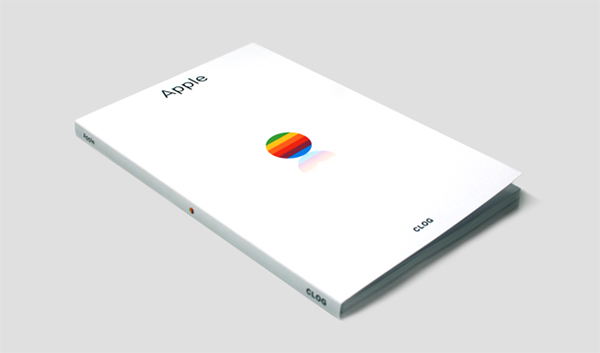
Apple by CLOG — A Book Review

I usually do not read books about Apple, the web, or design related topics. There are enough weblogs and people on Twitter linking to all kinds of content about more or less everything, so I usually don’t need additional resources in the form of printed paper. When I need to delve into the technical details of a particular topic, I’ll pick up a book so that I can soak up that in-depth knowledge. And it usually is safer to buy technical books, because you can ensure that the text it contains is professionally well researched, written, and edited by people who care about the subject, thus the chance of reading erroneous information is quite low. I especially want that kind of comfort when it comes to quite precarious subjects like art (and its “subgenres” like typography and architecture) or company ethics and philosophies. You need a strong education in history, development, current techniques, and standards of creation in the respective fields to discuss them precisely. Call me conservative, but I want to read such explanations on printed paper, written by people with years of experience and knowledge.

During the last three weeks, I was on a circular trip throughout the United States. It was my first time I got to see the country. Besides stunning cities and beautiful landscapes, I also got to see many Apple location highlights, including the 5th Avenue Store in New York City and the Yerba Buena Center Of The Arts in San Francisco, which in my mind will always feature the colorful Apple banner promoting the iPad presentation in 2010. Just blocks down the road from the YBCA, inside the San Francisco Museum of Modern Art museum store, I found the book I’m about to present now: “Apple” by CLOG.

Read more


Weather HD 2 — Yet Another Weather Forecast App?

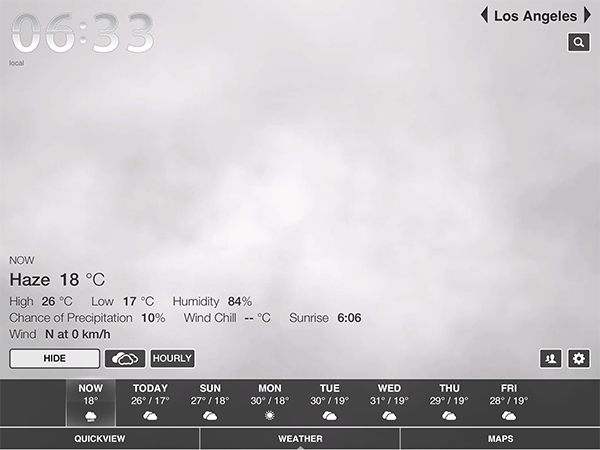
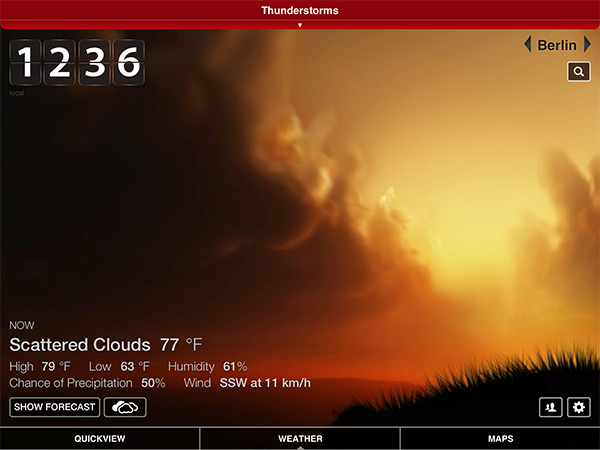
Hello and welcome to this MacStories review of another tremendous, beautiful, high-quality weather app for iOS. Seriously, I’m running out of ideas for how to start a new weather app post without it sounding like one of the many we’ve done before. Why are so many developers spending their time making forecast apps? Maybe because the iPad still has no native one. Maybe because making a good weather app is a fun challenge for developers, since you have to combine appropriate data visualization with intuitive UI. Personally, I tend to think that people developing weather apps for iOS know that they have awesome coding skills but don’t have any major projects to test them on. Whatever the reason, I’m truly thankful that the people at vimov decided to make a weather app because their newest release, Weather HD 2, is one of the finest approaches to data visualization and UI design I’ve ever seen.

Weather HD 2 is the first major update to vimov’s original Weather HD. Fortunately for anyone who bought that version, the company decided to make 2.0 a free update instead of a new standalone app, so there will be no charge for existing customers. The original Weather HD attracted iPhone and iPad owners with its large, animated weather images, smooth UI, and large typography displaying all kinds of stats from temperature, humidity, and wind to more boring ones like sunrise time. Weather HD 2 incorporates new weather animations to enhance the variety of weather it can display, while the rest of the “old” features look the same. Additionally, the update includes three big new features: 3D weather maps, push notifications for severe weather alerts, and QuickView to view the weather at multiple locations side by side. While it is a universal app, I will only cover the iPad version here since it is much cooler to look at and use. Read more


Droplings Simplifies Public Sharing With Dropbox

Dropbox is a fantastic tool for everyone, from individuals to small businesses and teams. At MacStories, we use Dropbox every day. But while it is perfect for working or outsourcing important files you want to access anywhere, there is one feature in Dropbox which always bothered me: quickly creating download links to share files with friends or colleagues. Both in the Dropbox Finder window and web interface the process is just too intricate. I’ve always used other services like Droplr and CloudApp, although lately I’ve been growing tired with using multiple services for the same purpose.

Droplings, a lightweight menu bar app developed by fellow German freelance developer Carlo Zottman (developer of the Instapaper-to-Kindle sync tool Ephemera) could finally change that. Currently in beta, Droplings makes it easy to upload files to your “Public” Dropbox folder and share them afterwards.

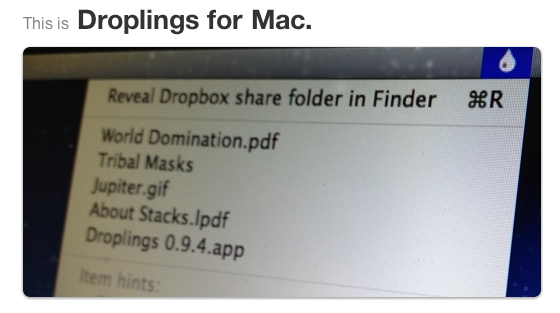
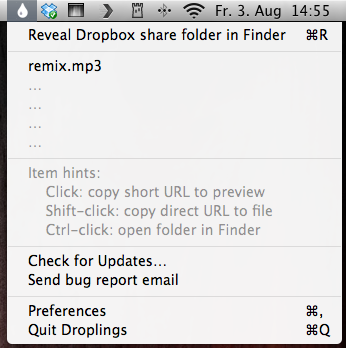
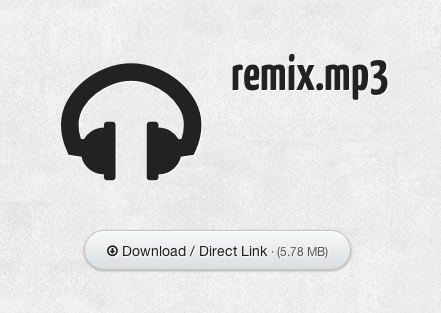
Firstly, enter your Dropbox ID in the app’s settings. Then, just drag and drop the respective file onto the menu bar icon, and within seconds the file will be uploaded and a Droplings preview link will be in your clipboard, ready for sharing. The default preview page looks pretty nice (as you can see from the screenshots below) and the embedded download link will be based on Dropbox. By clicking on the app’s menu bar icon, you have access to the last five uploaded files, as well as the app’s Preferences, which basically just activate your Dropbox ID and offer an option to activate custom HTML templates for the preview site. Droplings is simple and fast, and, in my opinion, way better than copying files into the Dropbox Finder window and right-clicking to generate a download link.

Droplings for Mac

Droplings for Mac

If you miss this simplicity of sharing with Dropbox as much as I do, go ahead and try Droplings. Since it is currently in beta (v. 0.9.x), you can download it for free on the app’s website.


Scratch Review

Scratch

Scratch

For the past week, I have been trying Scratch, a new quick note-taking app by Karbon. While the app still can’t replace Drafts in my workflow, it has some unique ideas that will be worth a second consideration in the future.

The idea behind Scratch is to offer a simple way to save plain text in Dropbox. Like Drafts, Scratch allows you to create notes that you can forward to a variety of services like Messages, Email, and the aforementioned Twitter and Dropbox. Unlike Drafts, Scratch is also capable of appending text to an existing file in Dropbox. A number of hacks to manually add appending capabilities to Drafts have surfaced in the past month.

I like the design of Scratch. The app sports custom toolbar and menu design, but it’s the kind of carefully thought-out custom that’s a great fit for the iOS platform, now mature enough to accept and foster an ecosystem of different-looking apps. The main point of interaction in Scratch is the compose area, where you’ll be jotting down your notes. As in most text editing apps these days, there is a formatting toolbar located above the virtual keyboard; in Scratch, the toolbar is fully customizable and offers quick access to other features of the app as well.

Read more


Review: The New Day One

Day One

Day One

Twenty years from now, what will you remember?

Last week, a friend of mine found an old MP3 player in her drawer. Upon recovering the contents of the device[1], she synced its music back to her iPod nano, and then she gave it to me. It was full of songs we used to listen to years ago. If songs can be associated with certain moments or periods of your life, than that MP3 player was like a photo album in sound form. Memories. Old emotions and melodies coming back to life, not a distant echo anymore. It felt like grabbing the headphones of 16 year-old me, today, with the knowledge that those moments won’t be coming back, but the experience of someone who cherished them will.

But what do I remember?

In twenty years, I’m not sure I’ll be able to remember the songs I like today, or the faces of people that I care about now. I don’t even know if I’ll be around in twenty years. But I do know that I want to do everything I can to make sure I can get there with my own memories. We are what we know. And I want to remember.

Where the human mind can’t get, I think software can help. In the connected and post-PC era we’re living in, I believe the devices and apps we use play an important role in enabling us to create memories. But just as relevant as “content creation” has become to this discussion, we have to ensure the memories we create today will be preserved digitally for the future.

For the past few months, I have been using a new version of Day One to build an archive of my life. Released today, the new Day One goes beyond the previous version’s support for text entries and adds photos, location, and weather information in an app that, for me, has become more than a simple journaling utility.

Developed by Bloom, Day One went through a remarkable evolution to get to the major updates published today. Last year, I took a look at the app and noted how it was helping me build an “archive of my thoughts” thanks to its simple and elegant interface:

There’s one thing I never really considered storing in a digital archiving app — memories. I’m talking about things like “what did I enjoy doing today” or “I decided to take a walk with my girlfriend” — specific moments that matter in life, that are important, but which our brains often blur and forget after some time to make room for new data to process and maintain.

And then again:

I try to enjoy every moment, but there’s so much the human brain can remember and it’s perfectly normal if something will get lost in the process of assimilating thoughts and processing them to turn them into memories and experiences.

If 2011 Day One was the TextEdit of memories, the new Day One is their Evernote. With support for photo attachments, location data, and improvements to sync and Mountain Lion, today’s Day One wants to overcome the limitations of text to become the window into your past life.

Day One is visual memories. Read more


EverClip and EverWebClipper 2.0

EverWebClipper

EverWebClipper

Earlier this month I reviewed EverWebClipper, an iOS app to quickly beam webpages and URLs to your Evernote account using a bookmarklet in Safari. I wrote:

Where EverWebClipper really wins over Evernote’s standard clipper (not optimized for mobile and terrible to use in Safari) is the actual clipping process. It’s entirely automated: you can install a bookmarklet in Safari and save webpages with one tap. This happens thanks to the app’s Automation settings, which enable you to tap on the bookmarklet, and have Safari automatically return in the foreground while EverWebClipper completes the saving process. You can return to Safari “immediately” or “after clipping” — if you choose immediately, the app will send a local notification when it’s done clipping.

Yesterday, EverWebClipper received a major update to version 2.0, which adds some powerful new functionalities to the app, including the possibility to clip multiple pages one after the other without waiting for completion. With a new Tasks area in the bottom tab bar, EverWebClipper now lists tasks (clippings) that have been completed (and thus sent to Evernote) and those that are still running. Once clipped, the app will display an ambient notification, or fire off a local notification if you’re not inside the app.

More importantly, the new support for multiple clippings is also reflected in the app’s own engine: EverWebClipper now comes with a background monitoring option that allows you to clip links or HTML content (text) without switching to the app. Using iOS’ own background monitoring API (which lets third-party apps run a background process for roughly 10 minutes), the app will detect any “copy” command and ask you if you want to clip that content by tapping on a notification. You can ignore the notification and the copied content won’t be clipped, or you can tap on it and EverWebClipper will perform as usual. This option is pretty neat – the obvious limitation, though, is that it can’t run in the background all time, so, eventually, you’ll have to go back to the app, either by launching it or using the bookmarklet.

EverWebClipper

EverWebClipper

I think EverWebClipper 2.0 is a great update – I only wish that it handled copied URLs and HTML better in the title field: right now, it uses “Untitled” and “Copied HTML”, which isn’t really convenient in Evernote.

Last week, I was also recommended to check out EverClip, a similar application that can send text, photos, and clippings to Evernote. Unlike EverWebClipper, EverClip doesn’t come with a bookmarklet, which is a fairly big downside for my workflow. The app only works with a background monitoring system: it runs in the background for up to 10 minutes, theoretically looking for things you copy to store it in its own clipboard, ready for uploading to Evernote. In actual usage, the app failed to grab text or images I copied on multiple occasions, but at least it played a sound effect when I hit “Copy” inside other apps.

EverClip

EverClip

EverClip

EverClip

EverClip isn’t as automated and immediate as EverWebClipper – in fact, you’ll have to manually upload items to Evernote with a Send button. You can add tags and titles to keep notes organized, but on iOS, I’m looking for a fast clipper, rather than another Evernote organizer (for that purpose, I think the Evernote app is pretty good).

There are two things I like about EverClip: it can merge multiple clippings in a single note, and it’s got a URL scheme for Launch Center. The first option is very welcome and I think more apps should adopt it, the second one is nice to have, but it doesn’t support Launch Center’s clipboard and input prompts yet (therefore making it kind of useless right now).

EverClip is $1.99 on the App Store, and I’m looking forward to future updates.


Browsing Instagram and Facebook Photos with Cooliris

Cooliris iPad

Cooliris iPad

Formerly known as PicLens, I used to rely on Cooliris years ago to browse images and slideshows on the Internet in a more visual interface. Resembling a virtual wall with great focus on large, neatly arranged thumbnails for web content, Cooliris has always been one of the most interesting experiments in terms of browser integration and overall presentation. For the past few days I have been using Cooliris’ latest iteration, a universal app for iOS, and I am quite impressed with the results.

Cooliris also developed Discover, a Wikipedia app for iPad that turned articles into magazine-like layouts. The standalone (and free) Cooliris application is a new take on the old browser plugin, but it shares the same attention to detail and care for interface design of Discover.

Cooliris has always been about browsing photos, and this new iOS version is no exception, only it’s a more modern app that takes into account the changes that have happened to social photo sharing on the Internet in the past years. Read more


WriteUp 3.2 Adds Swipe Selection On iPad

WriteUp

WriteUp

WriteUp is one of my favorite text editors. Since I published my comparison of text editors for iOS – with a focus on the iPad –the app has been vastly improved thanks to a major 3.0 update that added iCloud sync, a split browser, and possibility to “pin” notes and folders and mark them as favorite. While other text editors like Writing Kit may have better researching tools, or serious automation features like the macros of Nebulous Notes, I still like the streamlined UI of WriteUp to easily navigate across my Dropbox folders (the app can open any folder or sub-folder in your Dropbox) and create notes that require copy & paste from a webpage.

When version 3.0 was released, I wrote:

With strong sharing options, support for Versions (another feature most iOS text editors are lacking), images, custom CSS previews, and all the other features of version 2.0, WriteUp 3.0 has still some rough edges, but shows an incredibly promising, and possibly even more powerful text editing future.

With version 3.2, released earlier this week, WriteUp aims at making its text editing more “powerful” by addressing a popular concern of users of iPad text editing apps: text selection. Inspired by the Hooper Selection concept video that made the rounds back in May, WriteUp 3.2 allows you to move the cursor on screen by swiping with two fingers on the virtual keyboard. You can also swipe with three fingers to select text.

While slightly different from the concept video (apparently, several developers have struggled to find ways to activate the text cursor or iOS text selection with gestures performed directly on the content area), WriteUp’s implementation is still solid and, in my opinion, one of the best so far (a number of iPad apps followed up in recent weeks with similar takes on cursor navigation and text selection, all of them implementing two-finger swipes in different ways).

The fact that WriteUp’s swipe selection happens on the keyboard doesn’t, however, trigger keystrokes, and it can be used both vertically and horizontally. In my workflow, this is particularly useful to navigate Markdown list-based documents I create in Nebulous Notes (thanks to macros) and make changes without having to manually (and slowly) select everything. Most of all, I like how WriteUp’s swipe selection doesn’t get in the way with a custom UI and additional virtual trackpads (like other apps do).

WriteUp 3.2 also adds new features like research bookmarks and history suggestions, and new fonts. It’s a good update, and I recommend it. Get the app here.


Alfred 1.3 Improves System Navigation with “File Buffer”

Alfred 1.3

Alfred 1.3

Released yesterday, Alfred 1.3 is a major update to the popular desktop application aimed at “increasing your productivity” on OS X. Started as a simpler app launcher, Alfred has, in fact, evolved into a much more powerful – yet always accessible – solution that goes beyond the simple definition of a “launcher”, like Spotlight would be. I use Alfred on a daily basis to browse my file system, compose email messages,  search the web and even look for my favorite songs on Rdio. Alfred was once a launcher, now it’s much more. In my workflow, it’s an app that makes the core features of OS X work better for me.

I particularly appreciate the improvements brought in version 1.3 as they address a usage scenario I often find myself dabbling into: selecting multiple files in the Finder to move them to another location. For instance, in writing my Mountain Lion review, I took a lot of screenshots; those images had to be cropped, resized, and re-composed to fit the layout of my article. Once edited, I had to move them from the Desktop – where OS X creates my screenshots – to a sub-folder in Dropbox, which, through a custom script, they are uploaded to our CDN, returning a URL. With Alfred’s new File Buffer functionality I saved precious minutes I would have otherwise spent opening the Finder and navigating with the trackpad.

The File Buffer is basically a virtual “shelf” that can temporarily host files you want to act on. Configurable in Alfred’s Preferences, you can set the Buffer to be cleared after actioning items, or after five minutes if items you selected haven’t been used.

Alfred File Buffer

Alfred File Buffer

File selection is integrated with Alfred’s existing navigation capabilities. In Alfred, you can browse your Mac’s file system with the keyboard, finding documents and folders you need and choosing from a set of actions to do stuff with them. These actions include, by default, an Open command, Reveal in Finder, Copy Path, Move, Copy, and more; they are entirely actionable with the keyboard, so you’ll be able to, say, unzip a folder and forward its contents via email to a contact without lifting a finger from the keyboard. Furthermore, you can assign favorite locations – in my case, Desktop and Dropbox – to a hotkey, and tell Alfred to open them in its own navigation, rather than the Finder’s.

With the Buffer, you can now select multiple files and act on them at once. So while writing, I was able to bring up the Desktop in Alfred, select multiple screenshots, move them to Dropbox, then launch the .txt file where image URLs get appended to. The Buffer was a huge timesaver, and, for the future, I hope Alfred will make it easier to create custom actions (right now, here’s how you can do it) and specify custom locations for the Copy and Move commands (you can type a folder’s name to instantly bring it up).

When working with the File Buffer, I often select images that I want to move or delete. Alfred’s navigation window features a thumbnail preview for files, but sometimes that’s too small to really see whether or not I’ve selected the right file. Thankfully, version 1.3 introduces support for Quick Look through the Shift key or by hitting Command-Y on a selected file. Quick Look works both in default results and the File System navigation.

Alfred Quick Look

Alfred Quick Look

Version 1.3 brings many other features, improvements, and fixes as well. There is now better integration with 1Password, a new way to show more results, a compact mode, and a “quit all” command to quit all running apps. Make sure to check out the full change log for a complete list of changes.

Alfred has become an essential piece of software in my daily workflow, and I’m glad I decided to give it a chance two years ago. You can download version 1.3 from Alfred’s website, and unlock all the app’s functionalities by purchasing the Powerpack.