Posts in news

Snap Map Brings Location Sharing and Global Discovery to Snapchat

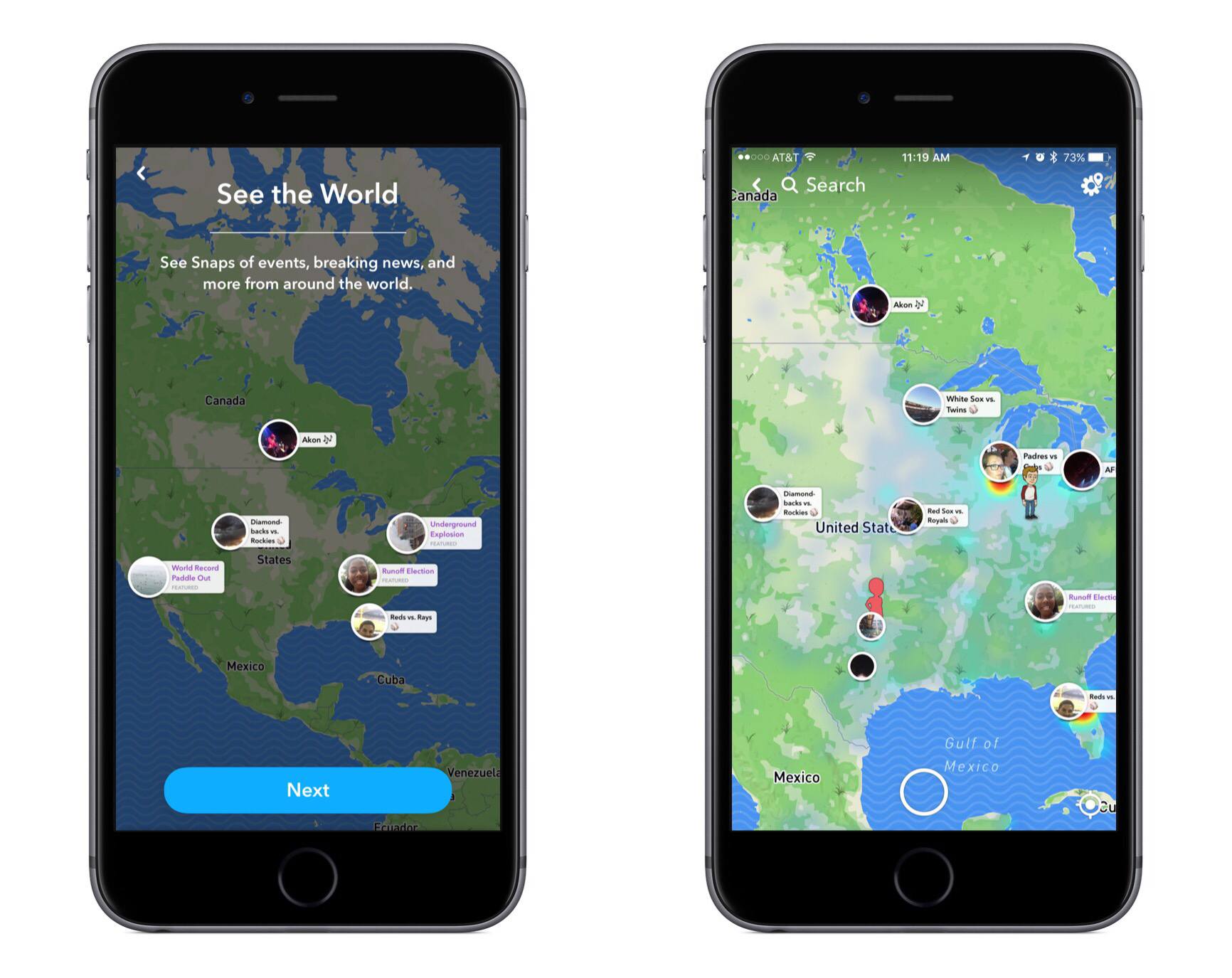
A new feature is rolling out to all Snapchat users today called Snap Map. From the camera screen inside Snapchat, pinching two fingers together will bring Snap Map into view. The map consists of two main pieces: it shows you friends’ locations (if they have location sharing activated) and it serves as a place to discover Stories from people all around the world.

The location sharing piece includes some very simple controls. You can choose to not share your location at all, which is called ‘Ghost Mode,’ or you can either share it with all your friends or a selected assortment of them. The app makes it easy to share your location only when you want to – in the upper right corner of the screen, there’s a settings menu that includes a toggle to activate or deactivate Ghost Mode. While your friends are sharing their location, their Bitmoji will appear on the map and you can tap them to zoom in on their location and access a convenient chat box.

The Story discovery aspect of Snap Map appeals more to me personally, as it makes viewing other Stories from significant places or events fun and easy. Discovery appears to revolve around the collaborative Stories feature introduced just last month, with shared Stories that center on an event rather than a particular person. Scanning the map, you’ll find Stories for things like baseball games, concerts, visits to national parks, and even significant news like natural disasters. It works well both as a way to see what events your friends may be attending, and as a way to explore different activities from all around the world.



John Markoff Interviews Original iPhone Engineering Team Members and Scott Forstall

Last night, the Computer History Museum in Mountain View, California hosted a two-two hour interview program. The event was split into two parts. The first half is an interview moderated by John Markoff who spoke with former iPhone team members Hugo Fiennes, Nitin Ganatra, and Scott Herz about the development of the original iPhone. The three engineers recount what it was like to be recruited to the secret project and detail the team’s efforts to bring the phone to market.

The second half of the program, which begins at about 1:07:00 in the video below, is a one-on-one interview by Markoff of Scott Forstall who led software development for the iPhone. The interview with Scott Forstall is his first public comment about the iPhone and Apple since he left the company in 2012 and covers a broad range of topics from early iPhone prototypes to demonstrating the iPhone to Cingular, the first carrier to offer the phone.

Both interview segments are full of entertaining anecdotes about the iPhone’s development and well worth watching by anyone interested in what it took to create the iPhone. Forstall is particularly engaging as a storyteller displaying the same enthusiasm and excitement that he used to show onstage at Apple keynotes.


Apple Posts Two Videos Highlighting Photos Memories

Apple posted two videos highlighting the Memories feature of its iOS Photos app. One, called ‘The Archives,’ is part of Apple’s ‘practically magic’ series of videos and features an elderly man creating a film called ‘Together.’ When the man pulls a photograph out of a cabinet with dozens of drawers, it comes alive with a short snippet of video like a Live Photo.

After gathering a cart-load of photos and film, the man begins the laborious process of splicing them together into a film. The heartwarming spot captures the time, care, and attention needed to painstakingly create a movie from analog photos and videos, making the unstated point of how easy it is to do the same thing in Photos.

The second spot is in stark contrast to the first. It demonstrates the three steps to using Photos’ Memories feature:

  1. Open the Photos app
  2. Go to the Memories Tab
  3. Choose a Memory

The two spots, which both feature Memories called ‘Together,’ are a clever one-two punch intended to convey how simple Photos has made it to create photo and video montages that once would have taken hours of work.


Niantic Gives Pokémon GO Gyms a Makeover and Adds a New Raid Battle Feature

Niantic announced a major update to Pokémon GO today, including new gym gameplay mechanics and a feature called Raid Battle. Gym gameplay has been modified with a focus on how gyms are defended by controlling teams. Each gym will have six permanent slots, each of which must be populated by a different Pokémon.

Niantic is adding a new motivation system too. Over time and the course of battles, Pokémon will lose motivation, making them easier to defeat by rival trainers. Pokémon that lose all of their motivation will leave the gym and be returned to their trainers the next time they are defeated in battle. To maintain motivation, teams that control a gym can feed their Pokémon Berries, which should increase player interaction with the game.

Read more


Control Any Computer from Your Mac or iOS Device with Screens [Sponsor]

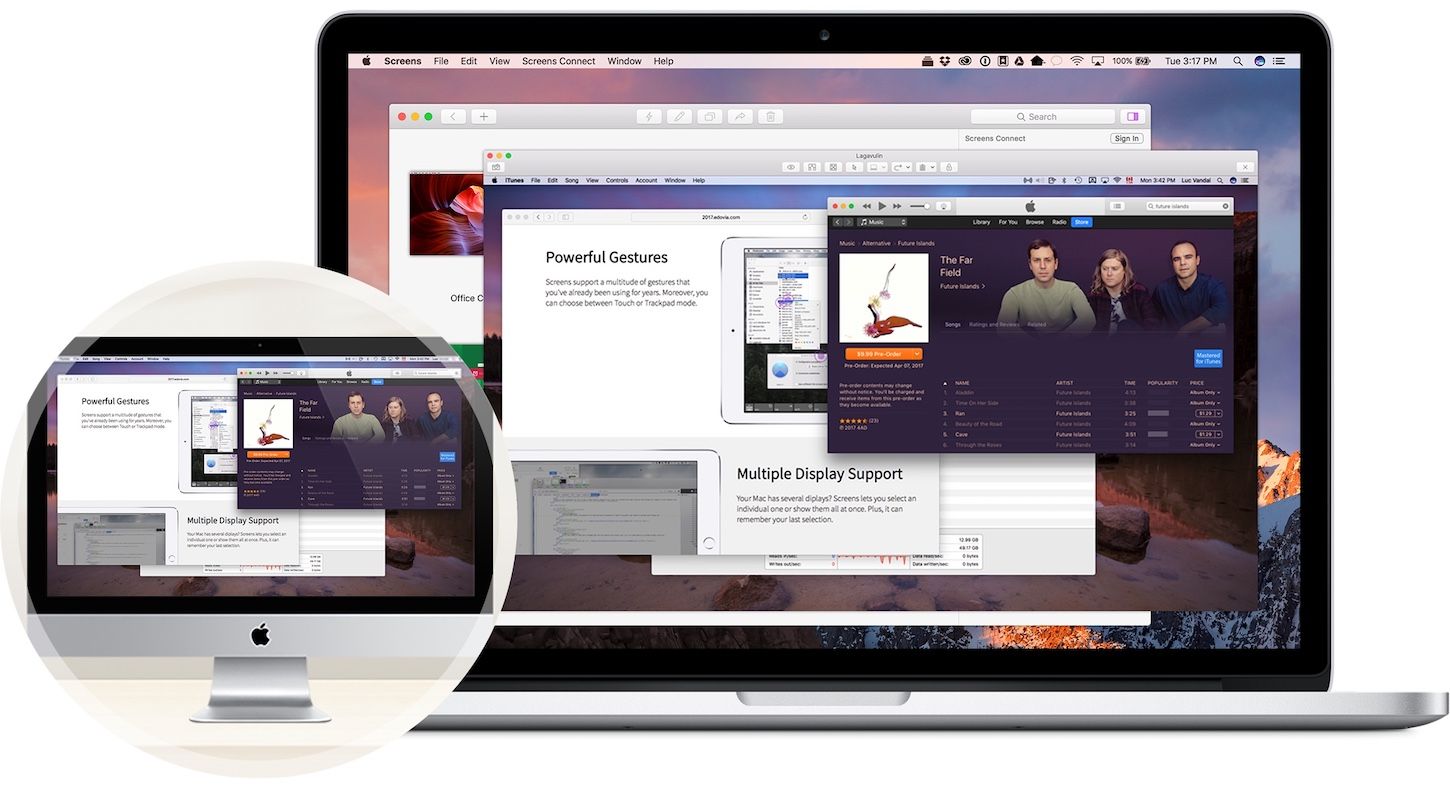
Screens by Edovia makes it easy to control any computer from a Mac or iOS device no matter where you are in the world. Whether you left an important file on your home computer that you need while you’re at work, or have a relative thousands of miles away who needs tech support, Edovia’s Screens app for Mac and iOS has you covered.

Screens is as secure, fast, and reliable as it is easy to set up and use. Not only is the connection to your remote computer secured end-to-end, but Screens includes Curtain Mode, which obscures the screen of your remote computer so no one walking by it while you’re connected can see what’s on your screen. Screens can also handle multiple displays attached to your remote computer, showing them all at once or just the ones you choose to view. If you provide tech support for friends and family, Screens makes that process simpler too by offering a free download that anyone you are helping can use so you can take control of their computer as you troubleshoot their problems.

Edovia has a great limited-time deal for MacStories readers. Use the coupon code MACSTORIES at checkout to save 20% off on the macOS version of Screens. You can also go to http://edovia.com/macstories to have the coupon code automatically applied to your purchase.

Our thanks to Edovia for sponsoring MacStories this week.


Twitter Launches Redesigned UI Across iOS, Web, and Other Platforms

Announced in a blog post earlier today, Twitter has a major update to its iOS app and other platforms rolling out to all users starting today.

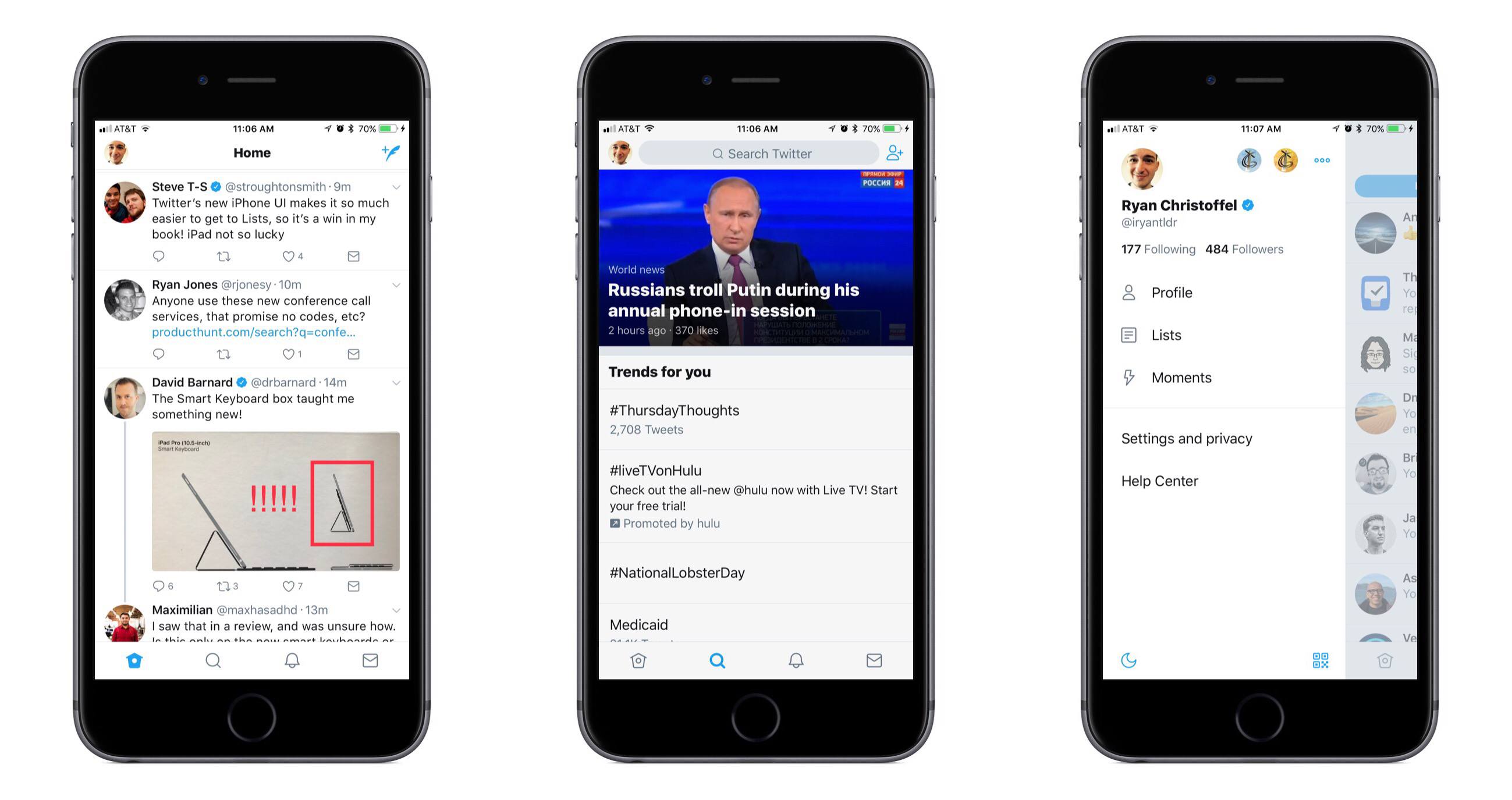
The new design is inspired by Twitter’s Android client – and while that detail scared me at first, using the updated iOS app for a few minutes allayed all my fears. This is a clean, beautiful redesign that brings few drastic alterations, and instead focuses on lots of nice polishing touches.

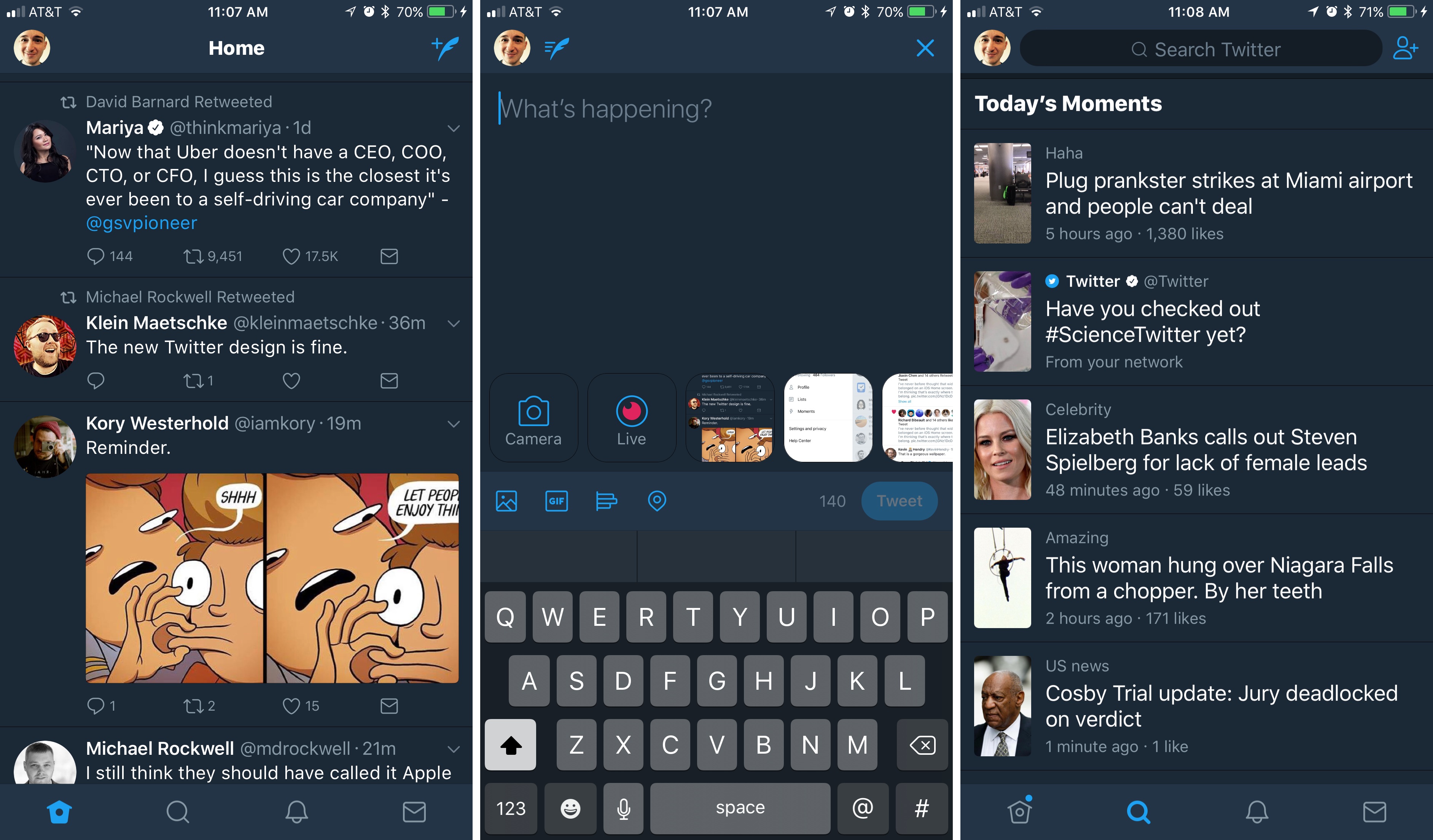
The most significant change to the iOS app is the existence of a new sidebar menu that pops out from the left side of the screen. This menu provides a quick way to switch between different accounts, and also lists your Following and Follower counts, navigation buttons to access your Profile, Lists, created Moments, and Settings, as well as a handy toggle to switch Night Mode on and off. Everything in the sidebar is clear and well organized, with plenty of breathing room; my initial impression of this new menu is entirely positive.

Outside of the sidebar menu, the rest of the app feels very familiar, but with a variety of small tweaks that improve the overall experience.

  • The reply icon has changed to a speech bubble, purportedly to create less confusion for new users.
  • With your Profile now available from the sidebar, that leaves only four main navigation tabs: Home, Search, Notifications, and Messages. They all have fresh new icons that look great.
  • Safari View Controller is now the default viewer for opening links. For a long while Twitter had been testing Safari View Controller with some groups of users, but making it universal is a welcome, long-overdue change.
  • Reply, Retweet, and Like counts will update in real-time as you use the app.
  • A variety of visual improvements, such as updated typography that includes the use of bold headers for different sections, rounded avatars, and more.

There’s more to explore, but that covers the bulk of changes.

Overall, I am a big fan of this redesign. The changes add up to a freshly improved, yet still familiar Twitter app, and my fear that it would too strongly resemble an Android app were unfounded. It may closely resemble Twitter for Android, but this still feels very much like an app that belongs on iOS.

Twitter says the changes are rolling out over the next several days, so it’s possible you may not see them yet. Twitter for iOS is available on the App Store.


NotePlan Calendar + Markdown + Notes Comes to iOS

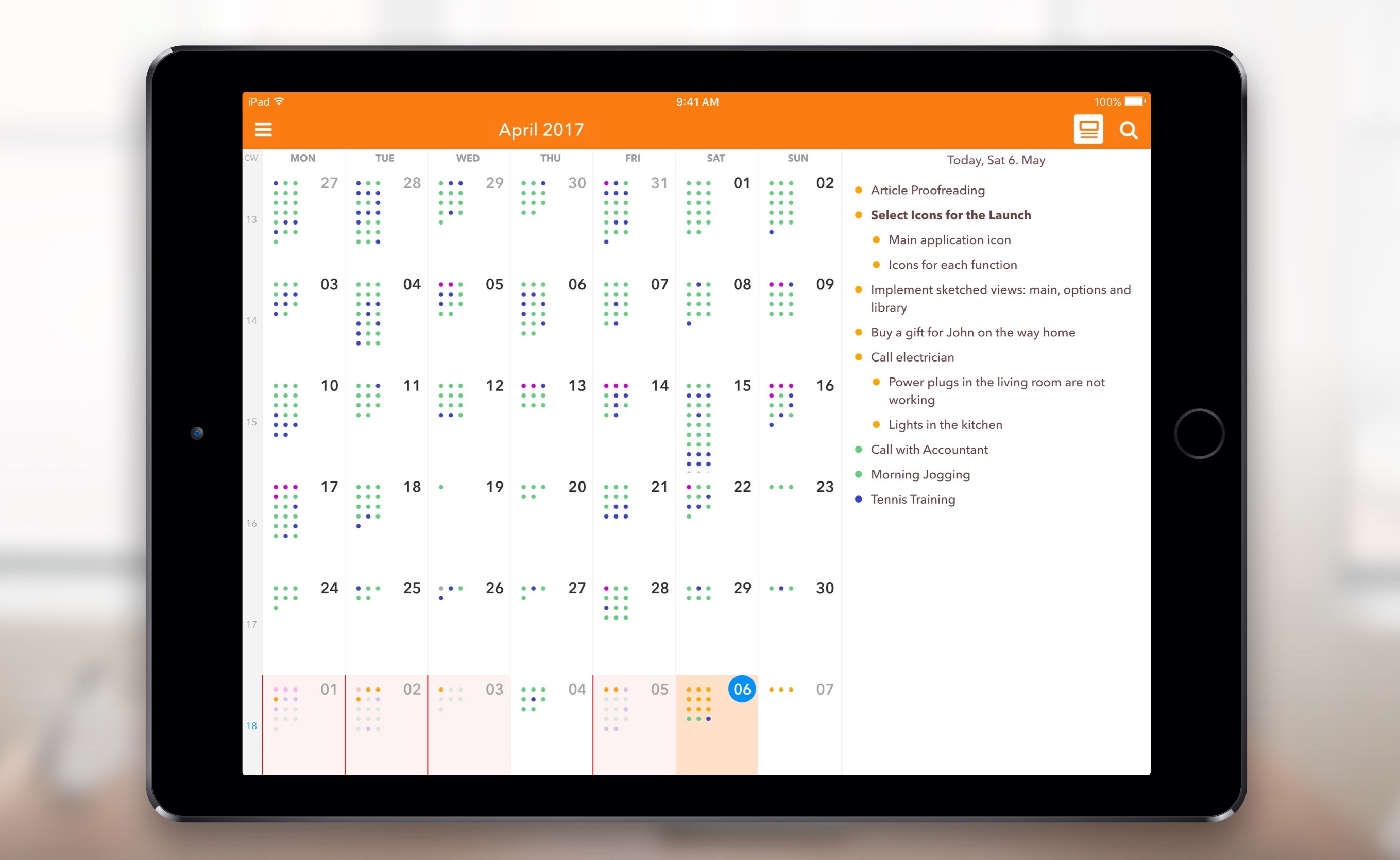
When I first heard about NotePlan, I was intrigued. It was a Mac app that used a text format (Markdown) as a calendar-based system, a note for each day, allowing you to easily create tasks and take notes, then see it all in an organized calendar. NotePlan for iOS was released today, and it’s enough to sell me on the idea.

I have a lot of side projects (I suppose my whole life is side projects these days), and organizing todo lists is vital. I love using the TaskPaper format, with TaskPaper on Mac and Taskmator on iOS, to track action items for individual projects. I also have a calendar, and a bucket of notes. Combining all of this in one place is appealing to me, and being able to use it on both Mac and iOS makes it truly useful.

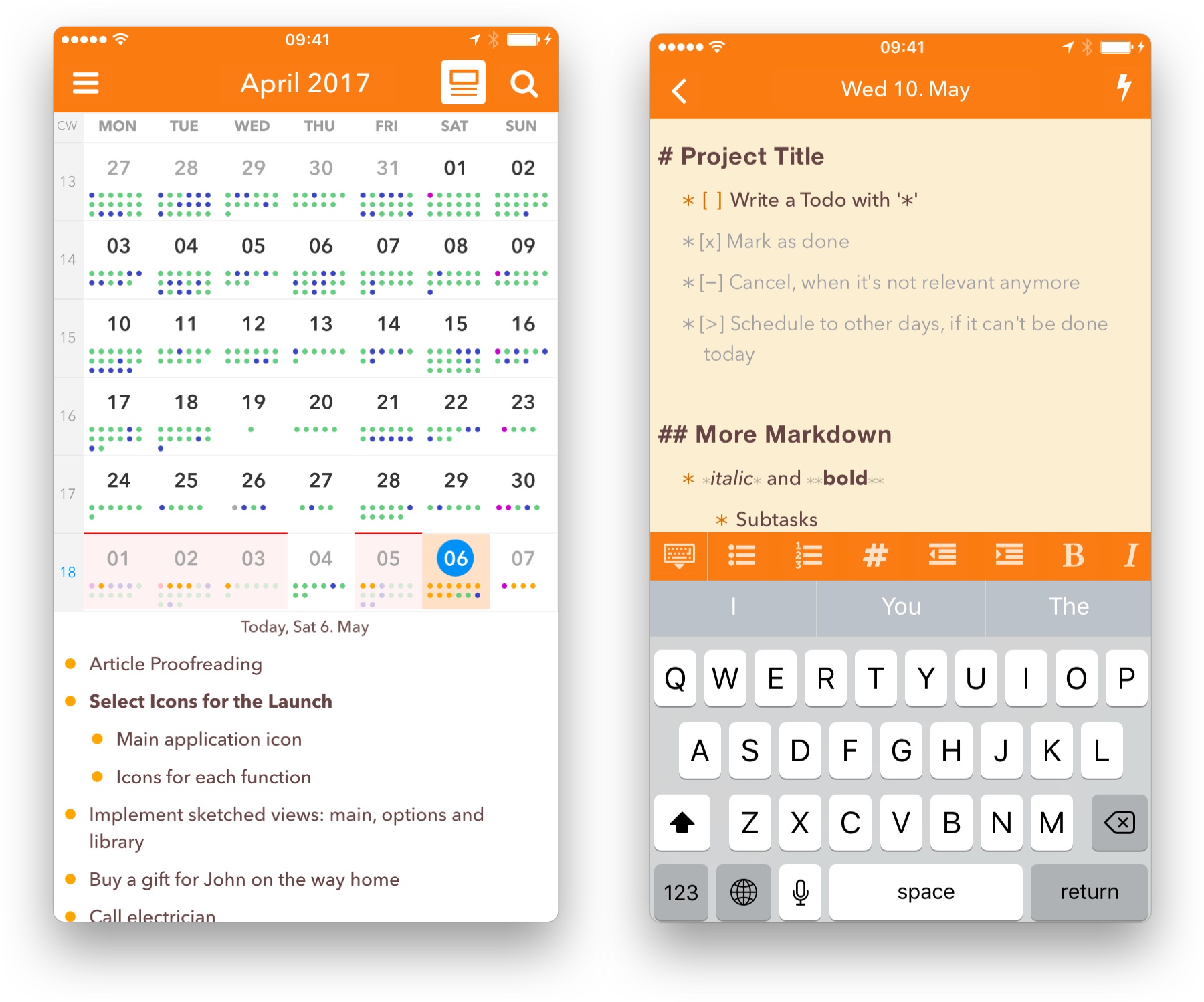
In NotePlan, tasks are created as Markdown lists. You can have it recognize any list item as a task, or tell it that only lines with a checkbox (- [ ] Thing to do) are action items. There’s an extra keyboard row available when editing that makes it easy to create items, complete or cancel them, or even schedule them for a future date.

Tasks can sync to Reminders lists as well, so it can incorporate into other workflows (and even shared lists). In the calendar view you can tap a day to see the note and associated task lists for that date.

Each day on the calendar gets a note, and you can add freeform notes in the All Notes area. A note can be bits of information, its own action list, or both. You can use #tags anywhere in the notes to organize, and wiki style links ([[title]] or [[YYYY-MM-DD]]) to reference other notes. Tasks added to freeform notes can be scheduled to the calendar with a tap, so you can use notes as a central project repository and schedule out the day’s (or week’s) tasks as you’re ready to tackle them.

NotePlan on iPhone

NotePlan on iPhone

On the new iOS version, you can drag and drop tasks around by pressing a text block until it turns blue and sliding it into place. You can also press and hold until it turns blue, then release and press another one to expand the selection between them, at which point NotePlan will offer you a toolbar to allow batch completion, rescheduling, etc.

I’d label NotePlan as a day planner, not a task manager like OmniFocus or Things. It’s ideal for planning out your day, Bullet Journal style. You won’t find extensive project management features or perspective overviews, but the combination of scheduling, tagging, and (plain text, portable) notes in one place makes it a true productivity tool.

If words like productivity, GTD, Markdown, TaskPaper and Bullet Journal cause a stirring within you, you’re probably the right audience for this one. Check out NotePlan for iOS, and then try out the Mac version for fully-synced productivity. Today and tomorrow, NotePlan for iOS is $11.99. After that, the price will be $14.99. NotePlan for Mac is $16.99.


tvOS 11 Will Add Automatic AirPod Pairing and Dark Mode Activation Plus Home Screen Syncing

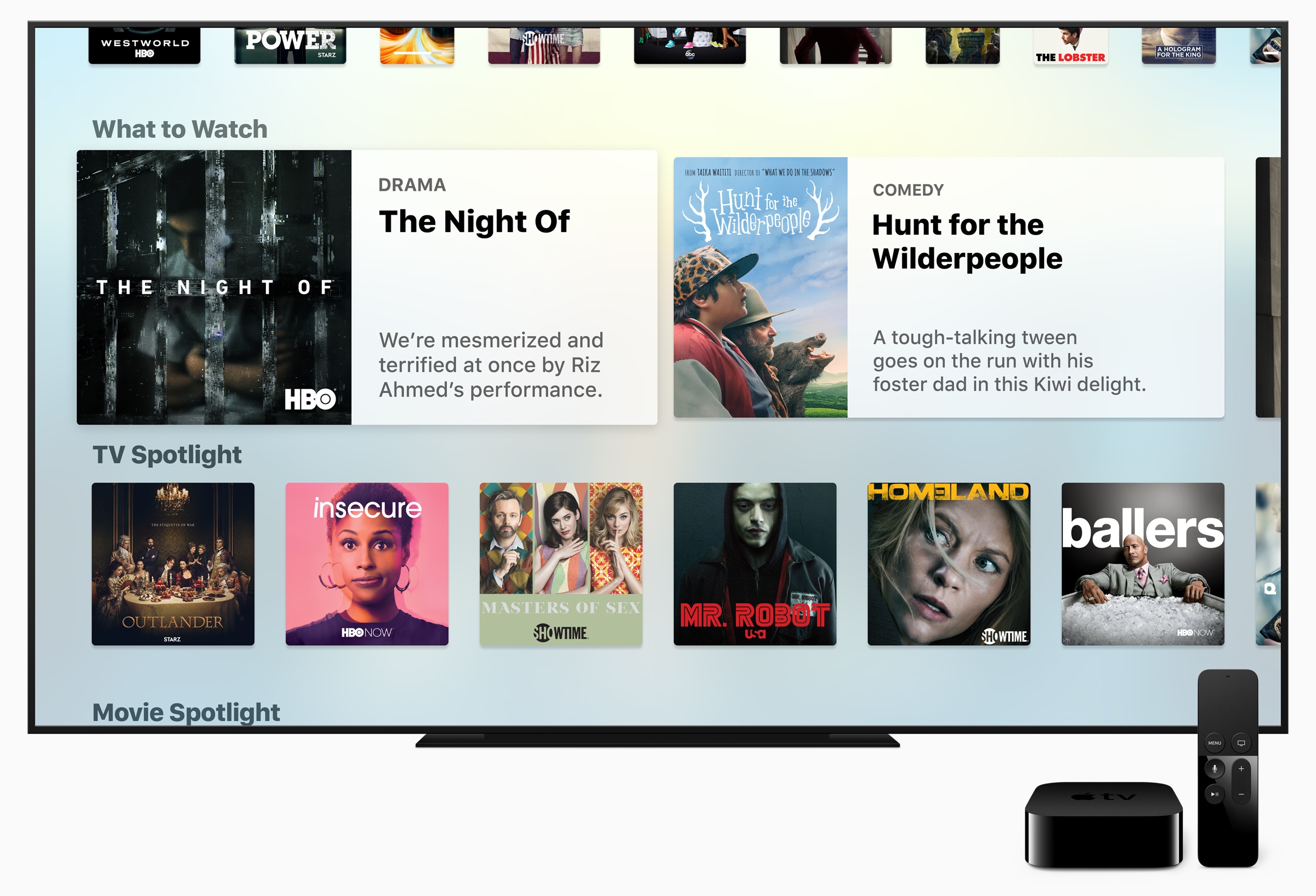
The Apple TV’s stage time at WWDC was limited to an announcement by Tim Cook that Amazon Prime Video will introduce an app to Apple’s streaming television-connected box later this year. Although they didn’t receive stage time during Apple’s WWDC keynote, Zac Hall at 9to5Mac discovered that Apple’s first beta of tvOS 11 includes a handful of additional features that look like they could come in handy.

The first tvOS 11 beta includes automatic pairing of AirPods to Apple TVs. When you pair AirPods with an iPhone, the settings are currently propagated across other iOS devices and Macs that are signed into the same iCloud account. That means you only have to pair AirPods once and then you can easily connect with other devices and Macs. However, Apple TVs were left out of the original implementation of this feature, which required them to be manually paired each time someone wanted to use AirPods with an Apple TV. tvOS 11 promises to eliminate those extra pairing steps by automatically pairing with Apple TVs on the same iCloud account too.

The tvOS beta also includes Home screen syncing among multiple Apple TVs. If you own more than one Apple TVs and want a consistent experience across them all, turning on Home Screen Sync ensures that the same apps will be installed automatically on each and organized in the same way.

Finally, the tvOS 11 beta has a setting for automatically switching between light and dark mode based on the sunrise and sunset times where you live.

The tvOS 11 beta is currently for developers only but will be available as part of Apple’s public beta program soon.