Posts in news

Apple Highlights Apps with watchOS 4.2 Features for Skiers and Snowboarders

Apple released watchOS 4.2 in December with new workout APIs for skiing and snowboarding workouts. Those additions have allowed third-party developers to offer an enhanced workout experience to Apple Watch Series 3 users when they hit the slopes. In a press release today, which was timed with the release of updates to several popular skiing apps, Apple said:

Developers are taking advantage of the built-in GPS and altimeter in Apple Watch Series 3 as well as custom workout APIs released in watchOS 4.2 to enable tracking of specialized metrics. App updates for snoww, Slopes, Squaw Alpine, Snocru and Ski Tracks now track new metrics on the slopes including:

  • Total vertical descent and horizontal distance
  • Number of runs
  • Average and maximum speeds
  • Total time spent
  • Calories burned

The new workout features include other benefits for skiers and snowboarders too:

Apps can auto pause and resume and users will get credit towards their Activity rings; workout information will also be recorded to the Health app on iPhone with user permission. Using Siri, users can start Slopes and snoww to track their runs using just their voice.

Apps that take advantage of the new watchOS 4.2 features are also spotlighted in the App Store’s Today section and include:

There’s more Apple could do to improve the overall experience of developing for watchOS, but it’s good to see the workout APIs continue to expand and third-party developers take advantage of them.



WiFi Explorer: Scan, Monitor, and Troubleshoot Wireless Networks [Sponsor]

Optimizing your WiFi network doesn’t have to be difficult. With WiFi Explorer, you can scan the networks around you, troubleshoot issues that slow yours down, and keep things humming along as conditions change.

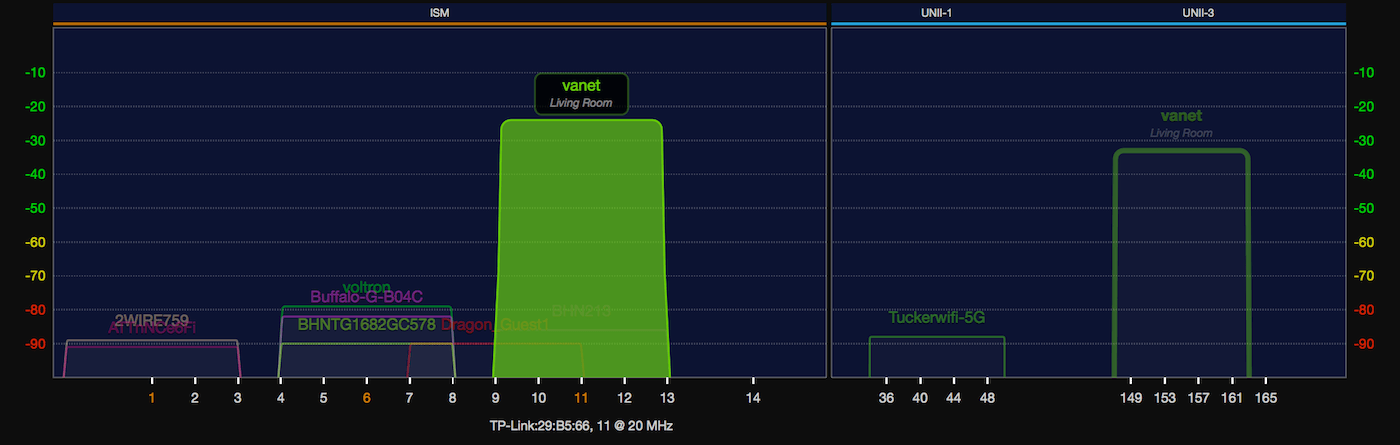
The trouble with setting up a WiFi network is that it can be hard to understand how other networks affect yours. WiFi Explorer eliminates the guesswork by providing a rich, graphical visualization of all the networks within range. You can see exactly where you’ve got channel conflicts with overlapping networks and make changes accordingly. It’s invaluable information for fine-tuning your network.

Whether you’re setting up or optimizing your home network or troubleshooting an enterprise network, WiFi Explorer is a fantastic solution. The app reports signal quality based on the signal-to-noise ratio and signal strength, scanning and collecting data continuously so you can analyze it in real-time or save it to study later. There’s also a handy advanced tab with all sorts of network configuration data that’s a lifesaver when you’re troubleshooting a network issue.

WiFi Explorer is incredibly advanced, but if you’re an IT or WLAN professional who needs even more, there’s a Pro version of the app just for you. WiFi Explorer Pro adds active and passive scan modes, integrated spectrum analysis, enhanced filtering, support for networks with hidden SSIDs and remote sensors, dark and light themes, and more.

WiFi Explorer has a special limited-time offer just for MacStories readers. Use the coupon code MACSTORIES30 at checkout to get 30% off on WiFi Explorer or WiFi Explorer Pro.

Thanks to WiFi Explorer for supporting MacStories this week.


Twitterrific Adds Multi-Account Features, Follower and Following Lists, and More

Hot on the heels of Twitter’s abandonment of its official Mac client last week, The Iconfactory announced new Twitterrific features and a price reduction.

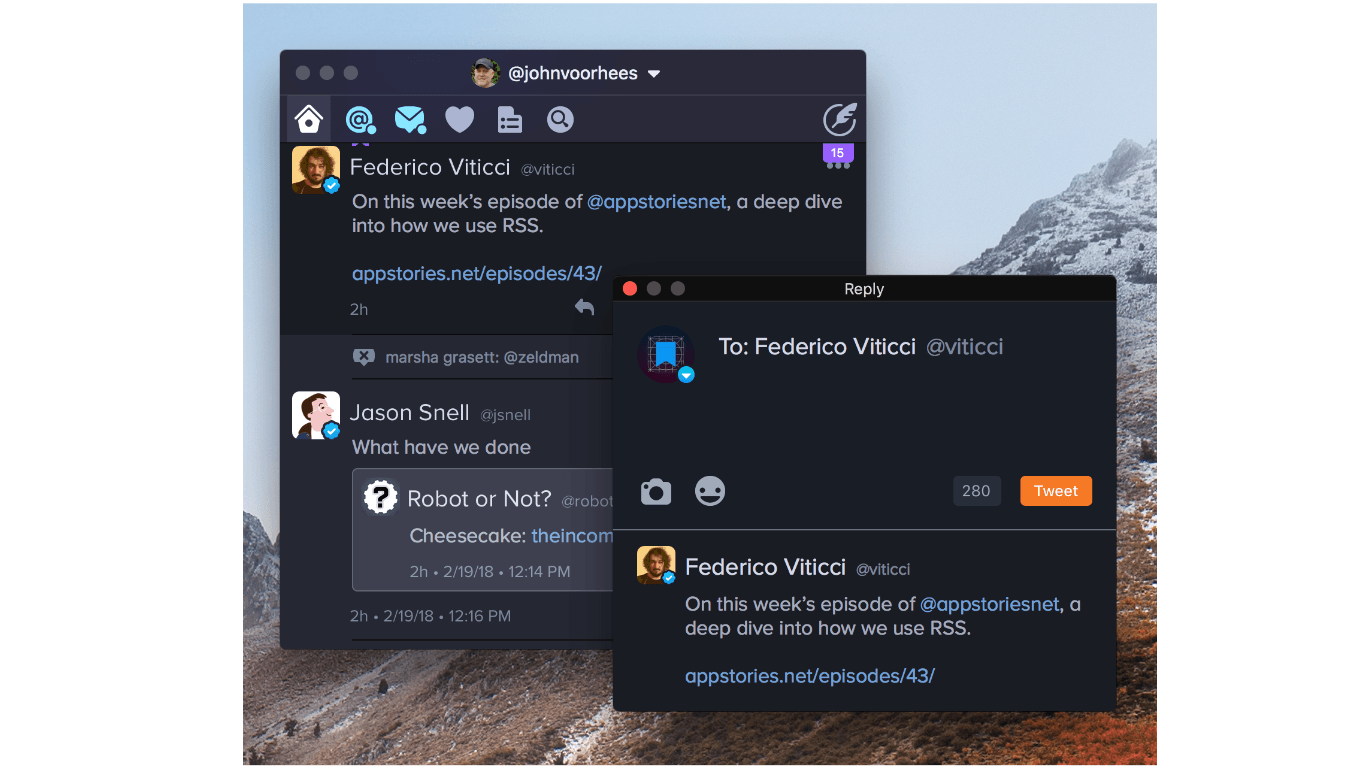
One of the highlights of the update is enhancements to multi-account support. If you have more than one Twitter account set up in Twitterrific, right clicking on the reply, quote, retweet, or like buttons displays a popup window for choosing which account you want to use for each of those functions. Alternatively, if you are in the middle of composing a reply or quote-tweet, click on your avatar in the compose window to switch the account from which it will be sent.

The Iconfactory has added several other nice refinements too:

  • Lists of a person’s followers and who they follow have been added to user profiles.
  • Avatars now include verified and protected status badges, although this can be turned off in Twitterrific’s settings.
  • There is a setting to turn off tweet streaming, so your timeline can only be refreshed manually.
  • Georgia is a new font alternative in the app’s preferences.

Twitterrific for Mac has come a long way since the commencement of its crowdfunding campaign last winter, and many of the shortcomings of version 1.0 that I highlighted in my review last October have been addressed. It’s fantastic to see Twitterrific continue to grow and evolve, especially now that Twitter has walked away from its Mac app.

To celebrate the one year anniversary of Project Phoenix, the crowdsourced Kickstarter project that relaunched Twitterrific on macOS, the price of the app has been reduced from $19.99 to just $7.99. Twitterrific is available on the Mac App Store.


Remote for Mac: An iOS Remote Control for Your Mac [Sponsor]

Remote for Mac is an iOS app that lets you use your Mac from anywhere on your home network. Using just your iPhone or iPad as a trackpad and keyboard, you can launch apps or control system settings on your Mac.

Remote for Mac is perfect for controlling a Mac that serves as a media center. Instead of trying to balance a keyboard and trackpad in your lap while you sit on the couch or lie in bed, use Remote for Mac to navigate your Mac from your iPhone comfortably. You can also use Remote for Mac with AirPlay Mirroring on an Apple TV to browse your Mac on a big screen TV.

All you need to do is install a helper app on your Mac and use Remote for Mac on the same WiFi network to control system settings and apps and services like iTunes, Amazon Prime Video, Netflix, YouTube, Plex, Kodi, SoundCloud, Spotify, and VLC.

Remote for Mac isn’t just for Mac media servers though. The uses are only limited by your imagination. You can just as easily use the app to browse the web or read email on a Mac connected to your TV. Using the app’s keyboard and virtual trackpad makes navigation a breeze. When you’re finished, Remote for Mac can put your Mac to sleep, turn off your display, or even shut down your Mac.

Remote for Mac has a special giveaway for MacStories readers. The first 30 readers who visit this link will get a free copy of the app.

Take control. Download Remote for Mac from the App Store today.

Our thanks to Remote for Mac for supporting MacStories this week.


Official Twitter Client for the Mac Abandoned

In the time honored tradition of releasing bad news at the close of business on a Friday, Twitter announced via its Twitter Support account that it was removing its Mac client from the the Mac App Store and discontinuing support for the app:

https://twitter.com/TwitterSupport/status/964635740444360704

Twitter gained a native Mac client when it acquired Tweetie for Mac from Loren Brichter in 2010, but the company’s support for the app over the years has been half-hearted at best. As John Gruber explained on Daring Fireball:

Twitter dumped Tweetie’s codebase years ago, of course, and their Mac app has been garbage ever since they did. It’s all fine, really, so long as they continue to allow third-party clients like Tweetbot and Twitterrific to exist. But this “Mac users should just use the website” attitude is exactly what I was talking about here as an existential threat to the future of the Mac.

Twitter’s move is not surprising given the history of the app. Most Mac users I know moved on to third-party clients years ago. However, Gruber’s broader point is an important one. There has been an increasing trend away from native Mac apps and towards web apps and cross-platform apps based on technologies like Electron. Many of these non-native solutions are resource hogs, and even the best often fail to take advantage of OS-level features, which makes them feel out of place among native apps. Perhaps the rumored Project Marzipan is designed to reinvigorate Mac development, although it’s hard to see that working if companies like Twitter simply don’t care to provide the best experience on macOS.


Shazam Updated with Synchronized Lyrics and a New Design

When Apple acquired Shazam, people wondered what would become of the popular song identification and music discovery app. It’s not unusual for an app acquired by a big company to be pulled from the App Store or for development to slow substantially. Questions were also raised about whether Shazam would continue to support Apple’s music streaming rival, Spotify.

As it turns out, Shazam has continued to be updated and support Spotify since Apple’s acquisition. In fact, there have been at least four updates to Shazam since the acquisition including one today that adds synchronized lyrics and a design refresh of the app’s results screen.

The new UI looks great. The results screen is dominated by a background image of the artist. In the foreground is a big play button, the name of the song the app recognized, and the name of the artist. If you tap on the artwork, you get an image of the artist and album in some cases, plus more details on the artist, album, song, and release date.

Along the top of the results screen is a menu you access by swiping horizontally that includes lyrics, videos, additional songs by the artist, and related artists. If you swipe over to the lyrics screen while a song is playing, they are displayed in perfect synchronization with the song that’s playing, which is perfect for impromptu karaoke moments. Adding songs to Apple Music and Spotify playlists has been streamlined too – it now takes one less tap to add a song to a playlist.

One thing to keep in mind though, is that if you’re using the iOS 11.3 beta, playback is broken throughout the app. Tapping on any play button freezes the entire UI and requires you to force quit the app. Playback works as expected if you’re not on the beta, however.

Shazam is available on the App Store.


The Sweet Setup Launches ‘All the Things’ Video Course

Today The Sweet Setup launched ‘All the Things’, a video course primarily aimed at explaining how to get the most out of Things, the popular task manager for Mac and iOS.

Like they did for their Ulysses screencasts last year, the folks at The Sweet Setup have produced a series of videos covering Things with walkthroughs of its basic features, project organization, as well as more advanced options such as iPad drag & drop and workflows. The videos included in the $29 ‘All the Things’ Basic package are:

  • Walkthrough of Things on the Mac, iPad, and iPhone
  • Anatomy of a Task
  • All the ways to Capture
  • Anatomy of a Project
  • Anatomy of an Area
  • Cloud Sync & Backup
  • iPad drag & drop
  • AppleScripts & Workflows

In addition to the screencasts, the Basic package includes setup interviews with Things users who rely on the app to get work done. I was honored when Shawn asked me to participate in the course, and it was fun to answer his questions about my decision to switch to Things and how I use the app. You can find my interview here.

I’m a fan of The Sweet Setup’s screencast courses. I like Shawn’s style of demonstrating features and how they work in practice, and I think the Basic video package is a great deal at $29 if you’re looking for a way to get started with Things and learn how other people use it.

There’s more, though. In the Pro version of the ‘All the Things’ package, available at $39 for a limited time, you’ll also get access to Shawn’s productivity training videos that contain general tips that work for any task manager. So whether you use Todoist or OmniFocus or something else, videos such as ‘How to Schedule Your Day’ and ‘Weekly Planning & Reviewing’ will likely give you something you can apply to your own workflow. And if you just want these videos without the Things screencasts, that’s also an option at $35.

I watched nearly every video of the ‘All the Things’ Pro bundle over the past week, and – I don’t say this because I was interviewed for this series – I think $39 for the discounted Pro package is great value whether you want to learn Things or optimize the way you work. You can find all the details about ‘All the Things’ and purchase the course here.