This Week's Sponsor:

Dropzone 5

Improve your Drag-and-Drop Workflow


Posts in news

NoiseBuddy: Control Noise Cancellation and Transparency Modes of AirPods Pro on a Mac

Earlier this week, Guilherme Rambo released a new Mac utility called NoiseBuddy that toggles between the noise cancellation and Transparency modes of AirPods Pro and the Beats Solo Pro headphones when they’re connected to a Mac. The app can place an icon in your Mac’s menu bar or on the Touch Bar and uses the same noise cancellation and Transparency iconography found in Control Center on iOS and iPadOS. The app’s settings allow you to run NoiseBuddy in the menu bar, on the Touch Bar, or in both places. To switch modes, simply click the icon in the menu bar or tap the Touch Bar button.

The Touch Bar in transparency mode.

The Touch Bar in transparency mode.

This isn’t Rambo’s first time working with Bluetooth headphones and the Mac. He also created AirBuddy, which we covered previously. AirBuddy is a Mac utility that displays the charge status of AirPods and Beats headphones that use Apple’s proprietary wireless chips. The app also allows users to connect those headphones to their Macs via Bluetooth with a single click.

NoiseBuddy’s menu bar app in transparency mode.

NoiseBuddy’s menu bar app in transparency mode.

NoiseBuddy is the kind of Mac utility that I love. It takes overly fiddly aspect of interacting with macOS and makes it dead simple. The free app is available from Rambo’s GitHub repo, where it can be downloaded as a ZIP archive and then dragged into your Applications folder.


Triode: Internet Radio from The Iconfactory with AirPlay 2, Apple Music Integration, and CarPlay

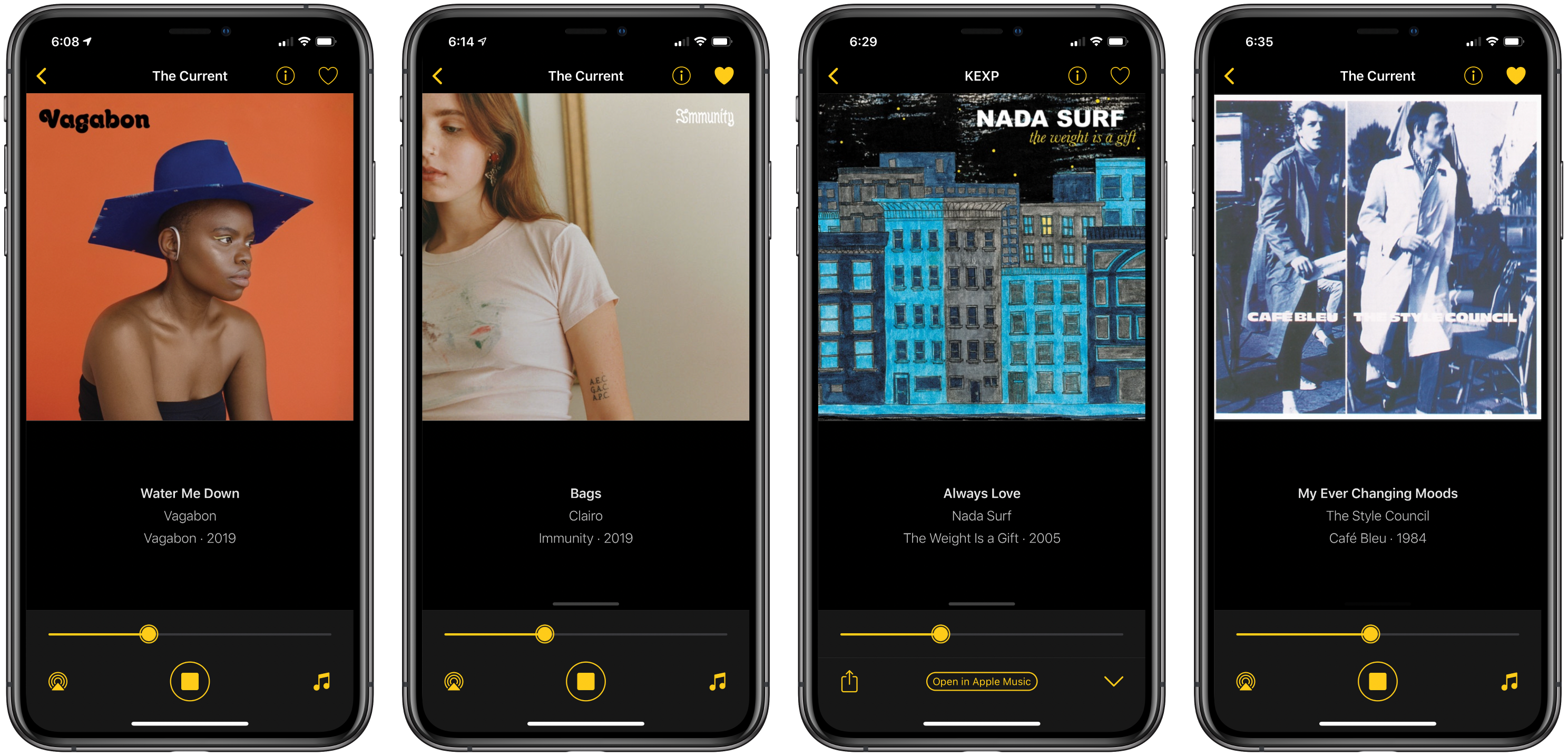
Triode is a new Internet radio app from The Iconfactory for iOS and iPadOS, the Mac, and Apple TV that fills a niche all but abandoned by Apple. Internet radio stations used to claim a more prominent place in iTunes, but in Apple’s new Music app, they have been mostly abandoned in favor of Apple’s own radio stations. A handful of third-party broadcast stations are available in Music, the HomePod can play many more stations, and you can open any station’s stream on a Mac if you know the URL, but that’s it. Triode fills the gap with support for iOS, iPadOS, the Mac, and tvOS, plus CarPlay via the app’s iOS app.

As someone who hasn’t listened to the radio in years, I was a little skeptical of the utility of an Internet radio app at first, but Triode immediately won me over. The app is beautifully-designed, as you’d expect from The Iconfactory, and easy to use. Coupled with Apple’s latest technologies and a set of 31 hand-picked stations, the combination makes for a compelling way to discover new music.

Read more


Apple Debuts New Research App, Launches Health Studies for Women’s Health, Hearing, and Heart and Movement

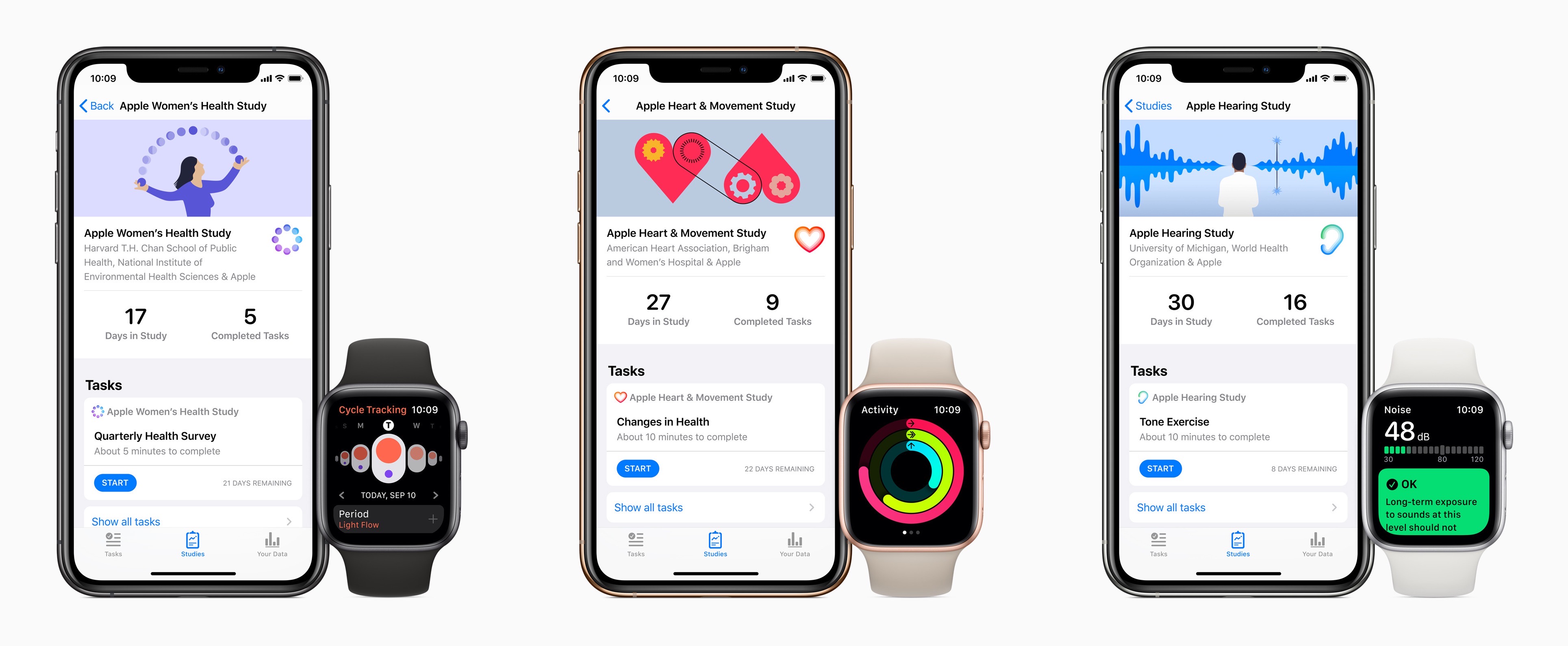
Today Apple announced the next phase of its efforts in medical research studies. Following the Heart Study which debuted in late 2017 and shared its first results earlier this year, Apple now has three new studies it’s launching at once, which users can sign up for through a brand new Apple Research app.

“Today marks an important moment as we embark on research initiatives that may offer incredible learnings in areas long sought after by the medical community,” said Jeff Williams, Apple’s chief operating officer. “Participants on the Research app have the opportunity to make a tremendous impact that could lead to new discoveries and help millions lead healthier lives.”

Users can enroll in one or more of the new studies: the Women’s Health Study, Heart and Movement Study, and Hearing Study. Each of these uses an iPhone and Apple Watch to collect certain data for the purpose of aiding medical advancements.

Anything health-related can come with plenty of privacy concerns, so the Research app’s on-boarding flow includes a very clear privacy commitment, stated in four points:

  1. Your data will not be sold.
  2. You decide which studies you join, and you can leave the study at any time.
  3. You control which types of data you share, and you can stop sharing your data at anytime.
  4. Studies must tell you how your data supports their research.

Tim Cook on multiple occasions has sought to emphasize how important the issue of health is to Apple. Far from a mere hobby, he’s said he believes health will end up being Apple’s most significant area of contribution to mankind. Studies like these are one way to help push the needle on that goal.


HomeRun Adds Thousands of Icons for Customizing Your Watch HomeKit Triggers

Browsing custom icons in HomeRun's iPhone companion.

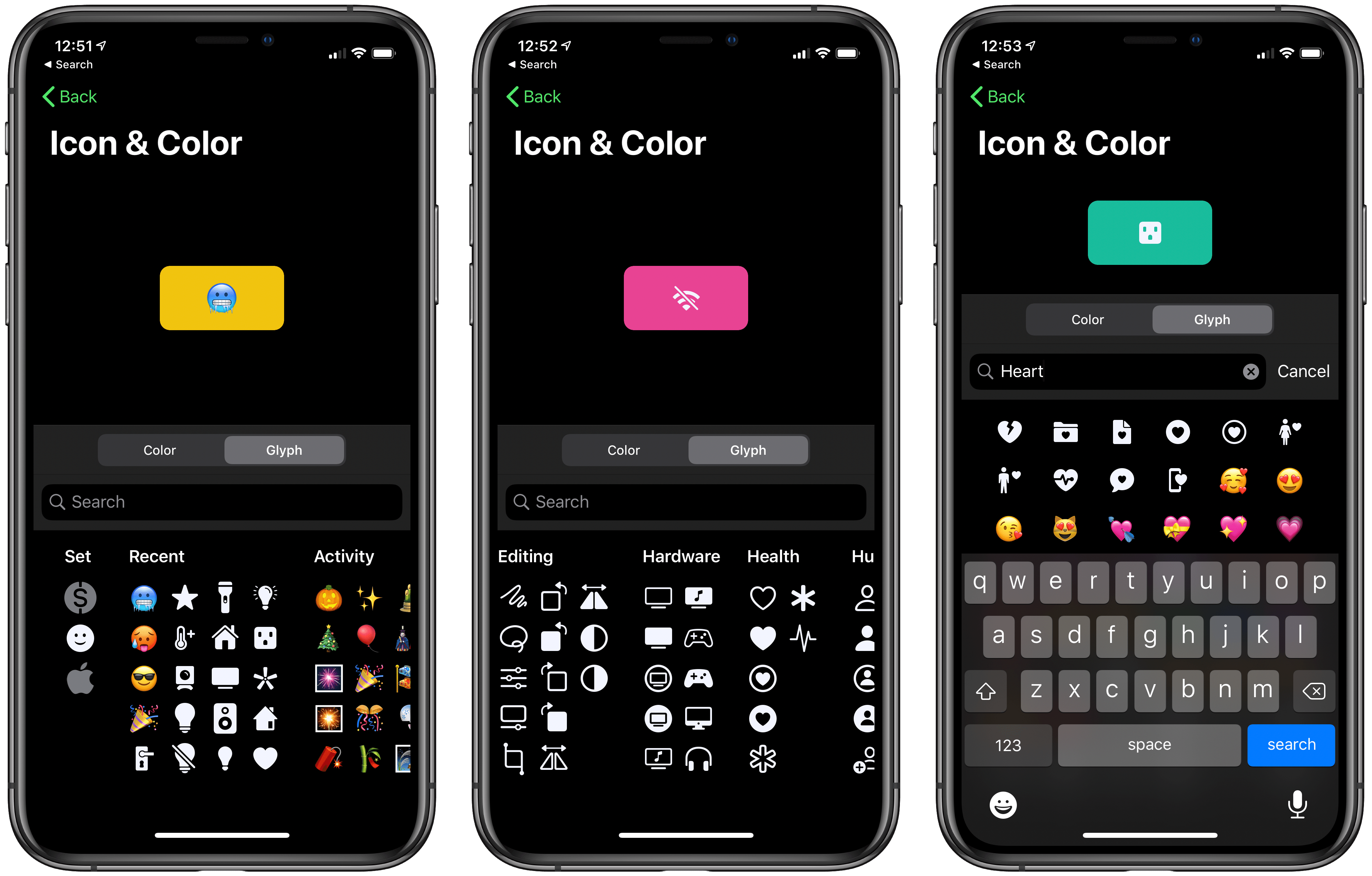
Browsing custom icons in HomeRun’s iPhone companion.

Customization options have never hurt an app, and in many cases they make apps far more functional and endearing. Today HomeRun, the Apple Watch app for running HomeKit scenes, has expanded its customization options immensely by adding over 4,400 new icons that can be used for configuring the app’s grid of HomeKit scenes, and also for adorning your watch face via HomeRun’s complications.

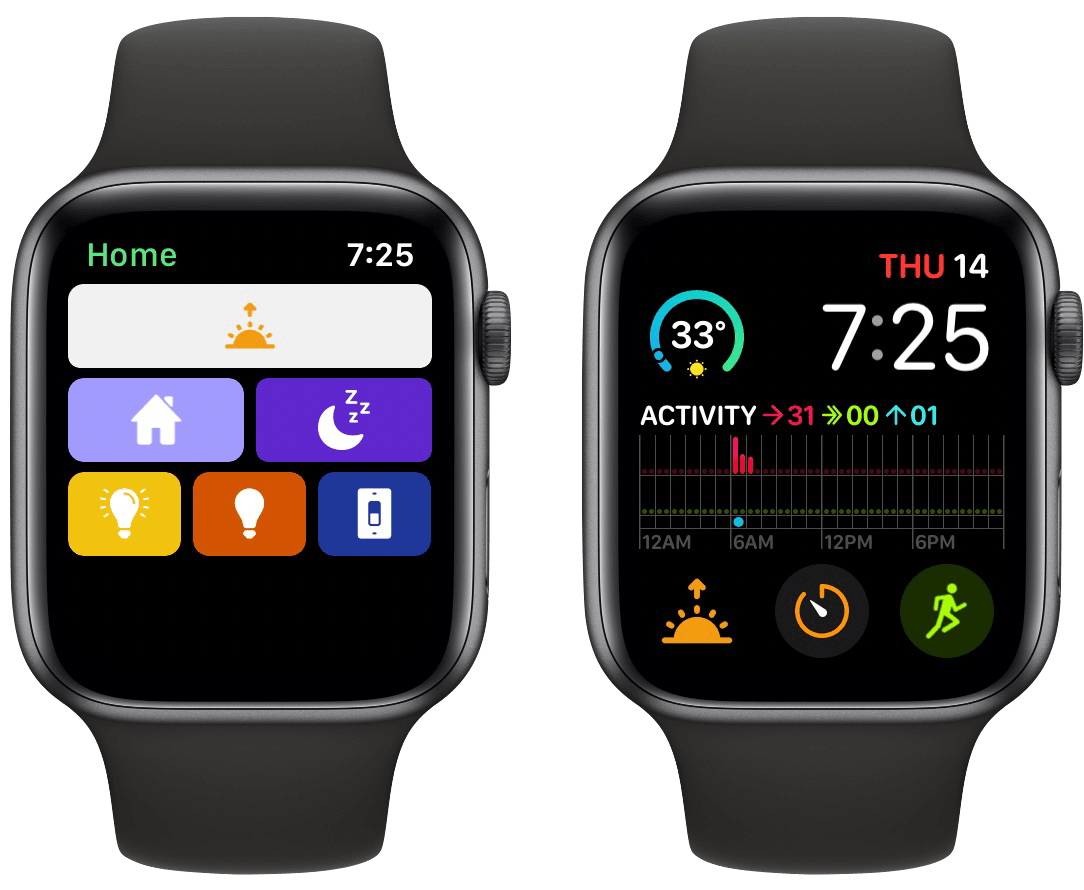
HomeRun debuted last November as the best option for running HomeKit scenes from your Apple Watch. Unlike Apple’s own Home app, which only displays two scene triggers on-screen at once, with HomeRun you can fit up to 12 on-screen with a 44mm Watch, plus create complications for those scenes that run on a user-set schedule, so the right scene complication is always present at the right time.

HomeRun's scene grid (left) and custom complication (right).

HomeRun’s scene grid (left) and custom complication (right).

Previous releases enabled customizing HomeRun’s scene grid, which makes up the app’s main UI, by choosing from different colors and glyphs for each of your HomeKit scenes. The number of options was fine before, but now it’s much more than fine. Developer Aaron Pearce has added thousands of new icons by including the full set of Apple’s SF Symbols, the full set of Simpaticons, plus emoji options. The over 4,400 icons can be browsed inside HomeRun’s companion iPhone app, where a search option has thankfully been included.

I love that these new options work not only inside HomeRun’s grid, but also for configured complications. The sole exception is emoji, since they don’t fit watchOS’ design standards for complications. That slight drawback aside, this is a fantastic release for HomeRun that ensures I have no reason to ever look elsewhere for HomeKit scene control on the Apple Watch.

HomeRun 1.3 is available now on the App Store.


Apple Announces New 16” MacBook Pro with Redesigned Keyboard, Thinner Display Bezels, and Updated Processors

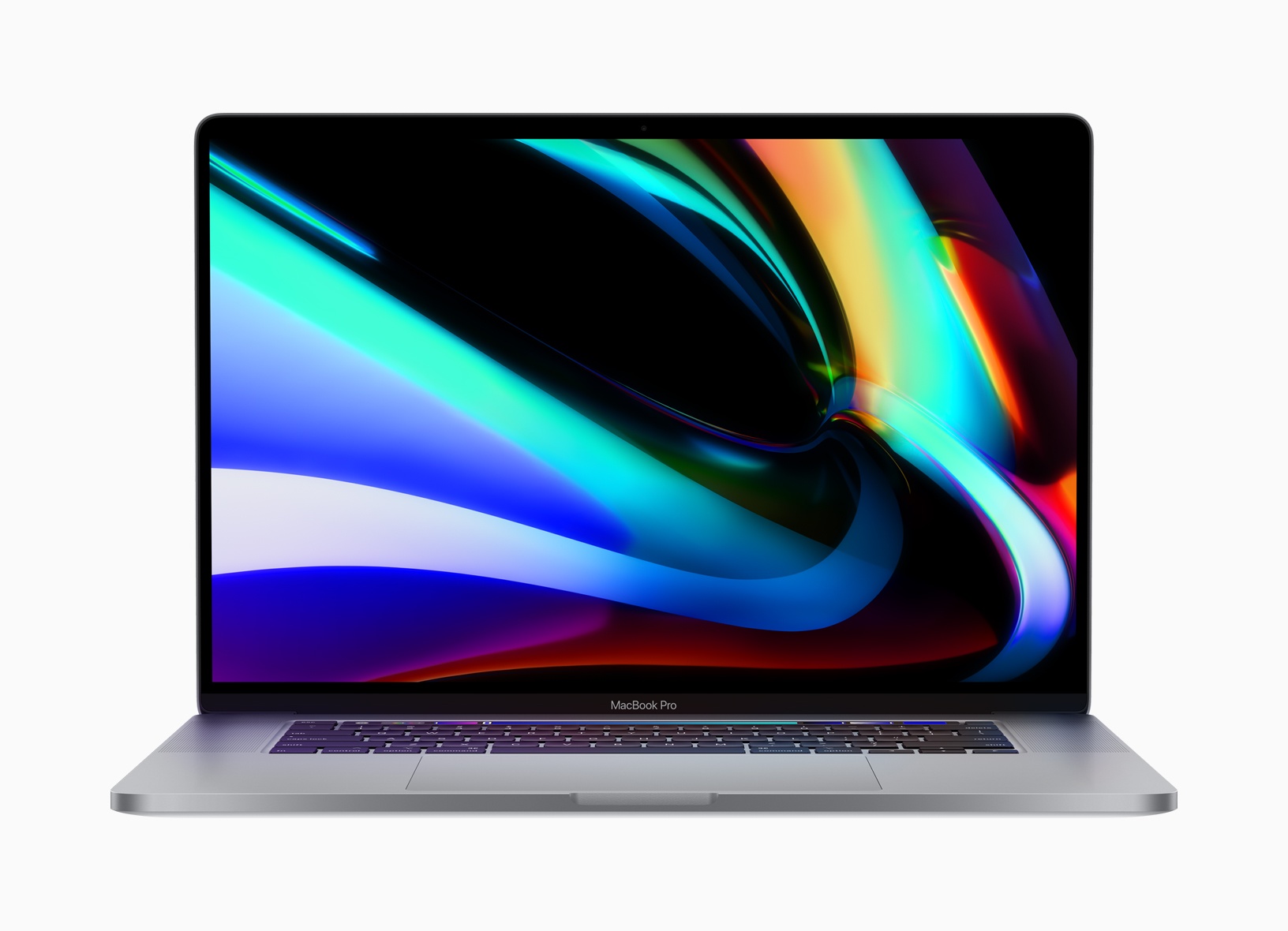
Apple has announced a new 16-inch model of the MacBook Pro that features a redesigned keyboard with keys that use a scissor mechanism, a larger screen with thinner bezels, and 9th generation Intel Core i7 and i9 processors. The new model replaces the existing 15-inch MacBook Pro.

Rumored since early this year, the new laptop is almost identical in size to the 15-inch MacBook Pro, which is 0.61 inches (1.55 cm) tall, 13.75 inches (34.93 cm) wide, and 9.48 inches (24.07 cm) deep. In contrast, the new 16-inch model is 0.64 inches (1.62 cm) tall, 14.09 inches (35.79 cm) wide, and 9.68 inches (24.59 cm) deep. The new MacBook Pro is also heavier, weighing in at 4.3 pounds (2.0 kg) compared to the 15-inch laptop, which is 4.02 pounds (1.83 kg).

The slight increase in size is thanks primarily to the reduction of the new MacBook Pro’s display bezels, which have been virtually eliminated. The laptop features a new high-resolution display too, which Apple lists as 3072 x 1920 pixels with a 226 ppi pixel density. The display is driven by new AMD Radeon Pro 5000M series graphics. Also, the MacBook Pro boasts significantly-improved 6-speaker setup and high-quality microphones to capture less background noise when recording.

Apple has also returned to a scissor mechanism for the new MacBook Pro’s keyboard. It remains to be seen whether the updated design is an improvement over the butterfly mechanism used for the past few years in Apple’s laptops. Before the company moved to the butterfly mechanism, which allowed for reduced key-travel and, consequently, thinner devices, a scissor keyboard mechanism was used in the MacBook Pro.

The keyboard on Apple’s latest pro-level laptop is also notable because it features the return of a physical escape key. The escape key was eliminated in Touch Bar-enabled MacBook Pros in favor of a software escape key on the Touch Bar, but the latest model shortens the Touch Bar to make room for a physical escape key, which many users missed. The new keyboard also features an inverted-T arrow key layout. Apple says:

The 16-inch MacBook Pro features a new Magic Keyboard with a refined scissor mechanism that delivers 1mm of key travel and a stable key feel, as well as an Apple-designed rubber dome that stores more potential energy for a responsive key press. Incorporating extensive research and user studies focused on human factors and key design, the 16-inch MacBook Pro delivers a keyboard with a comfortable, satisfying and quiet typing experience. The new Magic Keyboard also features a physical Escape key and an inverted-“T” arrangement for the arrow keys, along with Touch Bar and Touch ID, for a keyboard that delivers the best typing experience ever on a Mac notebook.

The 16-inch MacBook Pro also features an updated Intel 9th generation i7 and i9 processors with up to 8 cores. The base model runs at 2.6 GHz, which users can upgrade. RAM starts at 16GB and is configurable up to 64GB. Storage starts with a 512GB SSD, which can be increased to as much as 8TB.

To learn more about the new MacBook Pro, listen to episode 271 of Upgrade from Relay FM where Six Colors founder Jason Snell interviews Apple’s MacBook Pro Product Manager Shruti Haldea.

The new laptops are already available to order on apple.com and with the Apple Store app starting at $2,399, the same price as the old 15-inch model, with deliveries beginning later this week. Apple also notes that the Mac Pro will be available to order in December.


Disney+ Available Now, Integrated with Apple’s TV App But Not as a Channel

Today Disney has launched what’s almost certain to become one of the most successful streaming services over time: Disney+. Apple users can enjoy the new streaming service through the Disney+ app for iPhone, iPad, and Apple TV. You can subscribe directly inside the app to start a 7-day free trial, after which it costs $6.99/month or $69.99/year. Disney is also offering a bundled option, where Disney+, Hulu (with ads), and ESPN+ are available for a single $12.99 monthly fee; to sign up for that bundle, you need to visit disneyplus.com.

Disney+ features an enormous back catalog of Disney favorites, from classic animated films to the worlds of Star Wars, Marvel, Pixar, and National Geographic. Not only that, but Disney has prepared a healthy slate of originals to accompany the launch, the clear standout of which is the Star Wars-based The Mandalorian. Combining originals and catalog fare, Disney+ is unquestionably the strongest content debut ever for a streaming service.

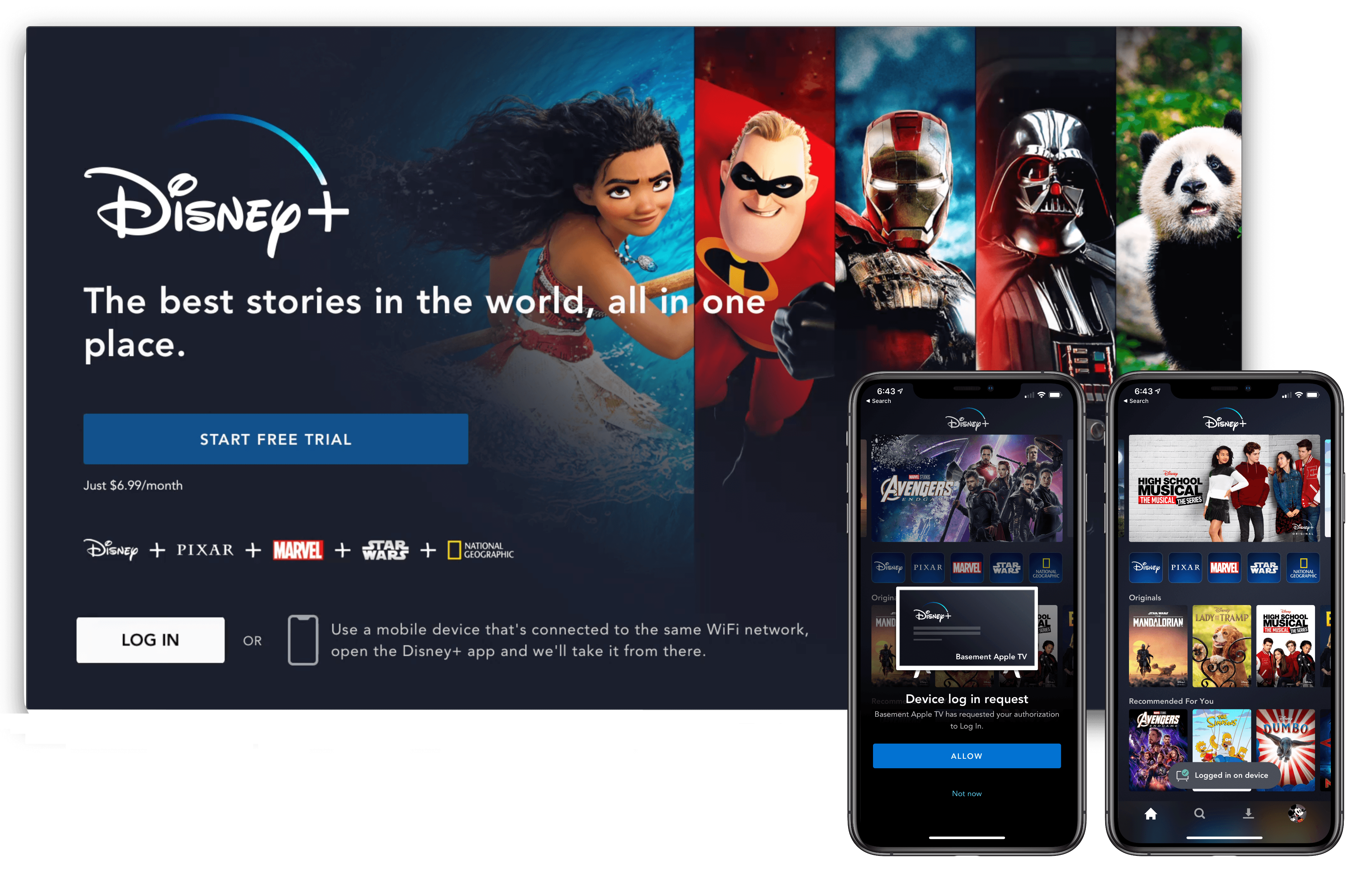
The app experience of Disney+ seems at least as good as other streaming services, and in some cases even better. As seen in the image above, Disney+ on the Apple TV offers an easy way to log in if you’ve already set up your account on an iPhone or iPad. Unlike most other streaming apps, which require entering a code on your TV, the Disney+ app can automatically log you in on your Apple TV when you have the mobile app open on the same Wi-Fi network.

Disney+ content inside Apple's TV app.

Disney+ content inside Apple’s TV app.

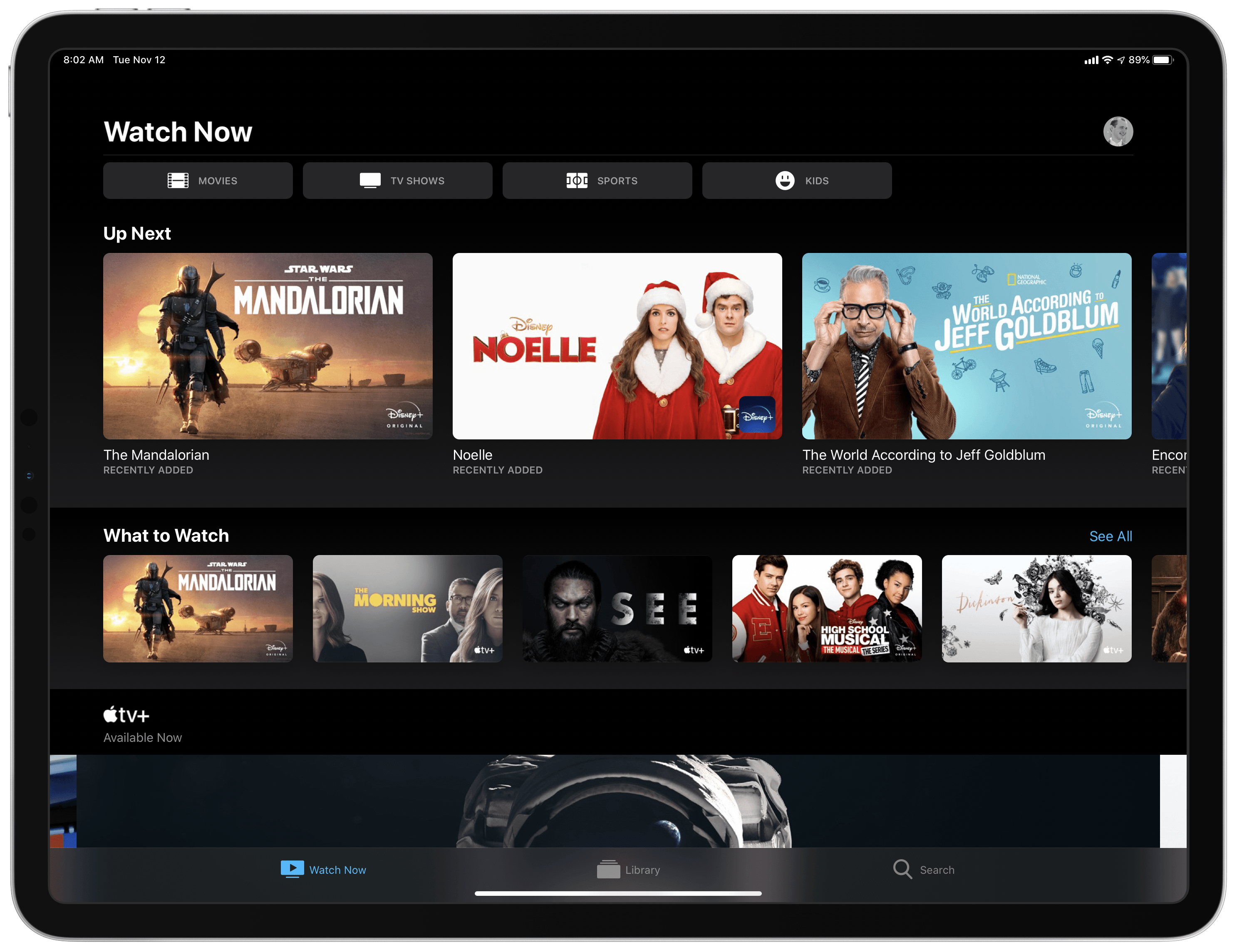
You can also connect the Disney+ app to Apple’s own TV app, enabling you to track everything you’re watching from Disney inside the TV app’s Up Next queue. You’ll see Disney+ shows and movies advertised inside TV’s Watch Now tab, where they can be added to your queue. This way, content from Disney+, Apple TV+, HBO, and other sources can all reside in one universal hub.

Unfortunately, Disney+ isn’t available as a channel inside the TV app, it only offers an app integration. What this means is that you’ll have to download the Disney+ app on all your devices to play the service’s content, whereas with channels content you can watch without needing a separate app. Also, whenever you initiate playback in TV you’ll be bumped out to the Disney+ app, making for a clunkier playback experience than you would have if the service was available as a channel.

The streaming wars are only just now starting to heat up, and the launch of Disney+ is a significant moment in those wars. While for some, the new service represents yet another video subscription they’re asked to pay for, it truly is remarkable that the dream of unbundling content from expensive cable or satellite packages is finally coming true.


Apple Reveals Major Update to Its Privacy Webpage

Privacy and everything it entails is not easy to explain. Under the hood, it’s driven by complex mathematics and code. However, in practice, app privacy starts with how apps are designed. Some are designed to collect information about you, and others aren’t. With Apple’s update to its privacy page today, the company has created a site that explains how privacy drives the design of its apps in clear, concise language. However, for anyone who wants to understand the nitty-gritty details, Apple has also published white papers and linked to other materials that provide a closer look at the issues that the main page addresses.

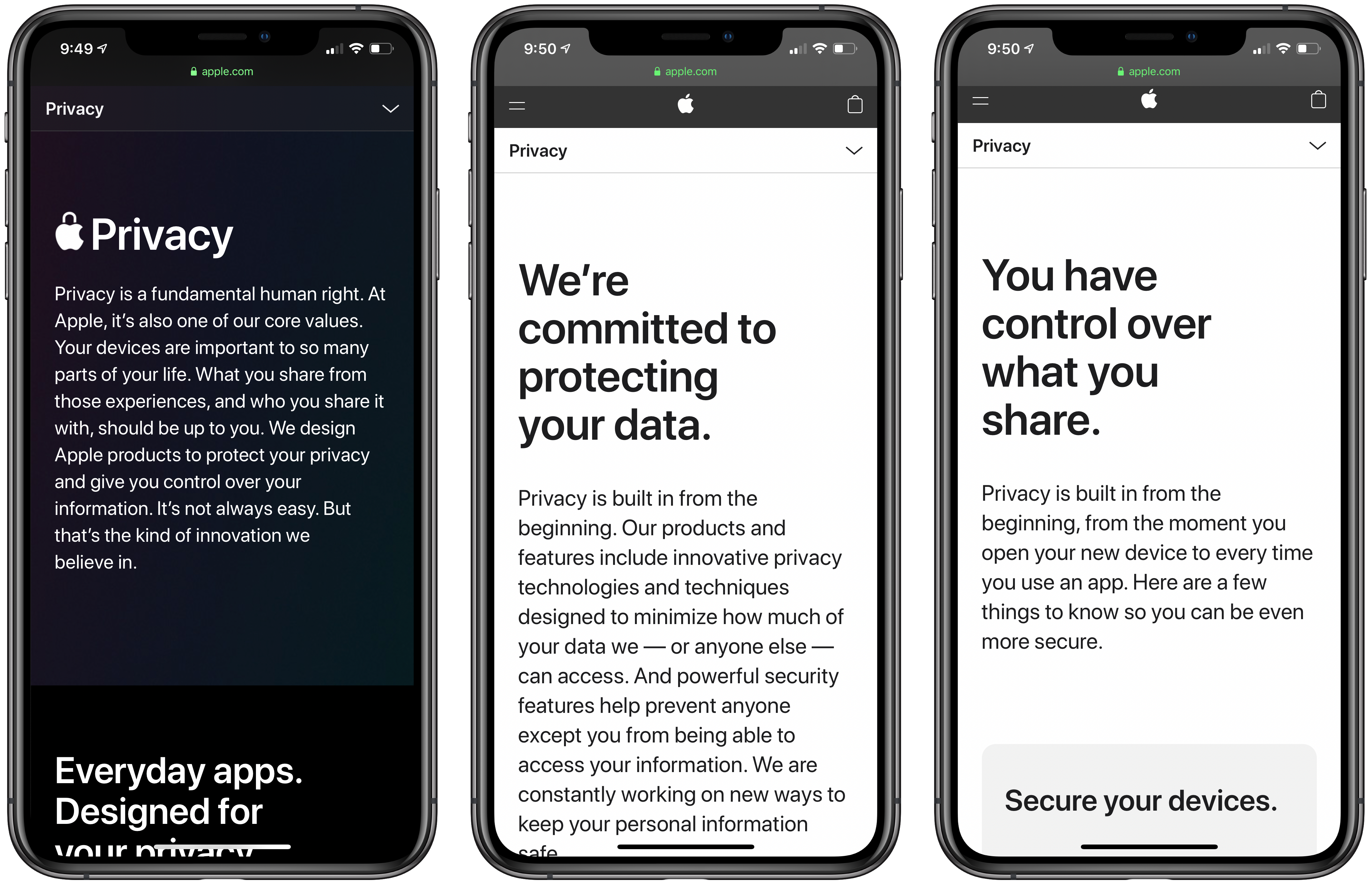
Apple’s Privacy webpage starts with a declaration of the company’s position on privacy:

Privacy is a fundamental human right. At Apple, it’s also one of our core values. Your devices are important to so many parts of your life. What you share from those experiences, and who you share it with, should be up to you. We design Apple products to protect your privacy and give you control over your information. It’s not always easy. But that’s the kind of innovation we believe in.

What follows is an app-by-app explanation of how each is designed to give users control over what they share and limit what Apple collects. Safari, Maps, Photos, Messages, Siri, News, Wallet, Health, Sign On with Apple, and the App Store are all covered with playful animations and a short explanation of what they do to protect your privacy.

Additional information about each app, their underlying technologies, plus iCloud, CarPlay, Home, education and children’s privacy, and other features follow under the Features tab. Included among the more detailed materials are white papers that go even deeper on Safari, Location Services, differential privacy, iOS security, and Face ID security. There is also a tech brief on Photos and links to additional materials about Ask Siri, Siri Suggestions, Apple Pay, ResearchKit and CareKit, Apple News, Apple Music, the Apple TV app, Apple Arcade, iCloud, Screen Time, Family Sharing, security in education, Apple’s student privacy pledge, and your data and privacy page. That’s a lot of information, but it’s presented in a thoughtful, compelling way that lets you go deeper if you want without being confusing or difficult to navigate.

The final new tab is called Control. Some of these tips and guides were available before, but the page has been updated with new practical suggestions on how you can make your Apple devices more secure. The page covers passcodes, Touch ID and Face ID, two-factor authentication, Find My, the alerts that explain the information third-party apps request, using your data and privacy page, advertising, analytics, and more. It’s an excellent place for users looking for ways to take command of the security of their devices.

I know that a lot of MacStories readers care strongly about their privacy and the security of their devices, and many are aware of at least some of what’s covered on Apple’s privacy page. However, it’s still worth a visit because privacy and security are part of so much of what Apple does now, that I expect there are at least a few tidbits on this new page that will be new to everyone. It’s also a great page to share with family members and friends who may not be as aware of the privacy issues related to their devices.



Apple Releases Trailer for The Banker Arriving in Theaters December 6th and Streaming on Apple TV+ in January 2020

Apple has released a trailer for its upcoming movie, The Banker, on its Apple TV YouTube channel. The company describes the film as follows:

Based on a true story, “The Banker” centers on revolutionary businessmen Bernard Garrett (Anthony Mackie) and Joe Morris (Samuel L. Jackson), who devise an audacious and risky plan to take on the racially oppressive establishment of the 1960s by helping other African Americans pursue the American dream. Along with Garrett’s wife Eunice (Nia Long), they train a working class white man, Matt Steiner (Nicholas Hoult), to pose as the rich and privileged face of their burgeoning real estate and banking empire – while Garrett and Morris pose as a janitor and a chauffeur. Their success ultimately draws the attention of the federal government, which threatens everything the four have built.

The film, which is rated PG-13, will be released in theaters December 6th and stream Apple TV+ in January 2020 following a similar pattern to The Elephant Queen and Hala which are also Apple Original movies. It’s an interesting approach and one that is likely designed to ensure the films are eligible for awards like the Oscars, while simultaneously creating marketing opportunities and viewer awareness in advance of their debut on TV+.


Microsoft Previews New Office Mobile App, Unifying Word, PowerPoint, Excel, and More in a Single App

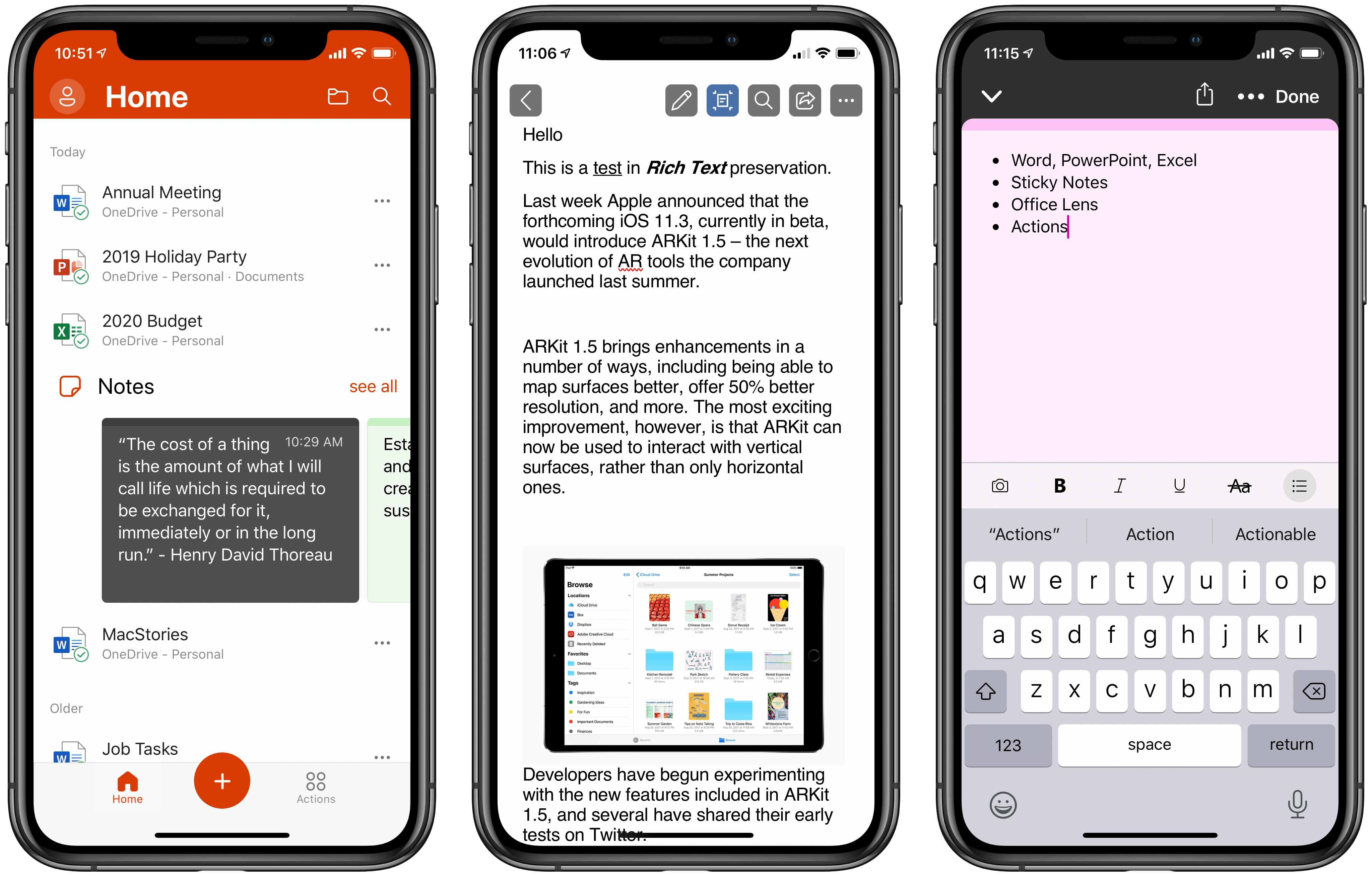
Today Microsoft previewed a fascinating new experiment in mobile: a brand new iOS app, simply dubbed Office, that houses versions of Word, PowerPoint, and Excel in one place, integrated with OneDrive, while also including Sticky Notes, Microsoft’s OCR-powered Office Lens camera, and a variety of mobile-friendly actions. Until test slots are full, you can sign up to access the beta version of the app through TestFlight.

For now, the beta version of Office is iPhone-only, but Microsoft states it “will bring this experience to tablets as well.” It will be interesting to see how that pans out, since currently Microsoft requires Office 365 subscriptions to edit in its Office apps on iPads over a certain size, while devices under that size can edit documents for free. It’s likely the new Office app will follow the same restrictions, but we’ll have to wait to find out.

I’ve spent a little time working with the beta version of Office, and I think Microsoft may be on to something here.

Read more