Posts in reviews

Simple Japanese Emoticons with Kaomoji

At MacStories, we use iMessage on a daily basis as our team chat. Alongside the occasional meme, Twitter link, or article we need to check out, the Japanese emoticon is a common occurrence in our group thread. I’ve always wondered whether my fellow teammates learned to manually type out flipping tables and other emoticons – also known as kaomojis – while I was stuck using the good-looking, but obvious Apple default emoji. If you happen to live in a team chat of remote workers every day you know how much more successful an original GIF or meme can be.

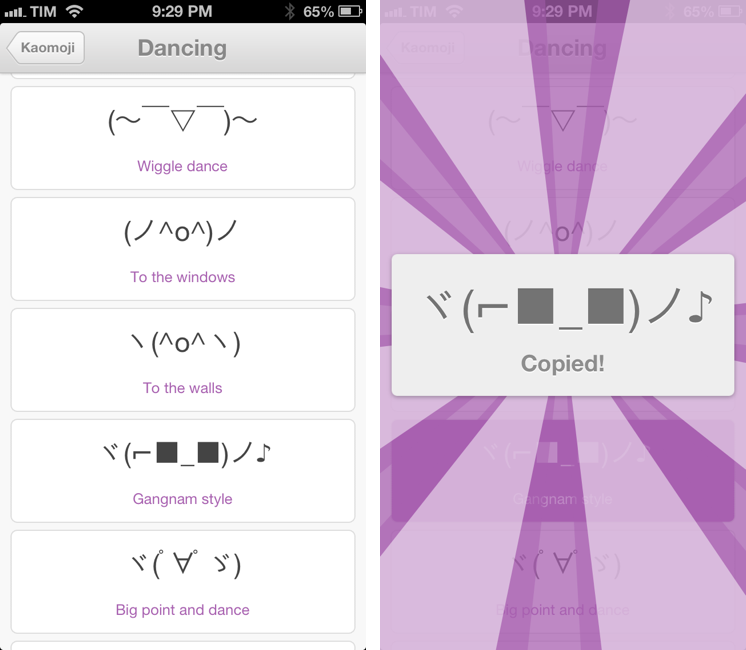
My quest towards iMessage emoticon domination is over with Kaomoji. A simple $0.99 iPhone app made by Richard Henry (product designer at Quora), Kaomoji contains 1,000 Japanese-style emoticons organized in 28 categories such as Happy, Sad, Evil, Love, Cats, Dogs, Dancing, and the game-changing Table Flip.

Kaomoji’s UI is clean and focused on the actual emoticons. Categories are color-coded, and tapping on one will open a dedicated page with properly colored highlights and fonts. It’s a nice touch. The app has only one feature: copy. Tapping on a kaomoji will bring up a manga-like success message showing a bigger version of the emoticon with the text “Copied”. Once copied, you can paste the text anywhere – be it iMessage, Twitter, Facebook, or any other app.

Kaomoji does one thing extremely well. I like the selection of emoticons, and if I had to nitpick I’d say it’d be nice to have built-in Twitter and Messages/Facebook actions to send text without leaving the app. I would also like to see an iPad version in the future.

Kaomoji is only $0.99 on the App Store.

Let’s also put the table back. ┬──┬◡ノ(° -°ノ)
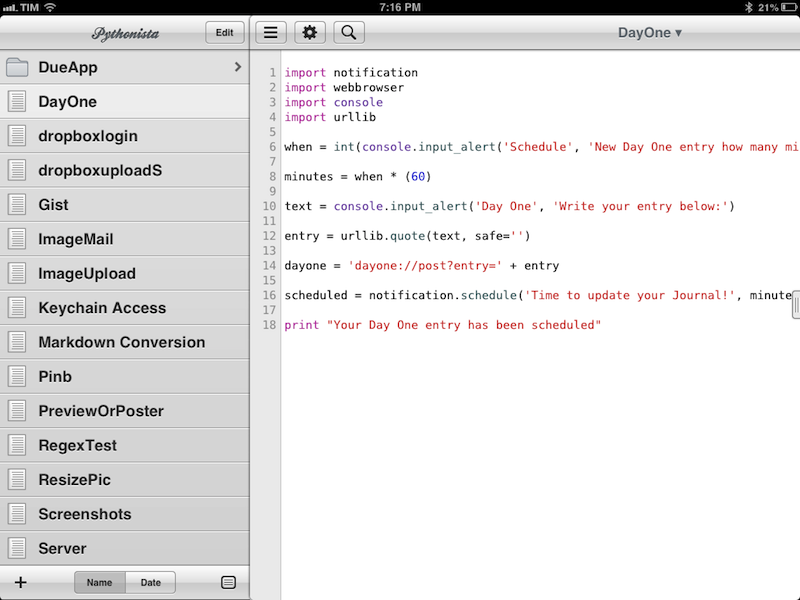

Pythonista 1.3 Brings Camera Roll and Notification Center Support, New Library View, And More

Ole Zorn’s Pythonista is one of my favorite, most-used iOS apps to date. Combining a Python interpreter with scripting capabilities that take advantage of iOS through native interface elements and features like URL schemes, Pythonista has completely reinvented my iOS workflow. With Pythonista, I can work from the iPad without wishing I had a Mac.

Back in November, I wrote an extensive review of Pythonista 1.2, providing some sample scripts and an in-depth look at the app and its functionalities. I concluded my review saying:

I believe that, going forward, Pythonista and other similar apps will show a new kind of “scripting” and task automation built around the core strenghts of iOS.

Pythonista 1.3, released today, adds a number of features aimed at making the app more “connected” with the underpinnings of iOS, enabling users to create more complex workflows that go beyond running scripts inside Pythonista. I was able to use Pythonista 1.3 for the past weeks, and I believe it’s a very solid update. Read more


RegexMatch for iPad

RegexMatch

RegexMatch

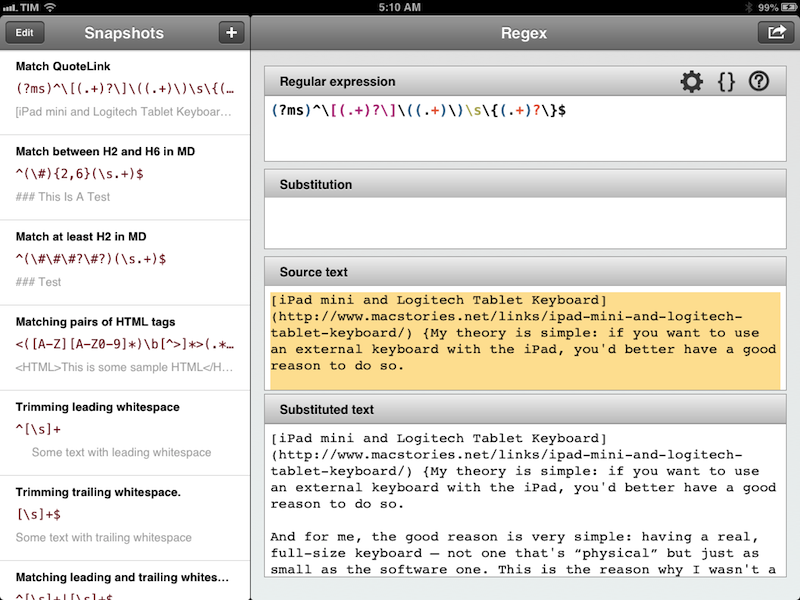
There seems to be a scarcity of easy-to-use, well designed iOS apps for testing and previewing regular expressions. I’ve only seen a few on the App Store, and they tend to look ugly or lack the feature set that I need. Fortunately, RegexMatch is a good start if you’ve been looking for a way to test and save regexes on the iPad.

RegexMatch has a clean interface that’s easy to navigate and good-looking. On the left side, there’s a sidebar listing all your Snapshots – regular expressions you’ve created and saved manually. You can create as many snapshots as you want, but I wish there was some kind of folder organization for people who, like me, will test several versions of the same regex. Read more


Year Walk Review

Last night, I finished Year Walk – the latest game from Simogo, creators of Bumpy Road and Beat Sneak Bandit – and even if games don’t belong in my usual area of coverage here at MacStories, I think Year Walk deserves a special mention.

Calling Year Walk a “game” is actually reductive. Even though it plays like a game, Year Walk is an experience spanning various aspects of storytelling, Swedish folklore, multitouch interactions, sound, and additional reading material available in a Year Walk Companion app.

Year Walk is the most unique “game” I have played on iOS in years. I’ll try my best to describe its appeal in this post. Read more


Twitterrific 5.1 Adds Muffling, a New Font, and Picks Up Speed

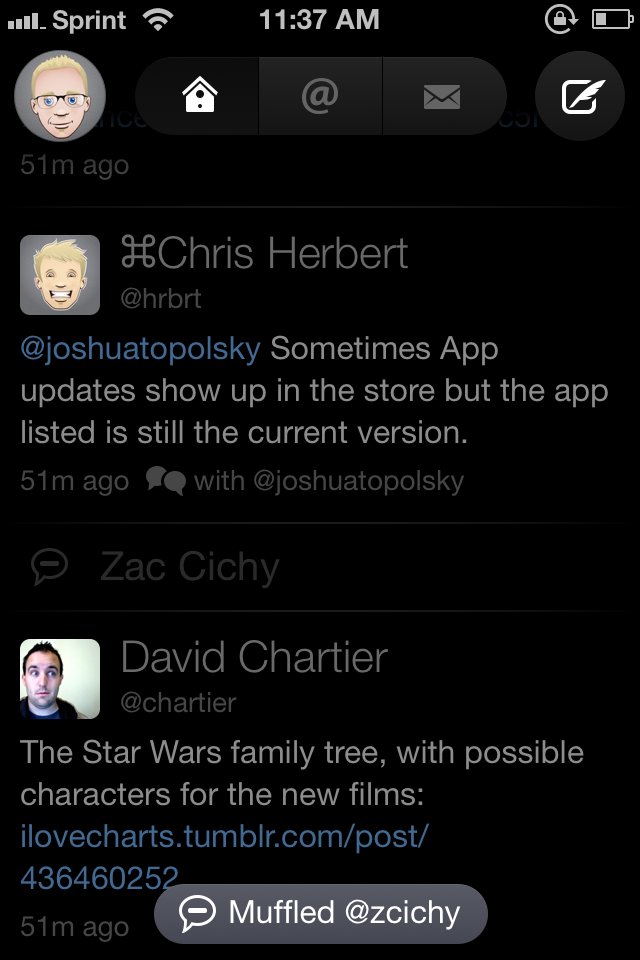
MufflingSorry Zac! I promise I did it just for the screenshot.

Muffling

When The Iconfactory launched Twitterrific 5, they launched an app that reflected a specific vision of what a Twitter client should be. Twitterrific certainly hasn’t lost its charm since it launched back in December. Setting itself apart with a modern interface and clever gestures, Twitterrific started anew with a clean slate and plenty of room to add features thanks to feedback from their fans. Throughout the last few months, The Iconfactory has been progressively iterating Twitterrific, leading up to the first major update which launched yesterday evening.

The most notable feature in Twitterrific 5.1 is muffling. It’s muting made simple.

Read more


Reader X 2.0

ReaderX

ReaderX

MacStories readers know that my favorite Google Reader client these days is Mr. Reader, especially after an update that added a “services menu” to the app, substantially increasing its interoperability with other apps. However, I’ve also been a fan of Reader X as a companion Google Reader app. A year after its original release in February 2012, developer Wolfgang Augustin released Reader X 2.0, which is a solid update that adds several new functionalities while building upon the original concept of the app.

Read more


Cloudier: A Detailed, Yet Minimal CloudApp Client for iPhone

URL shorteners – most of us use them to compact long URLS for sending files and links to friends, clients, and social networks. Although sites like Twitter have wrapped their t.co links around everything, people still want to have their own solution to share and track links that they share with the world. Droplr and CloudApp are two of the top services out there with free and paid subscriptions. Each are similar but each have their own caveats. While Droplr has an official iOS client, CloudApp still does not, but there are some great third-party apps out there like Cloud2go and Cloudette.

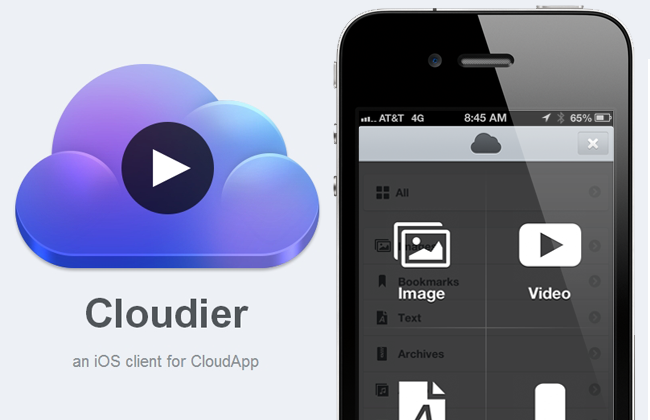
Designer Jackie Tran and developer Benjamin Mayo have teamed up to create their very own CloudApp iPhone client, Cloudier. Cloudier debuted on the App Store today and it’s a minimal yet feature-filled CloudApp iPhone client that I really have enjoyed using. Read more


Instashare: Transfer Files the Easy Way

Instashare is a new iOS/Mac app by the folks over at Two Man Show, also known for their popular Finder style iOS app – iStorage 2. Instashare is a unique app for effortlessly transferring files between your iPhone or iPod touch and a Mac computer.

The iOS app is extremely well built. It has an interface consisting of three main pages that the user must swipe through to navigate the app. The first page displays the files you have available to share with other devices running Instashare; the second page gives you quick access to the photos in your Camera Roll; the third page is reserved for some basic settings, help documentations, and for the $0.99 In-App Purchase to disable ads. I made one transfer from my iPhone to my Mac, and immediately paid to remove ads because I knew this app would be a frequently used tool in my iOS workflow.

Instashare’s UI is clean and intuitive to use. Simply hold your finger down on any file or picture and you will be presented with a list of any nearby devices to which you can drag and drop your file. The drag and drop functionality along with the animations and user interface are a complete home run. Read more


Control YouTube Videos with Your Mac’s Media Keys with Tube Controller

Out of habit I tend to reach for my media keys when playing music and videos. While Rdio has certainly spoiled me with its compatibility I’ve yet to learn that the rest of the world, the web mainly, doesn’t work with the three most useful keys on my keyboard. While trying to pause YouTube videos with the play / pause key can lead to some egregious overdubs, it’s always a little frustrating when it doesn’t just work.

Enter Tube Controller, a free app from the Mac App Store for anyone running Snow Leopard and beyond. Interfacing with Chrome and Safari, Tube Controller sits in the menubar and enables your Mac’s media keys to fast forward, rewind, and pause videos on YouTube. It’s simple and convenient. You can’t hide the menubar icon, but you can tuck it away with Bartender if you’d like.

Tube Controller does a few clever things. Rewinding and fast forwarding YouTube videos is interesting because it always feels like it works perfectly. That is to say in just the right increments. It isn’t an exact amount, but Tube Controller seems rewind and fast forward in roughly 3.5-percent increments based on some quick math and plentiful watching of various length videos. Some more complicated algorithm looks at the duration of the video and slightly adjusts where needed.

The app is also aware of iTunes and what it’s doing. If it’s in the background, Tube Controller will keep eyes on YouTube, letting you play and pause the video even when you’re browsing other tabs or jumping into different apps. Once iTunes comes into the foreground or you close whatever tab your YouTube video is playing in, Tube Controller directs the media keys to control iTunes instead. Apps that implement their own media key solutions like Rdio will override the controls.

Without the Flash Player installed, I’ve found Tube Controller doesn’t work with the YouTube 5 extension I have enabled on Safari. Others, in the app’s review section and on Twitter, have noted that Tube Controller also doesn’t work in a full screen view. I’ve personally had success with Chrome and both its full screen and presentation modes, as well as YouTube’s full screen video player in that browser.

I don’t know why you would watch two YouTube videos at once, but if you do, Tube Controller handles it pretty well. The last video you viewed takes precedence over the other. It doesn’t work on web pages with embedded YouTube videos, however.

Tube Controller offers to launch when you log on and there’s a few other settings such as keeping your Mac awake while YouTube is playing (although I don’t think my Mac has ever gone to sleep while YouTube is playing) and changing the color of the menubar icon from black to red. You can enable and disable its functionality manually if you’d like.

I’m keeping Tube Controller running in the background (it uses up a measly amount of memory) for the convenience of using my media keys with YouTube. It’s certainly recommended if your play / pause reflexes are anything like mine. Download it from the Mac App Store.

Side note: The developer doesn’t have a personal site or a landing page up, but you can check out some of his other work on Bipolar (a game also available on the MAS).