Federico is the founder and Editor-in-Chief of MacStories, where he writes about Apple with a focus on apps, developers, iPad, and iOS productivity. He founded MacStories in April 2009 and has been writing about Apple since. Federico is also the co-host of AppStories, a weekly podcast exploring the world of apps, Unwind, a fun exploration of media and more, and NPC: Next Portable Console, a show about portable gaming and the handheld revolution.
For this special bonus episode, Federico and John dig into Federico’s review of the 2021 iPad Pro to talk about its Liquid Retina XDR display, Thunderbolt, the gap between the iPad Pro’s hardware and its software, the M1 chip, Center Stage, and more.
On AppStories+, we kick off bonus content with a behind-the-scenes look at the making of Federico’s iPad Pro review.
In recent years, the narrative surrounding the iPad platform, and particularly its more advanced Pro line, has largely focused on the great divide between the iPad’s hardware and software. It’s a story we’ve had to grapple with for a while now: it was clear with the original iPad Pro in 2015 that its software – still called iOS at the time – needed to take better advantage of the 12.9” display, but we had to wait until 2017’s iOS 11 to receive drag and drop between apps; similarly, the iPad Pro was redesigned in late 2018 with the Liquid Retina Display and a gesture-based interaction system, but it was only in 2019 that Apple relaunched the iPad’s software as a standalone platform parallel to iOS but optimized for iPad.
The perception since the iPad Pro’s introduction is that its hardware has consistently leapfrogged its software, leaving many to wonder about the untapped potential of iPadOS and a third-party app ecosystem that could have been vastly richer and more powerful if only iPadOS allowed developers to write more complex apps. Effectively, “too good for its software” has long been the iPad Pro’s hardware mantra.
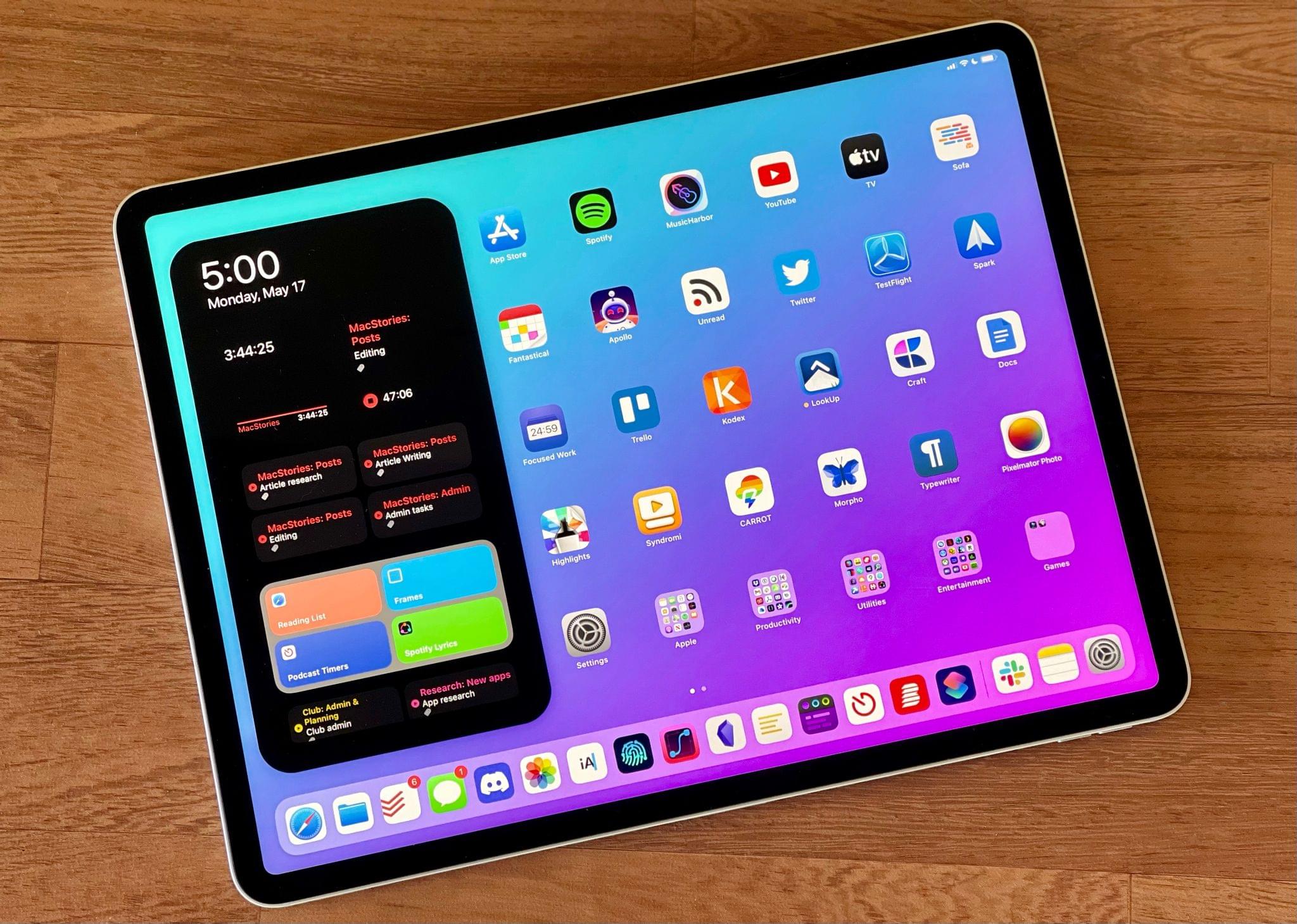
The 2021 iPad Pro, launching publicly this Friday, doesn’t alter that public perception at all. If anything, this new iPad Pro, which I’ve been testing in the high-end 12.9” flavor with 2 TB of storage for the past week, only widens the chasm between its hardware and software: it’s an absolute marvel of engineering featuring the Apple-designed M1 chip, a brand new Liquid Retina XDR display, and 16 GB of RAM1 that hints at a powerful, exciting future for its software that just isn’t here yet.
I say this as someone who’s been using the iPad as his main computer for nearly a decade at this point: from a mere hardware standpoint, the new iPad Pro is everything I could have possibly dreamed of this year, but it leaves me wanting for so many other iPadOS features I’d love to see Apple address at its developer conference next month.
The new 12.9” iPad Pro hits all the right notes as a modular computer that can be a tablet with an amazing display, a powerful laptop, and an extensible workstation; its hardware is a remarkable blend of tablet-first features and technologies first seen on Apple’s line of desktop computers. It’s hard to believe the company was able to deliver all of it in a device that is only 6.4mm thin. However, the new iPad Pro’s more powerful nature doesn’t fundamentally change my daily workflow. At least not with its current version of iPadOS that will (likely) be obsolete in two weeks.
This week, Federico and John continue their WWDC wish list series with a deep dive into the iOS 15 features they’d like to see announced at Apple’s annual developer conference.
Essayist Essayist is a new academic app for students that simplifies the creation of APA and MLA essays. For starters, the app supports automatic formatting of titles, sections, pages, margins, headers and footers, and more, so you don’t have to waste time setting these up manually. Furthermore, Essayist comes with built-in reference search powered...
Chaim Gartenberg, writing for The Verge, on one of Shortcuts’ most annoying limitations in iOS 14 – its obsession for showing notifications for anything it does:
Apple, I assume, mandates notifications because Shortcuts are extremely powerful tools for automating things on your iPhone, and it’s easy to imagine unscrupulous use of them.
But the thing is, the power of Shortcuts is to automate things in the background that I don’t want to have to deal with, whether that’s automatically disabling rotation lock when I open or close an app, open an app with a custom icon, or change the wallpaper when the battery life is low. A big glaring notification every time I do something detracts from that idea. I want my phone to be quietly helpful, not shouting in my face every time it does what I asked it to.
Years ago in my review of iOS and iPadOS 13, I argued in favor of adding an “expert mode” to Shortcuts so power users could turn off confirmation prompts for automations (which Apple removed the following year) and other notifications. Two years later, I think this goes well beyond expert users.
Since the release of iOS 14, millions of people have turned to Shortcuts as a way to customize app icons on their Home Screens. And every time they tap one of those custom icons, they have to see an alert that tells them the action they just performed was, in fact, performed. Imagine if your Mac showed you an alert every time you opened an app saying ‘You opened an app’. That’s pretty much what Shortcuts does whenever you run an automation or a shortcut added to the Home Screen.
Given the popularity of custom icons powered by Shortcuts in iOS 14 and the universal disdain for its notifications, I would be very surprised if there’s no way to turn these off in iOS 15.
We highlighted Timemator, a time tracking app for Apple platforms, a few weeks ago here on MacStories Weekly. I personally came across the app when someone in my timeline tweeted about the release of an iPad version of Timemator a while back; I was immediately intrigued by the screenshots that showed a timeline-based approach...
This week, Federico and John explore the popularity of Substack among writers leaving big media companies, rethink their email workflows after leaving Hey, and consider data portability and the tradeoffs of proprietary app systems.
Earlier this week, following the announcement of Basecamp’s terrible policy of silencing political and societal discussions internally within the company, we decided we could no longer align MacStories’ values with Hey, the email service developed by Basecamp we’d been using since the fall of 2020. We really liked Hey the service, but as a...



 John
John