Update: Here’s our in-depth overview of iOS 9.3.
As widely expected, Apple has today confirmed the official release date of iOS 9.3 at a media event held at its campus in Cupertino. iOS 9.3 will be released later today for the iPhone, iPad, and iPod touch.
Unveiled with a surprise announcement in January and available in beta for developers and public testing since, iOS 9.3 is a major update to iOS 9 that includes notable additions for the visual experience of iOS, changes to Notes and Apple Music, and big improvements to iOS for Education.
The biggest change in iOS 9.3 is Night Shift, a new display mode that reduces the blue light emission of a device’s display to prevent eye strain and help get better sleep. Night Shift is highly reminiscent of f.lux, a popular blue light reduction tool for OS X that was also available for a short period of time on iOS through sideloading before Apple asked the company to pull it.
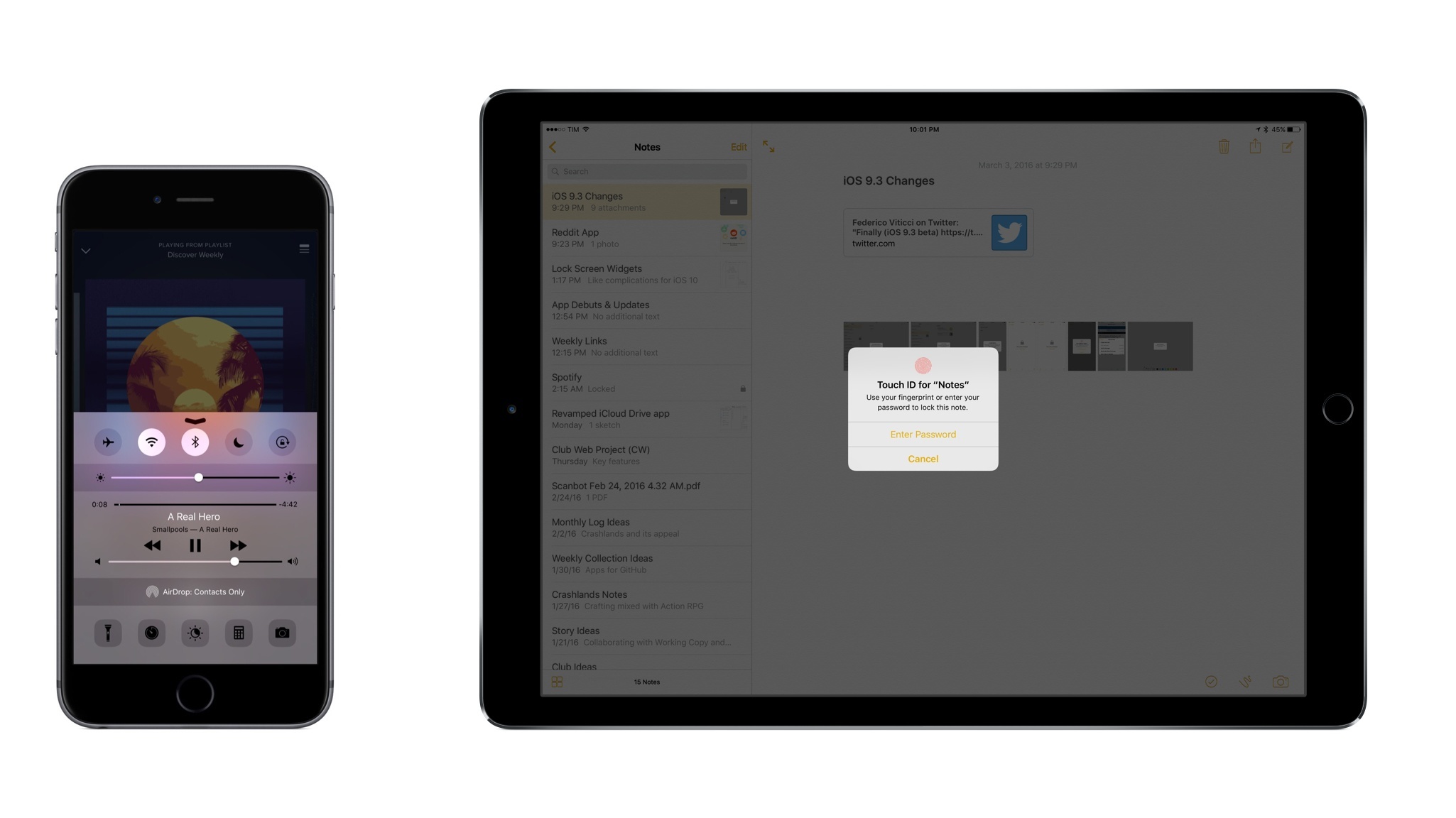
Also new in iOS 9.3 is the ability to protect notes with a password and grant third-party apps access to your Apple Music library to manage playlists and add songs to the library. The former takes advantage of a unique password and Touch ID to protect notes you don’t want to show by default; the latter is based on a new privacy screen and it allows apps to add songs from the iTunes Store (not arbitrary audio files) to your Apple Music library.
Finally, iOS 9.3 brings some deep improvements to the education framework for iPads in the classroom. As we outlined after its announcement, iOS 9.3 will allow multiple students to use the same iPad with support for multiple profiles, it’ll offer a brand new Classroom app for teachers to manage activity and assignments, and it’ll allow school admins to create Managed Apple IDs for students through Apple School Manager.
iOS 9.3 will be released later today through iTunes and Apple’s over-the-air software update. We’ll have a full overview of the changes in a separate article after its launch.
You can also follow all of the MacStories coverage of today’s Apple’s keynote through our March 21 Keynote hub, or subscribe to the dedicated March 21 Keynote RSS feed.