Federico is the founder and Editor-in-Chief of MacStories, where he writes about Apple with a focus on apps, developers, iPad, and iOS productivity. He founded MacStories in April 2009 and has been writing about Apple since. Federico is also the co-host of AppStories, a weekly podcast exploring the world of apps, Unwind, a fun exploration of media and more, and NPC: Next Portable Console, a show about portable gaming and the handheld revolution.
Since the launch of our new parser in January, we’ve gotten lots of inquiries from developers about using our parser for third-party applications. With the new Instaparser API, app developers can use our parsing tools to provide users with a lightning-fast browsing experience optimized for mobile devices. Data scientists can use the tools to normalize input for text analysis. And hackers can do, well, whatever hackers might like to do with lightning-fast access to clean, standardized web page data.
The addition of an API makes sense to me – now third-party developers (think Twitter clients or news readers) can access the same powerful parser that Instapaper uses (which is excellent). I’m curious to see which iOS apps will implement it in the near future.
Yesterday, I got Apple Classroom up and running at school thanks to the release of Casper 9.9, which supports the new features of iOS 9.3. Here are some early impressions. I’ll mostly focus on the technology and how well it works, rather than how effective it is for teaching since I’ve only had a day or so to play with it.
There are some missing features and issues in this first release (low frame rate for screen monitoring or the use of Bluetooth, for instance), but it sounds like Apple shipped a solid foundation for Classroom on iOS 9.3.
Dillan Barmache can’t speak, but that doesn’t mean he doesn’t have anything to say.
In fact, Dillan has complex and powerful thoughts, and thanks to easily accessible technology paired with innovative apps, you can hear his perspective.
Dillan, who is autistic and nonverbal, is the star of a new short film created by Apple to celebrate Autism Acceptance Day. Notably, the film tells Dillan’s story through his own words, typed out on an iPad then spoken out loud via an augmented and alternative communication (AAC) app.
It’s difficult to watch these two videos without tearing up. A beautiful story, and an excellent reminder that there’s more to iOS than the apps we usually talk about. This, ultimately, is why what Apple does matters.
Question: I would like to create a workflow to send a link to both my Pocket and my Instapaper accounts. Simple enough right ? But here’s the catch: Some of those links are from the weekly Pocket curation email and need to be “cleaned up” before getting sent to Instapaper. The iOS app Clean Links...
This is an easy one, but it came in handy last week when I was putting together the results for my 29W USB-C adapter tests. I needed a way to manually set the brightness of my iPad Pro to a specific level. I could have used Workflow’s ‘Set Brightness’ action, which accepts a value...
Brilliance Brilliance brings f.lux-like controls to Philips Hue lights through a Mac app. Once you’ve set your location, you can choose between different types of lighting such as sunlight, weather-based, northern lights, and more. You can also set a schedule and watch the lights change without using any other toggle or dimmer. TV Maps...
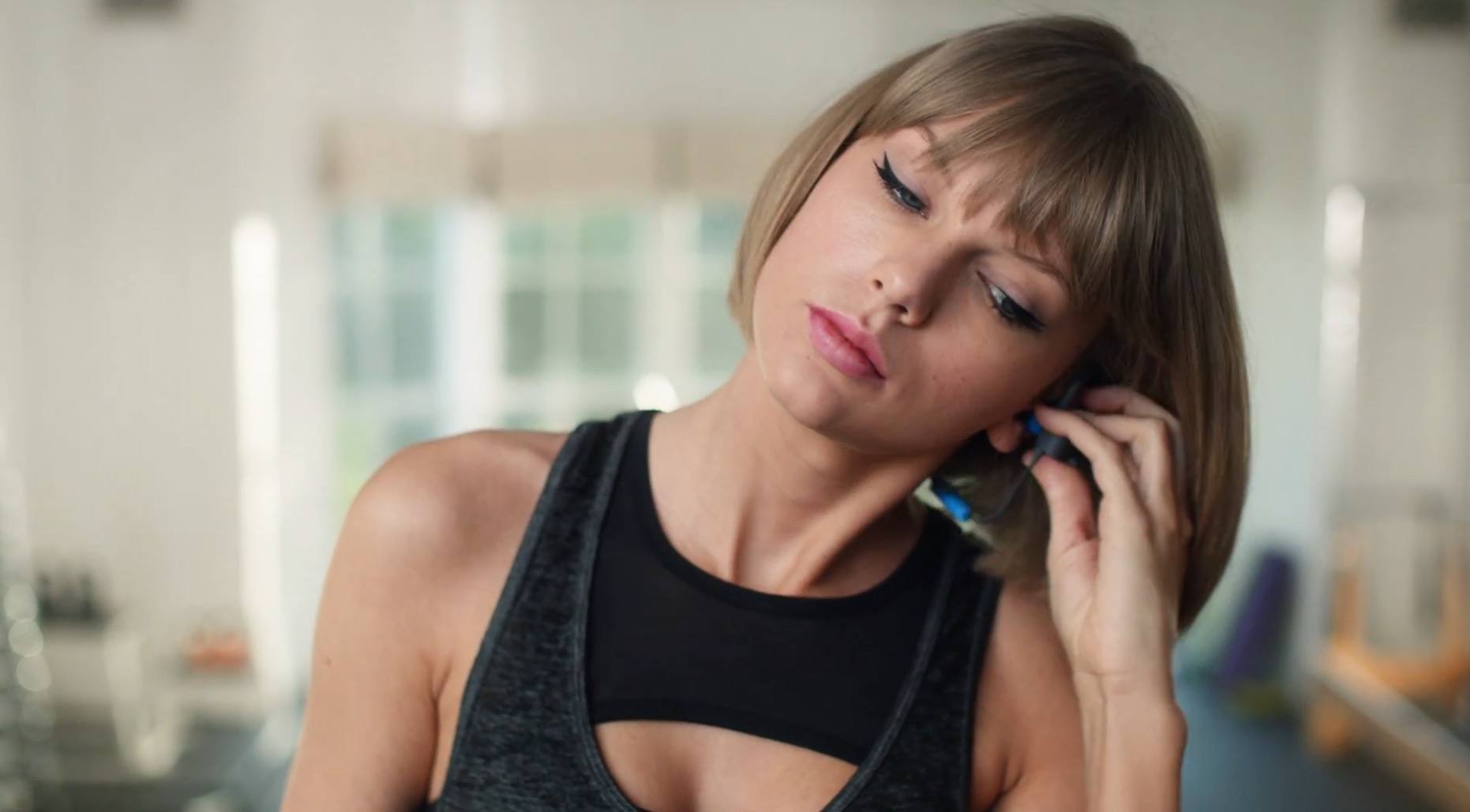
Apple posted a new Apple Music ad on YouTube earlier today, featuring Taylor Swift listening and singing along to Drake and Future’s Jumpman while running on a treadmill.
The ad, which is called ‘Taylor vs. Treadmill’ and was posted on Apple’s Beats 1 Radio YouTube channel, features the ‘Distractingly Good’ and ‘All the music you want’ taglines at the end as Swift falls off the treadmill while still continuing to rap along.
Most notably, however, the ad focuses on Apple Music’s support for Activity Playlists, which include selections of songs for various scenarios such as working out or relaxing at home. In this ad, the playlist picked by Taylor Swift is called #GYMFLOW.
You can watch the ad below or check it out on Beats 1’s YouTube channel here.
You see, there are lots of messaging apps out there. So many that it’s almost like there’s a template now for these sort of things. Because popular messaging apps all implement the same features: texting, video calling, stickers. But Snapchat continues to impress me in the ways it adds small, entertaining, irregularities to conventional communication methods. Snapchat’s implementation of these template features go beyond exception. They are seemingly familiar but undoubtedly unique.
Admittedly, I don’t use Snapchat a lot. But I find it remarkable how, in less than two years, Snapchat went from being a barely known app here in Italy to a full-blown phenomenon that is used by virtually all of my friends and is constantly mentioned on TV (the “Follow us on Twitter/Instagram/Snapchat” type of mention). I wish I had paid more attention.