
 John
John
This week, Federico and John discuss some of the trends they expect will drive app development on iOS and the Mac this year and into the future.
 EverSafari: A Shortcut to Save Safari Webpage Links in Evernote
In last week’s issue of MacStories Weekly, I explained how and why I came to the realization that I want to take Evernote for a spin again in 2019. In what is probably going to surprise nobody, this week I’m going to share an advanced Evernote shortcut I’ve put together over the past week....
Eventail Widget Adds GoodTask Integration, New URL Buttons
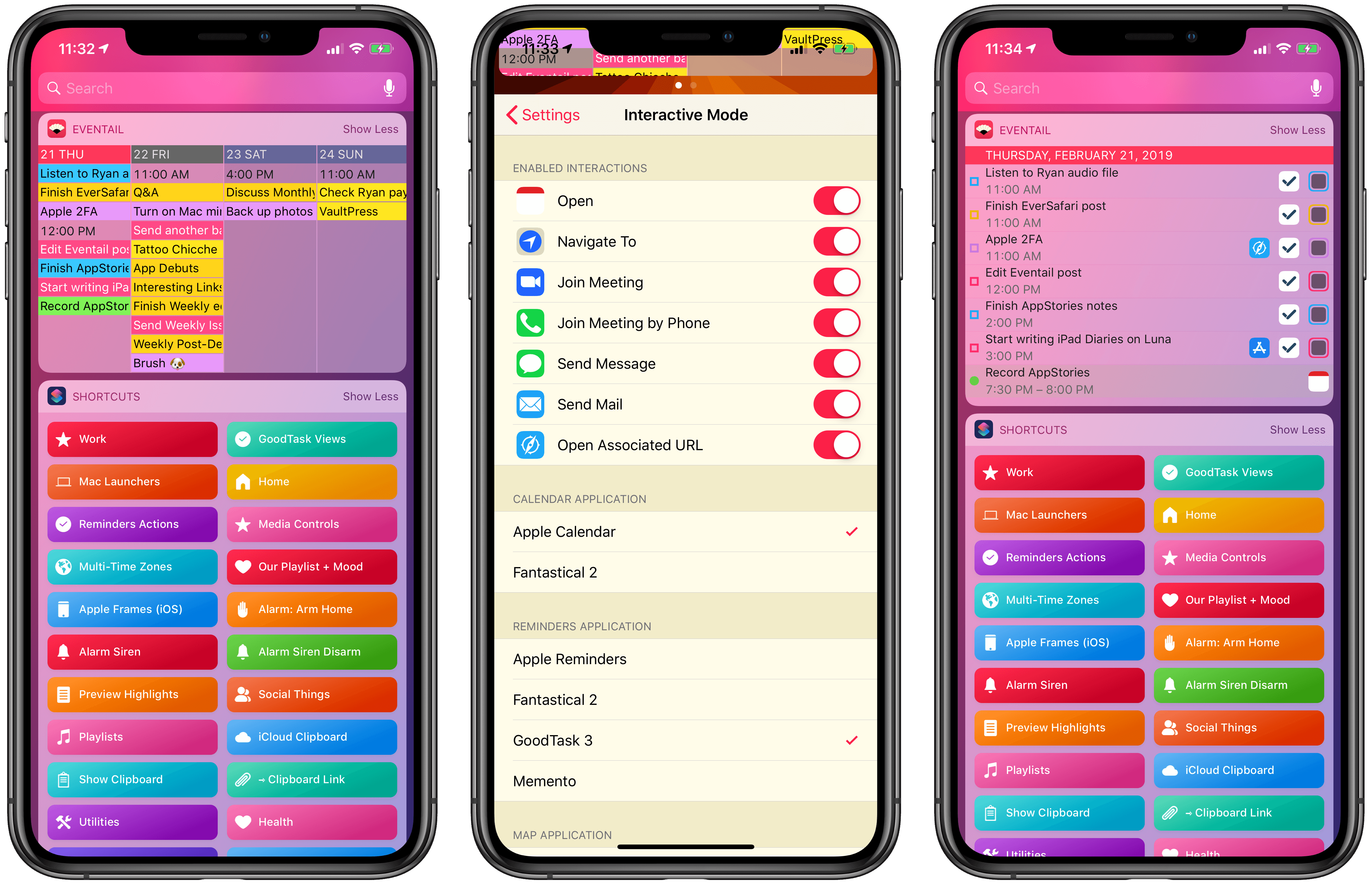
I last covered Eventail in April 2018, when its developer Jozef Legeny brought support for the iPhone X and new color schemes to his compact calendar widget for iPhone and iPad. With version 3.1 released today, Eventail (which over the past year also gained support for overdue reminders and interactive mode) is adding integrations for popular third-party apps and a convenient shortcut to reopen links contained in events and reminders.
Connected, Episode 231: Dozens of Invisible Footnotes→
The boys dive into a sea of rumors after Federico explores San Jose’s municipal websites, Myke gives everyone a gift and Stephen returns from a journey.
On this week’s episode of Connected, we discuss the latest Marzipan rumors and consider the implications of a 6K display made by Apple. You can listen here.
Sponsored by:
- Pingdom: Start monitoring your websites and servers today. Use offer code CONNECTED to get 30% off.
- Luna Display: The only hardware solution that turns your iPad into a wireless display for your Mac. Use promo code CONNECTED at checkout for 10% off.
- Care/Of: Personalized supplements delivered to your door.
Jason Snell on Podcasting with Only an iPad Pro→
Jason Snell’s podcasting setup is similar to mine – he wants to hear his own voice, record his local audio track, and have a conversation with multiple people on Skype, who also need to hear his voice coming from an external microphone. And he wants to use one computer to do it all. Now he’s figured out how to podcast from an iPad Pro with the help of an additional USB interface:
In the past, I’ve done something similar using the Audio-Technica ATR2100-USB, a microphone that can output a digital signal using USB and an analog signal via an XLR cord simultaneously. The problem is that the last time I tried to use the ATR2100-USB with my iPad Pro, it didn’t return my own voice into my ears, making me unable to judge the sound quality of my own microphone. After years of having my own voice return to me, I strongly prefer not to record unable to hear my own voice. (I use in-ear headphones that largely shut out audio from the outside world, so the experience of speaking while not hearing yourself is even more profoundly weird than it would be with leaky earbuds.)
This time I wanted it all, or at least as close to all as I’m able to get with iOS in the mix: A pristine recording of my own voice, that same high-quality microphone audio also flowing across digitally to my podcast guests via Skype, and the ability to hear both my guests and myself at the same time.
The takeaway from the story isn’t that Snell wanted to prove a point to spite Mac users – it’s that he was able to travel with one computer instead of two (he would have used most of the same audio gear with a Mac too) and that he found an expensive, but real workaround to professional podcast recording on iPad Pro.
I don’t currently have a USB audio interface like Snell’s USBPre 2, but I may have to buy one before the summer so I can record podcasts from our beach house using only the iPad Pro. (That is, assuming the iOS 13 beta I’ll have installed at that point doesn’t have meaningful improvements for audio workflows.)
 Pick 2: Everyday Workflows
Reconsidering Evernote in 2019
Like the best origin stories, this article comes from humble beginnings. A couple of weeks ago, I had the idea of adapting my shortcut to save webpage selections from Safari (see Weekly 151, 152, and 153) to make it work with Keep It rather than a JSON file. Simple enough, right? Given a text...
App Debuts
Pixelmator After a few months without updates, Pixelmator for iOS has received support for the latest iPad Pro models, including integration with the new Apple Pencil. In addition, effects and canvas settings that were not working in Pixelmator’s Photos extension have been fixed. SnipNotes SnipNotes, a note-taking app that takes advantage of all modern...
Connected, Episode 230: Here’s the Thing about Code Names→
Stephen solves a problem that has been plaguing the podcast, Federico has concerns about Apple’s rumored news service and Myke is fighting a losing battle with AirPlay 2.
On this week’s episode of Connected, I reveal something from my youth and we consider the potential of future Apple services. You can listen here.
Sponsored by:
- TextExpander, from Smile: Recall your best words. Instantly, repeatedly. Get 20% off your first year.
- Luna Display: The only hardware solution that turns your iPad into a wireless display for your Mac. Use promo code CONNECTED at checkout for 10% off.
- Squarespace: Make your next move. Enter offer code CONNECTED at checkout to get 10% off your first purchase.