
When the Files app debuted in iOS 11, it brought with it the promise of unifying all your documents from a variety of apps and cloud services in a single home. A key pillar of that vision was the document browser, which is essentially a Files view that apps can embed as their...
How I Edit Podcasts on the iPad Using Ferrite
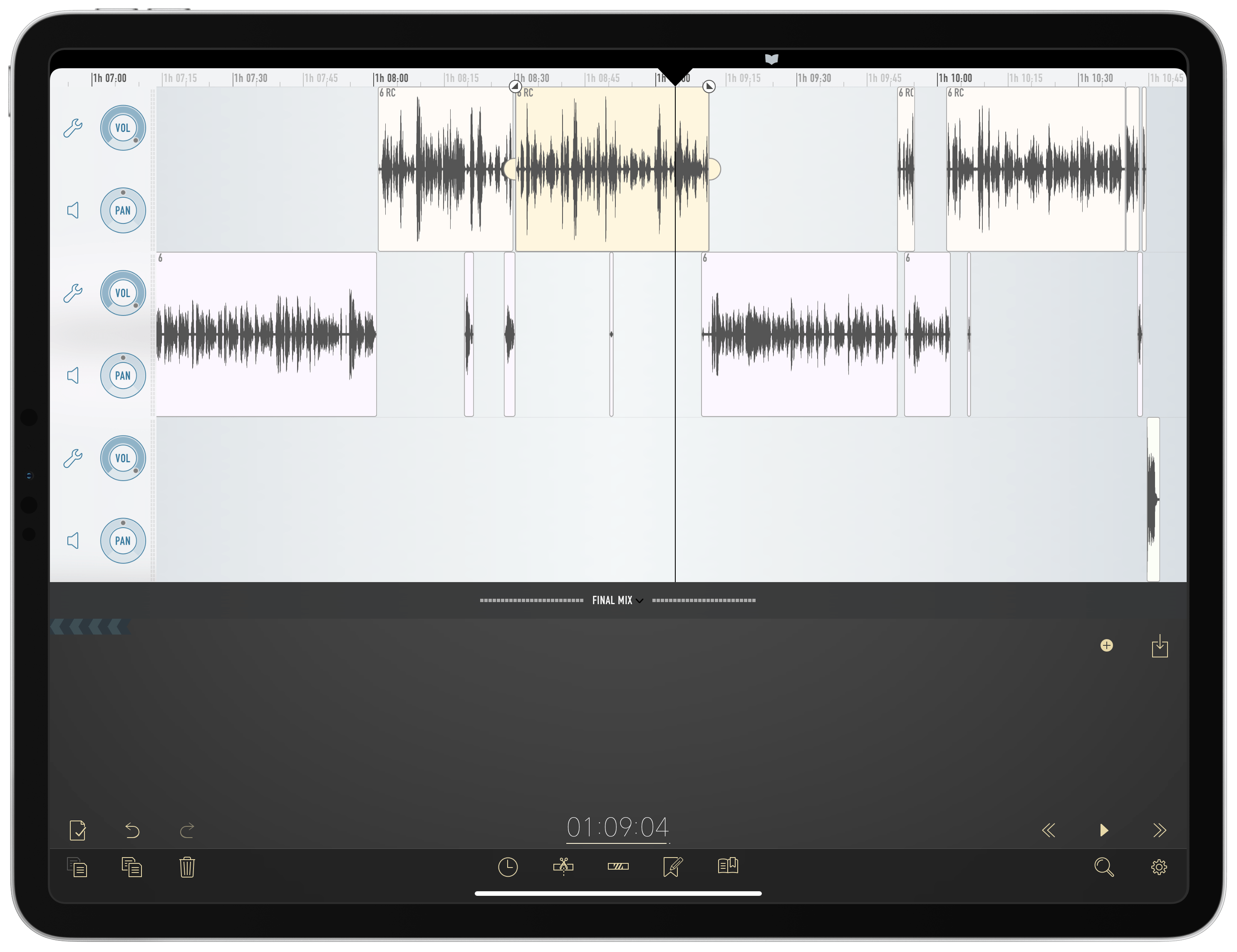
This has been a year of new creative projects for me. In addition to some personal endeavors that have yet to see the light of day, I joined Federico as the co-host of Adapt, a new iPad-focused podcast on Relay FM. Learning the art of expressing my Apple takes in speech rather than text has been an adventure in itself, but I’ve also grown to cultivate a very different skill: audio editing.
When I was charged with editing this iPad-focused podcast, I naturally turned to an iPad-based editing tool: every episode of Adapt has been edited in Ferrite Recording Studio, and I’ve never even tried using another app. Most podcasters I’m familiar with edit in Logic, but my Mac mini is purposely utilized as little as possible, so I knew when I dove into podcasting that I wanted an iPad-based solution if at all possible. On multiple occasions I’ve heard and read Jason Snell extol the virtues of Ferrite, so that was the app I turned to.
Getting started with podcast editing, even with an app like Ferrite that’s built for it, can be extremely intimidating. There are lots of settings, and unless you have previous experience working with audio, you likely have no idea what any of them do. I learned a lot from Ferrite’s user guide in the early days, and the aforementioned Jason Snell articles on Six Colors. And before long, I found an editing setup that worked well for me. Now, I want to share it with you.
Apple Maps in iOS 13: Sights Set on Google
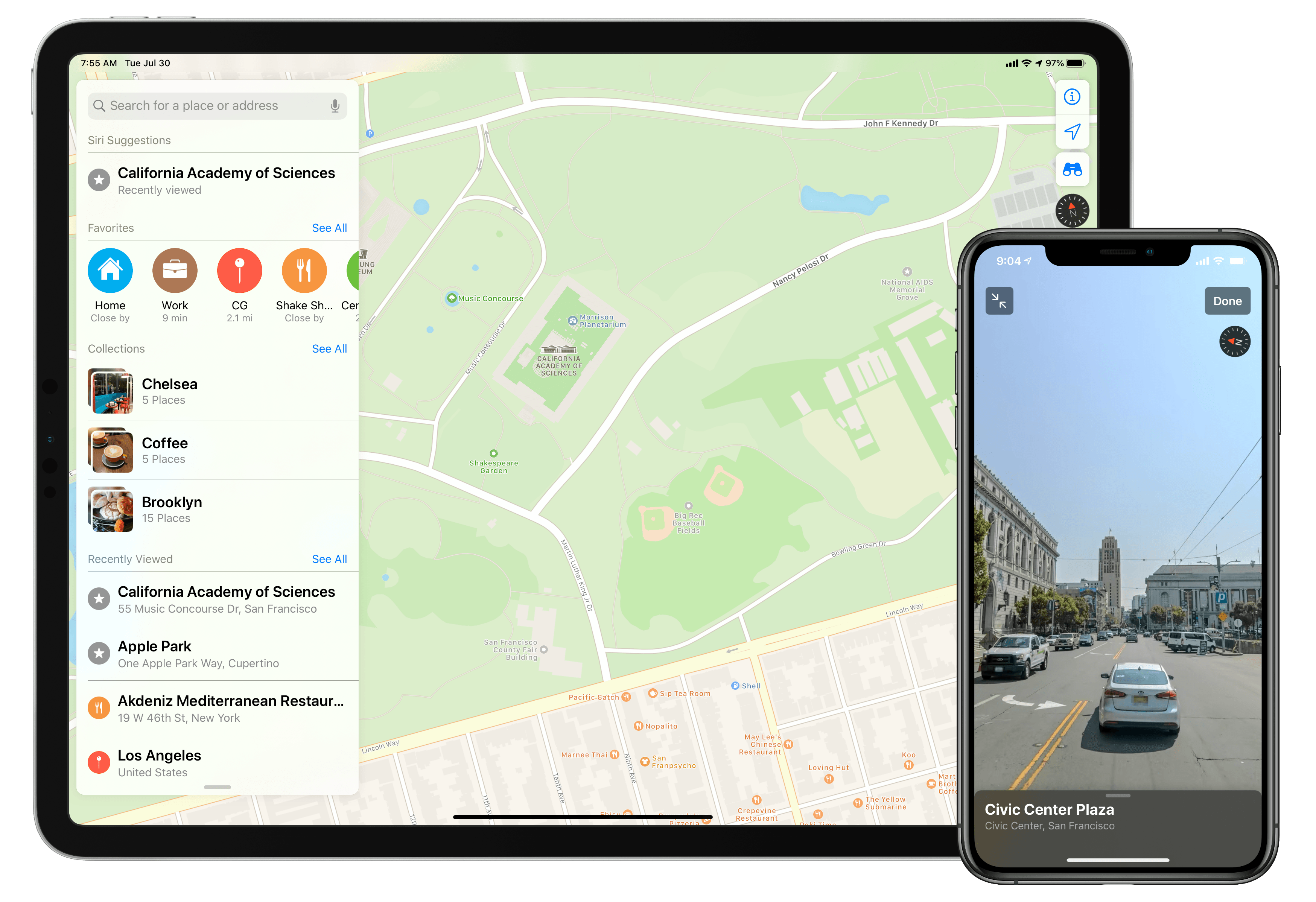
Apple’s path to a home-brewed mapping solution has been long and perilous, but it’s almost arrived.
12 years ago the iPhone launched with Google powering its pre-installed navigation software; five years later, the botched debut of Apple’s own Maps app led to the firing of a key Apple executive; Apple Maps has steadily improved over the years, but seemingly its biggest weakness is that it has never truly contained Apple’s own maps. The app is Apple’s, but the maps have always come from other sources.
Last year, Apple announced a coming change that had been years in the works: Maps would soon contain the company’s own maps, and they would be transformative. The new maps started rolling out in the US last fall with iOS 12, and Apple claims they’ll cover the entire US by the end of 2019.
Timed with the spread of its first-party mapping data, Apple is giving the Maps app a big upgrade in iOS 13 that represents the company’s biggest push yet to overtake Google Maps as the world’s most trusted, go-to mapping service. Apple Maps in iOS 13 represents – if you’re in the US at least – Apple’s purest vision to date for a modern mapping service. Here’s everything that it brings.
 The Appeal – and Potential Downfall – of Apple TV Channels
I’m not one to write click-bait headlines or push a belief in my articles that Apple, or one of its products, is doomed. Such pieces tend to be entirely out of touch with the relevant facts of a given situation; also, I’m generally an optimistic person who likes to stay positive and have a...
The Omni Group Adopting Standard iOS Document Browser→
Ken Case, writing for The Omni Group:
In 2019, we think it’s time to retire our custom document browser in favor of using Apple’s built-in document browser—and with our iOS 13 updates this fall we’ll be doing just that. Instead of seeing our custom file browser, you’ll be presented with the standard iOS document browser—just like in Apple’s own iWork apps. Using Apple’s browser, you’ll be able to store and sync your documents using Apple’s built-in iCloud Drive, or third-party commercial options like Box—or even in cloud- or self-hosted collaborative git repositories using Working Copy.
Syncing through OmniPresence will still be an option, but it will no longer be the only integrated option. In fact, it might be the least privileged option: since OmniPresence isn’t its own separate app, it won’t be listed in the document browser’s sidebar where you find your other document storage solutions. Instead, it will present itself on iOS much like it does on Mac—as a folder of synced documents. We’re not trying to drive people away from using OmniPresence—but in 2019 we don’t think it makes sense to push people towards it either. OmniPresence is not a core part of our apps or business, and in 2019 there are lots of great alternatives. Seamless document syncing is essential to our apps—but exactly where and how those documents are synced is not!
This is an excellent change and one I hope more apps move toward. The document browser in iOS is essentially a special view of the Files app which is used as the root file management UI in document-based apps that adopt it. As Case points out, all of Apple’s iWork apps support the document browser, and several key third-party apps do too such as PDF Viewer, MindNode, and Pretext. The document browser not only enables users to store an app’s files in any file provider they wish, but its other primary benefit is offering a single unified file browsing experience for users on iOS. As more apps adopt the document browser, that unified experience becomes more a reality for iPad and iPhone users.
The timing of the Omni Group implementing the document browser is surely no surprise: this fall Apple’s Files app is being upgraded with support for external storage devices like USB drives, a new Column view, shared iCloud Drive folders, and more. By adopting the document browser in apps like OmniOutliner and OmniGraffle, the Omni Group gets the advantage of having all these new Files features built right into their apps.
Apple Now Selling LG UltraFine 5K Display with iPad Pro Compatibility→
Benjamin Mayo at 9to5Mac noticed a new addition to the Apple Store today:
Apple is now selling a new generation of the 5K LG UltraFine display. For the first time, the 5K UltraFine is now compatible with the iPad Pro, finally offering a 5K display option for 2018 iPad Pro users.
Previously, the 5K UltraFine display would only work over Thunderbolt. Now, it can output 5K over USB-C DisplayPort, which means it can now work with any of Apple’s current Mac and iPad Pro lineup.
Earlier this year the previous UltraFine 5K was mysteriously discontinued. Many assumed that move was in preparation for Apple introducing its own display option at WWDC. When the Pro Display XDR was unveiled, however, its $4,999 base price meant it clearly didn’t target the same market as LG’s UltraFine. While it’s possible Apple will introduce a lower-cost first-party display at some point in the future, for now the UltraFine is a nice alternative option to have. It’s priced at $1,299, and while nothing else about the monitor has changed, the ability to output from the iPad Pro is a valuable addition.
Update: Since originally publishing, 9to5Mac has discovered a support document from Apple which clarifies that, in fact, this new monitor can only work with the iPad Pro at 4K resolution - 3840 x 2160 at 60Hz – rather than the full 5K available with many Mac models. A disappointing discovery, but perhaps not altogether surprising.
App Debuts
Digest From developer Matteo Villa, creator of the Fenix Twitter client, Digest is a simple, yet elegant news and RSS app that recently launched on the iPhone. The app enables creating different digest pages which each include content from different sites. This setup works well as a way to keep topics separate, so you...
When Did I…?

How do you remember the last time you washed your sheets? Or changed your contact lenses? Or got a haircut? Called your mom? Went to the doctor? Replaced the fire alarm batteries? Worked out at the gym? The answers to these questions, and many more, often don’t stick in our minds on their own....
Easily Changing List Indentation in iOS 13’s Apple Notes
Though much of the public focus for iOS 13 has highlighted apps like Reminders, Safari, and Files, all of which are getting big upgrades this fall, Apple Notes is set to receive significant improvements too. The new gallery view, shared folders, multi-window on iPad, and managing nested folders are the headliners, but there are...