Ryan Christoffel

981 posts on MacStories since November 2016

Ryan is an editor for MacStories and co-hosts the [Adapt](https://www.relay.fm/adapt) podcast on Relay FM. He most commonly works and plays on his iPad Pro and bears no regrets about moving on from the Mac. He and his wife live in New York City.

Apple Now Selling LG UltraFine 5K Display with iPad Pro Compatibility

Benjamin Mayo at 9to5Mac noticed a new addition to the Apple Store today:

Apple is now selling a new generation of the 5K LG UltraFine display. For the first time, the 5K UltraFine is now compatible with the iPad Pro, finally offering a 5K display option for 2018 iPad Pro users.

Previously, the 5K UltraFine display would only work over Thunderbolt. Now, it can output 5K over USB-C DisplayPort, which means it can now work with any of Apple’s current Mac and iPad Pro lineup.

Earlier this year the previous UltraFine 5K was mysteriously discontinued. Many assumed that move was in preparation for Apple introducing its own display option at WWDC. When the Pro Display XDR was unveiled, however, its $4,999 base price meant it clearly didn’t target the same market as LG’s UltraFine. While it’s possible Apple will introduce a lower-cost first-party display at some point in the future, for now the UltraFine is a nice alternative option to have. It’s priced at $1,299, and while nothing else about the monitor has changed, the ability to output from the iPad Pro is a valuable addition.

Update: Since originally publishing, 9to5Mac has discovered a support document from Apple which clarifies that, in fact, this new monitor can only work with the iPad Pro at 4K resolution - 3840 x 2160 at 60Hz – rather than the full 5K available with many Mac models. A disappointing discovery, but perhaps not altogether surprising.
Permalink

App Debuts

Digest From developer Matteo Villa, creator of the Fenix Twitter client, Digest is a simple, yet elegant news and RSS app that recently launched on the iPhone. The app enables creating different digest pages which each include content from different sites. This setup works well as a way to keep topics separate, so you...


When Did I…?

How do you remember the last time you washed your sheets? Or changed your contact lenses? Or got a haircut? Called your mom? Went to the doctor? Replaced the fire alarm batteries? Worked out at the gym? The answers to these questions, and many more, often don’t stick in our minds on their own....


Easily Changing List Indentation in iOS 13’s Apple Notes

Though much of the public focus for iOS 13 has highlighted apps like Reminders, Safari, and Files, all of which are getting big upgrades this fall, Apple Notes is set to receive significant improvements too. The new gallery view, shared folders, multi-window on iPad, and managing nested folders are the headliners, but there are...


CARROT Weather iPad App Modernized with Multitasking and Expanded Keyboard Shortcuts, iCloud Sync for Settings

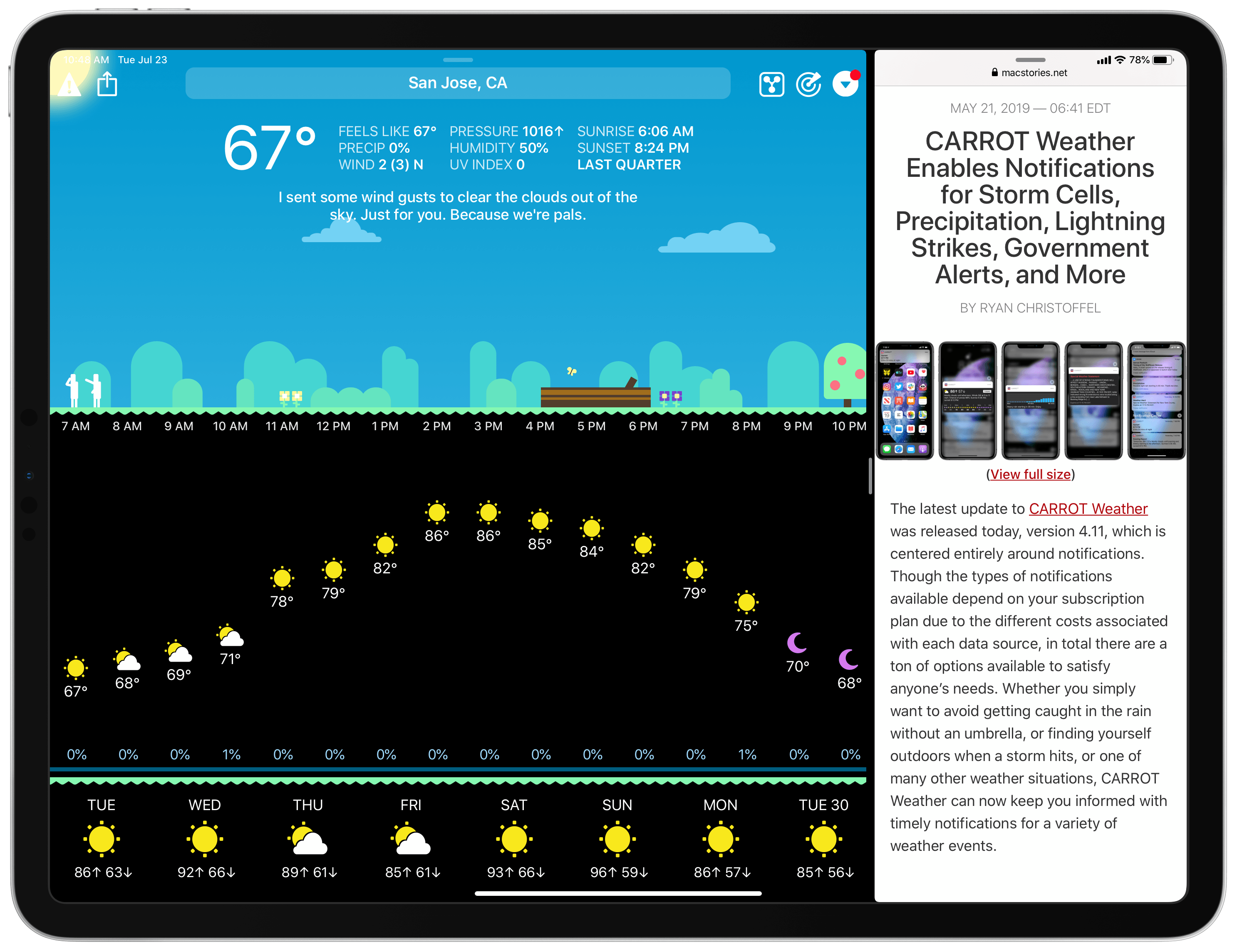
Today in version 4.12, CARROT Weather debuts a modernized iPad app that takes advantage of the features core to a great iPad experience: multitasking support, more keyboard shortcuts, and a tweaked design that better utilizes large displays. Additionally, since the iPad app is maturing in several key ways, CARROT has added iCloud sync for all of the app’s 150+ settings options, ensuring you won’t need to configure settings on both iPhone and iPad.

Read more


How iOS 12.4’s iPhone Migration Tool Works

Yesterday Apple released iOS 12.4, an update that, during the beta phase at least, appeared to have little to no new features. Once the software went public with accompanied release notes, we learned that it contained a new iPhone migration tool, though it wasn’t immediately clear how that tool worked, or how it differed from existing migration options. Today Benjamin Mayo outlines the details on 9to5Mac:

With iOS 12.4 or later, there’s a new iPhone set up option. You can now perform a local iPhone data migration when setting up your new iPhone.

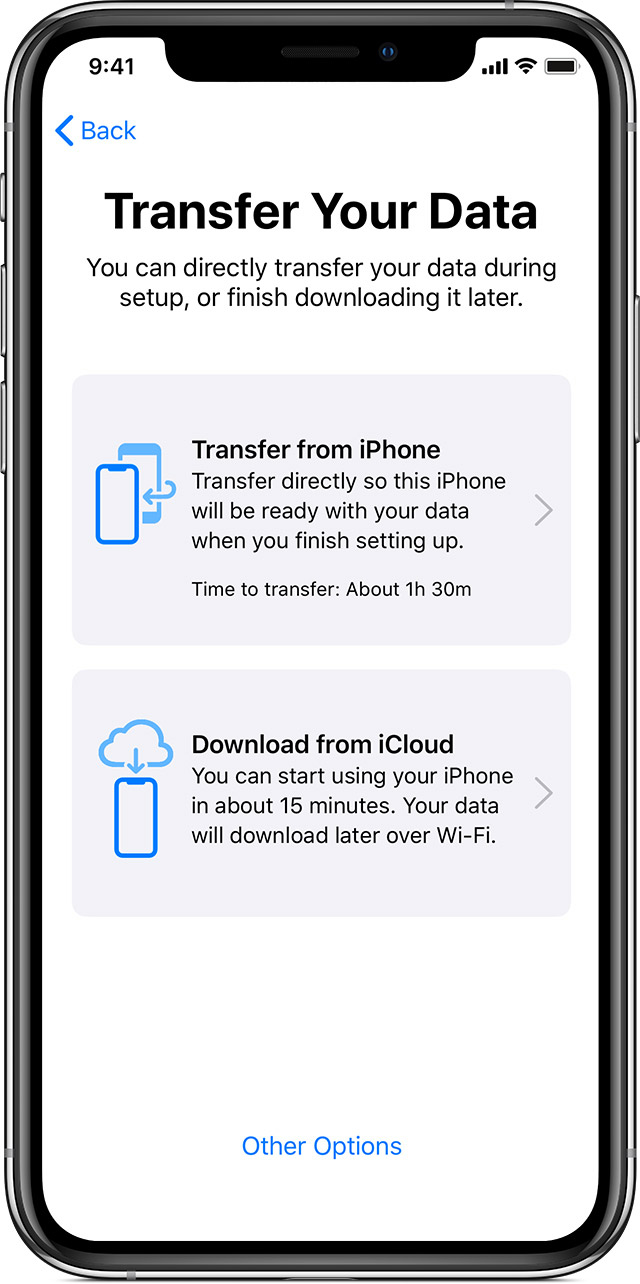
As part of Quick Start, you can now Transfer Your Data directly, without requiring to use iCloud or an iTunes backup. The iPhone defaults to using local WiFi, but you can transfer wired using the USB3 Camera Adapter and a Lightning cable.

[…]

Direct transfer copies across the same data as an iTunes encrypted backup; all your photos, media, app data, settings and more are sent over a peer-to-peer wireless connection.

This tool seems like a fantastic alternative to restoring from an iCloud backup, or performing an encrypted iTunes restore. Both existing options are troublesome for storage reasons: many users only have the free 5 GB iCloud storage plan, which often isn’t enough to store a device backup in the first place, and to go the iTunes route, you need adequate local storage space on your Mac to back up your entire device, which I personally haven’t had in years.

Another common issue with restores from iCloud backups is that, while they let you start using your iPhone after a short period of time, often the restoration of data such as photos and offline music can take days, if it ends up taking place at all. With the new local transfer option, the wait time before you can use your device is a lot longer (Mayo shares a screenshot estimating 90 minutes), but once the transfer is complete, everything on the new device should be identical to the old one.

I tend to buy new iPhones every year, and recently have gotten in the habit of setting them up as new devices every time – partly because starting fresh can help eliminate clutter, but also because iCloud restores have historically been inconsistent for me. With the new options added in iOS 12.4, I may need to rethink that strategy.

Permalink


Serial Reader

Have you ever wished there was more book reading in your life? Most of us read huge amounts of content every day – like reading about apps in a weekly newsletter – but that content tends to be messages, tweets, headlines, emails, articles, and so on. In a world with massive amounts of text...


Timepage 3.0: Key Refinements for a Mature Calendar App

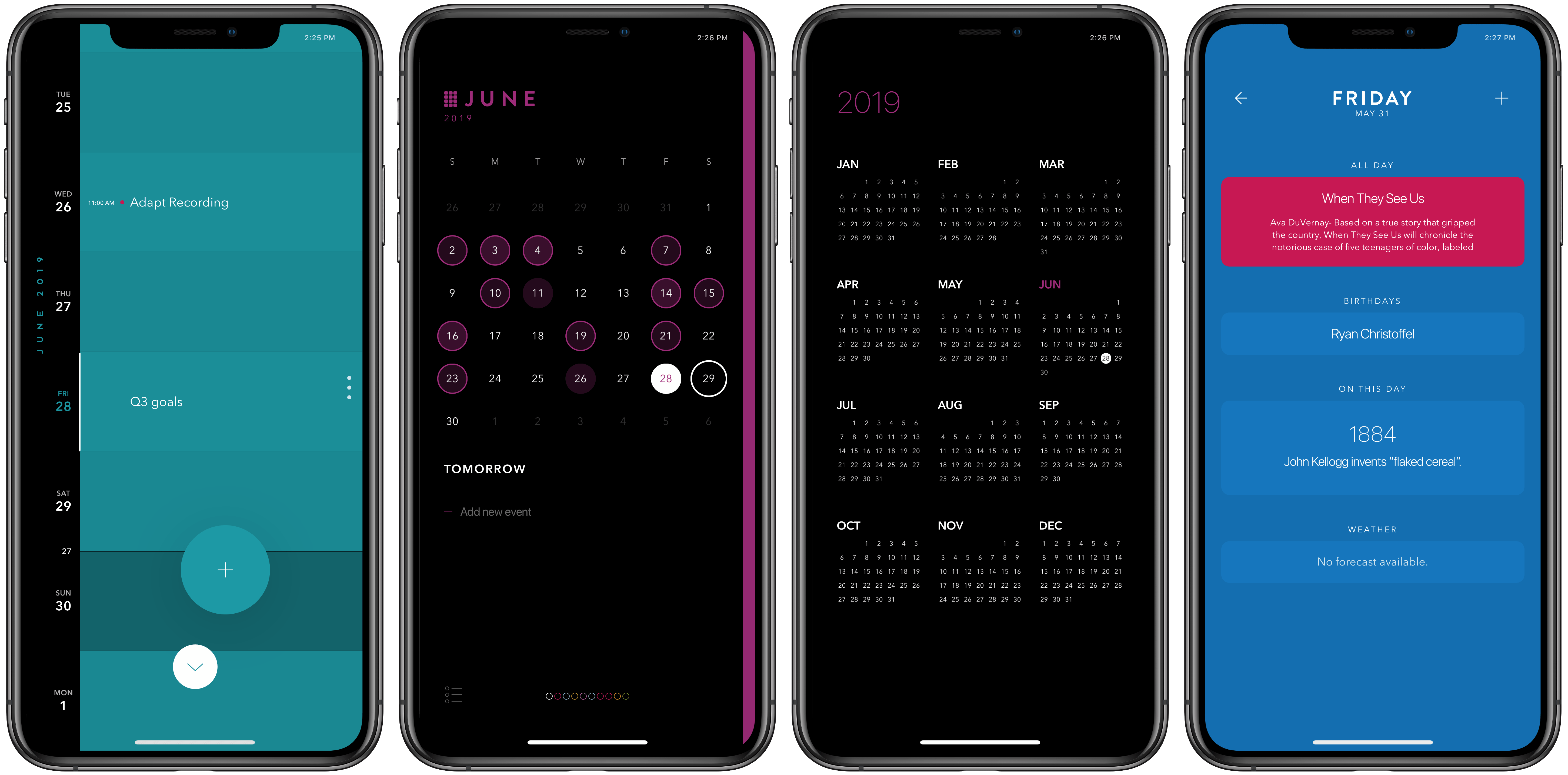
It’s a special kind of dilemma when an app is already one of the best in its category, yet it lives on a platform that requires constant improvement. Some apps in this predicament continue adding feature after feature in a way that ends up detracting from what users initially loved, while others pursue updates that may be less attention-grabbing, but they improve the core app in meaningful ways. Timepage, the iOS calendar app from Moleskine, has chosen the latter route with version 3.0, available today. There are no headline-grabbers here, but this latest update demonstrates that Moleskine has a strong understanding of how its app is used, and how to make it better. It introduces significant improvements to event creation, a new birthday functionality, additional calendar views, and a design tweak inspired by Timepage’s sister app, Actions, among other things.

Read more