Updating My Over-the-Air TV Setup
...

 Updating My Over-the-Air TV Setup
App Debuts
Updating My Over-the-Air TV Setup
App Debuts It’s been just over two months since the first M1 Macs were delivered to customers. I purchased an M1 MacBook Air to replace my aging 2016 MacBook Pro, and not long after, Apple sent me an M1 Mac mini to try. In the ten weeks or so since then, I’ve used both almost exclusively for a wide variety of tasks, and although both computers are somewhat limited by their lack of ports, that has been less of an issue than I anticipated. What’s been far more notable, remarkable in fact, is the performance of the new MacBook Air and Mac mini.
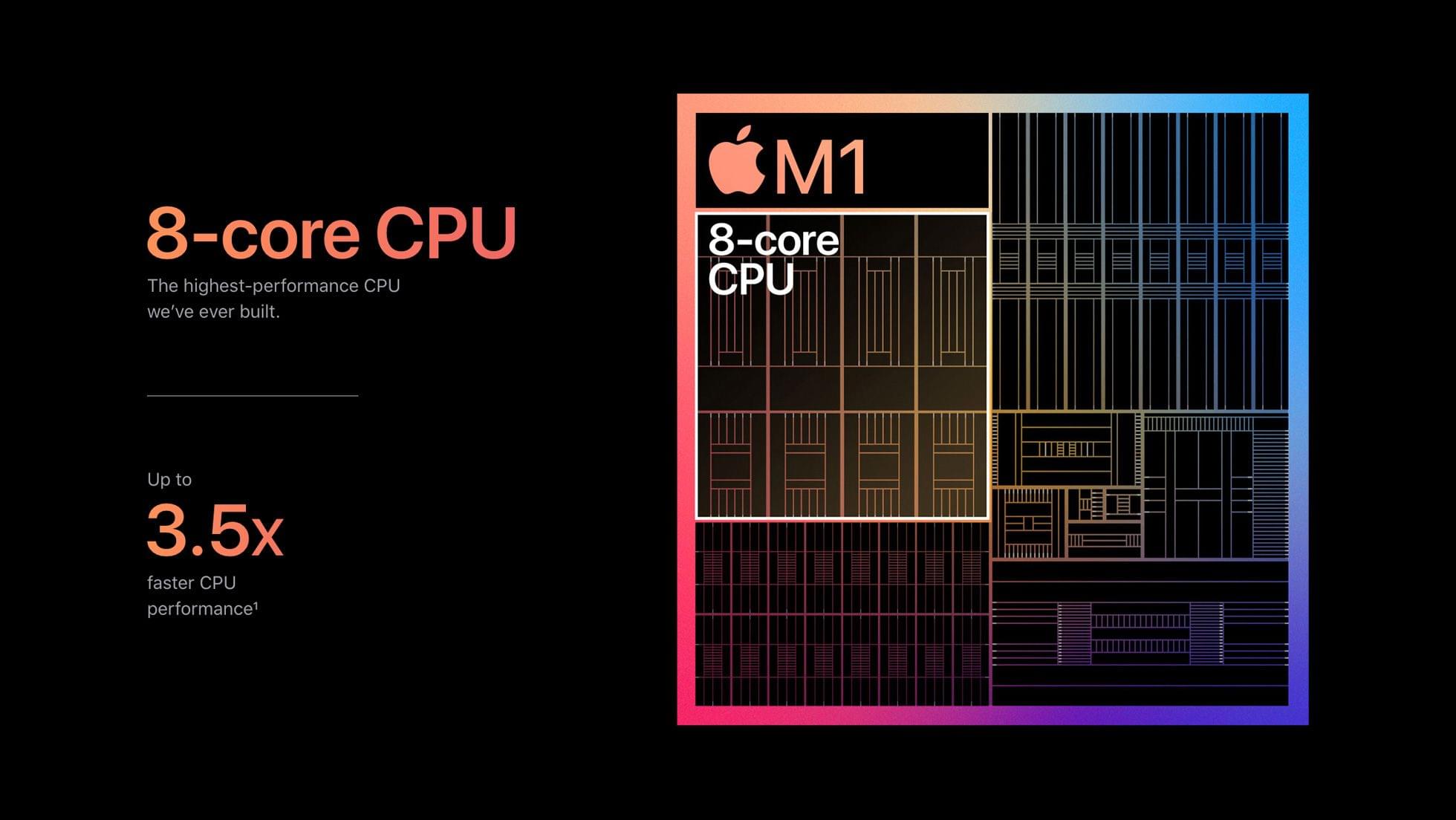
Benchmarks don’t do these Macs justice. There are plenty of CPU-intensive tasks that are faster than before, which I expected would be the case. However, living with both of these Macs for as long as I have has given me a much greater appreciation for the impact that the M1 has on ordinary, day-to-day tasks. The differences are less pronounced for individual tasks that require less computing power, but the aggregate impact has still been significant for both computers, especially the MacBook Air.
Performance increases quickly become the ‘new normal.’ They tend to fade into the background. What starts as startling soon becomes ordinary and expected. The M1 Macs are no different in this respect and perhaps even more so because they look like the machines that came before them.
Still, if you step back and consider these new Macs in the context of those that immediately preceded them and account for the fact that these are entry-level models, the future of the Mac is bright. The M1 update makes these Macs substantially better deals than the versions they replace with computing power to spare for most users. The new machines also bode well for the remainder of the Mac lineup that hasn’t been updated yet.
I’m excited to see what the M1 means for the rest of the product line, and I’m sure I’ll be tempted to try them, but I’ve also never been more content with new Macs than these. I’m sure there are things I do that future M1 Macs will do even faster, but the M1 MacBook Air and Mac mini have introduced a fluidity in my daily computing that I haven’t experienced since I first tried the iPad Pro. It’s the sort of subtle, qualitative shift that can’t be captured by benchmarks but has rekindled my fondness for the platform by improving the experience across the board. Here’s what I mean.
Apple has released the first beta for macOS 11.3 Big Sur, which includes new Safari features, changes that parallel yesterday’s updates to iOS and iPadOS, and more.
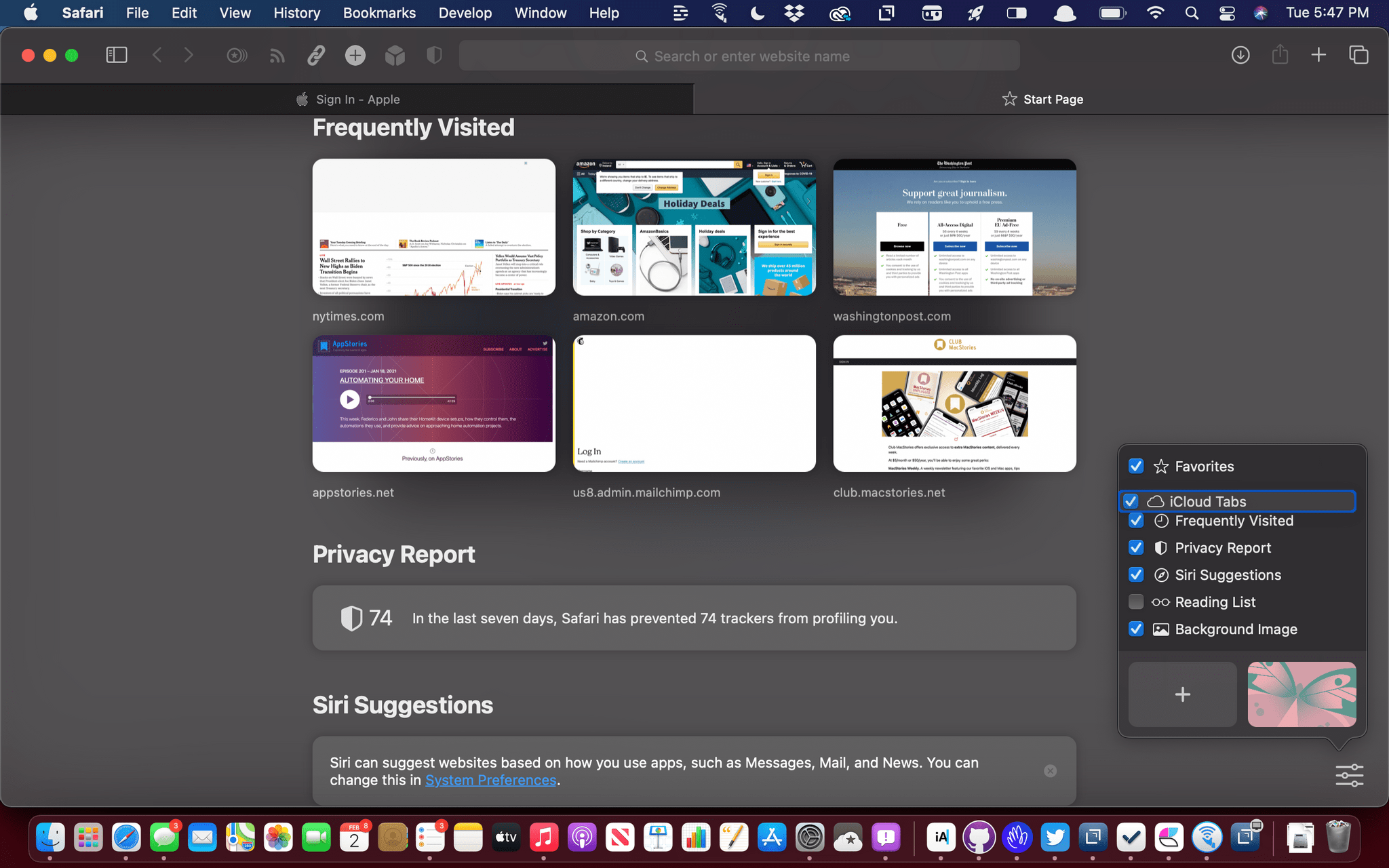
Some of the most interesting features of the latest Big Sur beta are in Safari. As I wrote in my Big Sur review, I like most of the changes made to Safari’s start page but wished I could reorder the default sections. That’s now possible, which is terrific, but there’s also a new third-party extension point for developers to build start page integrations, which is very interesting. We’ll have to see what developers do with the new feature, but I expect it will allow RSS clients to list recent articles on the start page that could be opened directly in Safari, for example. There’s a new Web Speech API that allows speech recognition functionality to be built into a webpage too.
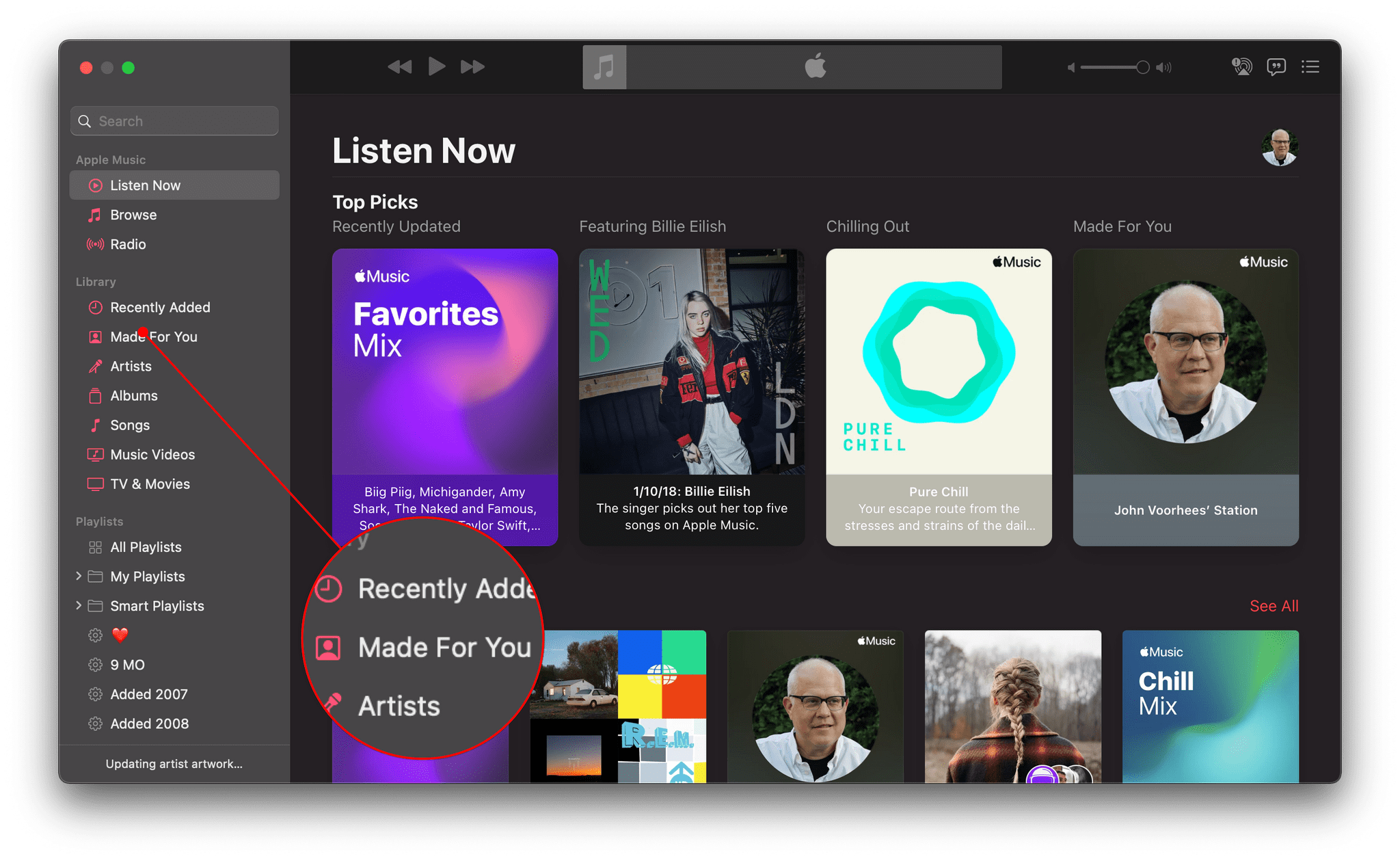
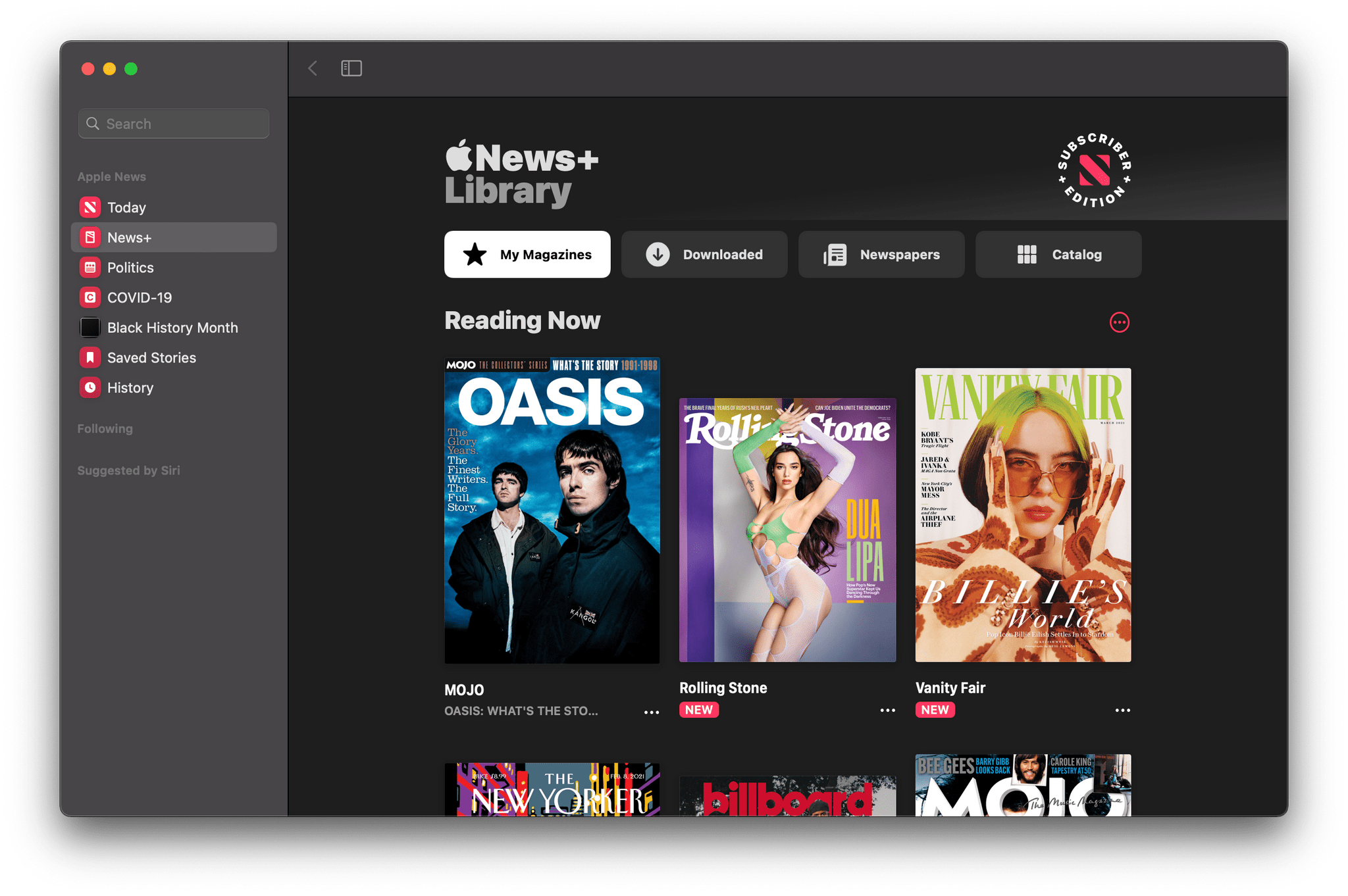
Similar to iOS and iPadOS, Reminders is gaining the option to print lists. Music adds a dedicated ‘Made For You’ section in the sidebar that includes your annual Replay playlists and Apple’s personalized algorithmic playlists. The Listen Now tab will also suggest upcoming live events tuned to your music tastes. There’s an enhanced News+ tab in Apple News designed to make it easier to access magazines and newspapers and manage downloaded issues. Sony PS5 DualSense and Xbox Series X/S controllers are supported too.
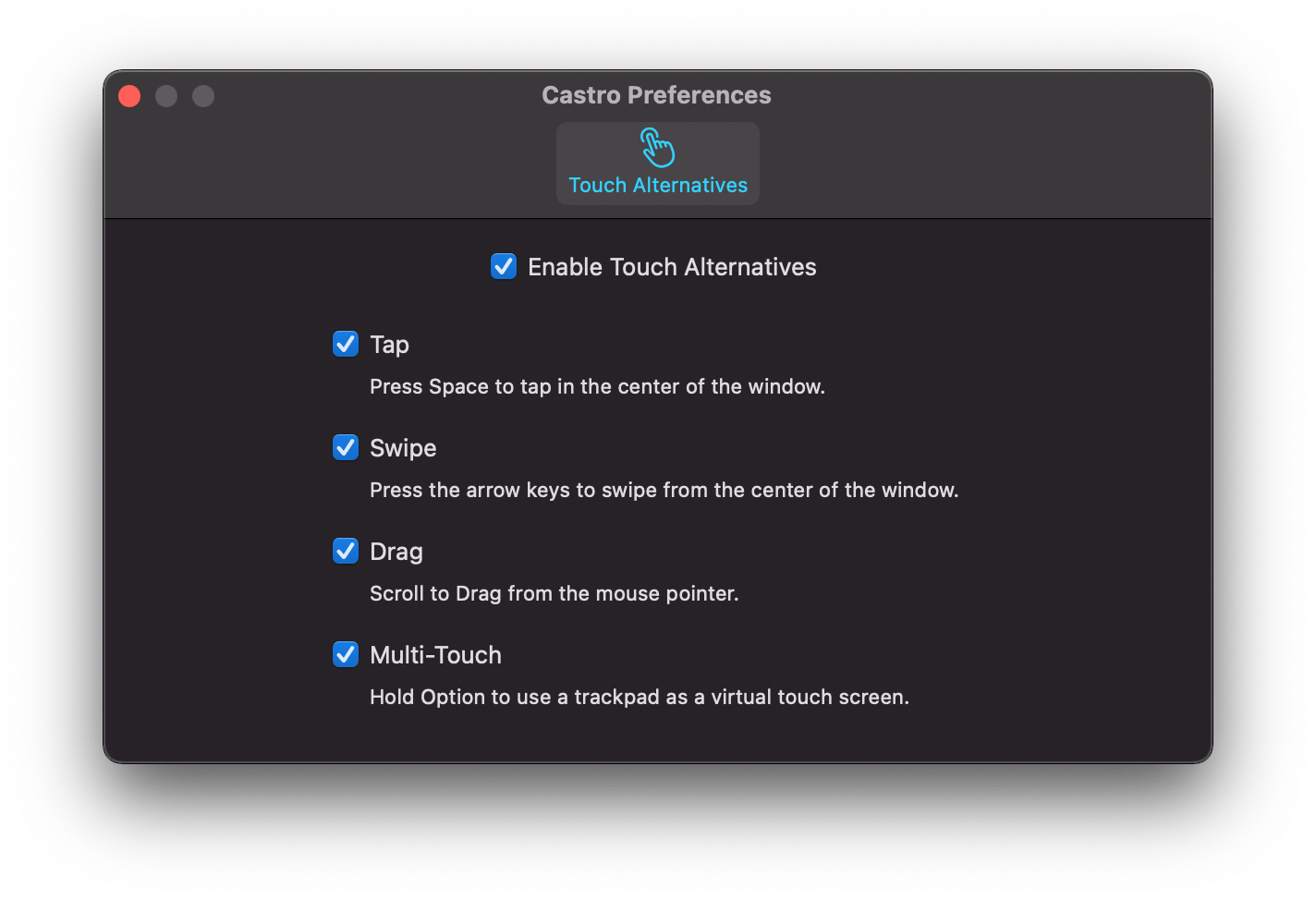
Finally, the experience of using iOS and iPadOS apps on the Mac got a boost too. There’s a brand new Preference pane in iPhone and iPads running on an M1 Mac that provides more keyboard control over touch commands. Apps can also be opened in larger windows.
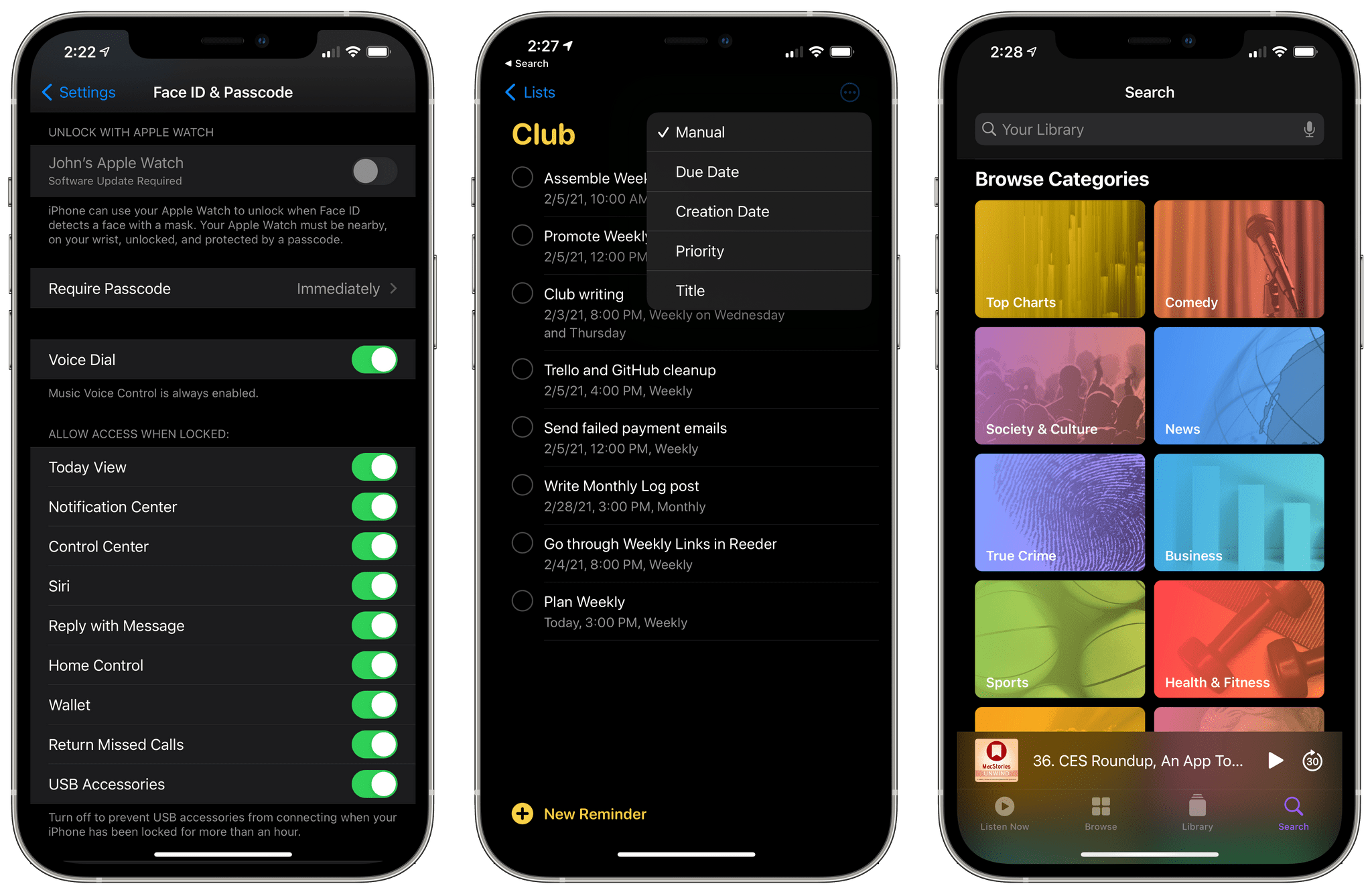
Betas of iOS, iPadOS, tvOS, and watchOS are out today with some interesting features. Last week on World Privacy Day, Apple announced that App Tracking Transparency is coming in the spring, so it’s no surprise that iOS and iPadOS 14.5 include the feature. However, there are several other features coming in the next round of OS releases, as summarized by Rene Ritchie in this tweet:
https://twitter.com/reneritchie/status/1356309325820665857?s=20
 Everything but the Text Editor
This week, Federico and John cover everything about their writing workflows except the text editor, including research apps, their scratchpad setups, PDF annotation, mind mapping, dictionaries, and shortcuts, along with a segment on text-based podcast editing and transcripts.
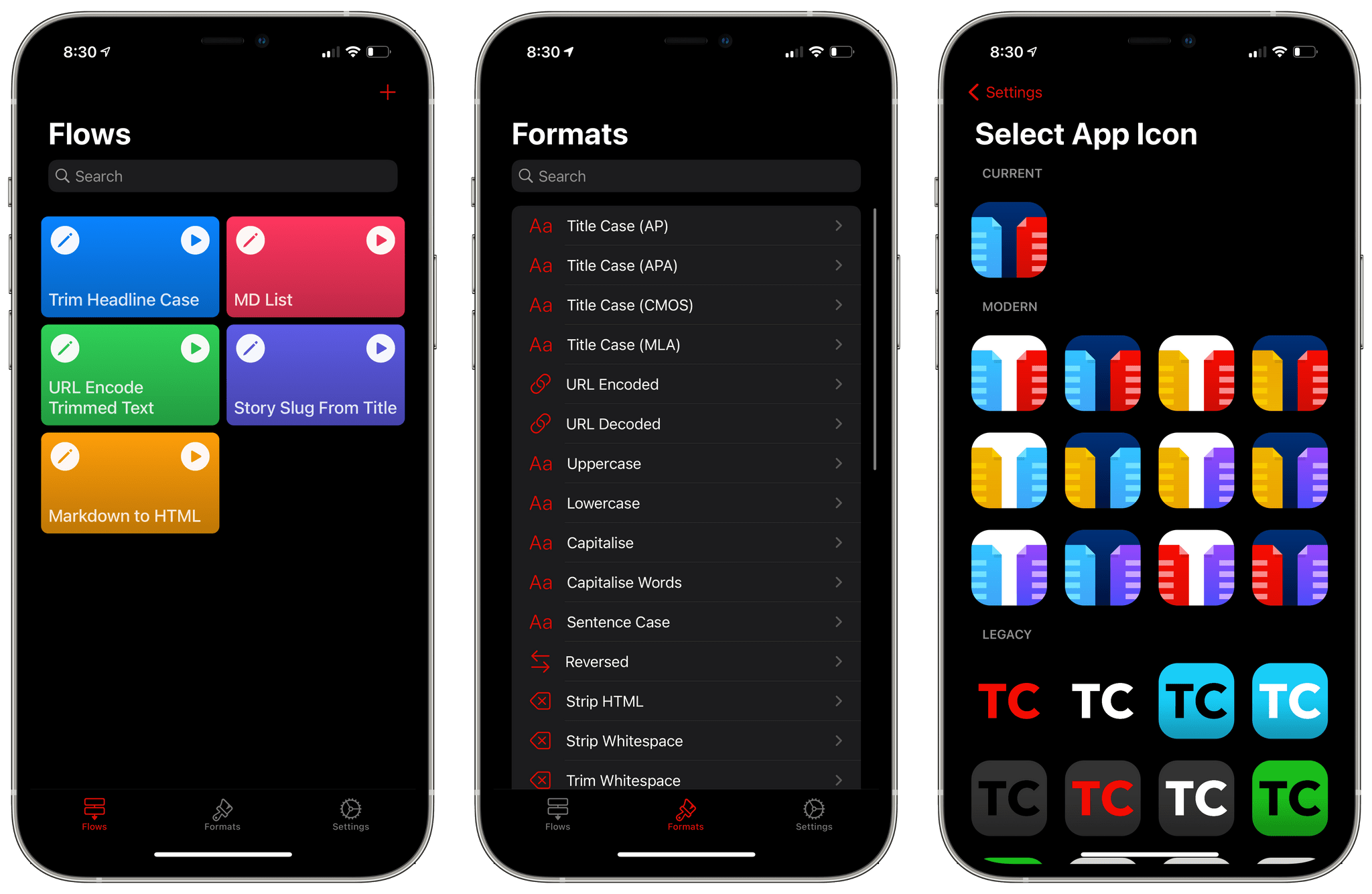
Text Case is a text transformation app that includes 37 text transformations. The app can capitalize titles according to multiple style manuals, trim whitespace, URL encode and decode text, change text to all uppercase or lowercase lettering, generate Markdown, and more.
You can type or paste text into Text Case to transform it, but with the introduction of Shortcuts support in 2018, Text Case became an app that could be used exclusively as a series of Shortcuts actions too. The hasn’t changed, but now, you can also create multi-step text transformations for use in the app itself or from Shortcuts or the share sheet, adding a new level of convenience. The update marks an interesting shift of focus from a tool that applied individual transformations to text one at a time to a text workflow creation tool that uses a UI that is reminiscent of Shortcuts.
A Day Keyboard and a Night Keyboard 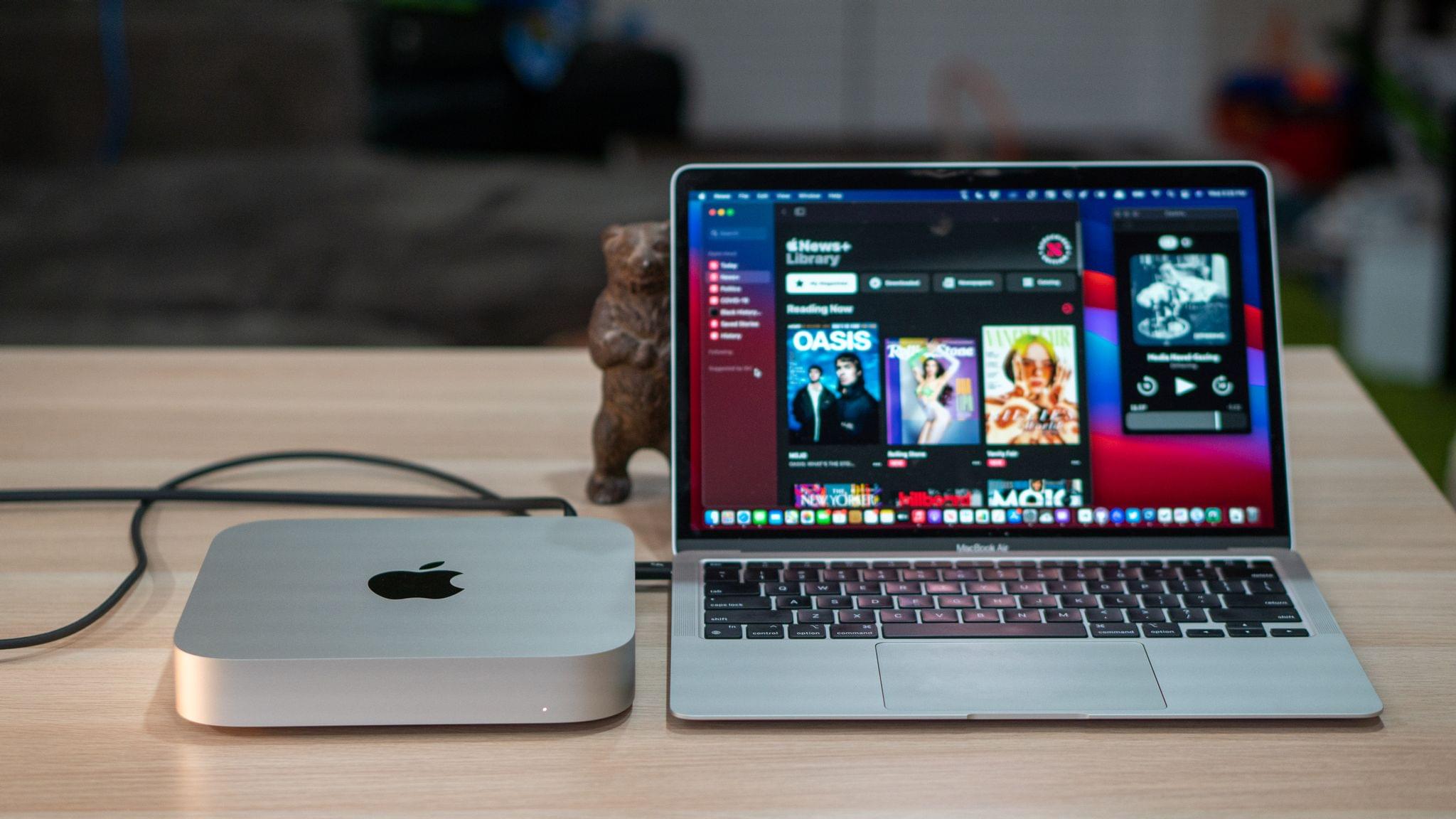






 Federico