






This week on MacStories Unwind, John suggests the dark comedy The Menu, and Federico recommends Crisis Core – Final Fantasy VII – Reunion.
Show Notes
John’s Pick:
Federico’s Pick:

This week on MacStories Unwind, John suggests the dark comedy The Menu, and Federico recommends Crisis Core – Final Fantasy VII – Reunion.
John’s Pick:
Federico’s Pick:
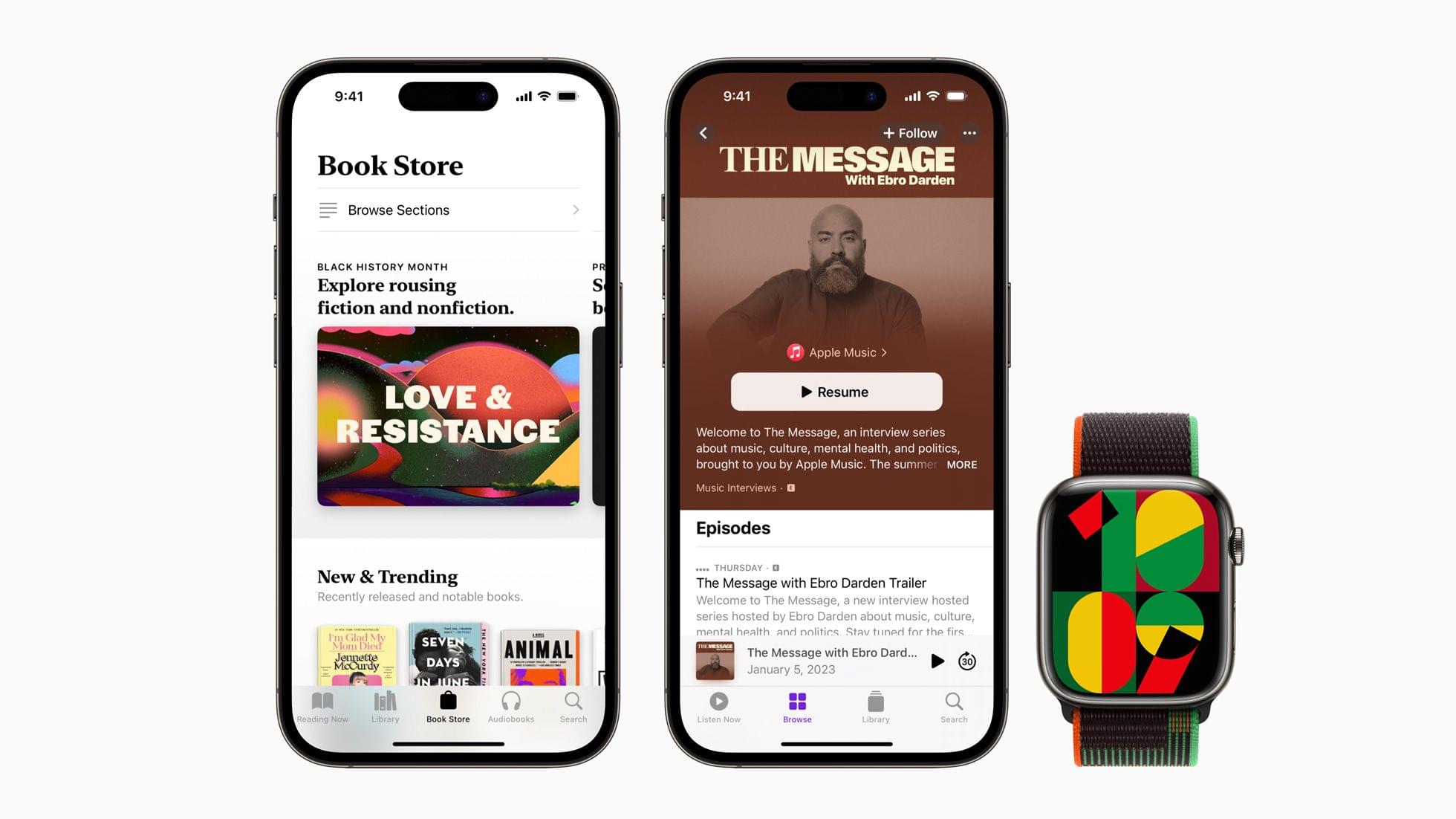
To celebrate Black History Month, Apple has released a new Black Unity Collection. The collection includes an iPhone wallpaper, an Apple Watch face, and a Sports Loop band.
According to Apple, the special-edition Apple Watch Black Unity Sport Loop “features the word “Unity” woven abstractly into the band using red, green, and black yarns that pay homage to the Pan-African flag, while a unique layering of yarns lends a sense of three-dimensionality to the letters.” Both the iPhone wallpaper and watch face combine geometric shapes in green, black, red, and yellow. On the watch face, the numbers on the face change as the minutes pass, using parts of other numbers.
Apple is also marking Black History Month across many of its services, including the App Store, Apple Music, the TV app, Fitness+, News, Podcasts, Books, and Maps. Among the offerings will be Apple Maps Guides by the Smithsonian, curated TV and film collections by Dr. Jelani Cobb, apps and games, special playlists on Apple Music, and podcast spotlights.
Apple also announced that it:
is supporting Art Gallery of New South Wales (Sydney), Ghetto Film School (New York, Los Angeles, London), Music Forward (Los Angeles), Shout Mouse Press (Washington, D.C.), and The National Museum of African American Music (Nashville, Tennessee). Apple’s support for these organizations is a continuation of REJI grants over the past two years that helped organizations committed to providing economic, educational, and creative opportunities in communities of color.
The Apple Watch Black Unity Sport Loop is available to order online today and will be in stores on January 24th for $49. The Unity 2023 watch face and iPhone will be available next week, presumably alongside OS updates.
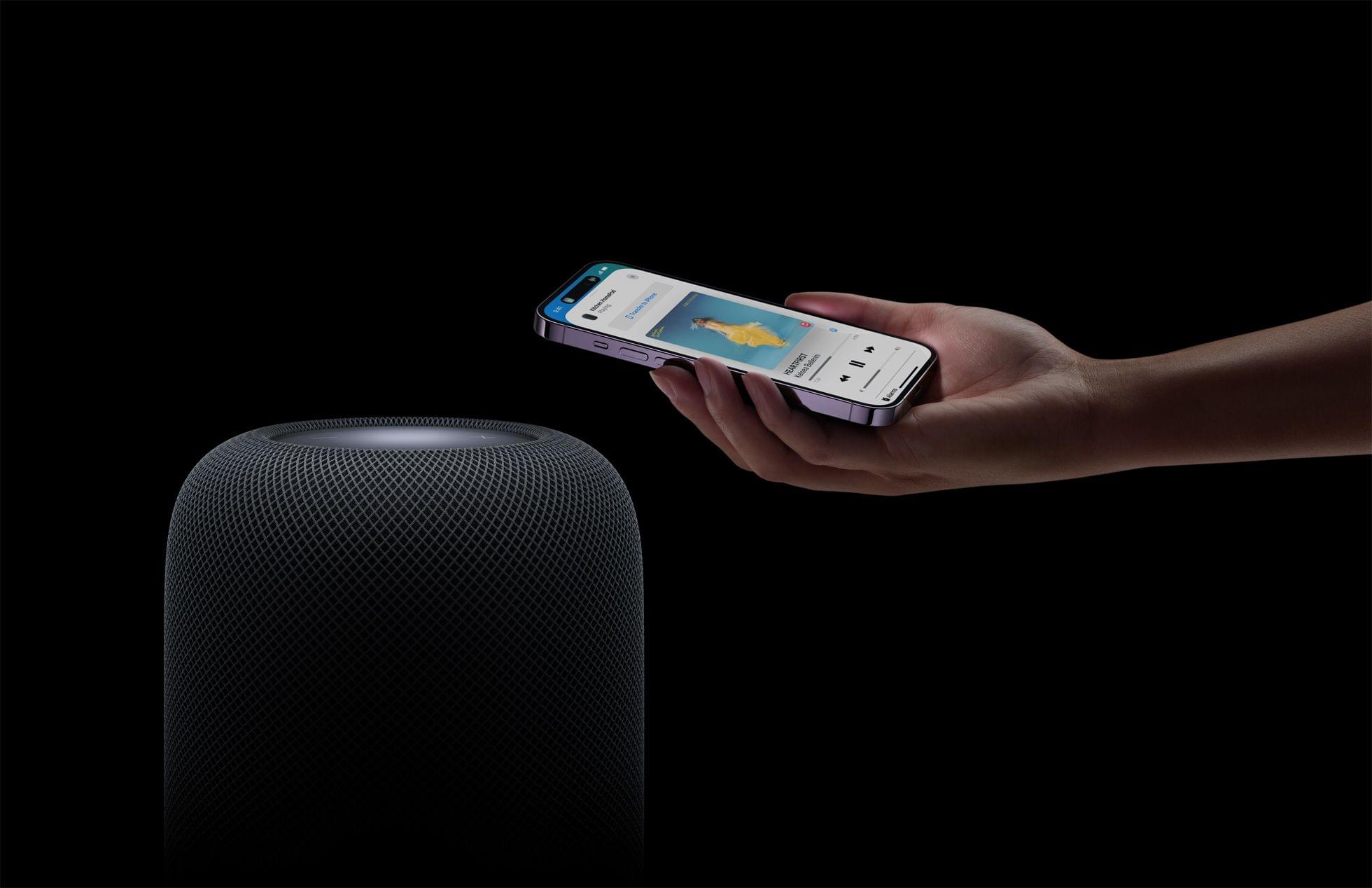
Over the weekend, Mark Gurman said that Apple would be releasing a new HomePod soon. As it turns out, he was correct because today, Apple released a new second-generation HomePod. According to Apple’s press release,
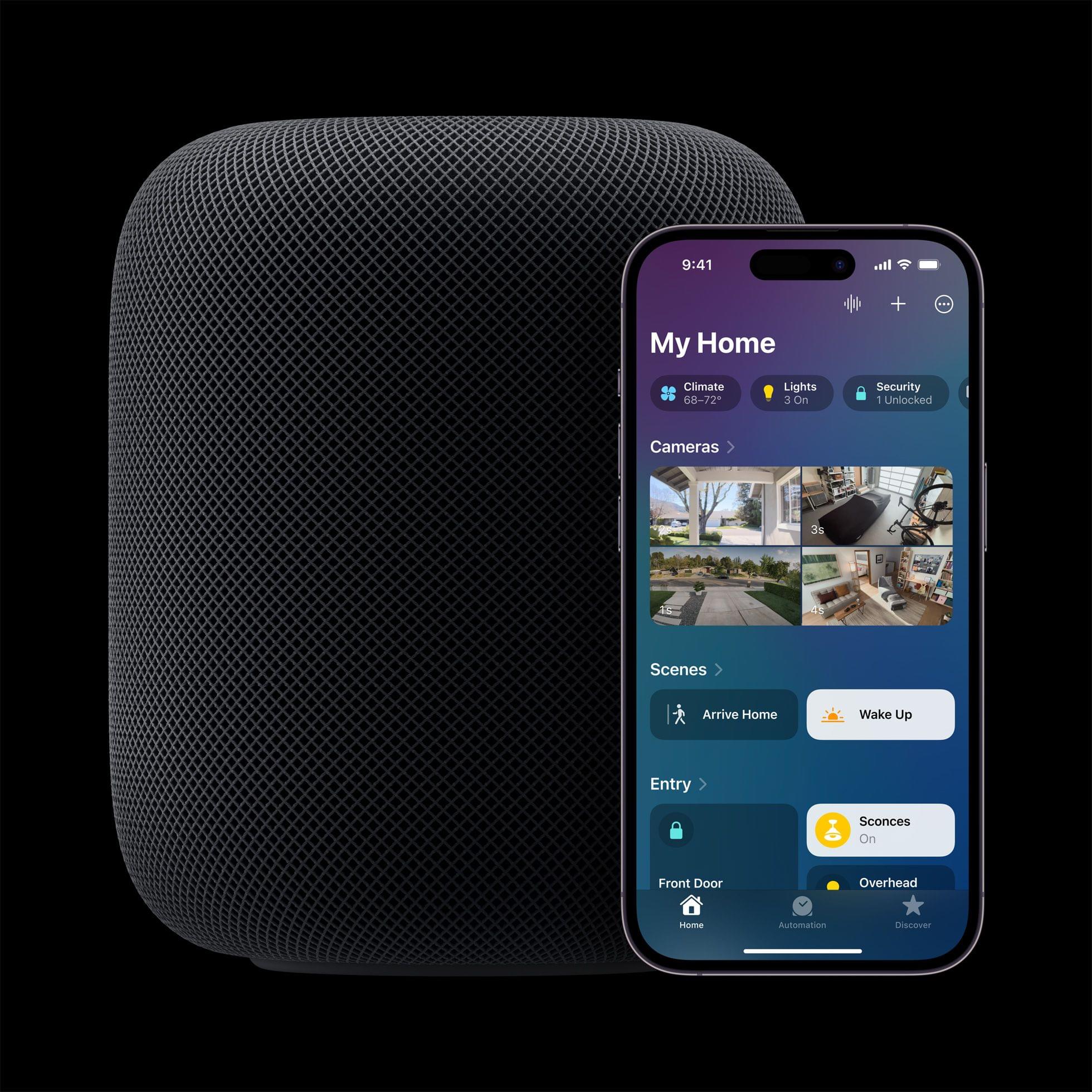
With convenient new ways to manage everyday tasks and control the smart home, users can now create smart home automations using Siri, get notified when a smoke or carbon monoxide alarm is detected in their home, and check temperature and humidity in a room — all hands-free.
The HomePod is powered by an S7 chip and appears to feature a sound system similar to the first-gen model.
The new HomePod also adds a temperature and humidity sensor, which can be used as a trigger for home automations, and supports the Matter home automation standard.
The second-generation HomePod is available to order today, with deliveries beginning Friday, February 3rd for $299, which is $50 less than the original HomePod’s price.
Update: Thanks to the Wayback Machine, I’ve gone back and checked the second-generation HomePod’s tech specs against the original model, and there are some interesting differences. The new model weighs less at 5.16 pounds (2.3 kg) versus 5.5 pounds (2.5 kg). The new model is a little shorter, too, at 6.6 inches (168 mm) compared to the original’s 6.8 inches (172 mm), but the same width.
The new HomePod has two fewer tweeters at five compared to the original’s seven. No mention is made of direct and ambient audio beamforming in the tech specs for the new HomePod, although it does support Spatial Audio and Dolby Atmos, which is a nice addition. The latest HomePod has four far-field microphones compared to the original’s six too.
In addition to the temperature and humidity sensor, the new HomePod also features an accelerometer and will support Sound Recognition later this spring with a software update. It’s not clear whether that software update will work with the original HomePod or not.
The new HomePod is also getting a WiFi upgrade with 802.11n support. The new model also includes a Thread radio and Ultra Wideband chip, which the original did not.
Last but not least, the new HomePod’s tech specs appear to suggest that the power cable may be detachable, unlike the original model, because it’s listed as an item ‘in the box,’ whereas that wasn’t the case when the HomePod debuted.
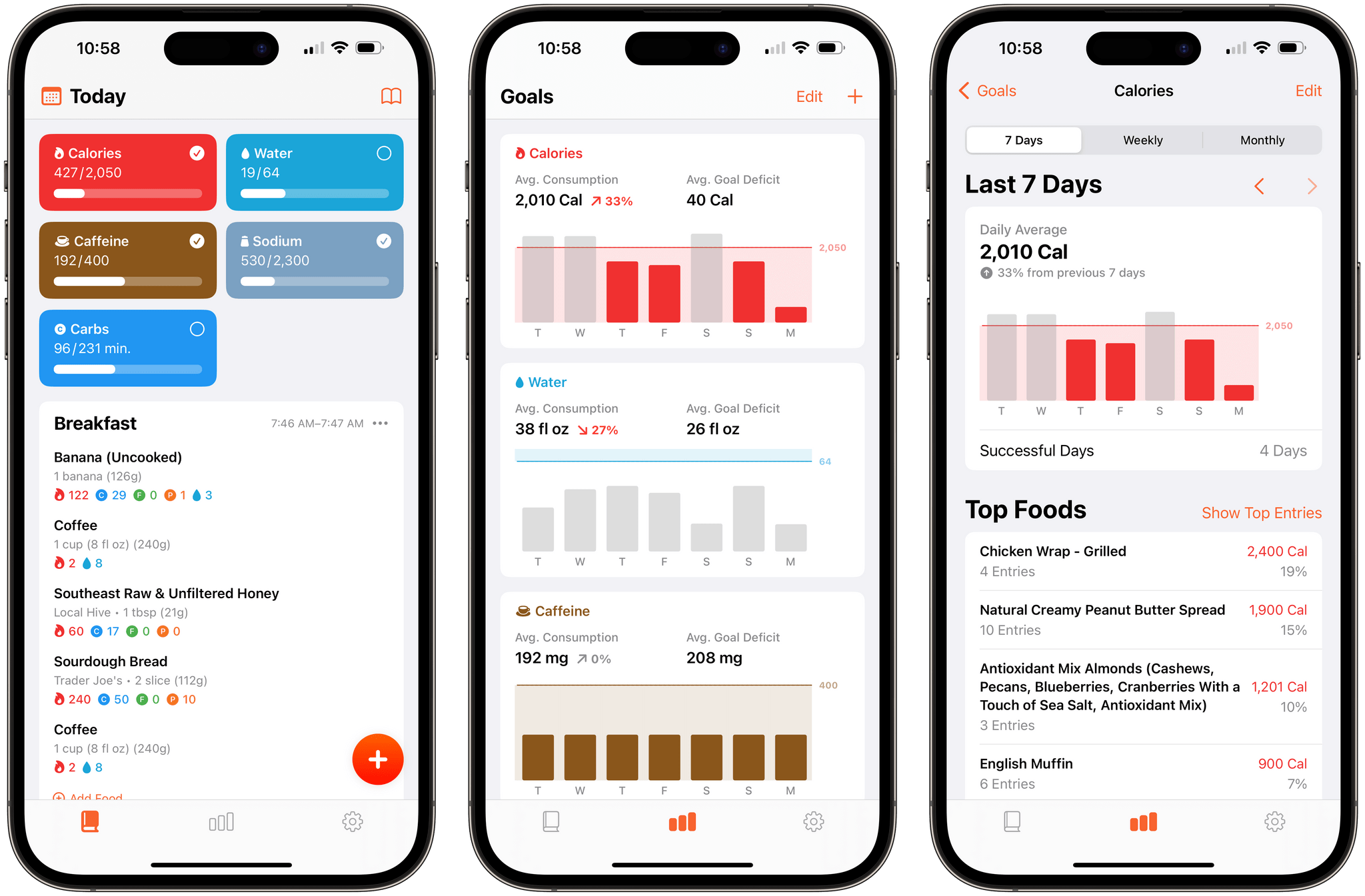
It’s been over two years since FoodNoms, the nutrition tracking app for the iPhone, iPad, Mac, and Apple Watch by Ryan Ashcraft, debuted on the App Store, and I reviewed it. Over the past two years, the app has steadily improved, refining its database of foods, adding Home Screen widgets, and a lot more. With version 2 out today, FoodNoms has taken its biggest step forward since its launch with a long list of new features and a refreshed design.
At its core, FoodNoms lets you set goals, track what you eat, and monitor your progress toward your goals. There are a lot of apps that do something similar, but what sets FoodNoms apart is its design, ease of use, and emphasis on privacy.
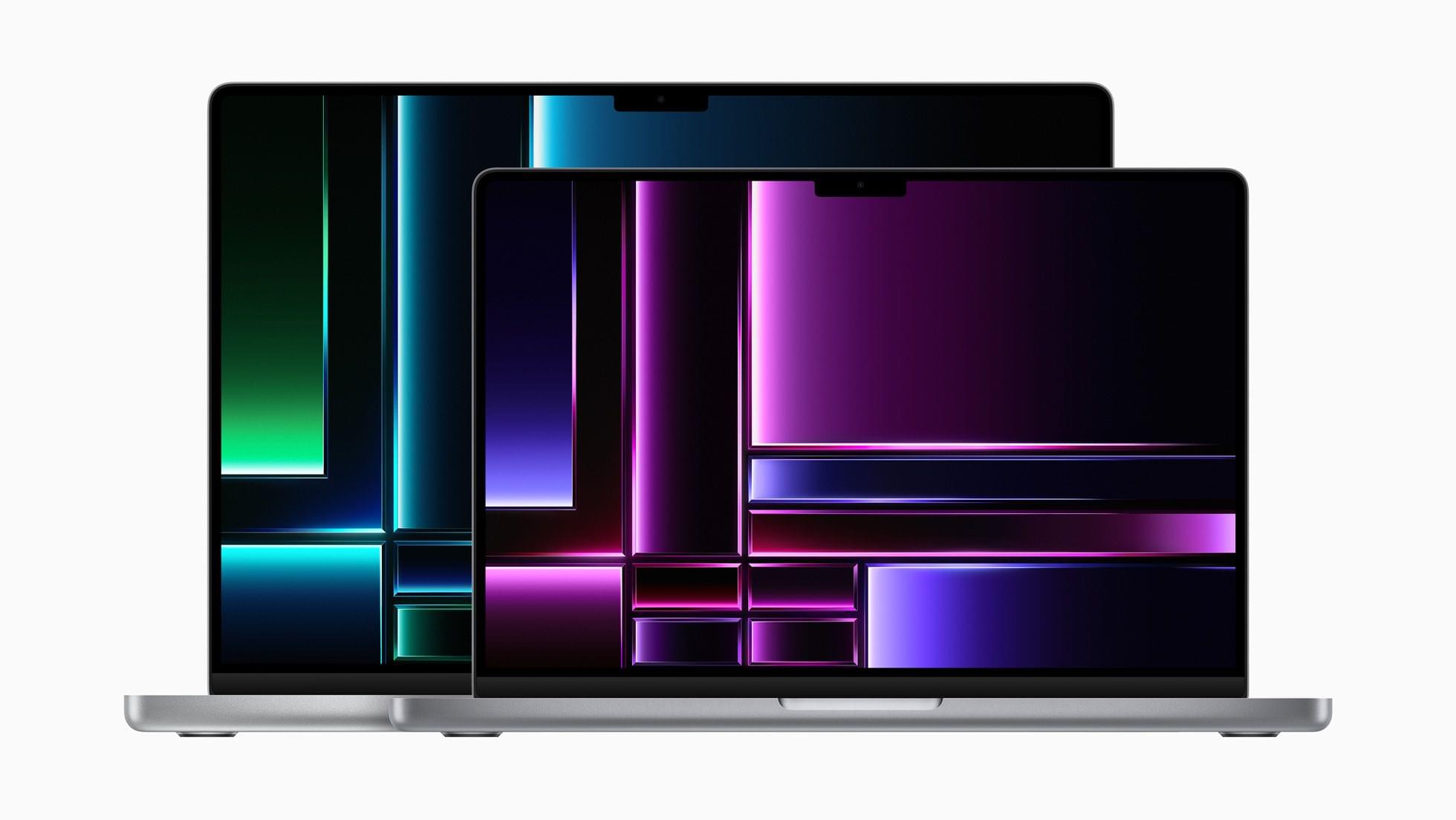
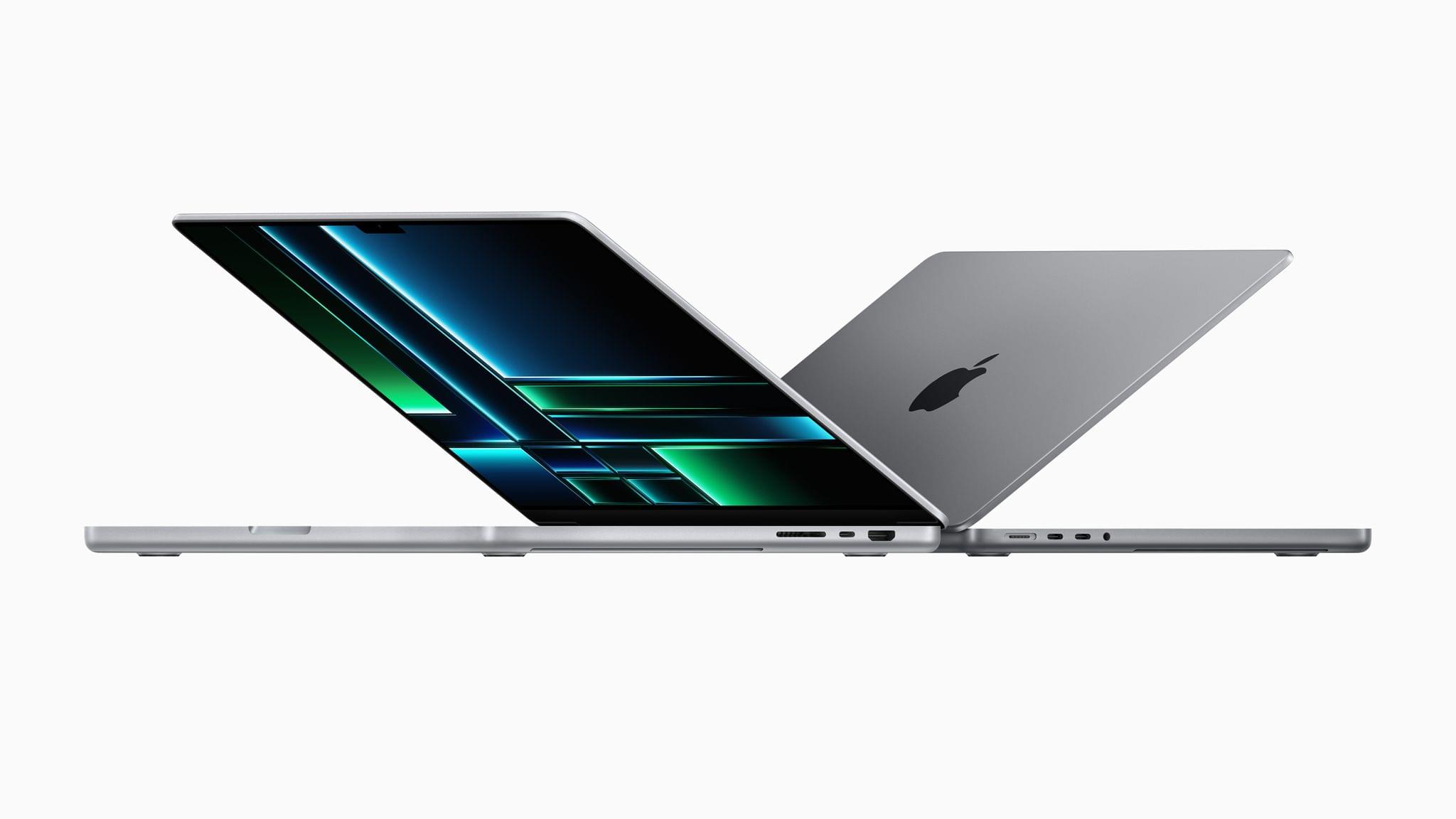
Today, Apple announced new MacBook Pro 14” and 16” models and a new Mac mini via press releases and a video on its YouTube channel. The new laptops are available in M2 Pro and Max chip configurations and feature faster memory bandwidth, WiFi 6E, and the same design as the models they replace. The Mac mini has also been updated to add the M2 and M2 Pro options, as well as other features.
In its press release, Apple had this to say about the new M2 Pro and M2 Max SoCs:
M2 Pro scales up the architecture of M2 to deliver an up to 12-core CPU and up to 19-core GPU, together with up to 32GB of fast unified memory. M2 Max builds on the capabilities of M2 Pro, including an up to 38-core GPU, double the unified memory bandwidth, and up to 96GB of unified memory. Its industry-leading performance per watt makes it the world’s most powerful and power-efficient chip for a pro laptop.
The 13” MacBook Pro and MacBook Air were upgraded to the base model M2 last year, but the laptops announced today are the first to include the Pro and Max versions of that SoC. Regarding the MacBook Pro, Apple says:
With M2 Pro and M2 Max — the world’s most powerful and efficient chip for a pro laptop — MacBook Pro tackles demanding tasks, like effects rendering, which is up to 6x faster than the fastest Intel-based MacBook Pro, and color grading, which is up to 2x faster. Building on the unprecedented power efficiency of Apple silicon, battery life on MacBook Pro is now up to 22 hours — the longest battery life ever in a Mac. For enhanced connectivity, the new MacBook Pro supports Wi-Fi 6E, which is up to twice as fast as the previous generation, as well as advanced HDMI, which supports 8K displays for the first time. With up to 96GB of unified memory in the M2 Max model, creators can work on scenes so large that PC laptops can’t even run them.
The MacBook Pro with M2 Pro comes in 10 and 12-core CPU configurations that Apple says deliver up to 20% faster performance than the M1 Pro, about what you’d expect from an SoC with 20% more cores. The laptops can be configured with up to 32GB of unified memory that has 200GB/s of bandwidth, which is double the standard M2. The GPU has 19 cores and delivers 30% faster performance, according to Apple. The laptop also features Apple’s media engine that handles encoding and decoding video.
The M2 Max version of the MacBook Pro can be configured with up to 38 GPU cores for what Apple says is 30% better performance than the M1 Max, while the CPU has 12 cores. The MacBook Pro with M2 Max also supports up to 96GB of unified memory with 400GB/s of bandwidth.
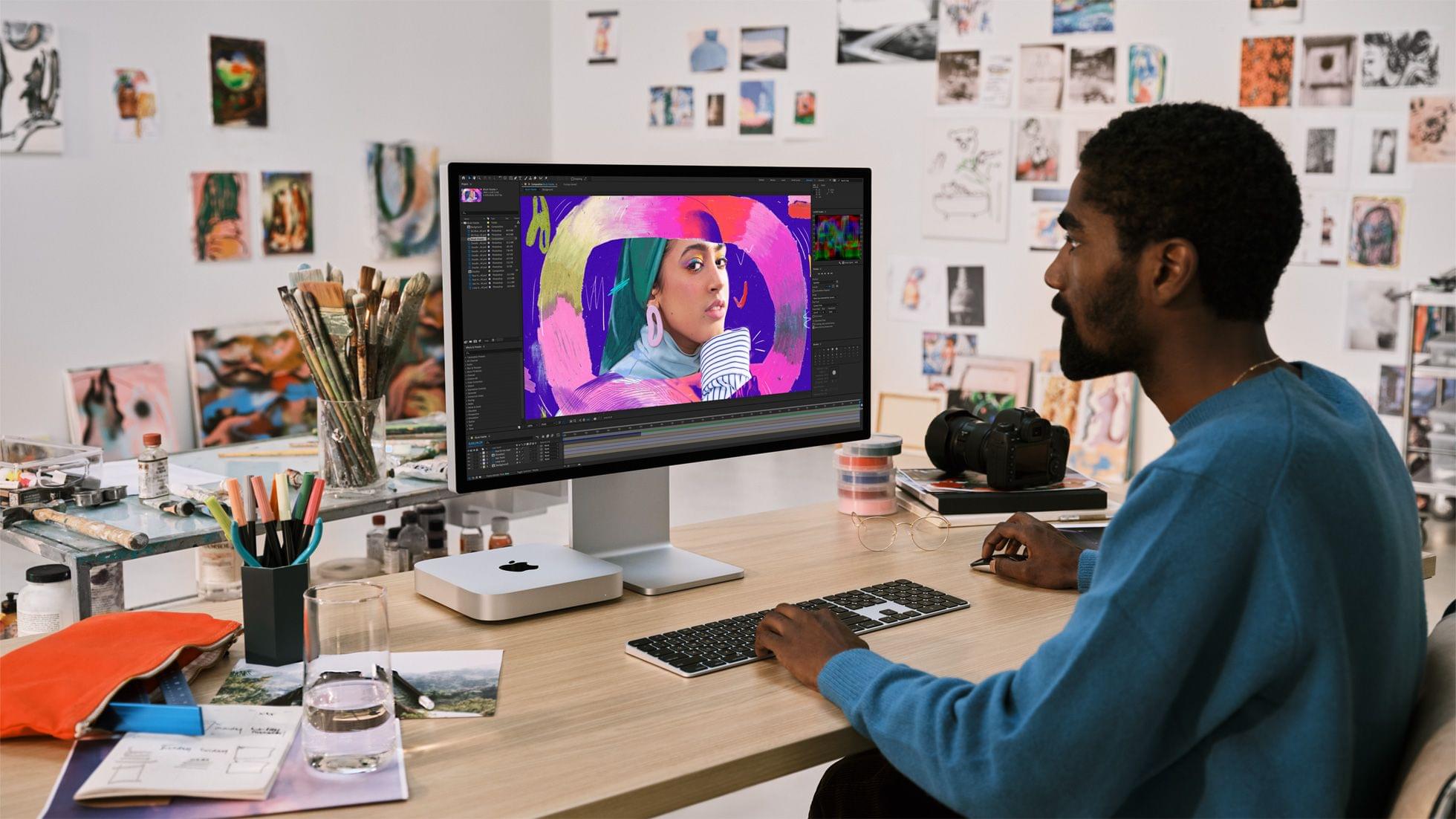
Apple also updated the Mac mini today. Greg Joswiak, Apple’s senior vice president of Worldwide Marketing, said:
With incredible capabilities and a wide array of connectivity in its compact design, Mac mini is used in so many places, in so many different ways. Today, we’re excited to take it even further with M2 and M2 Pro. Bringing even more performance and a lower starting price, Mac mini with M2 is a tremendous value. And for users who need powerful pro performance, Mac mini with M2 Pro is unlike any other desktop in its class.
The Mac mini, which was among the first Macs to be updated to the M1, is gaining an M2 SoC, with an option to configure the desktop Mac with an M2 Pro. The M2 mini has two Thunderbolt 4 ports, and the Pro version comes with a total of four. The M2 model can power two displays, and the Pro model three.
The updates bring WiFi 6E to all of the Macs announced today for the first time too. The only other devices Apple makes that support the faster wireless networking standard are the 11” and 12.9” iPad Pros.
These look like solid updates across the board, but I’m especially interested in the Mac mini, which seems to be the best value among the Macs announced today.
Both Macs can be preordered today, with deliveries starting January 24th.
This week on AppStories, we look at the history of read-later apps, the many similarities and differences between them, and today’s read-later apps, like Matter and Reader, as well as link organizers, such as GoodLinks and Anybox.
Sponsored by:
On AppStories+, we share our themes for 2023.
We deliver AppStories+ to subscribers with bonus content, ad-free, and at a high bitrate early every week.
To learn more about the benefits included with an AppStories+ subscription, visit our Plans page, or read the AppStories+ FAQ.
Because Club MacStories now encompasses more than just newsletters, we’ve created a guide to the past week’s happenings along with a look at what’s coming up next:
Last week, we kicked of 2023’s AV Club series with Avatar: The Way of Water. For the latest Town Hall Federico and I were joined by Jonathan Reed, who helped us organize the event, to talk about James Cameron’s latest epic and its predecessor in the film series.
Club MacStories Town Halls are part of the special live audio events we hold in the Club MacStories+ Discord community. The show is a recorded and lightly edited version of the Town Halls that we produce, so Club MacStories+ and Club Premier members who can’t attend the event live can listen later.
 Interesting Links
 Teenage Mutant Ninja Turtles: Shredder’s Revenge arrived on the App Store this week, and Touch Arcade has a full review of this 90s-style fighting game. (Link) Raspberry Pi has updated its camera module for the first time in six years with a 12MP Sony lens and sensor, which supports HDR, a wide field of view,...
 Read-Later Apps
 This week, Federico and John look at the history of read-later apps and the many similarities and differences between them and today’s read-later apps, like Matter and Reader, as well as link organizers, such as GoodLinks and Anybox.

](https://cdn.macstories.net/banneras-1629219199428.png)
 Federico