
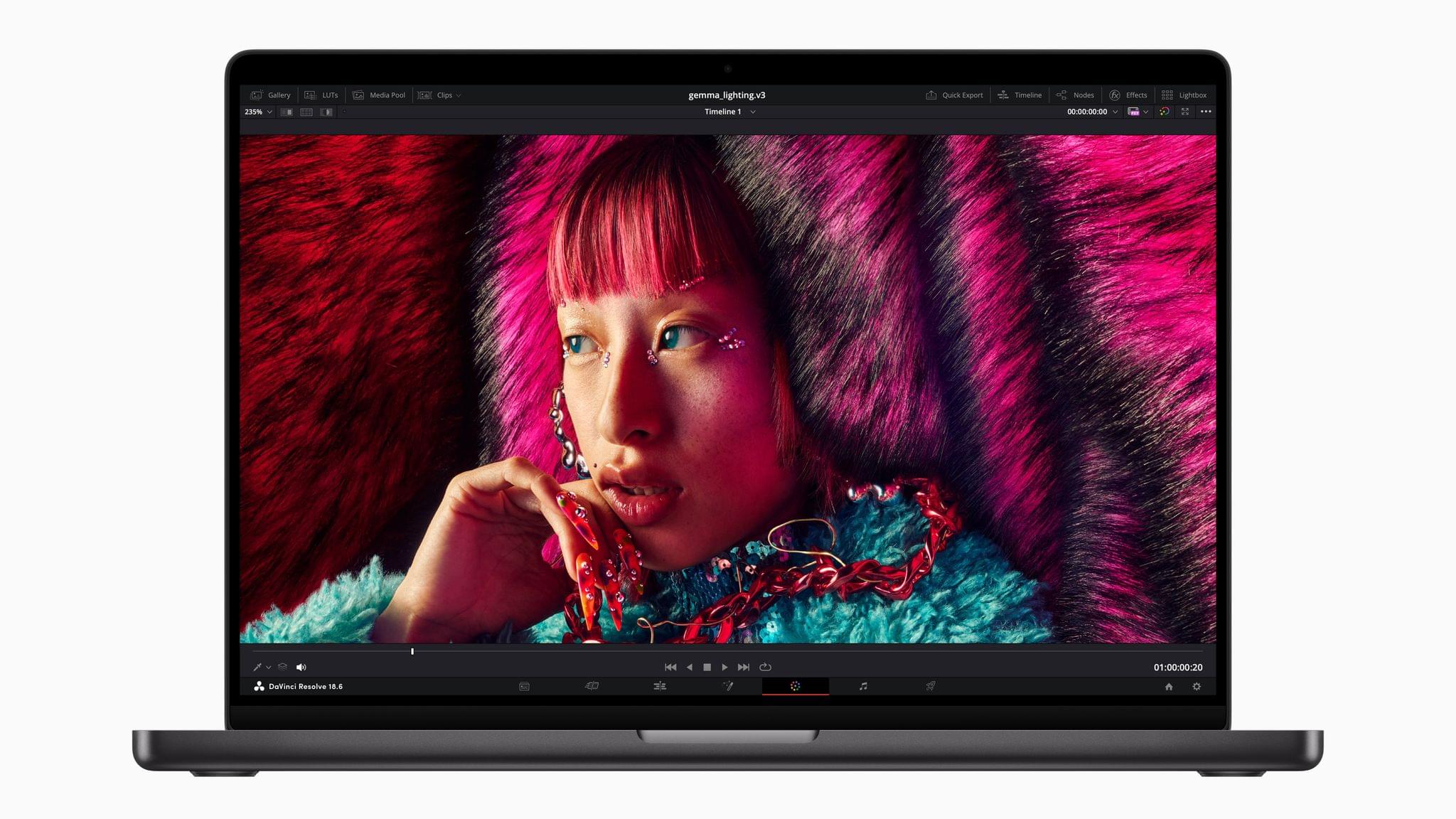
One of the things I’ve enjoyed about the rollout of Apple silicon Macs is that the old rules don’t apply, and the new ones are still being written. The cadence of releases is still settling in, and today, in the face of speculation that Apple was struggling to release M3 Macs, Apple made it clear that not one, but three 3 nanometer process-based chips are ready to ship. Along with the M3 iMac, the company refreshed its entire lineup of MacBook Pros, computers that gained the M2 chip less than a year ago.
Apple Reveals New M3 iMac
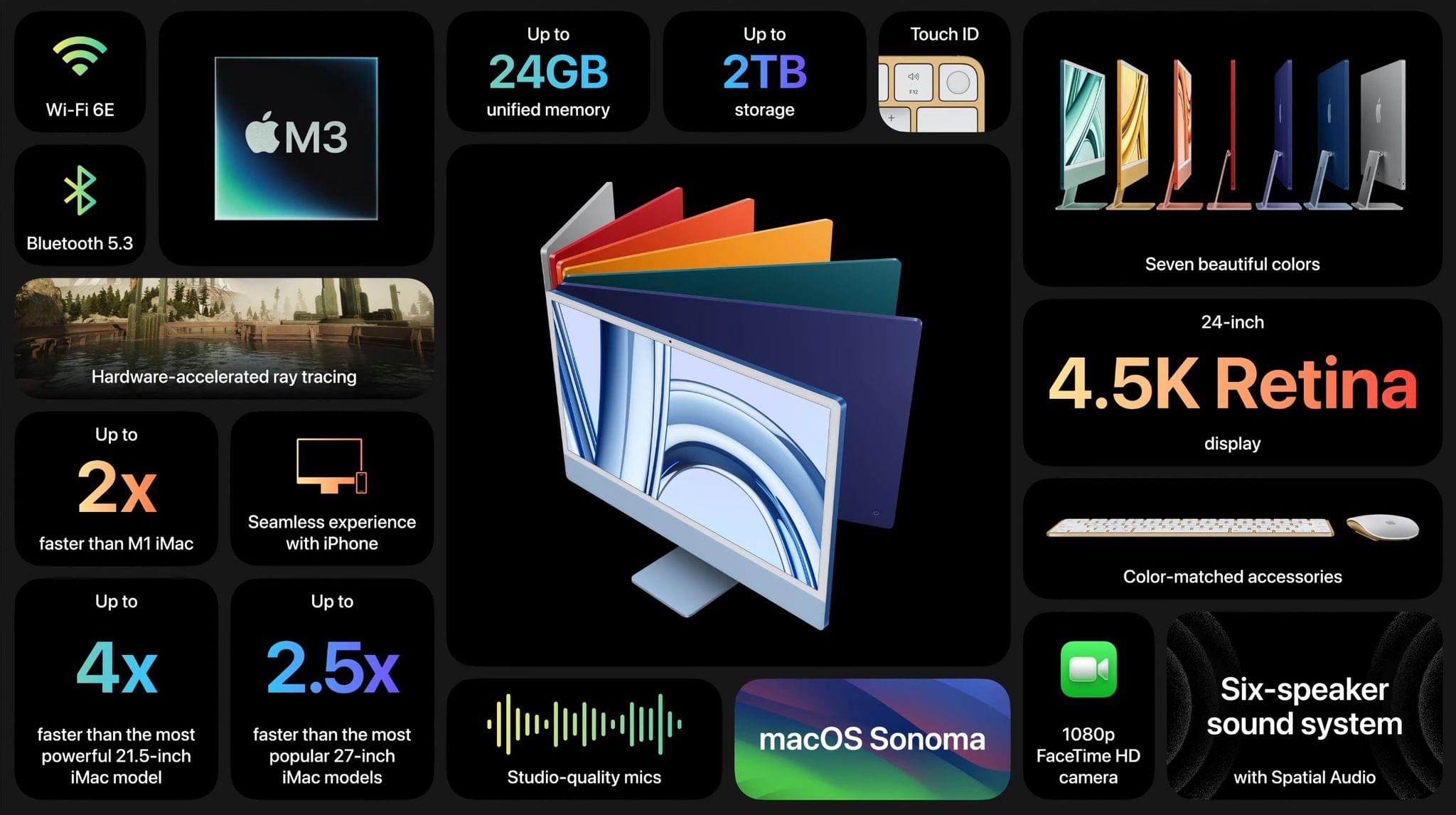
Just over two years ago, I spent the summer with a 24” M1 iMac on my desk and loved it. The elegant simplicity of an all-in-one Mac with just a couple of cables trailing off the back side of the computer is wonderful. The all-in-one design of the M1 iMac wasn’t new, but it was a stunning departure from its predecessor, with a slim, flat design that wasn’t possible in the Intel era. Plus, it came in a variety of vibrant, fun colors, which is all too rare in Apple’s product lineup.
Today, Apple announced the successor to that iMac that features an all-new M3 chip that, by Apple’s account, is ‘scary fast.’ Just how fast the new iMac is compared to other models will require hands-on testing, but from the specs alone, the new iMac is impressive.
Let’s take a look.
Apple’s October 2023 Scary Fast Event: Replay Today’s Keynote
If you didn’t follow the livestream of today’s ‘Scary Fast’ Apple event, you can replay it on Apple’s Events site or YouTube.
The keynote video can be streamed here and on the Apple TV using the TV app. A high-quality version will also be available through Apple Podcasts as a video and audio podcast. An American Sign Language version of the event keynote is available on the Apple Events page too.
You can watch the videos for the new MacBook Pros and ‘You Think That’s Hard Work?’ opening sequence after the break.
Astropad’s Rock Paper Pencil Delivers A No-Compromise, Simple Paper-like Experience on iPad

It’s been years since I took a serious run at handwritten notes on the iPad. However, that changed with my recent experiments with the Boox Tab Ultra, which led me back to the benefits of jotting down handwritten notes as a quick capture system while I work. That’s why Aspropad’s new Rock Paper Pencil bundle of a nano-textured iPad screen protector and replacement Apple Pencil tips that mimic the feel of paper caught my eye. I’ve had bad luck with screen covers that feel like paper in the past, but as I’ll explain below, Astropad has created a unique package that offers the closest experience to writing or drawing on paper that I’ve ever tried while also being easy to use.
 Managing Busy Days in Things with Shortcuts
Watching what Federico’s been up to with Things automation spurred me to give the app another try. I love Things and was using it before I switched to Reminders for the summer review season, but aspects of the app have always bothered me. I don’t like how Things handles recurring tasks that you complete...
MacStories Unwind: Don’t Bend the Fiber







This week on MacStories Unwind, Federico and I discuss the Ecobee HomeKit doorbell, an obscure USB-C adapter Federico discovered, and BBQ. Plus, with my Internet out for part of the week, we learn that my Internet service Plan B is rather ordinary compared to Federico’s, which involves a picnic table and getaway car.
Links and Show Notes
Gadgets
Food

We deliver MacStories Unwind+ to Club MacStories subscribers ad-free and early with high bitrate audio every week.
To learn more about the benefits of a Club MacStories subscription, visit our Plans page.
Shazam Introduces Dedicated In-App Concerts Section

Today, Shazam introduced a dedicated Concerts section in its music discovery app that lets you explore upcoming shows that are recommended based on your Shazam history. Users can look at all recommended shows or narrow recommendations to those that are scheduled nearby. There’s also an option to display popular shows irrespective of your listening history.
When you find an artist’s show that you want to learn more about, tapping on the event listing offers additional options to:
- Buy tickets via Ticketmaster or BandsInTown
- Save the show for later, which moves it to the top of the Concerts section
- Add the show to your calendar
- View a map of the venue in Apple Maps
- Access playlists, albums, singles, and music videos in Apple Music
- View additional tour dates on a dedicated Concert Guide screen
Apple says other perks will be available too:
Shazam now also gives users the ability to save and revisit events, set reminders about upcoming shows, view tickets and unlock concert exclusives from select artists, which include brand new Watch faces and wallpapers available for download, behind the scenes video, tour photos, show set lists and more.

For example, USHER’s Super Bowl concert in Las Vegas next February includes bonus content that links to information about his appearance, which is sponsored by Apple Music.
Events can be shared via the share sheet and accessed via Spotlight Search, too.

Some of the functionality found in Shazam’s Concerts section was previously added to the app. However, it’s great to see concerts get a dedicated space in the app. The update will make it easier for fans to discover upcoming shows and learn more about newly-discovered artists.
The Shazam update is available now for iOS and iPadOS users and will be released in the Android version of the app soon.
Obsidian’s Importer Plugin Lets You Move Your Apple Notes to Any Note-Taking App That Supports Markdown
As Club MacStories members know, I’ve been spending time the past few weeks decluttering my digital life and setting up systems so it’s harder for things to come undone again. One of my strategies to make life easier for ‘future me’ is to minimize the number of places I store things.
For notes and articles I write, that means Obsidian. In the past, I’ve resisted putting every text file in Obsidian because the app’s file management tools haven’t always been the best. Part of that historical weakness is undoubtedly the result of Obsidian’s emphasis on linking between documents. Fortunately, Obsidian’s folder and file management tools have come a long way. Paired with Omnisearch, a powerful third-party search plugin, I’ve overcome my hesitation and gone all in with Obsidian as an editor and text storage solution. So, when I heard that Obsidian’s open-source import tool had been updated to work with Apple Notes, I thought I’d export some of my notes to Obsidian to get a feel for how well it works.
Apple Notes doesn’t have an export option. Instead, as Obsidian’s blog post on the Importer plugin update explains, it stores your notes in a local SQLite database. The format isn’t documented, but the developers of the plugin were able to reverse-engineer it to allow users to move notes and their attachments out of Notes and into two folders: one with Markdown versions of your notes and the other with the files attached to your notes. The folder with your notes includes subfolders that match any folders you set up in Notes, too.
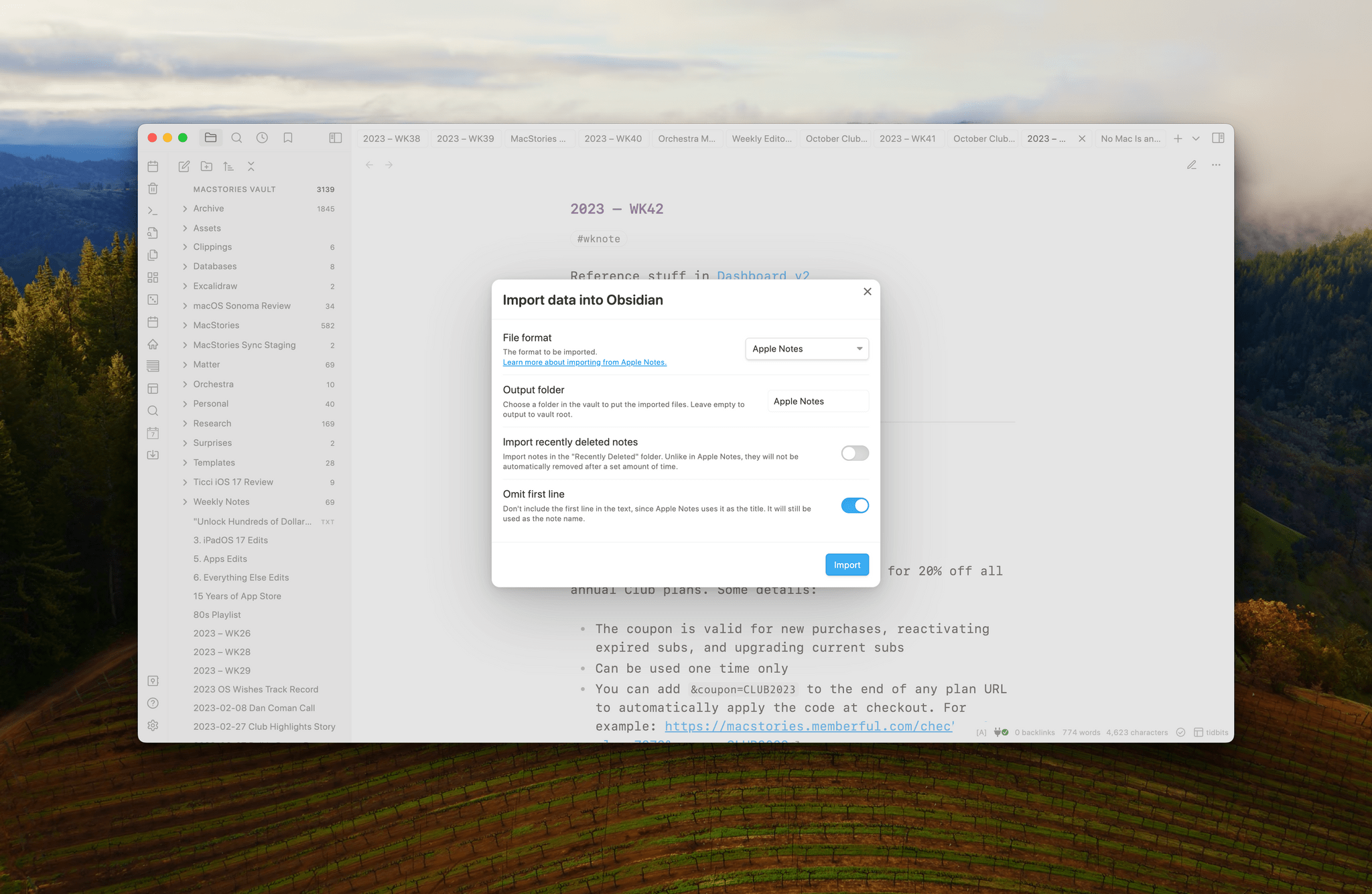
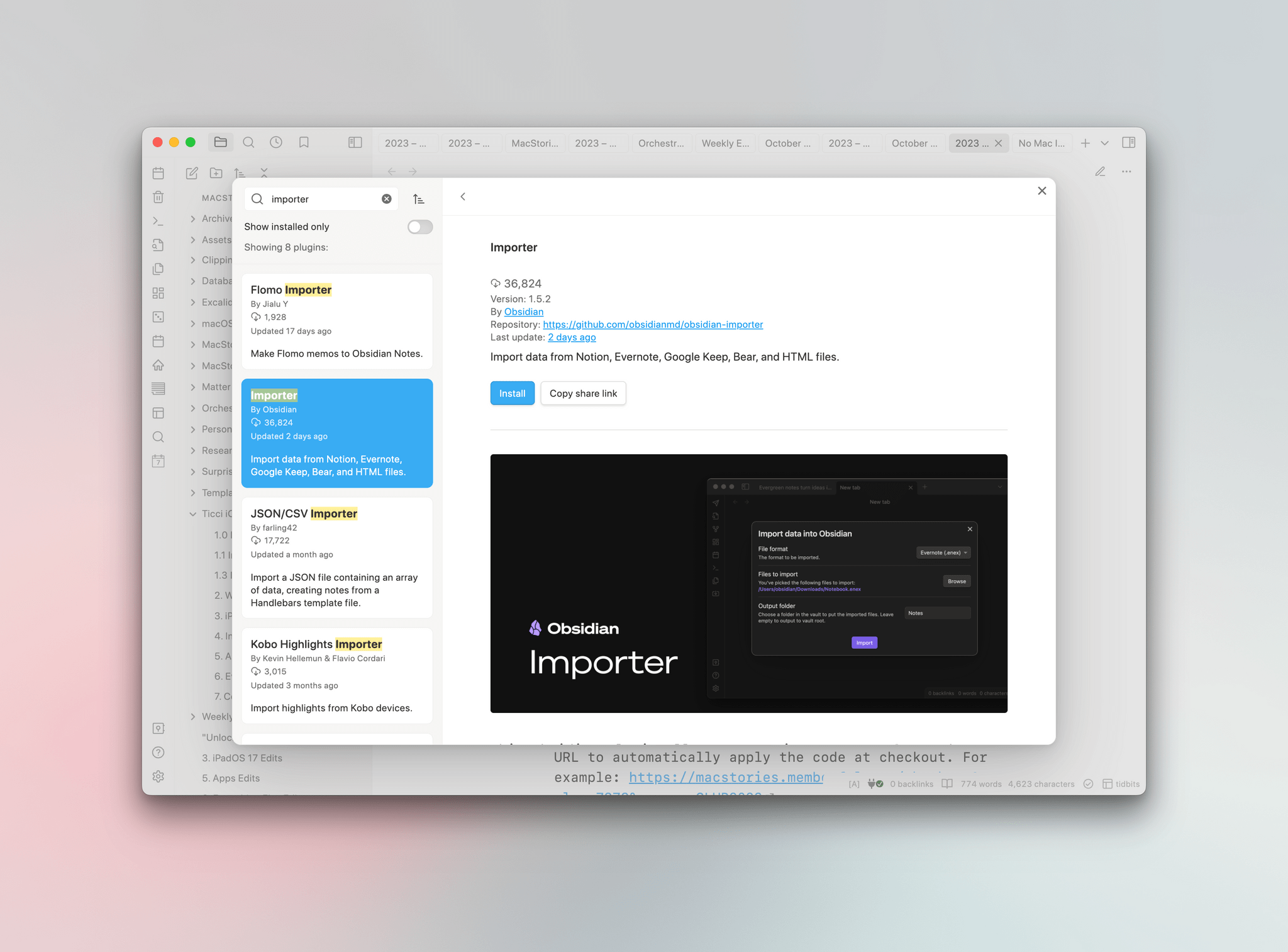
Importer is an Obsidian plugin that can be downloaded and installed from the Community Plugins section of Obsidian’s settings. The Importer’s UI can be opened using the command ‘Importer: Open Importer,’ which gives you options of where to save your imported notes, along with options to include recently deleted notes and omit the first line of a note, which Obsidian will use to name the note instead. Click the Import button, and the plugin does its thing. That’s all there is to it.
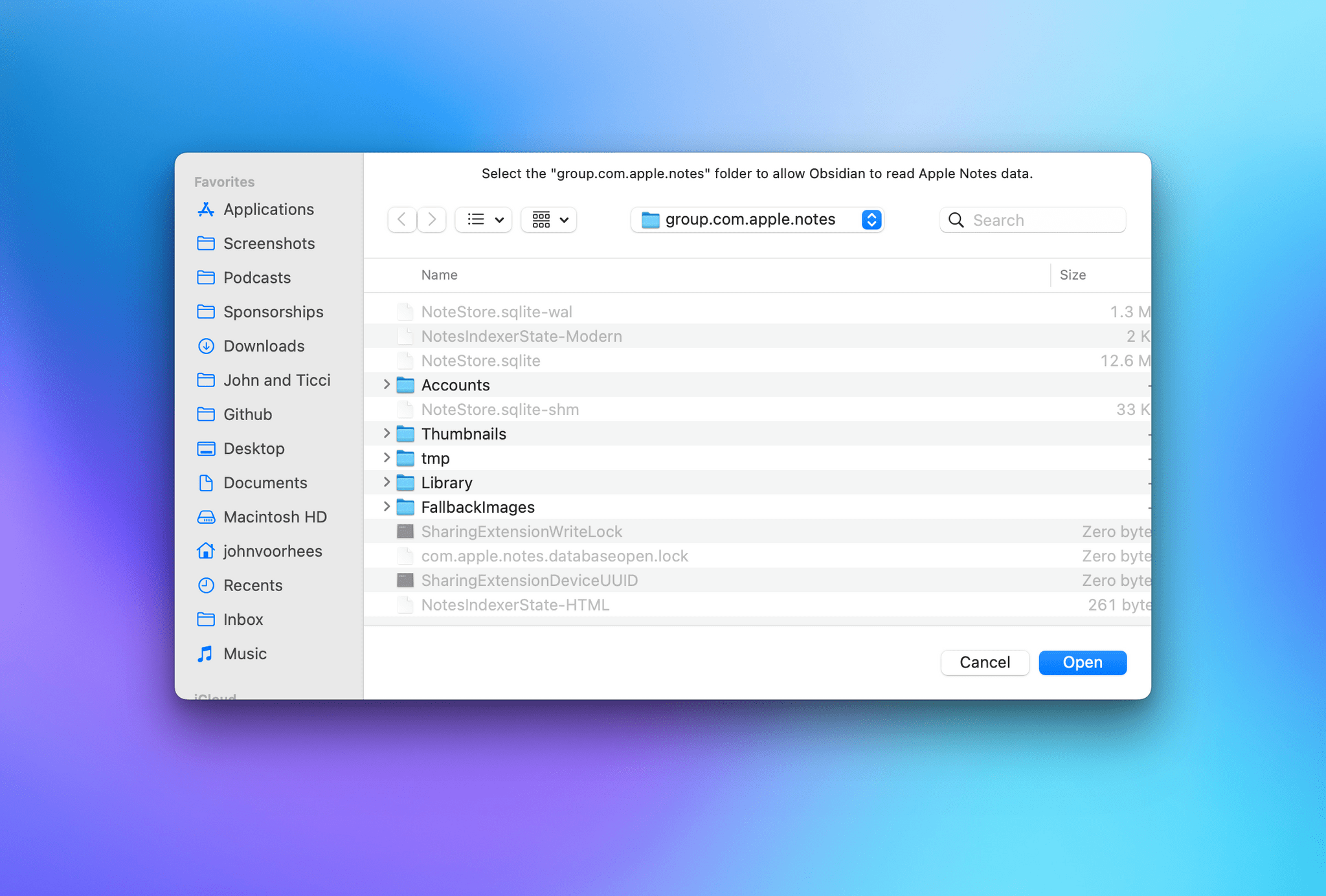
When you run Importer, it requires you to confirm where your Notes are stored, which is easy because the plugin takes you there itself.
I ran Importer twice to see how well it worked in practice. The first time was on a set of more than 400 notes, many of which hadn’t been touched in years. The import process was fast, but it failed on 36 notes, and it wasn’t clear from the plugin’s interface whether that caused it to get stuck part of the way through or if the plugin just skipped those notes. I don’t know why some of my notes failed to import, but the results weren’t too bad for an undocumented file format of an app with no official export feature.
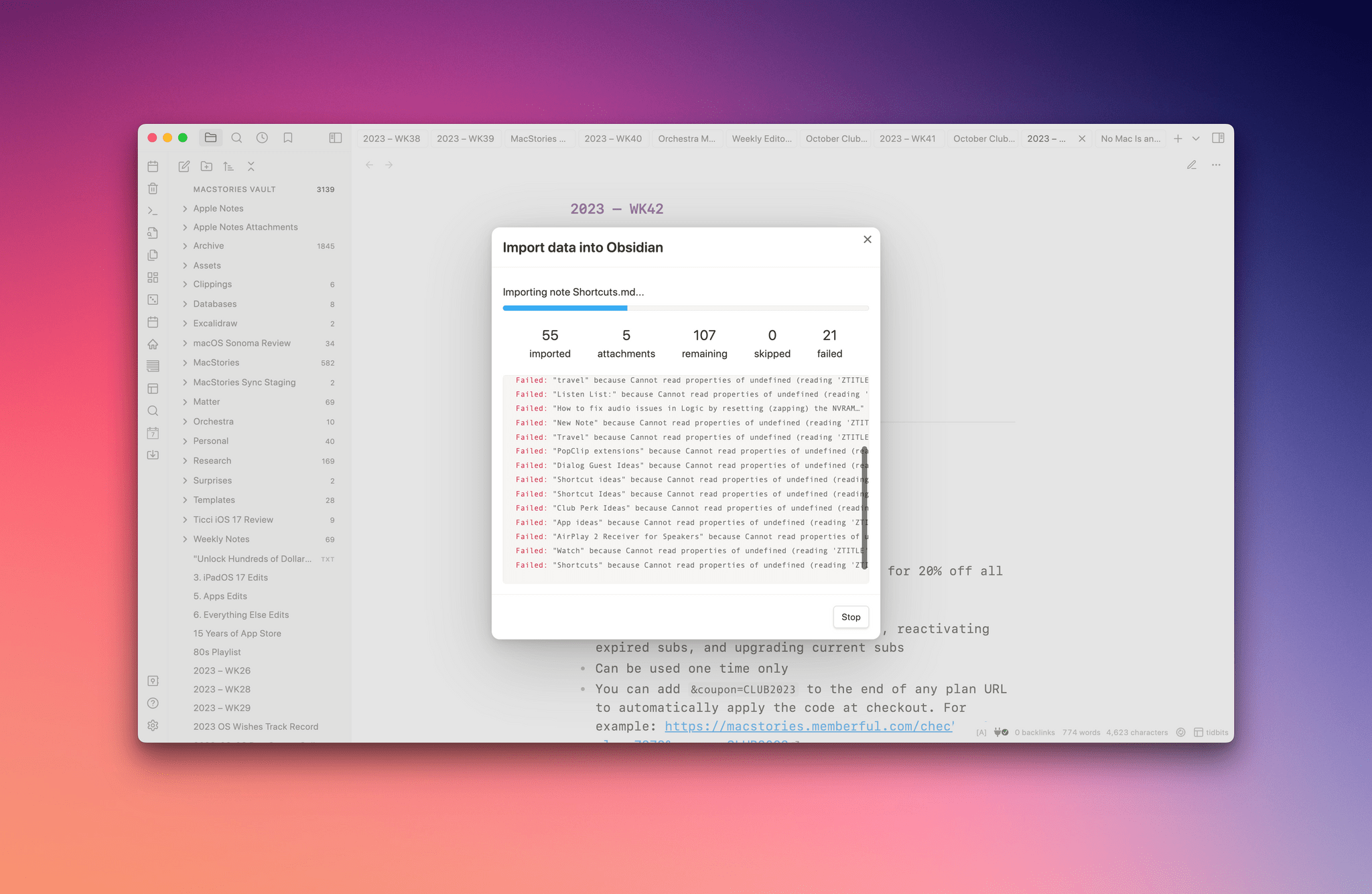
Importer isn’t perfect but it’s close enough given my large collection of old, rarely touched notes.
The import process is non-destructive, meaning it doesn’t delete the notes in Apple Notes. I took advantage of this by deleting everything I’d just imported into Obsidian. Then, I went back to Notes and cleaned them up a bit, deleting old notes I didn’t need anymore and reducing the total note count to 149. I re-ran Importer, and this time, I got no errors. I haven’t checked every note, but based on a spot check, the import process looks like it was successful.
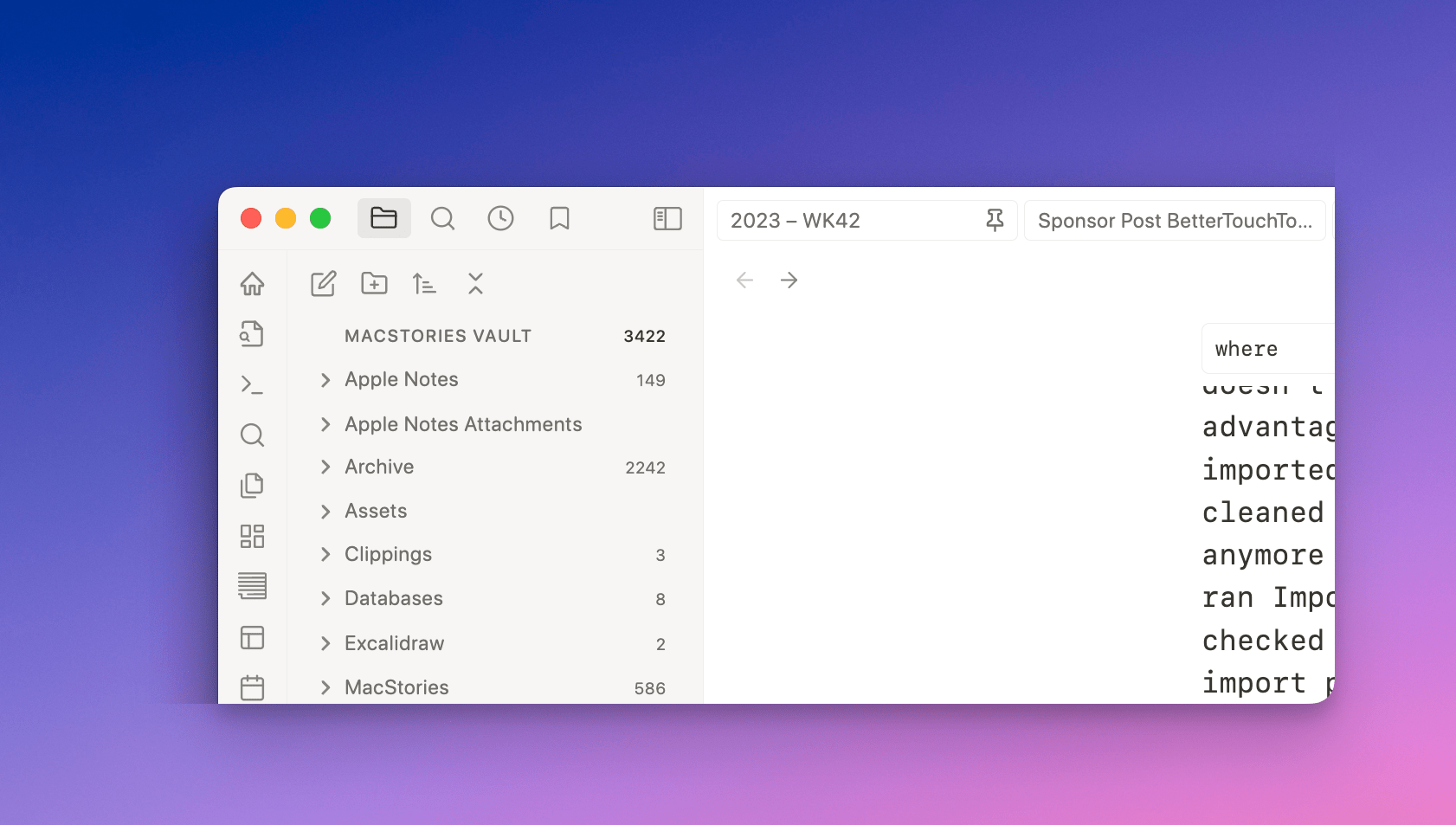
The end result of using Importer is a folder of Apple Notes and related subfolders, plus a folder of attachments.
One limitation of Obsidian’s Importer plugin is that it requires you to use the Obsidian app. However, the beauty of plain text is that once you have a folder full of Markdown files, you can use them with any app that supports Markdown, so it’s a tool worth considering whether you’re an Obsidian true believer or not.
That said, I don’t intend to abandon Apple Notes completely. It was easy to move a bunch of reference notes to Obsidian, where they’ll be easier to use alongside other notes. However, Obsidian’s Achilles heel is its lack of a workable system for collaboration. Until there’s a fast, secure, and simple way to share and edit notes with others, I’ll still use Apple Notes’ sharing feature. For everything else, I’m in deep with Obsidian because the portability and flexibility of plain text combined with a rich selection of third-party plugins make it the best tool for the sort of work I do.
Apple Announces October 30th Event

Apple has announced an event will be held on Monday, October 30th, at 5:00 pm Pacific time. There’s no indication of what might be announced, but the announcement does include the obtuse teaser ‘Scary Fast’ in the email invitation that was sent to the media. Also, Mark Gurman of Bloomberg has suggested that a refreshed iMac and MacBook Pros may be in the works.
The event is also being held at an unusual time compared to every Apple event in recent history. Whether or not that’s significant or not remains to be seen.