
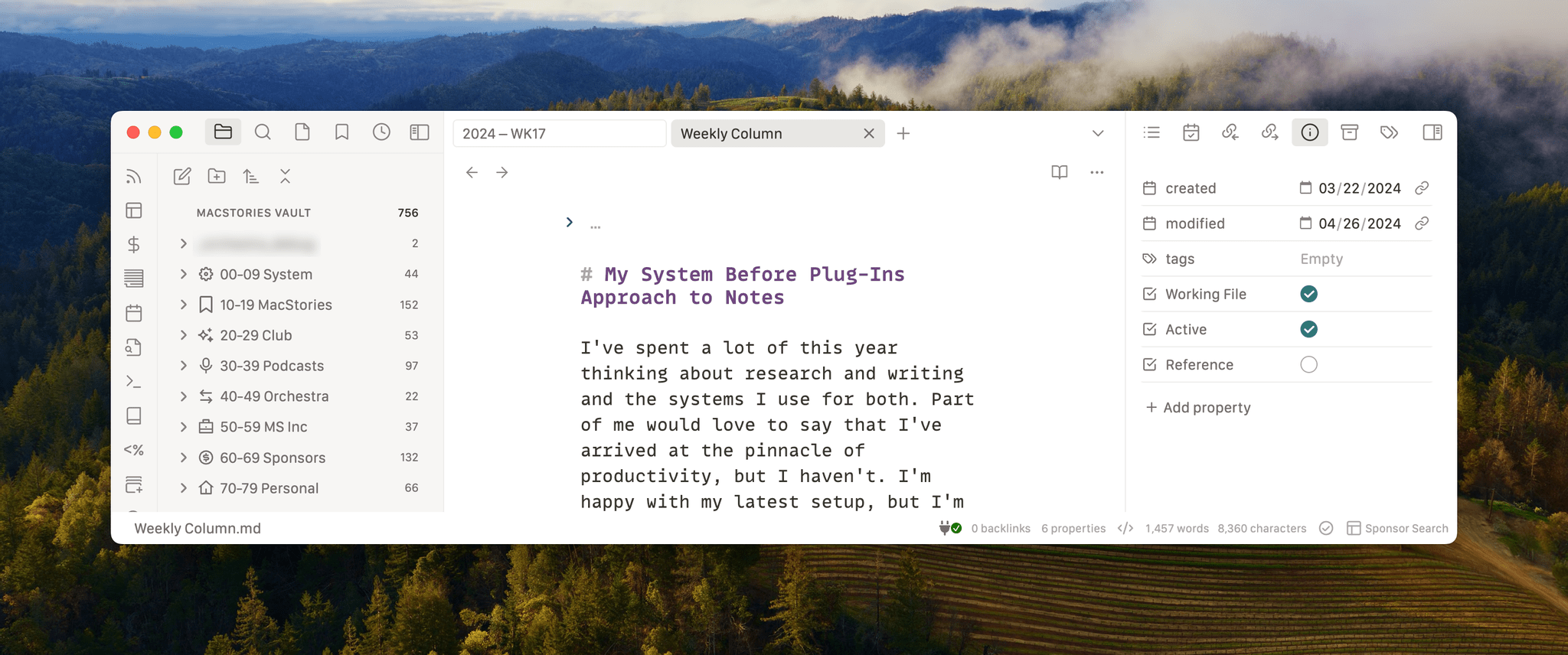
I’ve spent a lot of time this year thinking about my research and writing process and the systems I use for both. I’d love to say that I’ve figured it all out and arrived at the pinnacle of productivity, but I haven’t. I’m happy with my setup, but I’m not totally satisfied with it, either,...
 Interesting Links
Wacom has a brand new $750 OLED drawing tablet, which is its thinnest tablet yet and looks great for artists. (Link) Jarrod Blundy took the Meta Ray-Ban Smart Glasses and Apple Watch out for a run and was impressed with the combo. (Link) Right to repair laws continue to be passed, and this time...
AppStories+ Scheduling
We’re working on a special episode of AppStories for next week, and due to some scheduling issues, the Plus version of AppStories will be released on Monday alongside the regular version. We expect to be back on the usual AppStories schedule the following week....
App Debuts
Baseplate Baseplate is a brand-new app for Lego fans that works on all of Apple’s platforms. The app serves as a catalog and inventory system that includes everything from individual bricks to sets, mini-figures, and more. You’ll find build instructions, images of sets, and metadata like market prices, set descriptions, and release dates. The...
MacStories Unwind: iOS Retro Gaming 5 Eva→

This week on MacStories Unwind, why game emulators on iOS are a big deal, Girls5eva, and Franklin.






This episode is sponsored by:
- Kolide – It ensures that if a device isn’t secure it can’t access your apps. It’s Device Trust for Okta. Watch the demo now.
Links and Show Notes
Unplugged Segment
- The Wild World of iOS Retro Gaming
Picks
- Federico’s Pick:
- John’s Pick:
- Franklin on Apple TV+
- Trailer
- Based on the book, A Great Improvisation by Stacey Schiff
- Franklin on Apple TV+
MacStories Unwind+

We deliver MacStories Unwind+ to Club MacStories subscribers ad-free and early with high bitrate audio every week.
To learn more about the benefits of a Club MacStories subscription, visit our Plans page.
Ketchup: The Only Pokémon Companion App You’ll Ever Need
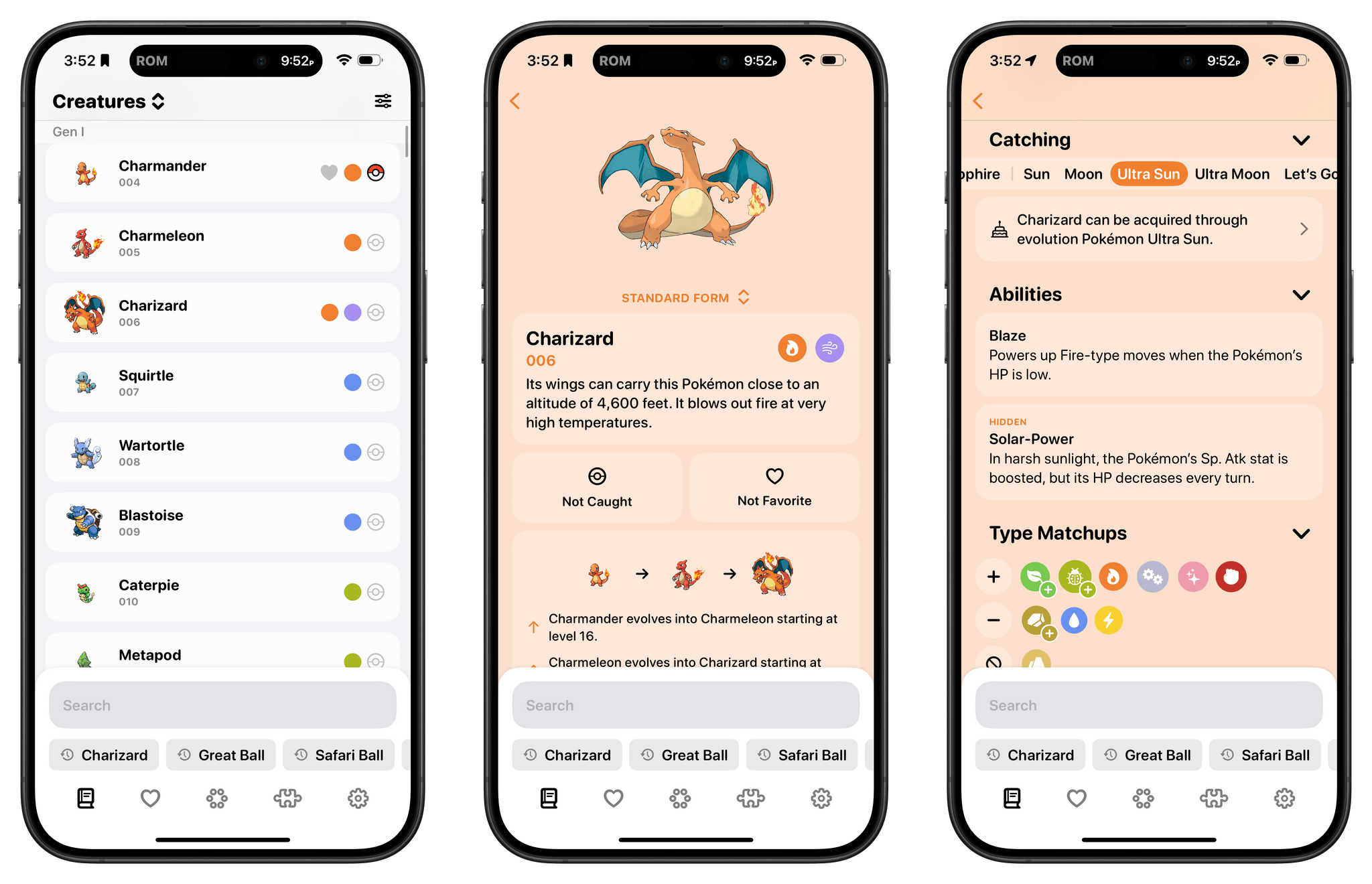
As any Pokémon fan knows, the series is all about data – lots and lots of data. So much data that entire websites and apps are dedicated to helping players keep track of it all. That’s a big design challenge for any app developer, which is why I was so glad to see it taken on by Ben McCarthy, whose apps, including the camera app Obscura, are some of the best designed on the App Store.
Ben’s new app is called Ketchup, and it’s a comprehensive compendium of every generation of Pokémon that incorporates powerful search, caught and favorite Pokémon tracking, a battle match-up utility, and a quiz game all in one app. But what makes it special and sets the app apart from others I’ve tried over the years is the design, which makes it easy to find what you’re looking for and presents it in a coherent, understandable, and modern interface.
Supercell Announces That Squad Busters Will Be Released Worldwide on May 29th
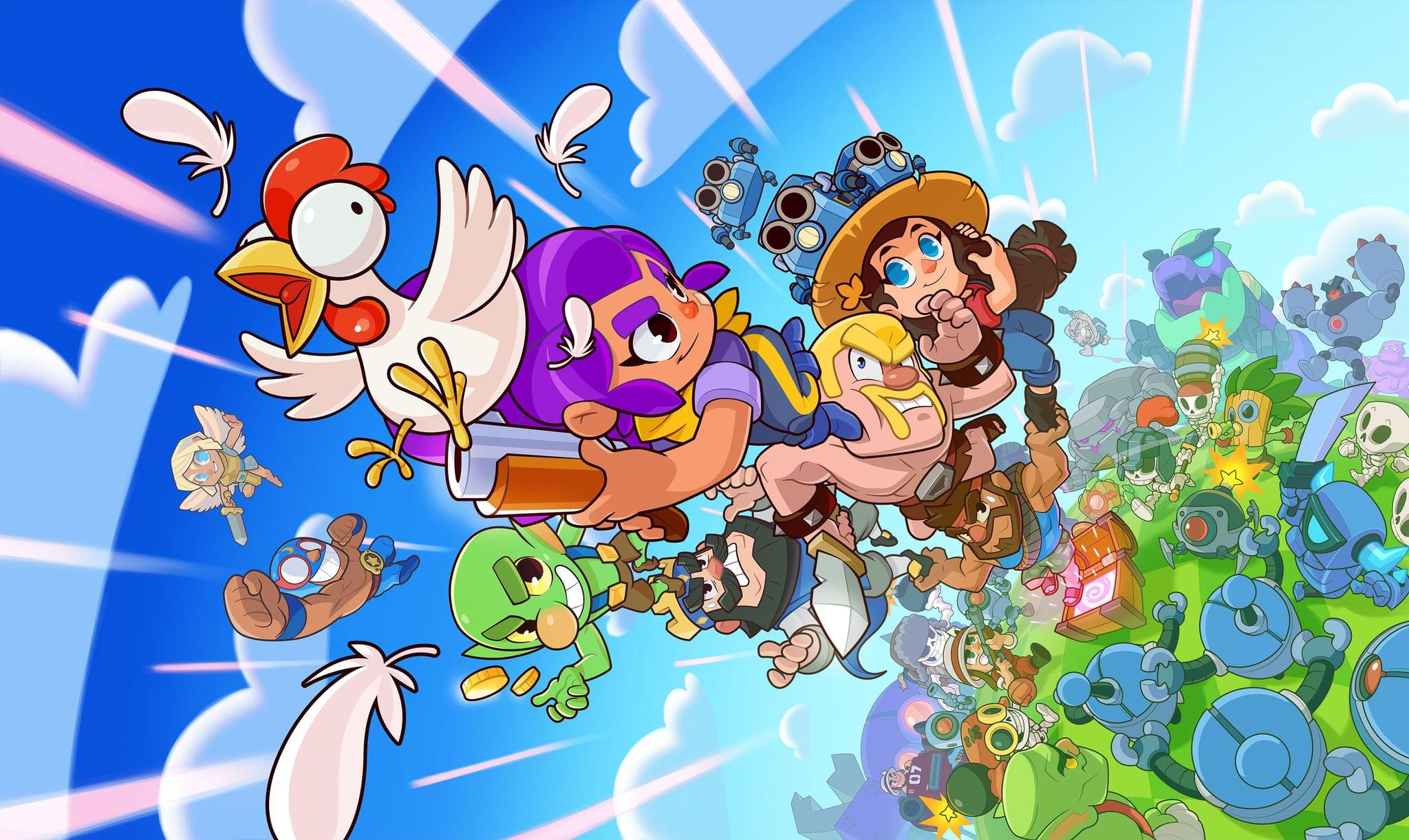
Earlier this week, Supercell soft-launched Squad Busters, a party action game, in Canada, Mexico, Spain, Denmark, Norway, Sweden, Finland, and Singapore. Today, the company announced that the game will launch on iOS and Android worldwide on May 29th.
According to Supercell’s CEO, Ilkka Paananen:
Our dream is to create great games that as many people as possible play for years and that are remembered forever. Huge credit to the Squad Busters team – it’s already apparent that the game has such high potential, making it our first company game launch since Brawl Stars in 2018. Squad Busters brings together our Supercell characters in a fun way that fans have never seen before and I can’t wait to see the reactions from players across the globe!
I haven’t had a chance to play Squad Busters yet, but from the demo Supercell shared with me, it looks like an interesting addition to its lineup, which includes popular titles like Clash of Clans. The Supercell team likens Squad Busters to the fun, chaotic competition of classic games like Mario Kart. Players compete against friends and online squads in ten-person, four-minute matches that are populated with characters from across Supercell’s stable of games, collecting gems and other items. Along the way, characters evolve in a style similar to Pokémon games.

Squad Busters may superficially look a little like a last-person-standing battle royale game, but Supercell says its goal was to design a competitive action game that is accessible to players of all skill and experience levels. To that end, prizes are awarded no matter where you finish among the squads competing during a match. It’s not easy to design a game that appeals to such a broad spectrum of gamers, but if Supercell can manage it, Squad Buster’s colorful, frenetic, one-button gameplay has the potential to become a big hit. In that same vein, Supercell has worked to make sure that the game works on multiple generations of hardware as far back as the iPad mini 2.
Clash of Clans and Supercell’s other games have never appealed to me, but Squad Busters is intriguing. The gameplay I’ve seen looks fun, and I can see it working as a way to introduce a new wave of gamers to the company’s other titles.
Squad Busters is available for pre-order on the App Store now.
Apple Announces May 7th Let Loose Event
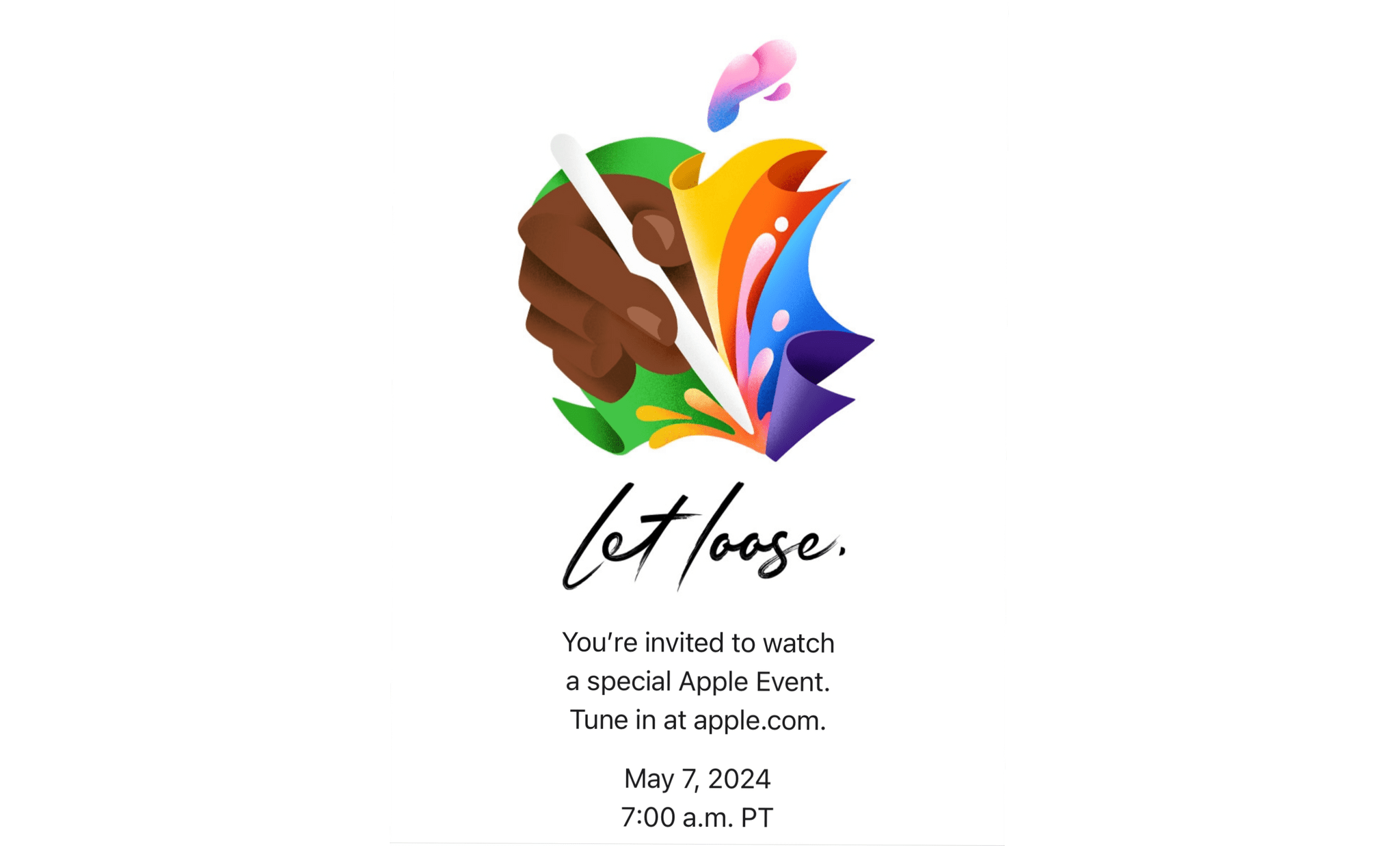
Today, Apple announced that it will be holding a video event on May 7, 2024 at 7 AM Pacific.

The announcement, which was sent to members of the press, doesn’t specify what it is about, but based on the illustration in the invitation, which clearly depicts an Apple Pencil, and based rumors, I expect the company will reveal new iPads and related accessories.
Game On: Speed Running Game Emulation on iOS
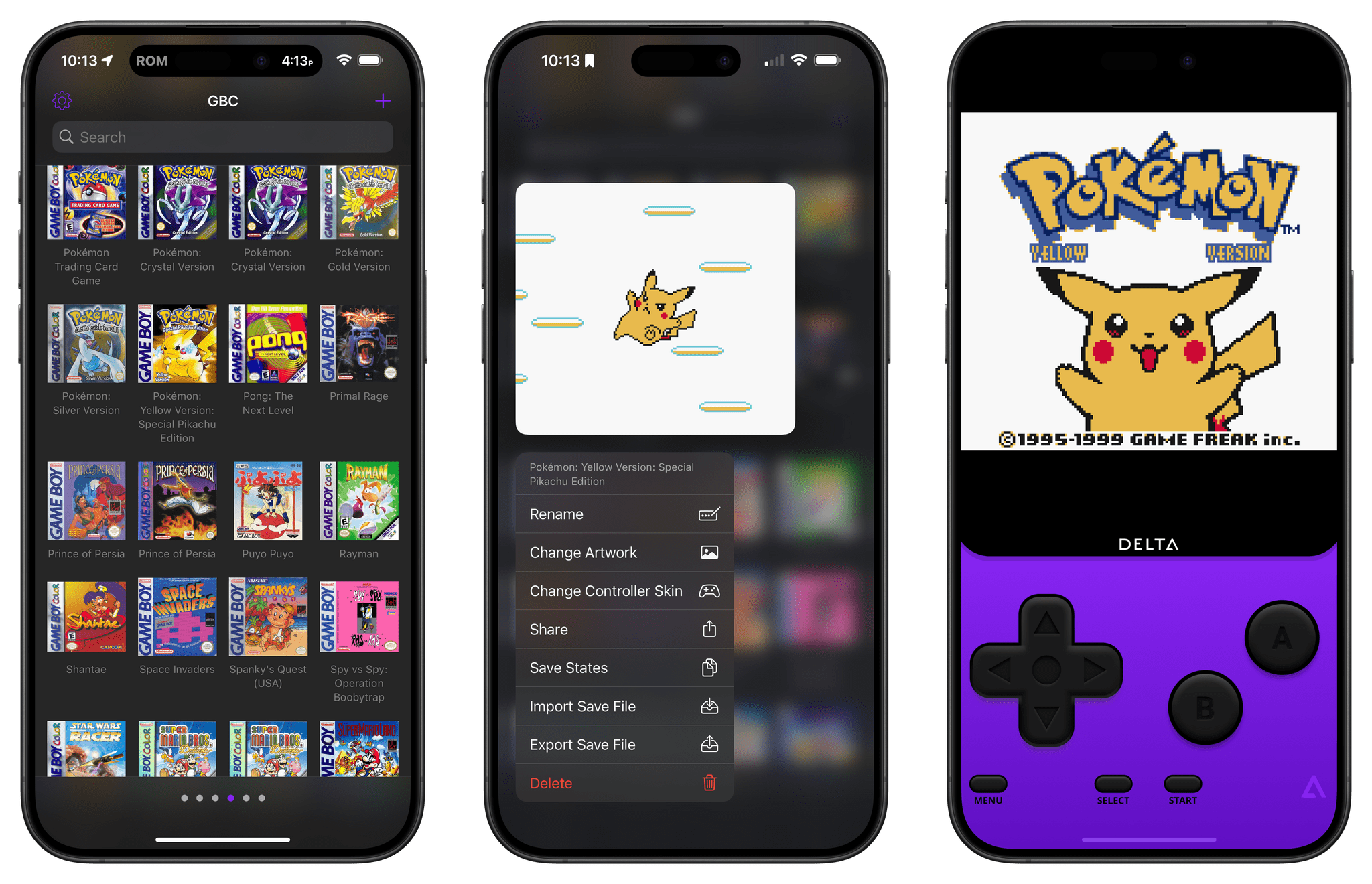
Game emulators are nothing new to mobile phones. That is unless you have an iPhone. There’s a long history of emulation on Android and an even longer history on Macs, PCs, and other platforms. However, with ‘retro game console emulators’ (Apple’s App Review Guidelines term) now allowed worldwide on iOS, we’re seeing the iOS world speed-running game emulation. It will be a while before iOS emulators catch up to Android and other OSes, but in just over a week, there’s already been a lot of news.
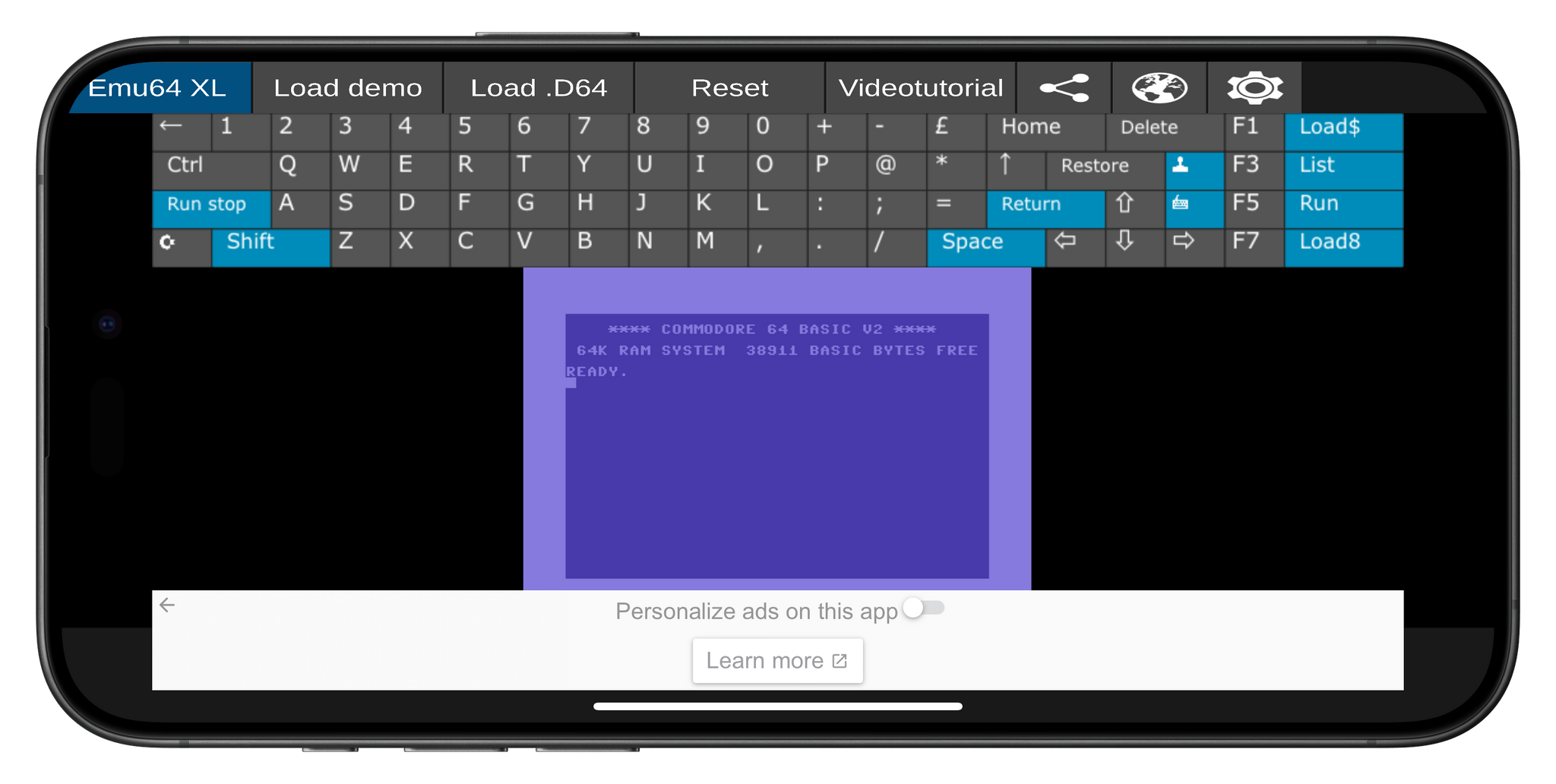
- The party got started with Emu64 XL, a Commodore 64 emulator, which has been available on the Google Play store for a while.
- Not long after, iGBA appeared on the App Store and then disappeared within a couple of days. The ad-supported app was a clone of Riley Testut’s GBA4iOS, a predecessor to his Delta emulator. Apple told MacRumors that it pulled the app because it violated the company’s App Review Guidelines related to spam and copyright.
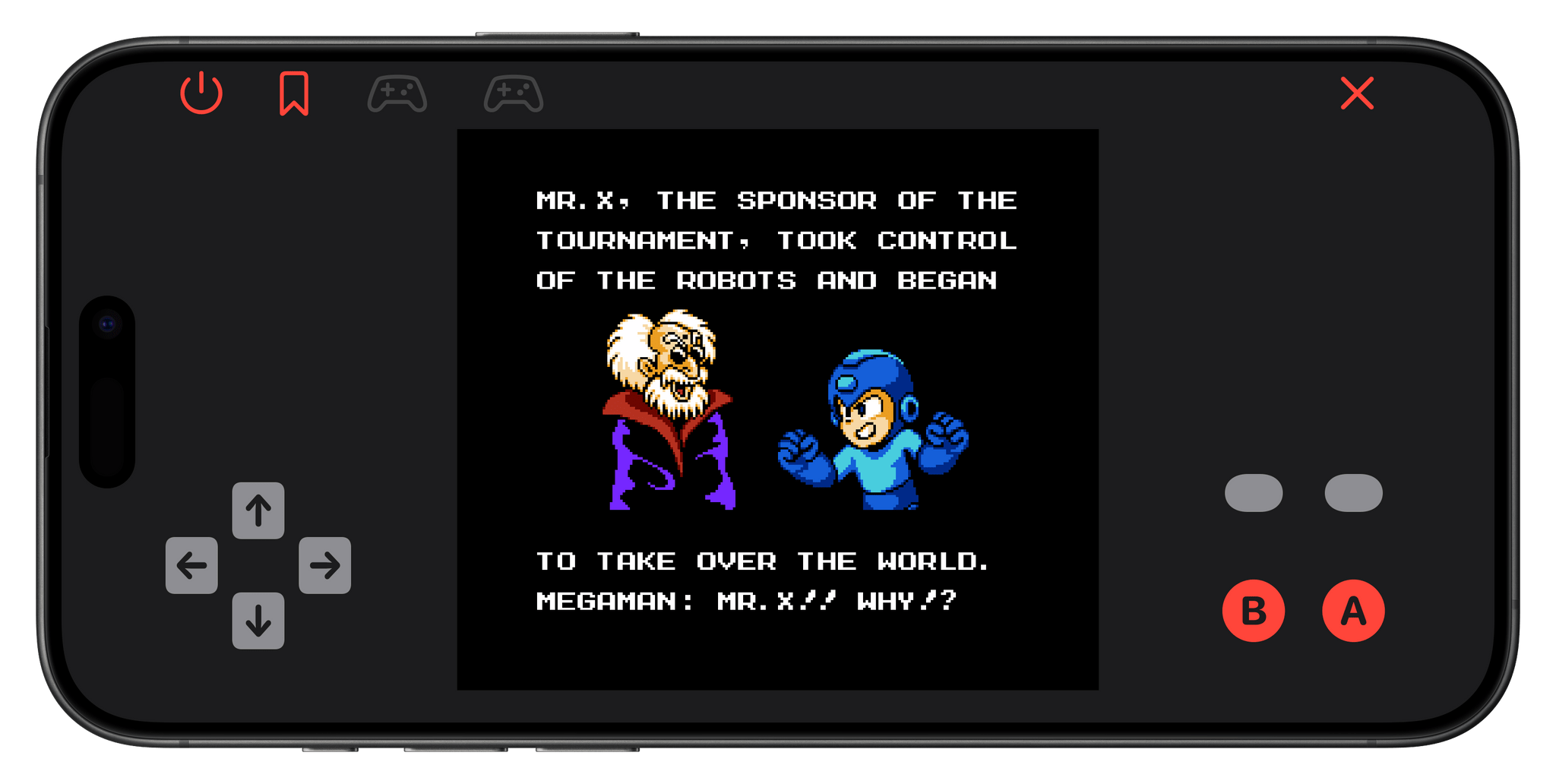
- About the same time that iGBA was being pulled from the App Store by Apple, Bimmy, an NES emulator, appeared on the Store for $0.99. It, too, was pulled from the Store within a day or two, but this time, it was the developer who pulled it, not Apple. Tom Salvo, Bimmy’s developer, told Zac Hall of 9to5Mac that he pulled the app “out of fear” and not as the result of pressure from anyone.
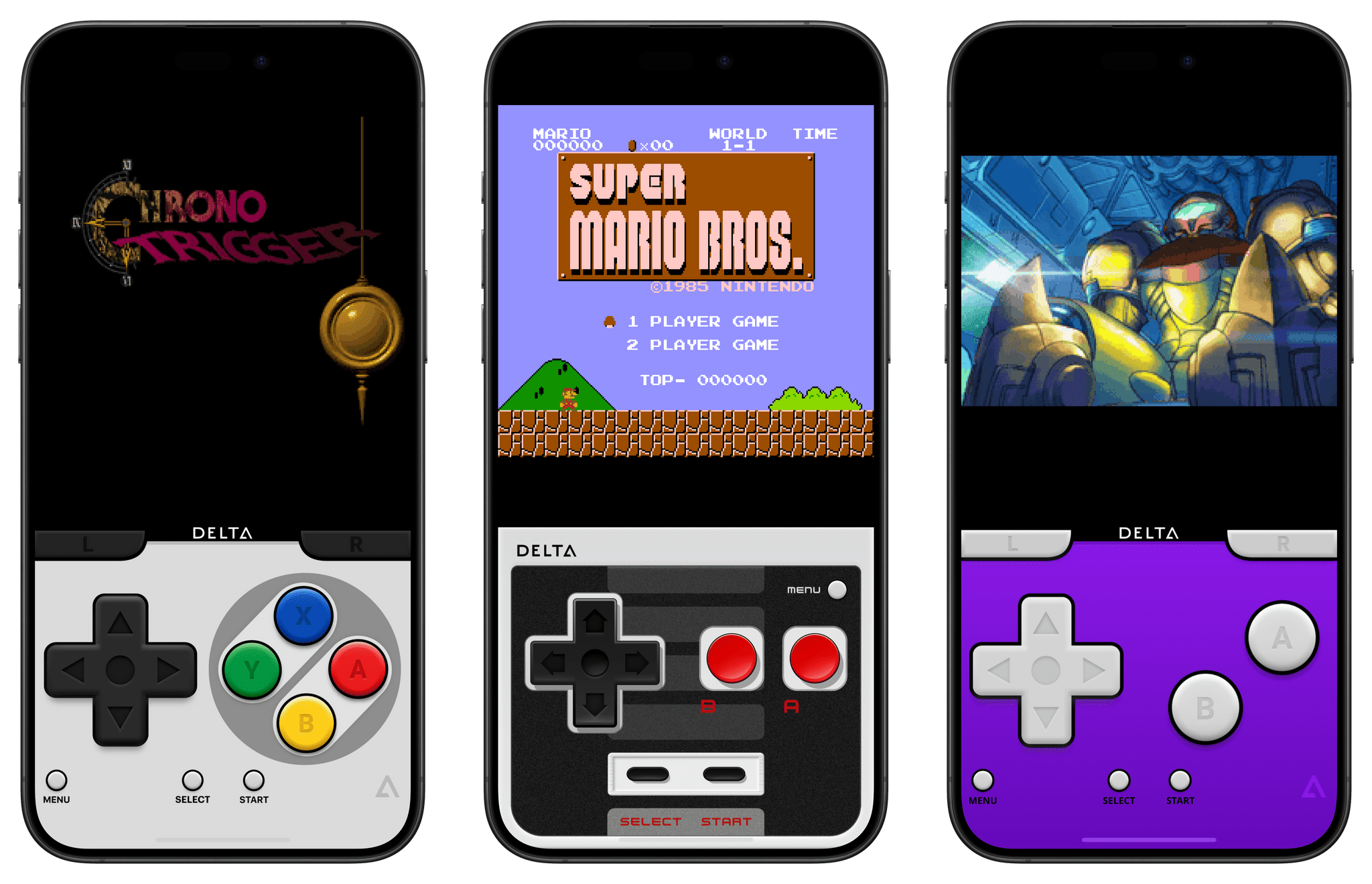
- Then, last Wednesday, Delta, Riley Testut’s game emulator that supports a long list of older Nintendo systems and the Sega Genesis console, was released on the App Store everywhere except the EU, where it is available on AltStore. Within hours, Delta shot to the top of the App Store’s Free Apps Top Chart, where it remains today.
- In the wake of Delta’s success, other developers have announced that they plan to bring their game emulators to iOS, including the maker of the Sony PSP emulator PPSSPP and the developer of Provenance, which works with multiple systems.
- The rush to the App Store by emulator developers isn’t universal, however. The creators of Dolphin, which works with Nintendo GameCube and Wii games, announced that it will not be coming to iOS because Apple doesn’t allow the necessary Just-In-Time recompilers to be integrated with game emulators.
Meanwhile, all eyes are on Nintendo. The company is notoriously protective of its intellectual property. And, although Nintendo has not sought to restrict the availability of emulators for its oldest systems, it aggressively pursued the makers of Yuzu, a Switch emulator, which resulted in the emulator being forced from the Internet with other emulators following suit. So, while emulators for early Nintendo systems have been available elsewhere for years, the sudden mainstream popularity of Delta on the App Store could draw an unwanted reexamination of emulators by the company. My hope is that instead of litigation, the new crop of iOS emulators spurs Nintendo to offer older games on the App Store and via other channels, but history isn’t on the side of my hopes and dreams.