


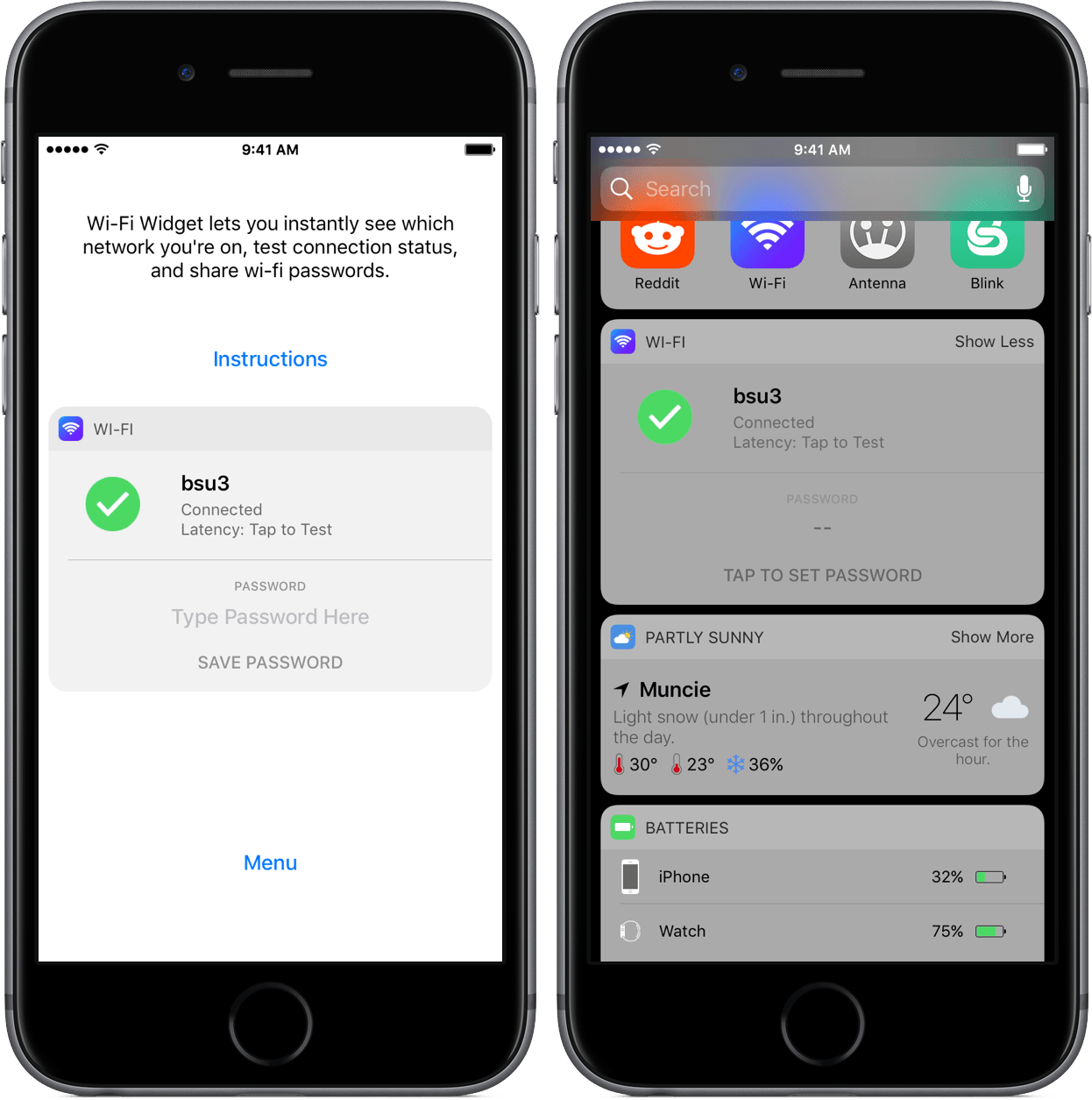
Wi-Fi Widget is a once-in-a-while iOS app that feels Mac-esque – it’s a utility that is practically sans-interface, yet adds something minute enough to the system to invoke a “Why hasn’t this been done before?” response.
Snapchat Adds Universal Search, Shows Off New Design
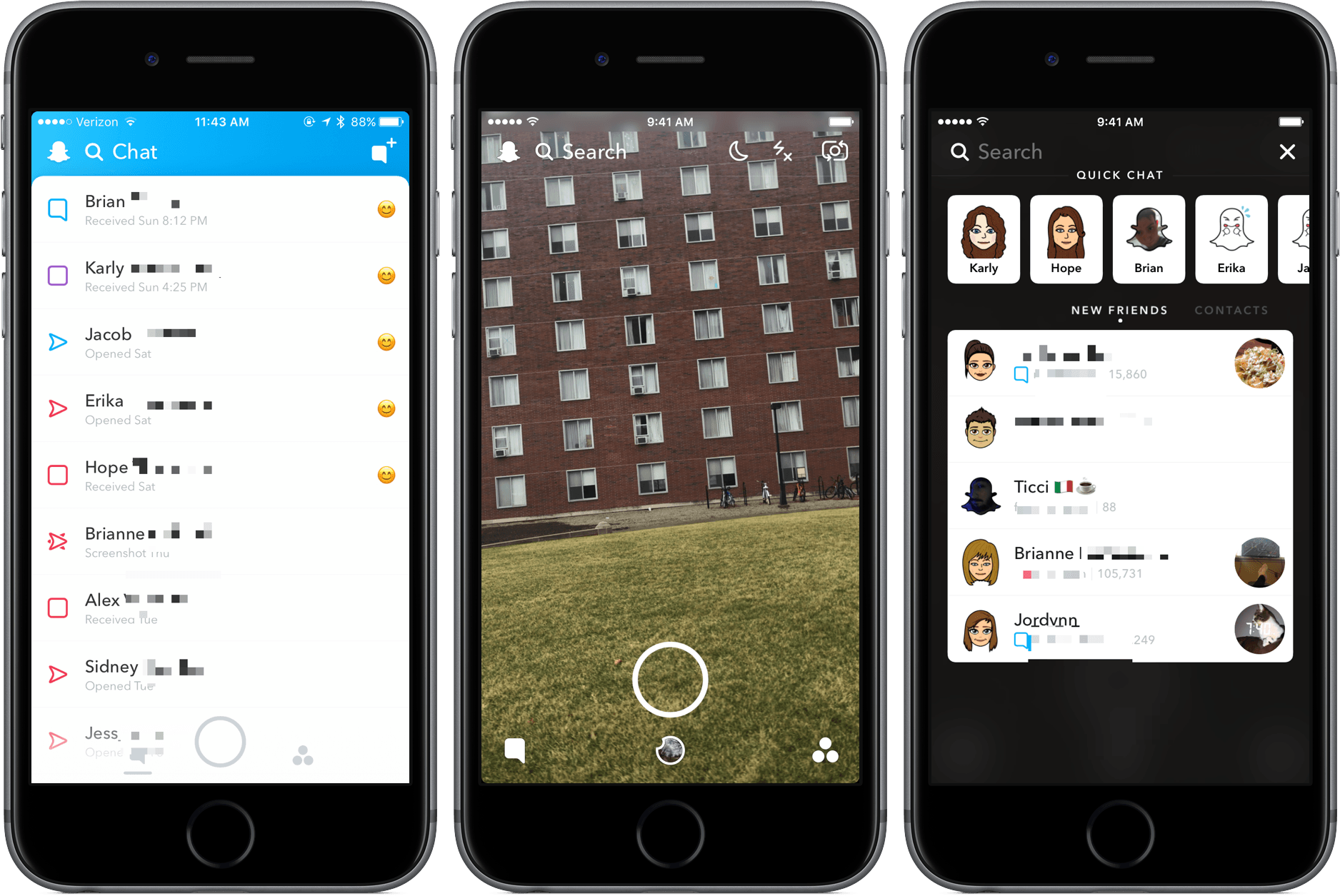
Snapchat, Snap Inc. introduced two major features in version 10.0.0 today.
Frequent Snapchat users will immediately notice the new universal search menu at the top of each view, which provides quick access to existing contacts as well as a way to find other users. By adding a mix of Bitmoji and ghosts to the contacts section, Snapchat has added a design language that it previously lacked.
For chatting or adding new friends, the search feature is a great convenience. However, if you spend most of your time taking pictures and sending them to the same group of friends, the new search capabilities won’t get much use.
Snapchat has refreshed the design of its other sections with title cards with headlines too. The changes are small, but they clean up the app’s interface and provide a greater sense of where you are in the app. In addition to labelling each of the three sections, the title bars include shortcuts to search and your snapcode. Snapchat also has new animations that makes the app feel more unified.
In total, I think that the update is a win for Snapchat’s navigation, which has been a point of criticism in its previous iterations. Although there’s much more work to be done, it’s good to see Snap putting in work to make the app easier to use.
Version 10.0.0 is a free update for Snapchat in the App Store.
Downwell Review: Fall Safely
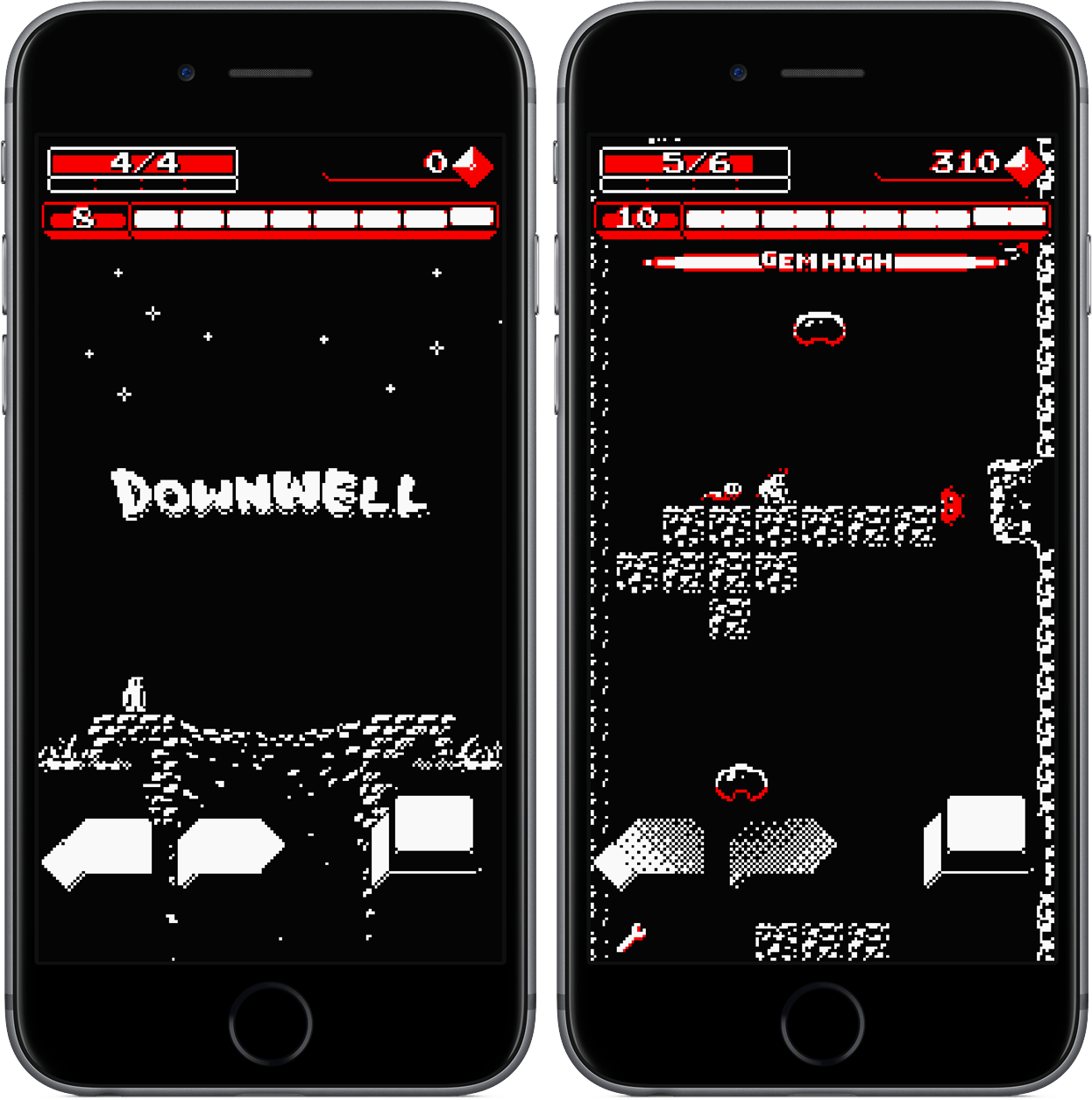
You’re in a park late at night when you stumble upon a large hole in the ground. Upon examining it, you realize that it is in fact a well – one that looks ominous in the darkness of the night. Of course, you wonder what lies in the well’s depths, but the echoes rising up from deep below send a shiver down your spine. What you’re hearing is not pleasant; it’s not human.
In this scenario, I’d venture to say that all of us would decide to ignore the well and move on with our night. But in Downwell, the protagonist must take a slightly different path. Instead of walking by, he straps on his gun boots and jumps into the hole, looking to defeat enemies and collect treasures.
And that’s where your action comes in – after guiding the character into the well, you’ll maneuver him to safety from stage to stage, hoping to minimize damage while capturing all the riches you can. All of this takes place in a retro-style, procedurally-generated game that’s incredibly addicting and one of my favorite iOS games I’ve played in a long time.
Switch Your AirPods Connection Easily with Tooth Fairy
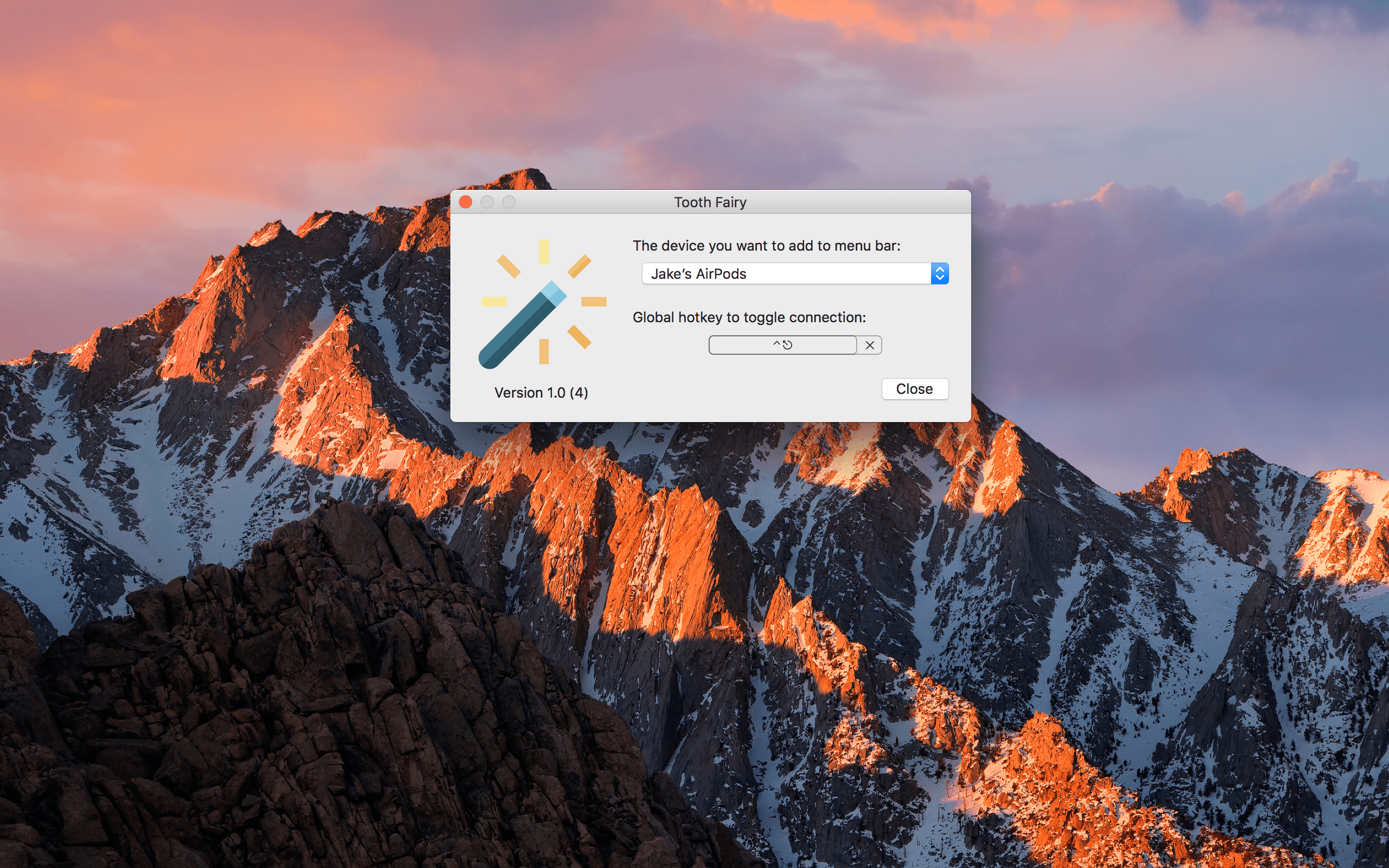
It’s become no secret that I, along with countless others, am absolutely in love with my AirPods. I’ve only had them for a couple of weeks, but I’ve already built a habit of keeping them in my ears for hours on end, switching between my iPhone and Mac to catch up on podcasts, listen to music, and watch YouTube videos.
And while one of the best parts of AirPods is that they are already set up on all your iCloud devices after the first pairing, the need to dive into the Bluetooth menus to connect them on the Mac can waste a frustrating few seconds. For a much quicker and more convenient switching process, I’ve been using Tooth Fairy on the Mac.
HealthView Review: Your Customized Health App
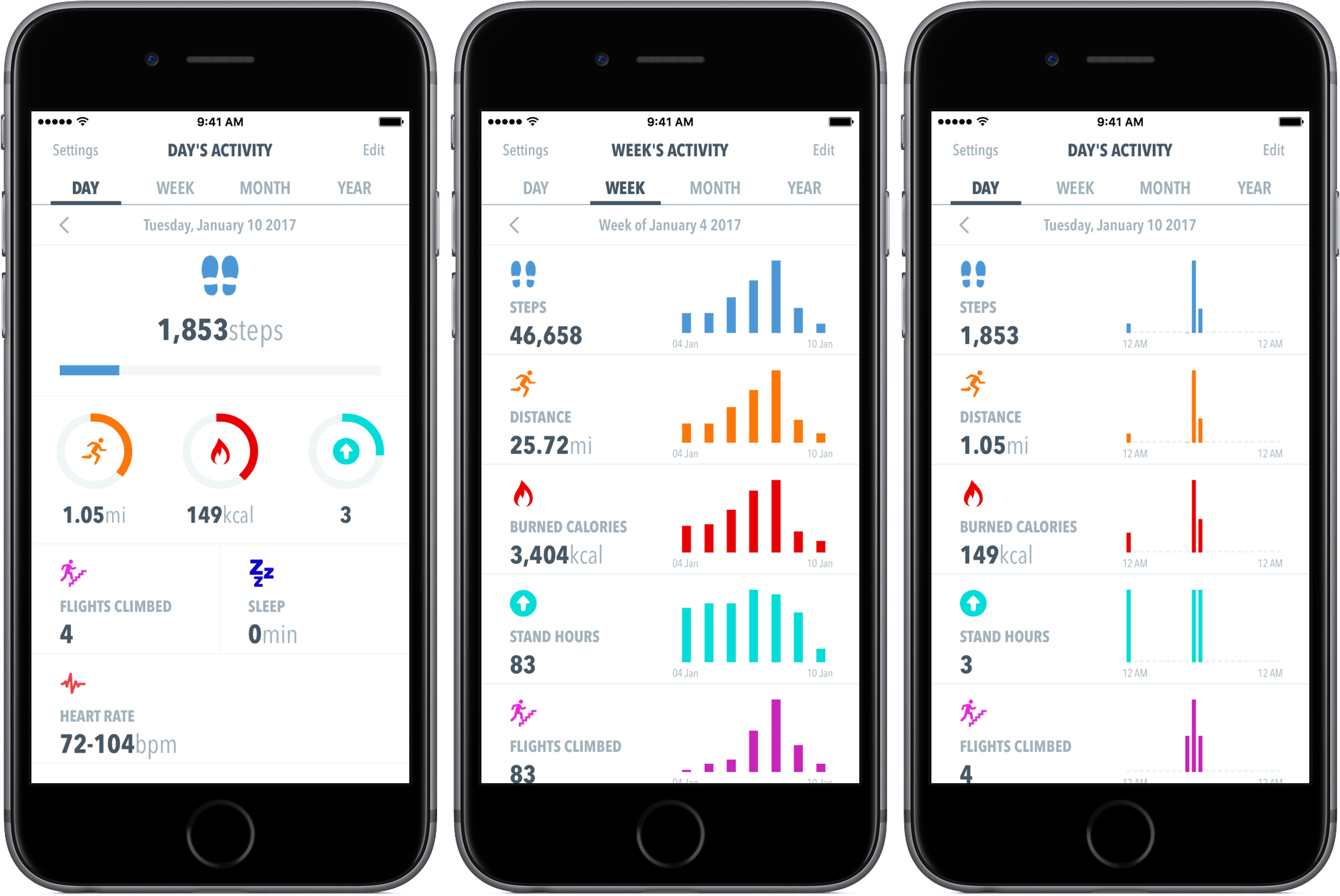
When it comes to health information on my iPhone and Apple Watch, I’m about as mildly interested as it comes – while I enjoy glancing at the metrics and measurements displayed on the Apple Watch, I usually stay away from the iPhone’s Health app.
There are two primary reasons for this: the Health app is pretty cluttered; and Health often gives me information that I really don’t care about. I’d like a “less is more” approach.
HealthView offers exactly that – rather than providing you information scattered throughout the app, you choose what you want to see, how you want to see it, and when it appears. Although it’s not as robust as Apple’s Health, HealthView may just be a better fit for your needs.
Time Review: Powered by AI and You
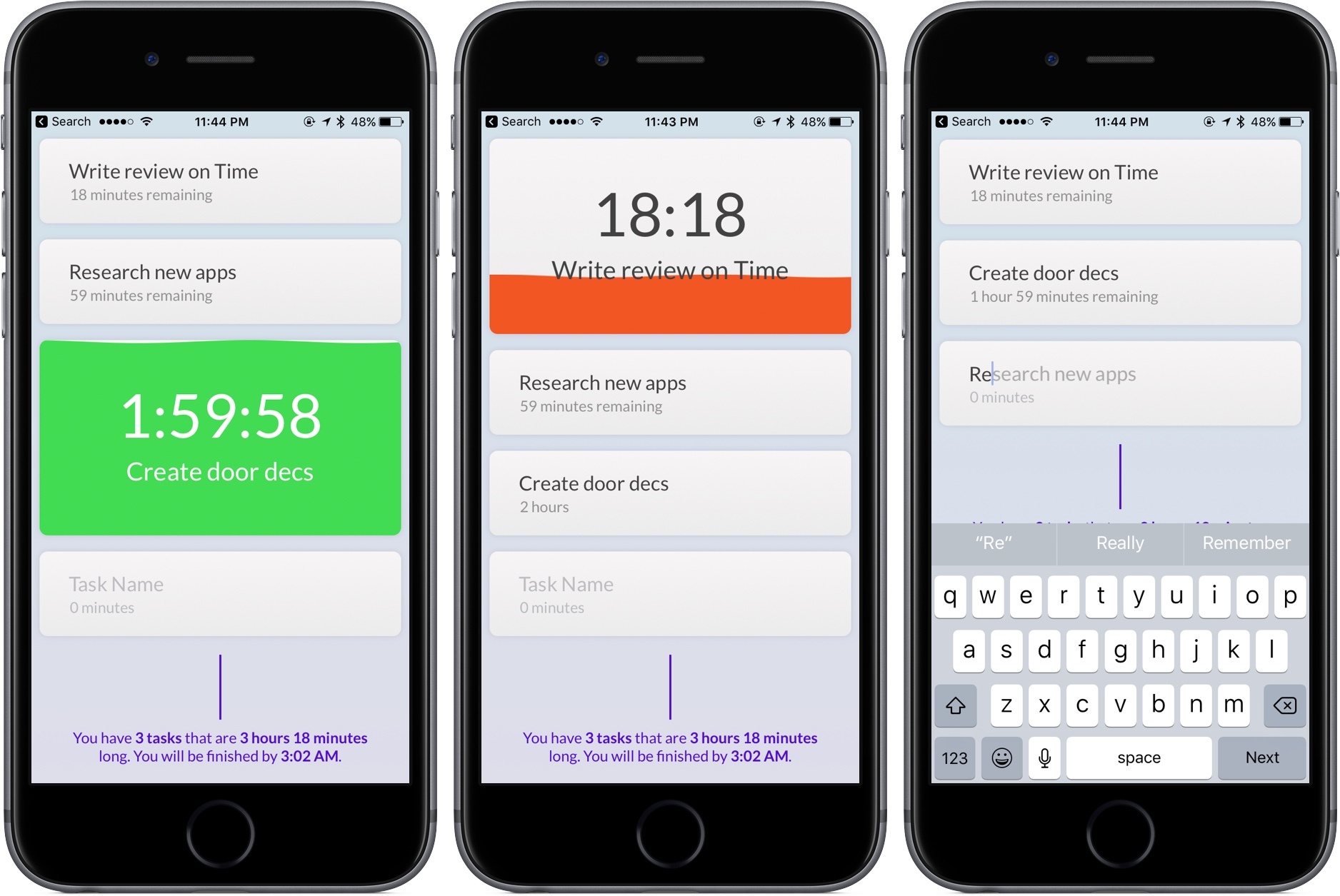
The story of Time is one that you’d expect to hear on stage at WWDC: two teenage developers, Shaan Singh (17) and Erik van Der Plas (15), create an app to help you be more productive. It’s upvoted on Product Hunt almost 650 times in two days and climbs the productivity charts in the App Store.
But what is Time, and what do two teenagers know about being productive in your work?
Let’s find out.
Working with Duet Display
Stumbling around on a Monday morning, I wake up too late, throw on a hat, and unplug four devices: my 12.9” iPad Pro, my iPhone 7, its companion Apple Watch, and my 12” MacBook. The first and last are tossed in my backpack to be used in and between classes to take notes, check social media, and design documents.
When I sit down in my design class, I pull out my MacBook, open inDesign, and try to manage multiple windows as I pull images from the Web and import them into my document. On the MacBook’s 12” screen, the limited real estate forces me to use a slew of keyboard shortcuts and trackpad gestures as I jump between apps. Frustrated, I pull out my iPad, fire up an iOS app to replace one on the Mac, and work in two separate environments.
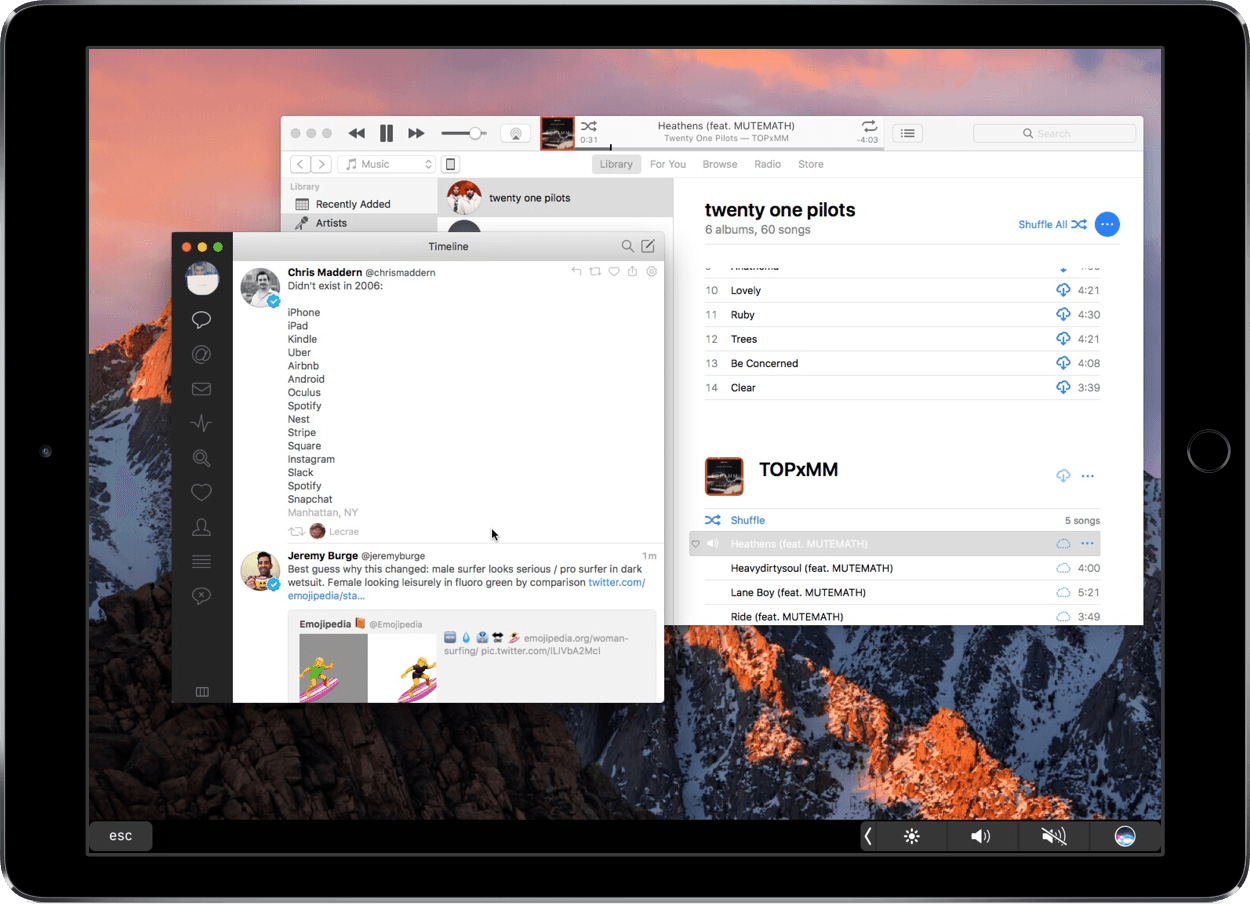
The problem here is obvious: although macOS and iOS functionality overlaps, working in two OSes simultaneously isn’t ideal. The inability of the iPad to act as an extension of the MacBook’s display limits my productivity. Even people with larger 15” MacBook Pros would probably appreciate it if their iPad’s screen was available to display Mac apps.
For a while, I’ve been trying to solve this problem by using Duet Display, an iOS app that allows your iPad or iPhone to function as a second screen for your Mac or Windows PC. Duet has been around for a couple of years, but continues to get significant updates to speed it up, reduce lag, and offer touchscreen support. The fundamentals, however, are still the same: Duet, with an iOS device, can be your mobile Mac monitor.
Timepage for iPhone Adds Better Syncing, New Theme Colors, More in Version 2.0
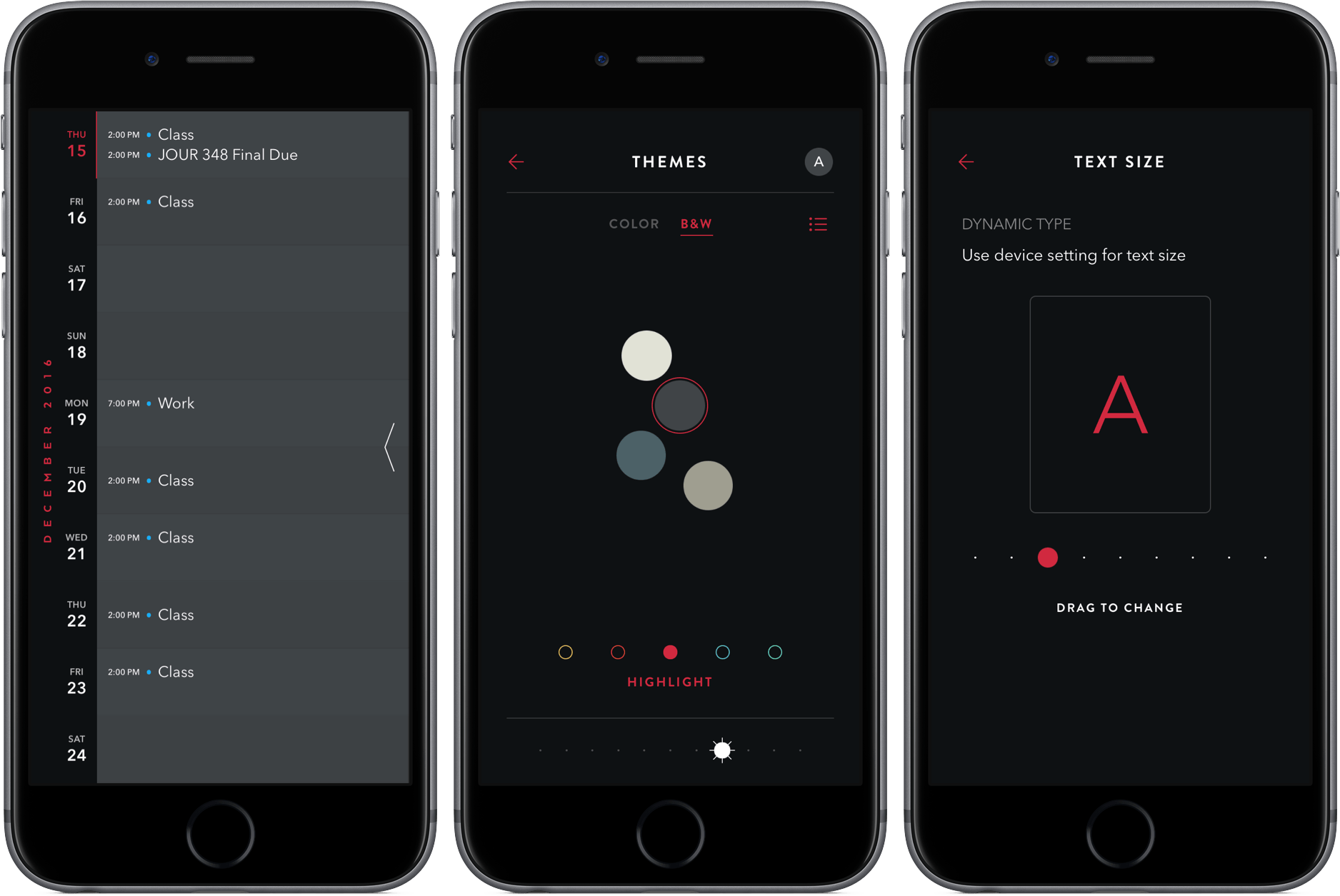
Continuing their blistering pace of development, the team at Bonobo Labs have updated their award-winning app, Moleskine Timepage, to version 2.0.
The update features a slew of performance updates, which the developers attribute to a “whole new code foundation that makes it faster to use and optimizes how your calendars are synced.” Also aiding in the fluidity are new animations throughout the app.
With 2.0, Timepage is now much more customizable, allowing you to change the text size, theme colors, and calendar colors. For example, tapping into “Themes” let you choose from a wide range of colors, alter the intensity of it, and then add a highlight color. Additionally, you can pinch on the timeline to adjust how many days are displayed at once, from three up to ten. The result of these options is a more personal Timepage, one with dozens of variations of the same great design.
Adding and editing events is also much improved thanks to additions like a “+” button to add events (for those who didn’t like the swipe gesture) and phone number, URL, flight number, and email address support in the note section. Editing dates is now much easier, too – just tap the date after going in to edit.
Finally, the update rounds out with improvements to repeating events and preference syncing between devices.
Instead of going for a full-on redesign, I’m happy to see that Timepage has made its 2.0 update a combination of tweaked aesthetics and speed improvements. Timepage has undoubtedly been my app of the year, and this update marks a solid end to a remarkable year of development from the Bonobo Labs team.
To see the full release notes or to buy Timepage for iPhone ($4.99), check it out in the App Store here. The iPad version, which received many of the customization features in version 1.1.0, can be found here ($6.99).
Television Time Review: A Modern Guide to TV
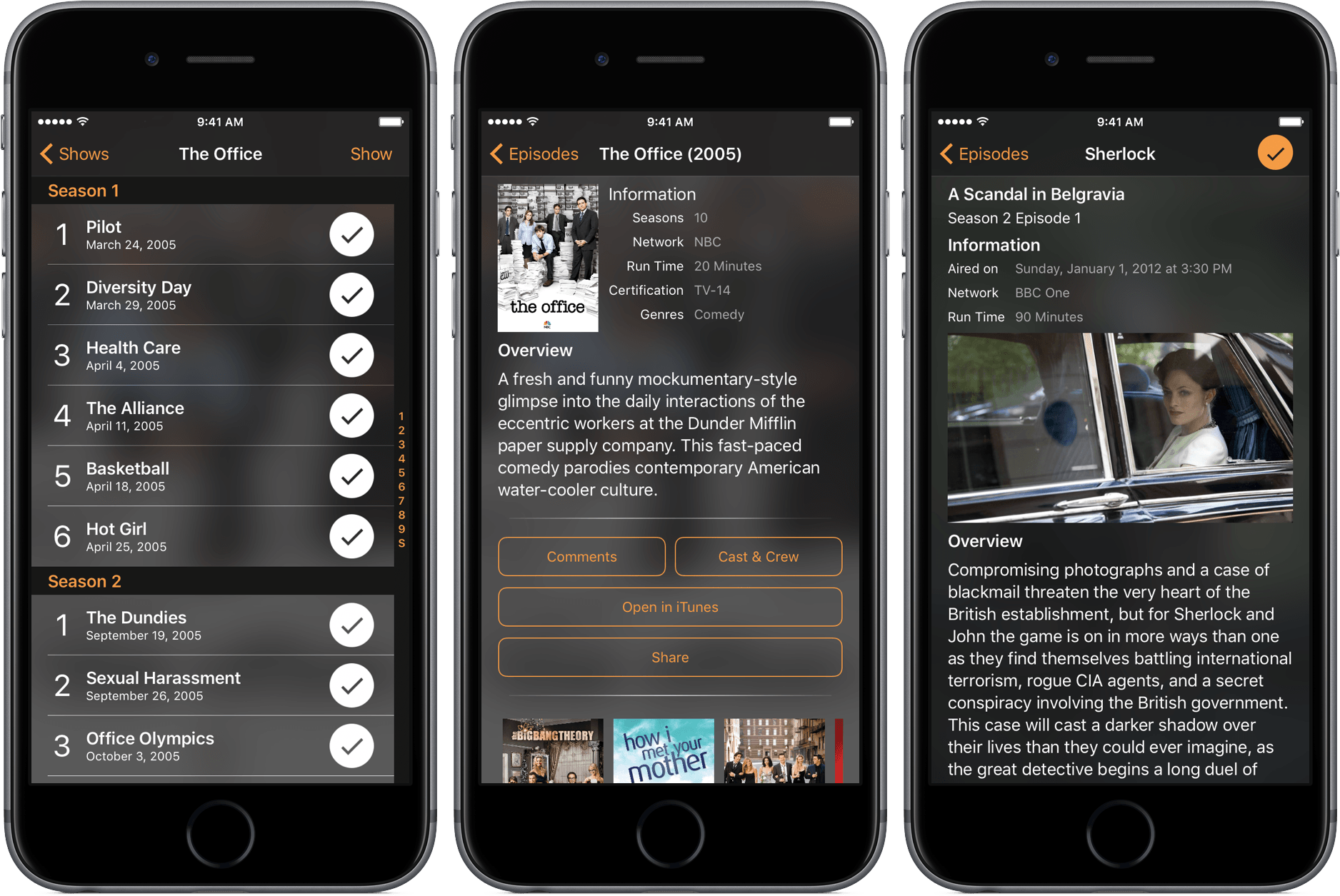
Many years ago, weekends at my grandparents’ went like this: flip on the TV, peruse through all the channels hoping to find something I like, and eventually hand over the remote to my grandfather, when he would then search the paper TV guide for that night’s programming.
The days of using those guides are long gone, but the need to see what shows are coming up is still relevant. For that, I’ve been using Television Time, a beautiful TV guide for iPhone, iPad, and Apple Watch.