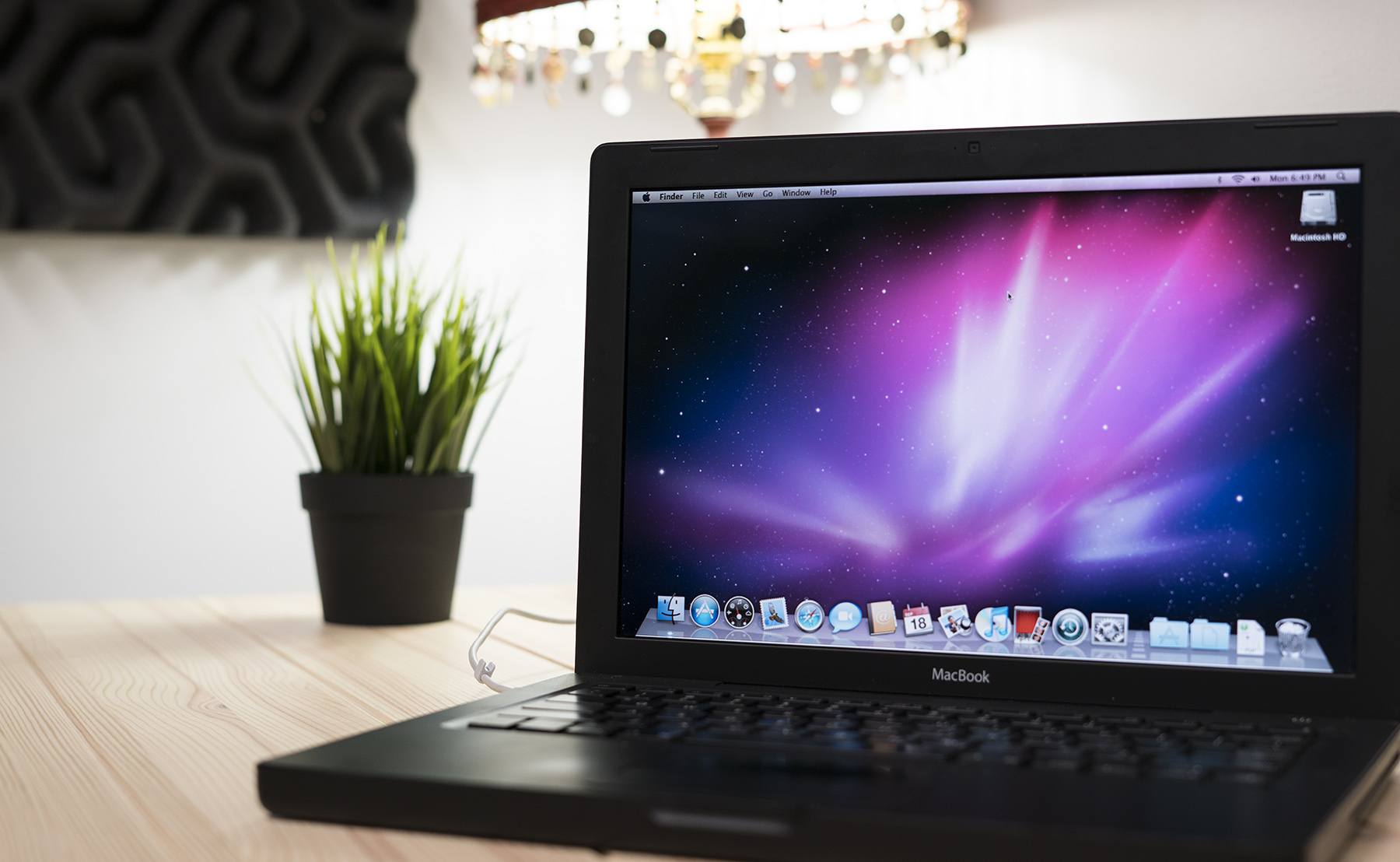
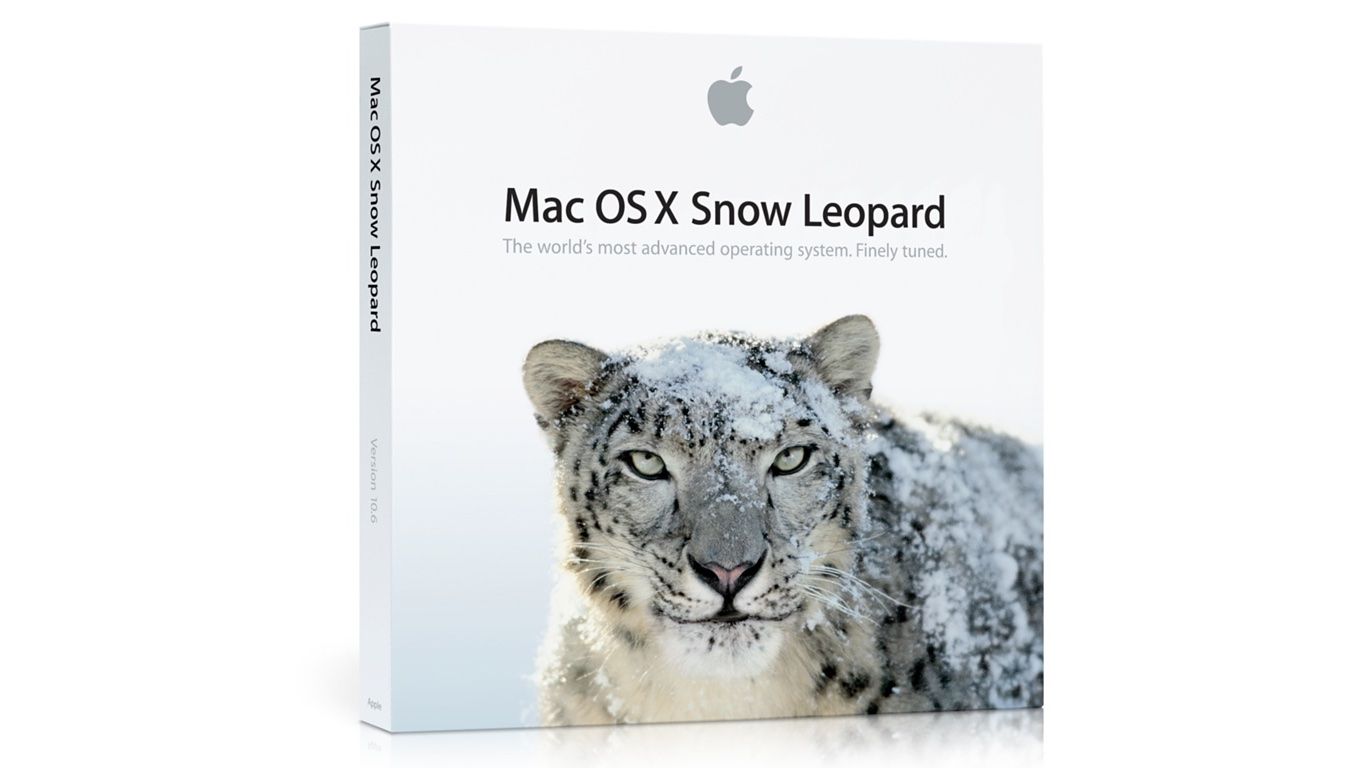
In a somewhat expected turn of events, a notice appeared on an old Mac running Tiger seems to confirm Apple will provide basic support for iCloud sync on Snow Leopard machines. As reported by MacRumors, a developer testing the MobileMe to iCloud transition with Tiger’s .Mac preference pane noticed a message about a 10.6.9 requirement for calendar, bookmark and contact sync.

You will no longer be able to sync with this machine because you’ve upgraded to iCloud.

iCloud requires a computer running Mac OS X Snow Leopard v10.6.9 or later for Contacts, Calendars, and Bookmarks.

Whilst Apple made no mention of Snow Leopard compatibility when detailing iCloud and the transition from MobileMe (actually indicating “some features of iCloud” will require iOS 5 and OS X Lion), it would certainly make sense to provide an additional 10.6 upgrade to ensure basic former MobileMe functionalities under the new iCloud brand. Apple has already started migrating MobileMe developer accounts to the new iCloud ecosystem, providing a desktop add-on for testing on the 10.7.2 developer seed. iCloud is expected to go public this Fall alongside the aforementioned 10.7.2 and iOS 5, whereas MobileMe will be officially discontinued on June 30, 2012.

Developer accounts that are being transitioned from MobileMe are automatically given free storage regardless of the previous subscription until next year, and considering Lion is still touted as an “upgrade to Snow Leopard” (which is required to purchase Lion from the Mac App Store) and that Snow Leopard is still available on Apple’s website, it would be an optimal solution to provide 10.6 users with one last software update to migrate from old MobileMe services to some new iCloud free offerings. There’s one caveat, however: assuming the MobileMe to iCloud transition goes as planned and Apple will really push 10.6.9 to enable iCloud sync, some old MobileMe features like syncing of Mac Dashboard widgets, keychains, Dock items, and System Preferences won’t be available on OS X anymore, as Apple explains here.

Earlier today, Apple posted a series of revised Mac OS X 10.6.8 updates aimed at both desktop and Server users to fix a number of bugs and issue from the previous 10.6.8 release, and ease the transition to Lion. The “Mac OS X 10.6.8 Supplemental Update” — showing up now in Software Update and available on Apple’s website — brings audio fixes when using HDMI or optical audio out, resolves issues with certain network printers and improves the transfer process of personal data from Snow Leopard to Lion, something that Apple also addressed with a separate Migration Assistant update last week.

The supplemental and combo updates for Snow Leopard are all available on Apple’s website, or directly through Software Update. The updates are recommended for all users running Snow Leopard, presumably looking to upgrade to OS X Lion in the near future. Direct links below.

Mac OS X Server v10.6.8 Update Combo v1.1

Mac OS X 10.6.8 Server Supplemental Update

Mac OS X Server v10.6.8 Update v1.1

Mac OS X 10.6.8 Update Combo v1.1

Mac OS X 10.6.8 Supplemental Update

Mac OS X 10.6.8 Update v.1.1

At the Q3 2011 earnings call, Apple confirmed OS X Lion is coming tomorrow on the Mac App Store. As noted by MacRumors, a few minutes before the call started Apple pushed an update for Migration Assistant to Snow Leopard users, fixing an issue that prevented the correct transfer of personal data and apps from a Snow Leopard computer to a Mac running Lion.

This update addresses an issue with the Migration Assistant application in Mac OS X Snow Leopard that prevents transfer of your personal data, settings, and compatible applications from a Mac running Mac OS X Snow Leopard to a new Mac running Mac OS X Lion.

The lightweight update can be downloaded now on Snow Leopard from Software Update, or directly from Apple’s website.

If you’re still running Mac apps that leverage Rosetta, prepare to lose that functionality when you install Lion. A main concern that TidBits recently expressed, is that the loss of Rosetta (which helped switch users from PowerPC to Intel based machines) would eliminate still perhaps frequently used software.

“Now, two major versions of Mac OS X later, it appears that Rosetta is going away. And if it does, it will be accompanied by a number of applications that I use frequently. Quicken 2007. Photoshop CS1. FileMaker Pro 8. Microsoft Word 2004. Among many others.”

Rosetta is a subject that often evades us since it’s optionally installed on Snow Leopard by apps that really need it. If you’ve recently purchased a Mac or only have purchased apps on the Mac App Store, you’ll never have to install Rosetta to use the most up-to-date applications. But for those still utilizing PowerPC compatible applications, it might be required that you simply don’t upgrade to Lion, or install it on a separate partition so you can continue using Snow Leopard’s provided functionality. MacRumors reminds us of this change today via a forum post at Macworld, where a user expressed worry over retaining a soon to be outdated version of Quicken. Macworld responded:

Broadly, you have a couple of options. One is to create a dual-boot Mac — one that can boot from two volumes. One volume contains Lion and another runs an older version of the Mac OS. When you need to spend some quality Rosetta time, you boot into the older OS. And yes, this is a pain.

The other option is to simply not update to Lion. Your Mac will continue to work just as well as it does today. How acceptable this is to you depends on how desperate you are for Lion’s features and iCloud (some of iCloud’s features will require Lion).

The changes in Lion will even affect current universal applications. From Charles Moore of Low End Mac:

There is an interesting element to Lion, such as “autosave”, which will only work on new programs coded for Lion, but won’t work on earlier Intel/Universal coded programs. It indicates to me that Apple will eventually run only post-Lion programs on their computers.

Apple doesn’t hesitate to cut old features. With the system requirements for Lion requiring the latest hardware, those who have older Macs will not only lose out on software they use, but will have to upgrade to a new machine as well. In our audience, how many of you still run Rosetta-based apps? Leave a comment below letting us know what the Lion upgrade means to you.

[Sources: MacRumors, Macworld, Low End Mac, TidBits]

image via Low End Mac

Magician Software has posted a handy tip to configure an iCloud email account on Mail.app for Snow Leopard which, with the provided instructions, should work on any email program that supports IMAP as well. With the iCloud settings panel on iOS 5, Apple offers the possibility to associate a new iCloud-based @me.com email address to an Apple ID. So, for example, say you have an Apple ID with your Gmail account, you can create a new iCloud address to go alongside the Apple ID you use for your iTunes purchases, apps, and everything else. Unlike old @me.com email accounts that will need to migrate to the new iCloud infrastructure, these new addresses offered on iOS devices are already running on iCloud, allowing to receive and send messages using iOS 5 and OS X Lion DP 4 with an iCloud add-on, not available for older OS X versions.

For other OSes and email programs, Magician Software explains you’ll have to configure a custom IMAP server and MobileMe SMTP to get iCloud’s email up and running. On Snow Leopard’s Mail.app, for instance, you’ll have to start by adding a new account (@me.com) and using the same password of your Apple ID. In fact, iOS 5 doesn’t let you choose a password for now, it just simply assigns your Apple ID’s existing one to the new iCloud email address.

You will receive an error saying that it couldn’t reach the mail.me.com server, just ignore it and hit continue. At this part, it should be very similar to setting up a regular IMAP email. I can’t show you the next screen on setting up the incoming and outgoing servers as Lion doesn’t let me because of the support for iCloud. What you will need to do is change the drop down menu from the top (Currently saying: MobileMe) to IMAP, and changing the mail.me.com to

p02-imap.mail.me.com

the username should just be the name before the @me.com and the password, or course, your password.

Ignore all the errors that Mail.app will display, and use “smtp.me.com” (without quotes) for the SMTP settings. Take the account online, and you should be able to use your iCloud email account on any IMAP-enabled email client. As Apple explains, mail counts against the 5 GB of free storage provided with every iCloud account. [via]

The promised software update to automatically find and remove known variants of the Mac Defender malware has just been released by Apple and it’s now available in the Software Update panel or Downloads website. The KB article HT4657 explains Apple has added a “OSX.MacDefender.A” definition to the malware check within File Quarantine. On Mac OS X 10.6.7, the installation process of the security update “will search for and remove known variants of the MacDefender malware”. Users will also be notified after a MacDefender variant is removed, and Apple offers more details and information in this article as well.

Mac OS X malware list is now updated daily in the background without the need of a manual software update:

Apple maintains a list of known malicious software that is used during the safe download check to determine if a file contains malicious software. The list is stored locally, and with Security Update 2011-003 is updated daily by a background process.

Security Update 2011-003 provides additional protection by checking for the MacDefender malware and its known variants. If MacDefender malware is found, the system will quit this malware, delete any persistent files, and correct any modifications made to configuration or login files. After MacDefender is identified and removed, the message below will be displayed the next time an administrator account logs in.

Mac OS X 10.6.8 was rumored to be the software update to include a fix for Mac Defender, but it’s likely that Apple also pushed a security update for users that will keep running the older 10.6.7 Snow Leopard version, with 10.6.8 getting the Mac Defender fix built-in. (more…)

If you find yourself scratching your head over jumbled text in (commonly) PDF files after the 10.6.7 update, it’s an issue that’s cropped up and found its way on Apple’s Discussion boards according to the folks over at Macworld. The text bug occurs with OpenType Postscript fonts, which aren’t included by default with your new Mac but can be later added with the installation of third party software (Adobe is noted). The problem seems to only occur in apps utilizing OS X’s rendering engine outside of the Preview application, displaying jumbled text that’s impossible to read. Upon printing, you may encounter an “invalid font error” in rare cases. The bug only crops up if you’re using software such as Adobe Reader, and the PDF you’re reading utilizes the aforementioned fonts. By using Preview or opening documents that use a common font such as Helvetica for example, it’s possible you’ll never see the word scramble in action.

[via Macworld]

Image credit Macworld

One of the most discussed features of Mac OS X 10.7 Lion is the “backward scrolling” that, in an attempt to resemble the behavior of iOS devices, is enabled by default in System Preferences. In the Lion Developer Preview (both 1 and 2), if you move your fingers down the screen scrolls up, and vice versa. This is activated by default to make iOS users feel comfortable when using the new desktop OS, but has annoyed several long-time OS X users as the preference is automatically enabled and is buried deep down into the Trackpad settings as a checkbox.

If you believe, however, that changing the scrolling system is actually a great idea and you want to practice before Lion is released to the public, free app Scroll Reverser lets you do just that — on Snow Leopard (and 10.5, too). Once downloaded, it’ll sit in the menubar waiting for you to choose whether you want reversed scrolling or the normal one. A click on the dropdown menu allows you to make the change in seconds, and revert back again. The app can start at login, and has no additional preferences.

Download here. [via Lifehacker]

Mar
24
2011

Happy Birthday, OS X!

Posted by at

Ten years ago today, on March 24th 2001, Apple released Mac OS X 10.0 Cheetah. Now ten years on, OS X has evolved into what we know and love as being Snow Leopard, that latest major update to OS X.

Between the original, and rather buggy version of OS X, Cheetah and Snow Leopard now, we had 10.1 Puma (September 2001), 10.2 Jaguar (August 2002), 10.3 Panther (October 2003), 10.4 Tiger (April 2005) and 10.5 Leopard (October 2007). With just a few short months before the summer, we don’t have much longer to wait until OS X 10.7 Lion arrives and brings a convergence of traditional desktop OS design and iOS design together into one great operating system.

So Happy Birthday OS X! If you’re feeling nostalgic you might want to have a read of the Wikipedia page on OS X which gives a nice synopsis of the major feature additions each release brought and jump the break to watch Steve Jobs introduce OS X at the 2000 MacWorld.

(more…)