

Here are today’s @MacStoriesDeals on iOS, Mac, and Mac App Store apps that are on sale for a limited time, so get them before they end!
Posts tagged with "mac"
#MacStoriesDeals - Tuesday
Evernote 2.1 for Mac Brings Faster Search and Audio Notes
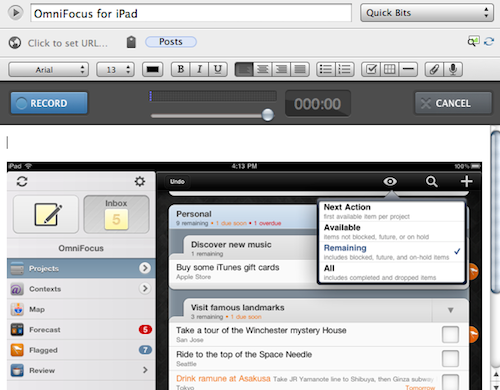
Evernote’s CEO Phil Libin said Apple users are the most valuable to the service, and you might remember the release of the Mac App Store version months ago more than doubled Evernote’s new userbase. For these reasons, it appears that Evernote is now seriously committed to delivering full-featured updates for the OS X and iOS clients – Evernote 2.1 for Mac, available today, brings several new functionalities and improvements to the popular “memory tool” including faster search, audio notes for free and premium users, as well as social sharing options for Twitter, Facebook, and email.
It’s no secret that Evernote for Mac used to become really slow with hundreds of rich notes in the database, constantly backed up to the app’s cloud for web, desktop and mobile access. The improved search functionality in version 2.1 makes sure looking through all your notes is a fast and reliable process – if you consider that several users keep thousands of notes into Evernote, you can understand how important it is for the company to implement a stable search algorithm that returns accurate results in seconds. For academics, students, and journalists who keep track of everything through Evernote, improved search is quite possibly the single biggest reason to update to 2.1. This update, however, doesn’t stop at search: the Evernote team also implemented a new sharing feature to send notes off to Twitter and Facebook, but you can share a note via email or copy the URL to the system’s clipboard, too. Our writer Graham Spencer – a huge Evernote fan – says he’s not sure how much the sharing aspect of Evernote will improve his workflow, but I’m pretty sure the option will be loved my millions of users anyway.
Last, Evernote 2.1 brings audio notes: whilst free users can record audio up to 25 MB per note, premium Evernote subscribers can create audio recordings up to 50 MB, which is roughly 4 hours of recoding time. The audio recording UI is nice, and all you have to do to activate it is hit the microphone button in the toolbar. You can create new audio notes or add new audio to existing files in your Evernote account.
Evernote 2.1 is propagating now through Software Update, or you can download it direct from the company’s website. The Mac App Store version (still reporting 2.0.5 as the latest update) will receive the 2.1 facelift “soon.”
Evernote’s Most Valuable Users Are On Apple Platforms

There has been some discussion in recent times about whether iOS users are more valuable to a company than Android users may be. Evernote CEO Phil Libin weighed into the debate yesterday and talked about how their revenue varied from platform to platform. Libin used three metrics in evaluating each platform; revenue, users gained and revenue per developer. In all three, iOS was the leading platform with nearly a third of all Evernote’s revenue coming from that platform. It’s where Evernote has gained a large chunk of its users and is perhaps one of the best success stories of the iOS app platform.
Evernote is also a big fan of its Mac users who generate more revenue growth than their Windows counterparts and also stick with the service for longer – although Windows still currently brings in 24% of revenue compared to the Mac’s 20%. Libin is unsure of why Apple users are more willing to pay for their service and additionally notes that the desktop should not be ignored, reflecting upon the fact it still brings in 44% of Evernote’s revenue.
In Libin’s speech at VentureBeat’s Mobile Summit he also noted that most users of his service don’t return after a short period of using the service, but those that do bring in a lot of revenue to Evernote. For example of the 31,334 users who registered in March 2008 only 11,000 remained three months later. In that month those users only brought in $700 to Evernote but by January of 2011 they ended up bringing in over $10,000. Libin attributes this to the fact that as users stick with the service they find it more valuable and end up subscribing for the premium features.
[Via VentureBeat]
Rubbernet Monitors Your Mac Apps’ Network Usage
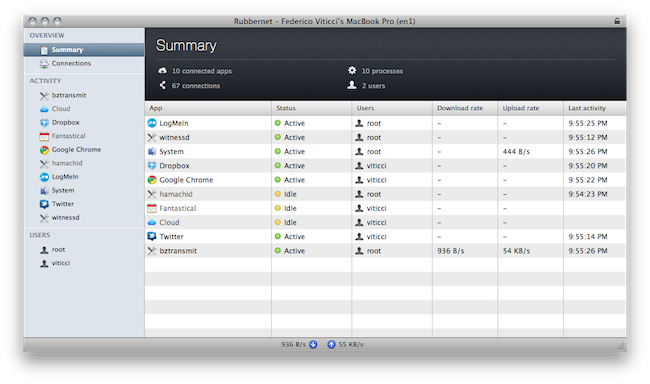
If monitoring bandwidth and network usage on a Mac is your thing, Conceited Software’s latest app might just be what you need. Rubbernet is a €30 tool that can be installed on a local machine and networked Macs (unfortunately, there doesn’t seem to be support for Hamachi computers just yet) and provides an easier solution to more complex applications like Little Snitch, which besides network monitoring also offers firewall functionalities and lots of settings to play with on an app-by-app basis. Rubbernet, powered by a nice interface design and a daemon that runs in the background all the time on your Mac, allows you to see what apps are consuming bandwidth on your computers, and what kind of connections to remote servers are being established.
The app supports multiple accounts (as you can see in the screenshot above), but I haven’t been able to test it with another Mac on my local network. The Summary app gives you a glimpse of all the active apps that are connected to the Internet, including upload and download rates. The Connections and Activity tabs, on the other hand, will show you all the single IP addresses your Mac is connecting to including, in the case of single applications under Activity, a breakdown of all remote hosts, open ports, and a graphical visualization of downloads and uploads over time. These graphs update in real-time, with a minimal footprint on your Mac’s memory.
You can download Rubbernet here. A free trial is available, so you should check it out and see whether the app can recognize your networked Macs and improve the way you keep network usage under control. No one wants to let Dropbox eat all the bandwidth during an Apple event.
[Disclaimer: Conceited Software’s Rubbernet is a MacStories advertiser. This is not a sponsored review, as it’s entirely based on my personal experience with the app.] Read more
#MacStoriesDeals - Monday

Here are today’s @MacStoriesDeals on iOS, Mac, and Mac App Store apps that are on sale for a limited time, so get them before they end!
The Problems with a Retina Display on the Mac→
The Problems with a Retina Display on the Mac
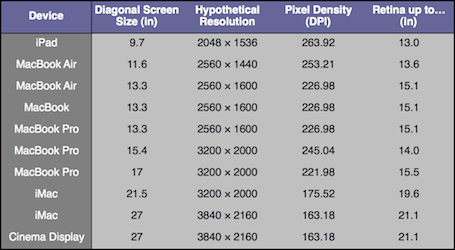
If Apple were to do something like the above, the biggest question I would have is whether or not they’d put something into place for users who genuinely do want much smaller UI elements and much more screen real estate. That is, if Apple were to double their UI, and then use the 2×1080p resolution for the 27-inch iMac, there’s a sense in which current 27-inch iMac users would feel like they were actually losing screen real estate from their current 2560 × 1440 displays. But that’s why Apple’s Apple and I’m a guy writing about them: if and when Retina Displays do come to the Mac, they will have thought that issue through and either solved it, or decided that the set of users who would be upset by it isn’t a large enough group to hold other users back.
Tim Ricchuiti at The Elaborated makes a great case for the issues Apple would have to overcome in implementing higher resolution displays (let’s just call them Retina Displays for the sake of the argument) on Macs: at 3200 x 2000 pixels (that’s the resolution of the default wallpaper image found in the Lion betas, and no Mac or Apple-branded screen currently ships with such pixel density), UI elements on a MacBook Pro 15” would look small, unless Apple comes out with a solution to offer same-size graphics, on a higher-res screen. On the iPhone 4, for example, they allowed developers to create “2x” graphics that, with double the pixels on the iPhone 4, look the same size of iPhone 3GS graphics. But how would you do that on a Mac, where users can decide to install apps both from the web and the Mac App Store, thus preventing Apple from enforcing a 2x standard? Plus, how could Apple offer a way to switch between bigger and smaller UI elements? A desktop ecosystem like OS X with computers featuring much bigger displays than iOS devices raises more questions over the implementation and usage of Retina Display.
Make sure to check out Tim’s full article here. Whilst “HiDPI display modes” were previously rumored to be finding their way to new Mac screens relatively soon, we think Apple will have to find a solution to the problems with a Retina Display on the iPad first. [via Daring Fireball]
#MacStoriesDeals - Friday!

Here are today’s @MacStoriesDeals on iOS, Mac, and Mac App Store apps that are on sale for a limited time, so get ‘em while they’re hot!
#MacStoriesDeals - Thursday

Here are today’s @MacStoriesDeals on iOS, Mac, and Mac App Store apps that are on sale for a limited time, so get ‘em while they’re hot!
#MacStoriesDeals - Wednesday

We’ll tweet the daily deals at @MacStoriesDeals as well as exclusive weekend deals too, so please follow! Here are today’s deals on iOS, Mac, and Mac App Store apps that are on sale for a limited time, so get ‘em while they’re hot!