

Here are today’s @MacStoriesDeals on iOS, Mac, and Mac App Store apps that are on sale for a limited time, so get them before they end!
Posts tagged with "mac"
#MacStoriesDeals - Tuesday
Pulp for Mac 2.1: Instant Resume, Push Sync, and Ready for Lion

Among all of the changes for the latest version of Pulp for Mac (it hit 2.1 today), we’re really excited about Instant Resume and Push Sync. If you use Pulp across multiple Macs (or between your desktop and the iPad), Push Sync will instantly update your newspaper whenever you make a change on another device. On top of always being right where you left off with Push Sync, Instant Resume will let you return to the exact point you were reading when you leave Pulp and return to the app at a later time. So with reading taken care of, what else do we have in store?
Pulp for Mac 2.1 is a big Lion update that integrates Lion gestures with the newspaper itself — as you move your fingers, the pages will curl (just like directly manipulating the interface on the iPad). Pulp for Mac 2.1 also brings full-screen mode — it’s realistic interface is a great fit for 11- and 13-inch MacBook Airs.
Pulp for Mac is ready for OS X Lion, and available in the Mac App Store for $9.99. See the Acrylic Software blog for more information.
Sparrow 1.3.2: Drag & Drop to Labels, Conversation & Reply Redesigns, and Gradients!
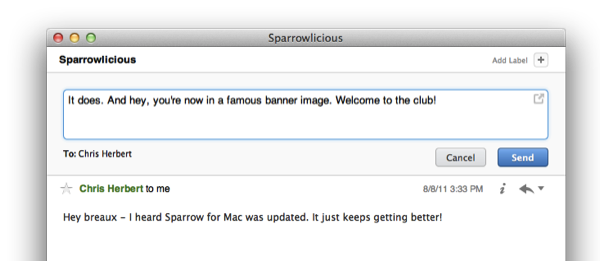
Sparrow has a really sweet Mac update available this afternoon from the Mac App Store, bringing lots of new features and tons of bug fixes to improve its game and interface on Lion. The last update brought full-screen support and a redesigned sidebar that’s significantly improved my workflow, and now that sidebar is getting some additional use thanks to drag & drop. Whether you’re on an IMAP account or using Gmail, you can drag and drop emails into a folder or label to quickly move and archive messages. That alone makes us really happy, but check out what else Sparrow has added past the break.
#MacStoriesDeals - Monday

Here are today’s @MacStoriesDeals on iOS, Mac, and Mac App Store apps that are on sale for a limited time, so get them before they end!
Skype for Mac Gets HD Video Calling with 5.3 Update

Have a Mac with a FaceTime camera or own an external HD video cam? Following Skype’s iPad launch, the latest update for Skype for OS X brings it up to speed with OS X Lion (don’t worry — Skype is still compatible with Leopard and Snow Leopard) while giving you HD camera support for those who have 1.5 Mbps of bandwidth available on the upstream. The latest Skype update can be downloaded here — you can expect to find subtle interface improvements and a boost in stability according to The Big Blog announcement at Skype.
[The Big Blog via The Loop]
Apple Introduces $999 iMac For Educational Institutions

We reported a few hours ago on reports that Apple was set to launch a new iMac model for educational institutions later this month for a sub-$1000 price. Surprisingly we only needed to wait a few more hours for this new model as it turns out that Apple has decided to launch this new educational iMac today — meaning that for educational institutions they can purchase this new iMac model now.
This new iMac model is available for $999 and is directly targeted at educational institutions — individuals are not able to purchase this model. The specifications of this new iMac model are in line with what was stated in the 9to5 Mac report this morning with a 3.1GHz Core i3 processor, 2 GB RAM, 250 GB of hard drive storage and an AMD HD 6750 with 512 MB. This knowledge base article contains all the specifications of this new iMac but interestingly this model (which is dubbed a ‘Late 2011’ iMac) does not have Thunderbolt, that makes this iMac the first new Mac from Apple in 2011 that doesn’t support Thunderbolt.
- 3.1GHz Intel Core i3 Dual-Core
- 21.5-inch LCD
- AMD Radeon HD 6750 with 256 MB
- 2GB RAM
- 250GB Hard Drive
- SuperDrive
- OS X Lion
Updated to include link to specifications page.
[Via MacRumors]
Apple Set To Introduce Education-Focused iMac Model For Less Than $1000?

Apple may be preparing to launch an education-focused iMac later this month according to a report in 9to5 Mac today. The “new” iMac would be less powerful than the current generation of iMacs available to consumers but would be priced at a lower level that is geared towards volume and educational customers.
9to5 Mac claims that this ‘education’ iMac will include a previous generation 3.1GHz dual core processor, 2 GB of RAM, 250 GB of hard drive storage and an AMD Radeon HD 6750M graphics processor with 256 MB dedicated memory — the article doesn’t rule in or rule out the inclusion of a Thunderbolt port. No price is attributed to this machine in the article but they suspect it would be sub-$1000 and cite the example of a previous education-focused iMac being sold for $899 and a similar refurbished model selling for $929 now.
This ‘education’ iMac is expected to silently launch on August 16th, but there is potential for that date to change if Apple wishes — there isn’t any real rush to get this product out as soon as possible. Whilst this rumoured new iMac model is a bit odd and out of the blue, the specificity that 9to5 Mac has in terms of specifications (despite the lack of a concrete price) suggests that it is likely that this is indeed a product about to launch.
[Via 9to5 Mac]
Latest Chrome Canary Build Has Fullscreen for Lion Built In
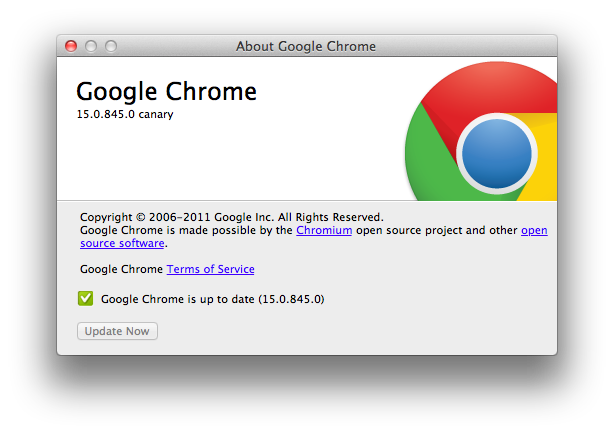
Want native Lion support in Google Chrome? The fast updating browser has an early Canary build out with native Lion support, including native fullscreen mode you’ve always wanted. Sure you can use fullscreen right now in Chrome, but it overtakes your current desktop and doesn’t show up as a fullscreen app in Mission Control. With native integration on its way, we’ve got plenty of screenshots past the break.
#MacStoriesDeals - Friday

Many great BACK TO SCHOOL sales this weekend! Here are today’s @MacStoriesDeals on iOS, Mac, and Mac App Store apps that are on sale for a limited time, so get them before they end!