Posts tagged with "mac"

Sparrow Email Client Is Coming To The Mac App Store

Sparrow Email Client Is Coming To The Mac App Store

Here at MacStories, we’ve been following the development of the Sparrow email client for Mac very closely. The app first came out as public beta in October of last year, and many quickly dismissed it as a “clone of Tweetie” built for Gmail. The developers listened, improved the client and fixed bugs. The app really grew to become a full-featured Gmail client for the desktop.

With a blog post this morning, the developers announced Sparrow is coming to the Mac App Store in the next weeks, with the app already submitted to Apple for approval.

2 versions of Sparrow will be released. They’ll both be available in the Mac AppStore and on our website:
Paid: Sparrow will cost $24,99 but early birds will benefit from the $19,99 introductory price.
Free: Sparrow Lite will be ad-supported. Carbon Ads is providing the nice ads you have certainly seen in the latest Beta version. The free version will allow one-account creation only.
We can’t provide any precise release date yet as the application has to be approved by Apple.

We are looking forward to the debut of Sparrow in the Mac App Store. Also, the new application icon you see above looks pretty sweet.

Permalink

MacStories Product Review: Sonos S5 Wireless Music System

I can’t live without my music. Every day, I need to get my “fix” either through iTunes, Youtube (it’s good for rare live performances) or Spotify. I also scrobble the songs I listen to towards last.fm, although I’m no huge fan of the service as a social platform. I just keep an archive of my musical tastes in there. Still, as far as music is concerned, most of the times it’s not the system or the platform that really matters. It’s the quality. And for quality, you need good gear.

Over the years, I’ve always tried to save money and purchase great-quality earbuds to ensure high-fidelity playback while on the go. I’m still happy with my Sennheiser CX 300 bought years ago, but home stereo systems have been a dilemma for me, in spite of my obsession for top-notch hardware. I’ve changed setups too many times, jumped from speakers to stereos and all-in-one solutions without really sticking to one for more than 6 months. When music becomes an obsession, good gear is a necessity. Recently, the audio technologies implemented by Apple in iOS forced me to reconsider everything once again.

See, wireless streaming spoiled all the fun I had accomplished. First came audio via Bluetooth, then Airport Express stations and AirPlay. I changed devices: I went from a classic iPod to an iPod touch to iPhone + iPad. I subscribed to Spotify Premium to use the mobile app (with streaming and offline access), I became addicted to Apple’s own iPod app and third party replacements like My Artists, or external controllers like Coversutra, Bowtie and SongSwiper. Put simply: music became deeply integrated with iOS, and iOS grew at the same time to accomodate features like AirPlay. Music became connected.

So when I was offered the chance to review the Sonos S5, I immediately said “yes” and eagerly started waiting for the two review units to show up at my doorstep. The Sonos S5, for those unaware of this mythical gadget, is a wireless speaker internally powered by a series of amps that a) provides great sound quality and b) is truly connected with iOS, OS X and the Internet. The S5 offers the best of both worlds: local playback backed up by high-quality manufacturing and remote functionalities that allow users to “log into” the speaker and customize the entire experience. After the break, you’ll find my impressions of two months with two Sonos S5 units and a Sonos ZoneBridge connector. Read more


FolderWatch Monitors and Syncs Folders On Your Mac

Available at $2.99 in the Mac App Store, FolderWatch is an easy-to-use yet powerful utility that can monitor any folder on your Mac and sync it back to a different location. In FolderWatch, you can specify an unlimited amount of “sources” (e.g. folders) that the app will monitor for changes, like new files or folders within them. Once a “destination” is set, FolderWatch will run in the background and make a carbon copy of the source to the other folder, server or external drive you have set.

FolderWatch, indeed, can copy files to any location that can be added to your Mac’s Finder. Any networked drive, local server, FTP location mounted in the Finder can be selected as a destination. Personally, I am sending backups of media and Linkinus chat logs on to an external USB drive connected to the AirPort Extreme that powers my home network. Everything happens automatically, in the background;  you can choose to make these copy sessions persistent on each change in the destination (backup will start as soon as a new or updated file is recognized) or trigger them manually with the “Sync” button.

The app can also skip files through filters you can create / delete when adding a new rule, and delete files in the destination folder that do not exist in the source. This will let you easily achieve some sort of sync between folders on your OS X machine that’s quite handy. It’s not as complex and feature-rich like FileSorter and Hazel, but it all works smoothly and requires  a very few clicks to be set up.

FolderWatch is available at $2.99 here. More screenshots below. Read more


Toggle Any Twitter Client On Your Mac

Toggle Twitter is a simple and useful script created by Daniel Jalkut of Red Sweater Software which can toggle and make visible most any Twitter client for OS X. Well, at least it comes with built-in support for the most popular ones. The concept behind the script goes like this: we try a lot of Twitter clients every week, or month. Many of us even use multiple clients throughout the day. The problem is, not every client has support for a general hotkey to toggle the visibility of the app.

So if you’re using Twitterrific or Twitter for Mac and you assigned the same keyboard shortcut to both the apps to show them when active, you’d be disappointed to find that other Twitter clients don’t allow you to assign a hotkey. This script comes with a list of popular Twitter apps, but you can add your favorite ones manually with a bit of AppleScript Editor. The ones supported “out of the box” are:  Twitter, Tweetie, Kiwi, Ostrich, Twitterrific, Hibari and YoruFukurou. Read more


Sending Emails From @mac.com Accounts Will Soon Be Impossible

According to a recent thread on Apple’s Discussion boards and a support document on Apple’s website, users of @mac.com email addresses who upgraded to iOS 4.2 are no longer able to send email messages through a @mac.com account unless it was setup prior to updating to iOS 4.2. Alternatively, the @mac.com account details can be synced through iTunes on the desktop, but this won’t enable push for emails.

A user on Apple Discussions explains:

Because of this unannounced development, I had a sneaking suspicion that Apple may be planning to do the same in the future for sending email from @mac.com addresses via www.me.com and a desktop email client.

It appears my suspicion was true. Here are the relevant sections from a Chat Session I’ve just finished with a very nice MobileMe Support agent.

Read more


FileSorter for OS X Applies Rules To Files, Folders

If you’re constantly struggling to manage or automate simple tasks like moving files out of your downloads folder, keeping files in your documents folder organized, or simply need an extra hand to batch automate certain tasks, FileSorter may be of some help. While it’s not as powerful as Hazel, it provides a decent middle ground for users who don’t need Hazel’s background automation. FileSorter applies rules to files much like how you’d apply rules to e-mail: simply specific what kinds of files (by name or extension for example) you’d like to manage, then apply rules to move, copy, or even delete files. After your rules are created, you can simply open the folder you’d like to manage to apply the rules you’ve created – I open my home folder and use rules to specify where FileSorter should look instead of opening everything individually. DMGs get moved to the desktop, folders SpeedDownload creates get removed, and instantly processes are tidied up thanks to the custom rules I’ve created. It’s $7.99 in the App Store, and its manual functionality will be the deciding factor of whether this app is right for you.


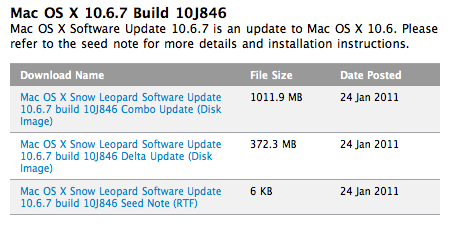
Apple Seeds Mac OS X 10.6.7 To Developers

Looks like 10.6.6 wasn’t the last version of Snow Leopard, after all. Earlier today Apple seeded a new version of OS X to developers, 10.6.7. Build number is 10J842. From the release notes, the focus areas are:

  • AirPort
  • Bonjour
  • SMB
  • Graphics Drivers

Mac OS X 10.6.6 was released two weeks ago with support for the Mac App Store. No word yet whether or not support for AirPrint through shared printers will find its way back into this new version of OS X once it’s released.