

Here are today’s @MacStoriesDeals on iOS, Mac, and Mac App Store apps that are on sale for a limited time, so get them before they end!
Posts tagged with "iOS"
#MacStoriesDeals - Tuesday
Due 1.6 Adds Natural Date & Time Parsing, We Celebrate With Another Giveaway
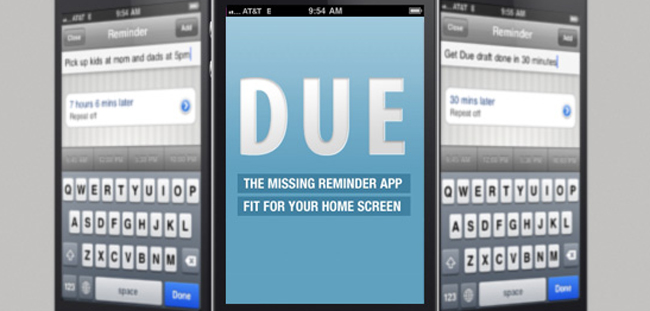
The ever popular reminder app Due has recently received another major update, 1.6. The newest version adds natural date and time parsing for reminders, much like Fantastical is doing for the Mac. This method lets you create reminders while the due date fills in automatically by typing into the title directly, i.e. “Wash the car in 20 mins”, “Leave for soccer at 3pm on Friday”, “Buy gift for Ticci’s birthday on July 30 at 1pm”, etc. Due also handles more than 64 reminders and timers as there was a limit before.
There were some tweaks and changes as well like interval on date picker now dynamically changing to accommodate due times that cannot be accurately displayed by a user’s preferred interval setting. Editing the value of a timer with an auto-generated label now updates the label to match the new countdown value. The app now hides any transient animation on quit to prevent jarring transition on next resume. Overdue and Today+Overdue badging is now faster when setting up a new repeating reminder and ‘Repeat from date’ follows the ‘Due date’ automatically.
There were a number of fixes as well and all the full change-log can be found on the Due’s blog. Read more
#MacStoriesDeals - Monday

Here are today’s @MacStoriesDeals on iOS, Mac, and Mac App Store apps that are on sale for a limited time, so get them before they end!
Apple Releases iOS 4.3.4 [Direct Links]
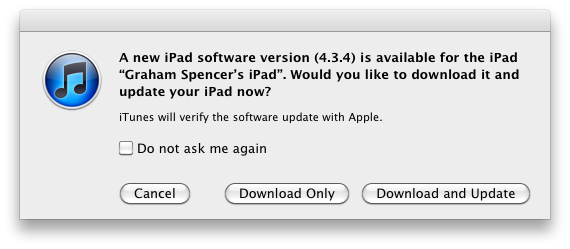
Apple has just released iOS 4.3.4 in iTunes. The new firmware should be available now if you check for updates, and it is supposed to fix an issue that allows jailbreaking an iOS 4.3.3 device through a PDF vulnerability. Apple describes the technical fixes in a support document:
Impact: Viewing a maliciously crafted PDF file may lead to an unexpected application termination or arbitrary code execution
Description: A buffer overflow exists in FreeType’s handling of TrueType fonts. Viewing a maliciously crafted PDF file may lead to an unexpected application termination or arbitrary code execution.
Users who have jailbroken their devices using JailbreakMe will obviously need to stay away from the update if they want to keep Cydia and other installed jailbreak tweaks – Apple had already confirmed a fix was coming to patch the PDF security hole that could allow for other malicious exploits, not necessarily related to jailbreak.
Here are the direct links for iOS 4.3.4:
- iPhone 3GS
- iPhone 4 (GSM)
- iPad
- iPad 2 (also iPad 2,2 and iPad 2,3)
- iPod touch 3rd gen
- iPod touch 4th gen
Apple has also released iOS 4.2.9 for the Verizon iPhone, which you can download here.
#MacStoriesDeals - Friday

Here are today’s @MacStoriesDeals on iOS, Mac, and Mac App Store apps that are on sale for a limited time, so get them before they end!
#MacStoriesDeals - Thursday

Here are today’s @MacStoriesDeals on iOS, Mac, and Mac App Store apps that are on sale for a limited time, so get them before they end!
#MacStoriesDeals - Wednesday

Here are today’s @MacStoriesDeals on iOS, Mac, and Mac App Store apps that are on sale for a limited time, so get them before they end!
Mophie Pulse for iPod Touch Will Add Stereo Sound and Haptic Vibration
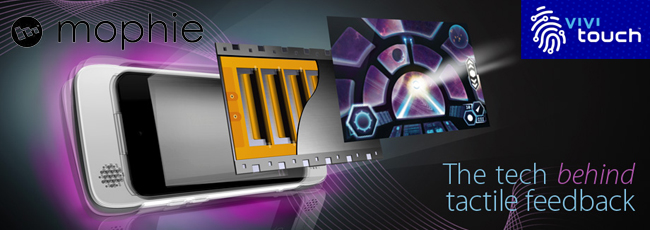
Mophie, who makes great accessories for iOS devices such as the Juice Pack Air, has a new product in the pipeline for the iPod Touch 4G - the Mophie Pulse. The Pulse is a video game/app enhancer that turns your iPod Touch into the “ultimate gaming device with pulse-pounding stereo sound and bone-shaking game feedback.” It’s all built into a textured gaming grip. The Pulse gets its magical powers from ViviTouch Technology that converts game audio into a variety of different effects. ViviTouch doesn’t require an API to generate vibrations but the games will be better optimized if the developers use it.
There currently is not a release date but a “coming soon” sign-up form on the product page if you want informed when the product launches. The Pulse looks like a great addition to Apple’s favorite gaming device and as long as the price point is good, Mophie will have another hit on their hands. If the iPod Touch version is a success, could an iPhone version be next?
Video after the break.
#MacStoriesDeals - Tuesday

Here are today’s @MacStoriesDeals on iOS, Mac, and Mac App Store apps that are on sale for a limited time, so get them before they end!