Posts tagged with "iOS"

iWork for iOS Updated with iCloud Integration

The iWork apps for iOS, available for the iPhone and iPad at $9.99 on the App Store, have been updated today with iCloud integration, which will allow users to store their documents in the cloud, and have changes pushed instantly to all their devices, as well as the iWork document interface on iCloud.com. You can find the updated versions of Pages, Numbers and Keynote in the App Store now.

I have been testing iCloud support in iWork for iOS in the weeks prior to iCloud’s launch, and it works flawlessly. As Apple demoed at WWDC in June, you can create a document on Pages for iPhone and that document will be stored in iCloud and pushed to other devices; as you start editing the document, changes will also be pushed to the cloud, and back to the devices configured with your iCloud account that have iWork installed. Unfortunately Apple isn’t providing a new version of iWork for OS X with iCloud support built-in, but users can visit iCloud.com to download and upload documents created with iWork on iOS. iCloud integration works with the folder-based system that was introduced in iWork for iOS earlier this year: you can create folders, and manage documents inside them.

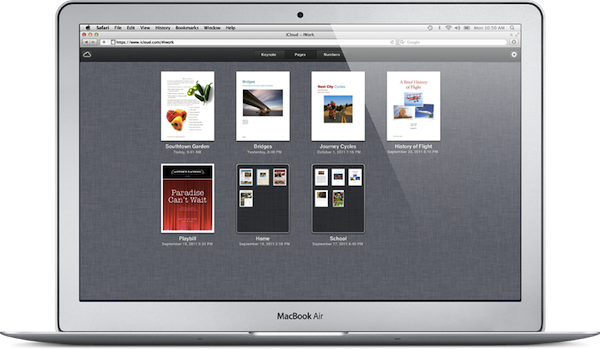
iCloud makes it easy to move Pages, Keynote, and Numbers documents between your computer and your iOS devices. Just sign in to icloud.com/iwork in any modern web browser, and all your iWork for iOS documents will be there — complete with your most recent edits. Click a document to download it in iWork ’09, Microsoft Office, or PDF format. You can also drag and drop any iWork ’09 or Microsoft Office document from your computer into one of the iWork apps on icloud.com, and it automatically appears on all your iOS devices, ready for you to review, edit, or present.

Full changelogs below. Pages also received support for dictation through iOS 5 and iPhone 4S.

Keynote

  • Automatically store your presentations in iCloud and keep them up to date across all your iOS devices.
  • Download your presentations to a Mac or PC at icloud.com/iwork as Keynote ’09, PowerPoint, or PDF files.
  • Drag and drop Keynote ’09 or PowerPoint presentations to icloud.com from your Mac or PC to have them automatically appear on your iOS devices.
  • Use AirPlay to present wirelessly via Apple TV. Navigate slides, view presenter notes, and use the laser pointer while presenting from your iOS device.
  • New builds and transitions including Anvil, Blinds, Color Panes, Comet, Confetti, Diffuse, and Sparkle.
  • Advanced presentation controls including looped slideshows and autoplay.
  • Support for slide-to-slide hyperlinks.
  • Improved compatibility with Microsoft PowerPoint and Keynote ’09.
  • Includes improved support for Chinese, Japanese, and Korean language input.

Pages

  • Automatically store your documents in iCloud and keep them up to date across all your iOS devices.
  • Download your documents to a Mac or PC at icloud.com/iwork as Pages ’09, Word, or PDF files.
  • Drag and drop Pages ’09, Word, or plain text documents to icloud.com from your Mac or PC to have them automatically appear on your iOS devices.
  • Use your voice to create and edit Pages documents with dictation in iOS 5 on your iPhone 4S.
  • Create footnotes and endnotes in your documents.
  • View improved word counts with character, paragraph, and page counts.
  • Improved compatibility with Microsoft Word and Pages ’09.
  • Includes improved support for Chinese, Japanese, and Korean language input.

Numbers

  • Automatically store your spreadsheets in iCloud and keep them up to date across all your iOS devices.
  • Download your spreadsheets to a Mac or PC at icloud.com/iwork as Numbers ’09, Excel, or PDF files.
  • Drag and drop Numbers ’09, Excel, or CSV files to icloud.com from your Mac or PC to have them automatically appear on your iOS devices.
  • Use sliders, steppers, and pop-ups to easily enter data and explore results.
  • Use Merge Cells to format your tables.
  • Hide and show rows and columns.
  • Improved compatibility with Microsoft Excel and Numbers ’09.
  • Includes improved support for Chinese, Japanese, and Korean language input.

AirPort Utility Now Available for iOS 5

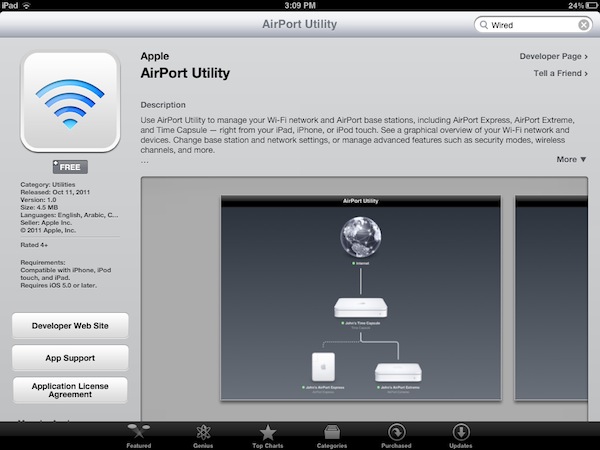
Apple today released AirPort Utility for iOS, an app to configure and manage AirPort devices on a local network. An early beta version of iOS 5 showed that Apple was building support for managing AirPort stations (such as the AirPort Express and AirPort Extreme) right into the operating system; however, as we noted last week the Golden Master release of iOS 5 included a link to download AirPort Utility for iOS from the App Store, which wasn’t available.

AirPort Utility requires iOS 5, which will become available publicly later today. You can install the app by clicking on “Manage This Network” on your iOS device’s WiFi settings for an AirPort station.

The app isn’t showing up in iTunes search yet, but here’s the direct link that should be available shortly: AirPort Utility

AirPort Utility provides a straightforward interface to manage AirPort devices on a local network. The app shows AirPort stations that are connected to the Internet, and on the iPad gestures are supported to zoom out the view and get a better visual of all the available devices. Tapping on the Internet icon will let you see the status of your connection with Router Address, DNS Servers and Domain Names; tapping on an AirPort Device will show a popover menu with the device’s name, IP Address, Serial Number, Software Version, Network and connected Wireless Clients. You can check out the connection status, IP Address and Hardware Address for each connected client.

Tapping the Edit button will enable you to configure various settings of an AirPort device, including File Sharing and Disks for an AirPort Extreme, DHCP and NAT, WAN Setup and Access Control. You can restart a base station from the app and restore it to default settings. You can manage the Internet Connection settings for the device, activate a Guest Network and change the WiFi Mode of an existing network. Overall, it appears the AirPort Utility app for iOS 5 has implemented much of the options available in its Mac counterpart.

More screenshots after the break. Read more


Apple To Release AirPort Utility for iOS?

In the early betas of iOS 5, it was reported the operating system gained a new functionality to set up AirPort stations on a local network. AppleInsider posted screenshots of the feature, and wrote:

Under Wi-Fi Networks, a new option reads “Set up an AirPort Base Station…” In setting up a Time Capsule, users are given the option to create a Wi-Fi network, complete with password, or “Do something different.” Selecting the latter option gives users the option to join an existing network, or to replace a base station. Users are also given appropriate error messages or details on how to fix any issues directly from the iOS Settings application.

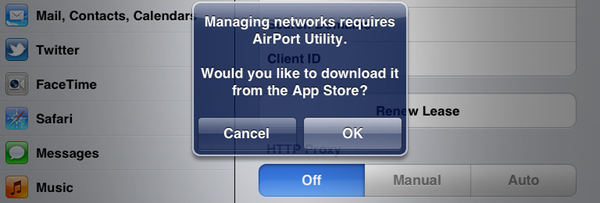
As noted by Twitter user @SonnyDickson and a forum poster on MacTalk.com.au, it appears Apple is now preparing to release a dedicated AirPort Utility app for iOS, which should soon be available in the App Store, perhaps as early as next week when iOS 5 will be publicly released. In the iOS 5 GM release, a button named “Manage this Network” in the WiFi settings for an AirPort-based network will ask users if they want to download AirPort Utility from the App Store. The dialog box will then launch an iTunes link, which is not live yet, to download the app on the Store.

It’s unclear whether iOS 5 will have basic AirPort setup functionalities built-in, or if the features spotted in the early betas have all been moved to a separate App Store download. One of the key features of iOS 5 is PC Free, a set of tools that will allow iOS owners to set up their devices without using a Mac or PC – being able to configure an AirPort network directly from an iPhone or iPad would certainly be in line with Apple’s willingness to “cut the cord” and let iOS devices be independent from desktop computers. iOS 5 and iCloud will debut next Wednesday, October 12th, and Apple is also set to release another App Store app on that day, Cards.