


Here are today’s @MacStoriesDeals on iOS, Mac, and Mac App Store apps that are on sale for a limited time, so get them before they end!
#MacStoriesDeals - Friday
App Journal, Episode 7: Muon, Flint, Sociable, CoinKeeper
App Journal is a new series aimed at showcasing apps we have enjoyed using on our iPhones, iPads, and Macs, but decided not to feature in a standalone, lengthy review here on MacStories. App Journal is a mix of classic reviews, weekly app recommendations, and a diary of our experiences with apps that still deserve a proper mention.
After the release of iOS 5, iCloud and the first wave of new apps that take advantage of Apple’s new OS and sync services, the App Store is quickly marching towards a holiday season that will be huge, both for hardware sales as well as app and game releases, software deals, and new retail features at Apple’s physical stores. While we wait for the craziness to begin later this month, we take a look at a cool music visualizer for the iPad, a finance app for the iPhone, a Campfire client and a utility to update your status on multiple social networks at once.
Sounds cool? Follow us for this week’s app collection after the break, and stay tuned for more App Journals in the next weeks.
Muon

I found out about Muon when I first saw an ad in our site’s sidebar. I don’t manage advertising on MacStories anymore, so the encounter was completely random, and the fact that the developers are advertising on our site didn’t influence my decision to mention their iPad app on the Journal. Just making things clear.
That said, Muon is a nice music visualizer for the iPad, kind of like iTunes’ own visualizer but with more effects and touch controls. The app can fetch songs from your existing Music library, and displays AirPlay-compatible controls as a translucent bar at the bottom. You can tap on a song’s name at any time to change artist or album or pick a playlist, but I don’t like the blue design of the music picker menu. Visual effects are obviously Muon’s main feature, and interestingly enough the app comes with settings to control the Audio, Drag and Mutate reactions of the Visualizer. You can tweak things like Orbital Speed, Life Span, Color Entropy and Zoom & Blur, and you’ll notice that modifying these parameters really changes what’s displayed on screen.
The developers claim Muon can move up to 500,000 particles on the iPad 2, with a complex visualization engine that makes effects evolve with the beat of you music and gradually form different shapes and patterns that you can capture as presets, or screenshots with the dedicated camera button. The app supports video-out and AirPlay Mirroring, as well as dual monitor setups and full-screen view on the iPad.
Overall, Muon comes with some fairly advanced control options but I simply prefer to keep it running and let it decide which effects to use according to the song that’s playing. Muon is $0.99 on the App Store for a limited time.
Flint

For our communication needs here at MacStories, we use 37signals’ Campfire. For those who are not familiar with the service, it’s a fantastic chat tool for teams that, among other things, allows you to upload files, manage chat transcripts for multiple rooms, and visualize media such as pictures and videos with inline previews. We use Campfire every day to quickly put out news, casually hang out, and assign articles to each other. There’s no doubt Campfire has become an essential tool for getting things done over here.
In the past months I’ve been testing Flint, a native Mac client for Campfire that’s available on the Mac App Store. It’s been hard for me to switch from the browser-based, pinned tab for Campfire, but Flint is simply fantastic. The interface is elegant, gets out of the way and nicely highlights conversations in a Campfire room. There are profile pictures for users, and a popover at the bottom lets you see all participants in a conversation. The app supports most of Campfire’s web functionalities (image previews, sounds, but no emoji), and more importantly it’s perfectly integrated with Growl on OS X.
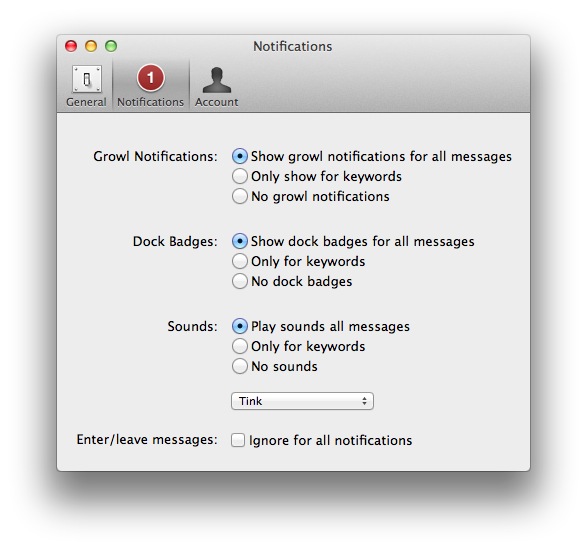
This is the main reason I use Flint – with Growl integration, I can take a look at what’s being said without opening the app and, from the Preferences, control the behavior of sounds, dock badges, keywords and enter/leave messages. In the past weeks, the developers have also released an update that improves the reliability and speed of the app from the first version – so if you gave it a try initially and went back to Campfire on the web, now it’s time to fire up the app again and see if things have improved for you.
I, for one, will keep using Flint to catch up with my team and get work done. If you’re serious about Campfire and have a Mac, Flint is $9.99 on the App Store. Read more
Apple’s Fifth Avenue Store Re-Opens Today With Its Redesigned Glass Cube
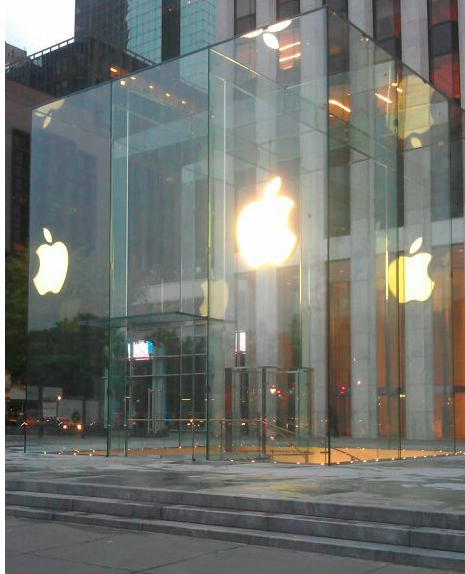
In just a short few hours, at 10 AM local time, Apple’s flagship retail store at 5th Avenue in New York City will have a grand re-opening after its glass cube was renovated and re-created. As you can see above though, Apple has spent the night removing all the barriers and plastic wrapping and the new design is bare for all to see. The new design has just three tall glass panes on all sides of the cube, coming to a total of just 15 panes — compare that number to the old design which had 90 panes.
Jump the break to view a picture before the plastic wrapping came off, to have a look at renderings of what the store was designed to look like and what the old cube (with its 90 panes) looked like.
We will update this post as more pictures come in and the grand re-opening begins.
[Image via 9to5 Mac]
Update: MacRumors shares more pictures of the redesigned cube, showing the new “seamless” design that eliminates most of the hardware that kept the old 90 glass panels together.

Update #2: View of the redesigned cube via @andinieffendi.

Apple’s Supply Chain Secrets→
Apple’s Supply Chain Secrets
A recurring piece of information throughout this year has been how Apple’s supply chain is so integral to their success in recent years. Bloomberg Businessweek’s article from yesterday is just the latest this year and it chronicles a few stories of Apple’s impressive control over their supply chain and gives some interesting insight to how it works.
Apple has built a closed ecosystem where it exerts control over nearly every piece of the supply chain, from design to retail store. Because of its volume—and its occasional ruthlessness—Apple gets big discounts on parts, manufacturing capacity, and air freight. “Operations expertise is as big an asset for Apple as product innovation or marketing,” says Mike Fawkes, the former supply-chain chief at Hewlett-Packard (HPQ) and now a venture capitalist with VantagePoint Capital Partners. “They’ve taken operational excellence to a level never seen before.”
Included in the article are some fascinating stories from the supply chain - whether it be the hoarding of lasers so that that iSight’s green LED indicator light could be ‘invisible’ when off, to Apple buying up all the available air freight over Christmas of 1998 so it could ship their new translucent blue iMacs and to how Apple keeps its new products secret ahead of a launch.
At least once, the company shipped products in tomato boxes to avoid detection, says the consultant who has worked with Apple. When the iPad 2 debuted, the finished devices were packed in plain boxes and Apple employees monitored every handoff point—loading dock, airport, truck depot, and distribution center—to make sure each unit was accounted for.
MacStories Product Review: Stem Innovation TimeCommand

You go through the same routine every morning right? Slap the snooze button a couple of times, roll out of bed, and turn on the blinding lamp sitting on your dresser. Good Morning! Well kids, there’s a clock in town that has pretty neat wake-up, sleep, and light dimming capabilities, while doubling as an iPhone, iPod, and iPad dock. The TimeCommand’s best qualities aren’t even time related — Sonic iQ technology (in other words: nice sounds) make this a snazzy bedroom or living room speaker when you’re rocking to your favorite tunes. Ready to integrate your iPhone and a light show into your daily routine? Let’s do this.
Kickstarter: i+Case - Machined Aluminum Bumper Case for the iPhone 4S

Most people accessorize their iPhones with cases, bumpers, stickers, etc. to make their device unique and individual. I like a minimal case that adds some protection around the device but without distractions. The i+Case by Jason Valalik and Chungming Ying is a sleek, beautiful aluminum bumper-style case that is machined out of a single block of aluminum. Sound familiar? Apple uses the same process to make their MacBook Pros. After the case is machined, it goes through an anodization process increasing durability and resistance to corrosion. Installation is simple and requires four stainless steel screws and an included screwdriver.
The i+Case Features:
- Slim metal profile showcases more of your iPhone 4S and 4.
- Minimalist, form-fit feature covers corners and protects better than plastic cases.
- Minimal assembly required, tool kit with mini-screw driver, screws and aluminum buttons (Volume, On/Off, Mute) included.
- Access to all ports and functions.
- Weight: 16 grams.
Video after the break. Read more
UP by Jawbone: The Health Band that’s Not Just Another Fitness Gadget
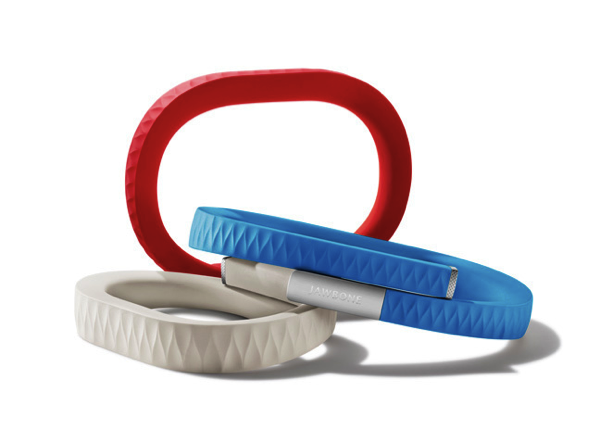
If you haven’t heard of it, you’ll want to familiarize yourself with the Quantified Self, a growing trend that seeks to utilize technology to give us better insight into our health, mood, and state of mind. The purpose of technologies like this isn’t to dictate how you live, but to better make you aware of your unique characteristics and nutritional needs. No two persons are built the same, and technology always finds ways to highlight facets we tend to overlook.
The UP launched late last night with much fanfare from an excited Twitter fan-base, an excellent introductory post from The Verge, and shortly after Kara Swisher, whom published an interview with its creators. Shaky cam! The UP certainly isn’t the newest contestant in the field; The Fitbit is a trick pedometer that nudges wearers to be more active, while Basis is a customizable watch module that tracks everything from body temperature to perspiration. Practical for many, Withings Wi-Fi Body Scale and Blood Pressure Monitor quantify and automate data metrics we’re already used to looking at. Websites like Fitocracy aim to gamify our health, creating social challenges that open up avenues of online collaboration and motivation with peers. Being healthy is a big avenue of interest for new startups and consumer alike.
#MacStoriesDeals - Thursday

Here are today’s @MacStoriesDeals on iOS, Mac, and Mac App Store apps that are on sale for a limited time, so get them before they end!
iCloud, Mobile Documents Sync and GoodReader
Last night we detailed how it’s possible to sync documents across multiple Macs configured with the same iCloud account through a hidden folder in Lion’s Library called Mobile Documents. As I explained in the article, this folder is actually the destination and sync location for iCloud-enabled apps, such as Instacast and iWork, that have been updated by developers to officially take advantage of iCloud’s Documents & Data. But as it turns out, Mobile Documents can be used for syncing files across Macs “manually” – just drop a file or folder in there, and it’ll show up on another Mac running the same iCloud account. So whilst Mobile Documents is “officially” used for App Store apps that work with iCloud, it can also come in handy as a native “drop box” powered by iCloud.
As many were quick to point out, syncing files between Macs is nice, but “real” syncing solutions like Dropbox come with mobile apps to make sure your documents and folders aren’t simply synced between desktop machines. Since Apple isn’t offering a new version of iDisk based on iCloud – and seems to be moving away from the concept of filesystem altogether – the method I described in the article was obviously meant for owners of multiple Macs – the Mobile Documents “hack” is cool, but it’s not supported by Apple.
On the App Store, however, that are several apps that over the years have tried to re-implement the filesystem on iOS by offering access to a plethora of online sources for your files, such as FTP servers, Google Docs, Dropbox and SugarSync. These “file management” apps like iFiles and iStorage aren’t integrated on a system level, but they work as “aggregators” for documents you may have already saved in the cloud, only they bring them together in a single location.
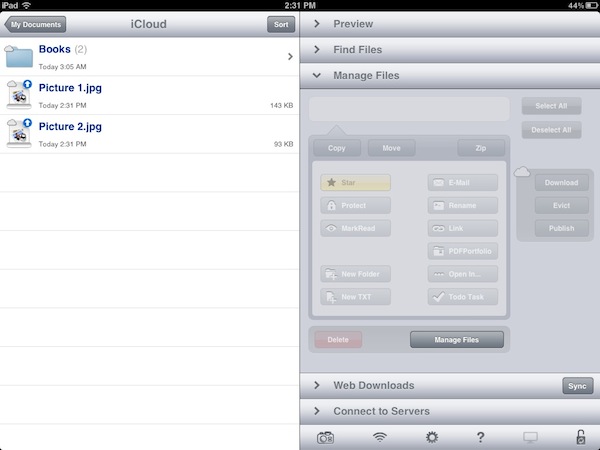
One of such apps is GoodReader, perhaps the most popular document reader & file manager ever landed on the App Store’s virtual shelves – GoodReader comes with hundreds of features and support for multiple online services, plus it’s also a decent PDF reader with annotation functionalities and an overall good preview engine. As I was playing around with the idea of having Mobile Documents work with an iOS app, I realized one of the latest GoodReader updates introduced full iOS 5 and iCloud compatibility, meaning the app can store its documents and data in iCloud, and will show up as iCloud-enabled app in your account (to check this, open Settings->iCloud->Storage & Backup->Manage Storage on iOS, or System Preferences->iCloud->Manage… on OS X Lion). And if an iCloud-enabled app with Documents & Data shows its contents on OS X under Mobile Documents, it means GoodReader should be capable of syncing its own filesystem back to the Mac.
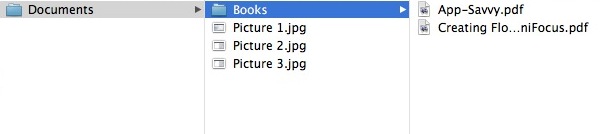
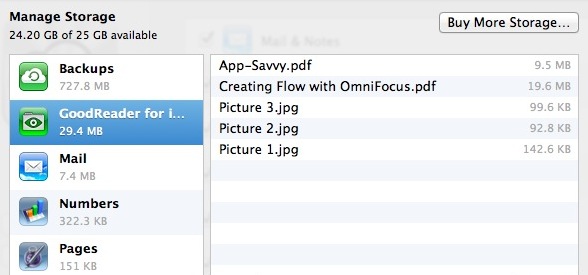
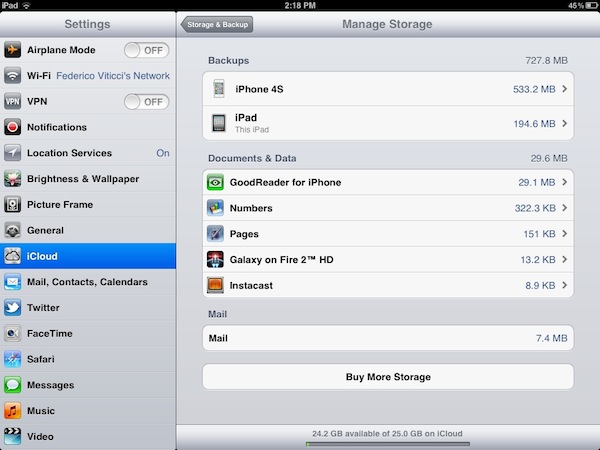
Indeed, you can use GoodReader to manage files and folders on iOS, and have them available on the Mac as well through iCloud and Mobile Documents. GoodReader will create its own folder inside Mobile Documents, and every change (new file, new folder) you’ll make on the iOS app will appear inside GoodReader’s “Documents” directory. Of course, you’ll have to use GoodReader’s “iCloud” folder to enjoy these syncing features; thanks to GoodReader’s file management features, you’ll be able to create folders and sub-folders, move documents around and delete them, create new text files, rename documents, and more. GoodReader has some pretty powerful features, and it’s nice to see the developers are supporting iCloud out of the box with a dedicated folder on the main “My Documents” page.
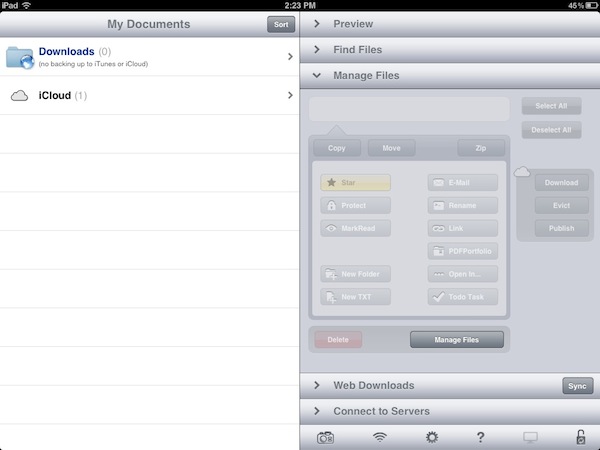
Thanks to GoodReader’s support for multiple online services, you’ll be able to, say, move files from Dropbox or Google Docs to iCloud directly from the iOS app.
In my tests, iCloud sync with GoodReader has been extremely fast and reliable. Documents imported on iOS would show up in seconds on the Mac’s Mobile Documents, and vice versa. I was able to move screenshots between my Mac, iPhone and iPad using Mobile Documents and GoodReader, but I also created folders, compressed files, imported PDFs and MP3 files. Because iCloud is based on push technology, files are pushed immediately to the cloud and downloaded on all configured clients, but I noticed that GoodReader for iOS, unlike the Mac’s Mobile Documents folder, doesn’t download a full document as soon as the data is “pushed” from iCloud. Try this: on your Mac, drag a medium-sized PDF into GoodReader’s iCloud folder. Notice how the PDF’s icon and name show up on GoodReader after your Mac has pushed the document to iCloud. But try to open the PDF from GoodReader, and you’ll see the app will require additional download time, as only the main information about the file has been pushed to iOS – if you want to read it, you’ll have to wait for the full download. I actually found this method pretty clever, as it gives me up-to-date file information in seconds, and allows me to download files when I need them. Overall, I’m impressed by iCloud and GoodReader working together to sync files across different iCloud clients.
Why should you care to have GoodReader syncing files that also happen to show up on your Mac? First off, it’s a cool trick. More importantly, iCloud’s push technology works well, and users (like me) may find it convenient to have an easy way to, say, import iOS screenshots on the desktop without using Photo Stream, while still relying on iCloud. Thanks to GoodReader’s support for audio and video, iWork and Office files, HTML archives and text files, you’ll be able to copy a variety of documents from your desktop onto iCloud, and have them synced back to iOS in seconds.
Check out how to sync files with Mobile Documents and iCloud here. GoodReader is available on the App Store for iPhone and iPad.