Why Are Apps Putting You On A Wait List?

A good piece by Ellis Hamburger at The Verge, who explains why some recent iOS apps have been putting new users on a “wait list” before they can actually start using an app. This is due to the increasingly cloud-based complex scaling challenges that apps (which are downloaded locally) face when trying to work with online components (remotely) for thousands of users.

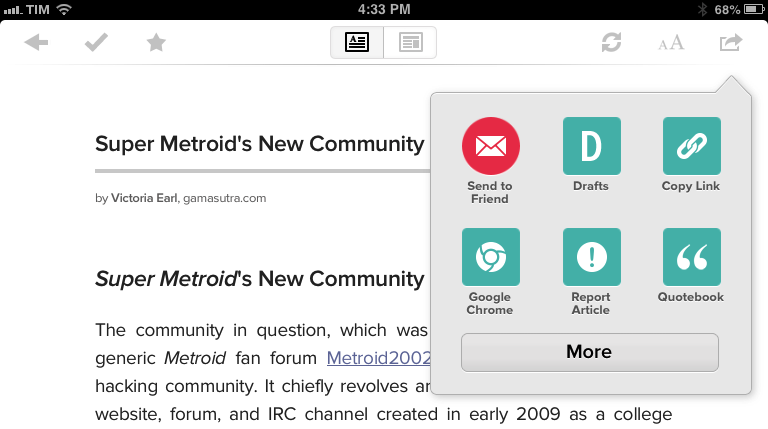
I understand the difficulties mentioned by Ellis and the developers he interviewed, but I also see part of Ben’s point when he argues that several of these “wait list apps” are free and don’t seek immediate revenue. Mailbox removed the reservation system after it had been acquired by Dropbox, meaning that Dropbox – a larger company – had the human and financial resources to “throw” at Mailbox’s problem. However, I think that resources aren’t a panacea for new apps that rely heavily on server-side features: if anything, the App Store makes it hard to ship apps that are only available to a subset of users, which is forcing developers to implement ideas such as the aforementioned waiting lists.

A better testing process for App Store developers isn’t a new topic, and I wonder if app testing tools made by Apple with support for thousands (instead of hundreds) of “beta” users would alleviate the issues covered by Ellis.

Permalink

Markdown for Keyboard Maestro 2

One of my favorite tools for more efficient writing was recently updated to version 2, which is available for download on GitHub. As Andreas Zeitler explains, the main focus for version 2 was “speed optimization, interaction, accessibility for non-English speakers, and usability”. There’s also a screencast on YouTube showing the new features.

I use Markdown for Keyboard Maestro on a daily basis to speed up my writing in Sublime Text. In fact, many of the workflows that I’ll share when Editorial for iPad will come out have been inspired by Andreas’ work.

Permalink

Check Dev Center Status From iOS with Pythonista

A great idea by reader Nicolas Hoibian, which uses BeautifulSoup to fetch the source code of Apple’s System Status page, parse it, and print it with custom fonts and colors in Pythonista’s console.

Here’s my modified version that uses Pythonista’s notification module to re-run the script every 6 hours by firing a local iOS notification on your iPhone or iPad (it assumes the script is named “DevCenter” in Pythonista).

Permalink

China Labor Watch Publishes Report With Mention Of New “Plastic iPhone”

MacRumors’ Erik Slivka:

Earlier today, labor rights group China Labor Watch issued a report making claims of poor working conditions at Apple’s assembly partner Pegatron.

The report, available as a PDF here, contains mentions of a new “low-priced” plastic iPhone that will “soon” released by Apple:

Pegatron (Shanghai) Ltd Co. is part of the Pegatron Group, which was a subsidiary of Pegatron Group until 2010. Pegatron primarily assembles cell phones and tablet PCs for Apple. Its assembled products include iPhone 4, iPhone 4s, iPhone 5, and low-priced plastic iPhones. Some of Pegatron’s major equipment, such as micro-computer and detection hosts, is provided by Apple.

In the report, a worker details the actual process of pasting protective film on the back of this unreleased iPhone:

Today’s work is to paste protective film on the iPhone’s plastic back cover to prevent it from being scratched on assembly lines. This iPhone model with a plastic cover will soon be released on the market by Apple. The task is pretty easy, and I was able to work independently after a five-minute instruction from a veteran employee. It took around a minute to paste protective film on one rear cover. The new cell phone has not yet been put into mass production, so quantity is not as important. This makes our job more slow paced than in departments that have begun mass production schedules.

The report also contains photos and details of poor working conditions at Pegatron, to which Apple has responded with an official statement. We’ve already outlined why it’d make sense for Apple to release a low-priced iPhone, and, at this point, several signs seem to be pointing to such a device coming out later this year.


Permalink

Resolve Short URLs with Pythonista on iOS

Clean URLs

Clean URLs

I don’t like it when third-party apps or services force me to share links to articles or webpages using their own custom shortened links. I understand the appeal of personalized short domains – after all, we tweet mcstr.net links with the @macstoriesnet account – as they can provide analytics to track clicks, can save characters, and, at least in theory, they “look cool”. However, I’ve been long considering the idea of dropping our mcstr.net links, but I think the issue is worse (and more annoying) for apps and services that don’t tweet links to their own content (like we do) but that override others’ links with different domains. An example is Pocket, which gives you the clean, original URL when you choose the “Copy Link” action from the sharing menu, but that instead returns pocket.co links when sending text to Drafts (which I do often). I’ve grown tired of this practice (in Pocket and other services), and I’ve put together a workflow based on a Python script that allows me to easily resolve short links without having to open the browser and tap on multiple menus. Read more


Vintage Apple Ads On YouTube

Husain Sumra:

Old Apple commercials from the 1980s have been resurfacing on YouTube channel EveryAppleAds over the past few days, offering an extensive look at vintage Apple advertising that is normally overshadowed by Apple’s famous Super Bowl commercial “1984”.

The channel’s Recent Uploads section is where you can easily to watch all the videos. Some of them are utterly “vintage” in the way they’re meant for an audience who couldn’t have decades of computer experience like we do today; others are still fascinatingly modern in how they imply the product’s superior functionality in a casual, familiar setting. A great find.

Permalink

Superbrothers: Sword & Sworcery EP Sales

Interesting numbers from the developers of one of the most unique iOS games in recent years that was later ported to other platforms. The last chart, iOS revenue by region, shows the importance of Japan, as also outlined by Apple in the Q3 2013 earnings call. I would love to have more details on revenue over time though – such as the impact of making an iPhone version or sales in the first two weeks of Google Play compared to the same period on the App Store.

Permalink

Transfer Files with Alfred - Zero Config Required

File transfers between computers on a network can be a pain. No one wants to memorize hostnames and IP addresses are often dynamic. Apple made huge strides in simplifying the process with AirDrop but the UI leaves a lot to be desired especially if you are looking for fast transfers with minimal interactions. If you are an Alfred Powerpack user then you are probably already familiar with the many ways Alfred workflows can speed up simple actions without ever having to take your hands off the keyboard. Wouldn’t it be great if you could transfer files using Alfred with absolutely no configuration?

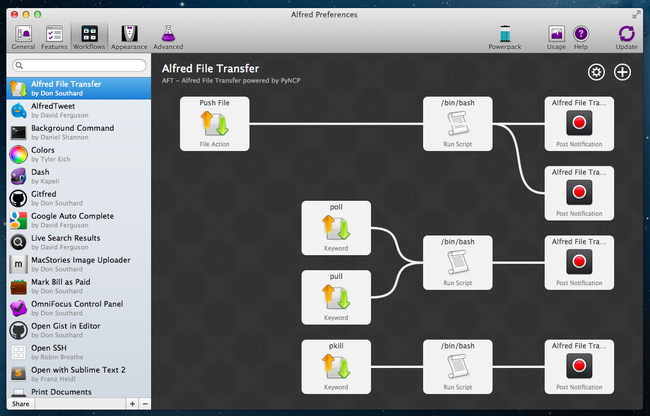
This is exactly what I had in mind when I made the Alfred File Transfer workflow. So how does it work? It is powered by the pyncp project. A few months ago one of my favorite blogs, One Thing Well, linked to the pyncp project which is a Python port of the popular linux utility – NCP. Pyncp is essentially a command-line tool for copying files across a LAN without any configuration. You simply run the pyncp push command on one computer, then run the pyncp poll command on the second computer and file is transferred. However, I ran in to some initial issues that prevented pyncp from working properly on OS X – so I forked the project, refactored some code, and got it working.

The Alfred File Transfer workflow is simple. First, install the workflow on each computer. Then select a file to transfer in Finder and show the list of available Actions using Alfred’s ⌥ + ⌘ + \ keyboard shortcut. Type push and select the corresponding Alfred action. On the second computer, simply bring up Alfred and type pull – the file will be transferred to the ~/Downloads folder on the destination computer. That is all there is to it!

Check out a video of the workflow in action:

This workflow is simple yet very powerful because it allows you to move files across your network using nothing more than your keyboard. It is worth noting that this does not provide the encryption and security provided by AirDrop so if you are transferring sensitive information on a public network – use with caution. However, I have found it extremely useful on my personal computers at home. If you find this workflow handy be sure to thank Felix Richter for his hard work porting NCP to the Python language.

Download the Alfred File Transfer workflow.


HEARD

HEARD appeared on the App Store at the end of June then suddenly disappeared without a trace. There was no blog post and no real explanation on Twitter — just a couple of Tweets asking to get in touch with so-and-so at the time. The whole thing was kind of strange, and I honestly believed the app had been acquired. The app looks to have been pulled due to a bug, and rather than risk poor app reviews, I surmise that the devs decided to pull it. The launch was quiet and there wasn’t too much to lose at the time. After several days, HEARD came back to the App Store with a small update. It’s here for good.

Correction: Apple pulled the application without warning after deciding the app didn’t need full background access. HEARD appealed and won their case, and the app returned to the App Store as it was originally introduced. My assumption was incorrect.

I was disappointed that I didn’t download the app right away after it disappeared (fearing I had missed the chance to try it), given that what it does is nothing short of intriguing. HEARD lets you save anything your iPhone has heard in the past five minutes. The idea that you can suddenly save a conversation to your iPhone that happened five minutes ago sounds magical. But then you start wondering if it’s even all that practical given that you’d likely want more than just five minutes if you’re intent on recording something.

HEARD is an app that runs in the background, its ability to record only limited to how much battery life you have left. By pressing a big red button, HEARD begins actively listening. There’s nothing to log into and no quirky settings to configure. Like you would see with apps like Skype or Voice Memos, HEARD changes the color of the status bar system wide to indicate that the app is listening. When you return to the app, pressing the button again saves whatever was buffered in the last five minutes to its library as a recording. You can then listen in, edit the file’s title, add tags, or delete it if you’re not happy with it. The app continues listening and the cycle begins anew.

That’s what makes HEARD kind of killer. It gives you the potential to record everything that happens. If your phone can hear it, it’s in the app’s buffer for at least five minutes.

While having this kind of power can certainly be useful, is it impractical? Sometimes. Obviously if you want to record a thirty minute meeting then you’re dead in the water unless you use another app. HEARD will let you turn off background audio to record audio snippets, but it only records as long as you hold down the button. If I can put myself in the mindset of the developer, what they’re trying to do is prevent you from accidentally recording something for so long that you run out of storage space. Personally I would like the option of not having to hold down that button, even if it meant I couldn’t leave the app if that’s the tradeoff the developers want to make. I want to use HEARD over Voice Memos and as my destination for everything, both for whatever stuff I happen to capture from the airwaves and stuff that I want to record intentionally.

I would love IFTTT integration. Just imagine saving a snippet and having it automatically end up in Evernote or another app. That’s my only want for this app going forward.

There are some aesthetic things I don’t like, particularly the ‘HEARING’ button in the center of the tab bar. I keep pressing it trying to pause and start recordings to no avail. As for recordings, those text boxes look a little dated. And the only real way to turn off background listening is to flip a switch in the settings or close the app from the multitasking bar (I feel there should be a way to pause background listening). For these things, the app does encourage feedback via a button in the settings.

Given the premise and despite being a sort of purposefully limited voice recorder, HEARD works. I felt this way when HEARD first disappeared, and I still feel this way today, that it’s something that was built for attracting attention from bigger fish in the pond, and I wouldn’t be surprised if someone did snap it up just for the idea. Yet, I do recommend at least trying out HEARD. It’s free, the limitation being that only things heard in the past few seconds can be saved. An in app purchase of $1.99 will unlock the full five minutes. Download it from the App Store.

Update 5:00 pm: @heardapp reached out to me on Twitter to point out an inaccuracy in my review of the app concerning the app’s sudden disappearance. I’ve embedded the tweets below and have updated the review.