This Week's Sponsor:

Copilot Money

Copilot Money, The Best Money Tracker, Launches on the Web – Limited-Time: Get 26% Off + 2 Months Free


Posts in reviews

TapeDeck For Mac Records & Captures Audio, Supports Pro Hardware & Monitoring

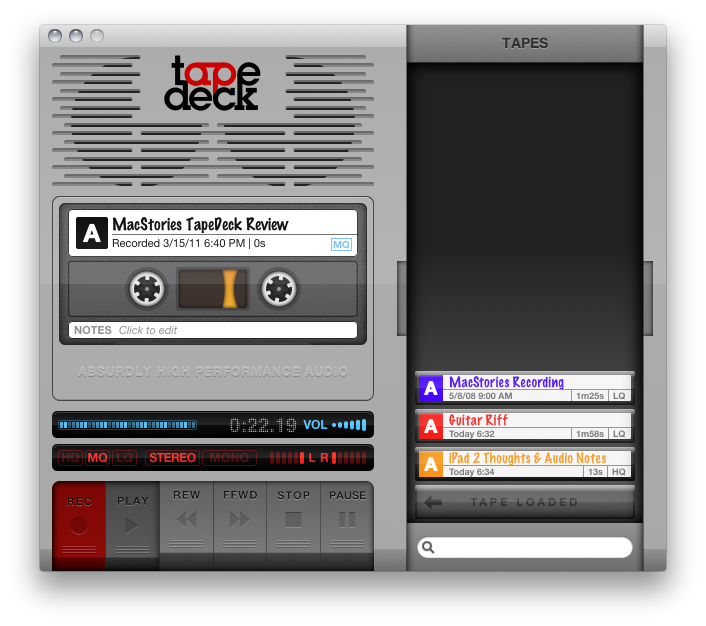
Much like TinyVox which we looked at recently, you’d think TapeDeck would be its older brother (though the two aren’t related). TapeDeck for the Mac is a cassette deck for OS X, enabling you to quickly label and record audio from the built in microphone or connected pro hardware, and can allow you to monitor (playback) audio as it’s being recorded. If you have the jack for your Mac’s line-in port, you’ll be able to quickly save off audio to a .m4a file which shows up as a cassette in the tap box (the drawer that holds your cassettes). You can organize recordings by color, add notes, select audio quality per recording, and choose either stereo or mono (mono only records audio on the first of the two channels you’re recording to). It’s old school meets… new school?

Read more


DropBook Integrates Facebook With Your Desktop: Review & Giveaway

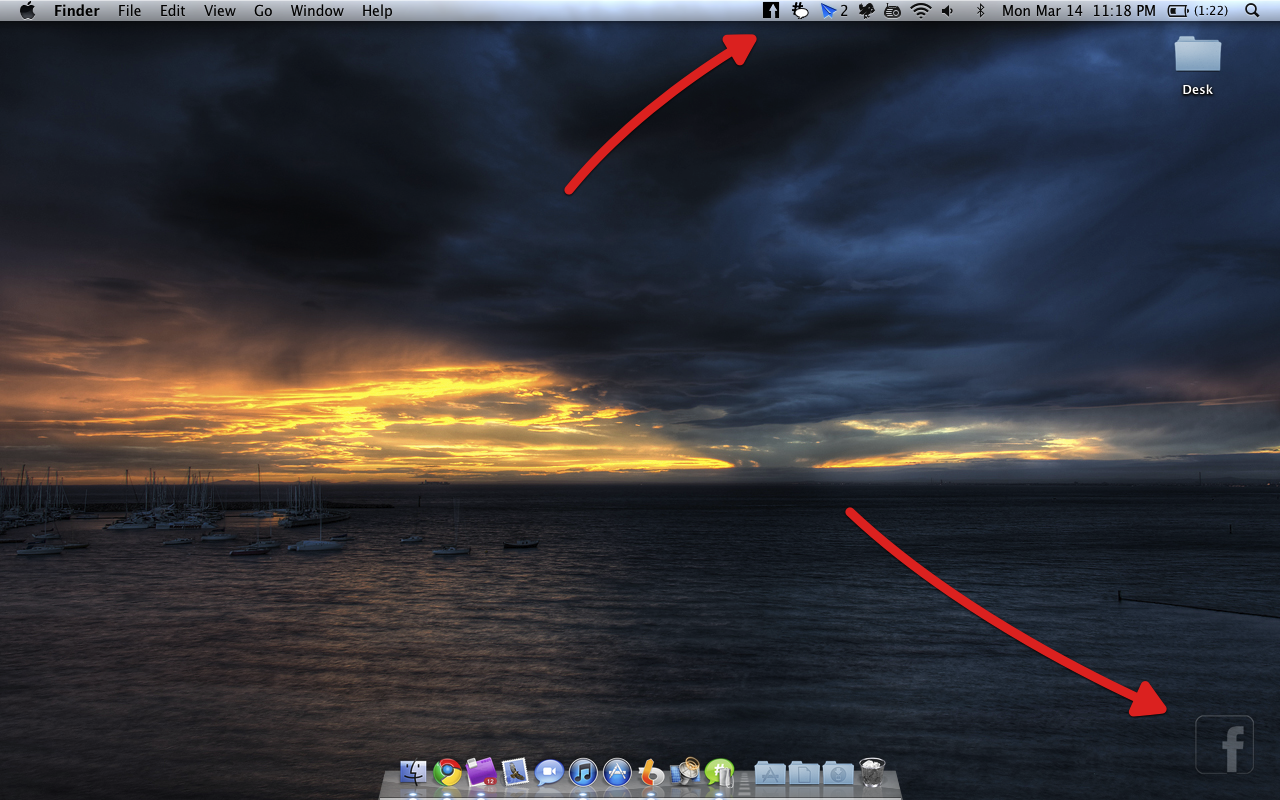
DropBook is a little more difficult to show off than most apps in part because of its deep integration with your desktop and menubar. It isn’t an app that traditionally sits in your Object Dock, rather, you get a translucent Facebook icon that sits in the lower left corner of your screen which you can drag pictures and favicons/URLs into to instantly share content to your wall. As content is dragged into the Facebook icon, a window appears that shows you the attachment or link to your content. If it’s a picture, you can send it to your album of choice including your profile pictures. On your Mac, a lot of content is bound to be bundled in iPhoto, and you can drag multiple selected photos for a multi-upload. You currently can’t add tags to photos, which might be a deal-breaker for those uploading lots of pictures.

Read more


Due, The Best Reminder App for iPhone, Now Available on the iPad

Due, a popular reminder and timer application for the iPhone we at MacStories reviewed several times in the past, was updated last night to include a native iPad version that, together with OTA sync through Dropbox introduced in version 1.3.1, now allows you to have your reminders, timers and logbook always in sync and available across a variety of devices.

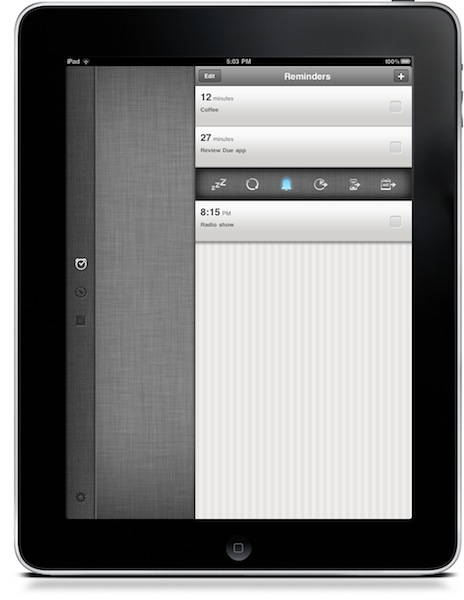
Due for iPad sports a completely new interface for the tablet that reminded me of the official Twitter app at first with a vertical navigation bar on the left and a middle panel to add and customize your reminders and timers. The bar on the left lets you switch between the sections of the app, as well as the Settings which now have their own dedicated tab. As you may know Due syncs with Dropbox upon launch and exit, so if you’re running both the iPhone and iPad versions at the same time don’t expect changes to occur simultaneously. It’s highly recommended that you only use one version of Due at a time to avoid sync conflict issues. That said, sync is pretty reliable and fast enough to enable you to switch from a device to another within seconds.

New design aside, Due for iPad follow the steps of the iPhone app to offer an easy to use solution for your reminders and timers. Many of the interface elements are the same so you’ll feel comfortable when using the new Due for iPad. This update also introduces a number of fixes and various improvements, such as the possibility to relaunch the app in its previous state (reminders / timers tabs), double tap to edit reminders and timers, extended undo support. When adding new reminders, the app will now open the “quick panel” automatically to customize snooze and repeat quickly – this one is a very welcome addition to further streamline Due’s workflow and usability.

Due keeps getting better on each release, and this iPad version plays an important role in making Due a ubiquitous way to have your reminders and timers available all the time. You can get the app for $4.99 in the App Store, and check out the full list of changes and fixes below. Read more


On Stage: iPod Companion App with Wikipedia Integration

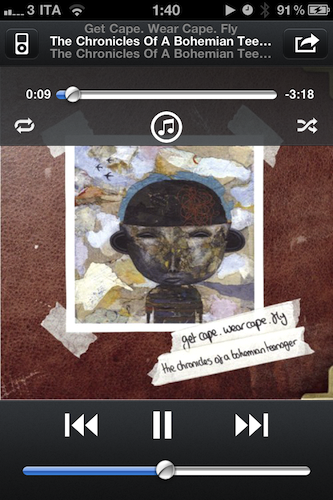
On Stage, a new app by German developer Fabian Kreiser, is a lightweight companion to the iPhone’s iPod application that, together with a custom UI design, comes with neat Wikipedia integration that also supports Sophiestication’s Articles out of the box.

If you’re looking for a more powerful iPod replacement that does a bunch of things like Wikipedia lookup and recommended artists, make sure to check out My Artists, which we reviewed a couple of times on MacStories. On Stage is a smaller alternative with a feature set focused on letting you pick music from the iPod library and display Wikipedia information for the playing album, song, or artist. The app also displays lyrics like in iPod.app but has a function to retrieve lyrics online if missing. Read more


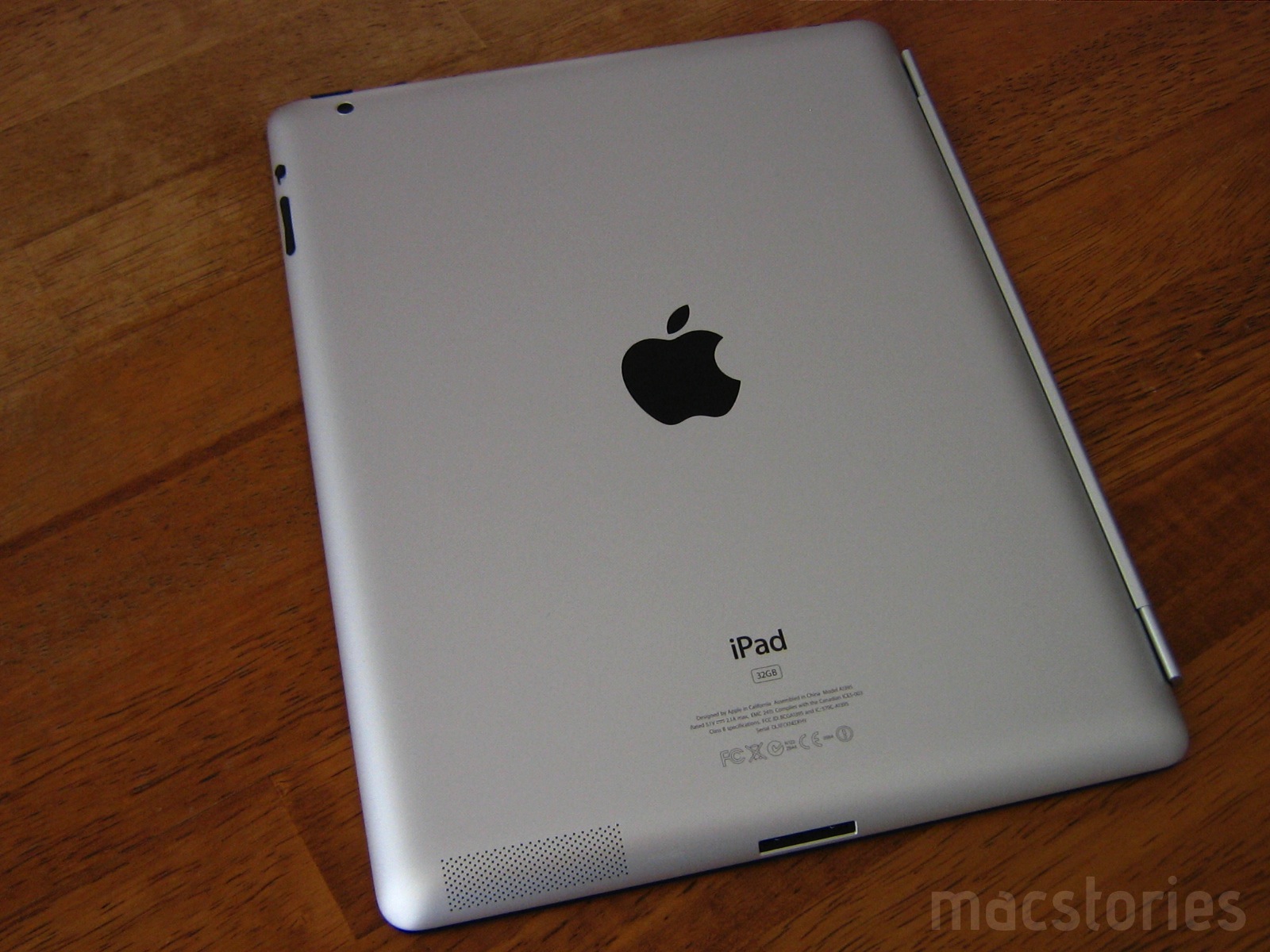
iPad 2 Camera Examples & iMovie

The iPad 2 is outfitted with a pair of cameras that allow for intimate FaceTime and HD recording sessions, but how do these cameras rank on the still photo front? Several blogs have posted some pics already, but I wanted to do a few examples of my own (including a homemade movie) that really shows off what you can expect to do with your new tablet.

Read more


Frenzy Public Beta Available: A Dropbox-based Social Network

Back in September we talked about Frenzy, nothing more than a teaser at the time that was promising to bring a “Dropbox-based social network” to the Mac. Today, Aptonic Software (makers of popular utility Dropzone) has released the first public beta of Frenzy for Mac and, indeed, it works like a private social network powered by the Dropbox backend. We took the app for a quick spin earlier today and we were impressed. Read more


AirTuner Turns iPhones and iPads Into AirPlay Receivers

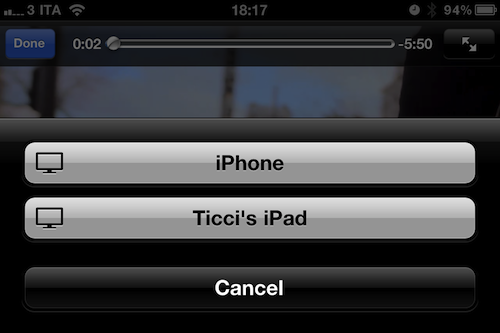
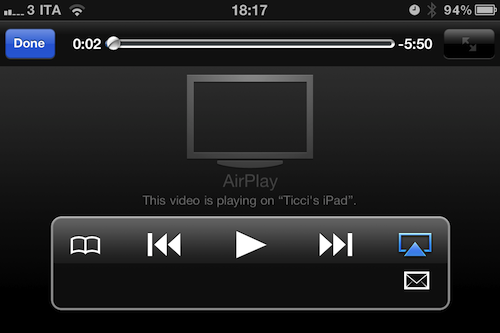
Speaking of AirPlay apps, here’s a $0.99 one that Apple’s isn’t featuring in its custom section, but should: AirTuner turns any iOS device into an AirPlay receiver that can display videos and photos coming from another device or iTunes.

Entirely hardware-accelerated and based on the same interface design Apple uses for AirPlay, AirTuner is universal for iPhones and iPads and in my tests worked perfectly with the Youtube and Photos apps, iTunes, Safari and other third-party applications thanks to the improved AirPlay support in iOS 4.3. For what it’s worth, the app’s icon is also nice on your homescreen.

With the iPad 2 featuring two cameras, it makes more sense now to be able to instantly stream photos and videos from one iOS device to another. Imagine checking out some photos on your iPad 2, and also have the possibility to beam them to your friend’s iPad. AirTuner is a $0.99 download here.


Byword: Distraction-less Writing App For Mac

Byword, a new app by Metaclassy, aims at bringing a minimal, focused writing environment to the Mac. The OS X platform isn’t new to this kind of applications that want to take the distraction away from your writing experience: Ommwriter for Mac tried to provide an uncluttered background for your text that, eventually, turned into a distracting experience for many due to the use of sounds and animations; the usual Text Edit, on the other hand, still maintains a strong hold on users with its minimal UI and powerful text editing features. When combined with apps like Think, Text Edit can become the ultimate writing app for the Mac.

Byword, however, wants to step up the game with a really minimal interface made of no toolbars, and just text on a light background. You can run the app in its own window, but Byword is meant for distraction-less fullscreen mode that will feel just right on Lion, but works well on Snow Leopard as well. When you’re writing in Byword, nothing else is on screen. Just you and the cursor. Read more


ScreenFloat: A Better Way To Capture Information with Screenshots

ScreenFloat by Eternal Storms Software – the same developer behind Flickery for Mac – is a new app released in the Mac App Store last night that allows you to take screenshots that will float above other windows on your Mac. Why would you want to do that, instead of the classic CMD + Shift + 4? Because sometimes information can’t be copied & pasted, and a screenshot is the best you can do to have the information you need a few clicks away. With OS X’ default screenshot-taking capabilities, you’ll still be forced to switch between the main app you’re using (say, the browser or a text editor) and the screenshot you just took, perhaps opened with Preview or Quick Look. So Eternal Storms thought that, when screenshots are the best way to quickly capture information, your Mac should be able to let you easily and quickly take a look at the image. Read more