Posts in news

Pixelmator for iOS Adds Drag and Drop Support and HEIF Compatibility

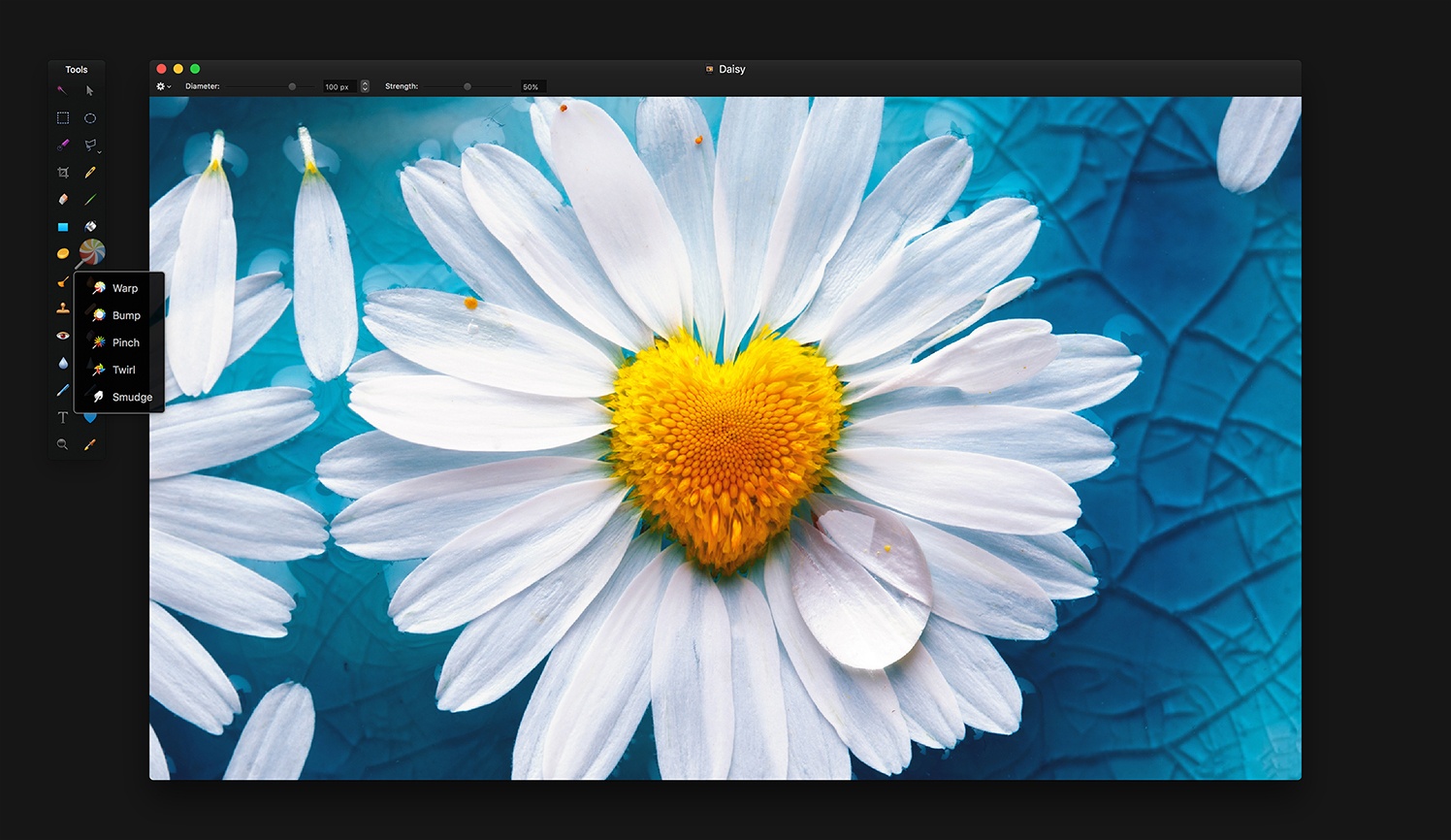
Following just a few days behind Pixelmator for Mac, which recently received support for HEIF and editing files stored in Apple Photos, Pixelmator for iOS was updated today with the aforementioned HEIF support – Apple’s new file format for images in iOS 11 – as well as drag and drop support on iPad.

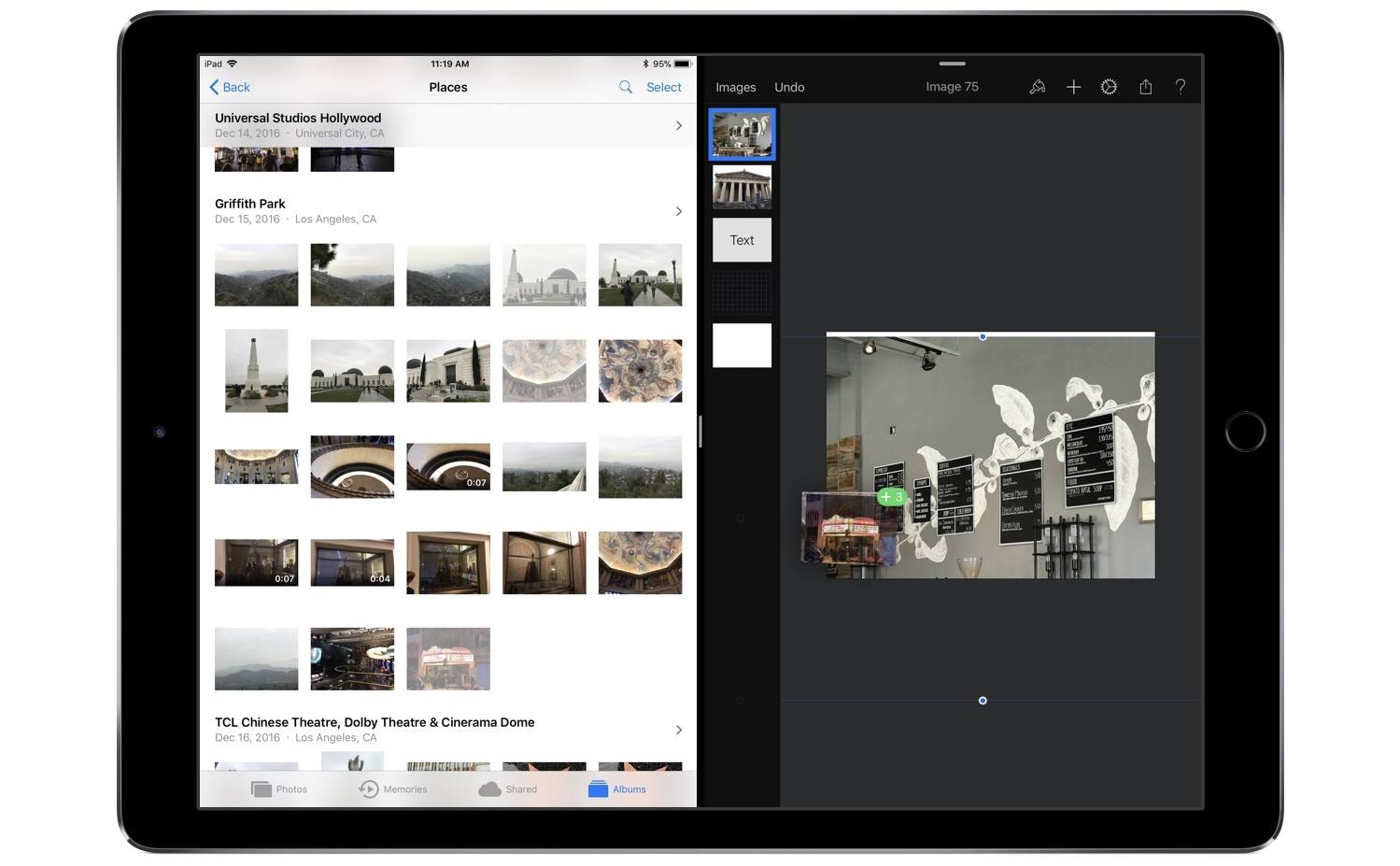
Drag and drop enables, as you might expect, moving images and graphics out of or into Pixelmator. Dropping images into a work in progress will import them all as new layers. Depending on the size and number of images you’re dropping, there may be a brief delay before they appear in your working document, but overall this action works well. When it comes to dragging content out of Pixelmator, you’ll need to do it with a single layer at a time – once you’ve lifted a layer, you can’t use drag and drop to pick up any additional layers. In a document containing many different layers, this can be fairly limiting, but there is a type of workaround: you can merge layers together in the sidebar to then drag the newly merged layer out of the app as a single image. Unfortunately, this only solves the problem if you want both layers permanently combined into one when dropping them elsewhere.

This layer merge technique is the only way I’ve discovered to drag a final image, containing multiple layers, out of Pixelmator and into another app – if you don’t want to first merge all layers together, you’ll have to use a more traditional data transfer technique like the share sheet. I would have liked to see drag and drop enabled within Pixelmator’s main image browser for moving a completed image out of the app, or for importing photos into the app to edit later. Currently, long-pressing an item from the image browser simply engages rearrange mode.

One nice side effect of drag and drop support is that when dealing with layers that don’t fit inside your canvas – such as an image you’ve dragged in that’s larger than the canvas itself – previously it was difficult to easily determine how large the full layer was. But now, grabbing the layer and watching it lift from the screen will provide a view of the full image, regardless of canvas size. Once you start dragging the layer away, it will shrink into a smaller drag preview, but until that move is engaged, the lifted image will be shown in full.

Despite its limitations, drag and drop support in Pixelmator is definitely great to have; before today I have tried several times to drag images into the app only to remember I couldn’t do that yet. Perhaps when the upcoming Pixelmator Pro arrives on the iPad, it will include a richer implementation of drag and drop. Until then, I’m grateful to have one less app limiting my iPad drag and drop experience.
Bear: A Beautiful App for Crafting Notes and Prose [Sponsor]

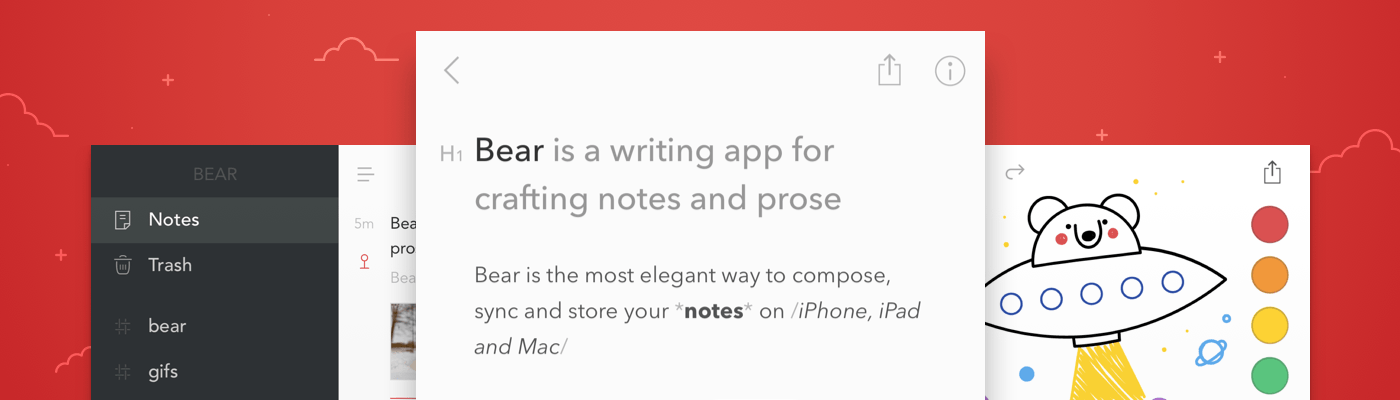
Bear is a beautiful, award-winning app for crafting notes and prose. It’s simple yet powerful, and flexible enough to be a personal journal, scratchpad, and webpage clippper. You can write a book with Bear, or just keep all those little snippets and files that don’t fit elsewhere. Bear works on iPad, iPhone, Mac and, soon, Apple Watch.

There are a lot of great perks and smart polish in Bear. It fully supports Markdown, uses #tags and nested tags for organization, stores all notes in plain text, has incredibly powerful search operators, and it can handle anything—text, photos, links, tasks, and even files. Bear syntax highlights over 20 coding languages, and exports notes to a variety of formats including PDF, HTML, RTF, and even JPG for sharing on social media.

Bear is free to use. To enable sync across all devices, pick from a wide variety of themes, use all export options, and support future awesomeness coming to Bear, subscribe to Bear Pro. It’s just $1.49 a month, or $14.99 a year (about 15 percent off), and all existing and future Bear Pro features will be unlocked.

Check out the Bear Blog and FAQs with tips and guides on how to get the most out of Bear.

Our thanks to Bear for sponsoring MacStories this week.


Pixelmator for macOS Updated with HEIF and Apple Photos Support

Pixelmator, which announced Pixelmator Pro is coming later this year, has released an interim update to the current version of its image editor that adds full compatibility with macOS High Sierra.

In addition to bug fixes, Pixelmator 3.7 supports importing HEIF image files. Pixelmator can be opened directly from Apple Photos now too. The feature, which was added to Apple Photos as part of High Sierra, allows users to choose an image in Apple Photos, but edit it in Pixelmator. All edits made in Pixelmator will be saved back to the original file in Apple Photos. Pixelmator posted a video that explains how the feature works:

https://vimeo.com/236086855

Pixelmator is available on the Mac App Store.


Comic Protanopia Comes to Life with Game-Like Tilt Controls

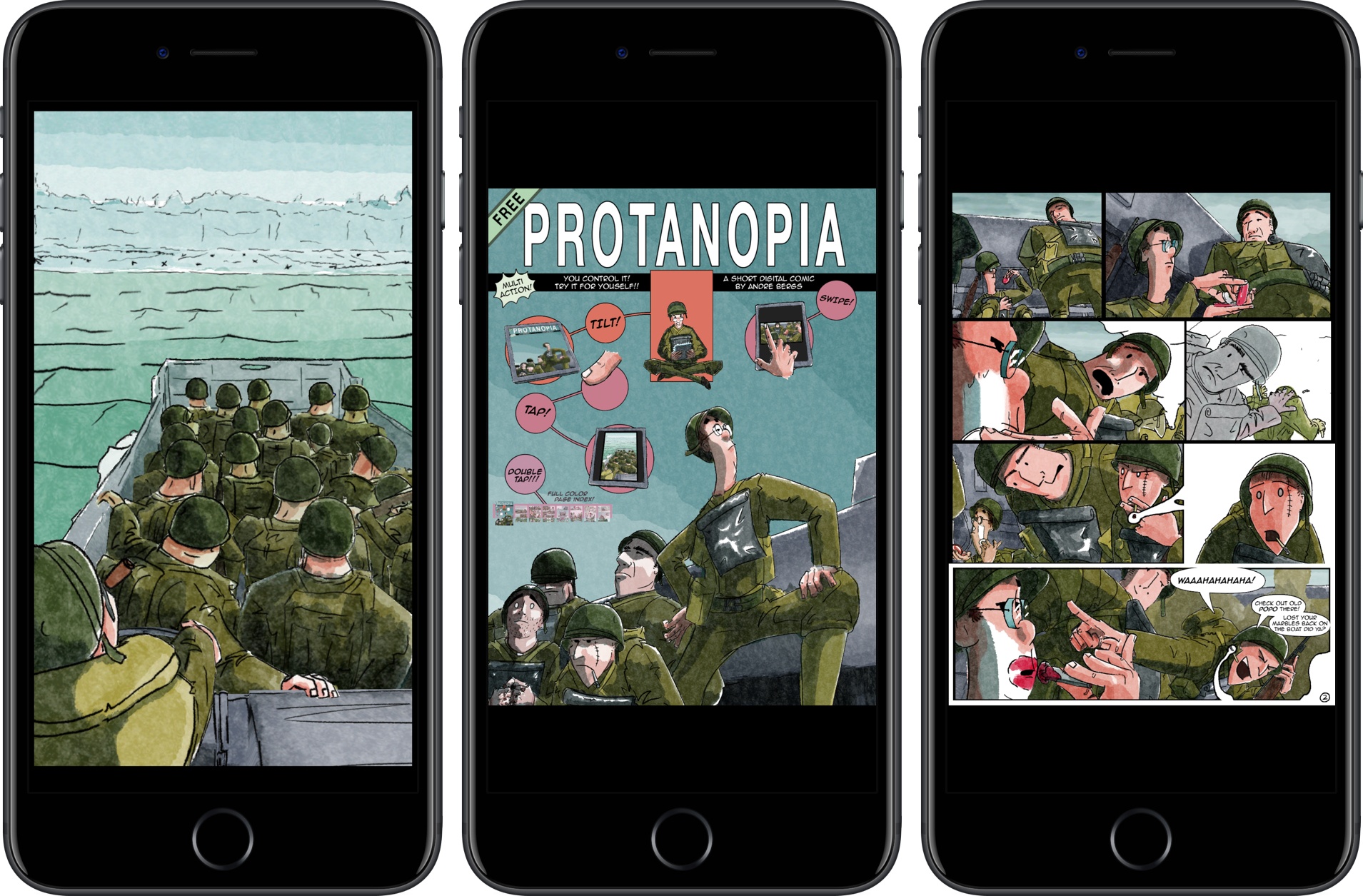
Protanopia is a reimagination of what a comic book can be on an iOS device. The short comic is a stand-alone Universal app, that tells the story of soldiers landing on the beaches of Normandy during World War II.

The free comic is the work of artist Andre Bergs who describes the book as follows:

Created as an experiment into the possibilities of digital comics. Using elements from 3D and 2D animation in a realtime game engine, it creates an unique visual style, whilst still having a familiar feeling.

As the landing craft bobs on the waves, the soldiers inside it move too. By layering the 2D art and animating each layer independently, a 3D effect is created. By itself, it’s a cool effect that brings the comic to life, but there’s more to it than that. The comic also responds to tilting your iOS device. You can tilt your iPhone or iPad to get a different perspective on the scene and peek at details that can’t be viewed from certain angles.

Protanopia is unlike any other comic I’ve read. While tilt control may not suit the storyline of every comic, it adds a dynamism to this story that makes it come alive in a way that static art doesn’t. It’s fascinating to see game engine technology deployed in a different medium and something with which I’d love to see more artist experiment.

Protanopia is available on the App Store.


Sonos Unveils New Sonos One Smart Speaker, Voice Assistant Integrations, Revamped App, and More

Sonos made several major announcements today, launching the company’s products further into their roles as platform-agnostic options in a market increasingly segmented by ecosystem. The last few years have seen an avalanche of new interest in the home speaker space from major players like Amazon, Google, and Apple, and without the accompanying ecosystems those players possess, Sonos stood at a crucial juncture: it could seek to further establish its own platform and compete directly with the tech titans, or it could aim to stand outside that main battleground and make products that tie together the benefits of all ecosystems. They clearly have chosen the latter, and today’s announcements demonstrate the fruits of that decision.

Read more


Stranger Things Retro-Style Game Launched

Season 2 of Netflix’s original series Stranger Things will debut on October 27th. To promote the new season, a retro-style RPG game featuring the characters and scenes from the show has been released on the App Store.

The free game promises hours of gameplay with 7 playable characters, 6 dungeons, and 30 quests. There are two difficulty levels, ‘Normal’ and a punishing ‘Classic’ mode, and lots of in-game collectibles and puzzles to solve along the way.

I have only had a short time to start exploring Stranger Things: The Game, but anyone who enjoys the TV show and retro-style games should have fun playing through the Stranger Things world and listening to the excellent chiptune soundtrack.

Stranger Things: The Game is available on the App Store.


60 Mac Tips, Volume 2 Released

Yestereday, David Sparks and Brett Terpstra released a new MacSparky Field Guide called 60 Mac Tips, Volume 2. The new volume picks up where Volume 1 left off with lots of great tips that are accompanied by highly polished screencasts narrated by the two authors. Sparks, who also co-hosts Mac Power Users on Relay FM with Katie Floyd, and Terpstra, an independent developer, author, and podcaster, have packed 60 Mac Tips with a wide range of topics that should appeal to beginners and experts alike including, Mail, Automator, Safari, Siri, Apple Notes, Apple Photos, Terminal, and much more.

60 Mac Tips, Volume 2 is available as an iBook on the iBook Store or from Vimeo as a series of downloadable videos. Both versions include high definition video, but I like the iBook version the best because it creates a convenient organizational structure around the videos.


YouTube Adds iMessage App for Sharing Videos

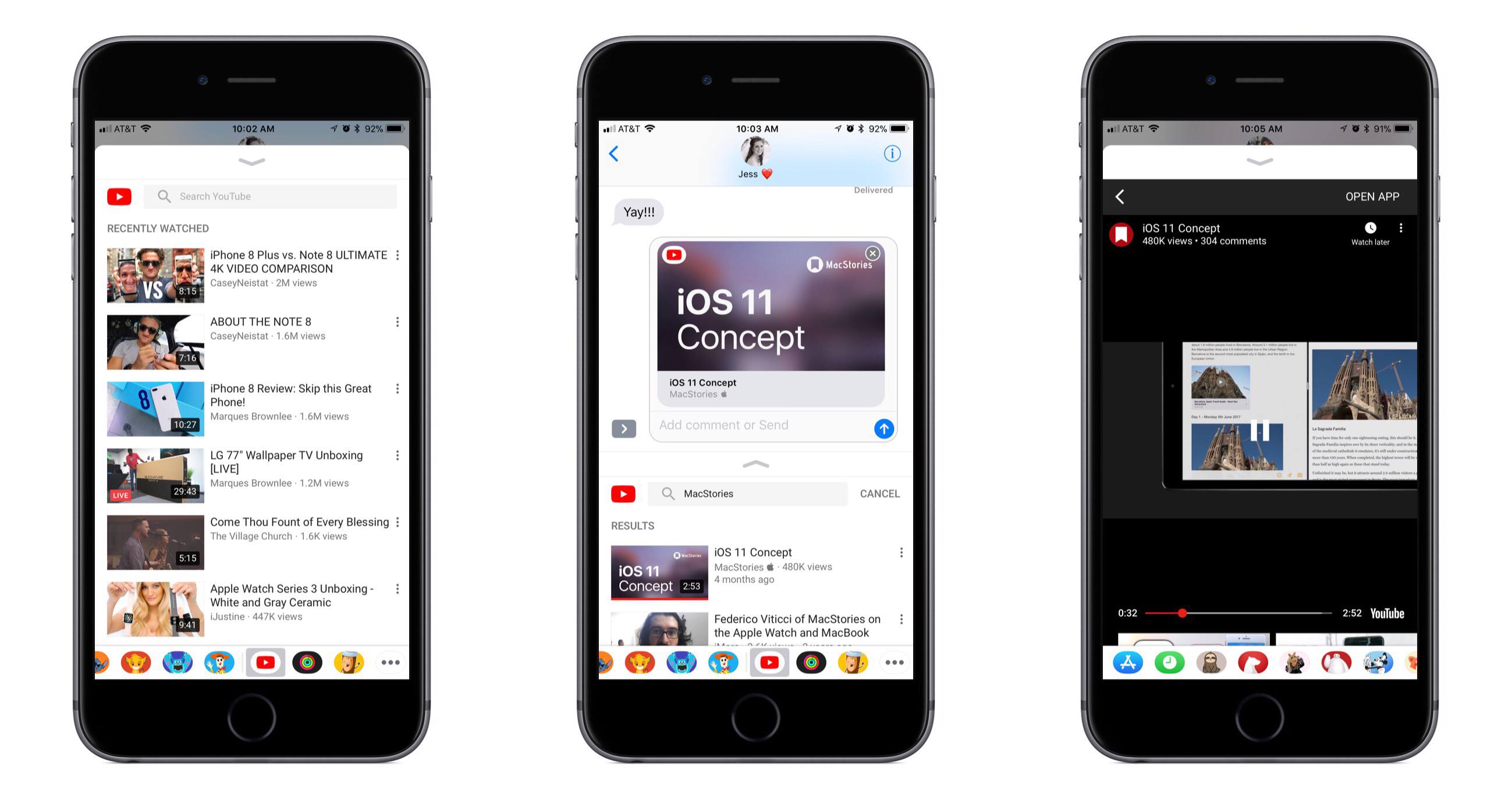
Today YouTube’s iOS app received an update that includes the video service’s first iMessage app. The app only focuses on a single function – sharing videos – but it does well with that one thing, offering a robust sharing experience.

Upon opening the YouTube iMessage app, you’ll see a list of videos you’ve recently watched. This appears to pull videos directly from your full YouTube history, presenting a seemingly endless scrolling list of everything you’ve watched. Often iMessage apps contain a mere fraction of the information found in their parent apps, so I was expecting to only see a small number of recently watched videos listed; the ability to continue scrolling through my full history is a pleasant surprise. Another welcome addition is the inclusion of a search option. At the top of the iMessage app, you can search for any video on YouTube – either by text or by voice. Tapping the search box even reveals a list of your recent YouTube search queries.

When searching for the right video to share, YouTube’s iMessage app lets you view any video in full before sharing – just hit the vertically stacked dots on a video’s right hand side to find a Watch button. Once you’ve chosen a video to share, it will populate as an iMessage card that can be sent to friends, and they’ll be able to watch the video without ever leaving the iMessage conversation.

YouTube is a solid demonstration of a rich iMessage experience. Even though its purpose is limited to sharing videos, it offers access to everything you might want before sharing – your full watch history, a search option with recent search queries listed, and even the ability to watch a video inside iMessage before you send it. iMessage app developers take note: just because your app serves a single purpose doesn’t mean it has to be a bare-bones experience.


Balance Is a Wallet For the World’s Currencies [Sponsor]

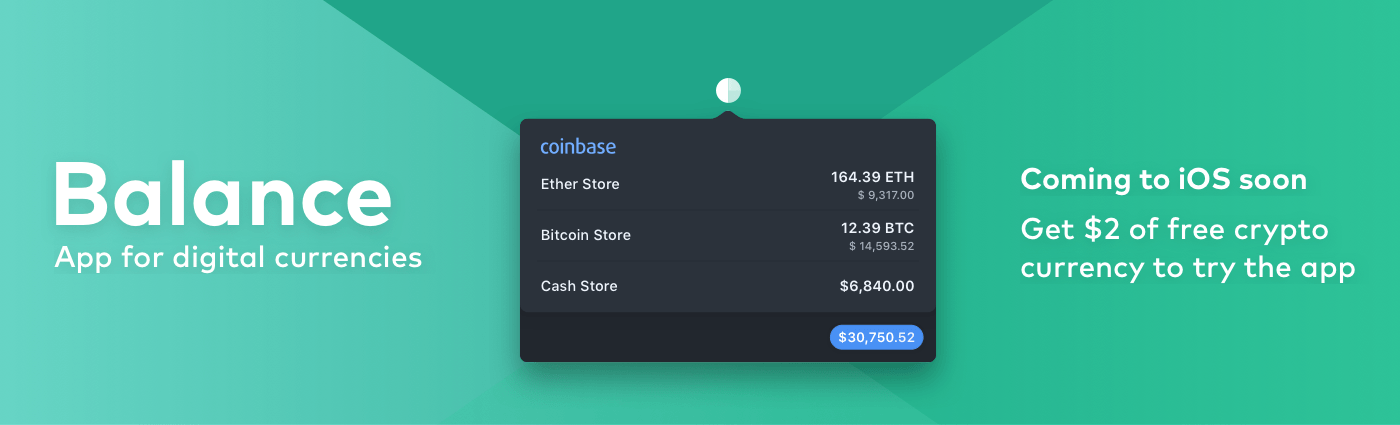
We are on the cusp of a financial revolution fueled by crypto-currencies and Balance makes it easy for everyone to get involved. You’ve probably heard of Bitcoin, one of the earliest crypto-currencies, but there are others including Ethereum. Balance connects to the most popular crypto-currency exchanges like Coinbase along with traditional financial institutions bridging the gap between the old financial world and the new one.

Balance is a menu bar app for macOS that is available on the Mac App Store. The app connects with crypto-currency exchanges as well as traditional bank accounts, investment accounts, credit cards, and online services like PayPal using Plaid, a super-secure platform that works with financial institutions around the world.

When you set up accounts in Balance, the app automatically updates them periodically with new transactions, so you’re always up to date. You can click through the app’s tabs to view balances, transactions, notifications and gain insights about your spending. Soon, Balance will release an iOS version of their app too.

Balance is ready for the future. The current financial system is based on outdated, legacy software. Blockchains are the bedrock of a more secure and open system based on cryptocurrencies, but not many people are using them yet. Balance is poised to change that by becoming a single destination for traditional financial accounts and crypto-currency exchanges.

Balance has a great offer for MacStories readers who want to see what crypto-currencies are all about. Just go to bal.money/macstories and you’ll get $2 worth of Ether in a Coinbase account that you can link to Balance and track with its menu bar app. It’s a great way to see for yourself what the financial world’s future looks like.

Our thanks to Balance for sponsoring MacStories this week.