
At the beginning of this week we launched our inaugural MacStories Selects awards, wherein Federico, John, and myself highlighted some of the best app debuts, updates, and game debuts from 2018. To get to that final list of selections, however, we had to leave a lot of other noteworthy apps unmentioned. Below, exclusively...
Apple Adds AI Head, John Giannandrea, to Executive Team→
Today Apple announced that one of its most recent high profile hires, John Giannandrea, has been added as the twelfth member of the company’s executive team. His title is now Senior Vice President of Machine Learning and AI Strategy. From the press release:
“John hit the ground running at Apple and we are thrilled to have him as part of our executive team,” said Tim Cook, Apple’s CEO. “Machine learning and AI are important to Apple’s future as they are fundamentally changing the way people interact with technology, and already helping our customers live better lives. We’re fortunate to have John, a leader in the AI industry, driving our efforts in this critical area.”
News of Giannandrea’s hiring at Apple first broke in April at The New York Times. Apple didn’t formally announce the hire, however, until July. And here we are just a few short months later, with another press release from Apple announcing his promotion.
Giannandrea’s role involves leadership of Siri, machine learning, and other artificial intelligence projects, all of which are right up his wheelhouse due to his former role as Google’s chief of search and artificial intelligence. While it’s hard to say from the outside what kind of difference his influence is making at Apple, this move is a good sign that the company’s pleased with his early months of work. Perhaps we’ll get to see the fruits of his labors at WWDC 2019.
AutoSleep 6: Effortless Sleep Tracking More Accessible Than Ever
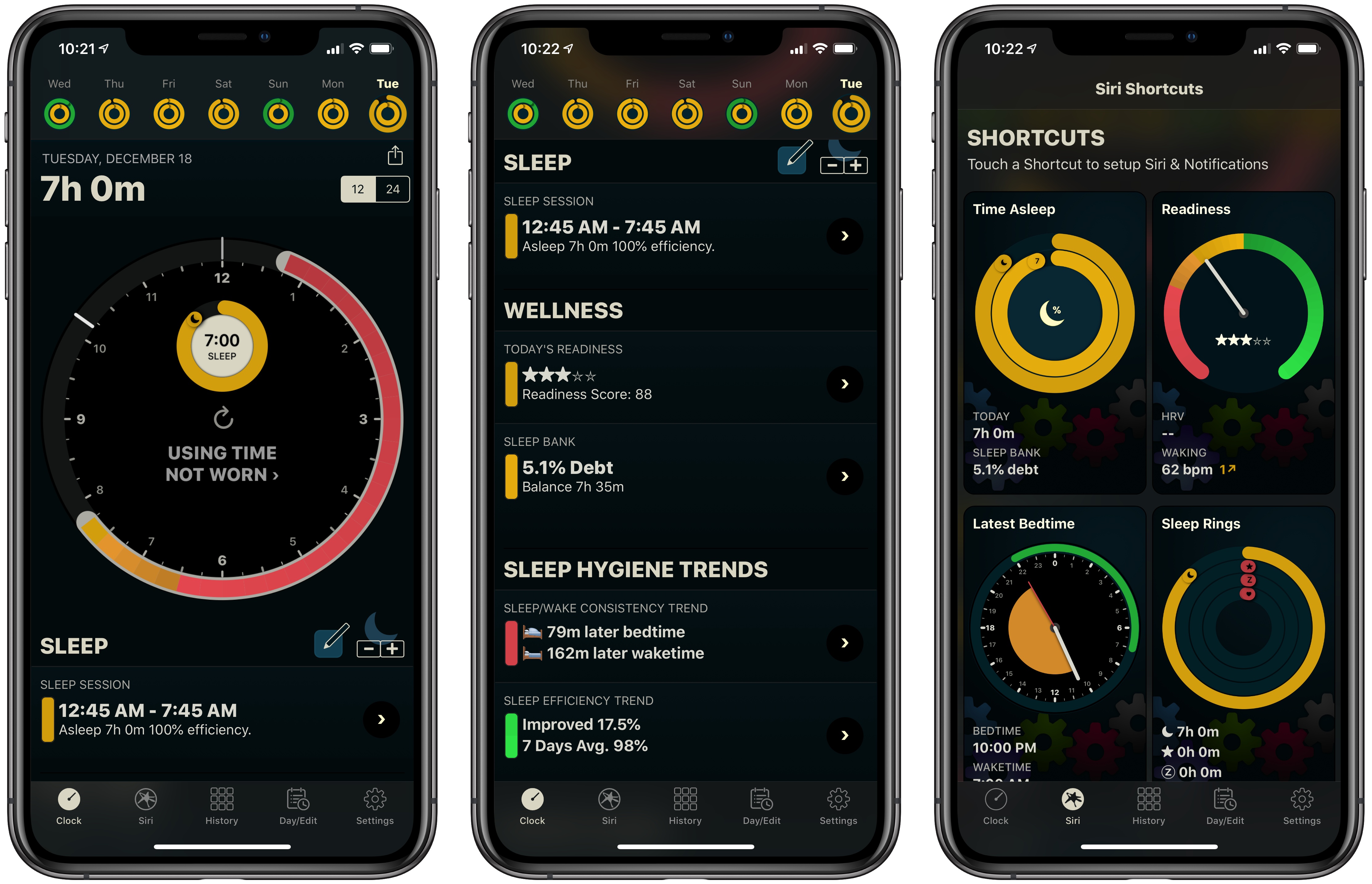
If you’ve followed MacStories for long, you probably already know that AutoSleep is one of our favorite sleep tracking apps on iOS. The app stands out for offering a frictionless, effort-free experience. Where other sleep trackers may require you to start and stop sleep tracking manually, AutoSleep takes the burden of remembering those tedious tasks off your plate. If you wear an Apple Watch to sleep, the app will automatically detect your sleep patterns even without a separate Watch app installed. If you don’t have a Watch, or simply don’t wear it to bed, the app will track your sleep through other methods. Whatever your habits are, AutoSleep has you covered.
Today marks the debut of AutoSleep’s latest major iteration: version 6.0, which introduces new wellness features, refined graphs and color schemes, sleep hygiene trends, Siri shortcuts, an improved Watch app, and more. It’s an extensive update that simplifies some aspects of the app while branching out into fresh, innovative areas of health tracking.
 Apps for the Holiday Season
For many of us, the holiday season is one of the most joyful and also busiest times of the year. In addition to the normal busyness of life, we add to our agendas buying gifts, planning travel, coordinating parties, and much more. For that diverse assortment of holiday tasks, here’s a collection of...
Easily Access and Exit Apple’s Subscription Management Page
It seems like every time Apple reports its quarterly earnings these days, the company mentions huge growth in the domain of subscriptions on its various platforms. As 2018 comes to a close, the App Store and Apple ecosystem in general are filled with a record number of subscription options, including first-party offerings like Apple...
Things 3.8 Brings Dark Modes to the iOS Task Manager
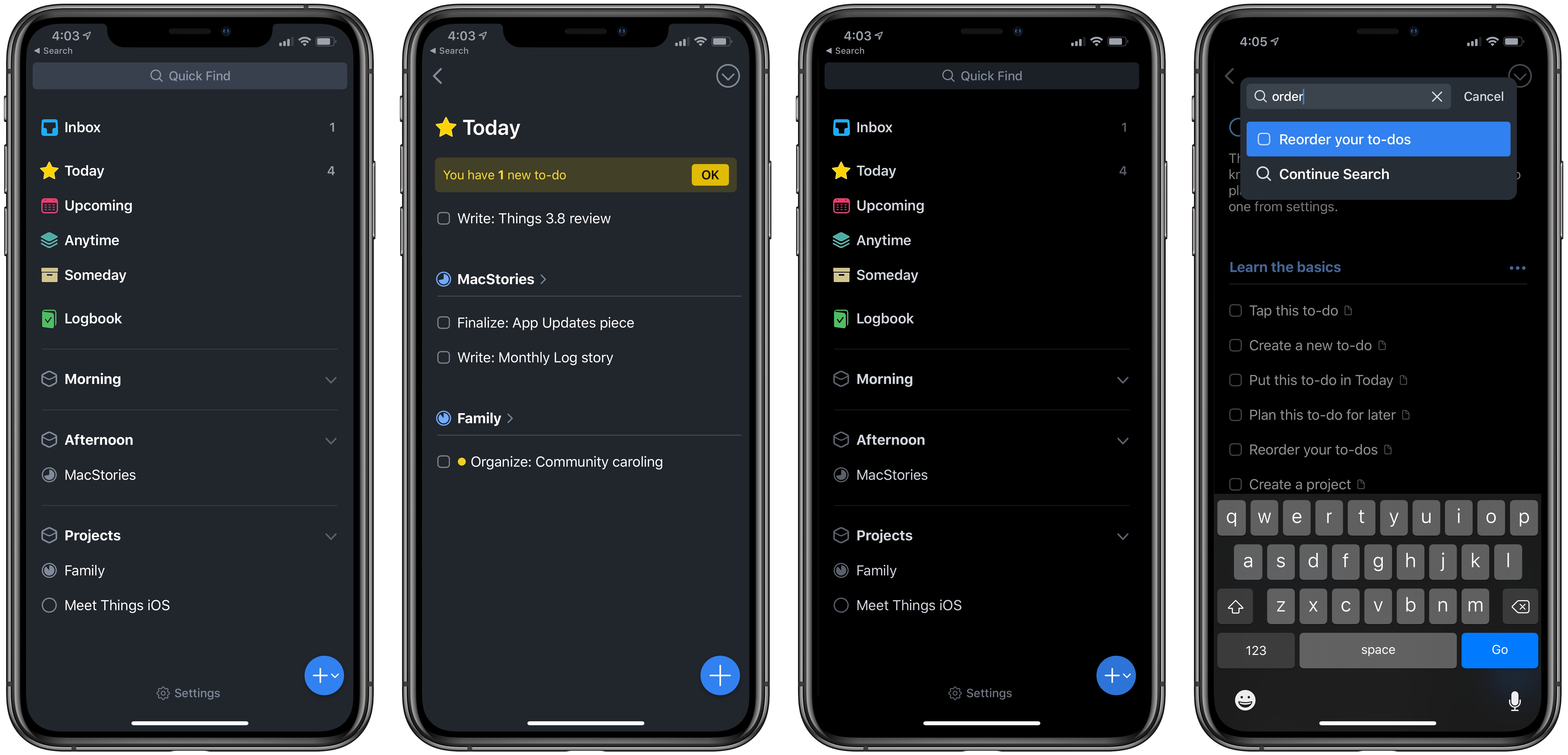
This fall when macOS Mojave introduced a systemwide dark mode feature, Things added support for the new mode in version 3.7. The iPhone and iPad versions of the app, however, were left out. A lack of feature parity across platforms is always unfortunate, but that was especially true this time around because our John Voorhees highlighted Things as having his single favorite dark mode implementation.
There’s good news though: we didn’t have to wait long for Things’ dark mode to make its way to iOS. Launching today in version 3.8, Things has added two different dark modes on both iPhone and iPad, one of which is suited particularly well to OLED iPhones.
Accessible via a new Appearance screen in Things’ Settings, there are now options for Light, Dark, and Black modes for the task manager. The former is the default appearance of the app we’re all well acquainted with, while the latter two are brand new. Both alternate appearances employ blue as the app’s accent color, with the main difference being the background color. Dark mode uses a nice shade of gray, while Black mode employs an OLED-optimized true black.
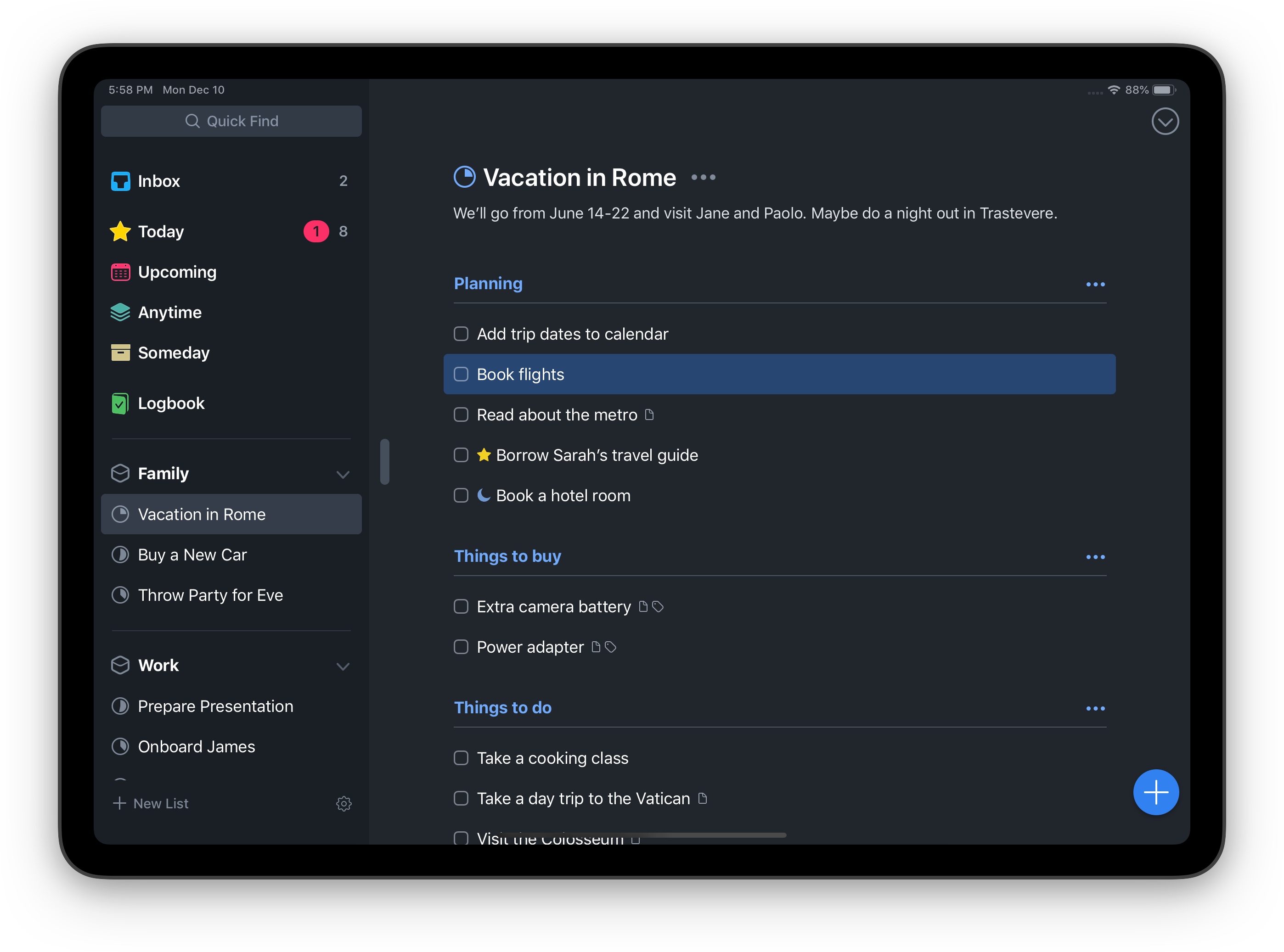
Each of Things’ appearance options can be set manually, or there’s an option to have the app switch modes automatically depending on your display’s brightness. Once you activate this toggle, you’ll see an option to choose between Dark and Black options for automatic switching, as well as a brightness threshold at which Things will change its appearance. The app’s use of display brightness to change modes should work well for users who have iOS’ Auto-Brightness feature activated, but I wish there was an automatic switching function for those who, like me, have that turned off.
Things 3.8 doesn’t introduce any other new features, but adding two beautiful dark modes is enough to make this a noteworthy release. Cultured Code has a strong reputation for thoughtful design, and its dark modes are a standout example on iOS.
HomeRun 1.1 Enables Creating Custom Watch Complications
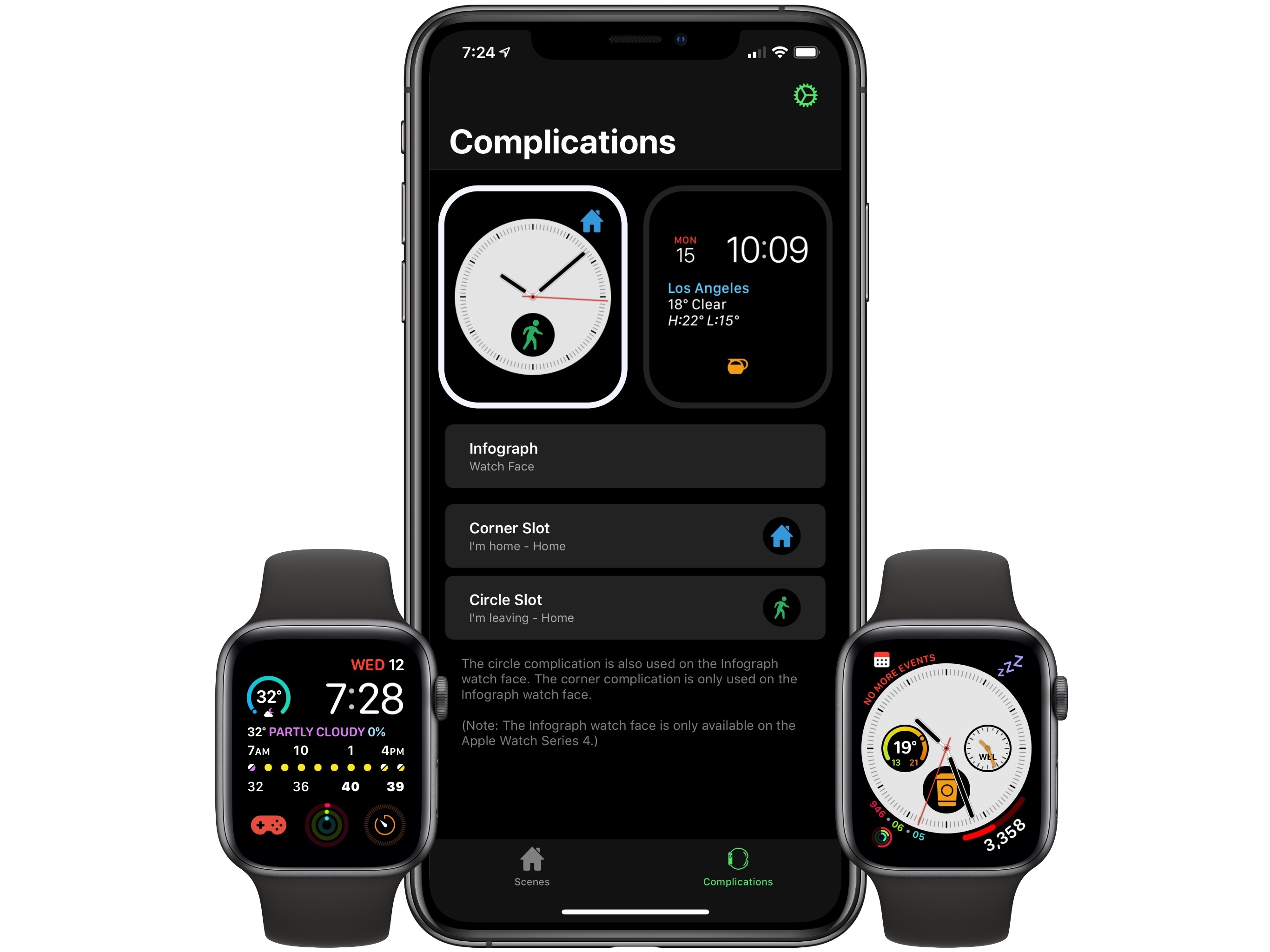
HomeRun is a simple Apple Watch utility for controlling HomeKit scenes from your wrist. Where Apple’s Home app for the Watch can be clunky to navigate, especially if you have more than a couple HomeKit devices set up, HomeRun makes controls easily accessible for all your scenes. And today, with version 1.1, HomeRun has introduced custom complication creation, making it possible to have different launcher complications for each of your configured scenes.
Inside the HomeRun app on iPhone, the Complications screen in version 1.1 appears largely the same at first glance, but once you start tapping around you’ll discover that Watch complications are now fully customizable. Visit the detail view for a specific watch face and you’ll be able to update any and all complications for that face with custom colors and icons to accompany your selected scenes. The Series 4 Watch’s Infograph face, for example, presents options to customize both the corner slot and circle slot complications.
Creating custom complications works just like setting up scenes for the main Watch app itself, with the same set of colors and glyphs available in both places. That means the excellent assortment of glyph options for scenes are all accessible as complication icons as well.
When it launched last month, HomeRun enabled adding scenes as complications to your watch face, but you had to use the app’s icon for each complication. Custom complications were a natural next step for the app, and I’m thankful we didn’t have to wait long for them to arrive.
HomeRun 1.1 is available on the App Store.
Edit

On the surface, it seems like there isn’t much that needs saying about Edit, because there isn’t much to the app itself. Edit is a simple scratchpad utility that does one thing: provide a single-screen text editor so you can quickly jot down anything that’s on your mind. There’s no concept of saving different...
Sofa Review: A Simple Tool for Tracking Movies, TV Shows, Books, and Podcasts
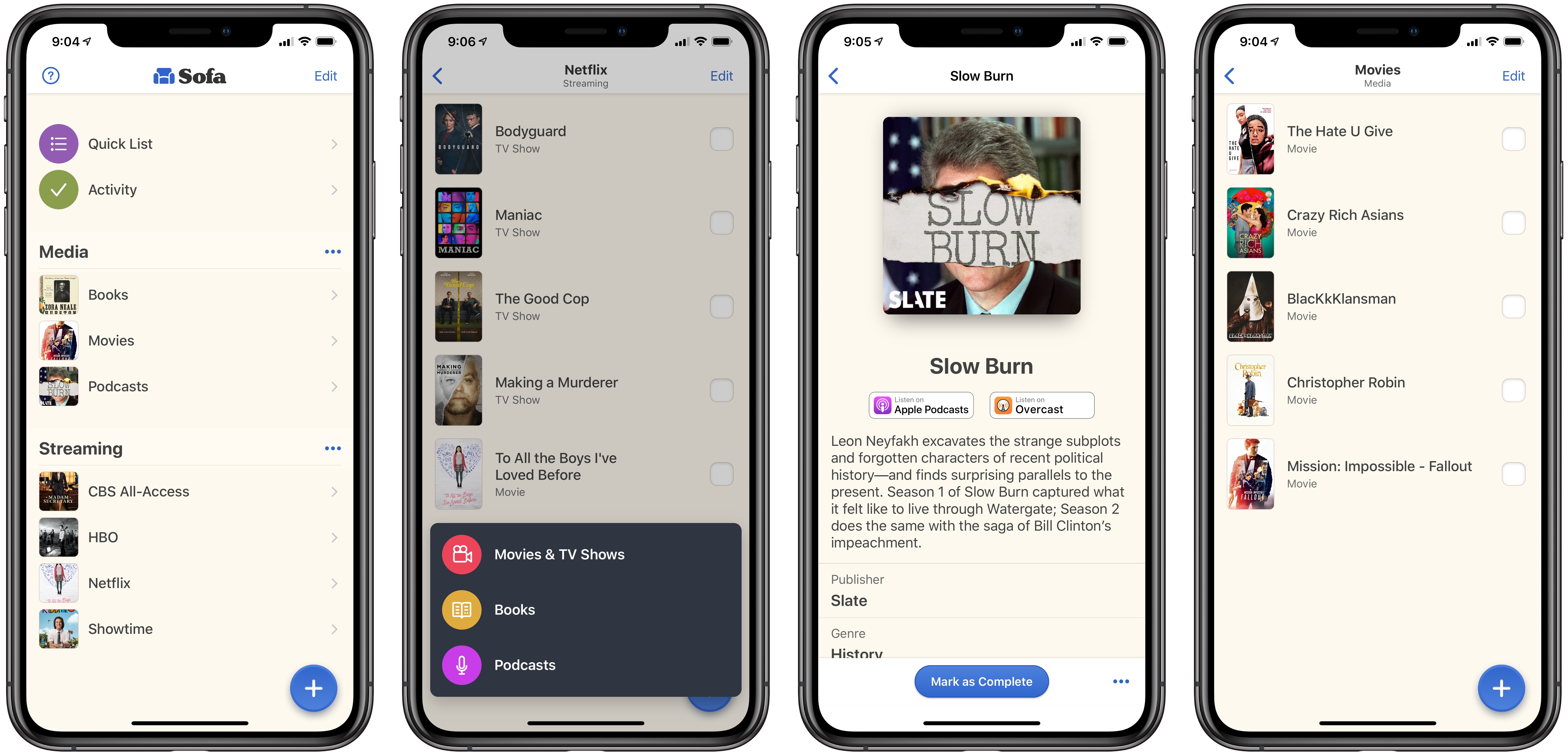
We live in a time when media options are growing at a fast pace. It’s a golden age for television, with great shows debuting all the time; the film industry is being transformed by the infusion of new competition from streaming giants like Netflix; podcasts are becoming more mainstream by the day; and despite books not being in a similar growth phase, new titles are still being written constantly. In this crowded media landscape, it’s hard to keep track of all the great content waiting to be enjoyed.
In the past I’ve kept notes in Apple Notes containing lists of TV shows, movies, podcasts, and books to check out. Lately, however, I’ve been using an app called Sofa.