Ryan Christoffel

981 posts on MacStories since November 2016

Ryan is an editor for MacStories and co-hosts the [Adapt](https://www.relay.fm/adapt) podcast on Relay FM. He most commonly works and plays on his iPad Pro and bears no regrets about moving on from the Mac. He and his wife live in New York City.

Apple Debuts New USB-C Digital AV Multiport Adapter for iPad Pro and Modern Macs

Chance Miller of 9to5Mac details a fresh update to an Apple USB-C adapter:

Apple this week has quietly released a new version of its USB-C Digital AV Multiport Adapter. This $69 adapter includes a USB-C port, HDMI port, and USB-A port, with the new version making several notable improvements.

The new USB-C Digital AV Multiport Adapter adds support for HDMI 2.0, an upgrade from the original model’s HDMI 1.4b. This means you can now drive 4K 3840 x 2160 video at 60Hz

4K 60Hz throughput is supported on the iPad Pro, iMac Pro, and 2017 or later versions of the 15-inch MacBook Pro and Retina iMac. Miller also notes that the updated dongle now includes “support for HDR video in HDR10, as well as Dolby Vision.”

I’ve been interested in purchasing the prior version of this adapter for contexts where I’d like to watch a video but don’t have an Internet connection. Since the Apple TV doesn’t support offline downloads, but many apps on the iPad do, connecting my iPad Pro to a TV set via HDMI seems like the best solution. The added flexibility of including a USB-A port, and even a USB-C port to enable power charging, makes this an especially appealing dongle for me.

You can order the new USB-C Digital AV Multiport Adapter from Apple’s website for $69.
Permalink

Creating Home Screen Icons with Launch Center Pro 3.1 and the Shortcuts App

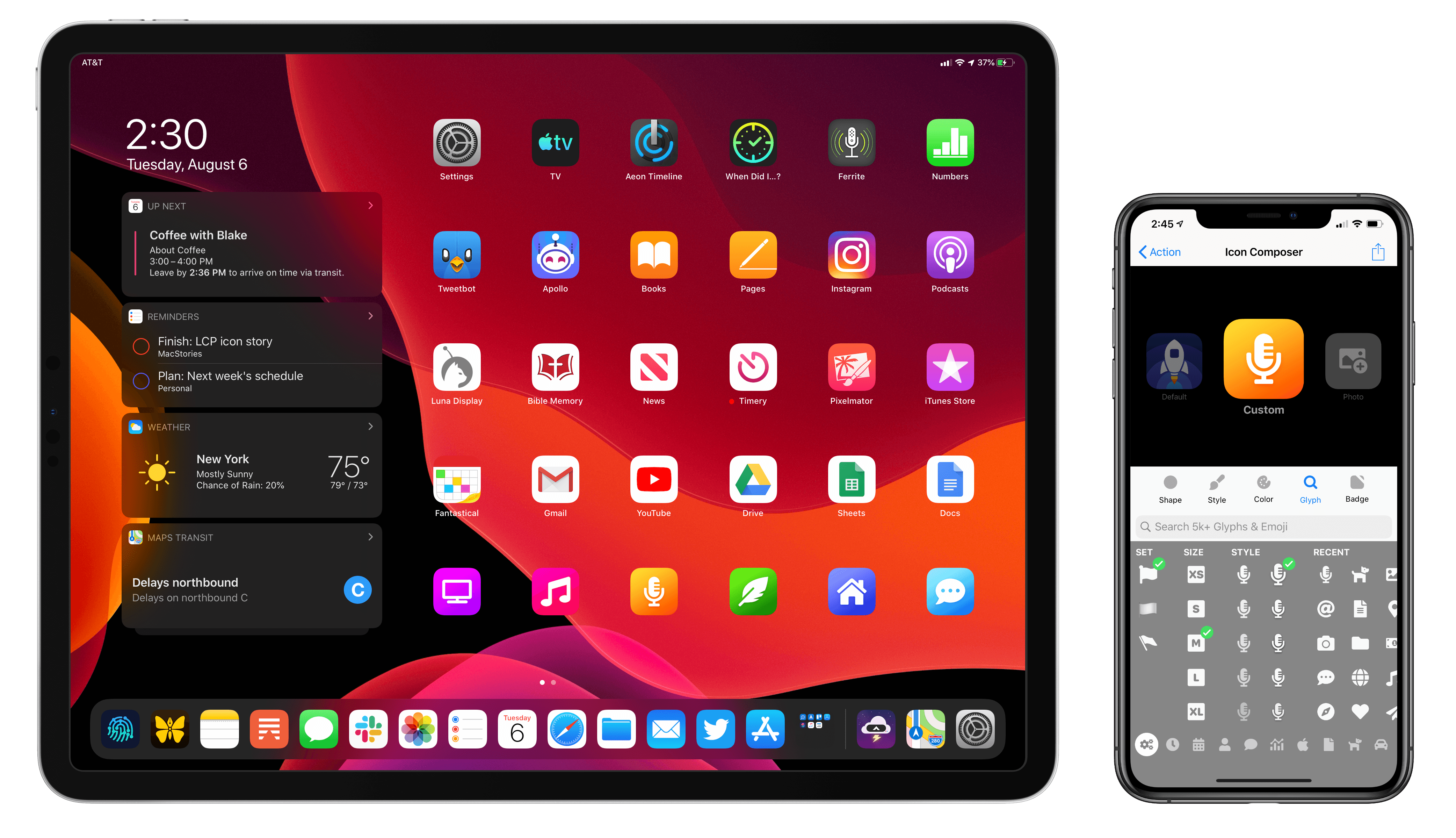
This fall when iPadOS 13 launches, it will bring an updated Home screen that incorporates pinned widgets and a denser arrangement of apps. The changes aren’t as revolutionary as iPad power users may have hoped when they heard whispers of a redesigned Home screen, but they’re a start. While the addition of widgets is valuable in its own right, in my beta testing of iPadOS I’ve also discovered a lot of potential for the larger set of icons the Home screen can now hold – particularly when combined with a new feature just added to Launch Center Pro.

Debuting today, Launch Center Pro 3.1 centers around a major upgrade to the app’s icon composer that provides countless options for creating custom icons. While the use cases for this icon creation tool are vast, I was intrigued by one specific possibility: designing icons that could be exported as image files and used by Apple’s Shortcuts app when adding shortcuts to the Home screen, since Shortcuts allows choosing custom images for Home screen shortcuts. Combined with several key OS changes, and the icon creation tool in Launch Center Pro, it’s a better time than ever to add shortcuts to your iPad or iPhone Home screen.

Read more


Apple Card Available Today in Phased Rollout, Full Launch Coming Later in August

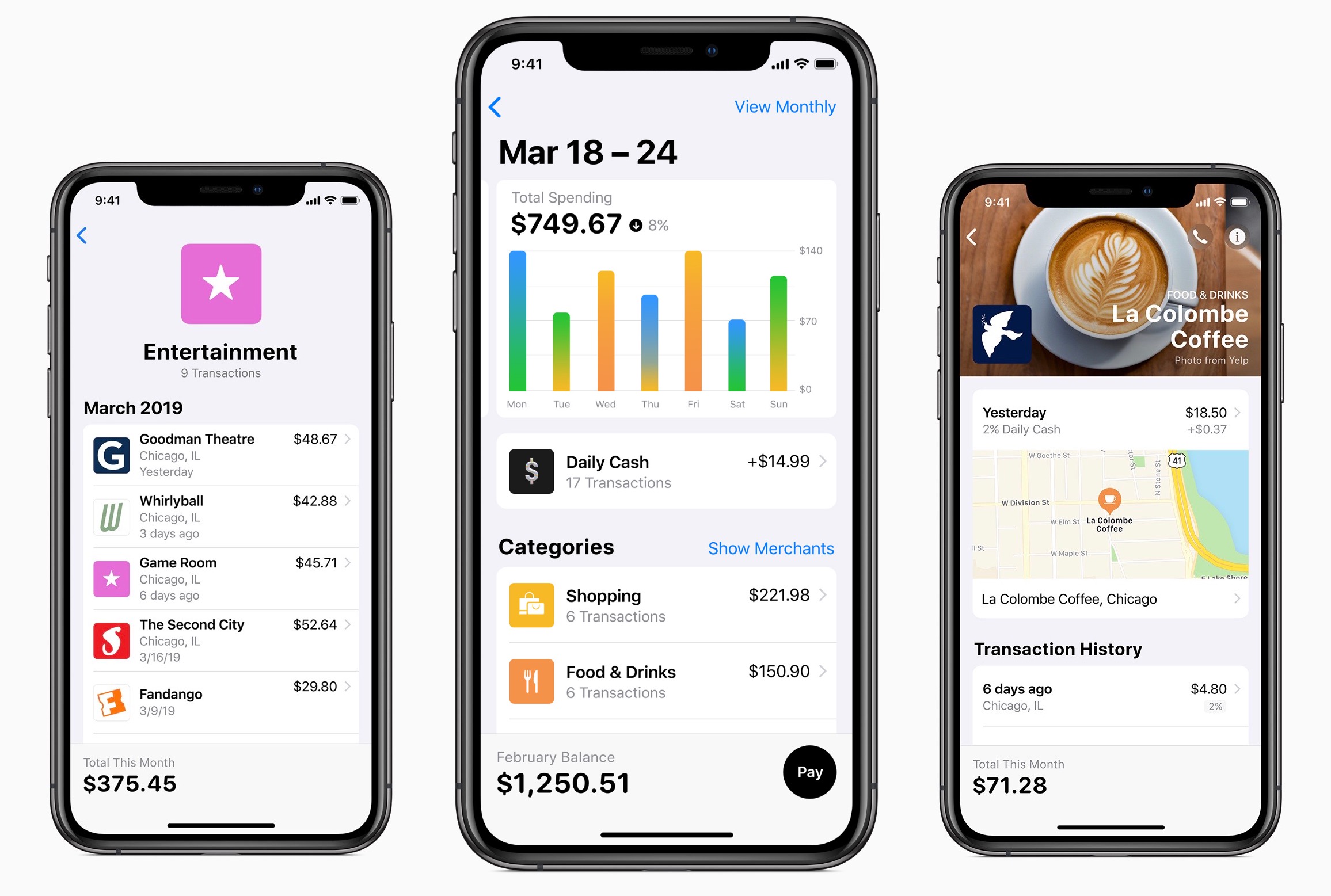
Today Apple is officially launching its latest service, Apple Card, but only to a subset of users ahead of a broader rollout later this month. The new credit card is limited to US users running at least iOS 12.4, and today it will only be available to certain people who signed up on Apple’s website to be notified about Apple Card. If you’re part of that chosen group, applying for Apple Card can be done right inside the Wallet app, where the card will be added for immediate use upon credit approval; a physical credit card is also mailed out if you choose to receive one, built from titanium. For those who don’t get invited for early access, the full Apple Card launch will arrive before the end of August.

Read more


Deleting Apps from the New Updates Screen in iOS 13

The App Store in iOS 13 comes with a couple changes, including that the Updates tab is nowhere to be found, replaced by a dedicated Arcade tab for Apple’s forthcoming gaming service. The way you access updates is by tapping your profile photo in the top-right corner of any of the App Store’s screens....


iOS Apps with Document Browser Support, Vol. 2

When the Files app debuted in iOS 11, it brought with it the promise of unifying all your documents from a variety of apps and cloud services in a single home. A key pillar of that vision was the document browser, which is essentially a Files view that apps can embed as their...


How I Edit Podcasts on the iPad Using Ferrite

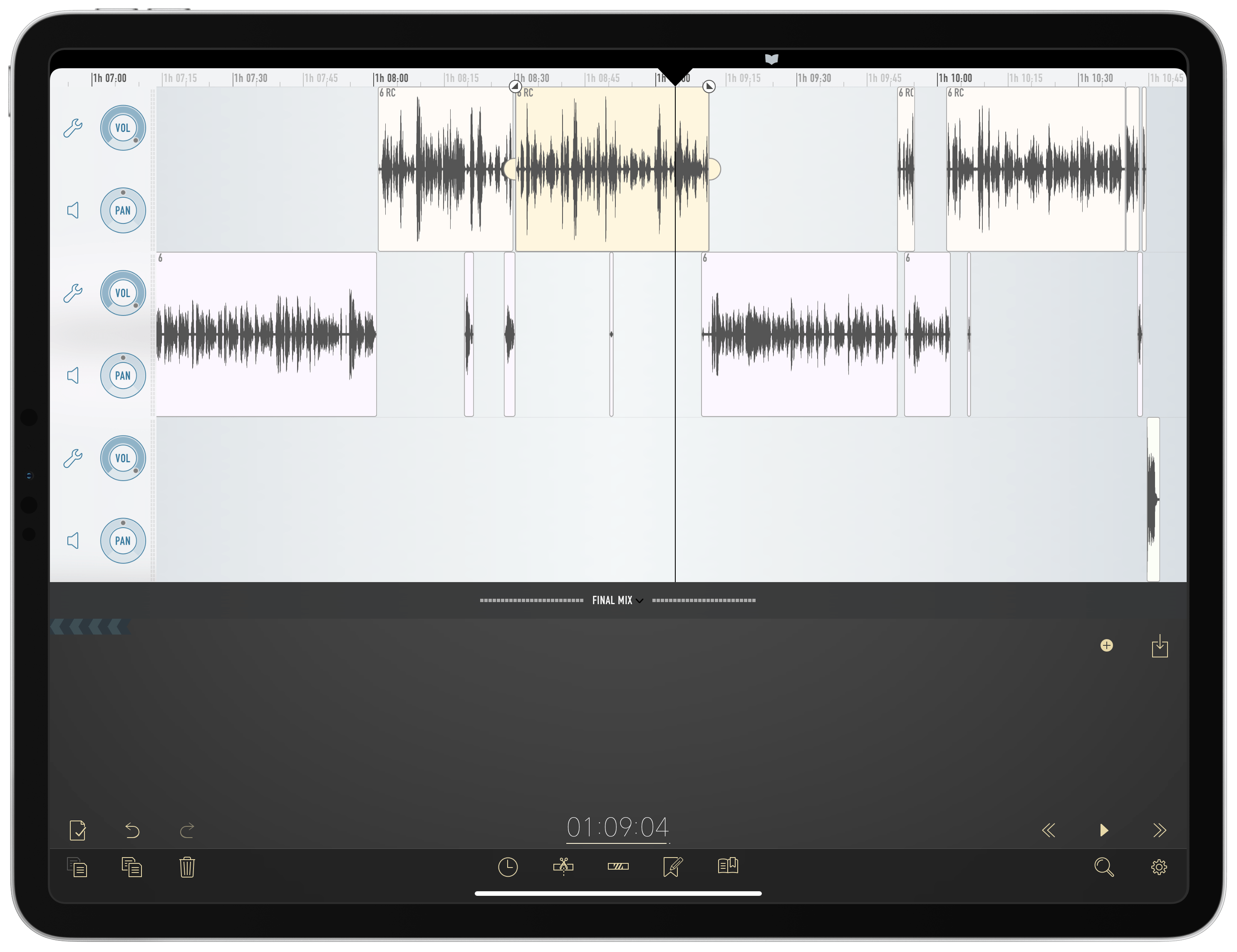
This has been a year of new creative projects for me. In addition to some personal endeavors that have yet to see the light of day, I joined Federico as the co-host of Adapt, a new iPad-focused podcast on Relay FM. Learning the art of expressing my Apple takes in speech rather than text has been an adventure in itself, but I’ve also grown to cultivate a very different skill: audio editing.

When I was charged with editing this iPad-focused podcast, I naturally turned to an iPad-based editing tool: every episode of Adapt has been edited in Ferrite Recording Studio, and I’ve never even tried using another app. Most podcasters I’m familiar with edit in Logic, but my Mac mini is purposely utilized as little as possible, so I knew when I dove into podcasting that I wanted an iPad-based solution if at all possible. On multiple occasions I’ve heard and read Jason Snell extol the virtues of Ferrite, so that was the app I turned to.

Getting started with podcast editing, even with an app like Ferrite that’s built for it, can be extremely intimidating. There are lots of settings, and unless you have previous experience working with audio, you likely have no idea what any of them do. I learned a lot from Ferrite’s user guide in the early days, and the aforementioned Jason Snell articles on Six Colors. And before long, I found an editing setup that worked well for me. Now, I want to share it with you.

Read more


Apple Maps in iOS 13: Sights Set on Google

Apple’s path to a home-brewed mapping solution has been long and perilous, but it’s almost arrived.

12 years ago the iPhone launched with Google powering its pre-installed navigation software; five years later, the botched debut of Apple’s own Maps app led to the firing of a key Apple executive; Apple Maps has steadily improved over the years, but seemingly its biggest weakness is that it has never truly contained Apple’s own maps. The app is Apple’s, but the maps have always come from other sources.

Last year, Apple announced a coming change that had been years in the works: Maps would soon contain the company’s own maps, and they would be transformative. The new maps started rolling out in the US last fall with iOS 12, and Apple claims they’ll cover the entire US by the end of 2019.

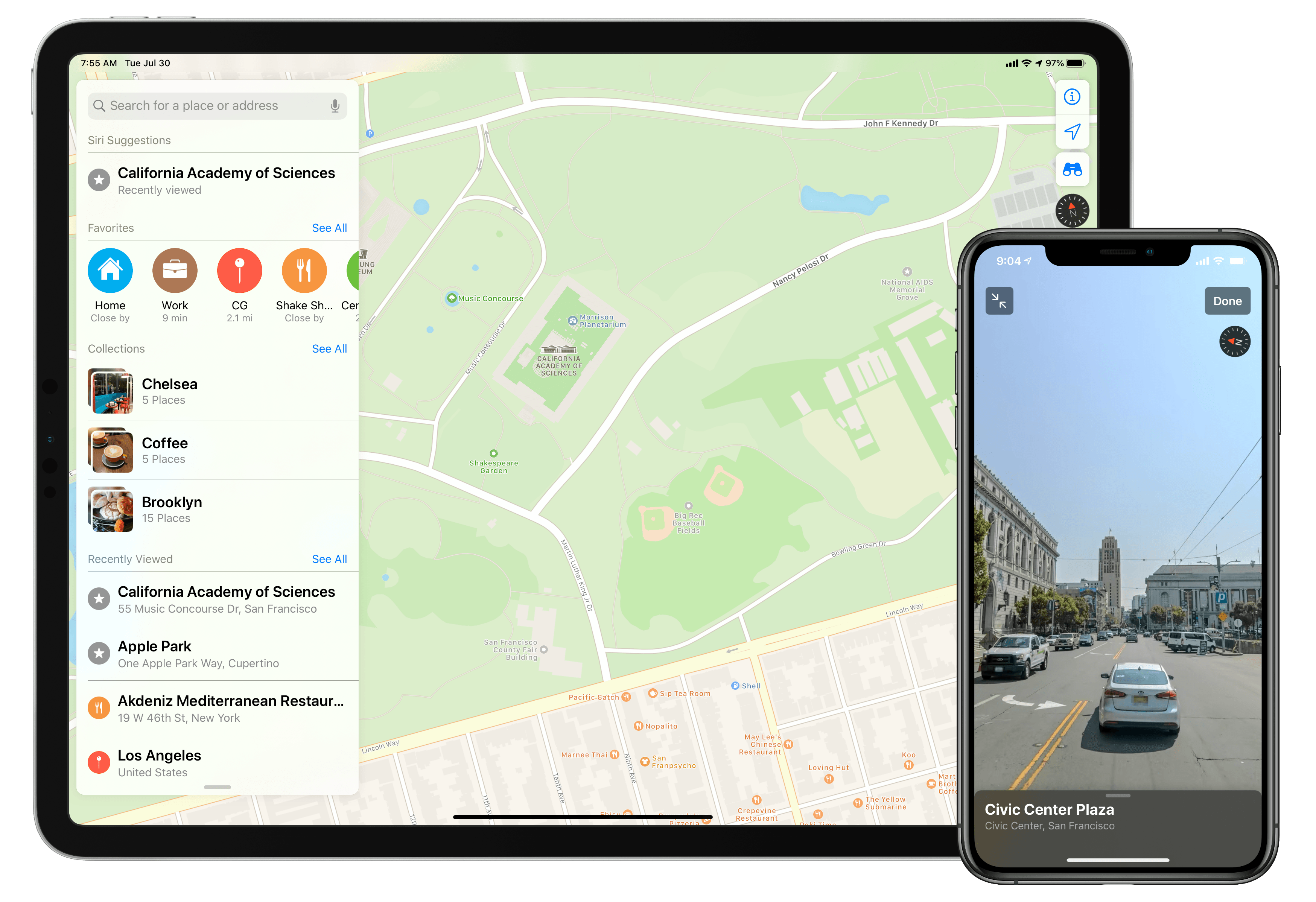
Timed with the spread of its first-party mapping data, Apple is giving the Maps app a big upgrade in iOS 13 that represents the company’s biggest push yet to overtake Google Maps as the world’s most trusted, go-to mapping service. Apple Maps in iOS 13 represents – if you’re in the US at least – Apple’s purest vision to date for a modern mapping service. Here’s everything that it brings.

Read more


The Omni Group Adopting Standard iOS Document Browser

Ken Case, writing for The Omni Group:

In 2019, we think it’s time to retire our custom document browser in favor of using Apple’s built-in document browser—and with our iOS 13 updates this fall we’ll be doing just that. Instead of seeing our custom file browser, you’ll be presented with the standard iOS document browser—just like in Apple’s own iWork apps. Using Apple’s browser, you’ll be able to store and sync your documents using Apple’s built-in iCloud Drive, or third-party commercial options like Box—or even in cloud- or self-hosted collaborative git repositories using Working Copy.

Syncing through OmniPresence will still be an option, but it will no longer be the only integrated option. In fact, it might be the least privileged option: since OmniPresence isn’t its own separate app, it won’t be listed in the document browser’s sidebar where you find your other document storage solutions. Instead, it will present itself on iOS much like it does on Mac—as a folder of synced documents. We’re not trying to drive people away from using OmniPresence—but in 2019 we don’t think it makes sense to push people towards it either. OmniPresence is not a core part of our apps or business, and in 2019 there are lots of great alternatives. Seamless document syncing is essential to our apps—but exactly where and how those documents are synced is not!

This is an excellent change and one I hope more apps move toward. The document browser in iOS is essentially a special view of the Files app which is used as the root file management UI in document-based apps that adopt it. As Case points out, all of Apple’s iWork apps support the document browser, and several key third-party apps do too such as PDF Viewer, MindNode, and Pretext. The document browser not only enables users to store an app’s files in any file provider they wish, but its other primary benefit is offering a single unified file browsing experience for users on iOS. As more apps adopt the document browser, that unified experience becomes more a reality for iPad and iPhone users.

The timing of the Omni Group implementing the document browser is surely no surprise: this fall Apple’s Files app is being upgraded with support for external storage devices like USB drives, a new Column view, shared iCloud Drive folders, and more. By adopting the document browser in apps like OmniOutliner and OmniGraffle, the Omni Group gets the advantage of having all these new Files features built right into their apps.

Permalink