
John shares Home Screen widgets he’s been trying, Federico has created an interactive ‘playground’ tool for getting started with the Frames shortcut API, Niléane is using a Linux server for Time Machine backups, Jonathan explains how he’s using Shortcuts and Omnivore as a listen-later workflow, plus the usual Links, App Debuts, the latest happenings in...
FastMinder: A Simple, Lightweight, and Clutter-Free Intermittent Fasting Tracking Experience [Sponsor]
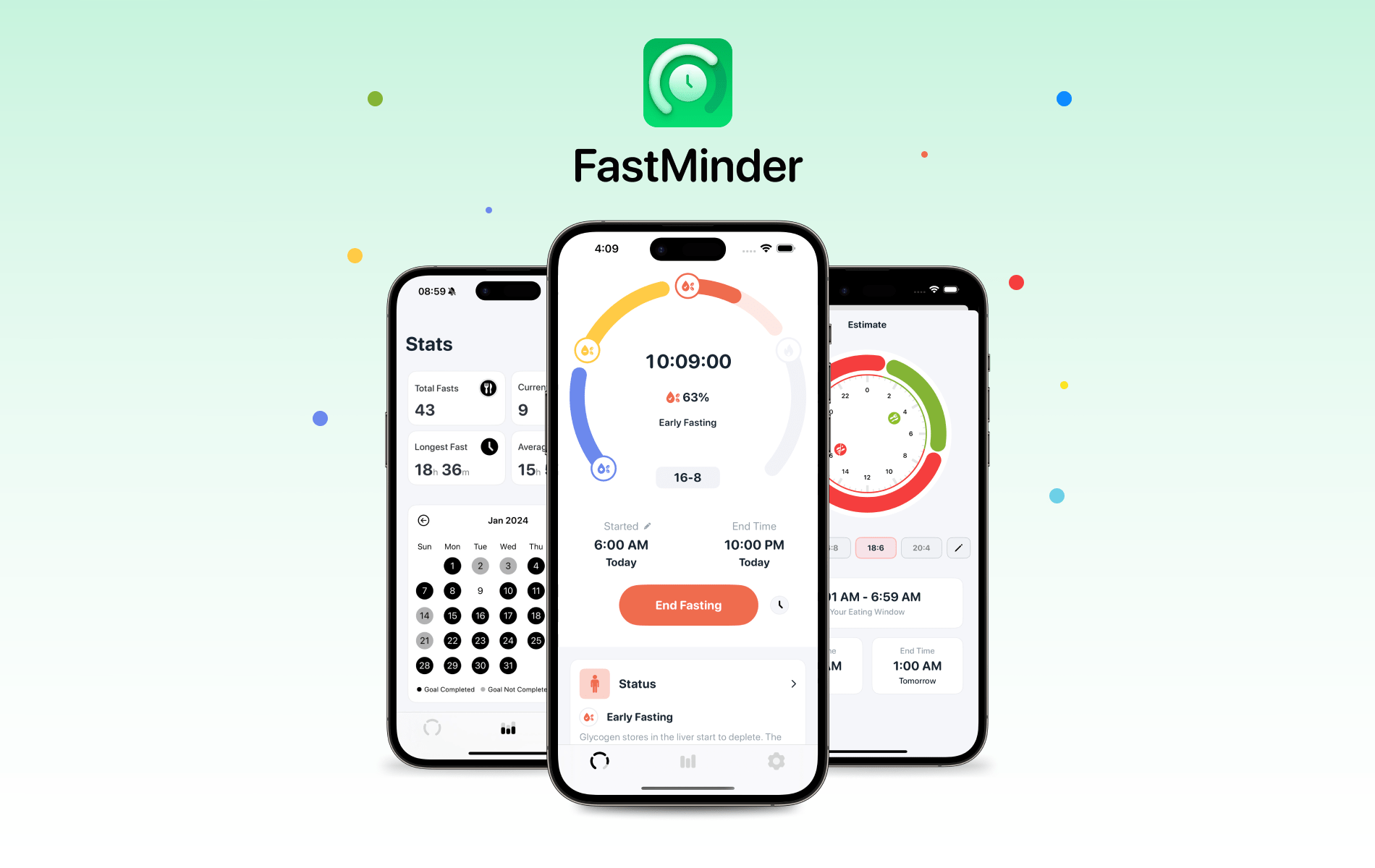
Funn Media knows that the best tracking apps make it easy to get started and even simpler to stick with your tracking. That’s exactly what FastMinder, its new iPhone, iPad, and Apple Watch app for tracking intermittent fasting, does.
Funn Media’s years of experience developing apps like WaterMinder and Calory show in FastMinder. The app is beautifully designed, making it easy to set up a fasting window with popular presets or a completely custom schedule.
Once you set up your fast and begin, you can track your progress using FastMinder’s Home Screen widgets and Live Activity. Then, over time, you can chart your progress with FastMinder’s Stats tab, tracking the number of your fasts and their length, your current streak, weekly, monthly, and yearly totals, and more. FastMinder also incorporates weight, hydration, and setup tracking, providing the sort of context that many other apps don’t.
FastMinder also includes custom reminders to help keep you on track and insights into the benefits of each stage of a fast. And, with version 1.2, FastMinder will soon add Solar Fasting to its feature set.
If you’ve decided to explore the health benefits of intermittent fasting, make it easier to get started and stay on track by downloading FastMinder from the App Store today.
Our thanks to Funn Media and FastMinder for MacStories this week.
 In This Issue
Federico shares his Shortcuts-based CAPS automation system for the iPhone’s Action button, John has Dropover tips, Jonathan’s system for moving tasks from Notion to Reminders, plus the usual Links, App Debuts, the latest happenings in the Club MacStories+ Discord community, a recap of MacStories articles, and a preview of next week’s episode of AppStories....
Previously, On MacStories
Stories Vivaldi for iOS Updated with Colorful Themes and Ability to Force Dark Mode MultiButton 1.1 Makes the Action Button Change Its Behavior Based on the Currently Open App Logitech’s Casa Pop-Up Desk Elevates Your MacBook for More Comfortable Computing Building Games for Playdate in Swift Over 250 Apps from Indie Developers Are On Sale...
Up Next on MacStories’ Podcasts
Next week on AppStories, Federico and John take a look at their latest app downloads on a variety of Apple devices....
Voice Clones Have Crossed the Uncanny Valley [Sponsor]
Now, don’t get offended, but – you aren’t as good at clocking deepfakes as you think you are.
And it’s not just you–nobody’s that good at it. Not your mom, or your boss, or anyone in your IT department.
To make matters worse, you probably think you can spot a fake. After all, you see weird AI-generated videos of celebrities on social media and they give you that uncanny valley tingle. But it’s a different ballgame when all you’ve got to go on is a voice.
In real life, people only catch voice clones about 50% of the time. You might as well flip a coin.
And that makes us extremely vulnerable to attacks.
In the “classic” voice clone scam, the caller is after an immediate payout (“Hi it’s me, your boss. Wire a bunch of company money to this account ASAP”). Then there are the more complex social engineering attacks, where a phone call is just the entryway to break into a company’s systems and steal data or plant malware (that’s what happened in the MGM attack, albeit without the use of AI).
As more and more hackers use voice cloning in social engineering attacks, deepfakes are becoming such a hot-button issue that it’s hard to tell the fear-mongering (for instance, it definitely takes more than three seconds of audio to clone a voice) from the actual risk.
To disentangle the true risks from the exaggerations, we need to answer some basic questions:
- How hard is it to deepfake someone’s voice?
- How do hackers use voice clones to attack companies?
- And how do we guard ourselves against this… attack of the clones?
Like a lot of modern technologies, deepfake attacks actually exploit some deep-seated fears. Fears like, “your boss is mad at you.” These anxieties have been used by social engineers since the dawn of the scam, and voice clones add a shiny new boost to their tactics.
But the good news is that we can be trained to look past those fears and recognize a suspicious phone call–even if the voice sounds just like someone we trust.
If you want to learn more about our findings, read our piece on the Kolide blog. It’s a frank and thorough exploration of what we should be worried about when it comes to audio deepfakes.**
Our thanks to Kolide for sponsoring MacStories this week.
Previously, On MacStories
Stories Three Tips to Combine BetterTouchTool and Raycast for Simpler Keyboard Shortcuts The Best Small Feature of visionOS 1.1 Tapbots Releases Ivory 1.9 with Quote Posts Emulation on iPhone The M3 MacBook Air: Two Displays, Faster Wi-Fi, and Better Performance Vision Pro App Spotlight: GameTrack Updated with Built-In Cloud Streaming FinanceKit Opens Real-Time Apple Card,...
In This Issue
Two BetterTouchTool tips from Niléane for managing windows, Federico shares a shortcut for making multiple shortcut buttons at once in visionOS, John on the damage AI is doing to the web, Jonathan tries a single-day task manager called Today App, plus the usual Links, App Debuts, the latest happenings in the Club MacStories+ Discord community,...
Up Next On MacStories’ Podcasts
Next week on AppStories, Federico and John look at Apple’s Sports and Journal apps and visionOS for clues about the design changes that might come to Apple’s OSes with the next major revisions this fall. Next week onMagic Rays of Light, Sigmund and Devon join the search for John Wilkes Booth with new Apple...